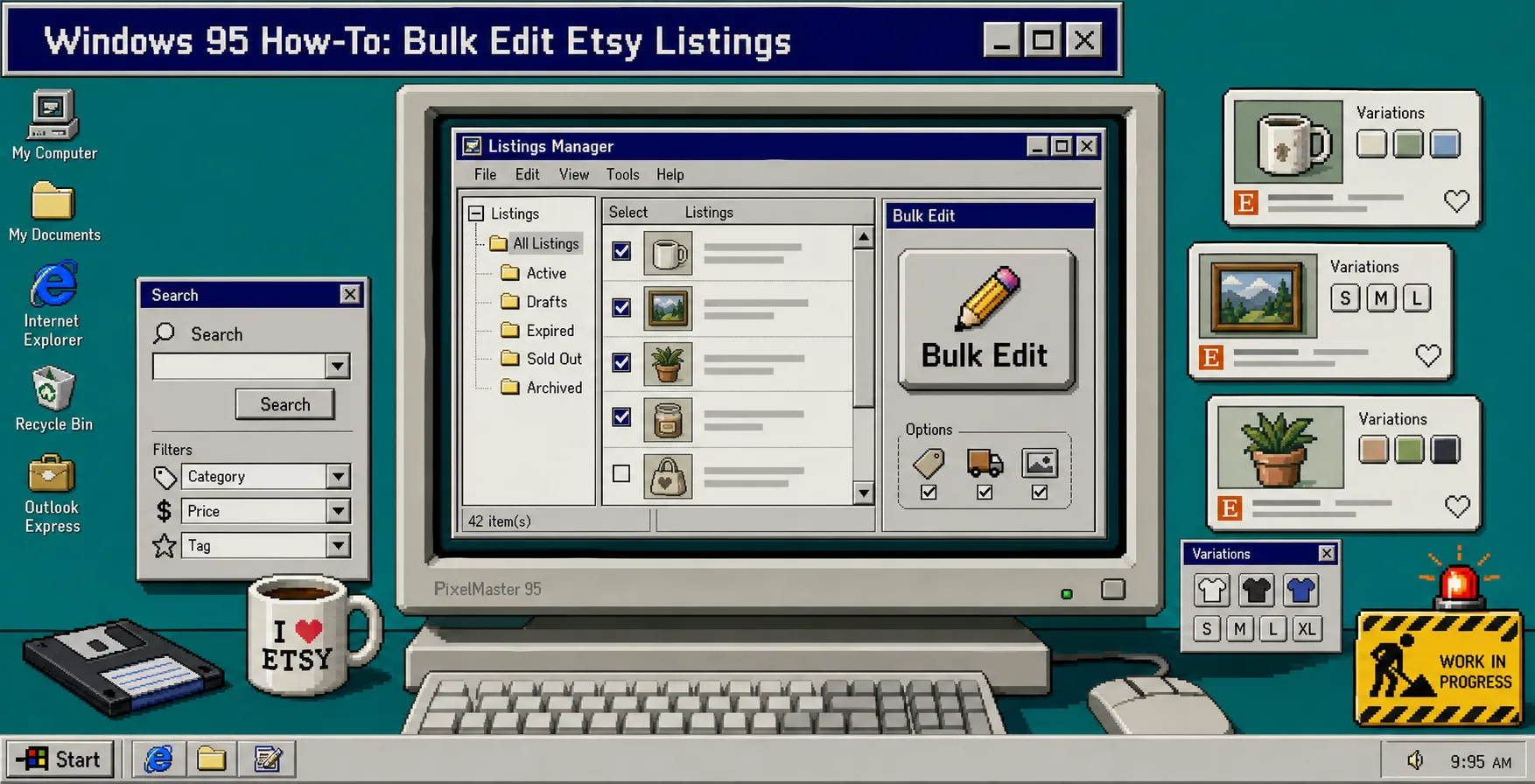
How to Bulk Edit Etsy Listings Without Spreadsheet Chaos
If you manage more than a handful of Etsy listings, one-at-a-time edits turn into a trap. Prices drift, tags go stale, descriptions need the same search/replace fix, and variation updates become risky fast. Bulk Listing Editor for Etsy keeps that work in one place with a simple flow: search, select, and apply the change.
The app has a 7-day free trial and a simple $8/month subscription after that. If you want to try it first, start at bulk-listing-editor.webyze.com.
1. Open the right mode
Use Listings mode when you want to change product-level fields. Use Variations mode when you want to change option-level data such as colors, sizes, or other variation choices. That split matters because a listing and its variations are not the same thing.
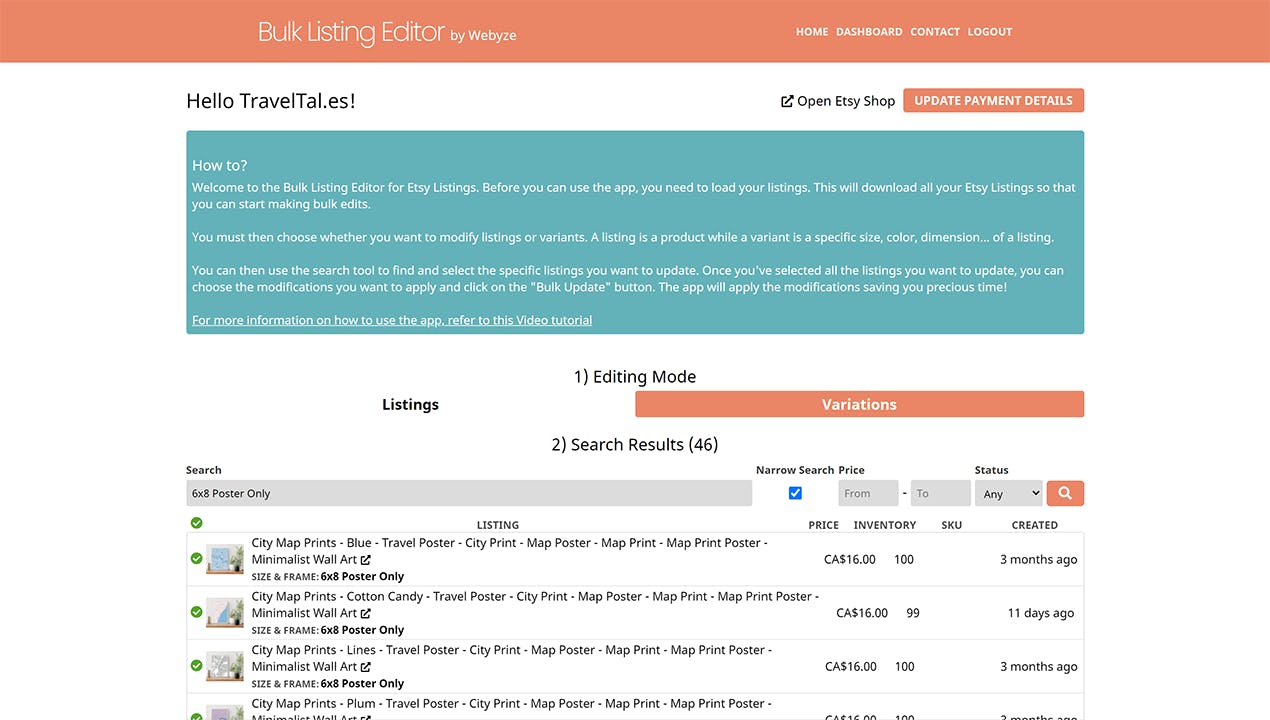
On the dashboard, you should be looking for the path that gets you to the right set of listings first. The safest bulk edit starts with the smallest possible scope.
2. Search for the listings or variations you actually want to change
Start by narrowing the list before you touch anything else. Search for the product family, a variation name, or another term that lets you isolate the rows you mean to update. If the search returns too much, tighten it before you continue.
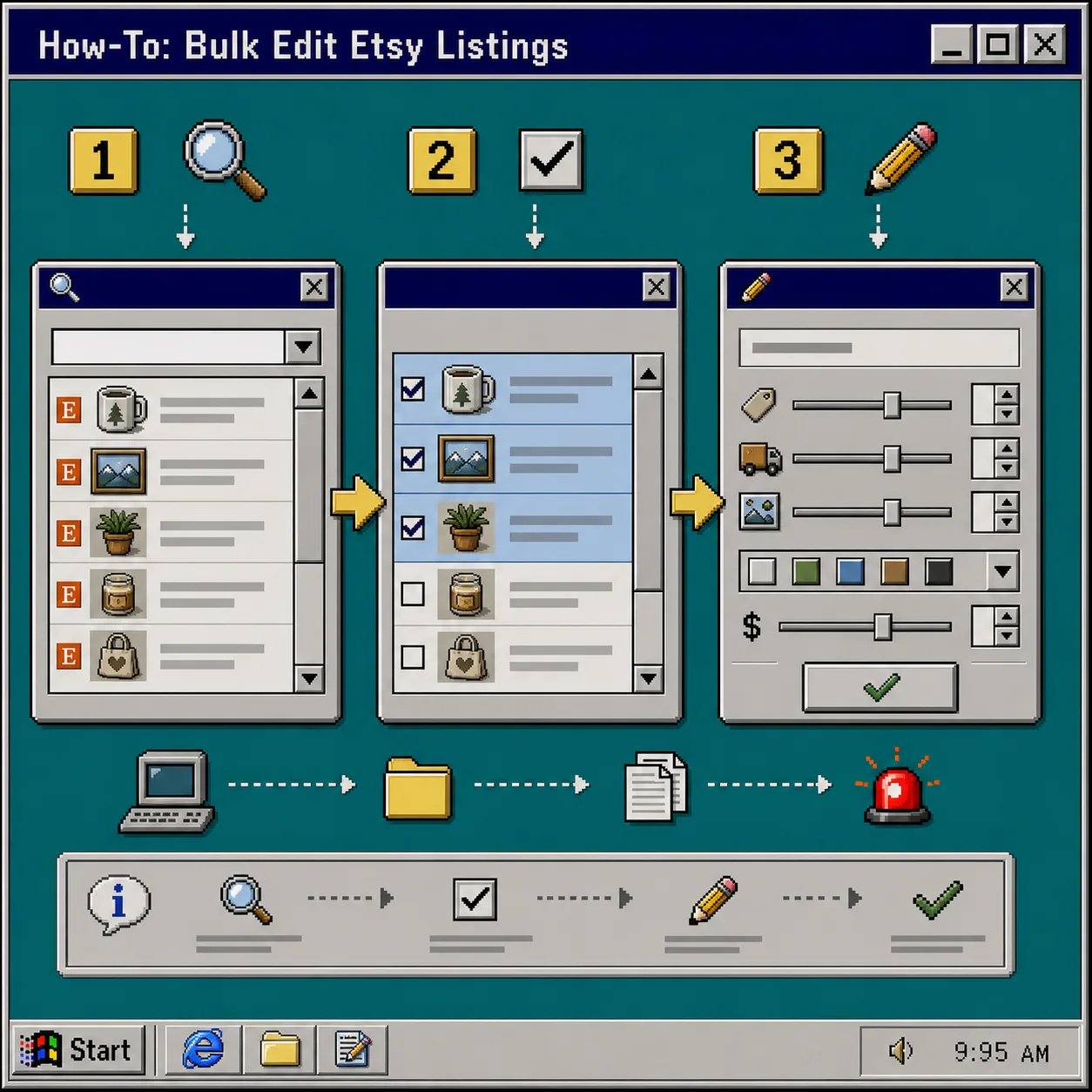
This is the part that saves time later. A good search makes the selection step easy to verify instead of turning it into guesswork.
3. Select only the rows you can explain
Check the exact listings or variations you want to change, then stop and count them. If the set looks too large or too broad, go back and refine the search.
The app is built for batch work, but batch work only helps when your selection is deliberate. If you cannot explain why each row is included, do not click the bulk action yet.
4. Choose the field change once
Bulk Listing Editor supports a wide range of updates:
- Add, rename, or remove variations
- Adjust prices
- Add or remove tags or materials
- Change titles and descriptions, including search/replace
- Adjust personalization settings
- Upload, reorder, or remove images
- Adjust inventory
- Change SKUs
- Add and remove variation options
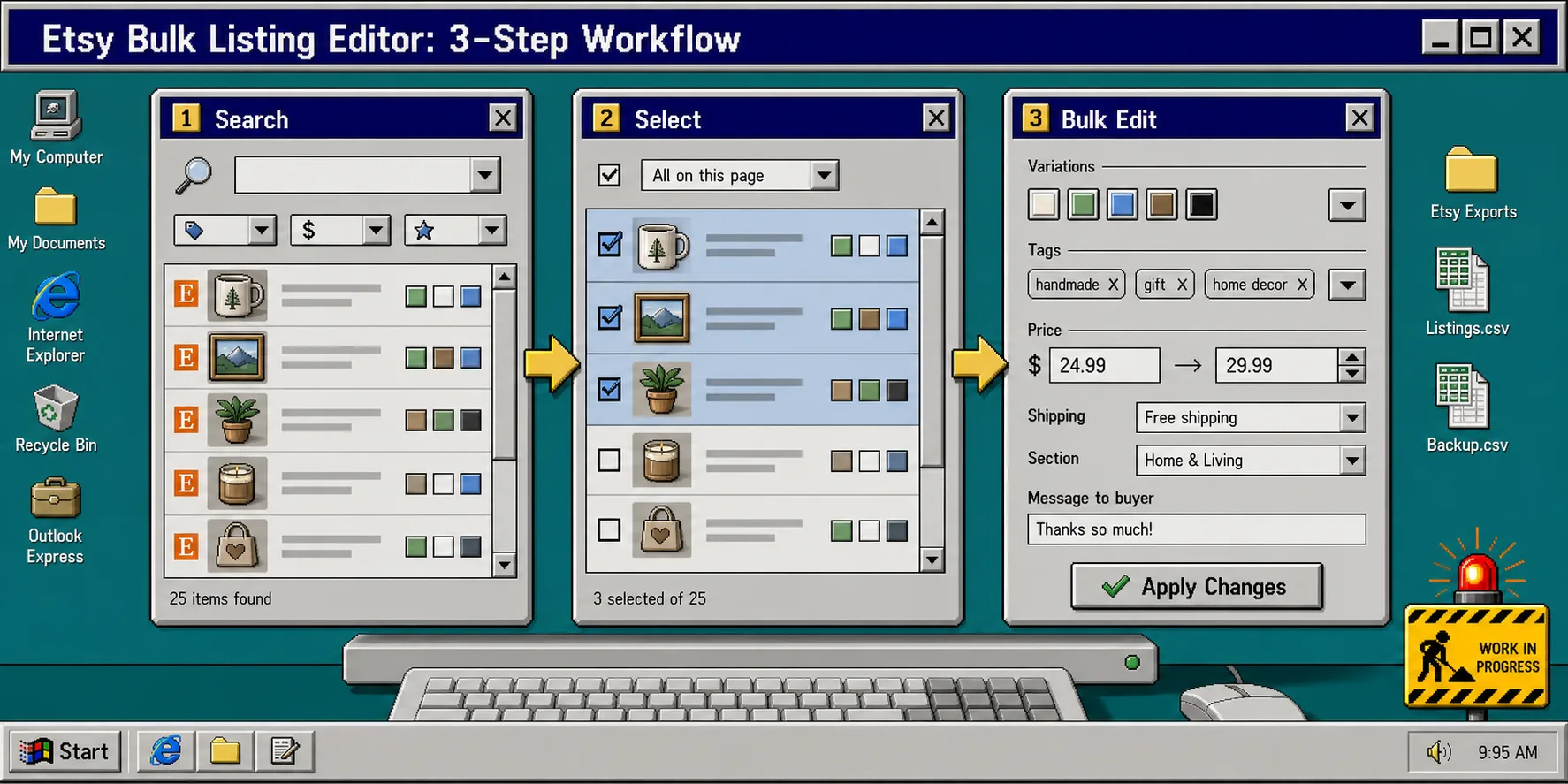
Pick the smallest change that solves the problem. If you only need to update prices, do not bundle that with unrelated description cleanup. If you only need to fix one term across multiple descriptions, use search/replace instead of manual rewriting.
5. Use Variations mode for colors and sizes
If the change lives inside the option set instead of the listing itself, switch to Variations mode. That is the right place for color changes, size changes, and other option-level edits across multiple listings.
This keeps you from treating every product like it has the same structure. A color update on one listing should not force you into a manual one-by-one fix on the rest of the shop.
6. Run Bulk Edit and wait for the batch process
Once the search is tight, the selection is right, and the change is specific, click Bulk Edit. That starts the batch edit process.
At that point, your job is not to improvise more edits. Your job is to let the batch run, then confirm that the right fields changed and nothing else moved.
Troubleshooting the common mistakes
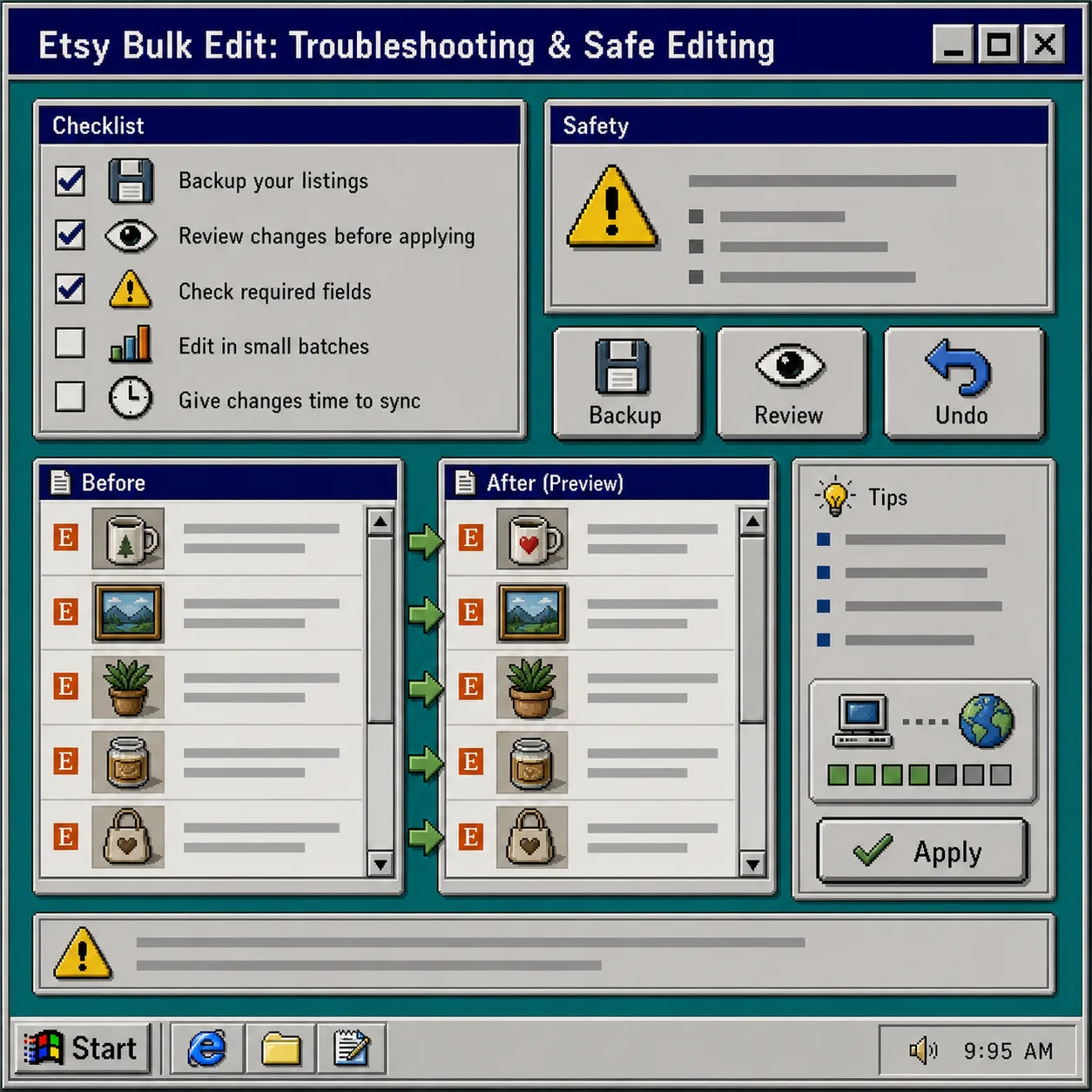
Use this checklist when something feels off:
- If too many listings match, tighten the search before selecting anything.
- If the wrong rows are highlighted, clear the selection and start over.
- If you are changing colors or sizes, switch to Variations mode instead of Listings mode.
- If you only need one field updated, keep the edit narrow and skip unrelated changes.
- If a search/replace job looks broad, test the wording on a smaller set first.
That is the part that keeps bulk editing from becoming a cleanup project of its own.
Why this workflow stays sane
The app separates search, select, and modify, so you always know which step you are in. That matters when you are cleaning up prices, tags, titles, descriptions, images, inventory, and SKUs across a shop that has grown faster than your manual editing habits.
If you manage more than one storefront, these related guides may help too:
- How to Bulk Edit Etsy Listings Without Breaking Variations
- How I Set Up an Etsy Catalog Feed for Instagram and Google Shopping
- How to Bulk Edit Shopify Products, Variants, and SEO Fields Without Mistakes
- How to Create Studio-Quality Shopify Product Photos From Plain Shots
Final Take
If you want a lighter way to handle listing maintenance, stop editing Etsy one listing at a time. Use Bulk Listing Editor to batch the change, keep the scope tight, and finish the job in one pass.
Start with the free trial, run one small cleanup, and keep the next shop update out of your spreadsheet queue.