How to Set Up a Shopify AI Agent with Scoped Permissions
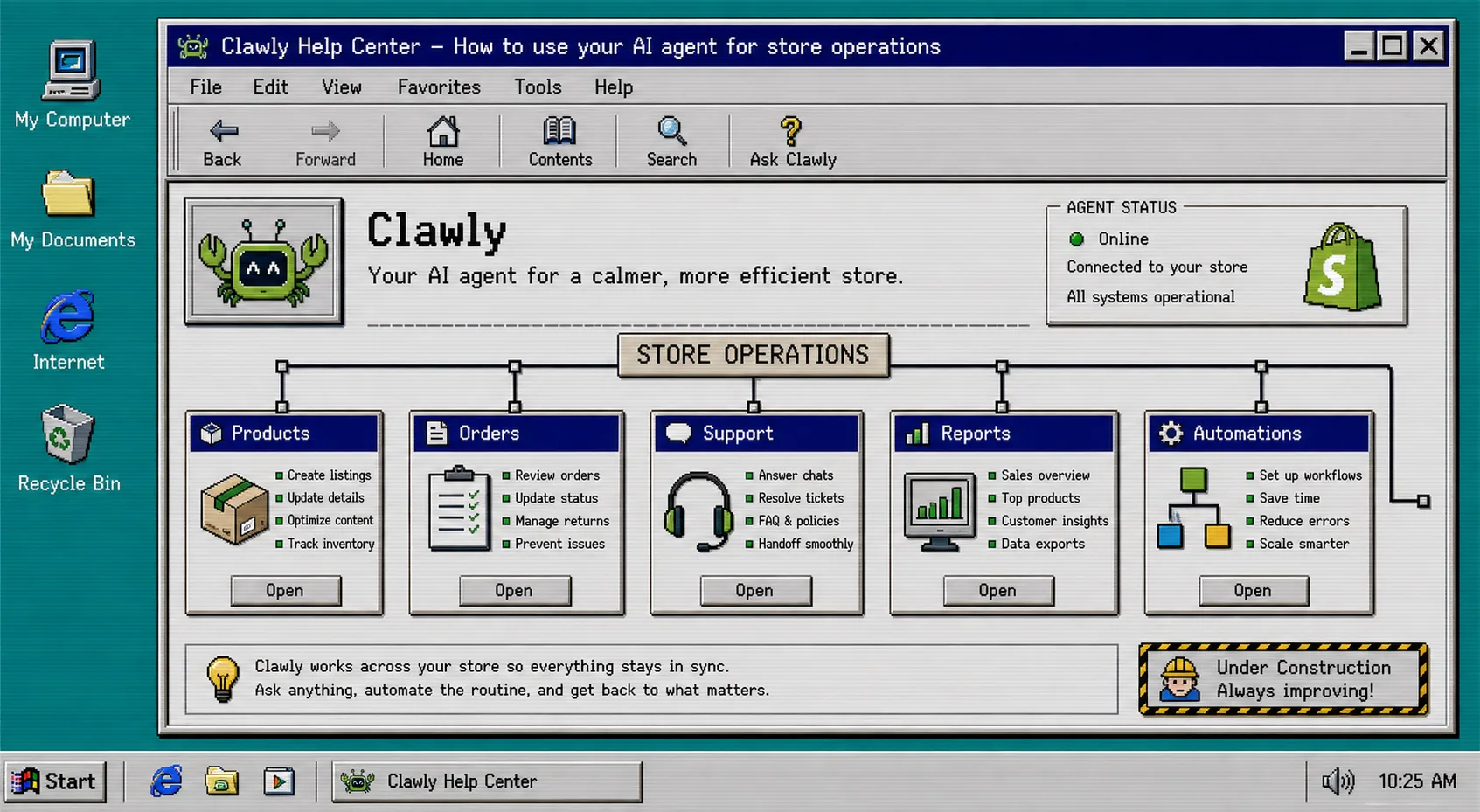
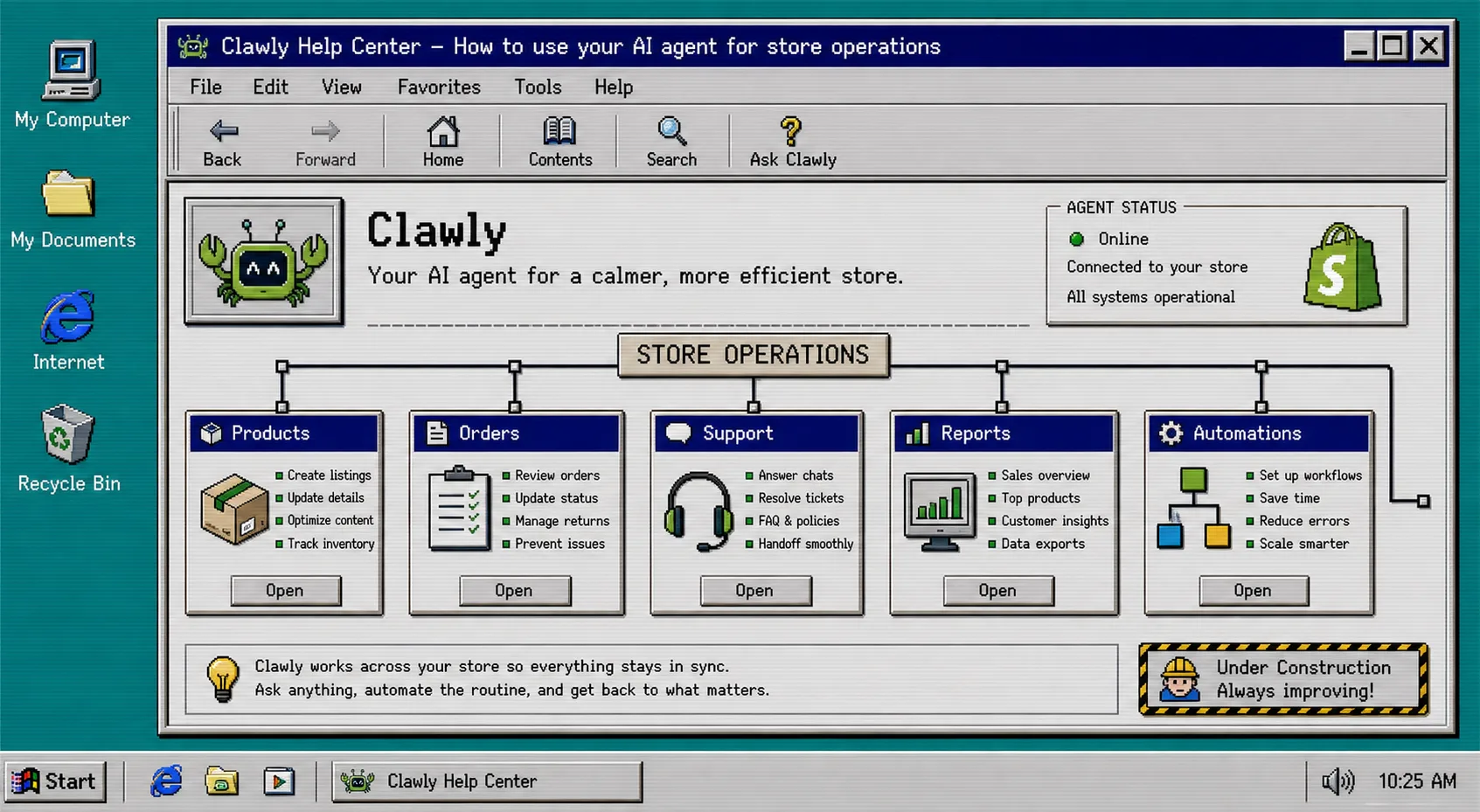
If your store keeps asking for the same work every day, Clawly is a practical place to start. It is positioned as OpenClaw for Shopify: an AI agent for store operations, marketing, product work, monitoring, and support, with scoped permissions so you can decide what each assistant can see and change.
That matters because the problem is not finding another chatbot. The problem is finding an assistant that can help with real Shopify work without turning into an access-risk headache. Clawly gives you a 7-day free trial, and the pricing starts at $9.99/month if you keep using it.
If you want the source product pages, start with Clawly or the Shopify App Store listing.
1. Pick one job that repeats every week
Start with one store task, not five. The best first jobs are the ones that already cost you time and follow a pattern:
- A daily sales report
- A low inventory alert
- A product description cleanup pass
- A support reply draft
- A weekly summary for store activity
Choose the task that is repetitive, easy to check, and low risk if it needs review. That is the right first job for an AI Agent for Shopify.
The point of the first run is not full automation. The point is to prove that the assistant can do one useful thing cleanly.
2. Create the assistant around one instruction
Write one short instruction that says what the assistant should do, when it should do it, and what result you want back. Keep the scope tight.
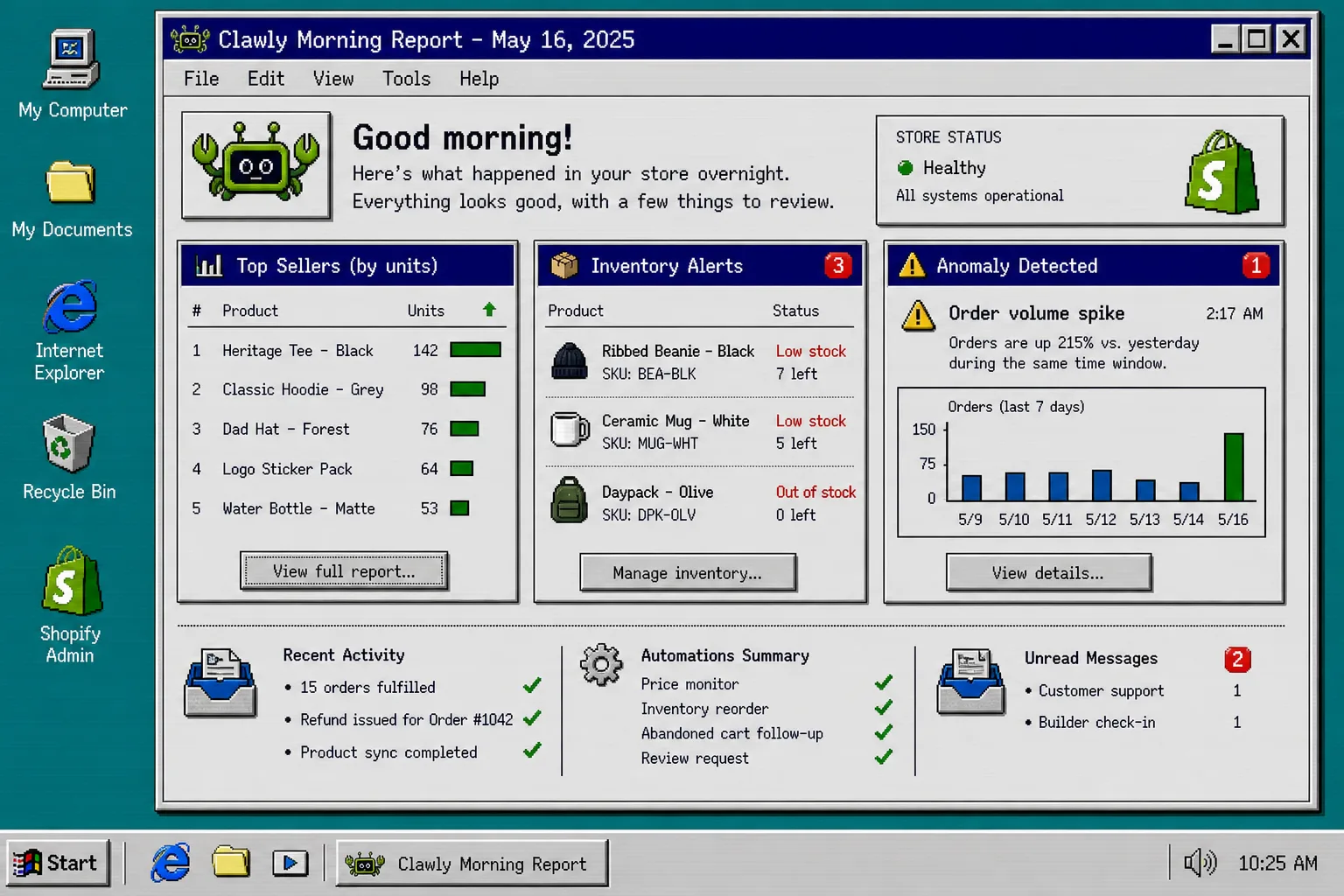
For example, a daily report assistant might be told to check the store each morning, summarize top sellers, flag inventory that is running low, and mention anything unusual in plain language.
If you are setting up a support assistant, keep the first version limited to drafting replies instead of sending them. If you are setting up product cleanup, keep it to one field or one category at first.
3. Connect only the tools the task needs
Clawly can connect to Shopify and a long list of external tools, including Google Sheets, Slack, Instagram, Meta Ads, Notion, Gmail, and other services listed on the product page. Do not connect everything just because it is available.
Only connect the tools required for the first task. If the assistant is supposed to send a report, it may only need Shopify and Slack. If it is supposed to prepare content, it may need Shopify plus a document or messaging tool. Keep the tool list narrow until the workflow works the way you want.
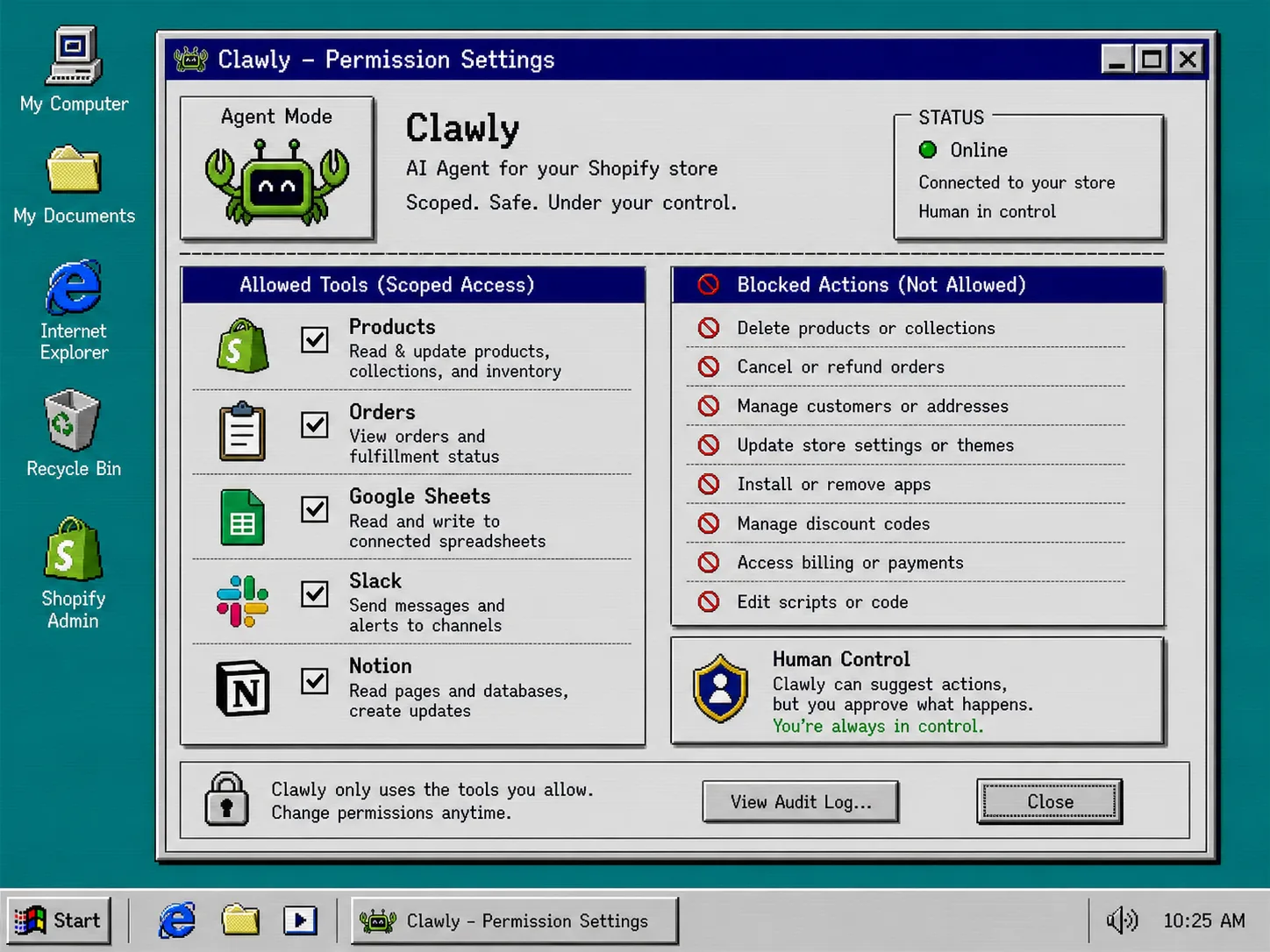
This is the part that keeps the setup sane. Scoped access is the difference between a helpful assistant and a risky one.
4. Set guardrails before you turn it loose
Before the assistant takes action, decide what it can read and what it can modify. Start with the smallest practical permissions set.
If the job is reporting, read access may be enough. If the job is product cleanup, limit write access to the exact product data you want changed. If the job is support drafting, keep the first version on draft-only output until you trust the result.
That is the real workflow here:
- Grant only the access the first task requires.
- Run one test.
- Review the output.
- Expand permissions only after the output is consistently correct.
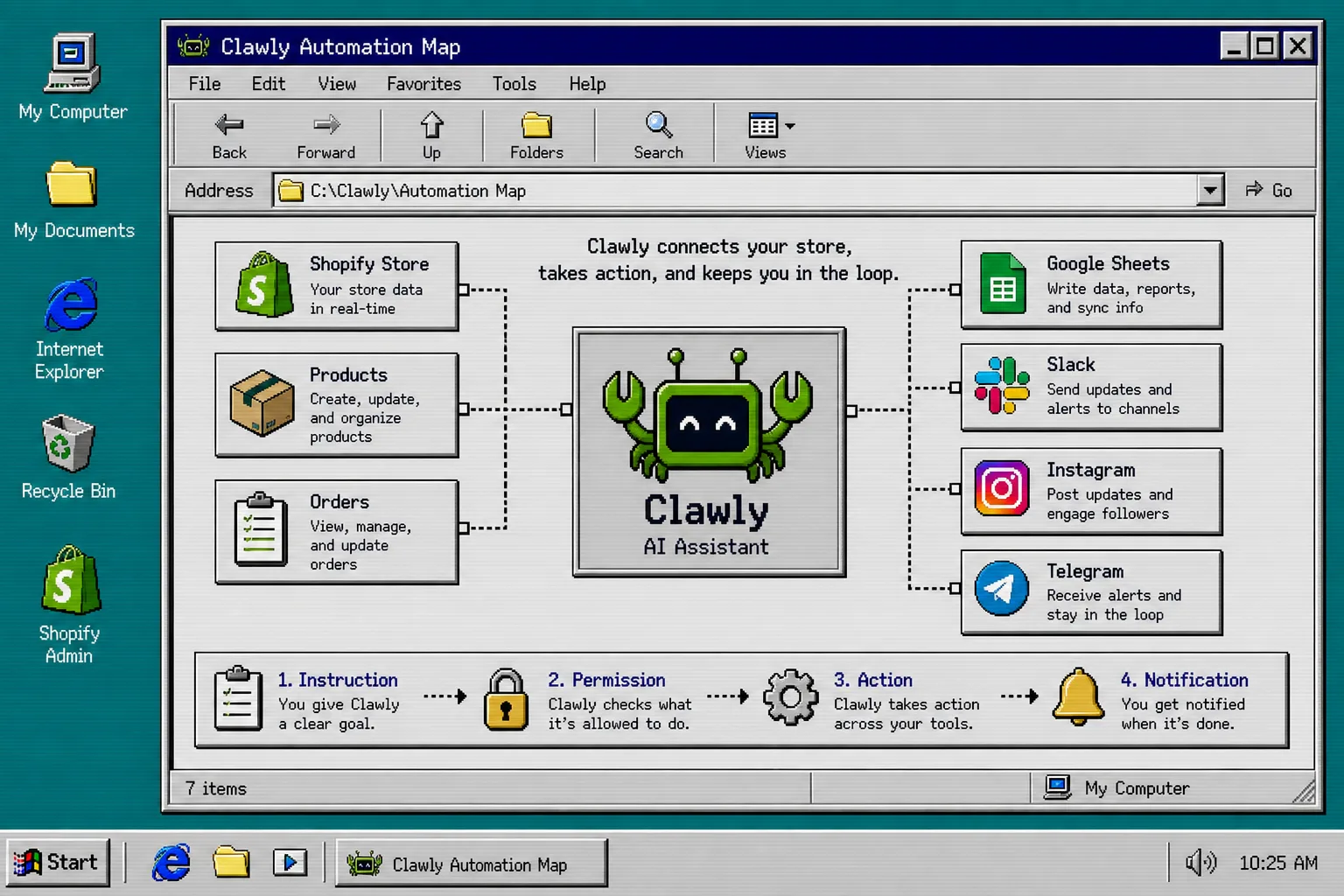
That workflow is also why Clawly is more useful than a generic AI layer. The assistant is supposed to work inside a store with boundaries, not outside them.
5. Start with a simple recurring workflow
The easiest recurring workflow is a daily or weekly report. It is predictable, easy to validate, and useful even when it is not perfect.
Ask the assistant to do one of these:
- Send a morning sales summary
- Flag products that are getting low on stock
- Draft a short support status note
- Summarize store changes from the previous day
Once that works, move to the next workflow. The same setup can later support catalog cleanup, marketing drafts, or monitoring alerts.
If you are building content workflows alongside store automation, these related guides show the same idea from a different angle: How to Keep a Shopify Blog Publishing Without Generic AI Drafts, How to Build a Shopify Blog Automation Workflow That Still Sounds Human, How to Build a Product-Aware Shopify Blog Workflow That Publishes on Schedule, and How to Turn Shopify Products Into SEO Blog Posts on a Schedule.
Troubleshooting the first setup
If the first assistant run feels off, the fix is usually small.
- If it can see too much, remove one integration and rerun the test.
- If the output is too broad, reduce the assistant to one job and one result.
- If the report is noisy, ask for fewer fields and a shorter summary.
- If you do not trust the action, keep the human review step in place and use drafts first.
- If the workflow only works half the time, tighten the instruction before adding more tools.
Final Take
Clawly is most useful when you treat it like a store operator with a narrow job, not a free-roaming bot. Start with one safe workflow, keep the permissions tight, and expand only after the first run looks right.
If you are ready to test that setup, open Clawly and build the first assistant around a daily report or low inventory alert.