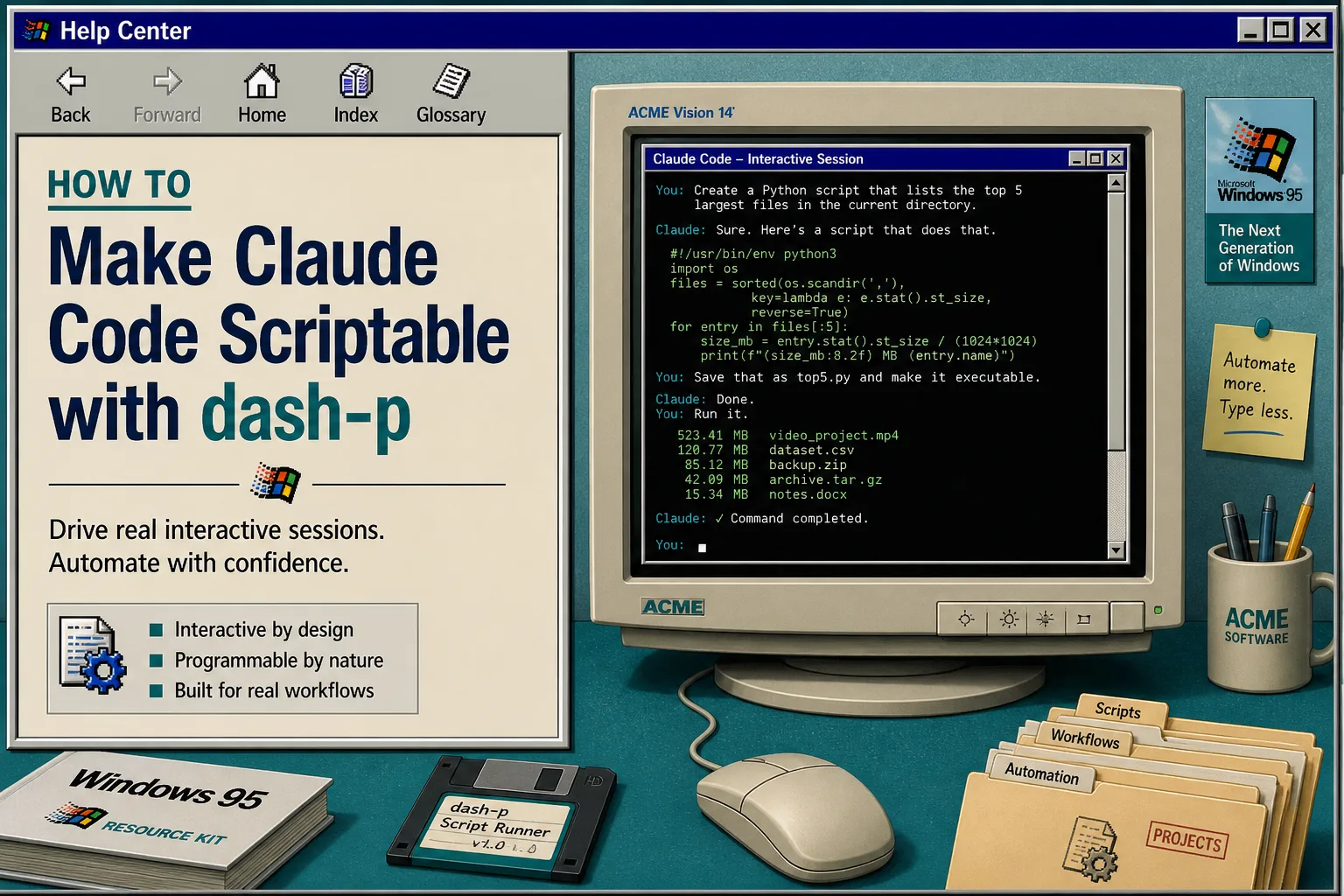
dash-p is the shortest path I found for turning the real Claude Code terminal session into something you can call from Bash or TypeScript. It launches the official claude command, feeds it input programmatically, and reads the rendered terminal output back out. That means you can keep the same login, permissions, and local workflow you already use, instead of switching to a separate headless path.
Use it when you want local scriptability, not a replacement for Claude Code itself. If your shell exports ANTHROPIC_API_KEY, Claude Code can use that key instead of your subscription, so check your environment before you test. Anthropic documents that behavior in Use Claude Code with your Pro or Max plan. The repo and package live at dash-p on GitHub and dash-p on npm.
1. Check the prerequisites
Make sure the basics are in place before you automate anything:
claudeopens normally from your terminal.node -vreports version 20 or newer.- You know whether you want your normal Claude Code session or an API-key-backed session.
- If Claude Code opens the wrong account, run
/logout, thenclaude update, then restart the terminal. - If you want subscription-backed Claude Code, remove
ANTHROPIC_API_KEYfrom the shell that will run dash-p.
After this step, you should be able to open Claude Code manually without any wrapper in the way.
2. Install dash-p and run one prompt
Install the CLI first, then try a short prompt:
npm install -g @ybouane/dash-p
dash-p "summarize this repo"
If you do not want a global install, test it with:
npx @ybouane/dash-p "summarize this repo"
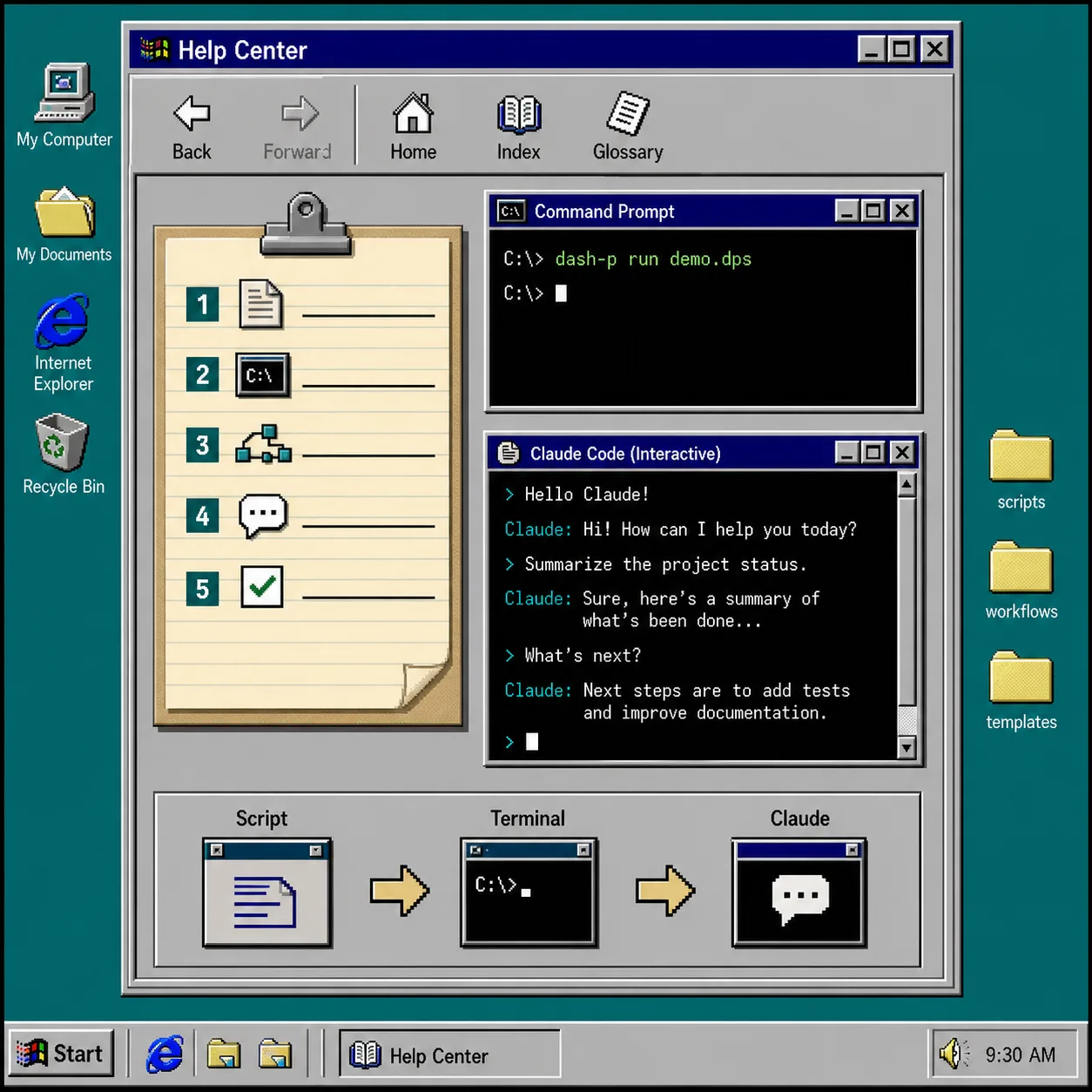
The important thing is not the specific prompt. It is that you are driving the real interactive Claude Code session and getting usable output back from the same workflow you already trust.
3. Wrap it in a Bash script
Once the CLI works, put it behind one command you can reuse. A simple wrapper is enough:
#!/usr/bin/env bash
set -euo pipefail

repo_dir="${1:-.}"
shift || true
prompt="${*:-Summarize this repository in five bullets.}"

cd "$repo_dir"
dash-p "$prompt"
Save that as something like scripts/repo-summary.sh, make it executable, and call it from the repo root:
chmod +x scripts/repo-summary.sh
./scripts/repo-summary.sh . "summarize the unstaged changes"
That is the first point where dash-p starts to feel different from a one-off terminal trick. You are no longer manually retyping the same request; you are turning Claude Code into a local command that fits the workflow you already have.
If you want the longer backstory on why this matters, How I Script Claude Code From Bash Without Switching to the Agent SDK is the closest companion piece.
4. Switch to TypeScript when you need structured output
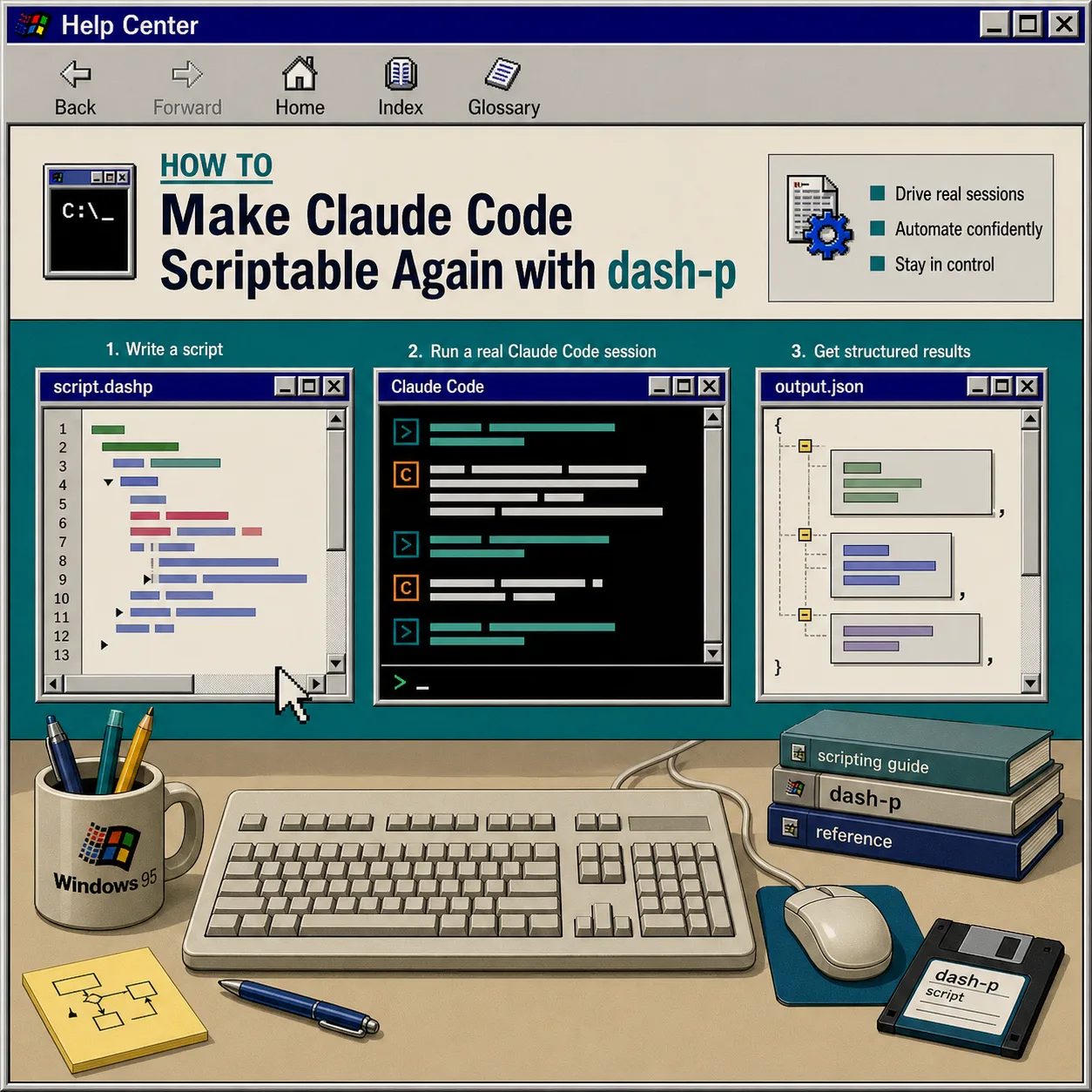
The CLI is good for quick automation. The TypeScript query() API is better when you want to stream results into your own code.
import { query } from "@ybouane/dash-p";

for await (const message of query({
  prompt: "Review this repo and return three risks plus three next steps.",
  options: {
    model: "sonnet",
    includePartialMessages: true,
  },
})) {
  if (message.type === "result") {
    console.log(message.result);
  }
}
That shape should feel familiar if you have used SDK-style agent interfaces before. The difference is that dash-p still drives the real Claude Code TUI locally instead of asking you to build around a separate headless protocol.
If you want a broader view of where this fits, How to Build Subscription-Aware Claude Code Workflows With dash-p, How I Use dash-p for Repo Summaries and Structured Output, and How to Build a Local Query API for Claude Code With dash-p are the nearby follow-ups.
5. Decide where it fits best
Use dash-p for local automation that benefits from the same Claude Code session you already use:
- Repo summaries before a review.
- Release-note drafts from recent changes.
- Small refactors you want to run from a shell script.
- Structured output you want to inspect locally before trusting it.
Do not force it into jobs that need a stable headless API, long-running unattended execution, or a workflow that must survive UI changes without any human review. dash-p is powerful because it uses the real interface. It is also tied to that interface, so terminal layout and Claude Code updates can matter.
If you are comparing billing and usage paths, Anthropic’s Claude Code costs and pricing pages are the reference points.
6. Troubleshoot the usual failures
If the wrapper does not behave, check these first:
- If the wrong account opens, run
/logout, thenclaude update, then restart the terminal. - If the output suddenly stops looking like the interactive session you expect, check terminal width and the installed Claude Code version.
- If Node native modules fail to install, install your platform build tools and rerun the install.
- If
ANTHROPIC_API_KEYis still set, remove it from that shell before testing again. - If dash-p starts missing output after a Claude Code update, treat that as a terminal-profile or TUI-layout problem, not a prompt problem.
Next step
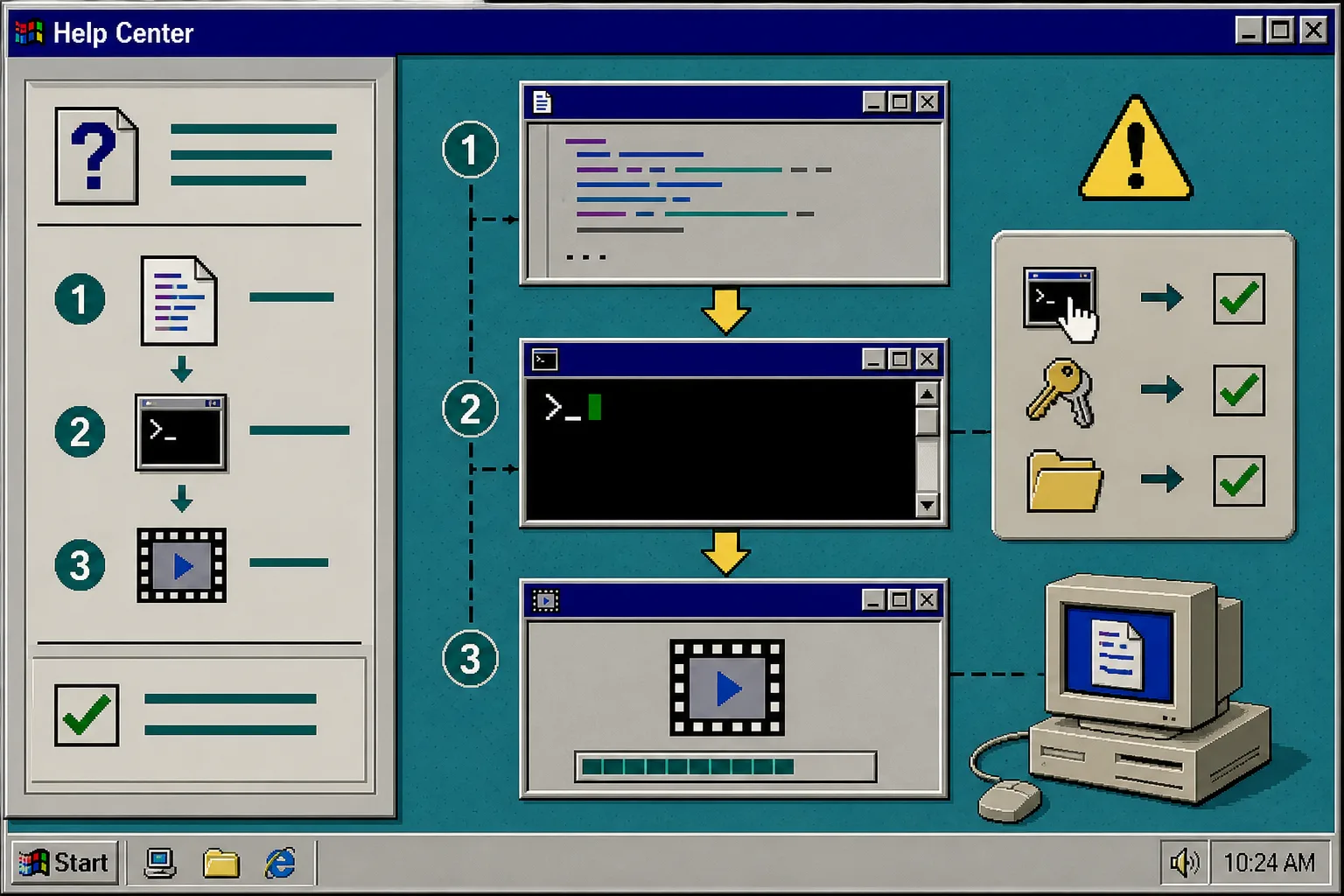
If you want the shortest path forward, install dash-p, run one real repo prompt from Bash, and decide whether the Bash wrapper or the query() API is the cleaner entry point for your workflow. That is usually enough to tell you whether Claude Code should stay interactive or become something you script around.