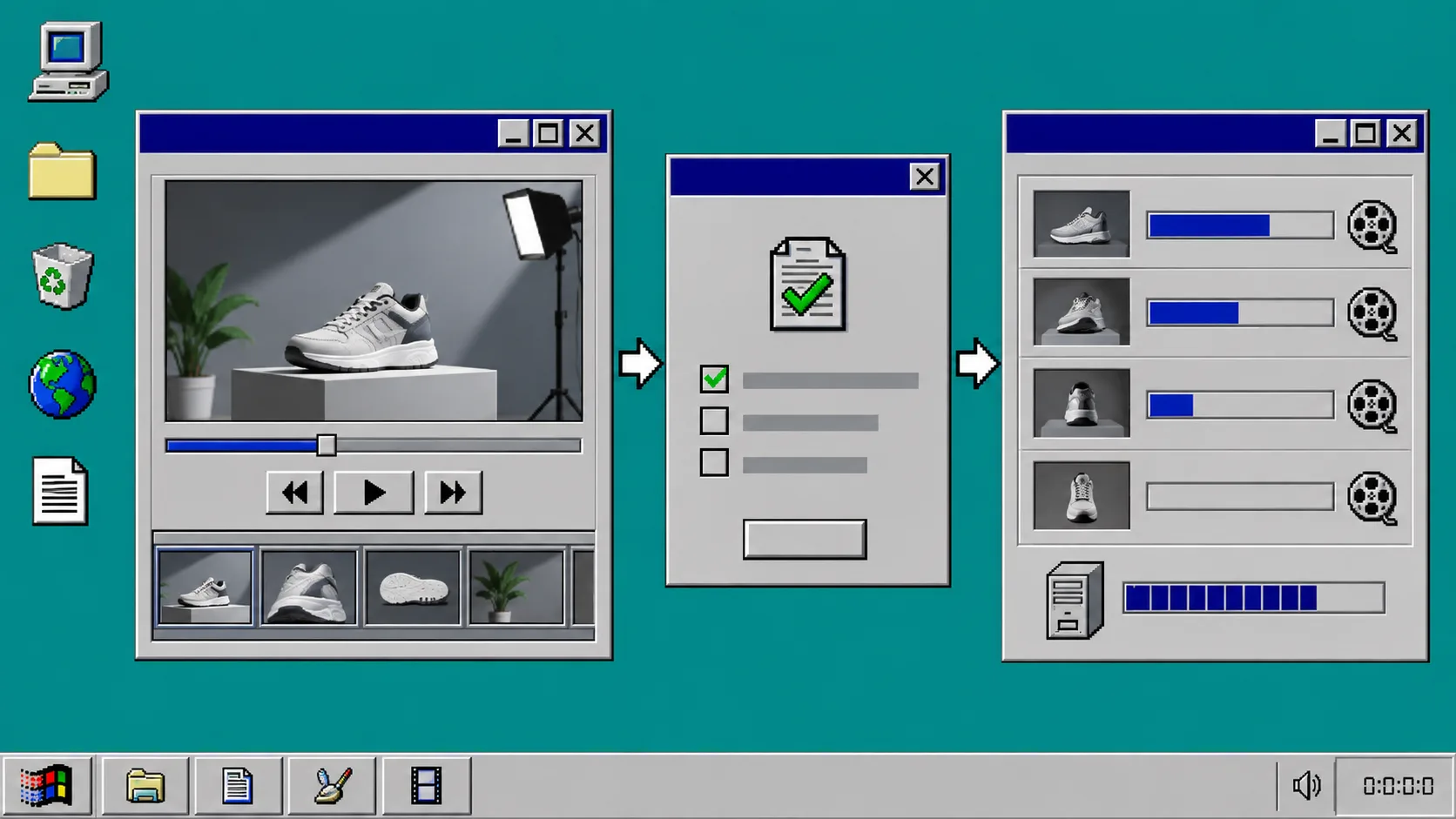
An automated product video workflow should not send every draft straight to a final render. The fastest way to create a large pile of unusable files is to make generation the last decision in the process. A short review step gives a marketer or store owner a chance to catch the wrong product image, an awkward line of copy, or a clip that simply does not fit the campaign.
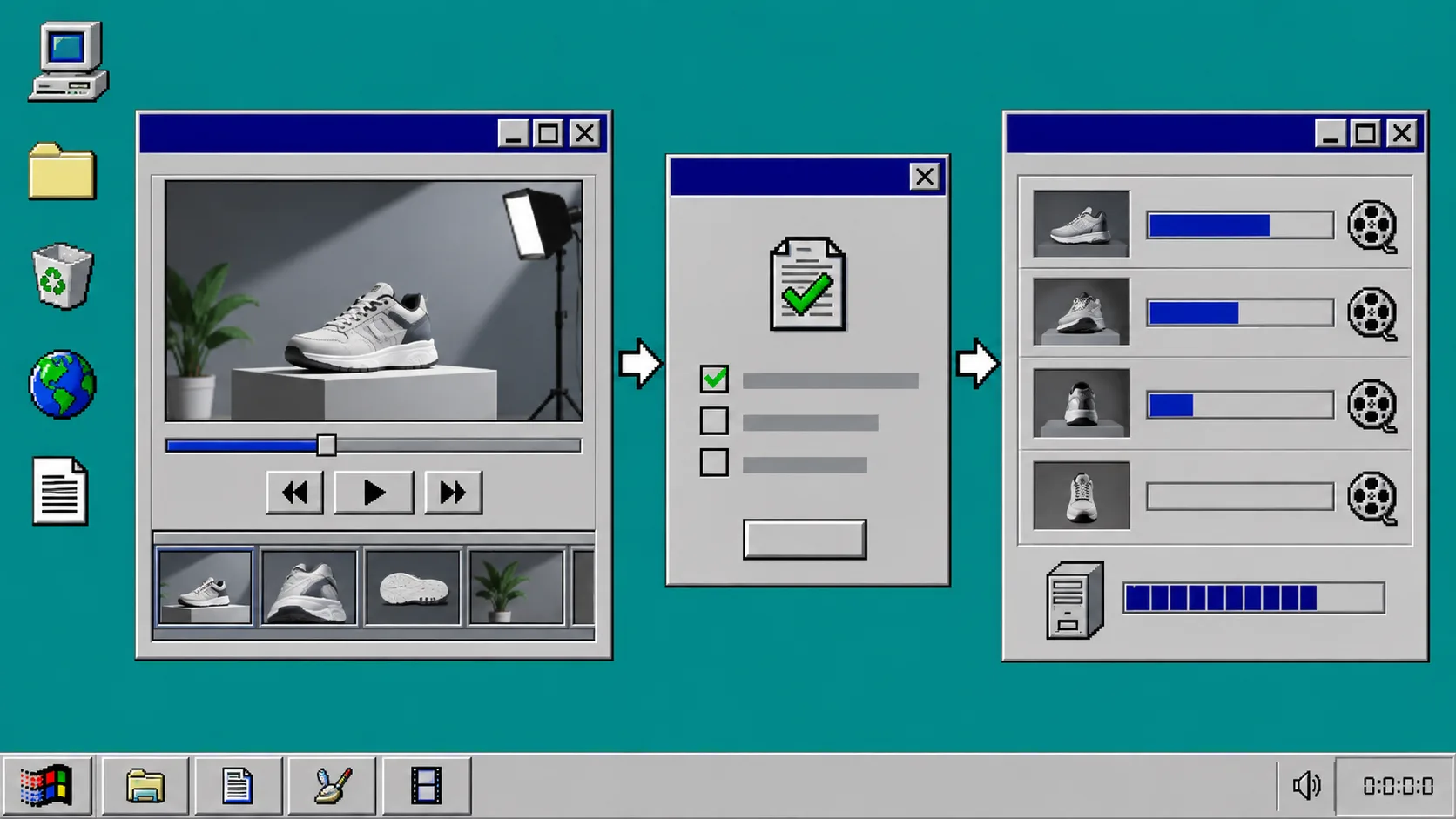
This guide explains a simple workflow: create a structured video draft from product data, preview it, approve or revise it, then render the approved snapshot. VideoFlow is a useful foundation because it keeps a video as portable VideoJSON that can be previewed in the browser, edited in a React interface, and rendered in the browser or on a server.
Before you start
Pick one narrow kind of video for the first version. A 10-second product feature clip, a catalog-driven social post, or a customer recap video is easier to review than a fully open-ended marketing film.
Write down the inputs the workflow is allowed to use:
- Product title and short benefit.
- Approved product image or video assets.
- A template identifier.
- A script or copy block.
- A target format and duration.
- A person or team who can approve the output.
The aim is not to remove people from the process. It is to let them review a useful draft instead of assembling every scene by hand.
1. Create a draft from structured inputs
Start by turning the product data into a defined video job. Keep the product reference, selected assets, copy, template version, and draft VideoJSON together. This gives the review screen enough context to answer a practical question: what exactly am I approving?
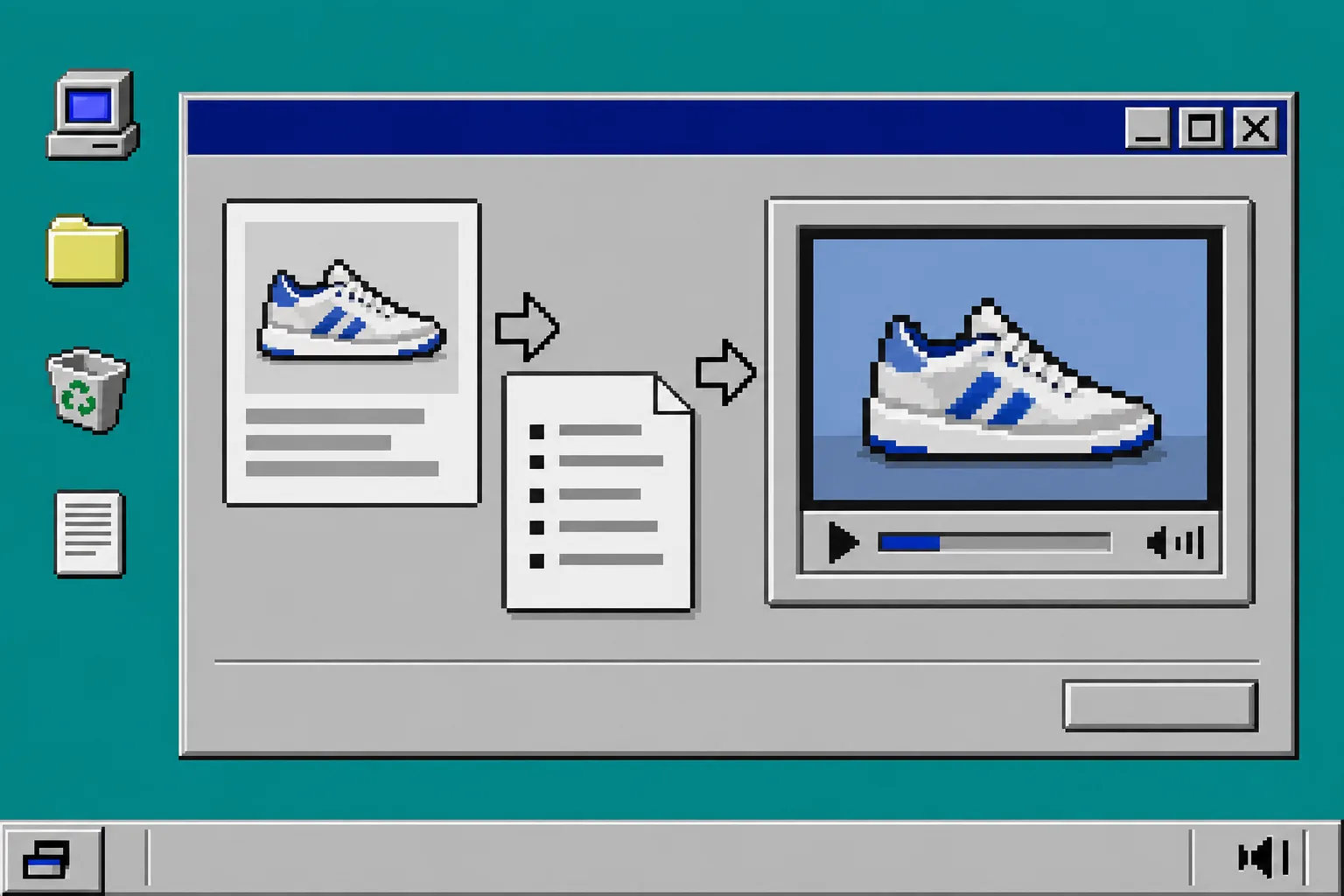
With VideoFlow, the project can be written as a TypeScript builder flow and compiled to VideoJSON. The same structured object can then power a live DOM preview, an embedded editor, and a final renderer. That matters because you do not want the approval screen to show one version while the renderer creates another.
What you should see: a saved draft that includes the source product data and a previewable video definition, not only a temporary MP4 file.
2. Validate the draft before a person reviews it
Do the boring checks before the draft reaches a reviewer. Confirm that the product image exists, the script is not empty, the call to action fits the intended duration, and the selected template supports the supplied assets.
A validation error should be specific. “Missing product image” is useful. “Video generation failed” sends someone hunting through the wrong part of the workflow.
Add any business rules that keep the content on-brand. You might require a price source, disallow a claim that has not been approved, limit text length, or require a different template for a product with multiple variants. These rules are easier to maintain when the video is represented as data rather than a collection of opaque render files.
3. Show a preview with clear approval choices
The review screen should be small and decisive. Show the video preview, the product it belongs to, the template version, the script, and the actions that matter: approve, request changes, or discard.
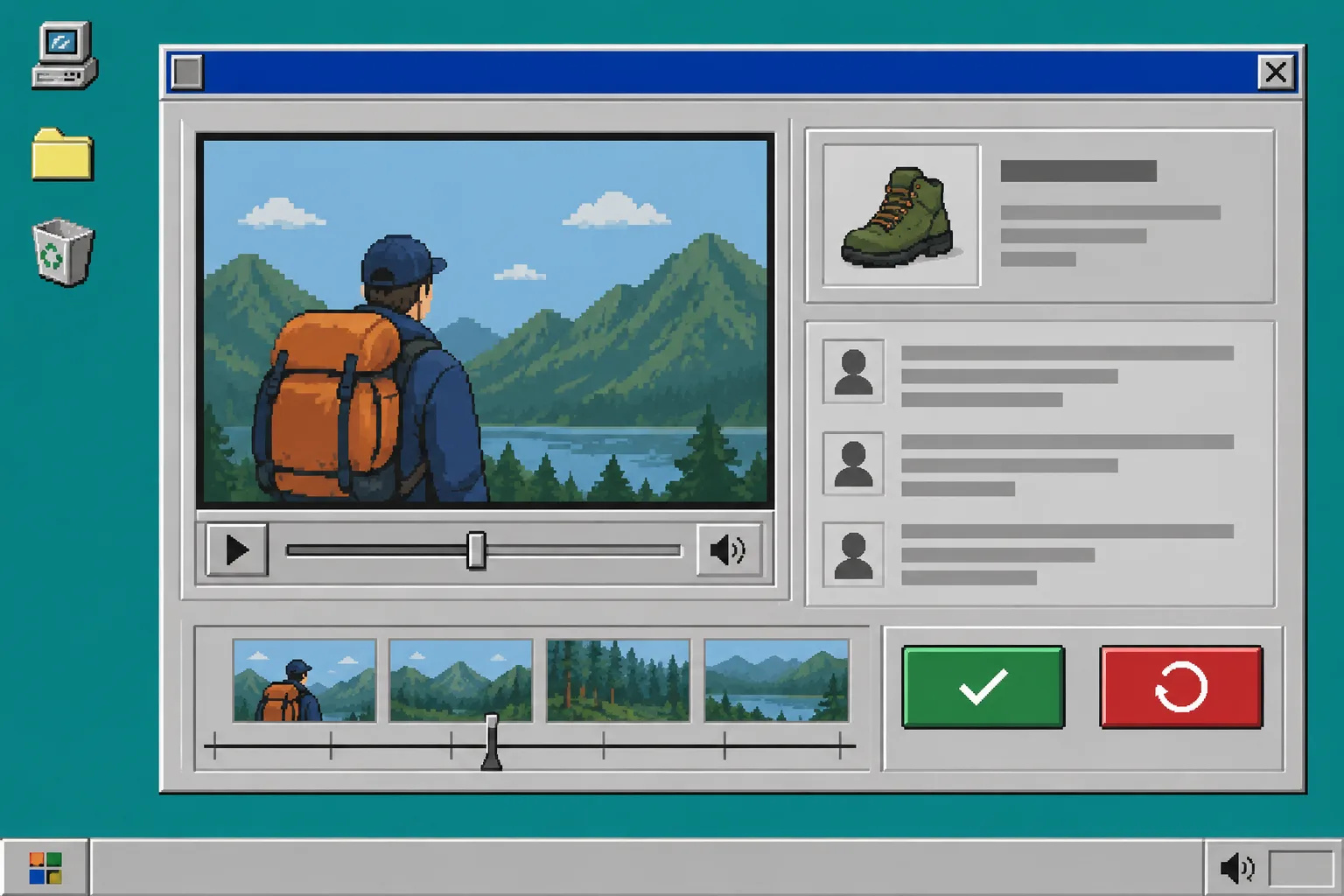
Do not make the reviewer guess which version they are looking at. Put the product name and draft status beside the preview. If there are multiple versions, label them with a revision number and keep the newest draft obvious.
For richer edits, VideoFlow’s React video editor can provide a timeline, live preview, layer controls, trimming, uploads, transitions, effects, and undo history inside your app. For many product workflows, though, the first release only needs a few controlled changes: update the headline, choose a different image, adjust the CTA, or request a new script.
What you should see: a reviewer can accept or reject a draft without needing to learn a full video editor.
4. Freeze the approved snapshot
When a reviewer clicks approve, save an immutable copy of the VideoJSON and its asset references. This is the version the renderer should receive. Do not render whatever happens to be in the editable draft five minutes later.
A simple status flow works well:
draft: inputs are being assembled.preview_ready: the video can be reviewed.changes_requested: someone needs to revise the draft.approved: the snapshot is frozen.queued: the approved snapshot has entered the renderer.renderedorfailed: the final outcome is known.
This status history is valuable when a team asks why an export looks a certain way. You can trace the final file back to the exact product data, template, and approval decision that produced it.
5. Render through the path that fits the job
Short, one-off videos can be rendered in the browser when that suits your product. Larger batches and scheduled exports usually belong on a server-side queue. VideoFlow supports both browser and server renderers, with the same VideoJSON available for the live preview.
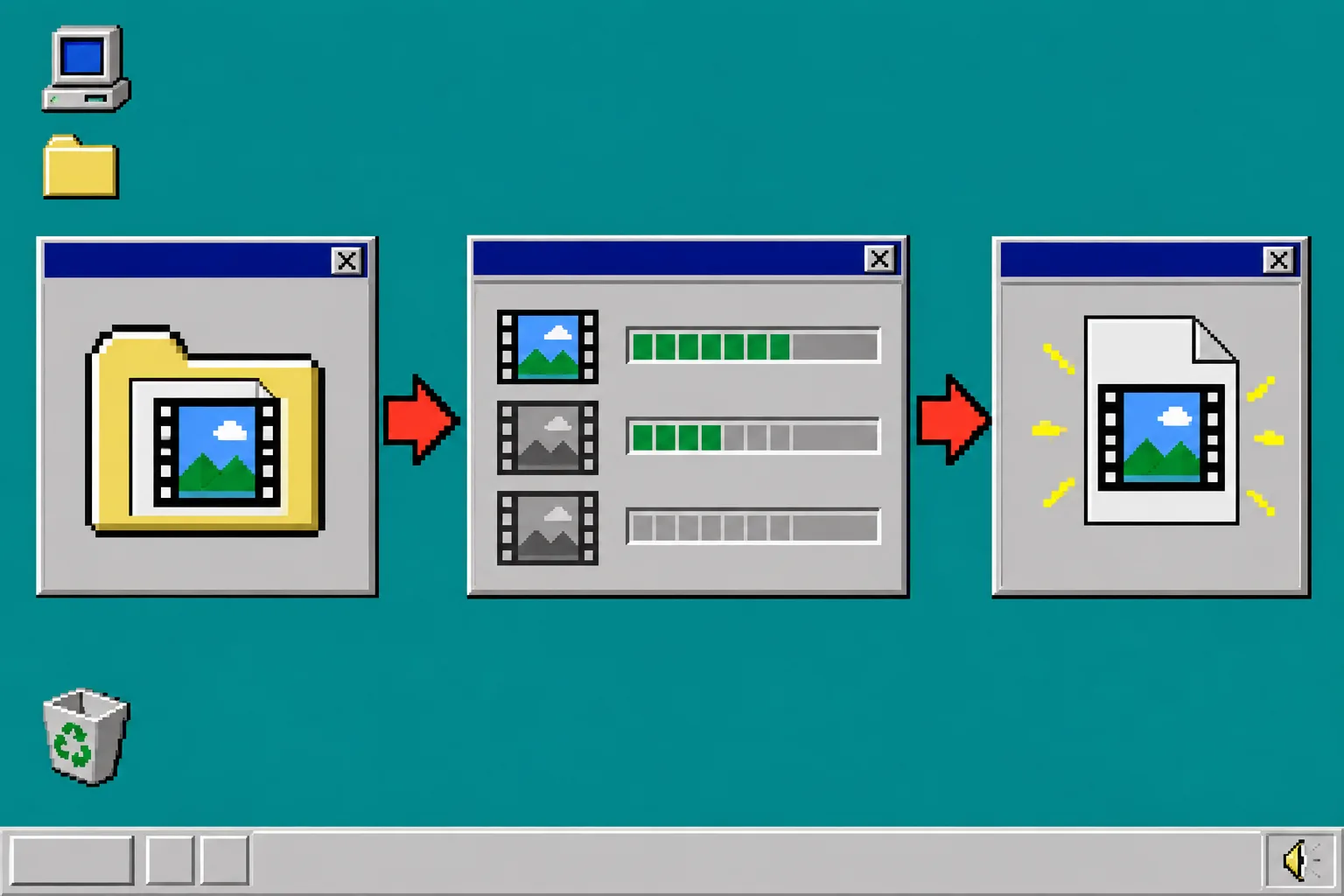
The important rule is that the renderer receives the approved snapshot. If a job fails, record the error and retry the same snapshot first. A retry should not quietly create a new version with different copy or a different asset.
Troubleshooting
The preview and final file do not match. Confirm that both are reading the same saved VideoJSON and asset references. Avoid rebuilding the project separately in the preview and render services.
Reviewers keep asking for the same change. Add that change as a controlled input or template option. Repeated requests are often evidence that the template needs one more useful setting.
The queue is full of unapproved drafts. Narrow the initial use case, set clear ownership for review, and make the preview context more obvious. A review step should be quick enough to happen.
Final recap
A review step does not slow video automation down. It prevents the expensive kind of speed: rendering and distributing the wrong creative at scale. Create a structured draft, validate it, show a clear preview, freeze the approved version, and render that version only. VideoFlow gives you the portable video layer that makes this workflow possible across previews, editors, and rendering environments.