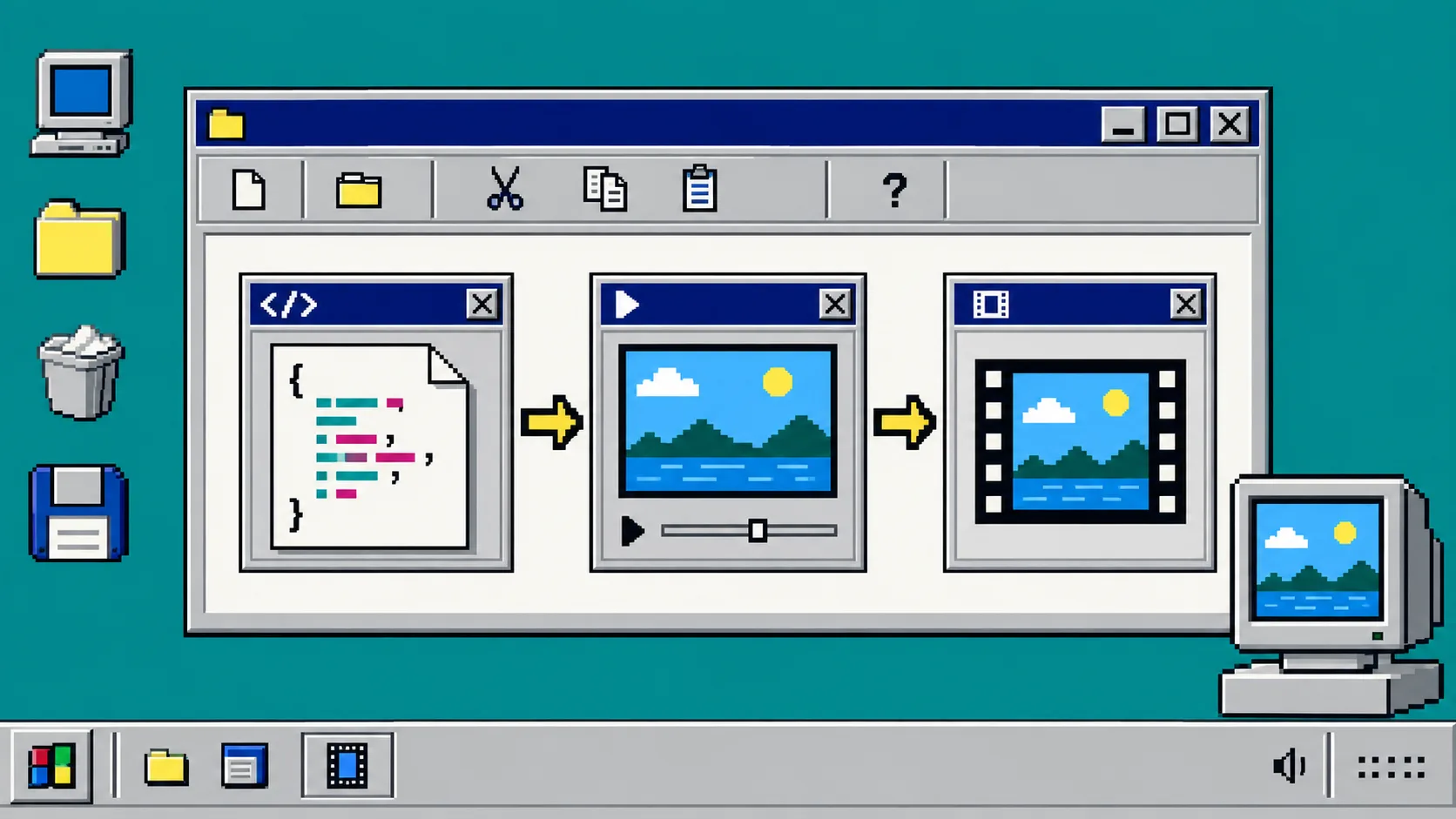
If your app can describe a video as data, it can produce repeatable MP4s without handing every job to a human timeline editor. This guide shows one dependable TypeScript shape: create a portable video document, keep it as the source of truth, preview it, render it, and hand the finished file to the next system.
You need Node.js, a TypeScript project, and a video definition. The examples use VideoFlow Core and its renderer options. VideoFlow is an Apache-2.0 open-source toolkit; it is aimed at developers building structured, repeatable video workflows rather than a prompt-only video generator.
1. Install the authoring package
Start with the piece that creates the video document.
npm install @videoflow/core
Create src/make-video.ts. Your job here is not to export a file yet. It is to make a stable description of layers, timing, media, and motion that your app can store and reuse.
import VideoFlow from "@videoflow/core";

const $ = new VideoFlow({
  name: "Weekly account recap",
  width: 1920,
  height: 1080,
  fps: 30,
});

$.addText(
  { text: "Your week in review", fontSize: 7, fontWeight: 800 },
  { transitionIn: { transition: "overshootPop", duration: "500ms" } }
);

const videoJSON = await $.compile();
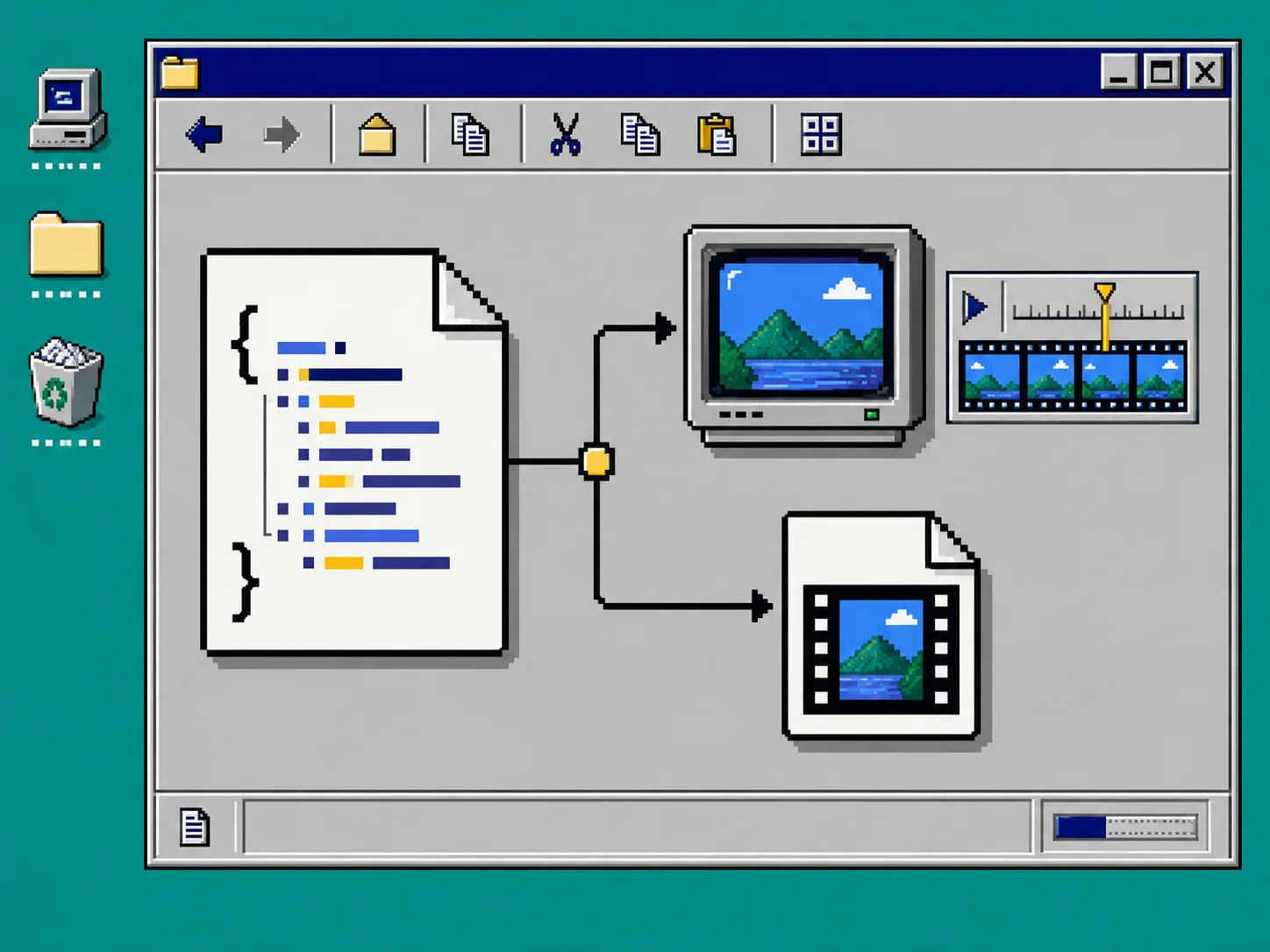
After this step, videoJSON is the object worth saving. Keep it next to the input data, template version, and asset URLs. That gives a renderer, a preview, and a future editor the same answer to “what video are we making?”
2. Treat VideoJSON as the handoff file
Do not make the MP4 your only artifact. The MP4 is delivery; the JSON is the editable recipe. Store the compiled document in your database or commit a template to Git, then attach per-customer data before rendering. This is especially useful for catalog clips, recap videos, and localized variants: the timeline stays consistent while copy, images, prices, captions, or voiceover change.
This is the same discipline behind a catalog-to-video API built around one portable JSON document. A reviewable source makes troubleshooting less mysterious: compare two JSON documents instead of guessing why two exports differ.
3. Add a preview before you spend render time
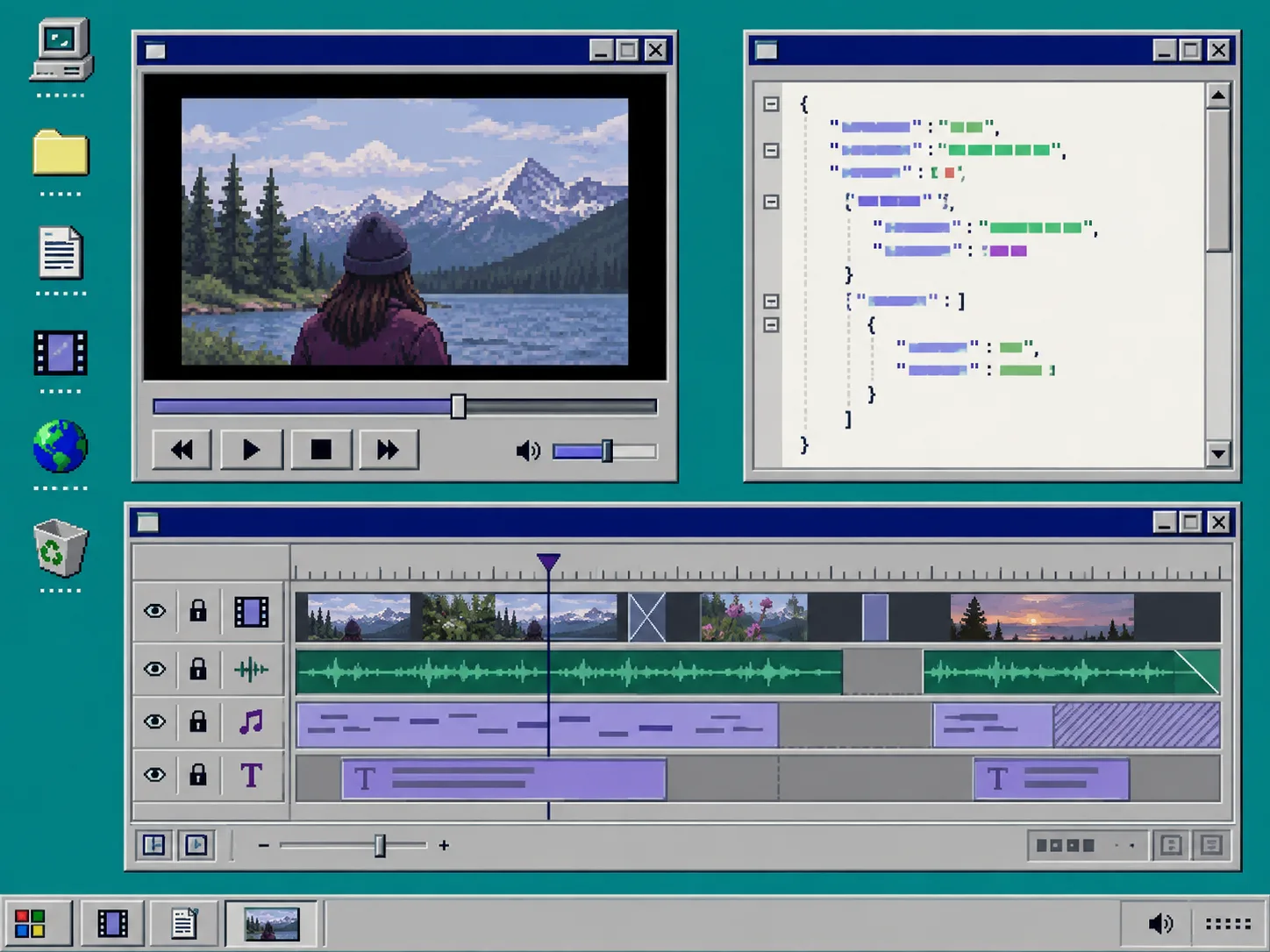
A queue that only produces final files is hard to debug. Mount the same JSON in a live preview when a user configures a template or when an agent produces a draft. VideoFlow’s DOM renderer is designed for scrubbing and frame-accurate preview; the optional React Video Editor adds a multi-track editing surface when people need to trim, reorder, or adjust the generated result.
import { VideoEditor } from "@videoflow/react-video-editor";
import "@videoflow/react-video-editor/style.css";

export function ReviewVideo({ videoJSON }) {
  return <VideoEditor video={videoJSON} onChange={saveDraft} theme="dark" />;
}
What you should see: a preview and timeline driven by the same document your renderer will receive. That is the useful checkpoint before a render job becomes a customer-facing MP4. For a team process, borrow the idea of an explicit launch-video approval checklist: check copy, media, timing, and the call to action while edits are still cheap.
4. Choose the renderer for the job
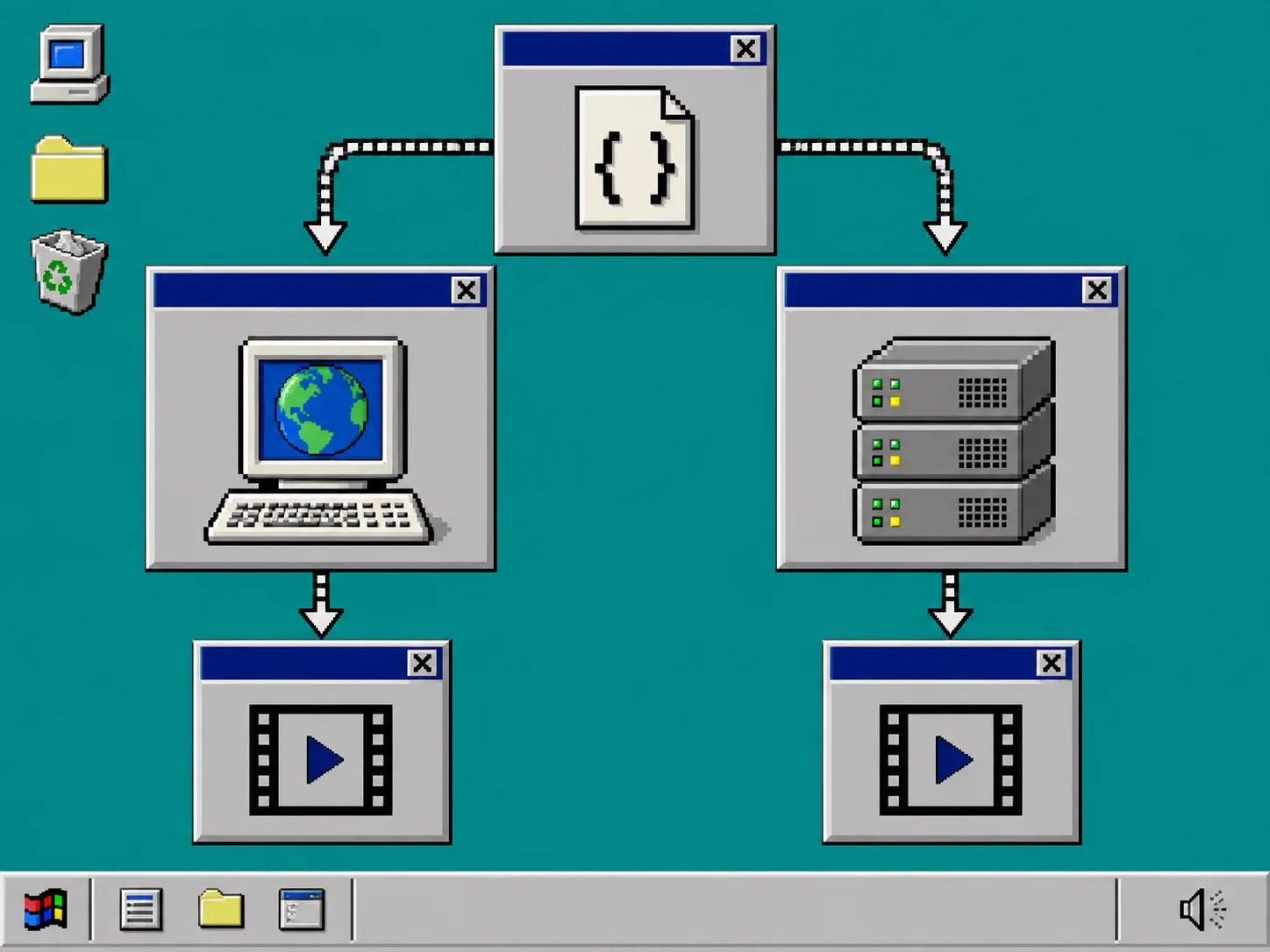
Use browser rendering when a person clicks Export and the video is small enough for their machine. It can avoid uploading source media to your server and lets your UI show progress or cancel with AbortController.
Use server rendering when jobs need a queue, scheduled runs, reliable hardware, or batch throughput. That is the usual choice for “render one version for every account” or “create 200 localized clips overnight.” The server renderer can produce an MP4 file or buffer from Node.js; it uses headless Chromium/WebCodecs by default and can use FFmpeg where alternate encoding is needed.
The practical rule is simple: preview in the DOM, export in the browser for interactive one-offs, and send batch or API work to a server renderer. All three paths begin with the same VideoJSON, so switching the delivery path does not mean rebuilding the composition.
5. Put rendering behind a small job boundary
Pass the JSON, asset references, and a template version to a job rather than calling a renderer directly from every route handler. Give the job an ID, record progress, and make the final MP4 location explicit. That lets you retry a failed export without regenerating the document.
A useful request shape is: videoJSON, renderTarget, outputFormat, and deliveryUrl. Validate the JSON before queuing it, then keep the preview URL and final URL on the same record. If an AI agent creates the draft, validation is the guardrail: the agent can propose a structured video document, while your app decides whether it is safe and complete enough to render.
If your product starts with a marketing brief rather than existing data, see how teams turn customer research into a launch-video brief and how an approval workflow is set before the first cut. Those are good upstream inputs; JSON gives the actual video system a durable downstream contract.
Troubleshooting
The preview and export do not match. Confirm both paths receive the same saved VideoJSON and media URLs. Do not reconstruct one path from a separate set of UI state.
Large batches time out. Move the work to a queue-backed server renderer and make each render retryable. Keep the JSON document so a retry does not need a new composition.
Users need a small correction. Open the stored document in the React editor, save the changed JSON, then render that revision. Avoid treating the MP4 as the editable master.
An agent produces invalid scenes. Validate the document and required asset URLs before it enters the queue. A structured format is valuable precisely because it gives you a concrete boundary to inspect.
Ready to build
The durable pattern is: data in, VideoJSON in the middle, preview and review before rendering, MP4 out. Start with one template and one renderer target, then add the other delivery paths when your product needs them. Read the VideoFlow Core documentation, test a document in the playground, and make the JSON file—not the exported MP4—your source of truth.