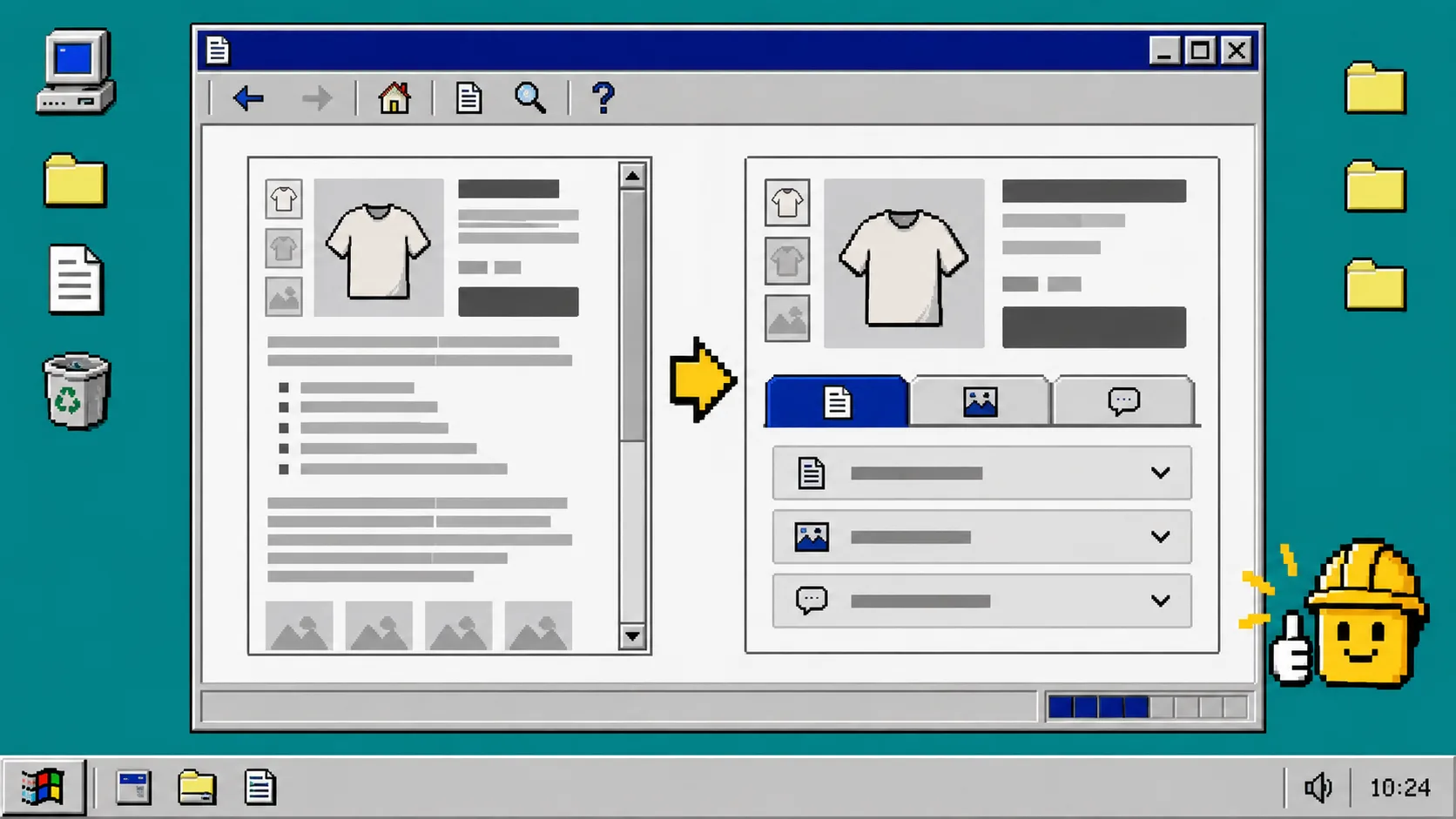
Your Shopify product page can hold the information shoppers need without becoming a single exhausting wall of copy. The practical goal is simple: put details such as specifications, care, delivery, compatibility, and warranty information where people can scan them. You will need access to Shopify’s theme editor and a product template.
Supra Tabs & Accordions is a free Shopify app that does this without changing your underlying product content. It displays named sections as tabs when the product column has room and as accordions when it does not. Set the structure up once, then apply it across a collection, tag, vendor, product type, or selected products.
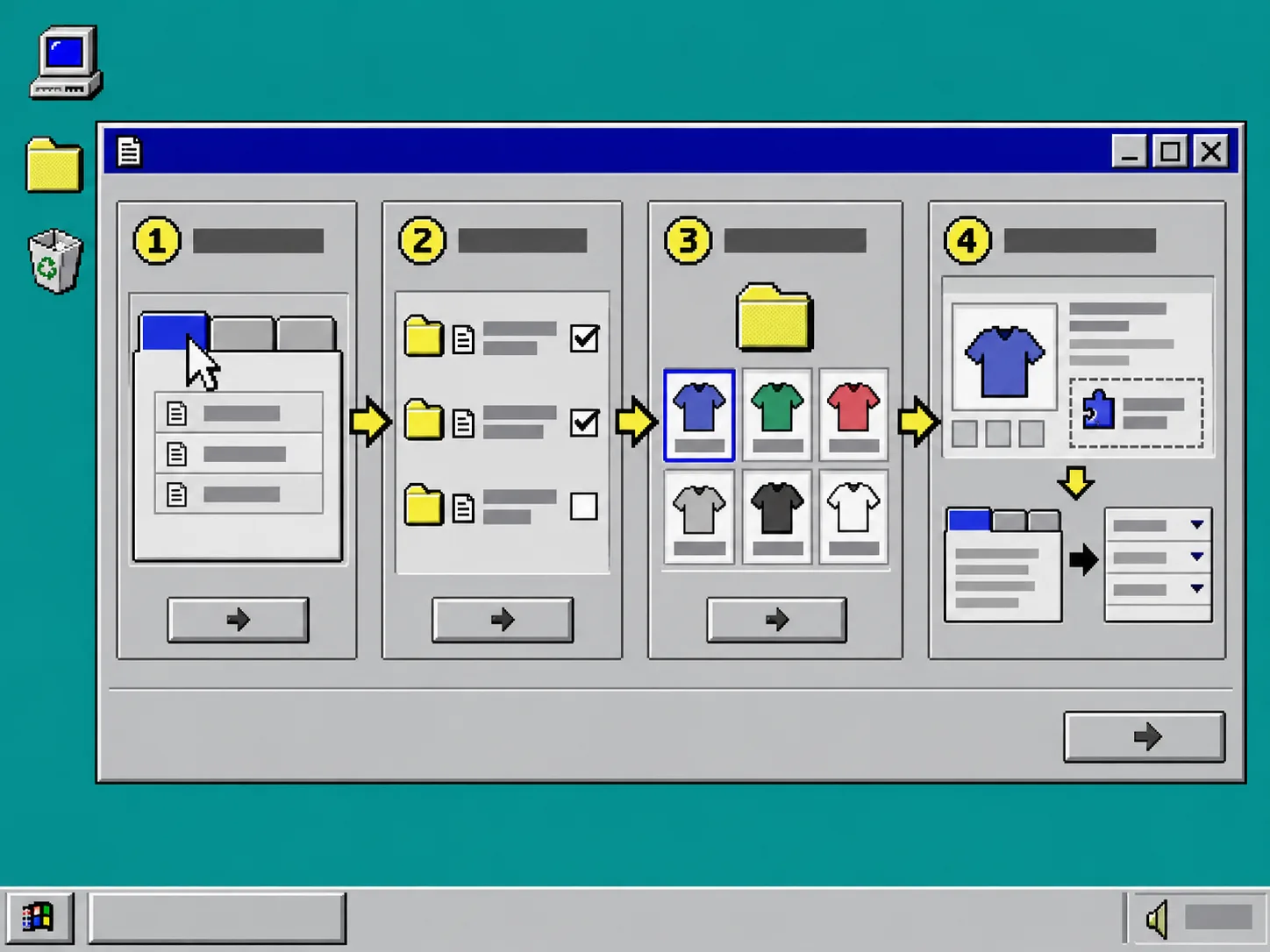
1. List the Information Shoppers Ask For
Start with the questions that make a product page feel crowded. Common examples are materials, dimensions, ingredients, care instructions, fit, compatibility, delivery timing, and returns. Keep a product’s main description for the short explanation that sells the item; move reference material into a labeled section.
Use labels that say exactly what is inside. “Materials & Care” beats “More Info.” “Shipping & Returns” beats “Policies.” Clear labels also make it easier to decide whether a section belongs on every product or only certain ones. For a related way to audit product-page decisions before you add content, see How to Audit Shopify Size Charts by Fit Family Before Launch.
2. Build One Tab Set Before Assigning Products
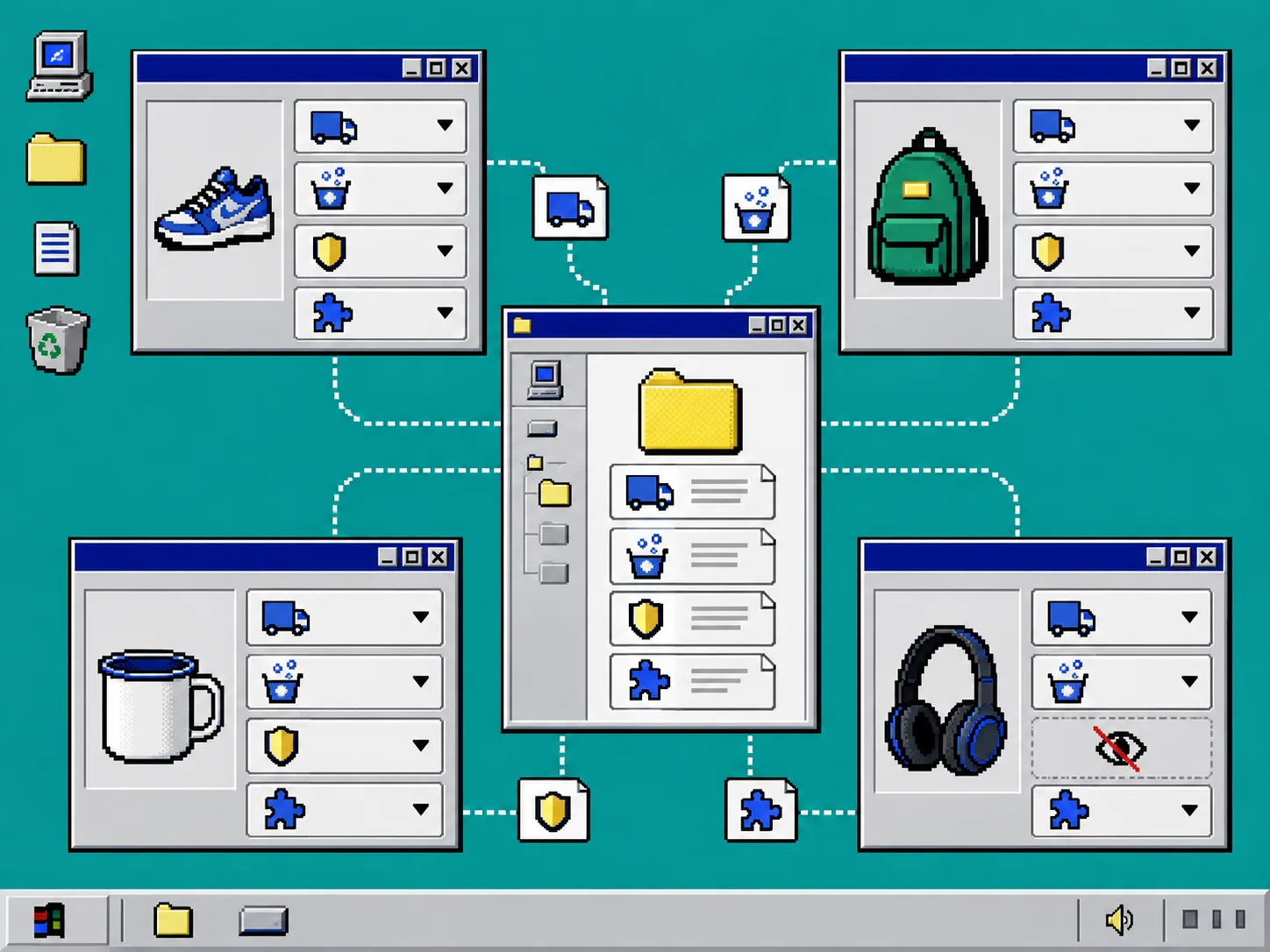
In Supra Tabs & Accordions, create a tab set and add the sections your catalog needs. Each section can draw from a product description, a per-product metafield, a Shopify page, a metaobject field, an image or downloadable file, or text written in the app.
Choose the source deliberately. A care policy used by many products is a good candidate for shared page content. A compatibility list that changes by SKU belongs in a metafield or metaobject field. This is the same content-system principle behind How to Build a Reusable Shopify Product-Page Content System: store details where they can be maintained once, then present them where shoppers need them.
3. Target the Set With a Catalog Rule
Select the right target after the sections exist. You can apply a set to a collection, tag, vendor, product type, or a specific group of products. A collection or tag rule is useful when future products should inherit the same information layout automatically.
Check the live preview, match count, and overlap warnings before saving. If two rules can cover one item, settle the priority before launch. A clean catalog rule is better than repeatedly opening individual product descriptions just to paste the same shipping copy.
The app hides empty sections automatically when a product has no matching content. That means one set can safely cover products with different technical details without showing shoppers an empty “Specifications” box.
4. Add the App Block to the Product Template
Open Online Store > Themes > Customize, choose the product template, and add the Supra Tabs & Accordions app block once. Place it below the product description or wherever the details should appear in your theme.
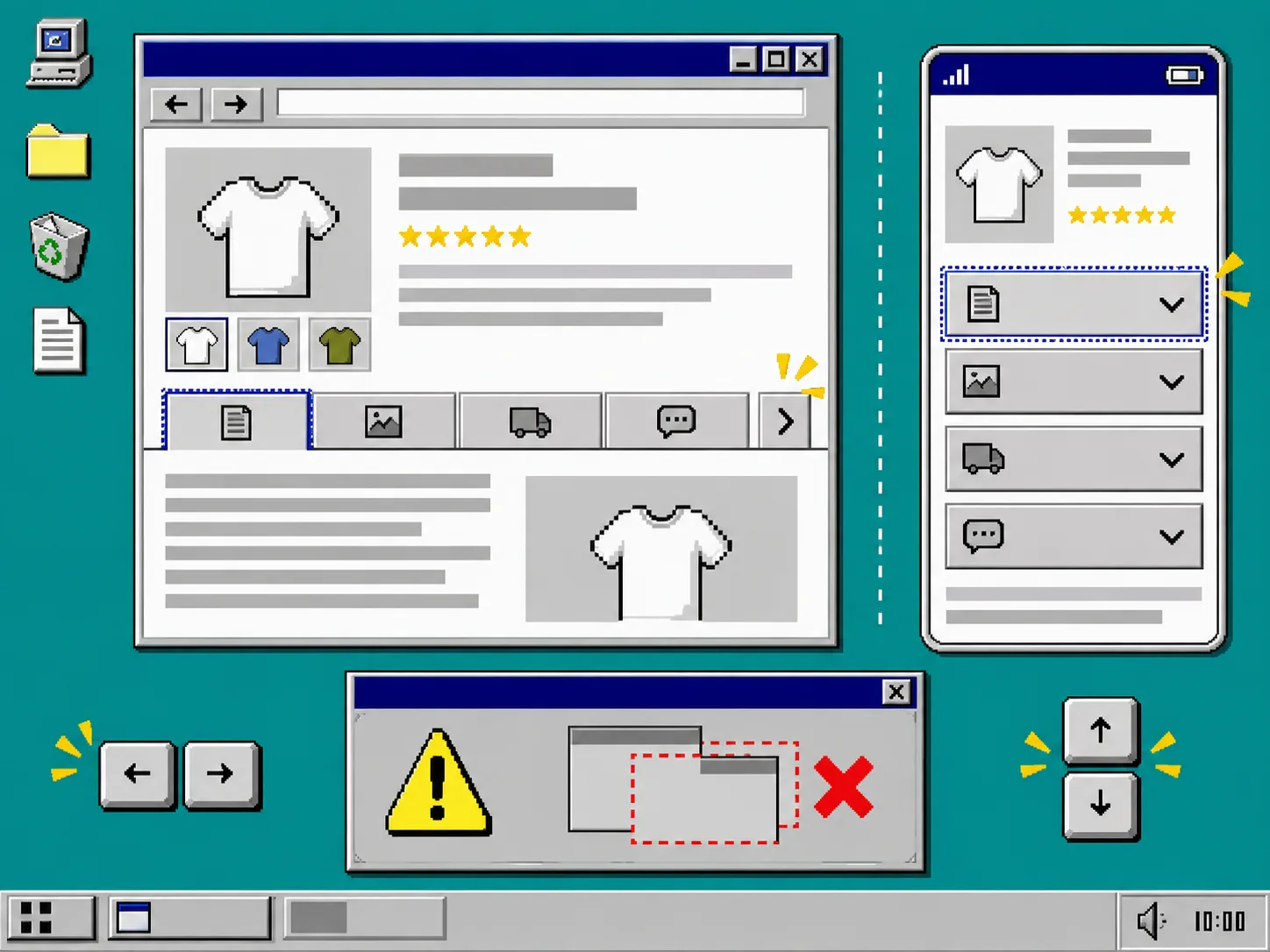
Preview a product with rich data and a product with fewer fields. On a wide product column, tabs keep labels visible for quick scanning. On a narrow column, accordions preserve a usable reading width and touch-friendly spacing. If you are deciding between the two patterns, the earlier guide How I Structured Shopify Product Specs Without Editing Every Description shows the maintenance case for a reusable layout.
5. Test the Page Like a Shopper
Test desktop and mobile before you call the job finished. Use the keyboard to move through each control, look for a visible focus state, and make sure tab labels do not become tiny or wrap into a confusing row. Supra Tabs & Accordions supports keyboard use, appropriate roles, comfortable tap targets, reduced motion, and several ways to handle too many tabs: scrolling, a More control, wrapping, or stacked sections.
Troubleshooting
A section is empty. Check the source first. A product metafield or metaobject field must contain a value for that product; an empty section is intentionally hidden.
The wrong layout appears. Review the selected product template and verify that the app block is on that template, not only on a different one.
Two sets seem to apply. Revisit the overlap warning and narrow one rule by collection, tag, or product type. Decide which set should win before adding more exceptions.
Mobile feels cramped. Shorten labels, use the app’s overflow option, and preview the actual product-page column. The layout responds to that column rather than screen width alone.
Recap
Organizing product details is not a content rewrite. It is a presentation system: list the questions, build reusable sections, target them with a catalog rule, add one app block, and test both desktop tabs and mobile accordions.
Start with one collection this week. Install Supra Tabs & Accordions from the Shopify App Store, build a small tab set for its most repeated details, and inspect the result on a real product page. The app is free, with no trial, tiers, or card requirement.