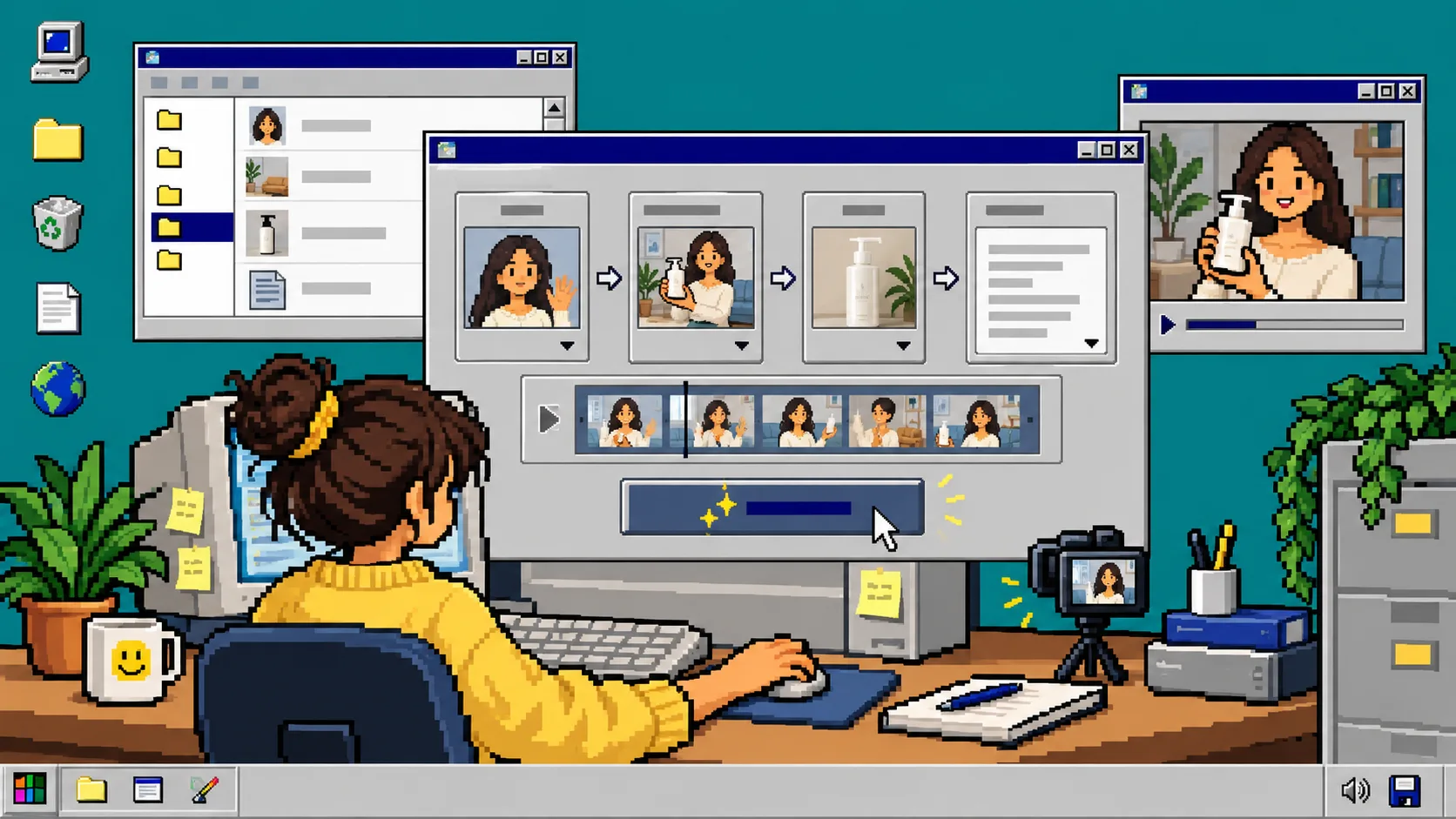
If you need more Shopify ad creative this week, you do not have to schedule a shoot before testing a new message. You need a product reference, a short script, and a repeatable way to compare versions. This guide shows how to build that workflow with Supra UGC Maker, an AI UGC video generator for Shopify.
Before you start, collect one product image or product record, the job your video must do, and one measurable next step: a click, an add-to-cart, or a product-page watch. Treat the first video as a test asset, not a replacement for a real creator testimonial. Real creators remain valuable when community trust and lived experience are the point.
1. Define one product question
Start with a question a shopper would ask before buying. For example: What does this serum feel like? or Which feature makes these shoes useful for daily walks? Keep the first version focused on one product, one objection, and one call to action.
Write down four fields before opening the video tool:
- The product and the exact variant to show.
- The audience and where they will see the video.
- The hook for the first three seconds.
- The action after the video, such as viewing the product page.
This prevents a familiar problem: making a polished clip that does not answer a buying question. If your product content is still scattered, use the same source-of-truth approach described in How to Build a Shopify Product Page Content System With Metafields before you make more variations.
2. Create a reusable base scene
Open Supra UGC Maker, choose a preset avatar or generate a custom AI model, then choose a setting that supports the product. A desk, studio, boutique, or outdoor setting is enough. Add the Shopify product when it is relevant to the demonstration.
Use a scene that will still work when you change the hook. That is the reusable part of the project: keep the product reference, avatar, and visual setting stable while you test the message. Preview the scene before you generate it.
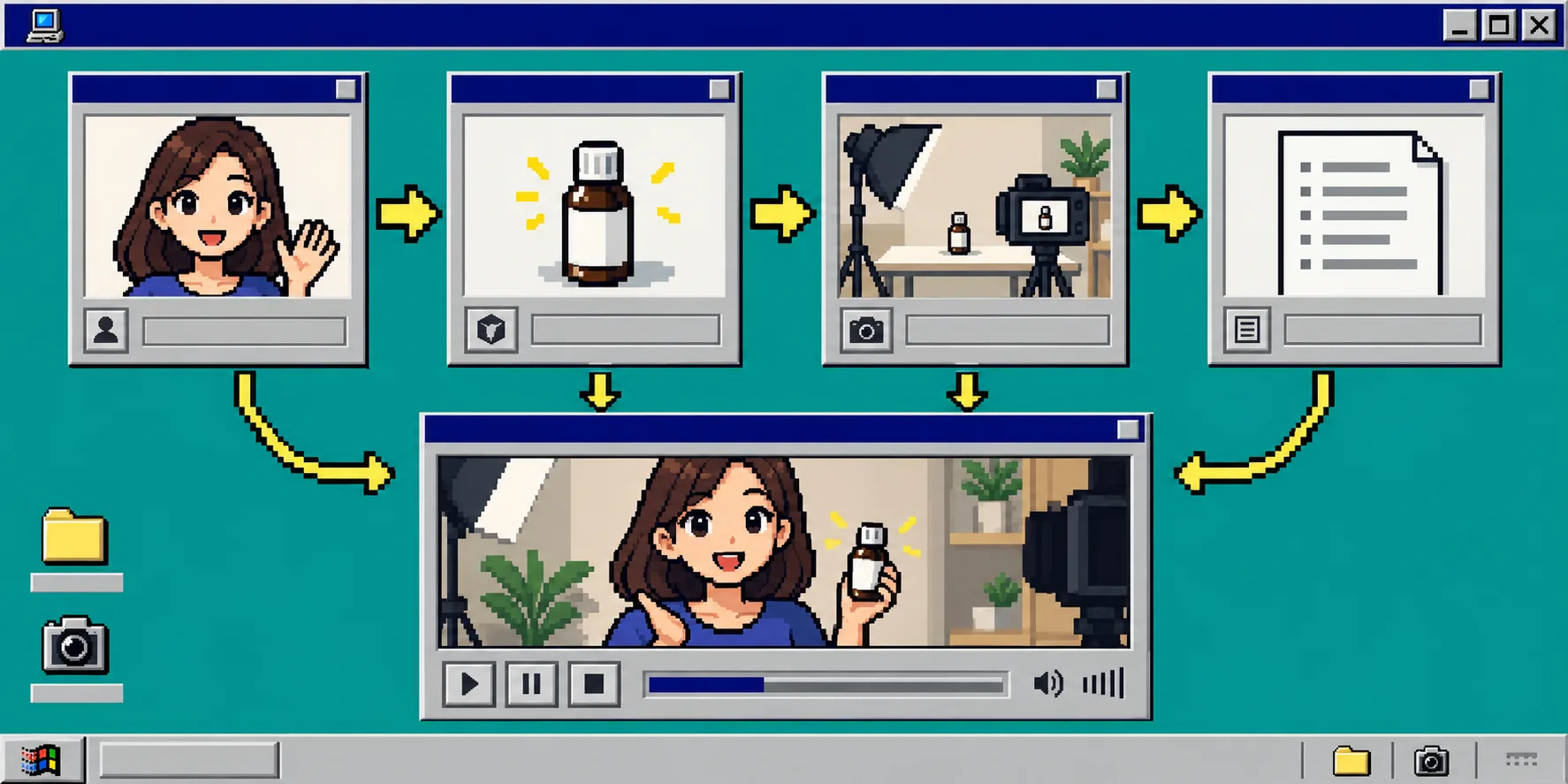
What you should see: a project with an avatar, a scene, a product reference, and a short script ready to become a video segment. Save it as your control version.
3. Write a short script with one job
Write 35 to 60 spoken words for the first test. Start with a problem or visible result, explain one reason, then give one next action. Avoid claims you cannot support.
Use this plain pattern:
Hook: I stopped doing [frustrating thing] when I found [product benefit].
Proof: Here is the one detail I use or show.
Action: See the product details before choosing your version.
Set the voice and tone to fit the placement. A product-page explainer can be calm and literal; a short paid-social test can be more direct. This is also a useful complement to How to Build a Shopify UGC Video Testing Plan: the plan tells you what to measure, while this project gives each message a controlled production setup.
4. Generate variations one change at a time
Generate the first segment, then duplicate the project for each variation. Change only one variable per duplicate: the hook, the avatar, the scene, or the CTA. Do not change all four at once; you will not know why one version worked.
A simple first batch is four videos:
- Same avatar and scene, benefit-led hook.
- Same avatar and scene, objection-led hook.
- Same script, different avatar.
- Same script, different scene.
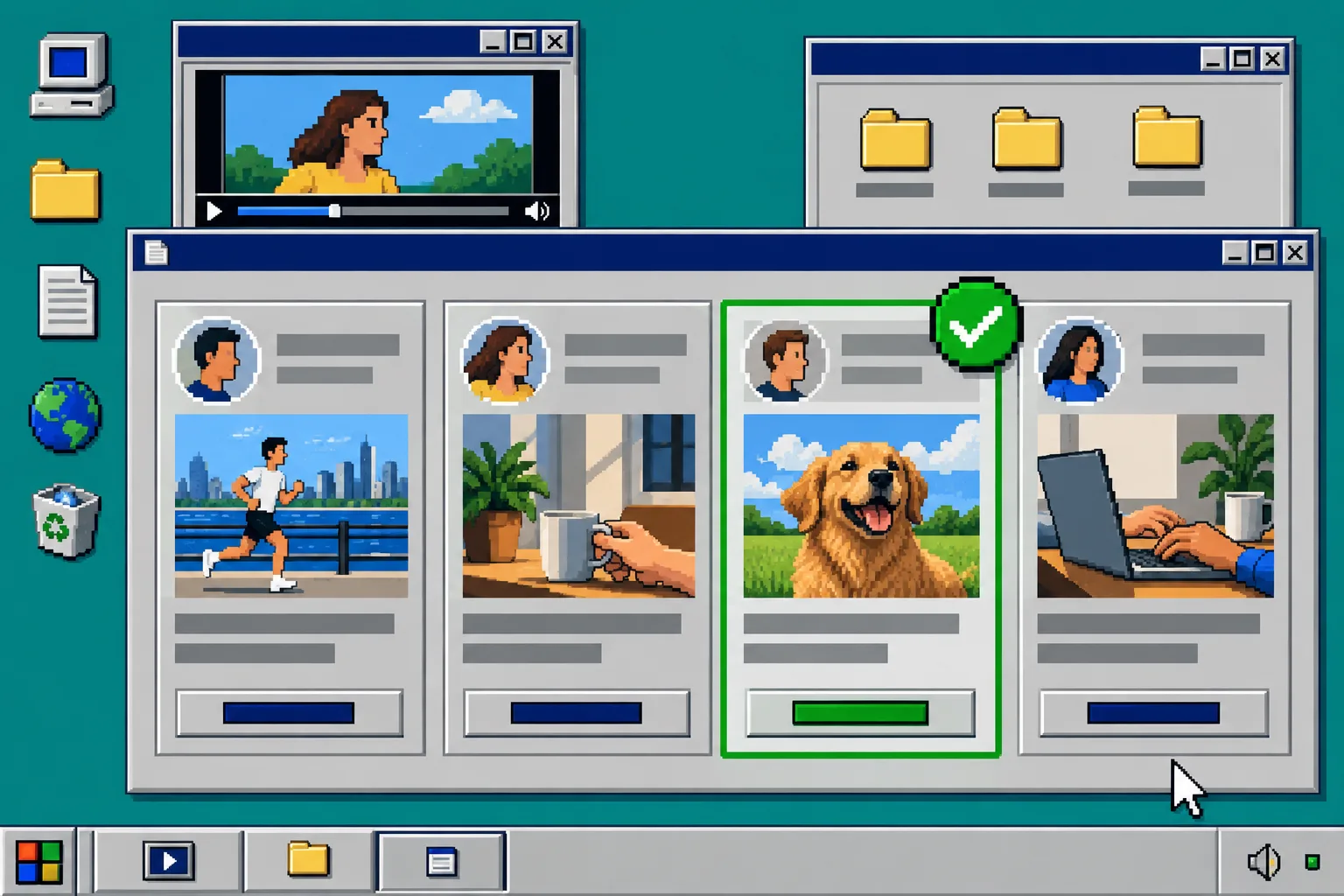
Label the project copies with the variable you changed in your own project naming convention. After each generation, trim or regenerate the part that no longer matches the product. Supra UGC Maker lets you reorder, update, and regenerate clips in a project, so you do not need to rebuild every asset from zero.
For a more formal comparison, pair this with How to Build a Shopify UGC Test Matrix. Keep your audience, offer, and landing page stable while the creative changes.
5. Check the product and publish location
Before downloading, inspect the clip as if you were the shopper. Confirm the product shown is the correct item, the wording matches the offer, and the final frame makes sense without sound. Then choose one first destination instead of uploading it everywhere at once.
- Put a product explainer on the matching product page.
- Use a short hook-led version for a TikTok, Reels, or paid-social test.
- Use a quiet, benefit-led version as an email teaser.
- Use an instructional clip after purchase when it can reduce confusion.
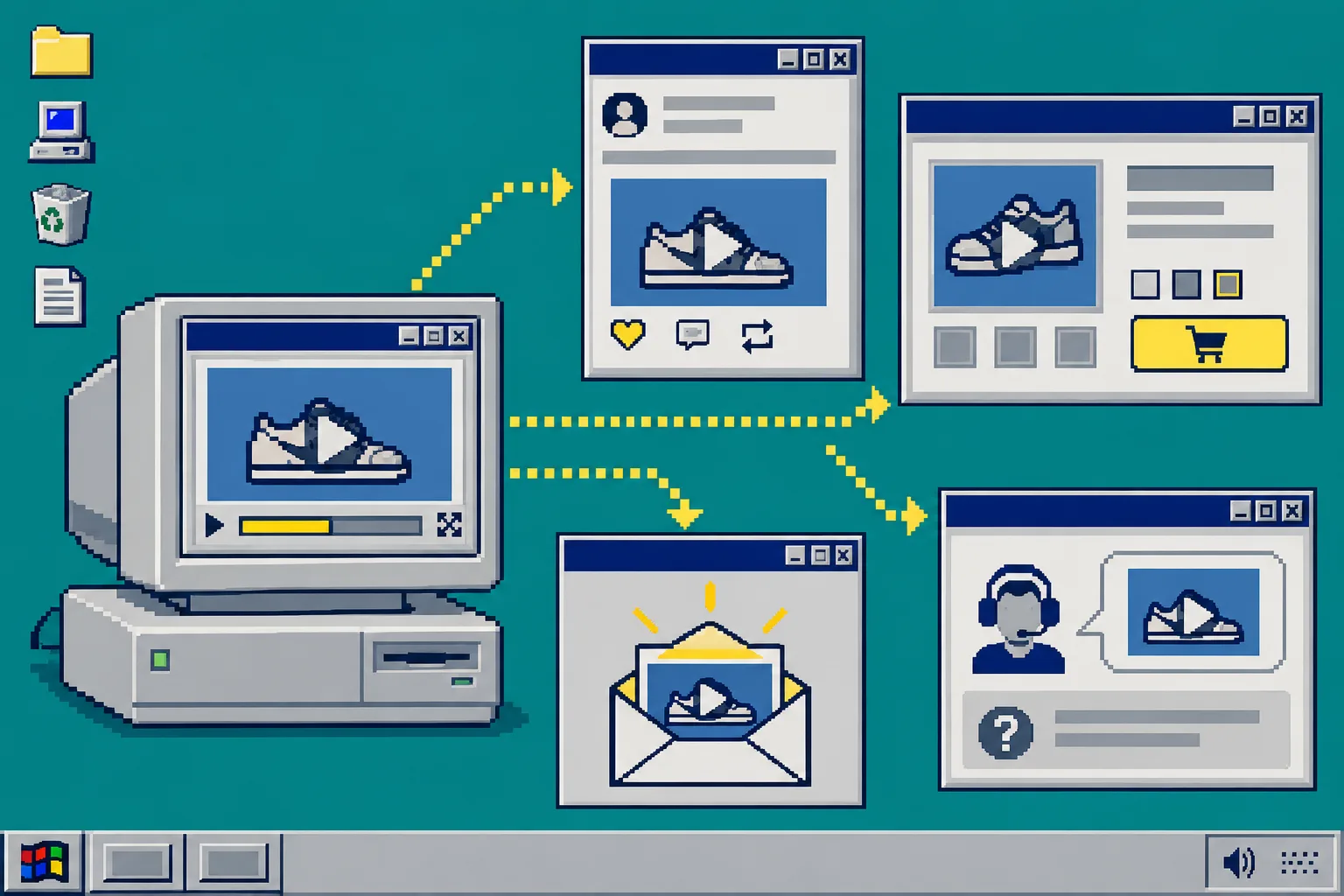
What you should see: one selected video version with a clear destination and a matching measure. A product-page video may be judged by watch behavior and conversion context; a paid-social variation may be judged by early attention and clicks.
Troubleshooting
The video feels generic. Tighten the product reference and replace broad phrases with a real use case or shopper objection.
The scene distracts from the item. Regenerate with a simpler setting, then verify that the product remains the visual focus.
You cannot tell which variation won. Return to the project copies and make the next batch change only one variable.
You need more product-page context first. Review How to Build Shopify Size Charts for Product Bundles for an example of matching product guidance to the decision a shopper must make.
Recap
A usable Shopify UGC video workflow starts with one customer question, one reusable scene, one short script, and controlled variations. Start your first project in Supra UGC Maker, generate four versions that change one thing at a time, and publish the strongest fit where shoppers need it most.