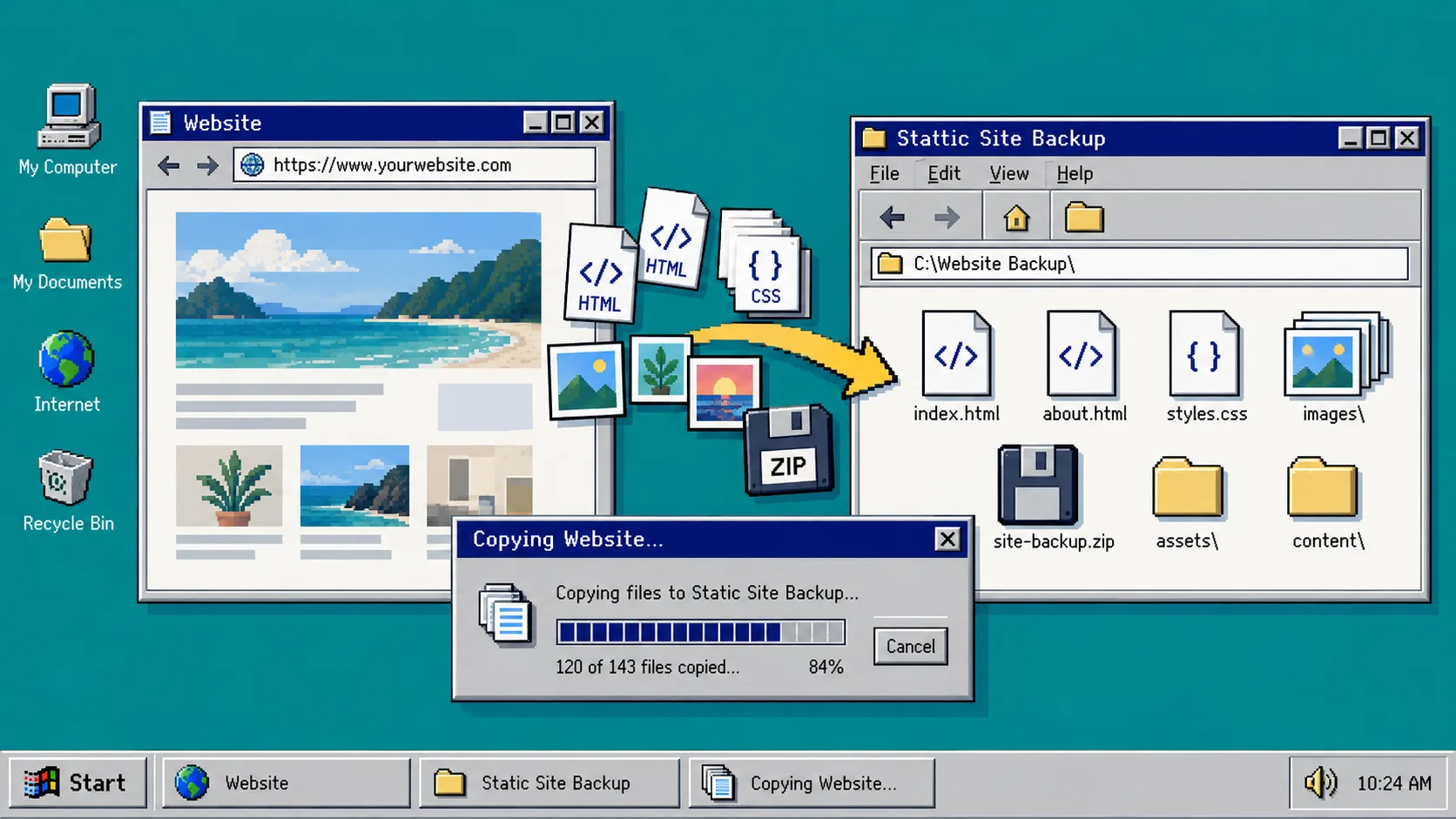
If you are about to change a Squarespace plan, hand a site to a client, or move to another host, make a backup you can actually open and test. A content export is useful, but it is not the same as a working copy of the pages, styles, scripts, images, and navigation visitors use.
You need a published Squarespace site URL, permission to access it, a place to test static files, and about 30 minutes for a first pass. The goal is simple: produce a static copy, inspect it locally, and only then decide whether it is ready for a new host.
1. List the pages and features that must survive
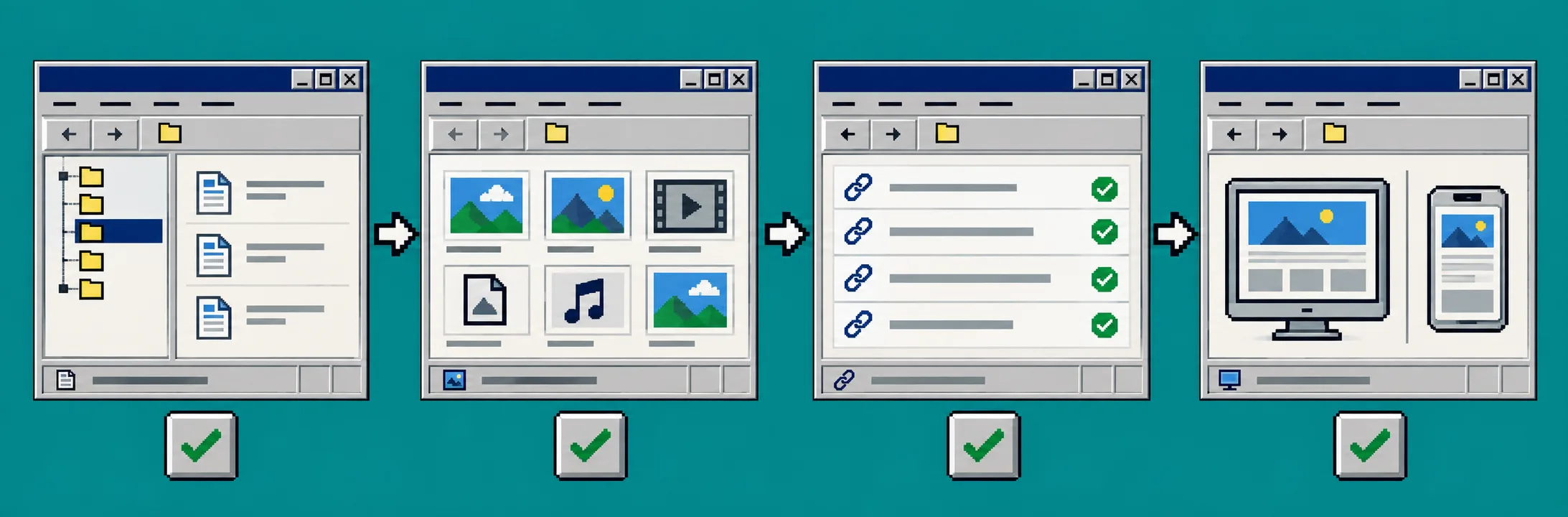
Open the live site and write down its homepage, main navigation destinations, contact page, blog or portfolio pages, campaign landing pages, and any pages people reach from ads or email. Add the important behaviors too: forms, menus, image galleries, embedded media, password-protected areas, and tracking scripts.
This list is your acceptance test. Without it, a downloaded folder can look convincing while an important route, image, or link is missing. If your project is a client handoff, include the exact URL paths the client expects to keep.
2. Export the published site as static files
Use a platform-aware exporter rather than assuming a generic downloader will understand every asset or route. ExFlow’s Squarespace exporter is built to collect a published Squarespace site as static HTML, CSS, JavaScript, and media. Enter the published URL, run the export, then download the ZIP or choose a deployment target such as Git, S3, or FTP.
For a site with protected pages, make sure you have the owner-approved password available before the export. Keep the original ZIP unchanged; that is your rollback copy. Work from a duplicate when you begin testing or editing files.
3. Inspect the exported folder before you upload it
Unzip the copy and look for a predictable structure: HTML pages, stylesheet files, JavaScript, images, fonts, and media. Open the home page in a browser, then open several deeper pages directly. Check that navigation uses the expected paths and that the page source points to files included in the export.
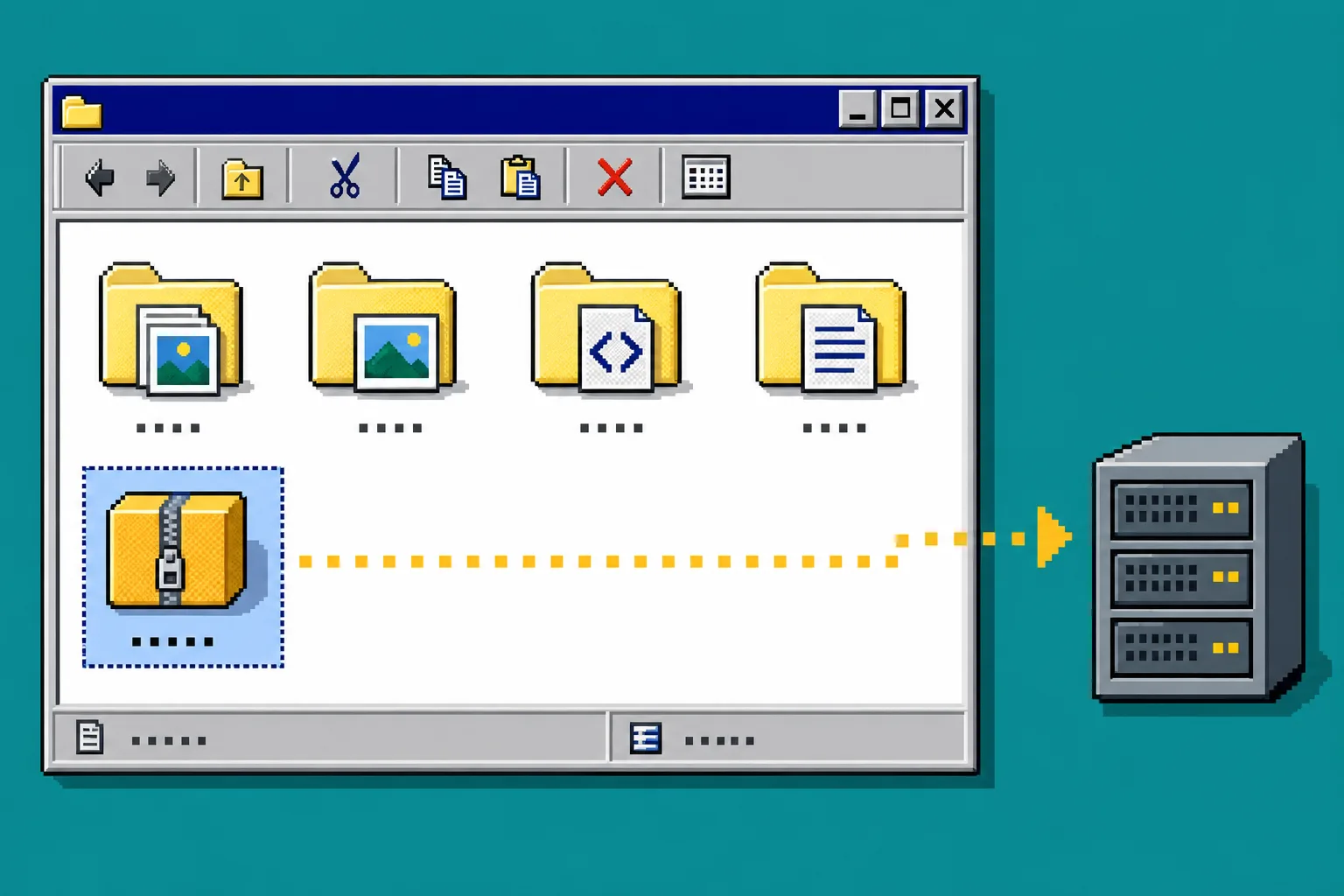
A static export is especially useful when you want a controlled handoff. For a second checklist focused on that situation, see How to Hand Off a Squarespace Site as Static HTML.
4. Put the copy on a test host
Upload the duplicated export to a temporary static host or a non-production folder on the destination server. Do not point the production domain at it yet. Use the test URL to open every item from the list you made in step 1.
Check these items in order:
- Open the home page and every top-level navigation destination.
- Open at least three deep links directly in a fresh browser tab.
- Confirm images, fonts, videos, and lazy-loaded content appear.
- Resize the browser and repeat the key pages at phone width.
- Submit a non-sensitive test form and confirm where its result goes.
- Inspect page titles, descriptions, canonical settings, and redirects before changing DNS.
The same habit matters when a visual builder is involved: How to QA a Webflow Static Export Before You Change Hosting is a useful companion checklist for route and asset testing.
5. Fix the usual static-export problems
If a page loads without styling, inspect the CSS path first. A missing image usually means the asset did not transfer or its URL is absolute when the new host needs a relative path. If a deep page shows a host 404, configure the host’s static routing or publish the matching HTML path. A form may need a replacement endpoint because a static copy does not automatically carry server-side form handling with it.
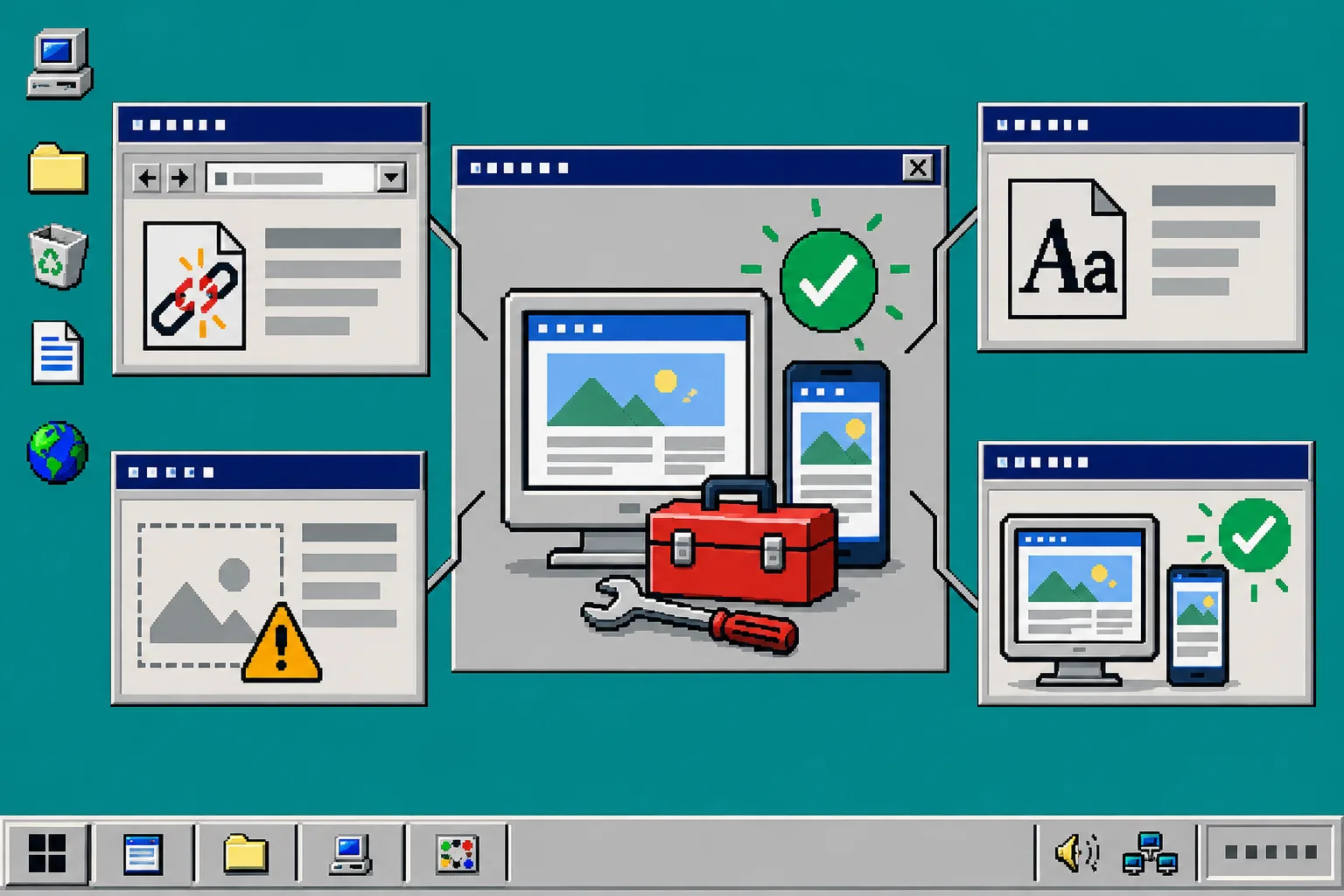
Keep a small issue list as you test: URL, expected result, actual result, and fix. That turns a stressful migration into a repeatable process. If you are considering Git-based publishing, How to Move a Webflow CMS Site to Static Hosting Without Losing Routes shows the same routing-first mindset in another site-builder workflow.
6. Keep the backup and choose the next deployment
When the test copy works, save the original ZIP somewhere versioned and record the export date. You can keep hosting simple with ExFlow Hosting, or sync the files to Git, S3, or FTP when your team needs more deployment control. Do not delete the live Squarespace site until the new setup has been checked on the final domain.
ExFlow also has dedicated exporters for Webflow and Framer, but use the Squarespace workflow when that is the platform you are preserving.
A testable static backup gives you an escape hatch before a hosting change, not after it. Start by exporting the published Squarespace URL, put the duplicate on a test host, and complete the route-and-asset checklist before touching DNS.