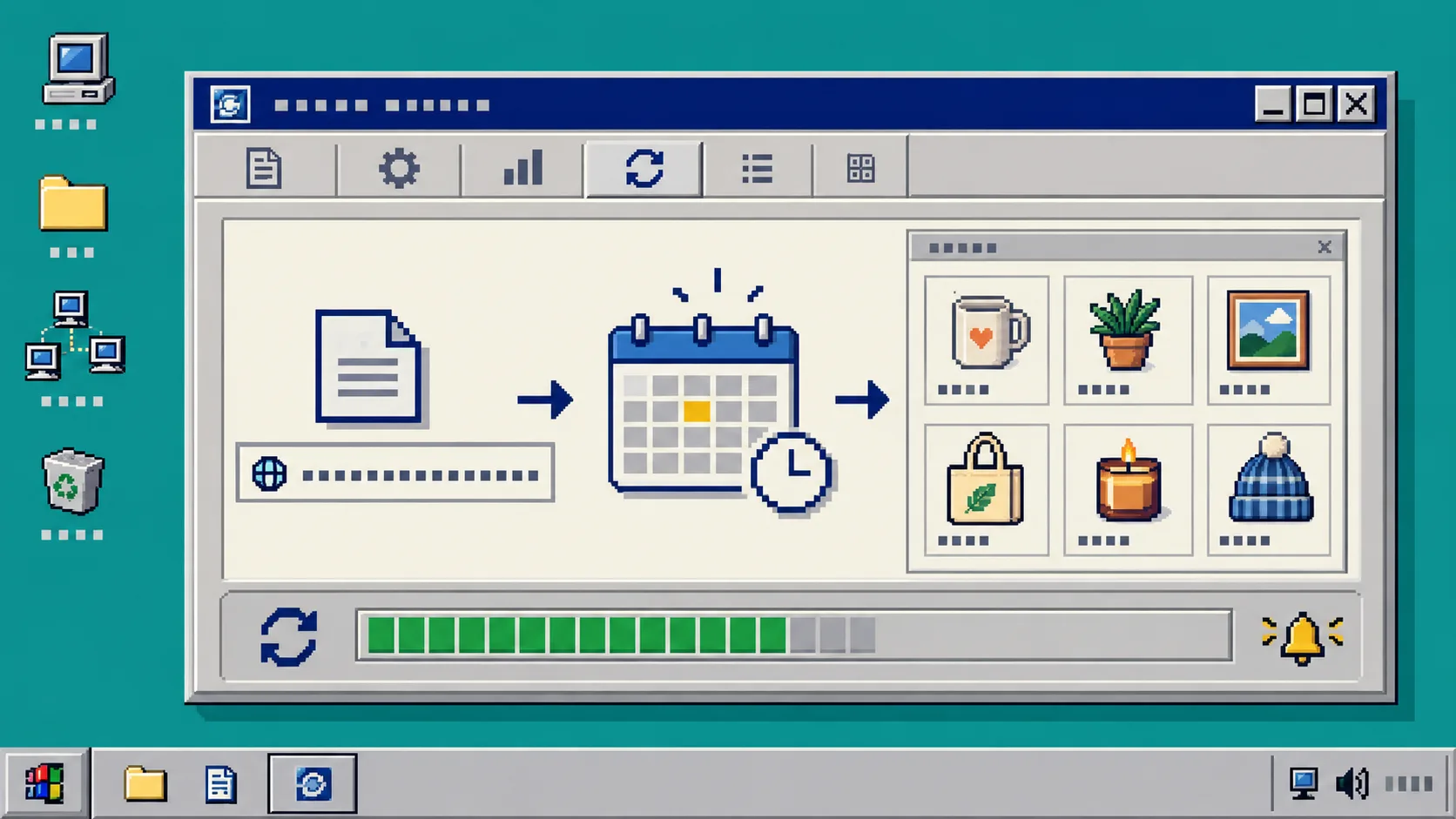
If your Etsy listings are already in Meta Commerce Manager, the useful next step is not another manual upload. It is a feed refresh you can trust. This guide shows how to use the Catalog Generator for Etsy feed URL, schedule the refresh, and spot the common problems before you try to tag a product on Instagram or Facebook.
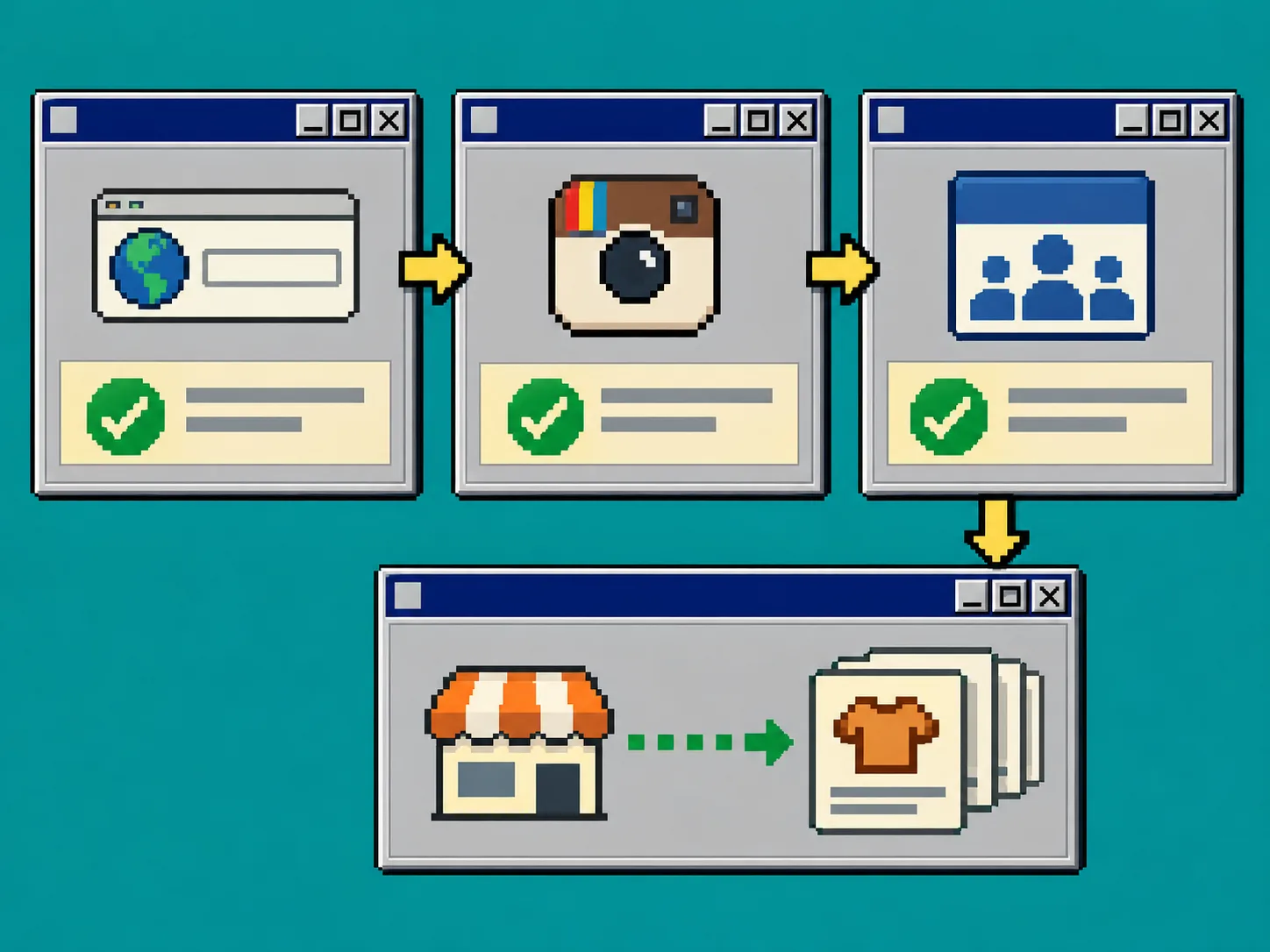
You need an Etsy shop, a Meta Business account with a Facebook Page and Instagram professional account connected, and access to Commerce Manager. You also need your Etsy shop domain verified in Business Settings. If you are still choosing which listings belong in the catalog, start with a catalog audit before a seasonal sale.
1. Check the account pieces before you add the feed
Open Meta Business Settings and confirm that the Facebook Page and Instagram account are attached to the same business. Then open Brand Safety > Domains and add your Etsy domain in the form your-shop-name.etsy.com. Etsy’s Facebook Shops settings provide the place to paste Meta’s verification tag; return to Business Settings and select Verify after saving it.
You should see a verified status before continuing. That approval is separate from the catalog feed, so do not assume a successful feed upload fixes a domain problem.
If you recently changed variations, titles, or pricing, pause here and run a variation audit before bulk editing. A scheduled refresh faithfully carries bad catalog data forward too.
2. Copy the feed URL from Catalog Generator for Etsy
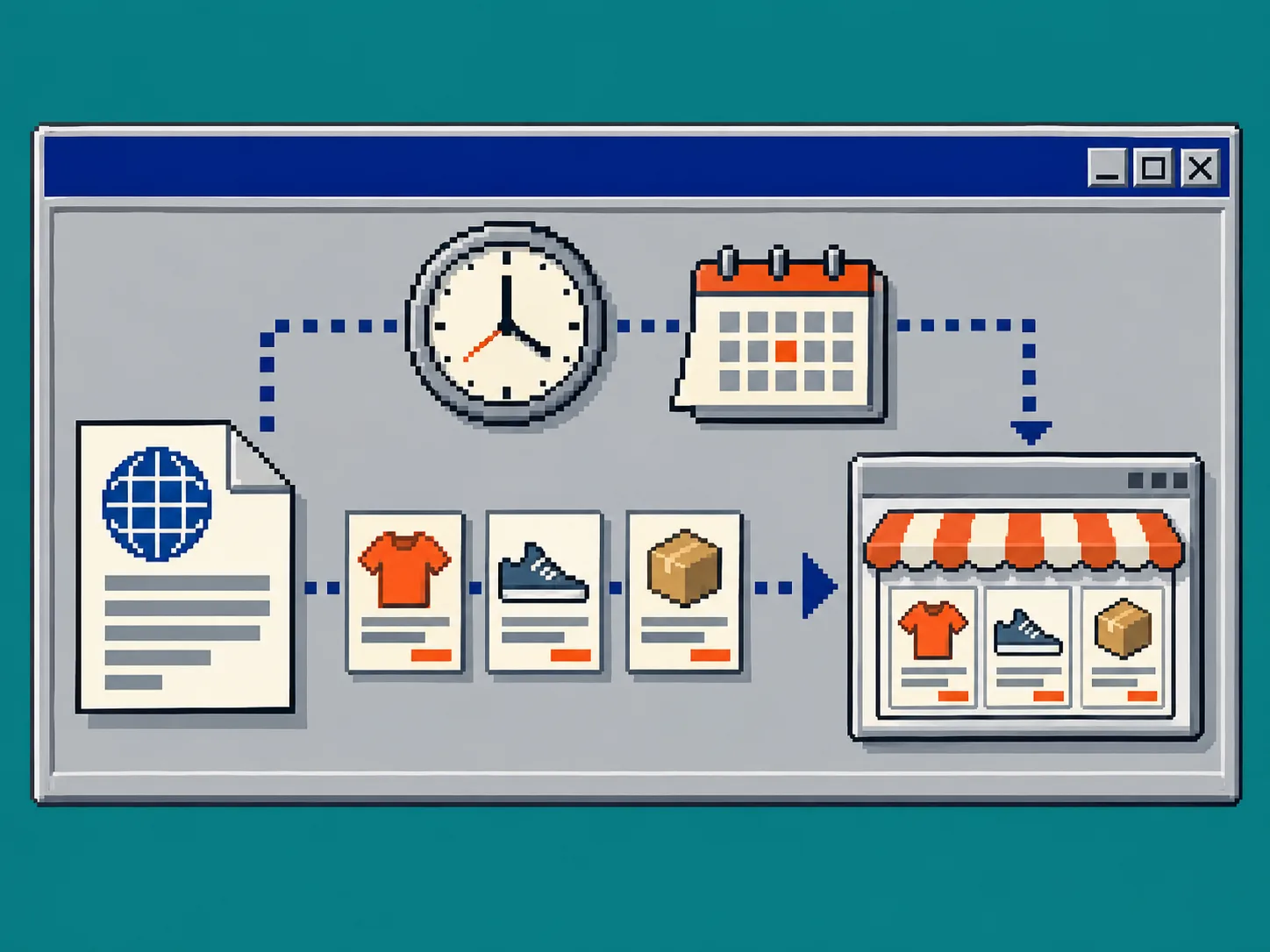
Sign in to Catalog Generator for Etsy and connect the Etsy shop when prompted. The app creates a feed URL for your listings. Copy the complete URL exactly as shown. Treat it like a connection credential: use it in Commerce Manager, but do not post it in a public document or replace it with a downloaded spreadsheet.
The app is designed to keep Etsy listings available as a data source for Instagram and Facebook catalogs, with a Google Shopping integration use case as well. Its value is that the URL remains the source while listing changes can be picked up by the scheduled retrieval.
3. Add the URL as a data feed in Commerce Manager
In Commerce Manager, open the catalog you want to use. Choose Data sources, then Add items. Select Data feed, choose the option for a URL-based feed, and paste the Catalog Generator URL. Leave optional fields alone unless your account specifically requires them, then proceed to the scheduling screen.
Choose a daily refresh if you regularly create, edit, deactivate, or sell out listings. For a stable small catalog, pick the least frequent interval that still matches your publishing rhythm. The important part is consistency: the schedule should run after the work you normally do in Etsy, not before it.
After saving, wait for the first retrieval to finish. In the catalog’s Items view, inspect a few listings you know well: title, price, availability, main image, and destination link. If you need a second opinion on the connection itself, this Etsy-to-Instagram feed setup guide covers the full path from shop to catalog.
4. Test one ordinary listing and one changed listing
Pick an ordinary active listing, then make one small, reversible Etsy change—for example, update a title or a photo. Do not make a huge bulk edit for this test. Record the current catalog value, wait for the next scheduled refresh, and check the item again in Commerce Manager.
You should see the expected value after the scheduled run. If you do not, compare the Etsy listing state with the catalog item instead of guessing. A simple drift-check habit is more reliable than discovering a mismatch during a campaign; this drift-check workflow is a useful companion process.
5. Submit the domain and enable product tagging only after the catalog looks right
Return to the catalog settings and submit the verified Etsy domain for approval where Commerce Manager requests it. Once Meta approves the domain and the catalog items look complete, you can use the catalog for product tags in eligible Instagram and Facebook surfaces. Check a tagged post on a phone before you reuse the process across a campaign.
Troubleshooting: three checks that solve most feed problems
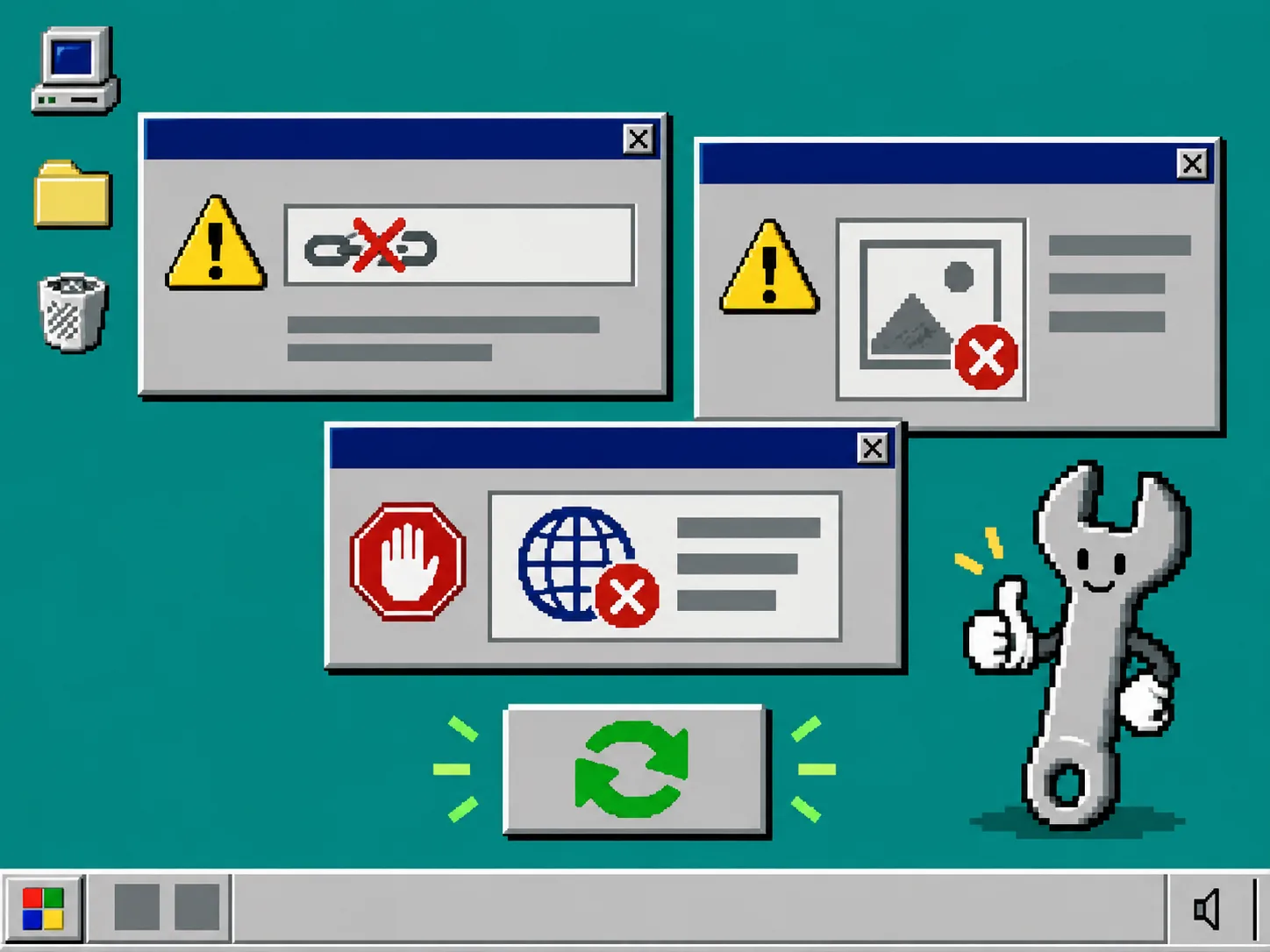
- The feed fetch fails: paste the exact URL from Catalog Generator again. Do not point Commerce Manager at an Etsy shop page or a local file.
- Items appear but look wrong: check the original Etsy listing first, especially variations, photos, price, and availability. Then let the next scheduled retrieval run before editing the catalog by hand.
- Product tags are unavailable: separate the catalog question from the domain question. Confirm the Instagram account is professional, the Page connection is correct, and domain approval is complete.
For a broader maintenance routine, keep the catalog’s scheduled refresh next to your normal Etsy listing review. You will catch data changes before they become an ad or tagging problem.
Recap
A dependable Etsy catalog starts with verified account connections, then a Catalog Generator feed URL, a schedule that fits your listing cadence, and a small test after changes. Set up your Catalog Generator for Etsy feed now, run the first retrieval, and verify one familiar listing before you build product tags or campaigns around it.