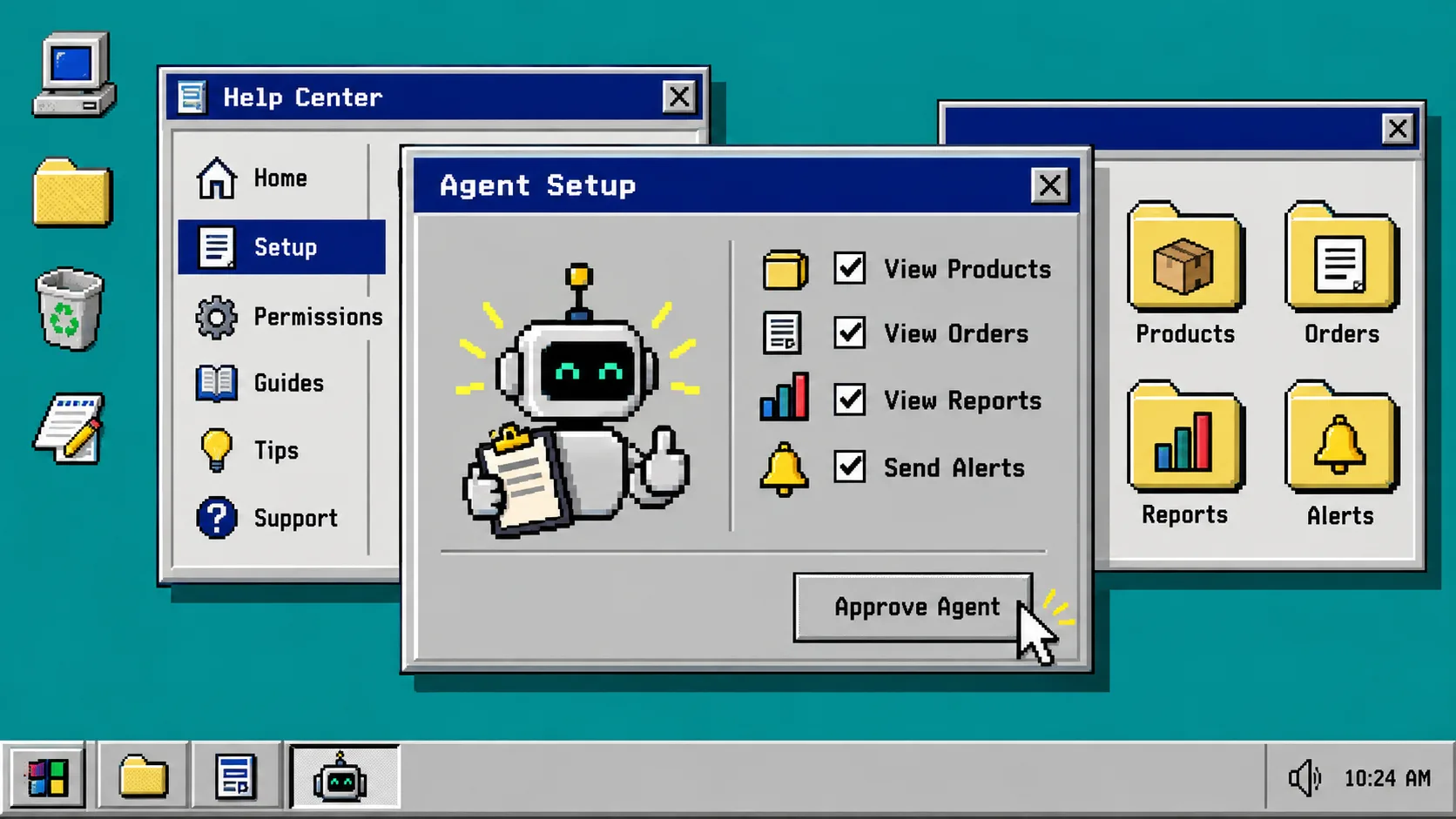
Your first Shopify AI agent should save you time without receiving a blank cheque. This guide sets up a small, useful assistant with one job, limited access, and a clear way for a human to review its work. You need a Shopify store, an account for Clawly, and a notification destination such as email, Slack, or Google Sheets.
Clawly is an AI agent for Shopify that can work with store data and connected tools. The useful part is not letting it touch everything. The useful part is choosing exactly what it may read, what it may suggest, and what it must leave alone.
1. Pick One Read-First Store Problem
Start with a workflow that reads information and sends a report. Do not begin with pricing edits, discount creation, customer exports, or bulk catalog changes. A daily report is a good first assignment because the result is easy to inspect and a missed detail is usually recoverable.
Write one plain-language instruction: “Every weekday morning, summarize yesterday’s revenue, top products, low-inventory items, and unusual order activity. Send the summary to my review channel. Do not change store data.”
That instruction gives the agent a boundary. It also gives you an output you can compare against Shopify admin for the first few days. If your team already uses a manual report, place it beside the new report and compare the numbers before you depend on it.
2. Create the Agent in Clawly
Open Clawly in the Shopify App Store or its landing page, then create an agent by describing the outcome above. Clawly can connect Shopify to tools such as Google Sheets, marketing platforms, email services, and team-workspace tools, but do not connect every service on day one.
Name the agent after its job, not after a vague ambition. Daily Store Report is better than Operations Bot. A job-specific name makes it easier to review logs, alerts, and future permission changes.
At this stage, configure the schedule and the notification destination. You should see a proposed workflow that starts with store data, produces a summary, and ends in a message. If it proposes changes to products, orders, or customers for this first workflow, remove those actions before continuing.
3. Scope Access Before Connecting More Tools
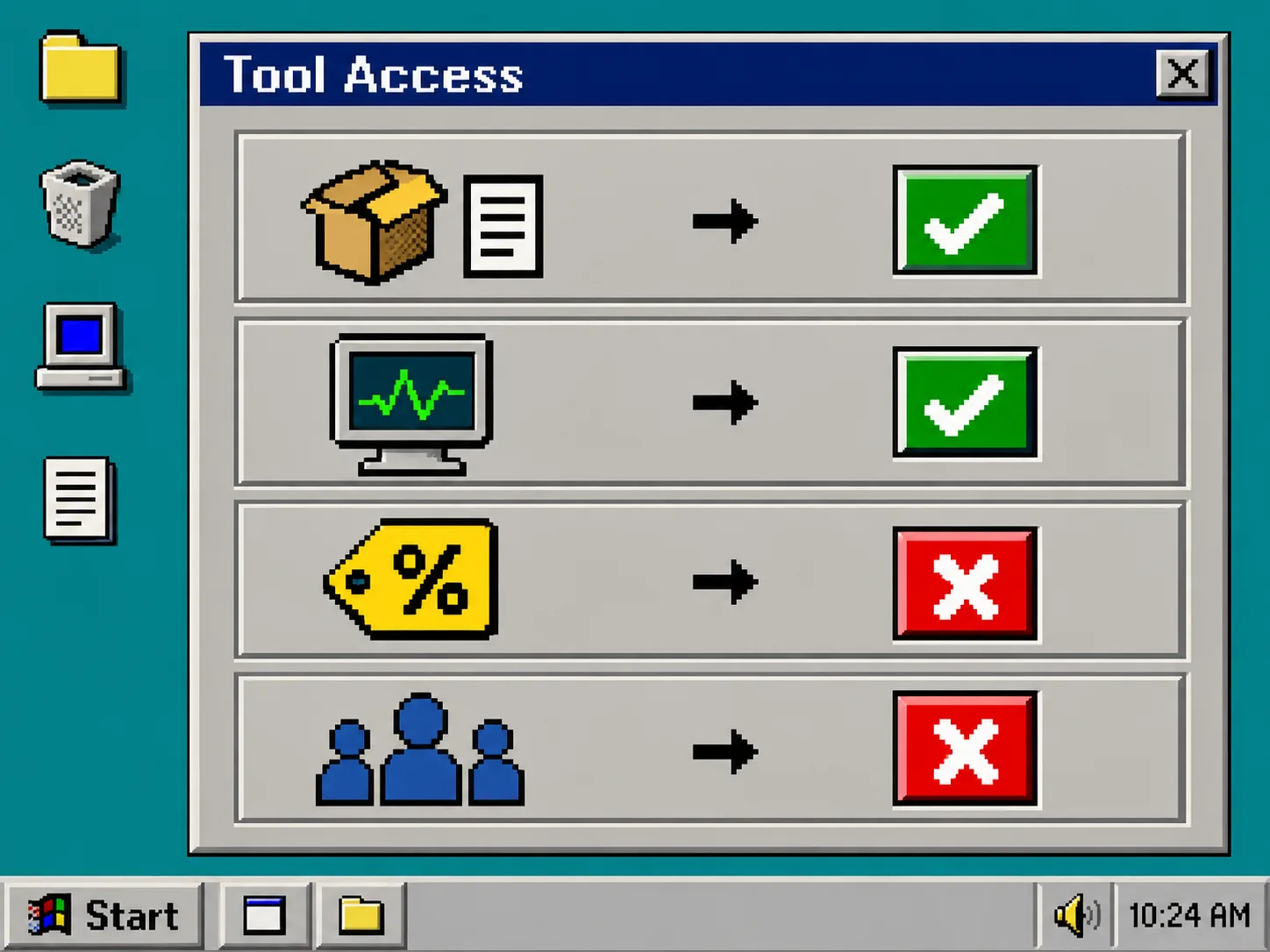
Use the narrowest permissions that can finish the job. For the daily report, grant read access to the information you need: orders, products, and inventory. Grant permission to send the finished report only to the selected destination. Leave write actions off.
A quick access checklist looks like this:
- Enable product and inventory read access when the report needs stock warnings.
- Enable order read access when the report needs revenue and anomalies.
- Enable one notification integration for delivery.
- Leave product edits, discount management, customer exports, and unrelated integrations disabled.
This is the practical meaning of scoped permissions: the assistant can use only the integrations and operations you explicitly enable. It is also why a Shopify-specific AI agent is safer to start with than a generic chatbot that only knows what you paste into a conversation.
If catalog work is your eventual goal, keep it separate from reporting. For example, use the review discipline from a Shopify bulk-update audit before allowing any automation to propose widespread changes.
4. Make the First Output Reviewable
Tell the agent exactly what to include and how to flag uncertainty. Ask for revenue, top sellers, low-stock products, unusual order patterns, and a short list of items that need attention. Ask it to label suggestions as suggestions. A report that says “check inventory for these three SKUs” is easier to act on than one that silently changes availability.
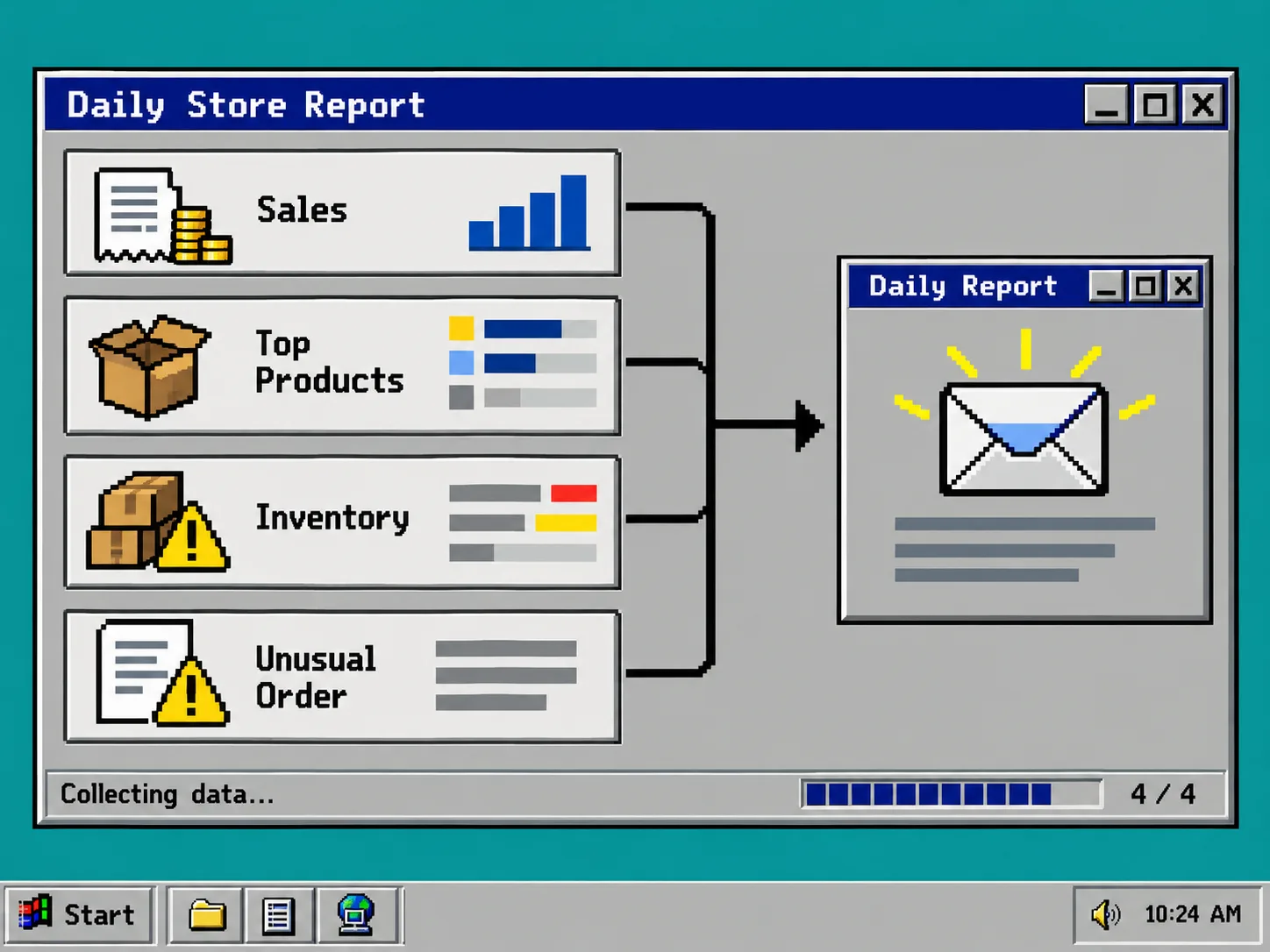
Use a fixed format for the first week. One reliable layout is:
- Sales: yesterday’s total and a comparison with the prior day.
- Products: top sellers and any items with missing or suspicious details.
- Inventory: items below the threshold you chose.
- Orders: unusual volume, repeat failures, or requests that need a person.
- Next action: a short, human-readable recommendation.
A reviewable output is especially helpful when you later expand to creative or catalog tasks. The same habit helps when you test Shopify color swatches before theme changes or prepare a collection launch with a size-chart audit.
5. Test on Real Data Without Giving It Write Access
Run the agent once manually. Open the message it sends and verify at least three figures against Shopify admin: revenue, an order count, and one inventory level. Then check that no products, orders, discounts, or customer records changed.
Run it daily for several business days before broadening its access. Keep a small note of false alarms, missing details, and useful finds. Tune the instruction instead of piling on tools. For example, if the report is too noisy, ask it to flag inventory only below a specific threshold. If top-seller information is not helpful, replace it with a collection or SKU list your team actually uses.
When a future automation needs a change, insert a review gate. This is the same low-risk approach used when teams plan a reversible Shopify bulk update before a sale: draft first, inspect the scope, then approve the action.
6. Add One Capability at a Time
After the report is accurate, choose the next smallest useful job. Good choices include a low-inventory alert, a draft product description for new items, a weekly social-post suggestion, or support-reply drafting that escalates complex cases. Each one should have its own instruction, access list, and review expectation.
Do not reuse the report agent as an all-access store operator just because it worked once. A separate agent for a separate job keeps troubleshooting simple and limits the effect of a bad instruction. It also lets you remove one integration without interrupting every workflow.

Troubleshooting
The report contains data you did not expect. Remove the integration or permission that exposed it, then narrow the instruction to the minimum fields needed.
The report is incomplete. Check whether the missing source has read access and whether the schedule ran. Add the source only after you can explain why the agent needs it.
The agent suggests edits when you only wanted a report. Rewrite the instruction with “do not modify store data” and confirm that write permissions remain disabled.
You want to automate a catalog task next. Keep the output in draft form first. This mirrors the safer pattern in a product-photo preparation workflow: review the result before it becomes part of a live listing.
Start Small, Then Earn Trust
A safe Shopify AI assistant begins with one readable, reviewable job—not unrestricted admin access. Set up a daily report, give it only the permissions it needs, verify its output against Shopify, and add capabilities one at a time.
Your next action: install Clawly, create a Daily Store Report agent, and run its first report manually before scheduling it.