What You Will Set Up
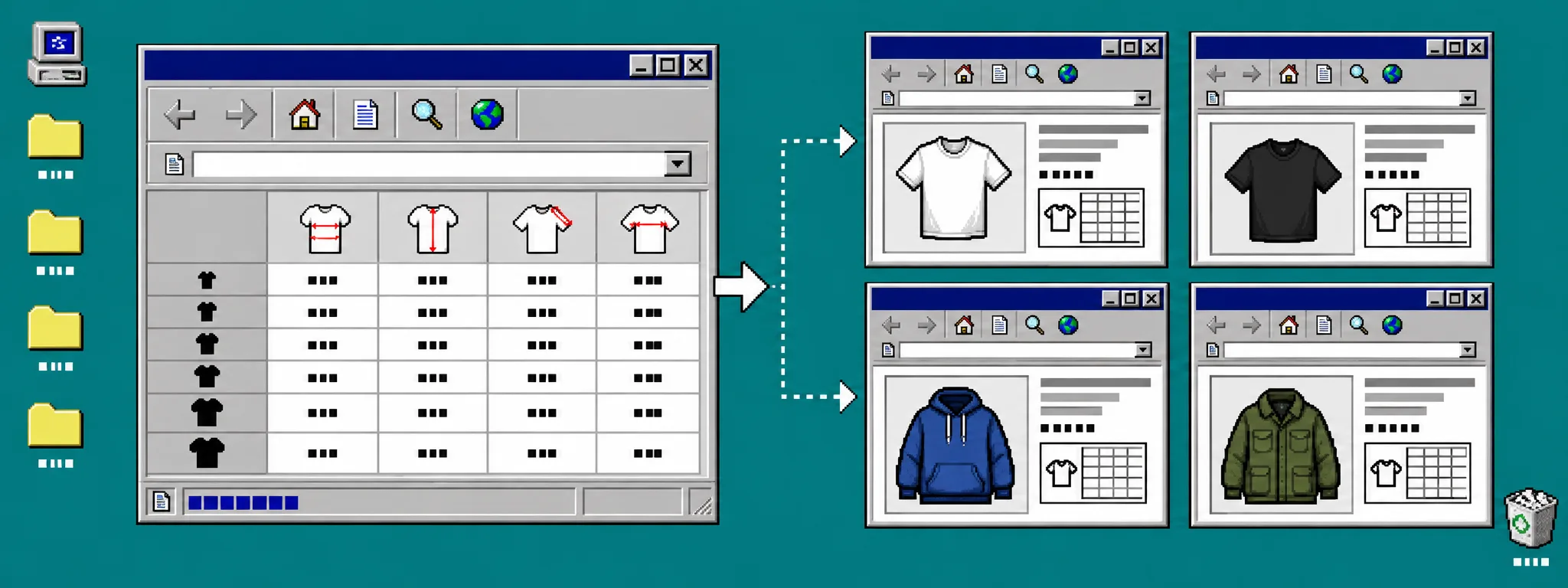
A new product should not go live with a missing size chart just because nobody has assigned one yet. In this guide, you will set a store-wide fallback chart in Supra Size Chart and then use more specific rules only where the fit genuinely differs. You need a Shopify store, a finished baseline chart, and access to the theme editor.
The result is simple: a newly added tee, hoodie, or similar item gets useful sizing guidance immediately. You still retain control—specific product, collection, product-type, vendor, or tag rules can take over when they should.
1. Build One Safe Baseline Chart
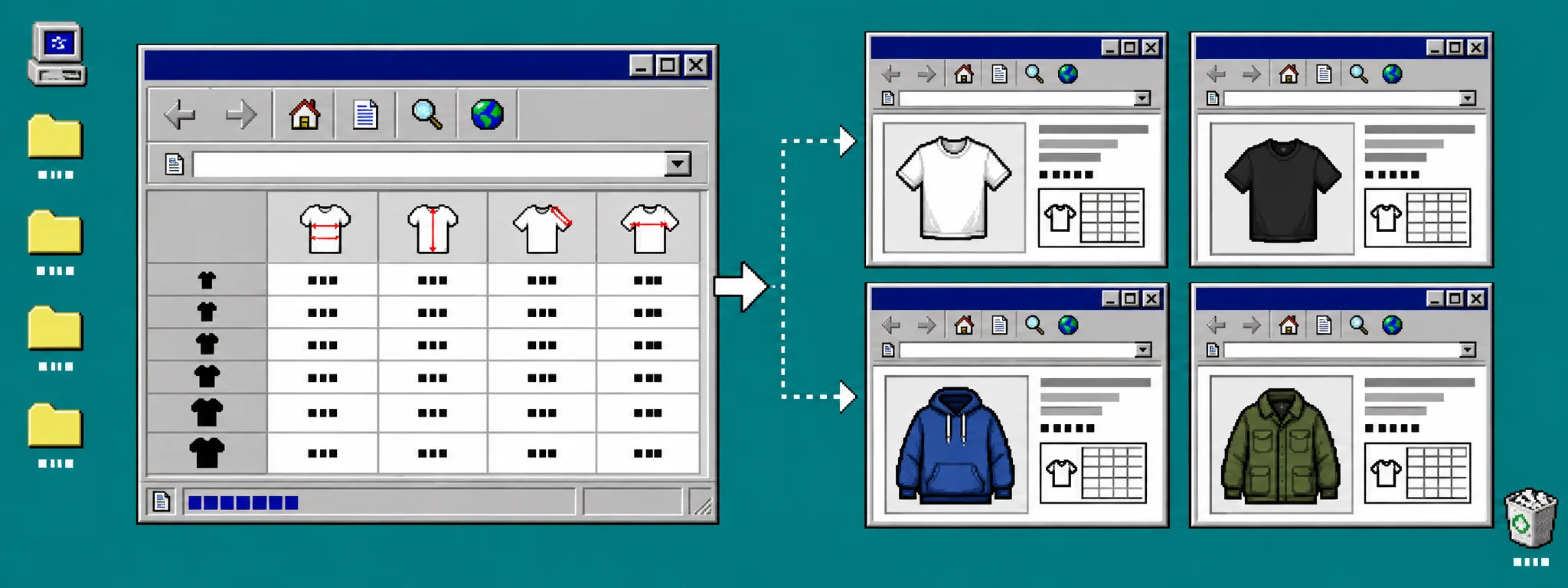
Start with the most common fit in your catalog, not the most unusual garment. For a unisex basics store, that might be your standard tee chart. Add clear row labels, the garment measurements shoppers need, and the units they will recognize. If you sell across borders, include centimetres and enable the metric/imperial counterpart where it makes sense.
In Supra Size Chart, open the spreadsheet-style editor and create this chart once. Add measurement notes that explain whether a number is a flat garment measurement or a body measurement. If a shopper measures their own chest while your table measures the garment chest width, the table can be technically correct and still produce the wrong order.
Attach a reusable measurement guide when the product needs one. A labelled tee or trouser silhouette answers the question a bare grid cannot: where does the tape go? Keep the baseline chart conservative. Do not make it pretend that a slim dress, a shoe, and a relaxed hoodie share the same fit.
2. Make It the Store-Wide Default
Set that baseline chart as the store-wide default in the app. This is the safety net. When a product page does not match a more specific assignment rule, the default chart renders instead of leaving the shopper with no sizing guidance.
What you should see: open a product that has no individual rule, no matching collection rule, and no matching tag rule. Its product page should now show the baseline chart through the theme app block.
A default is especially useful during busy catalog work. It protects the gap between creating a Shopify product and finishing its specialized merchandising setup. It also makes your launch checklist shorter: the default covers the ordinary case, while the team reviews exceptions deliberately.
3. Add Exceptions From Specific to Broad
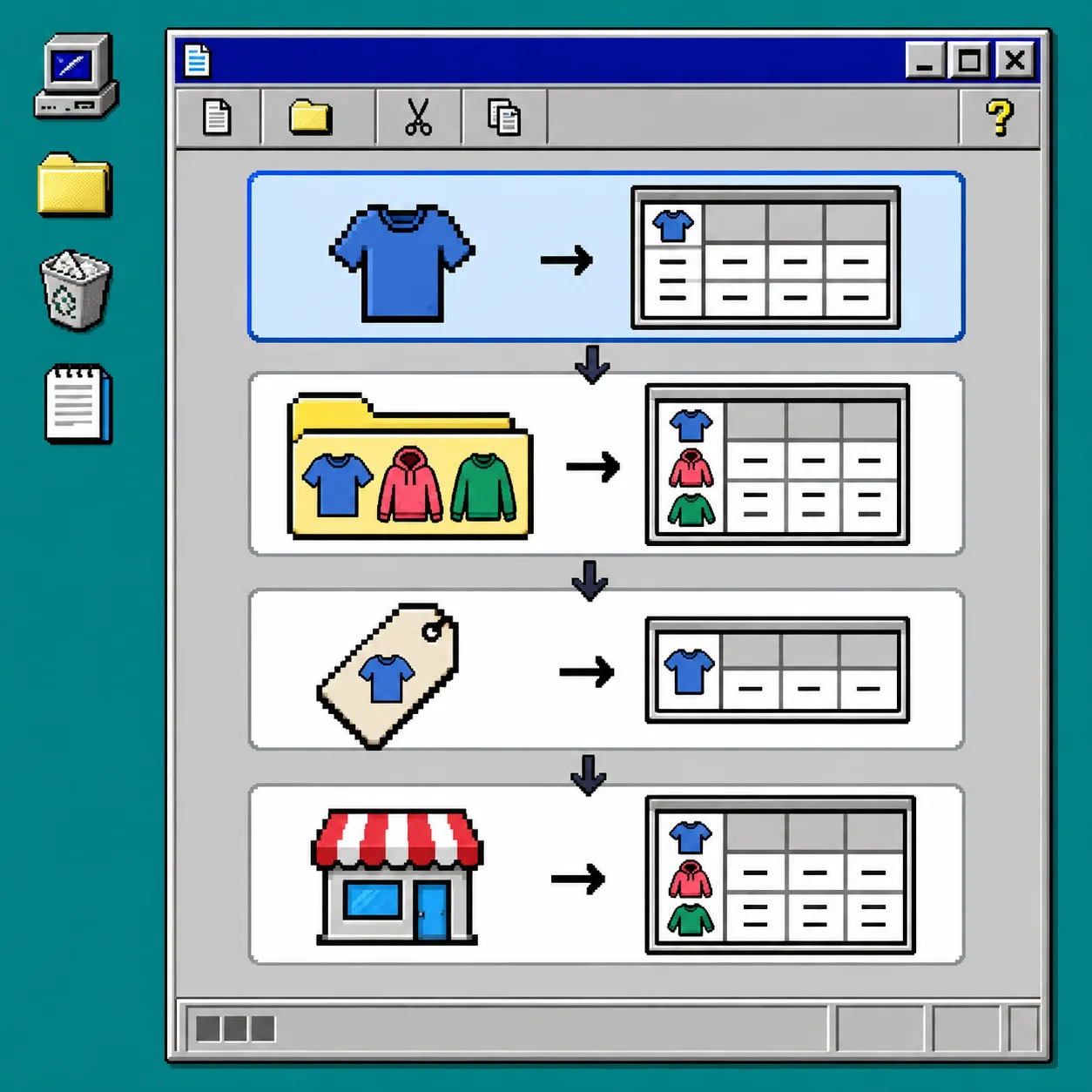
Create rules only where they add real shopper value. A product-specific rule is right for a one-off item with unusual dimensions. A collection rule is useful for a coherent group, such as petite dresses. Product type, vendor, and tag rules are useful when those fields already represent a meaningful fit family.
Check the precedence before you add another rule. Specific assignments should be the exception layer above your fallback, not a pile of competing guesses. For example, you might keep the default tee chart for most tops, apply a collection rule for oversized outerwear, and use a single product rule for a garment with a nonstandard cut.
If the catalog is broad, first split Shopify size charts by fit family. The goal is not to create as many charts as possible; it is to make the chosen chart explain the item in front of the shopper.
4. Put the Block Where Shoppers Need It
Open Online Store > Themes > Customize, choose a product template, and add the Supra Size Chart theme app block near the variant selector or the add-to-cart area. Choose an inline table, accordion, or modal according to the amount of information and the density of the page.
What you should see: the block should inherit the theme’s text colour and stay readable in the active storefront scheme. On a product with a matching rule, it should show that chart. On a product without one, it should show the default.
Treat this placement as part of the purchasing decision, not a footer detail. The same product-page thinking behind planning Shopify tabs around shopper decisions applies here: show the answer when it can prevent hesitation, not after it.
5. Test a Product Added Today
Create or duplicate a low-risk test product that has no special size-chart assignment. Give it the same product type or tags that a typical new item will receive, then view the published product page on desktop and mobile.
Check these points:
- The default chart appears without pasting HTML into the description.
- The displayed unit and measurement notes match the chart you intended.
- The chart is readable beside the chosen variant options.
- A deliberately targeted test product still receives its more specific chart.
What you should see: the default chart on the ordinary test product and the exception chart on the specialized one. If your products use color options, confirm that the chart does not make shoppers assume every color is a different fit; well-chosen Shopify swatches can make that distinction clearer.
6. Troubleshoot a Missing or Wrong Chart
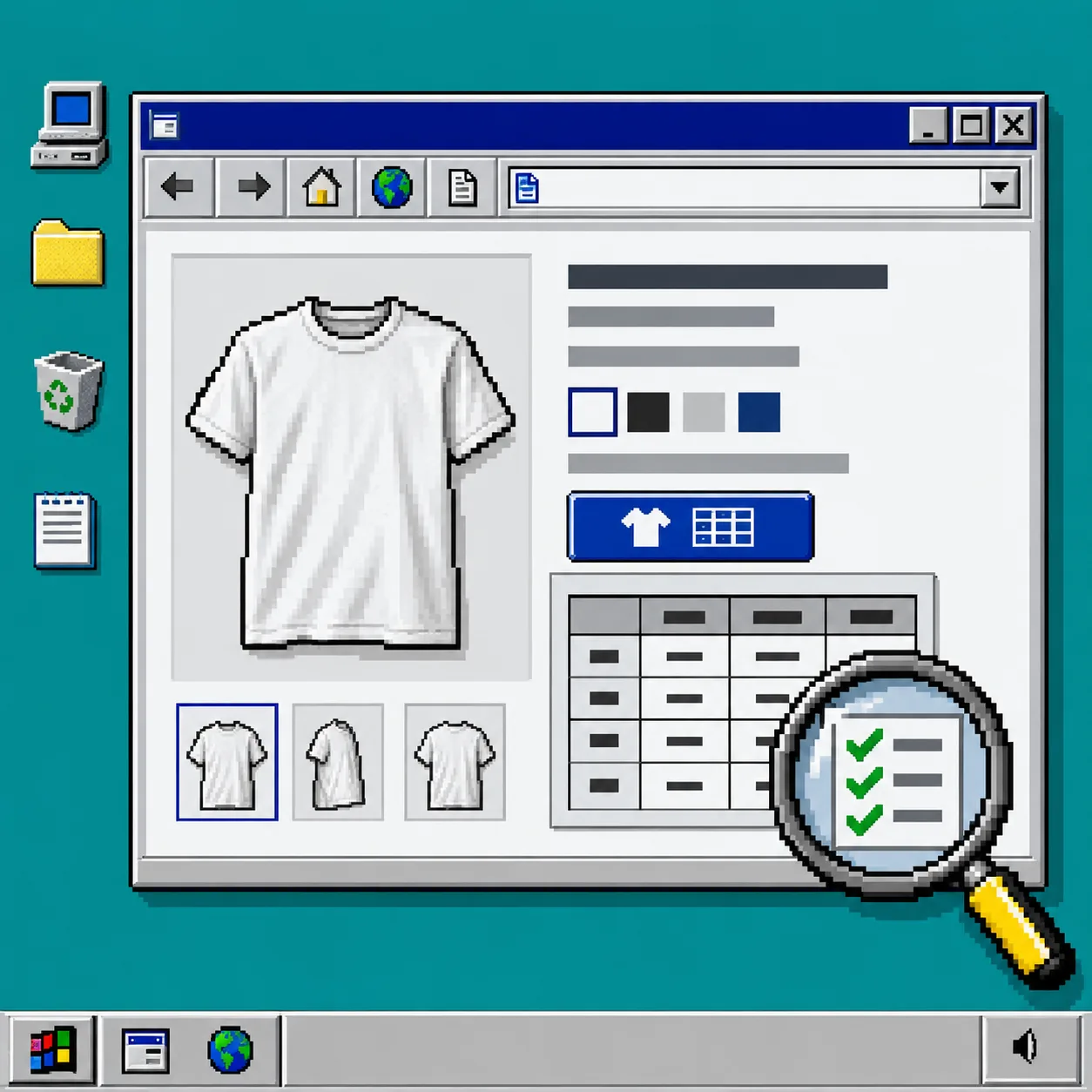
If no chart appears, check the theme app block first. It must be enabled on the product template the item actually uses. Then check whether the product is published to the relevant sales channel and whether the rule fields—collection, product type, vendor, or tag—match exactly.
If the wrong chart appears, list every rule that can match the product and remove overlap you cannot explain. A specialized product rule may be working correctly while an old tag rule is what is confusing the result. Test again after each change rather than editing several rules at once.
For a final shopper-eye review, use the same discipline as auditing a Shopify size chart before it ships: take the route a customer takes, read the instructions literally, and make sure the chart answers the sizing question without support.
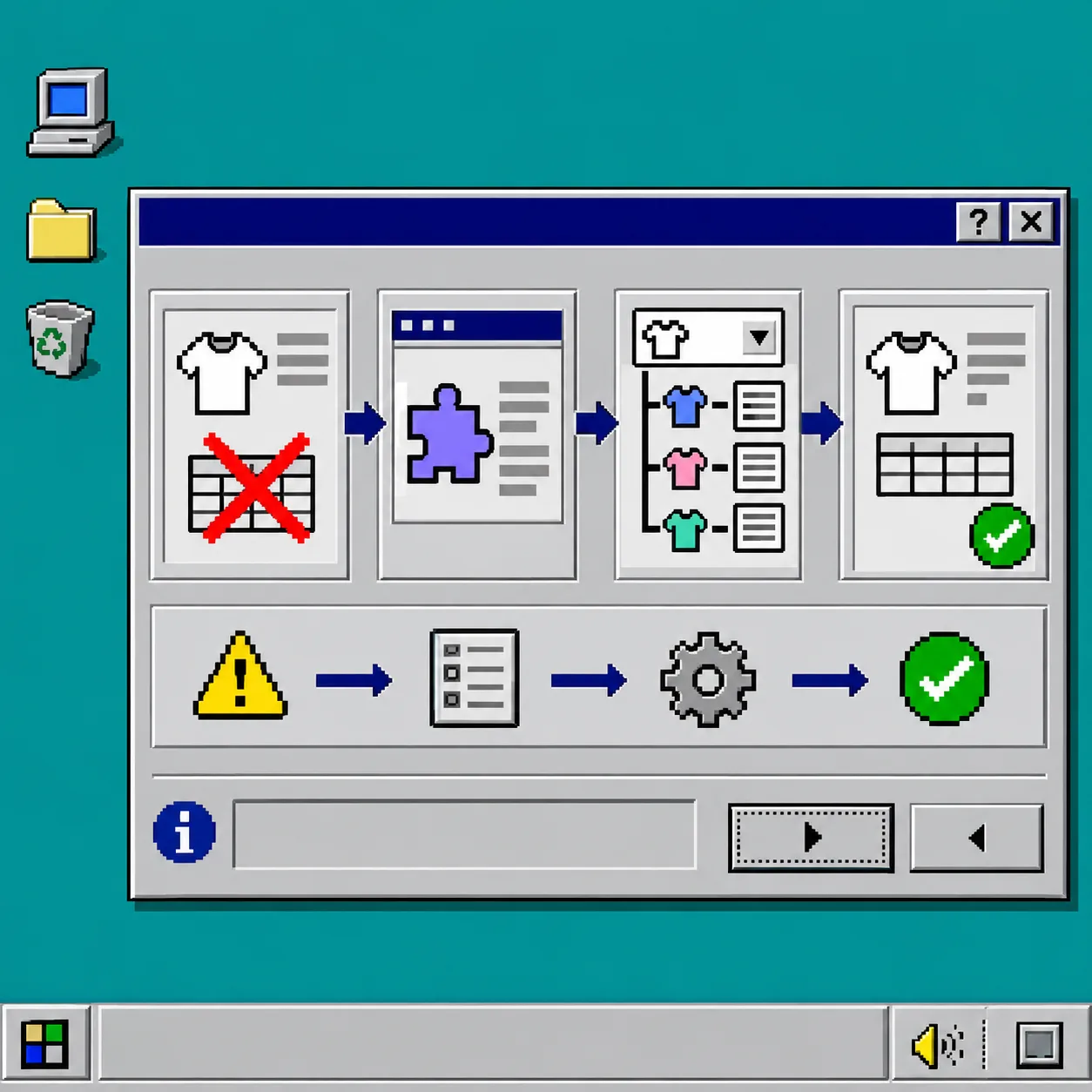
Keep the Fallback, Review the Exceptions
A store-wide default gives each new product a dependable first layer of sizing guidance. Specific rules then improve accuracy for real fit differences instead of becoming routine admin work. Review the default chart whenever your core fit changes, and export your charts as CSV or JSON before a major catalog restructure.
Your next action: install Supra Size Chart from the Shopify App Store, create the one chart that covers your ordinary products, and test it on a newly added item before the next collection goes live.