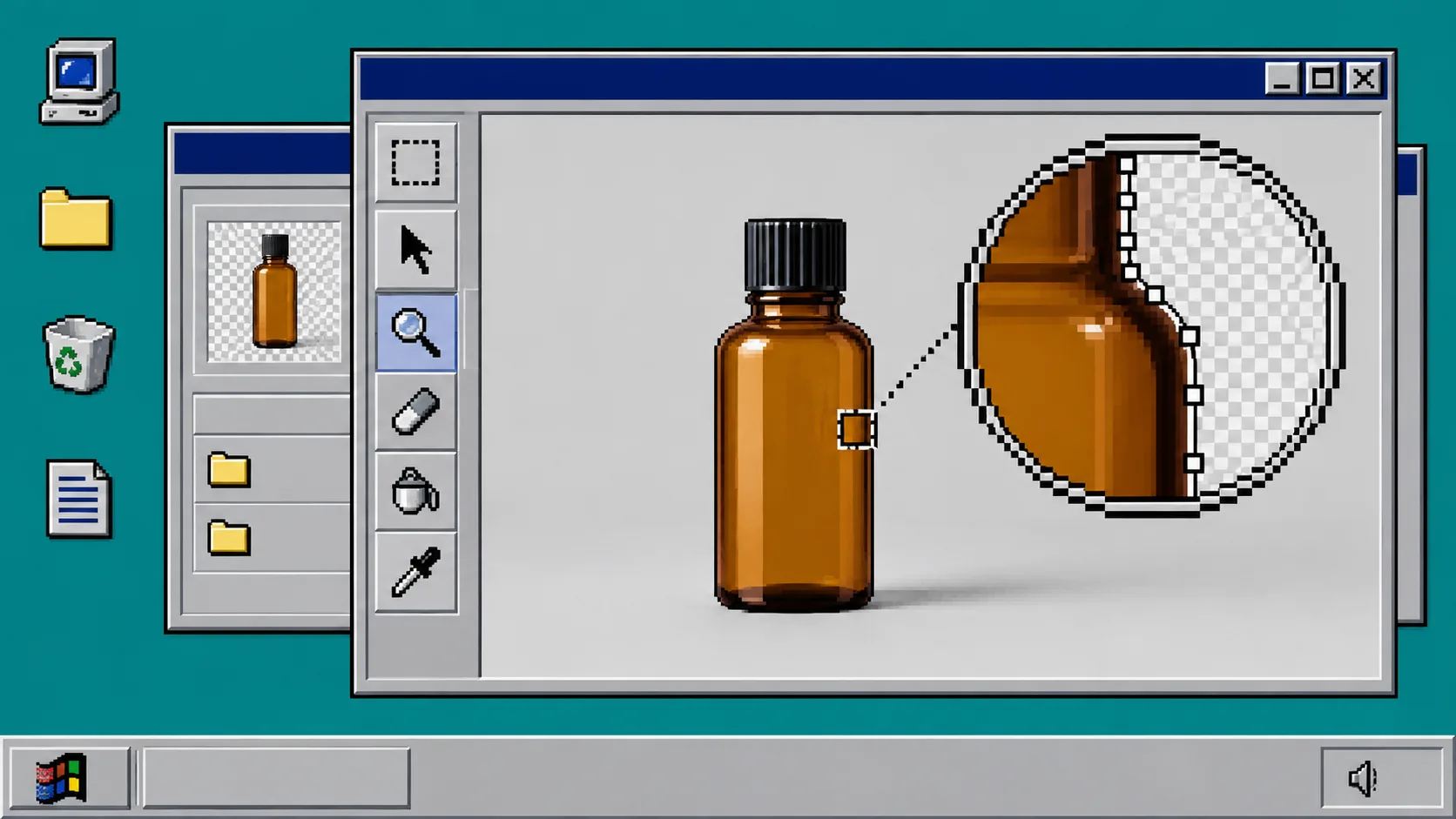
If your product photo has the right product but the wrong background, you do not need to remake it with an image generator. You need a clean selection, a controlled background, and a quick check that the product is still honest. This guide uses ImageFlow, a free browser-based editor with layers, masks, adjustment layers, and on-device selection tools.
You need one original product photo, a current browser, and a place to save your export. Work from a copy of the original. The goal is a clean listing image, not a new version of the product.
1. Open the original and name the working file
Open your photo in ImageFlow, then save an editable working version before changing anything. If you received a layered PSD from a teammate, ImageFlow can import and export PSD and PSB files; test a complex production file before you make that your permanent handoff path.
Keep the original layer at the bottom and give it a name such as original-photo. This makes later comparisons simple. If you are building several campaign sizes from one master, the same habit helps you build reusable product image templates without losing the original.
What you should see: one untouched source layer that you can toggle on and off.
2. Select the product, then inspect the hard parts
Use the selection or background-removal tool to get a first pass around the product. ImageFlow lists on-device AI selection and background removal among its browser tools, but treat that first result as a starting point. Add a layer mask instead of deleting the background pixels.
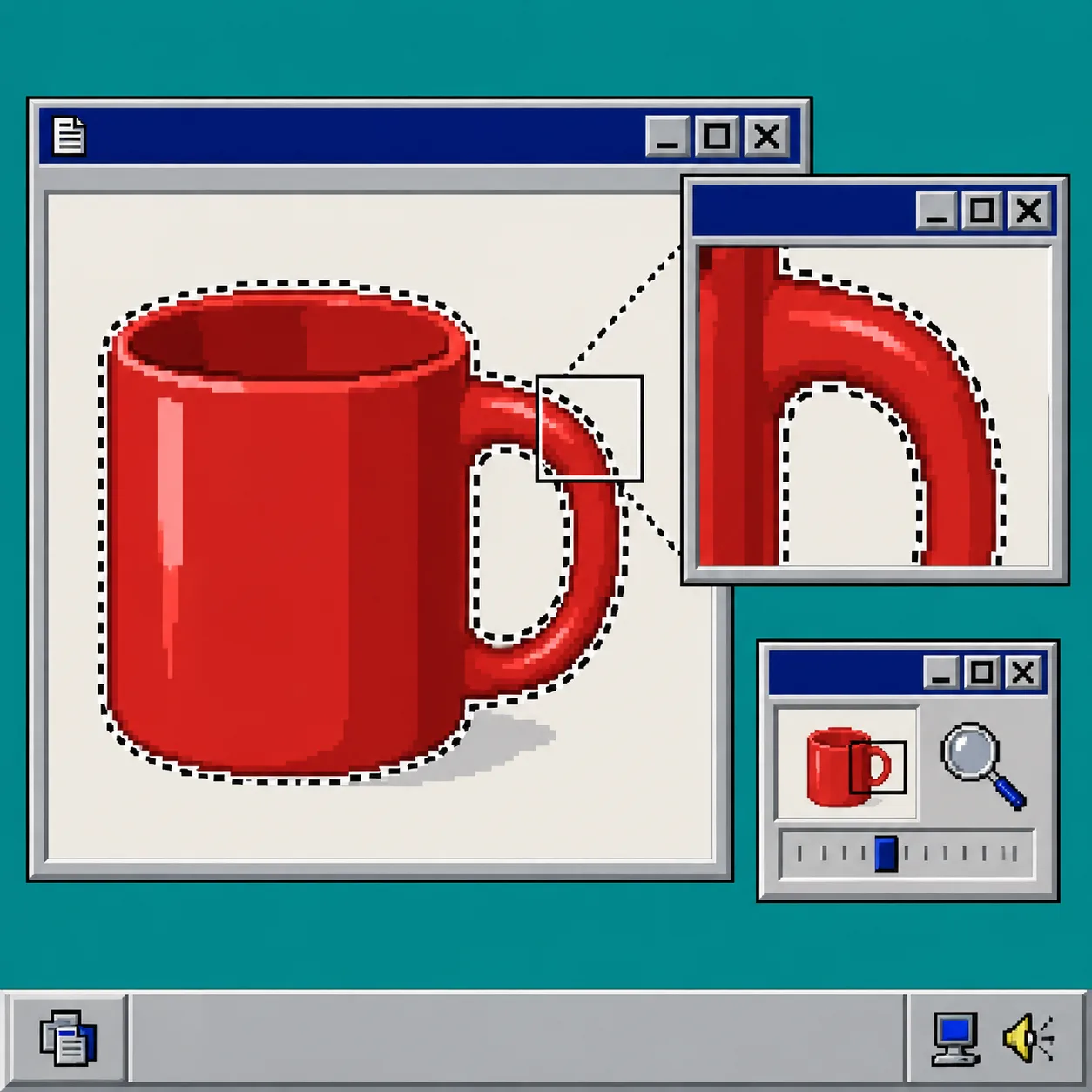
Zoom in on handles, transparent material, reflective edges, labels, and shadows. Refine the mask where the outline cuts into the product or leaves a halo. If the source has fine detail, work at a useful zoom and compare the masked view with the original layer turned back on. This is the same small-review mindset behind making browser-ready product image variants without starting over.
What you should see: the product edge is clean against transparency, without missing pieces of the real item.
3. Add the new background on its own layer
Create a layer below the product and use a simple neutral fill or an approved campaign background. Do not use the new background to hide a bad mask. If the product looks wrong against a plain background, fix the mask first.
For a storefront card, a quiet solid background is often enough. For a banner, leave room for the crop you actually plan to use. Avoid altering the product’s color, dimensions, included accessories, or material texture. A clean cutout should clarify the item, not promise something different.
4. Correct the image without baking changes into the original
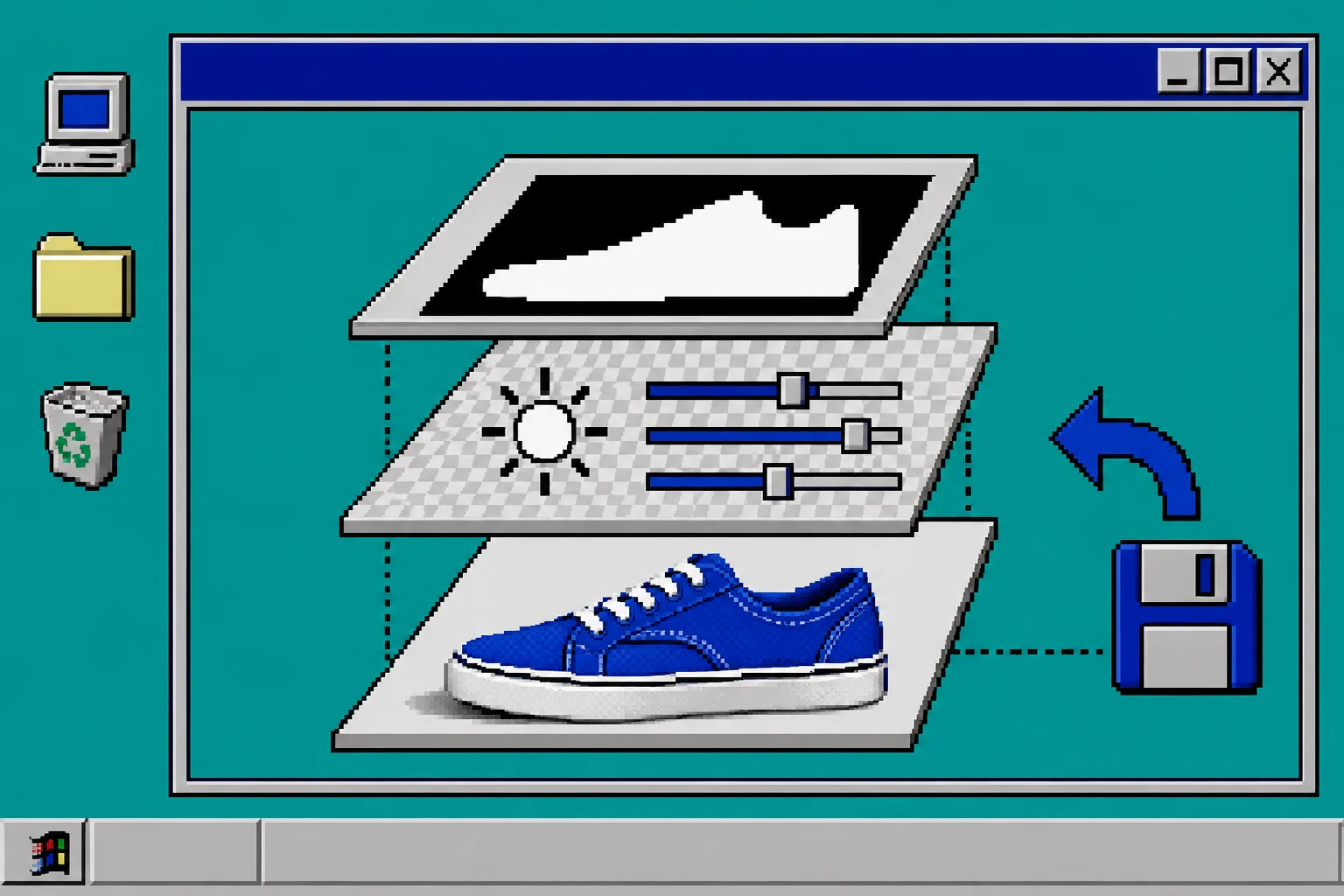
Use adjustment layers for exposure, contrast, or color correction where possible. ImageFlow supports non-destructive adjustment layers, masks, smart objects, and smart filters, which lets you revisit a correction instead of flattening it into the source.
Make one small correction at a time. If you remove a distracting background object with content-aware fill, inspect the repaired area at full size. Do the same after any relighting change: it can make a scene feel more intentional, but it is not a guarantee that every poor photo becomes accurate.
If your main job is preparing smaller, fast-loading storefront images after the edit, use this companion guide on preparing Shopify product images for faster loading. Keep the editable master separate from the delivery file.
What you should see: the photo looks clearer, while the product still matches the real item beside you.
5. Check the image at listing size and at 100%
Preview the cutout where it will be used: a collection card, marketplace tile, or product page. Then return to 100% zoom. Check these spots before export:
- The edge around the product, especially curves and thin details.
- The product label, logo, texture, and color.
- Contact shadows and reflections, if the source needs them to look grounded.
- The crop on mobile-shaped and square placements.
This review is more useful than adding another effect. For a broader workflow that keeps Photoshop-style editability in a browser, see how to edit a PSD file online without installing Photoshop.
6. Export a copy for the destination
Export a new file instead of overwriting the editable master. Use the dimensions and file format required by the storefront or marketplace, then name the file so the destination is obvious, for example ceramic-mug-white-background-2000px.jpg.
Open the exported file once outside the editor. Confirm that the background, crop, and colors survived the export and that the file is not accidentally transparent where the destination expects a solid background.
Troubleshooting
The edge looks fuzzy. Zoom in, refine the mask, and look for a leftover color fringe from the old background. Do not blur the entire product to hide it.
A label changed color. Disable adjustment layers one by one. Reapply the smallest correction that fixes the overall image without shifting a truthful product detail.
The export looks different on the storefront. Check the final dimensions, color profile handling, and the platform’s crop. Keep the layered master so you can make a targeted correction.
Recap
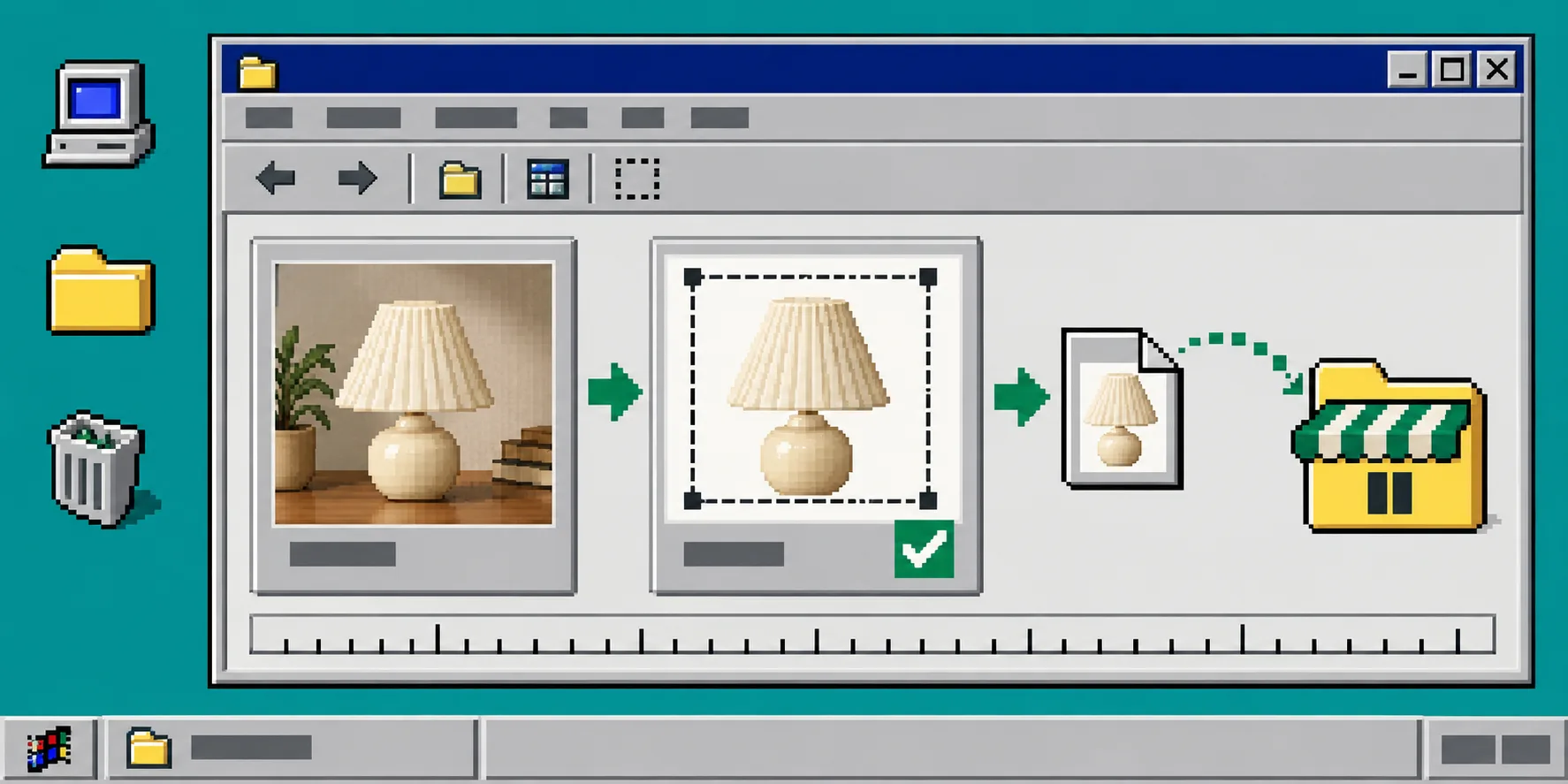
A clean ecommerce cutout is a short, reviewable sequence: preserve the original, mask the real product carefully, make adjustments non-destructively, inspect at 100%, and export a separate delivery file. Open ImageFlow with one real product photo and make the smallest useful edit first. That is usually enough to tell whether the browser workflow fits your catalog.