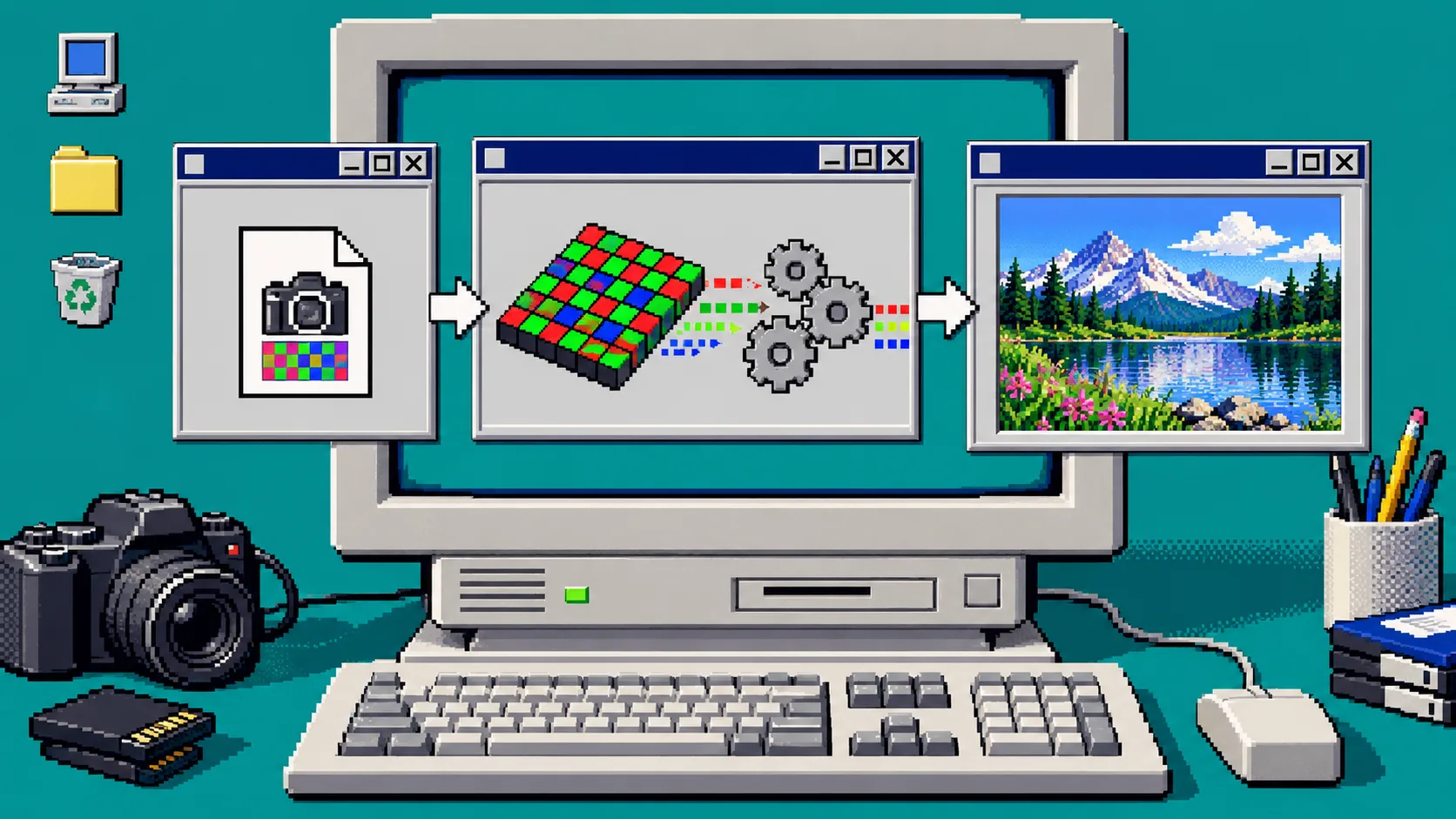
A local camera RAW previewer is possible in the browser, but only if the heavy work stays away from the click-and-scroll path. This guide builds the practical shape: keep the chosen file local, decode it in a worker, return a preview and metadata, and test the exact camera files you intend to support. You need a current browser, a sample RAW file you are allowed to use for testing, and a small JavaScript app. FlashRaw is one option for the decode layer: its npm package supports browsers, Web Workers, and Node.js.
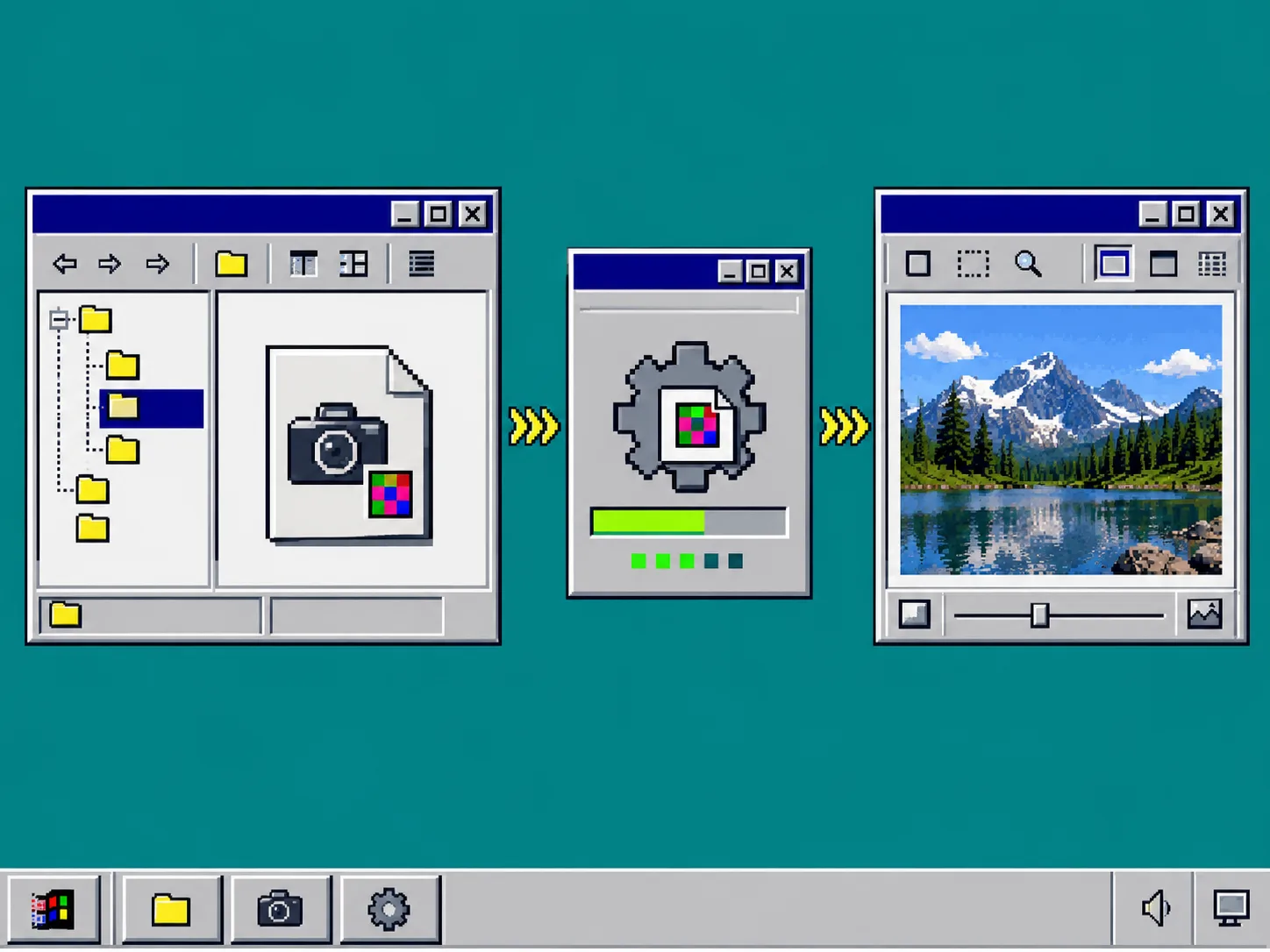
1. Check the exact RAW files before designing the upload screen
Treat “RAW support” as a compatibility table, not a checkbox. A CR3, NEF, ARW, RAF, DNG, or RW2 name is not enough: camera model and compression mode matter. Start with FlashRaw’s format support matrix, then gather a small lawful fixture set from the cameras your users actually own. Keep at least one expected failure in that set.
Make a simple fixture note with the camera, file extension, compression variant when known, expected result, and whether you need an embedded preview, sensor data, or a display-ready RGB image. This saves you from building a polished picker that fails after the progress bar reaches 99%. If your project already has a browser image workflow, the same discipline used to refine product photo masks in the browser applies here: test representative files rather than a single friendly demo image.
2. Install the decoder and make the worker own the expensive task
Install the package in the browser project:
npm install flashraw
Create a worker module and pass it the selected file bytes. The main thread should only update the file picker, progress message, and preview element. In the worker, perform the decode, extract the metadata you need, and choose either an embedded preview or a developed RGB output. FlashRaw exposes both preview extraction and display-ready RGB output; the right choice depends on your feature, not on which option sounds faster.
// raw-worker.js — keep this boundary small and explicit
self.onmessage = async ({ data }) => {
  const bytes = new Uint8Array(data.buffer);
  // Initialize the FlashRaw browser/WASM API for your pinned package version.
  // Decode bytes, then return only the preview data and metadata your UI needs.
  self.postMessage({ ok: true, kind: "preview-ready" });
};
The important part is the boundary: send transferable bytes into the worker where your browser setup allows it, and send a compact result back. Do not claim that every RAW stage runs on the GPU. FlashRaw’s optional WebGPU path is a post-decode/develop capability, so measure your own browser, device memory, and camera files before making it a requirement.
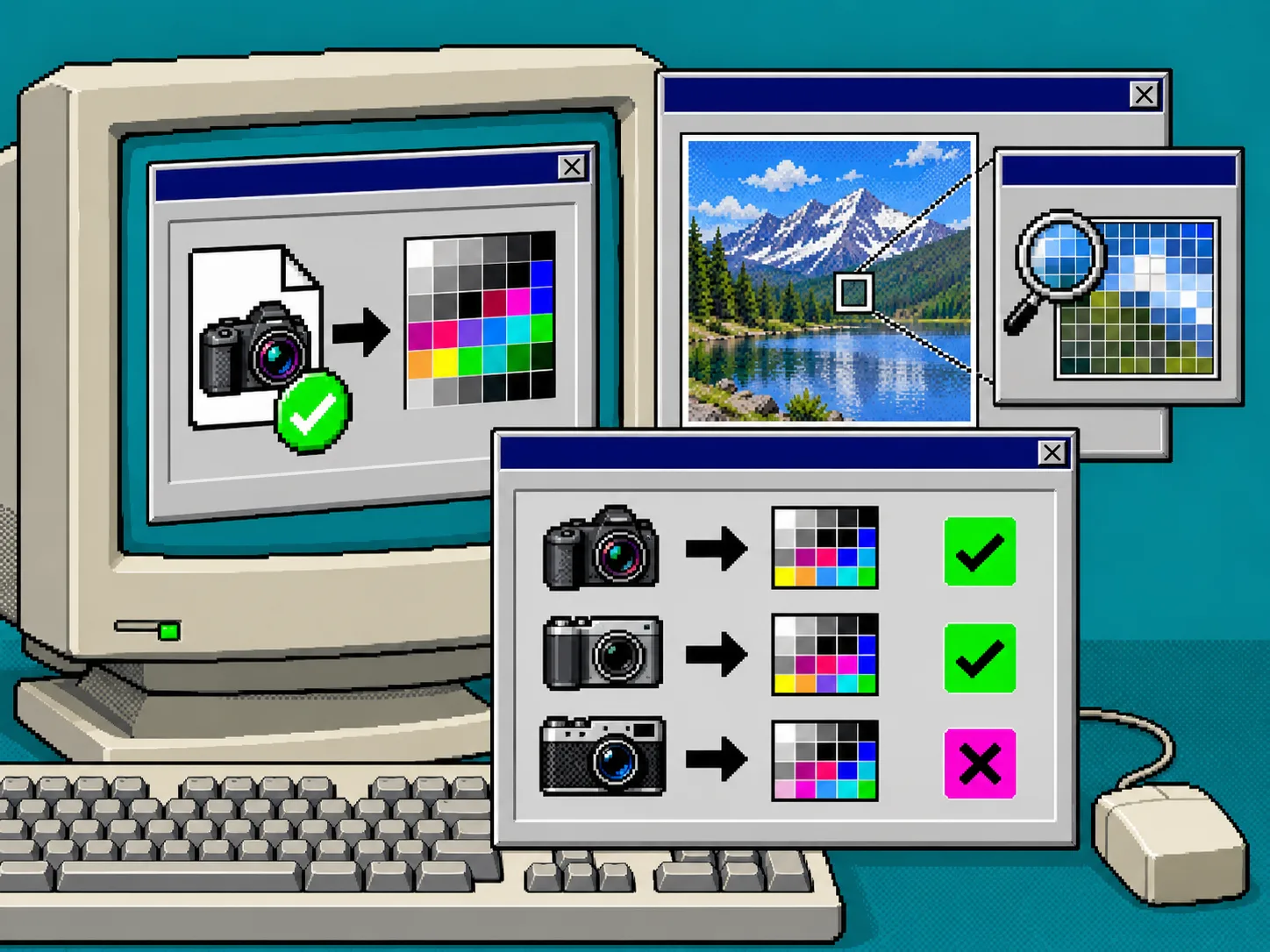
3. Decide which image your first screen needs
Use an embedded preview when the job is fast browsing and the camera file contains an acceptable preview. Use developed RGB when the feature must reflect your own RAW-processing choices such as white balance, colour space, crop, orientation, or ICC handling. A successful decode does not prove render parity with another application.
That distinction is useful beyond photo software. When a file is big, establish a low-cost preview path first, then offer the expensive operation deliberately. It is the same small-utility mindset behind reducing a CSV export before sharing it: move only the data the next screen actually needs.
4. Keep the UI responsive while the worker is busy
Show a real state change as soon as the user picks a file: “reading,” “checking,” “decoding,” then “preview ready” or “unsupported.” Do not freeze the picker while decoding. Add a cancel or replacement-file path, and clear the old object URL before showing the next image. Large camera files can hit memory limits long before your interface runs out of pixels.
For large images, start with a modest preview size. If you later add zoom, region, or tile operations, request only the pixels needed for that view. FlashRaw supports region/tile decoding where formats allow it, but that is a reason to design a measured test—not a reason to promise it for every file.
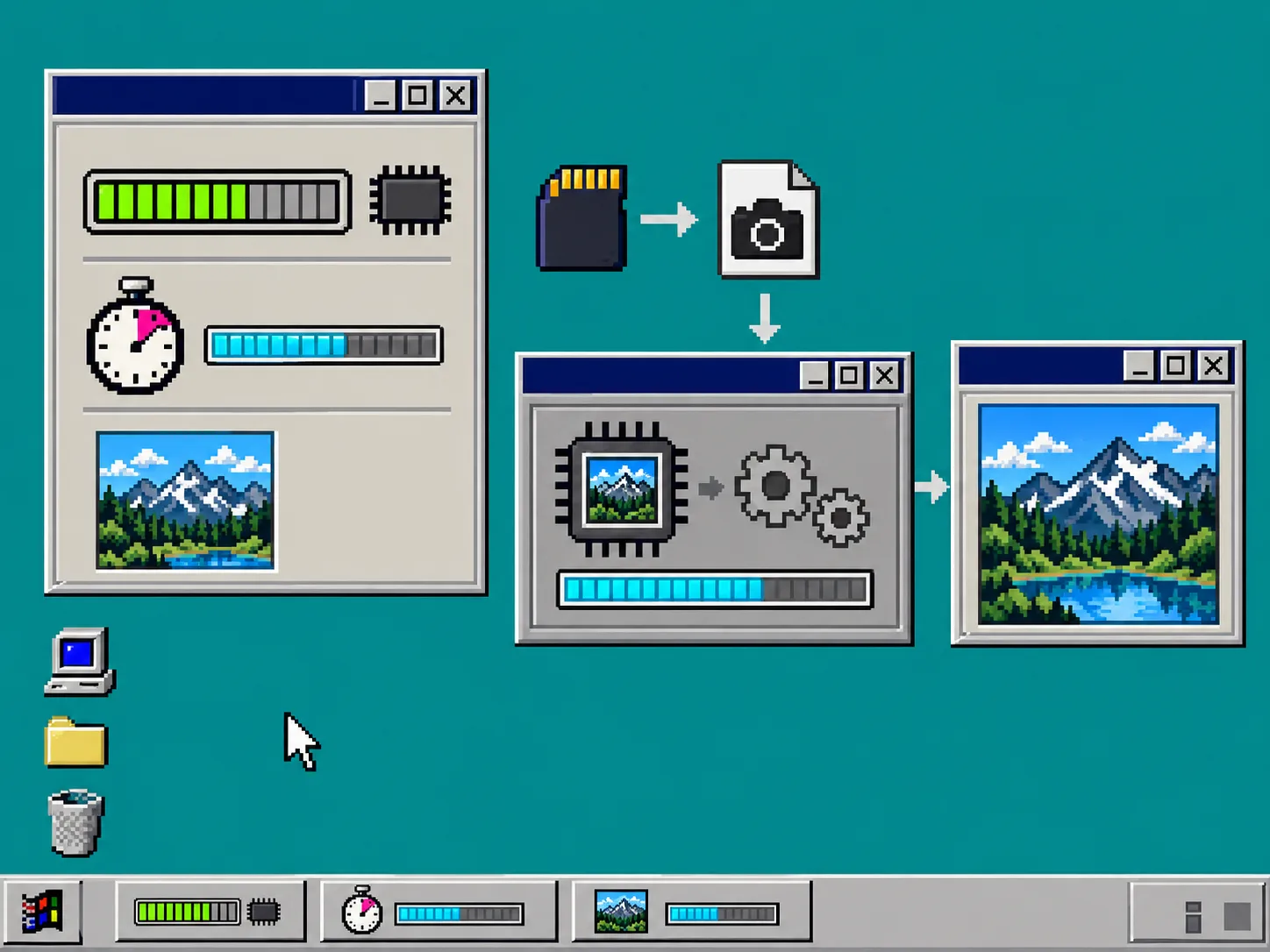
5. Add a support check and a useful failure message
When the worker cannot decode a file, keep the message specific: say that the camera or compression mode may not yet be supported, retain the original file locally, and offer a plain next step such as checking the format matrix or choosing another sample. Never upload the file just to discover compatibility unless your product explicitly requires a server workflow.
Also test malformed files, truncated transfers, an empty selection, and a file that is too large for the device. FlashRaw’s Rust core uses bounds-checked parsing and documents safety work for untrusted image files, but your app still needs allocation limits, a controlled error boundary, and a fixture-based test plan.
Troubleshooting
- The page becomes unresponsive: confirm that decoding starts inside a module worker, not in the change handler.
- A file works on desktop but not mobile: compare available memory and test a smaller preview before adding threads or GPU features.
- A familiar extension fails: recheck the exact camera and compression row in the format matrix.
- Threaded WASM will not start: verify the required browser security headers before enabling that build path.
- The preview looks unlike another editor: compare fixtures and acceptance criteria; decoding, demosaicing, white balance, and colour management are separate choices.
A responsive private RAW previewer is not a one-line import. It is a clear boundary: local bytes in, worker decode, small result out, and a test record for every supported camera path. Start with one camera model and one preview flow, then use the FlashRaw repository to pin the integration details for your chosen version. Once that works, you can apply the same deliberate browser-processing approach used in a product photo QA workflow instead of treating large image files as ordinary uploads.