How to Set Up Shopify Product Accordions for Mobile-First Product Pages
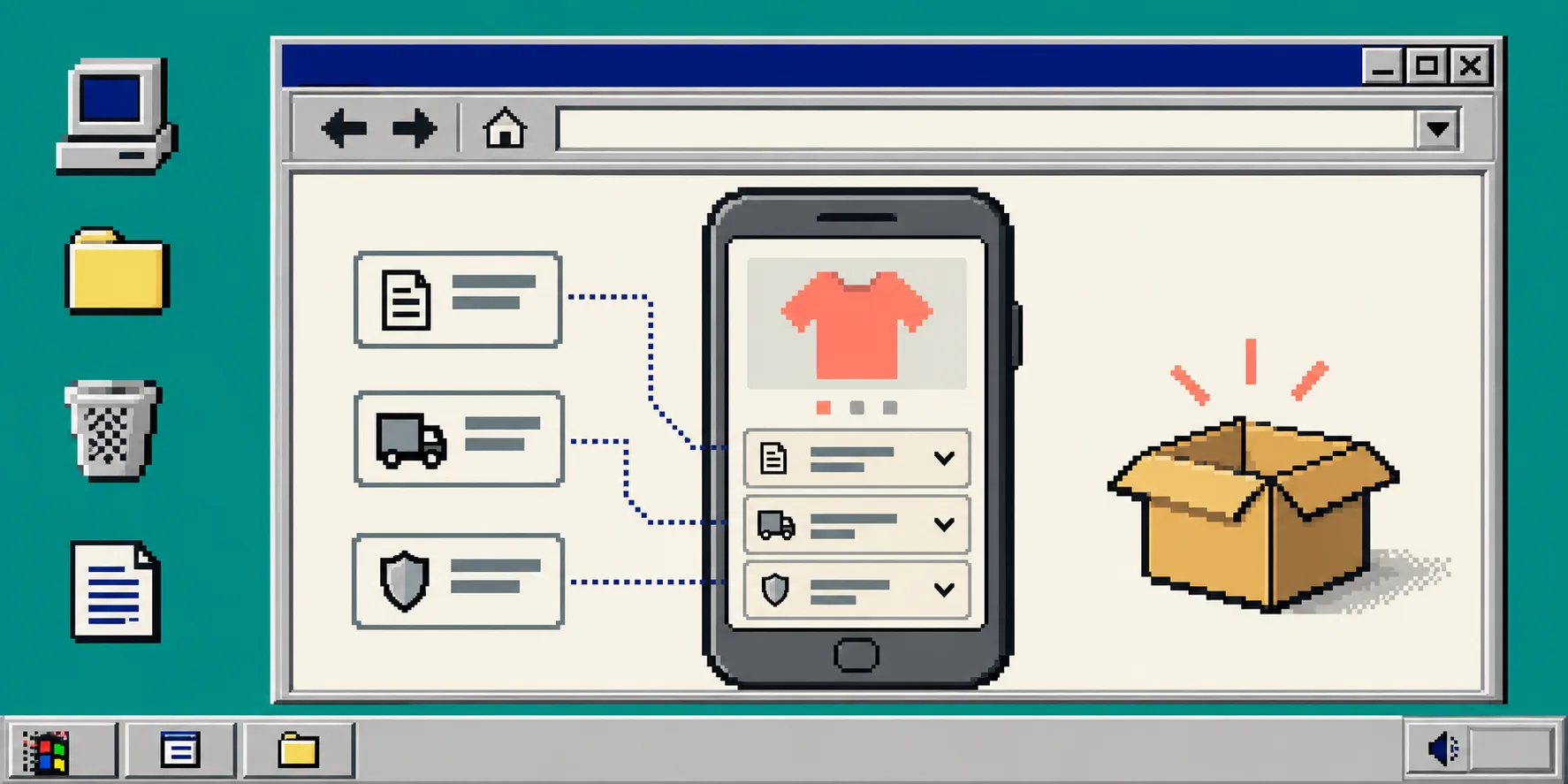
A crowded Shopify product page does not become clearer because its description gets longer. On a phone, a wall of care notes, sizing details, shipping rules, and compatibility information makes the important answer hard to find. The practical fix is to keep the underlying content where it belongs, then give each kind of detail a compact, predictable place to open.
This guide shows how to set up product accordions with Supra Tabs & Accordions. You will need access to your Shopify admin and your product template. The app is free—there are no tiers, trial, or card requirement—and it organizes the way content is presented rather than replacing your product data.
1. List the questions a shopper needs answered
Start with one representative product, not the whole catalog. Open its product page and write down the questions that would stop a customer from deciding: What is it made of? How does it fit? Is it compatible? How long does delivery take? What happens if it needs care or returns?
Turn those questions into short, scannable section names such as Details, Size and fit, Care, Shipping, and Compatibility. Avoid labels like “More information” because they force a shopper to open a panel before knowing whether it is useful. If you are unsure what belongs on the page at all, use this earlier guide on rebuilding product pages around shopper questions.
What you should see: a small list of labels that makes sense even when a shopper scans only the closed rows.
2. Separate reusable content from product-specific content
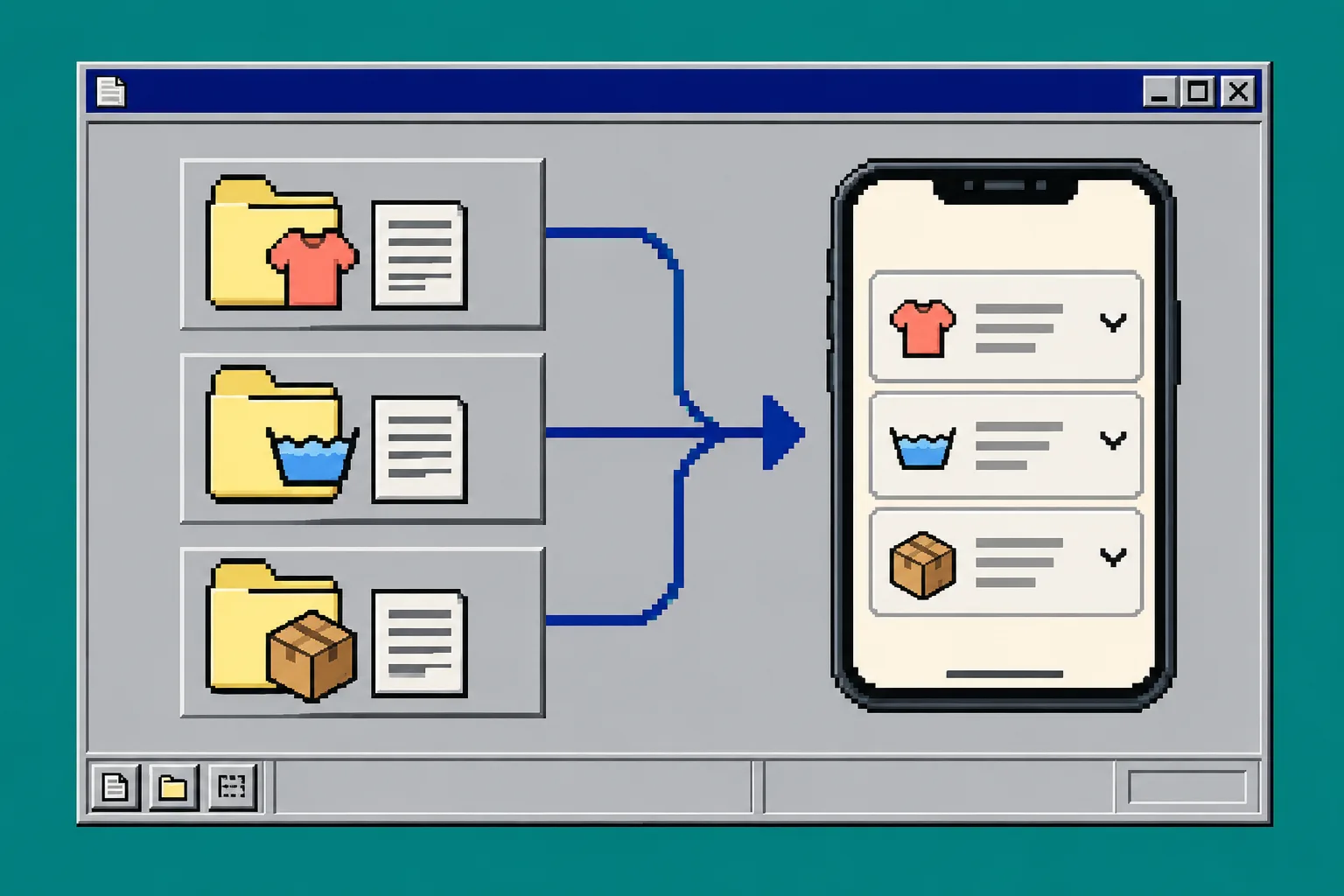
Next, decide where each answer should live. A shipping explanation that applies across the store is reusable. A fabric composition, dimensions, or model-specific compatibility list belongs with the product. This distinction is what prevents repeated copy-and-paste work later.
Supra Tabs & Accordions can use the product description, a per-product metafield, store page content, a field from a metaobject entry, an image or downloadable file, or written content entered in the app. Use the source that already owns the information. For example, keep a technical specification in a product metafield rather than pasting it into several product descriptions. The companion guide on building Shopify product tabs from metafields and metaobjects is useful when your catalog has structured product data.
What you should see: every proposed accordion has one clear source, and no shared policy text needs to be manually copied into every product.
3. Build one tab set in the app
In Shopify, open Apps, then open Supra Tabs & Accordions. Create a tab set. Add each section from your list, choose its content source, and name it exactly as a shopper should see it.
For a starter set, try:
- Details from the product description or a short written overview.
- Size and fit from a metafield or a reusable size-guide page.
- Care from shared written content or a metaobject field.
- Shipping from a store page.
The app hides an empty tab automatically when a product has no matching content. That makes a shared set safer for mixed catalogs: a simple product does not show a dead “Compatibility” row, while a technical product can still show it.
What you should see: a preview with useful sections only, not a fixed stack of empty headings.
4. Target the set with one rule you can explain
Choose where the set applies: a collection, tag, vendor, product type, or specific products. Start narrow if this is your first rollout. A collection rule is usually a good choice for a product family that shares the same information shape; a tag rule is handy for a small exception.
Check the live match count and any overlap warning before you save. If two tab sets could match the same product, the app flags the overlap and tells you which set wins. Write down that choice. It is much easier to maintain a catalog rule when someone else can answer “why does this product use this set?” without guessing. For a deeper rule-testing workflow, see how to debug Shopify tab rules before they collide.
What you should see: a predictable group of matching products and no unexplained rule collision.
5. Add the app block once to the product template
Open Online Store > Themes > Customize. In the product template, add the Supra Tabs & Accordions app block where shoppers expect supporting information—usually below the buy controls and core product summary. Save the template.
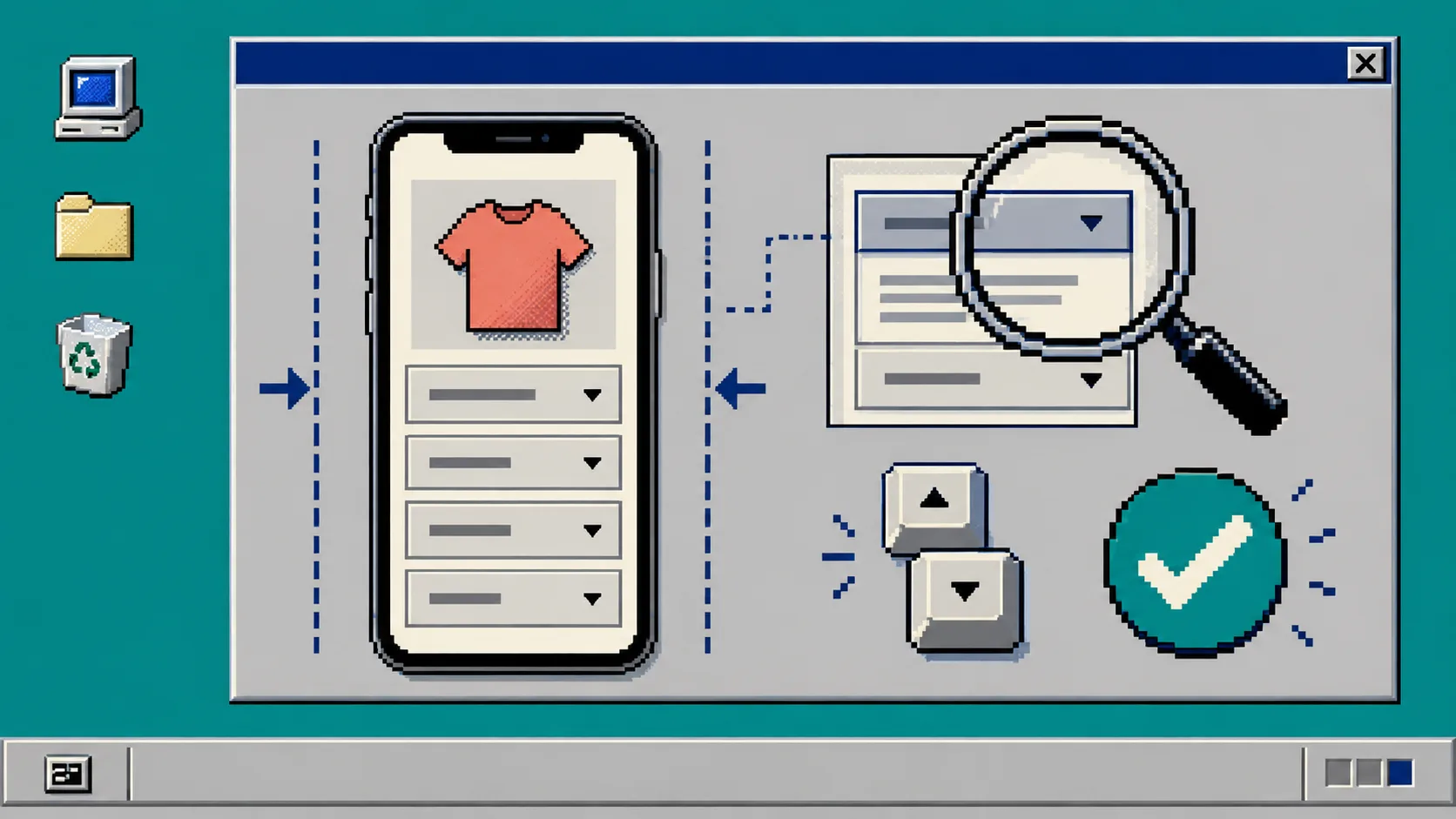
The same content adapts to the actual width of the product-page column: tabs can serve a wider desktop layout, while accordions keep a narrow mobile layout compact. You can choose how tabs that overflow behave, including horizontal scrolling, a More control, wrapped rows, or stacked sections. The important part is to test the real template, not only a wide editor window.
What you should see: the selected product displays the new content block without rewriting its original description.
6. Test the shopper path on a phone and keyboard
Open a matching product on a narrow screen. Tap each accordion row. Check that the label remains visible, the opened content is easy to read, and a long table or file link does not push the layout sideways. Then test a product that should not have one of the sources; its empty row should disappear.
On desktop, use the keyboard to move through the controls and open a section. Supra Tabs & Accordions includes keyboard support, appropriate roles, comfortable tap targets, and reduced motion for shoppers who request it. Keep headings and content meaningful—presentation does not excuse vague copy. If the column is wide enough for tabs, also test your chosen overflow behavior.
What you should see: every product has only the details it can support, and the controls still make sense without a mouse.
Troubleshooting
A section is visible but empty. Check the selected source on the tab, then inspect the product’s matching metafield, metaobject field, or description. The app hides truly empty tabs, so visible emptiness usually means the source contains placeholder markup or a partial value.
The wrong tab set appears. Review the match count and overlap warning. Make one rule more specific or decide deliberately which set should win. Do not solve a rule conflict by duplicating the content.
The layout looks crowded on mobile. Shorten the labels, move low-priority prose into a deeper page, and check the placement of the app block. An accordion is a navigation aid, not a place to hide an unlimited amount of copy.
A store-wide edit requires too much cleanup. Move that text from individual descriptions into a shared store page, metaobject, or reusable written tab. For more ideas on keeping shared details consistent, read how to organize Shopify product details with reusable tabs.
Finish with a small release check
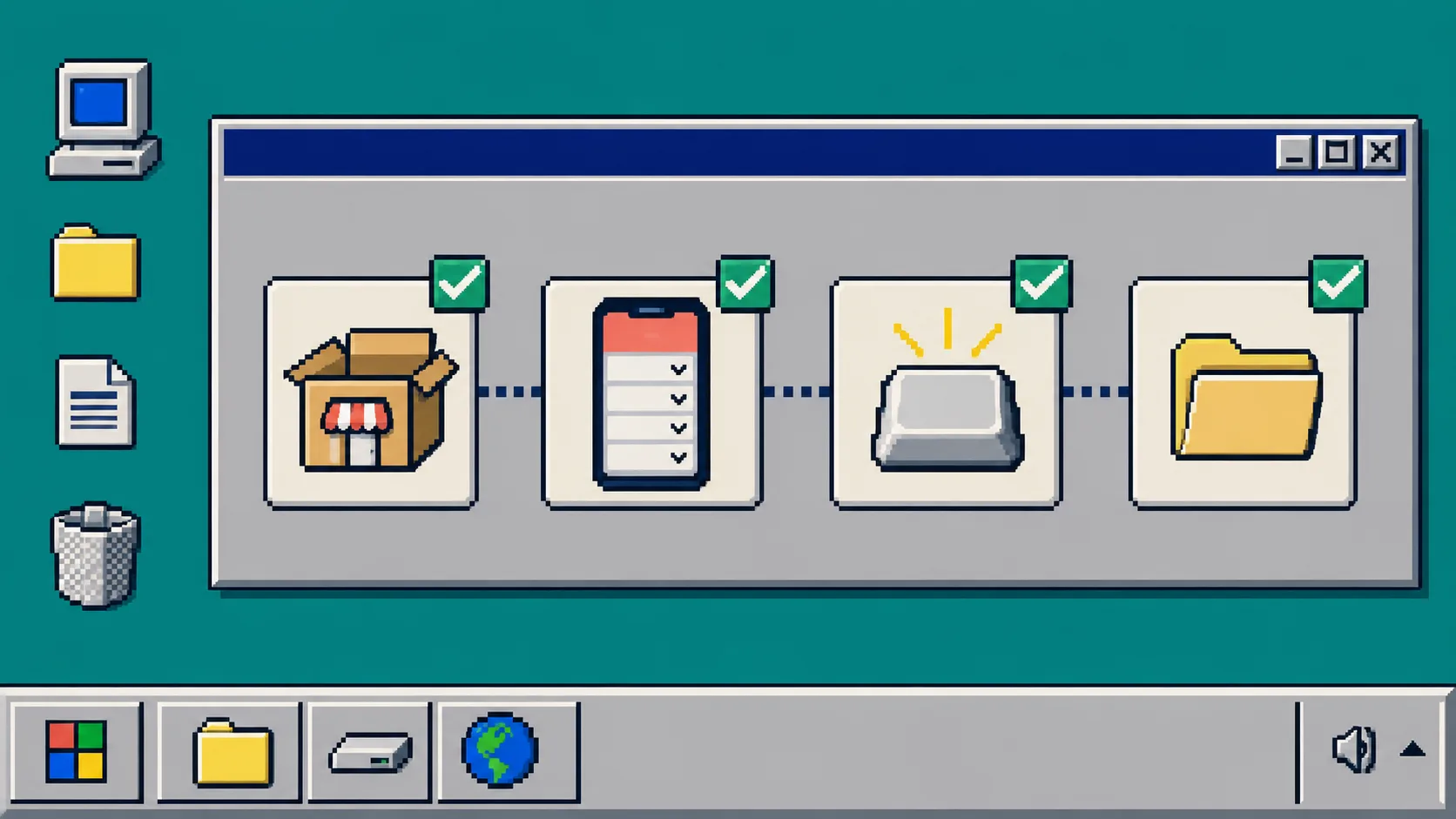
Before applying the system across the catalog, confirm four things: the right products match, each accordion has a useful source, the mobile page stays easy to scan, and the keyboard path works. Then widen the rule from the pilot collection to the rest of the appropriate catalog.
That gives shoppers a faster route to the details they need while giving your team one maintainable content structure. Install Supra Tabs & Accordions from the Shopify App Store, build one pilot set, and test it on a real product page before rolling it out.