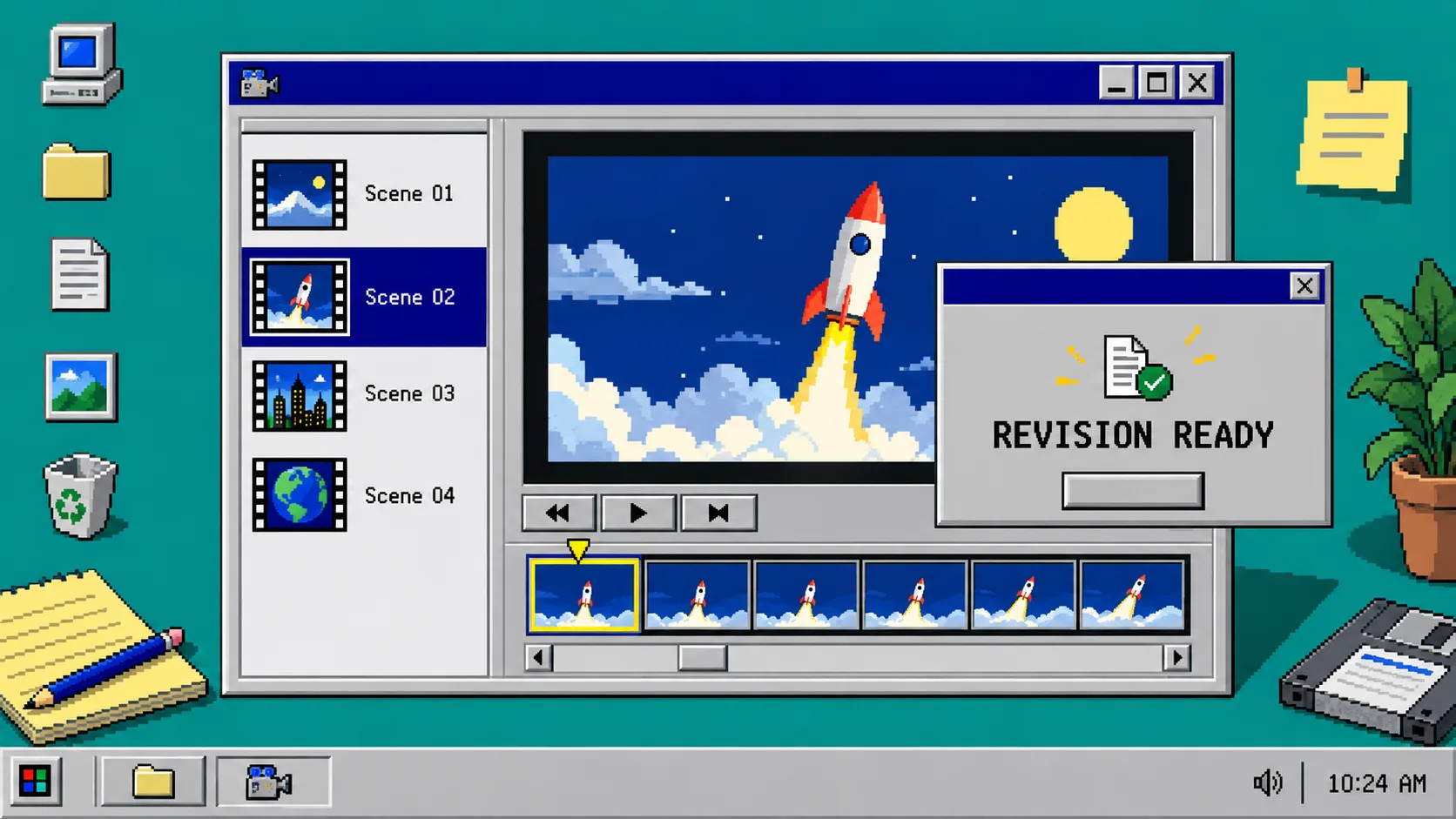
How to Revise One Launch Video Scene Without Losing Your Editable Project
You can revise one scene in a startup launch video without rebuilding the whole film: describe the specific change, keep the scene and timing in scope, then inspect the newly rendered frames before approving it. VideoFlow Studio is designed for this kind of revision because its film remains an editable project rather than only a finished clip. You need a completed first render, the source URL or project, and one clear issue to fix.
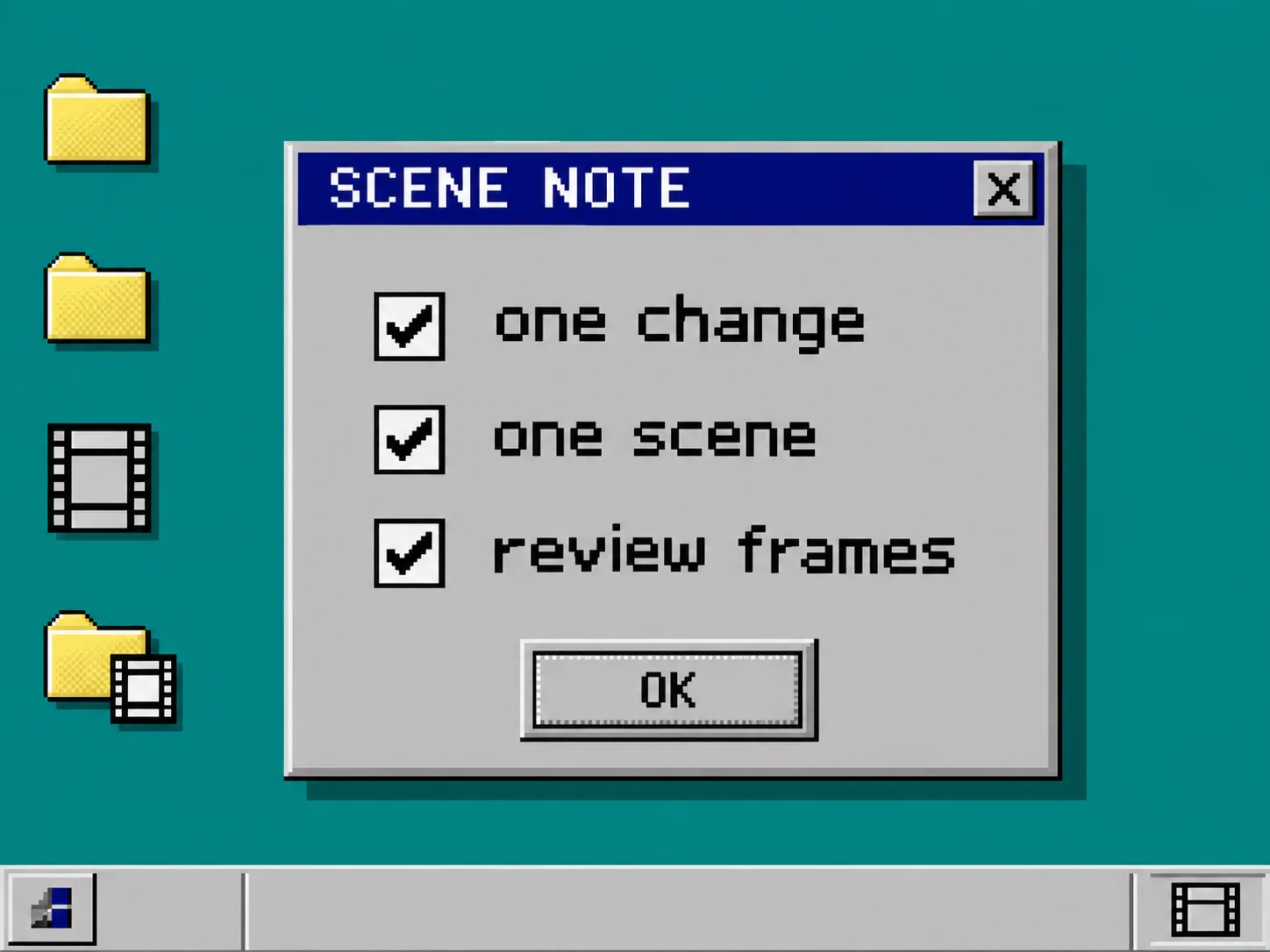
1. Identify one visible problem before you request a change
Pause on the exact moment that is wrong. Write down the scene number or timestamp, what a viewer sees, and what should change. Do not start with a broad request such as “make it better”; it gives the next render too many moving parts.
A useful scene note has three parts:
| Include | Example |
|---|---|
| Location | “Scene 3, the last two seconds” |
| Visible issue | “The headline competes with the product card” |
| Intended correction | “Hold the card, then bring in the headline after it” |
This is smaller than a full launch-video brief. If you are still deciding what the film should say, start with a website evidence pack instead of asking an editor to solve a messaging problem during a layout revision.
2. Open the existing Studio project instead of starting a second film
Use the existing VideoFlow Studio project for the revision. Studio’s terminal path starts with npx @videoflow/studio@latest; its hosted path lets you open the same kind of editable project in the browser. The official product page says both routes end in the same editor, and that the agent can work from the context of the film it already built.
That distinction matters. A new URL-to-video run can be appropriate when the product positioning has changed. It is a poor substitute for a one-scene correction because it can change the structure, copy, and pacing you already approved. The underlying VideoFlow engine is open source and documents a portable JSON video format; Studio is the operator-facing workflow layered on top of that editable foundation.
3. State the revision as an observable instruction
Tell Studio exactly what to change in a plain-language sentence. Keep the request tied to the selected scene and name any element that must remain unchanged. For example:
In scene 3, keep the product card and its color. Move the headline to appear after the card has settled, then render the revised scene.
This request supplies a boundary, an invariant, and a result to check. It does not pretend that a text prompt alone proves the edit worked. Studio’s published workflow says it plans, builds, renders, measures, and visually reviews the encoded result; use that review pass as a useful first check, then perform your own reader-facing check.
If your revision is about an end card or a single message, this focused approach is usually faster than a wholesale re-cut. If the launch claims themselves changed, use the broader change-control method in How I Keep a Startup Video Accurate When the Product Changes before you touch the scene.
4. Inspect rendered frames, not only the timeline
After the render completes, inspect the encoded frames at the beginning, middle, and end of the changed scene. Check the result a viewer will actually receive: the text should be readable, the product should remain visible, and the transition should not hide the promised feature.
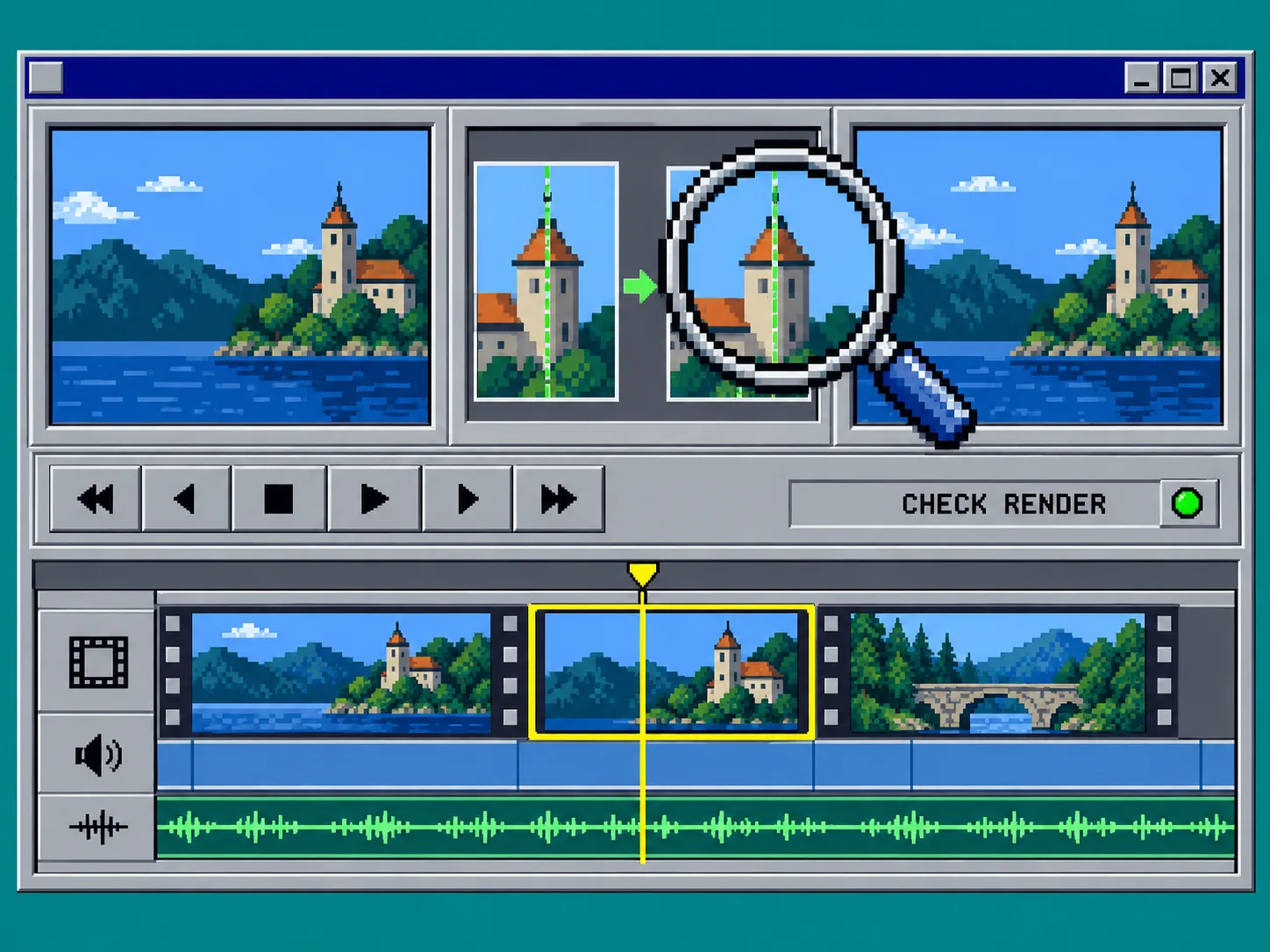
Use this compact acceptance test:
- Compare the first changed frame with the last approved version. Confirm that unrelated scenes did not move.
- Check the moment the new element enters. Confirm it does not overlap a logo, button, or product screenshot.
- Play the scene at normal speed with sound on and off. Confirm that the visual order still makes sense without narration.
- Read every changed line aloud. Confirm that the copy still matches the current landing page.
For a final pre-publish pass across the whole film, use this separate launch video QA checklist. It covers the wider release decision; this article is deliberately only about making a safe, bounded scene correction.
5. Save the editable project before you export
When the revision passes, save the project and keep the source alongside the exported video. Studio’s product page describes each film as a portable document that can be opened in its editor, with layers, timing, colors, and text available for further changes. An MP4 is the delivery file; it should not be your only copy.
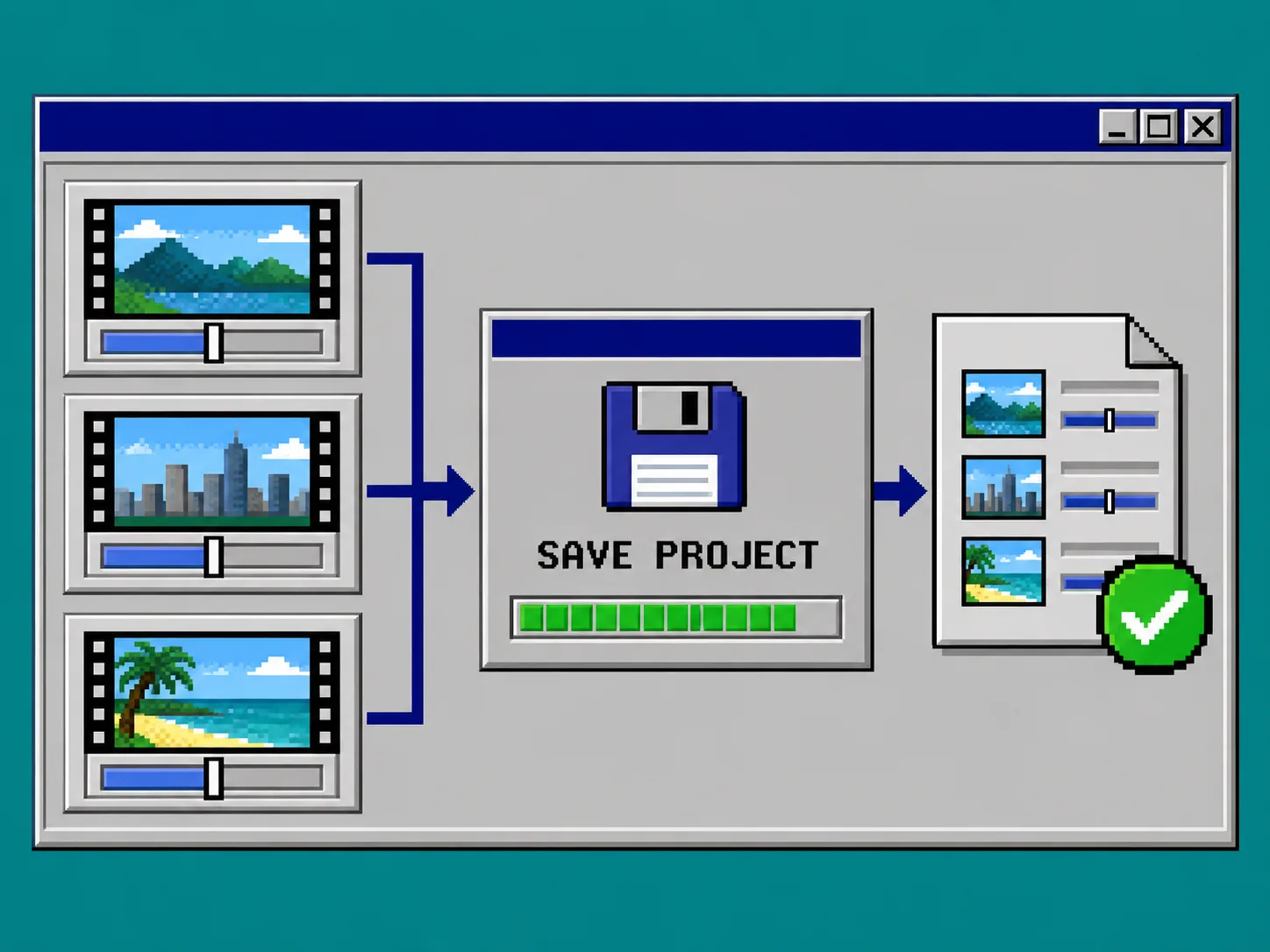
Use a simple folder rule: keep the approved export, the editable project, and a one-line note explaining what changed. That gives the next reviewer enough context to make another precise correction instead of guessing which version became final. If you need to choose between a terminal-first and hosted workflow before the work begins, see VideoFlow Studio’s CLI or hosted path decision guide.
Troubleshooting a revision that still looks wrong
The new scene fixes one issue but introduces another. Undo the approval and narrow the next instruction to one element. Ask for the changed scene to be rendered again; do not pile three unrelated fixes into one request.
The timing looks right in the editor but wrong in the export. Judge the exported frames, not just the timeline preview. Record the exact timestamp and describe the mismatch in the next scene note.
You only have a final MP4. You can still plan the correction, but you have lost the benefit of editing the existing project. Recreate only what you must, and store the editable source for the next round.
The product messaging changed. Stop treating it as a layout adjustment. Re-check the landing page, claims, and scene plan before revising; a polished video with old claims is not ready to publish.
Save the change, then move on
A good one-scene revision is small enough to explain, visible enough to inspect, and saved in a project you can reopen. Start your next correction from VideoFlow Studio, use a bounded scene note, and approve the rendered result only after you have watched the actual export.