How to Audit Excel Formulas Before Importing a Supplier Spreadsheet
Before you import a supplier workbook, list its formulas and look for hidden sheets, broken references, and links to other files. This catches workbooks that look complete in a grid but still depend on calculations or data you will not bring into your catalog. You need the original .xlsx, .xlsm, .xls, or template file and a browser.
The Excel Formula Extractor from Tiny Online Tools reads the workbook in the browser and does not upload it. It is an inspection step, not a replacement for opening the workbook in Excel or testing the final import.
1. Save an untouched copy of the supplier file
Create a working copy before you change columns, values, or formulas. Give it a name such as supplier-catalog-2026-11-03-original.xlsx. If the file is macro-enabled (.xlsm), preserve that extension; converting it casually can remove content you may need to investigate.
Do not start by deleting columns that look unnecessary. A visible price or SKU column may be driven by a lookup on another sheet. If you need a smaller exchange file after the audit, use a separate copy. The same separation is useful when you later prepare a customer CSV before sharing it: preserve the source, then make a purpose-built handoff file.
2. List every formula, not just the active sheet
Open the Excel Formula Extractor, select the untouched workbook, and wait for the result list. The tool accepts current Excel formats and older binary Excel files. Its report includes the sheet name, cell reference, formula text, and the last cached value.
The important result is coverage: it includes ordinary sheets, hidden sheets, and veryHidden sheets. A hidden tab is not proof of a problem, but it is a reason to ask what feeds it and whether your import depends on it.
Use this first pass to answer three plain questions:
- Which columns in the planned import are calculated rather than typed?
- Do any formulas read from sheets you were about to exclude?
- Is the displayed value a current calculation, or only the value last saved in the file?
3. Review the three warning groups
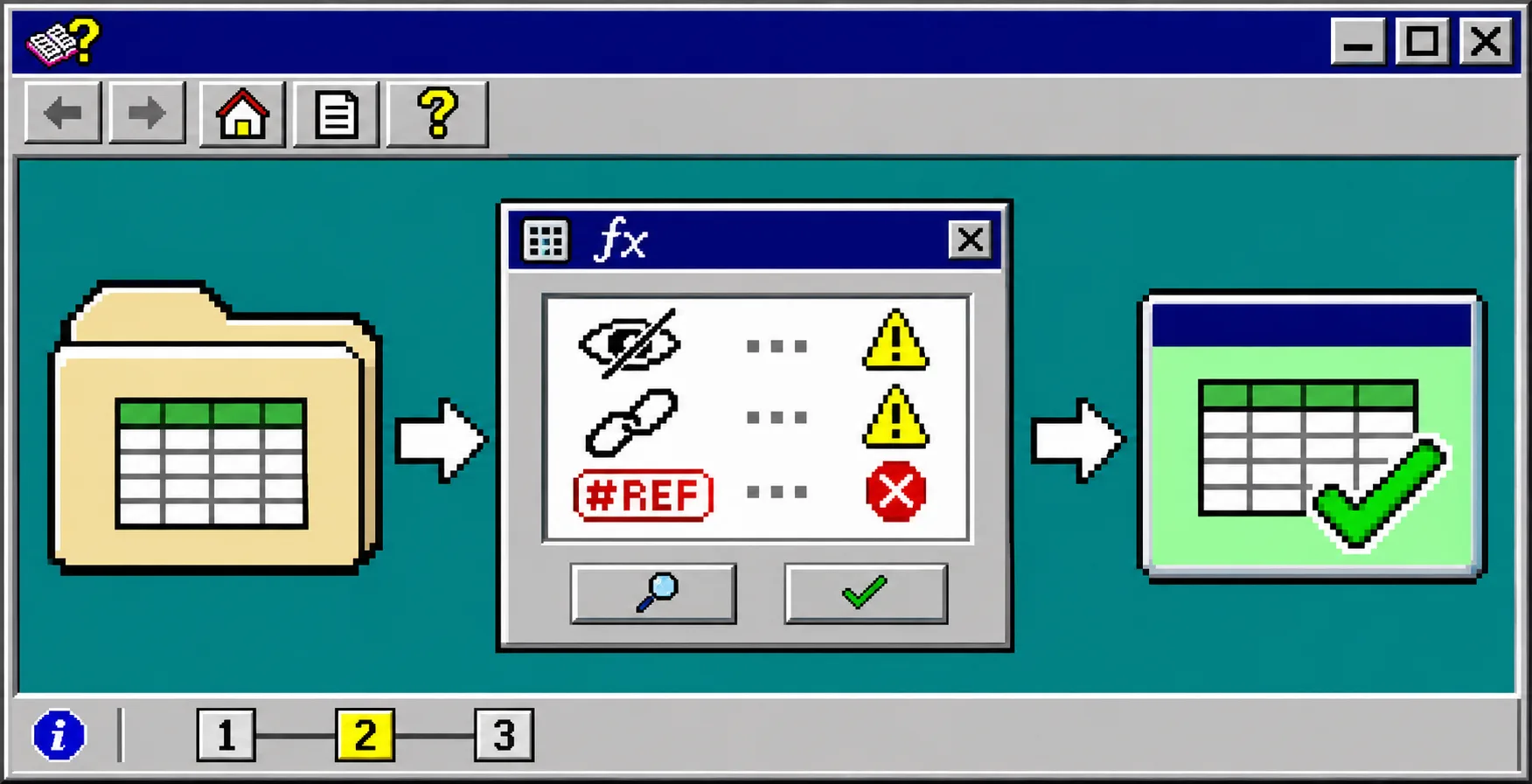
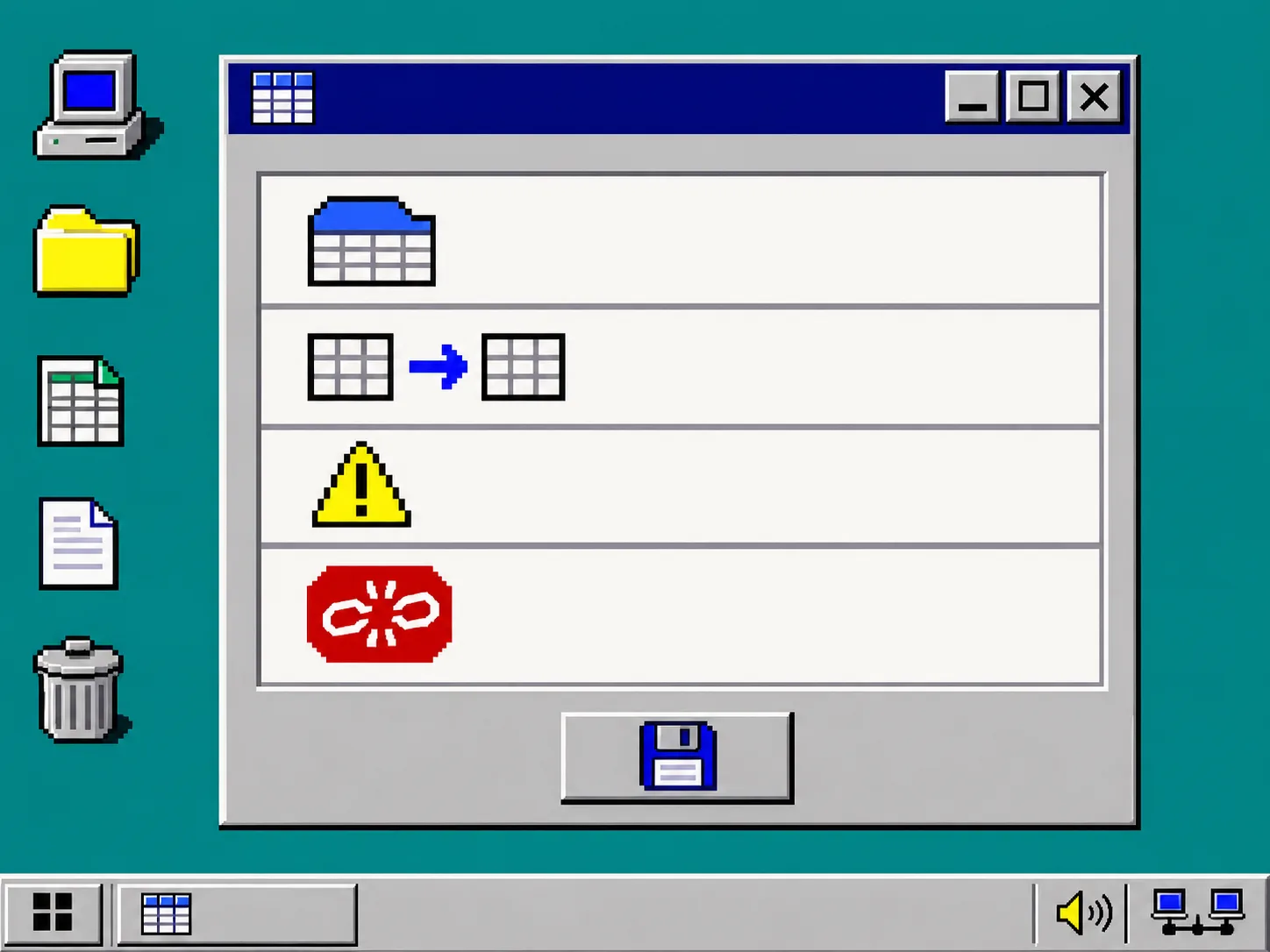
The tool flags cross-sheet references, external workbook links, and cached Excel errors. Treat them differently instead of declaring every warning bad.
| Finding | What it can mean | Safe next action |
|---|---|---|
| Cross-sheet reference | A visible field depends on a lookup or calculation elsewhere in the workbook. | Keep the source sheet until you confirm the final values. |
| External workbook link | The formula expects another file by name or path. | Ask the supplier for the linked source or replace the formula with a verified value. |
#REF!, #N/A, #DIV/0!, or #VALUE! |
A calculation was already failing when the workbook was last saved. | Fix or exclude the affected row; do not import an error as product data. |
| Defined name | A formula may use a named range instead of obvious cell coordinates. | Read what the name refers to before editing its dependent column. |
A formula filled down a column can also be stored as a shared formula. The extractor resolves those relative references, so a single master formula does not hide dozens of row-level calculations. That matters when a supplier sheet looks like static rows but prices, quantities, or labels shift as the formula moves.
4. Decide whether to import values or calculations
Most ecommerce imports need final values: text, numbers, handles, image URLs, and inventory counts. They do not run a supplier workbook’s formulas. If a planned import column is calculated, open the original workbook and verify that the values are correct before exporting a values-only copy.
For example, a Retail Price field may be a wholesale cost plus a margin rule from a hidden Settings tab. If you export only the visible tab, the current displayed prices may survive, but a future refresh will not reproduce them. Record the rule in your import notes or ask for a supplier export with stable values.
This is also why an import preview is useful but incomplete. A tool can confirm CSV structure; it cannot tell you whether an upstream spreadsheet formula depended on a missing workbook. For the next file stage, audit Excel formulas before a spreadsheet import and reduce a CSV export before sharing it are complementary checks, not substitutes for one another.
5. Export the evidence you need for the handoff
Export the formula report as CSV, JSON, or XLSX. Keep it next to the original workbook and add a short note with:
- The source filename and date received.
- The formula-bearing columns you will import as values.
- Any hidden-sheet or external-link dependency you confirmed with the supplier.
- The rows excluded because they contained cached errors.
That record makes the next refresh easier to review. It follows the same principle as a barcode proof sheet before printing labels: save a small, reviewable proof before an irreversible operational step.
Troubleshooting
The report finds formulas on a sheet I cannot see
Check whether the sheet is hidden or veryHidden. Ask the workbook owner what it supplies. Do not unhide or delete it merely to make the workbook look cleaner.
The report shows an external link but the values look right
Those are cached values from the last save, not evidence that the link can still update. Obtain the source workbook or replace the dependency with reviewed values before you rely on a future refresh.
The tool reports a formula error in an unused column
Verify that the column is truly absent from your mapping and not a source for another formula. If it is out of scope, document that decision; if it feeds a product field, resolve it before export.
I only have a CSV, not the original Excel file
A CSV contains values, not workbook formulas, hidden sheets, or defined names. Ask for the original workbook if you need to audit those dependencies. You can still use a CSV Viewer to check its headers and rows locally.
Make the import file boring on purpose
A supplier spreadsheet does not have to be dangerous to deserve an audit. Run the original through the Excel Formula Extractor, resolve the dependencies that affect your mapping, then export a clean values-only copy for the import. Your next action: inspect one current supplier workbook before you edit a single column.