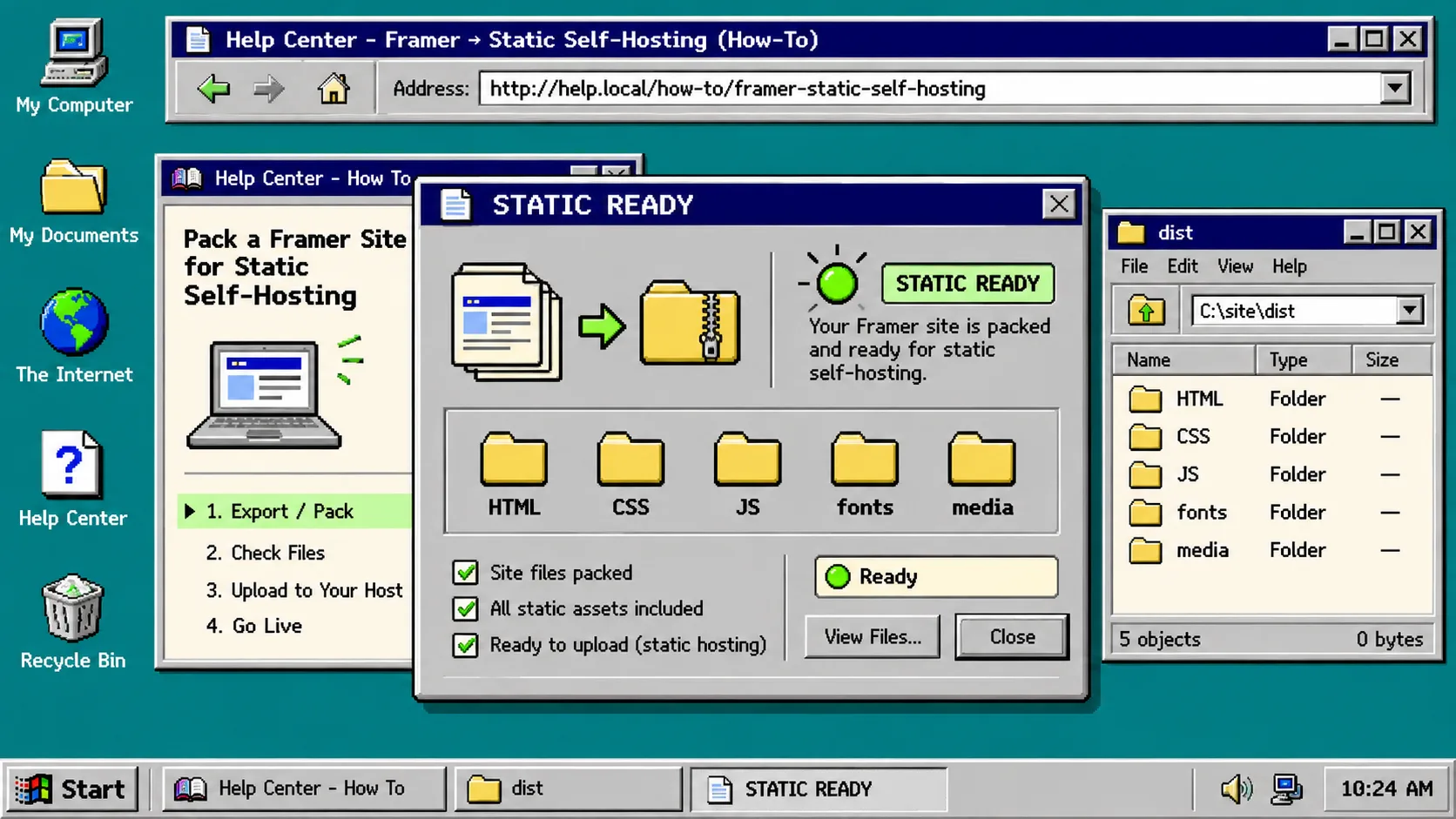
How to Check a Framer Static Export Before You Change Hosting
A Framer static export is ready to move only after its public routes, assets, interactions, and replacement services work on a separate host. Export the published site, test it from a staging URL, then move the domain only when the checklist below is green.
This guide assumes you own the Framer site, have a published URL, and can deploy a test copy. A static copy can preserve the browser-facing site, but it does not automatically replace services that run on Framer’s servers.
1. Make a small route inventory first
Before downloading anything, open your live site in a private window and list the pages a visitor must be able to use. Include the homepage, top navigation destinations, campaign pages, CMS detail pages, a 404 URL, and any page reached from email or ads. Save the list as a plain text file.
For a Framer CMS site, test both a collection listing and one ordinary, one old, and one newly published item. That catches a common mistake: the template exists in the export, but a real item route was never discovered.
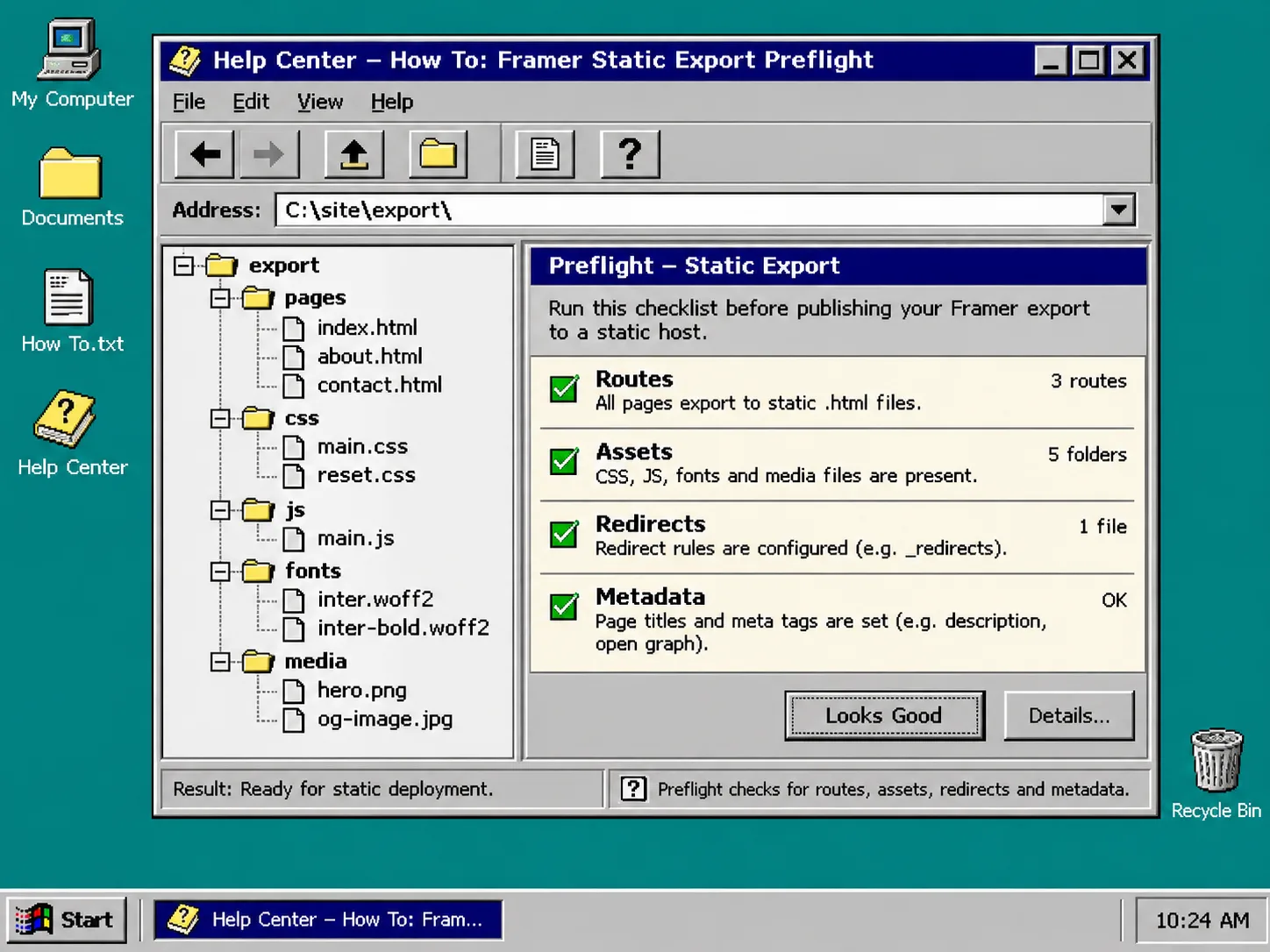
A quick inventory is more useful than a huge crawl. It gives the new host a specific acceptance target and makes redirect decisions visible. If your site has a form, start by reading how to reconnect a Framer contact form after moving to static hosting; the form needs a destination before the cutover.
2. Export the published Framer site
Use the published URL, not a draft preview. ExFlow’s Framer exporter renders a published site in a browser and can collect static HTML, CSS, JavaScript, fonts, media, pages, and CMS data needed by the client-side runtime. It can download a ZIP or send an export to Git, S3, FTP, or its hosting service.
After the export finishes, inspect the file list. You should see page files plus folders for styles, scripts, fonts, and media. Keep the ZIP unchanged as a dated rollback snapshot; deploy a copy to staging. This is also the right moment to compare the work with a Framer static recovery drill, especially if the export is part of continuity planning.
3. Decide what stays static and what needs a replacement
Static hosting serves files. It does not impersonate an application server. Use this table before you change DNS:
| Site part | What to test | Cutover decision |
|---|---|---|
| HTML, CSS, JavaScript, fonts, images, video | Open it from the staging host with cache disabled | Keep when it loads locally |
| CMS pages and lists | Open the inventory’s real item URLs | Keep only when each page renders |
| Animations and interactive components | Test hover, scroll, menus, and mobile navigation | Keep when the behavior still works |
| Forms | Submit a test message and confirm delivery | Replace the endpoint or remove the form |
| Analytics, search, gated pages | Test the actual visitor action | Reconfigure, replace, or document as out of scope |
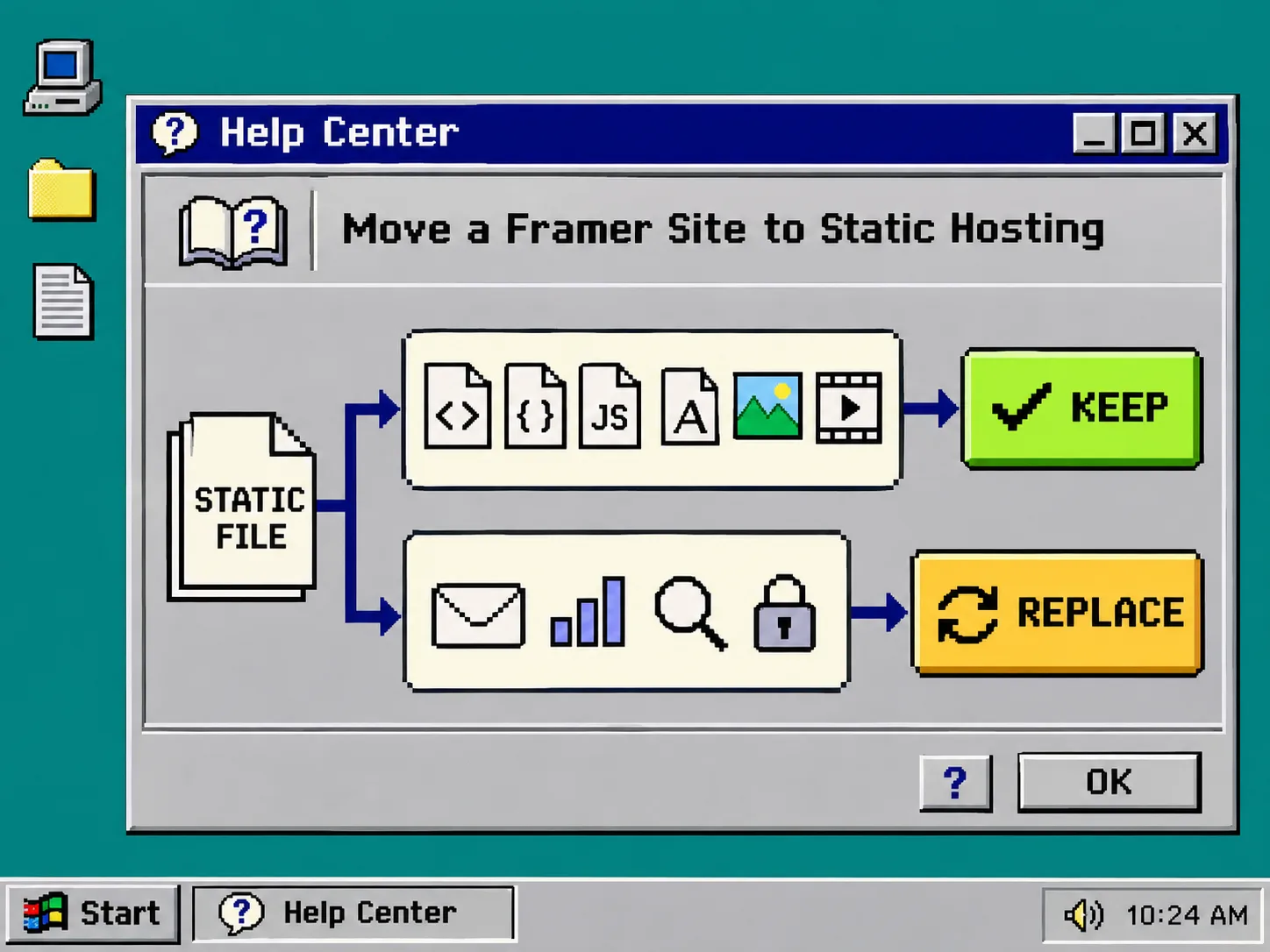
ExFlow says its export captures Framer’s delivered bundles and assets, including animations and CMS content, while server-side features such as native form handling, Framer-tied analytics, and dynamically served protected pages need their own plan. That boundary is good news: it tells you exactly where to spend testing time instead of treating an export like a magic migration.
4. Deploy a staging copy under a safe URL
Upload the copied export to a host that can serve ordinary static files. Do not point the production domain yet. A Git-based host, an object-storage bucket with static hosting, or a preview deployment all work if they give you a stable URL.
Then run the route inventory from Step 1 against staging. Check desktop and phone widths. Open the browser network panel and reload a few key pages; failed requests for scripts, fonts, images, or data files are a stop sign. Also click the logo, navigation, footer, CTA buttons, and at least one internal CMS link.
If you are moving a campaign or an existing domain, add a redirect map to the release notes. A static copy can be perfect and still lose visitors if an old path has nowhere to go. The same discipline applies to other builders; this Squarespace redirect-map guide is a useful adjacent checklist.
5. Run this five-minute acceptance check
Use one browser window for the live Framer site and one for staging. Mark every item as pass or fix:
- Open every must-have route. Confirm status 200, expected title, and no empty screen.
- Compare one page at each viewport. Check navigation, layout, type, images, and motion.
- Exercise one interaction per page type. Menus, accordions, carousels, and buttons should do something useful.
- Submit one form safely. Confirm the message reaches the chosen inbox or endpoint; a visible success message alone is not proof.
- Check the browser console and network panel. Resolve repeated failed requests before a domain switch.
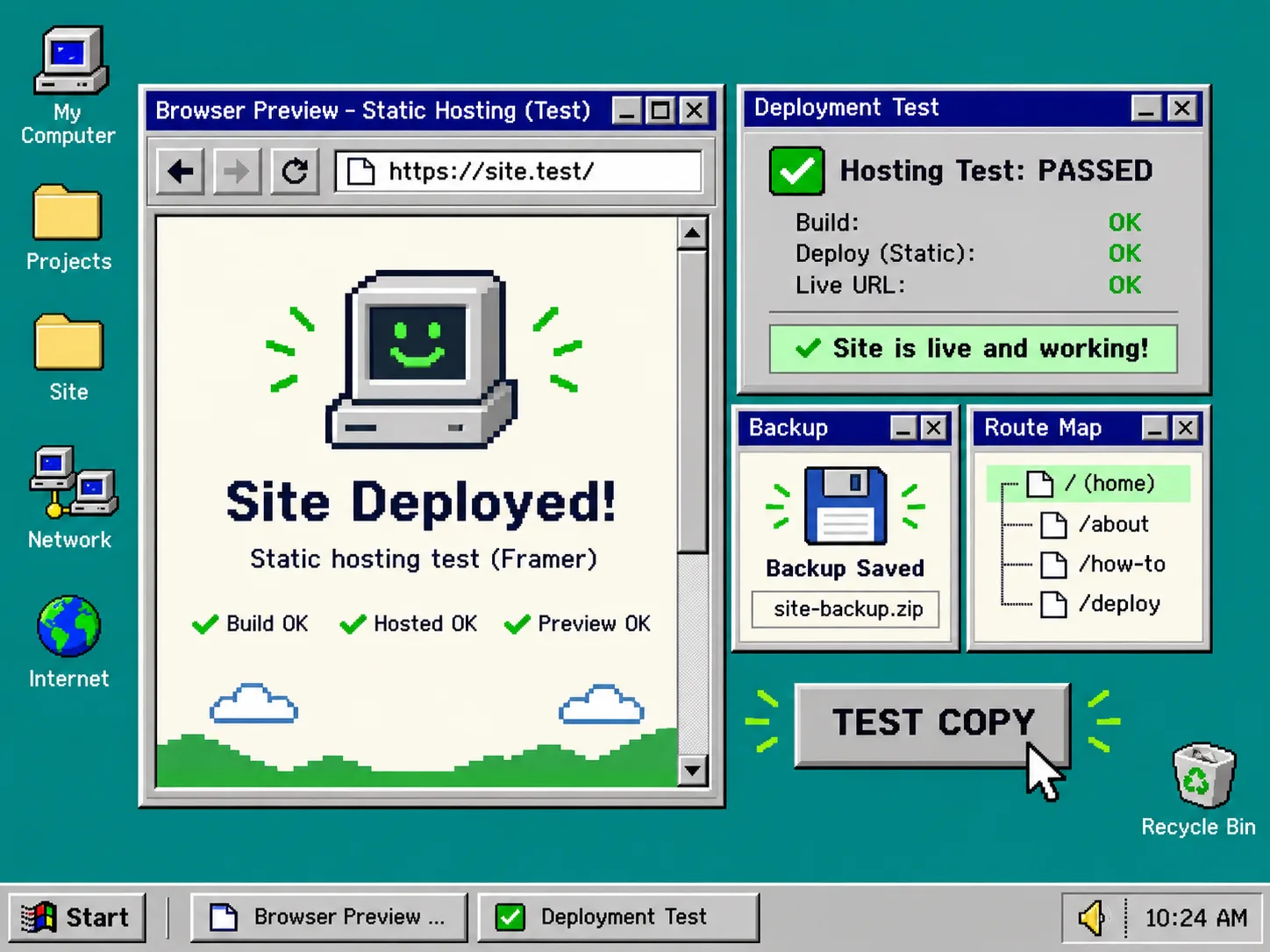
For CMS-heavy sites, add a second pass after publishing a fresh item in Framer: export again, deploy to staging, and verify that new item’s route. That tiny test proves your repeatable workflow, not merely one historic snapshot. It pairs well with exporting Webflow CMS pages as static routes, where the same route-inventory habit prevents silent gaps.
6. Change the domain only after the copy passes
When every required route and service has an owner, schedule the domain move. Keep the Framer site available until the new host has been checked on the production domain, then retain the dated export and acceptance notes. Do not promise that a static copy preserves editing, server logic, or private content; it preserves the published visitor-facing experience you actually tested.
ExFlow also offers dedicated Webflow and Squarespace exporters, but select the platform-specific workflow for the site you own.
A good next action is simple: make the route inventory today, run one export to a staging URL, and refuse the domain change until the five-minute acceptance check passes.