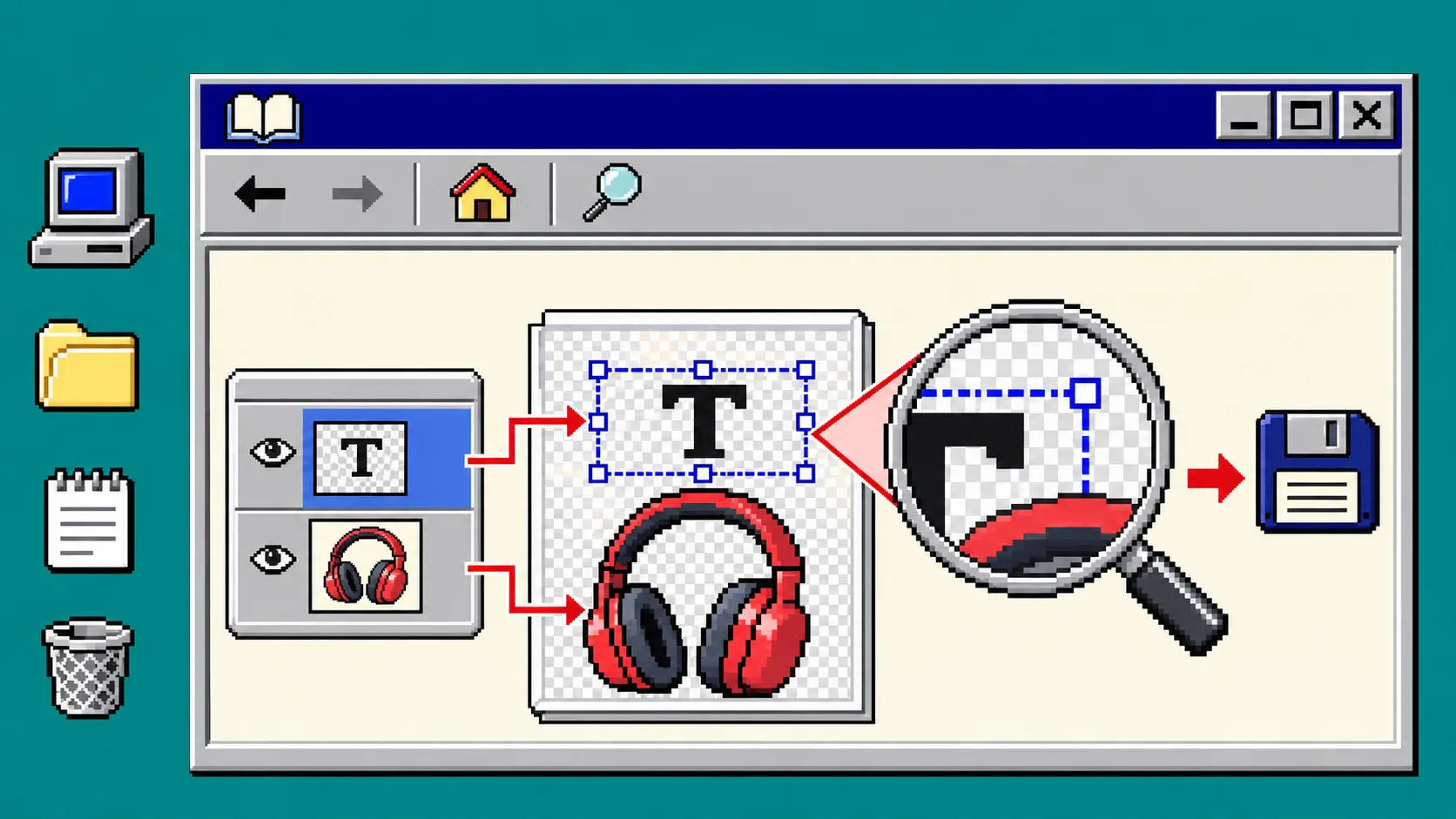
How to Change One PSD Text Layer Without Flattening the File
To change a headline, price, or campaign line in a PSD without flattening it, keep the original as a master, edit only the named text layer, save a new editable copy, then export a separate delivery image. This is a small job, but it protects the next person from inheriting a one-way file.
You need the original PSD, the approved replacement copy, and a modern browser. ImageFlow is useful here because its current browser editor lists PSD/PSB import and export, layers, masks, smart objects, and text editing. That does not guarantee every complex production PSD will round-trip perfectly, so treat your first file as a controlled test.
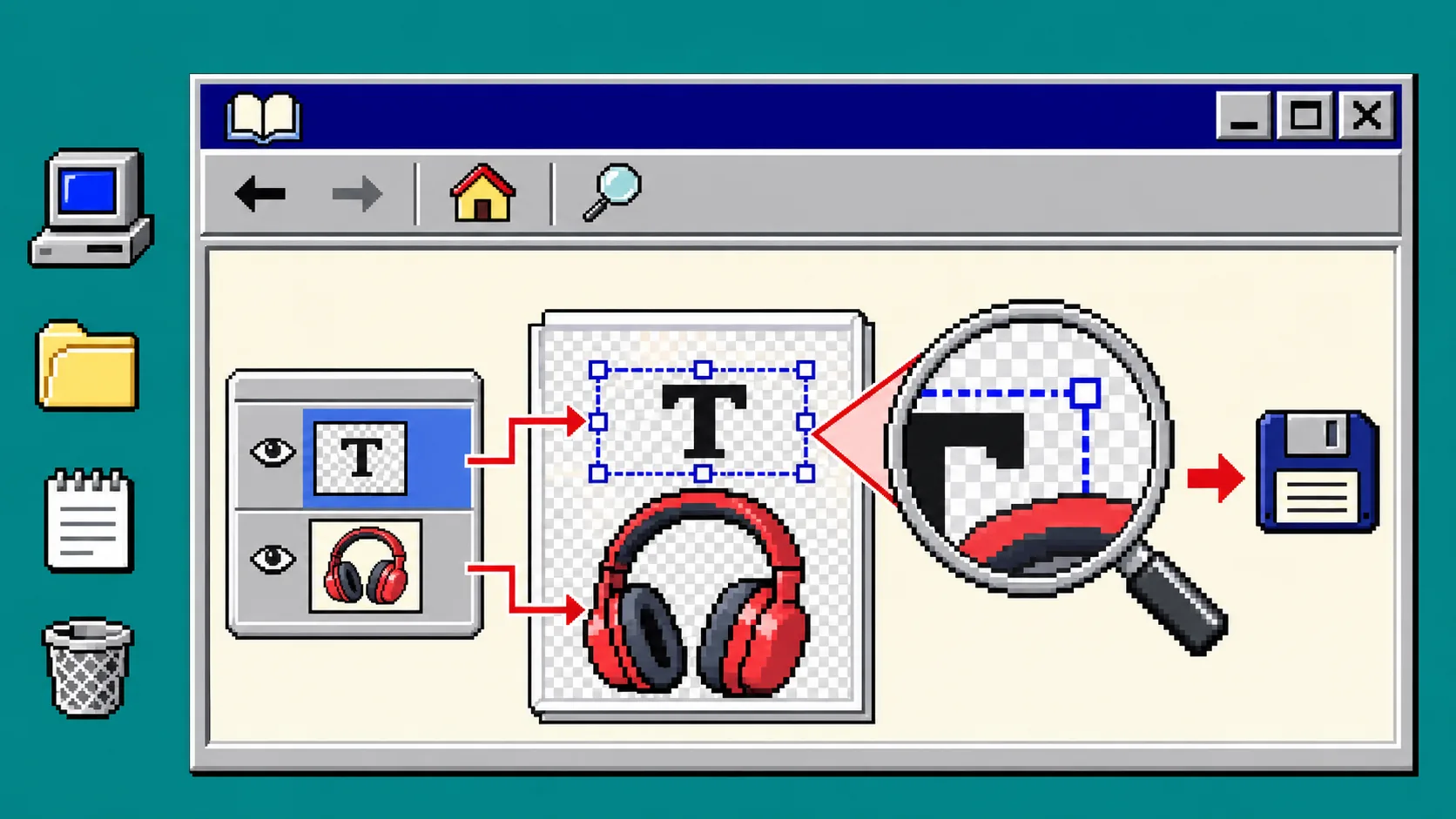
1. Duplicate the master before you open it
Create a working folder with a name such as spring-email-v03/. Put the received file beside it, then make a copy named spring-email-v03-text-update.psd. Leave the received file unchanged.
This is not ceremony. The master may contain linked smart objects, hidden alternates, clipping masks, or color adjustments that you need later. A duplicate gives you a recovery point if a font substitutes, an effect renders differently, or the request changes while you are editing.
Open the copied PSD in ImageFlow. Before touching copy, look at the layer stack and identify the text layer that owns the wording. If the wording is inside a smart object or a group, open that item first instead of painting over its appearance.
What you should see: one selected, editable text layer—not a merged pixel layer and not an improvised white rectangle hiding the old copy.
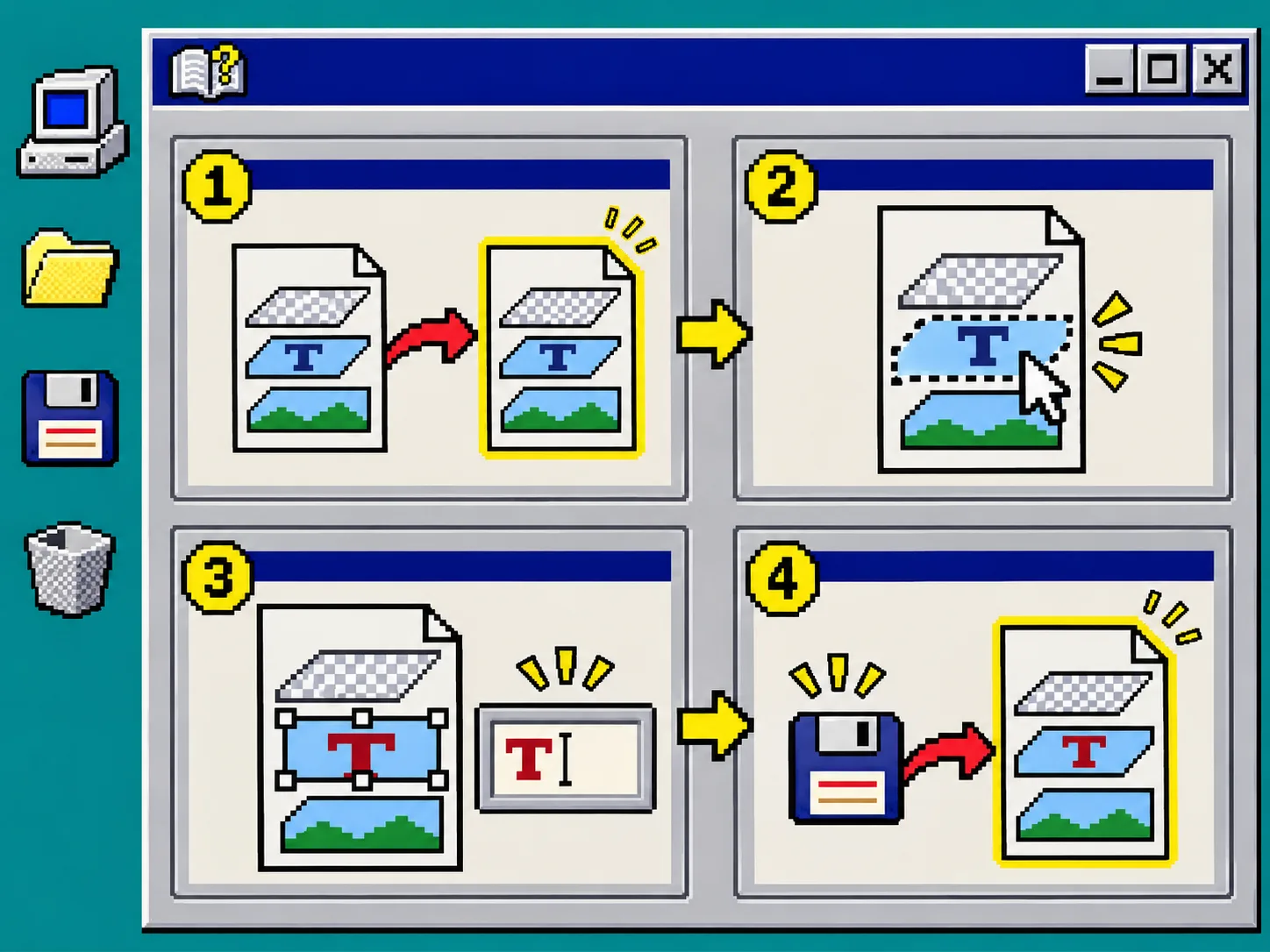
2. Replace only the approved text
Select the text layer, activate the text tool, and paste the approved wording exactly. Do not rewrite marketing copy while doing a file-maintenance task; that creates an untracked content decision.
Then check the controls that can change even when the words look right:
- Font family and weight
- Size, leading, tracking, and alignment
- Color and opacity
- Layer effects such as stroke, shadow, or overlay
- The text box width and line breaks
If a font is missing, stop and ask for the source font or an approved replacement. Guessing here can turn a two-line lockup into three lines, move a logo, or create a different emphasis. ImageFlow supports variable fonts and OpenType features according to its product information, but that is still a reason to inspect the actual document—not an excuse to assume matching typography.
3. Inspect the change at two zoom levels
First, view the whole canvas. Check that the new copy still belongs in the composition: it should not collide with a product, legal line, badge, or safe margin. Then zoom in around letters with curves, punctuation, numerals, and the final character of each line.
For ecommerce graphics, check the truthfulness boundary too. A text correction is fine; changing a product claim, a price, dimensions, included accessories, or an offer date requires the owner’s approval. The same careful review used in a product-photo edit that preserves the master helps here: make the smallest useful change and leave evidence of what changed.
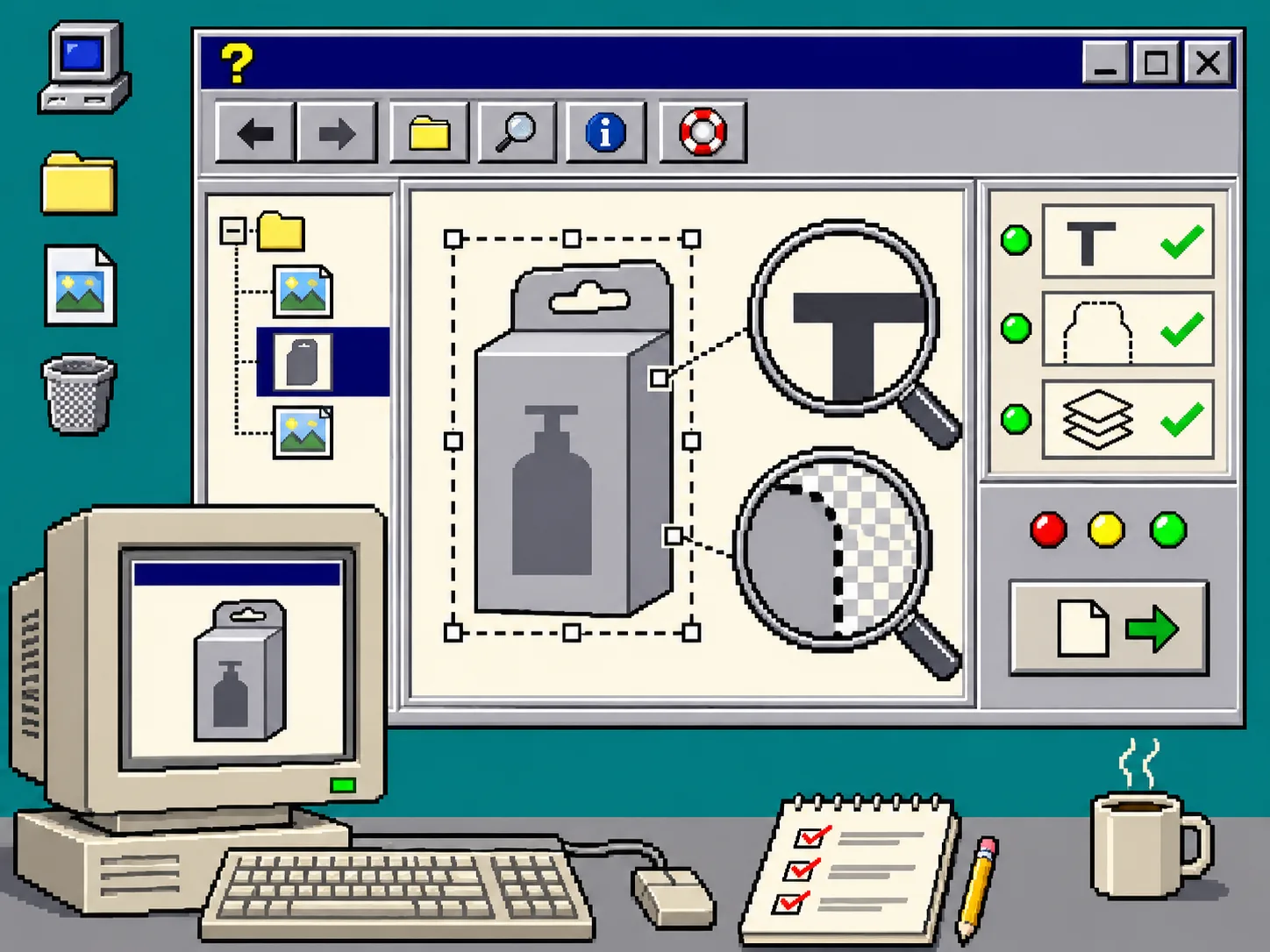
4. Save an editable version before exporting anything
Save the working document as PSD first. Close it, reopen that saved copy, and confirm the changed text remains selectable. This quick reopen check catches the exact failure this guide is trying to avoid: a delivery file that looks correct but can no longer be edited.
Use this four-file handoff when the change needs review:
| File | Purpose | Keep editable? |
|---|---|---|
received-master.psd |
Untouched source | Yes |
campaign-text-update.psd |
Your revised working file | Yes |
campaign-text-update.png |
Review or web delivery | No |
campaign-text-update-notes.txt |
Exact copy, font issue, export size | Yes |
That small receipt is especially useful when the output joins a storefront workflow. If the image is headed to Shopify, pair it with the image URL and alt-text preflight before import.
5. Export the delivery file deliberately
Export PNG when sharp text and simple graphics matter; use JPG only when a photographic asset needs a smaller delivery file and the quality trade-off is acceptable. Match the requested pixel dimensions. Do not overwrite the PSD with an export format.
Open the exported image separately. At 100%, compare the requested line with the notes file. At normal viewing size, check the entire layout. If this is a campaign asset, have the requester confirm the copy before publishing—not merely the image’s general appearance.
For a broader handoff, the Shopify product-image delivery method adds useful checks for placement and release evidence.
Troubleshooting: the text will not behave like text
The layer is not selectable. It may be rasterized, inside a smart object, hidden behind another layer, or protected by the document structure. Inspect the layer hierarchy; do not paint over it just to finish quickly.
The new copy wraps differently. Check font availability, text-box width, tracking, and manual line breaks. A font substitution is a design change, so route it for approval.
The exported image looks softer or shifted. Recheck export dimensions, scale, and color settings. Then compare the PNG or JPG with the reopened PSD at the same zoom.
The PSD opens but a complex element changes. Keep the original master, document the mismatch, and test the smallest representative file before committing a whole campaign. ImageFlow is a browser-based Photoshop alternative with documented PSD/PSB support, not a promise of identical behavior for every complex file.
Recap
A safe one-line PSD update has four moves: duplicate the master, edit the true text layer, reopen the saved PSD, and export a separate delivery image. Open ImageFlow with one low-risk file first, then use the four-file receipt whenever the work needs to move between people or systems.