How to Plan Shopify UGC Video Variations for Ads, Product Pages, and Email
If you need more Shopify video creative but do not want a separate production cycle for every channel, the problem is not volume. It is structure.
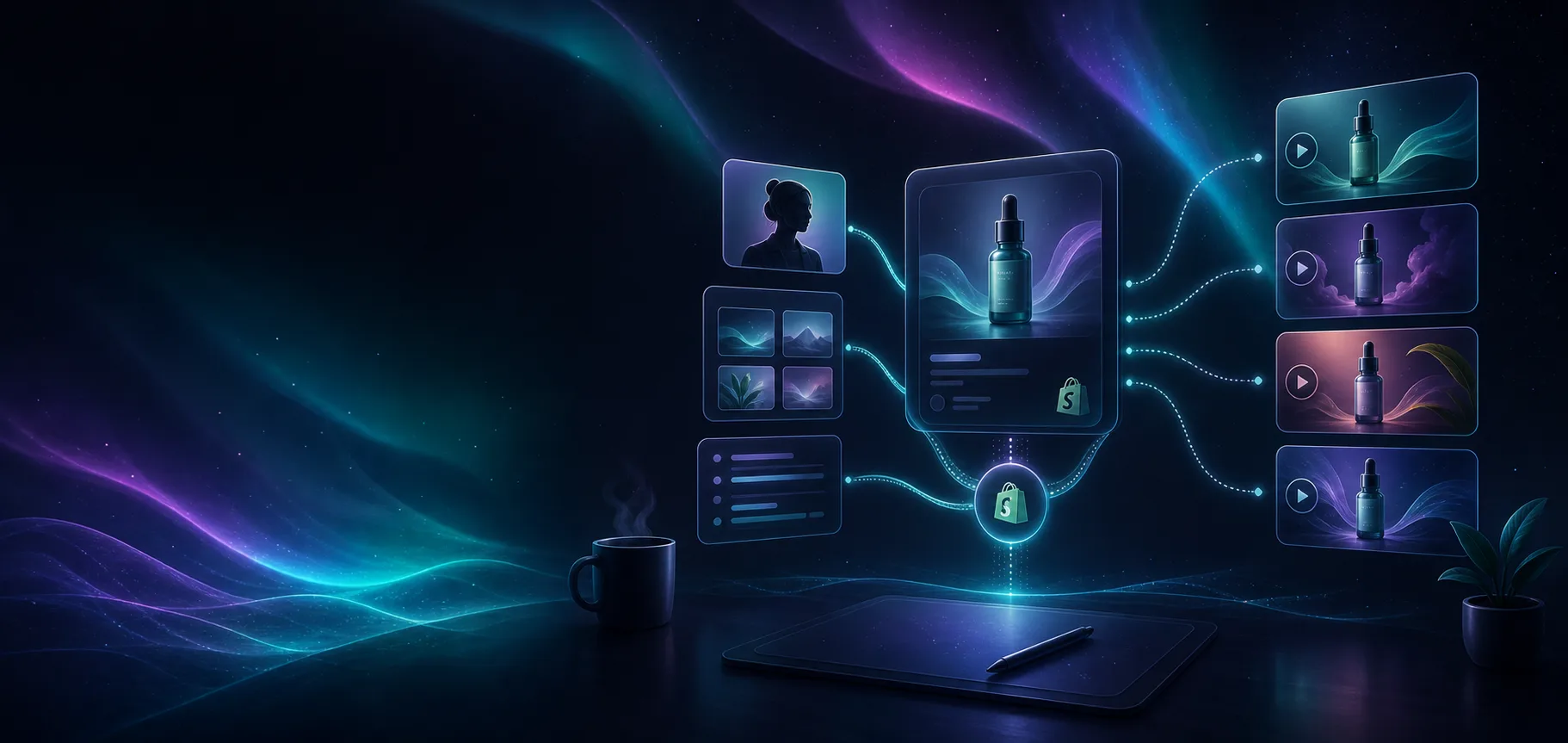
That is where Supra UGC Maker fits. It is a Shopify app for creating UGC-style product videos with AI avatars, scenes, scripts, speech, and product references. The point is to turn one product into multiple usable clips without hiring influencers, videographers, or editors every time the message changes.
This workflow is for merchants who want to plan video variations before they generate them. You will define the channel, write the hook once, and then adapt the script, scene, and tone so the output feels intentional instead of recycled.
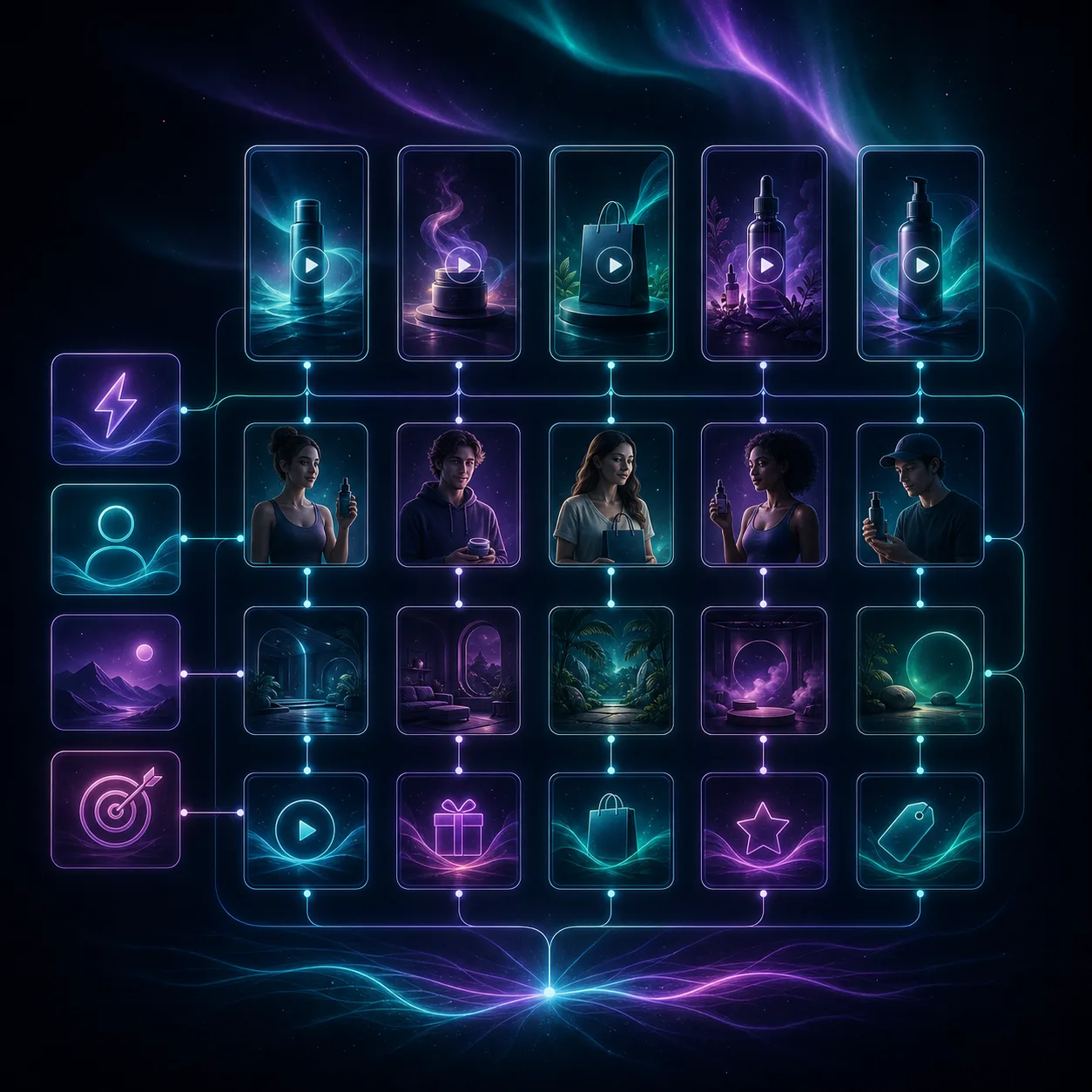
1. Decide Which Channel Each Video Needs To Support
Start with the distribution plan, not the render.
Pick the first place each clip needs to work:
- paid social ads;
- product pages;
- email campaigns;
- launch teasers;
- post-purchase education.
This matters because the same product can need a different proof point in each context. An ad needs a fast hook. A product page needs clarity. Email needs a quick reminder. Post-purchase content needs reassurance.
Expected result: you know whether you are creating one video or a small channel-specific set.
2. Write One Product Claim Before You Touch The App
Pick one concrete claim that the video should help prove.
Examples:
- this product saves time;
- this product makes the result look better;
- this product reduces friction;
- this product helps the buyer understand the offer faster.
I would not start with the avatar or the background. I would start with the claim because every other choice has to support it. The app lets you choose a preset avatar or a custom AI model, add a product, and write the script around a voice and tone that match the message. That is enough flexibility to create variations without losing the core idea.
Expected result: you have a single message that all variations will share.
3. Turn The Claim Into Three Scripts
Once the claim is clear, split it into three short scripts.
- Ad version: lead with the fastest hook.
- Product page version: answer the buyer’s most likely objection.
- Email version: keep the message brief and direct.
Each script should still follow the same structure:
- hook;
- proof;
- call to action.
For example, if the product claim is about speed, the ad can open with the pain point, the product page can explain what the buyer sees, and the email can reduce the whole thing to one sentence and a CTA.
Expected result: you have three scripts that feel related but are not copy-pasted.
4. Match Each Script To A Scene And Avatar
Now decide how each script should look.
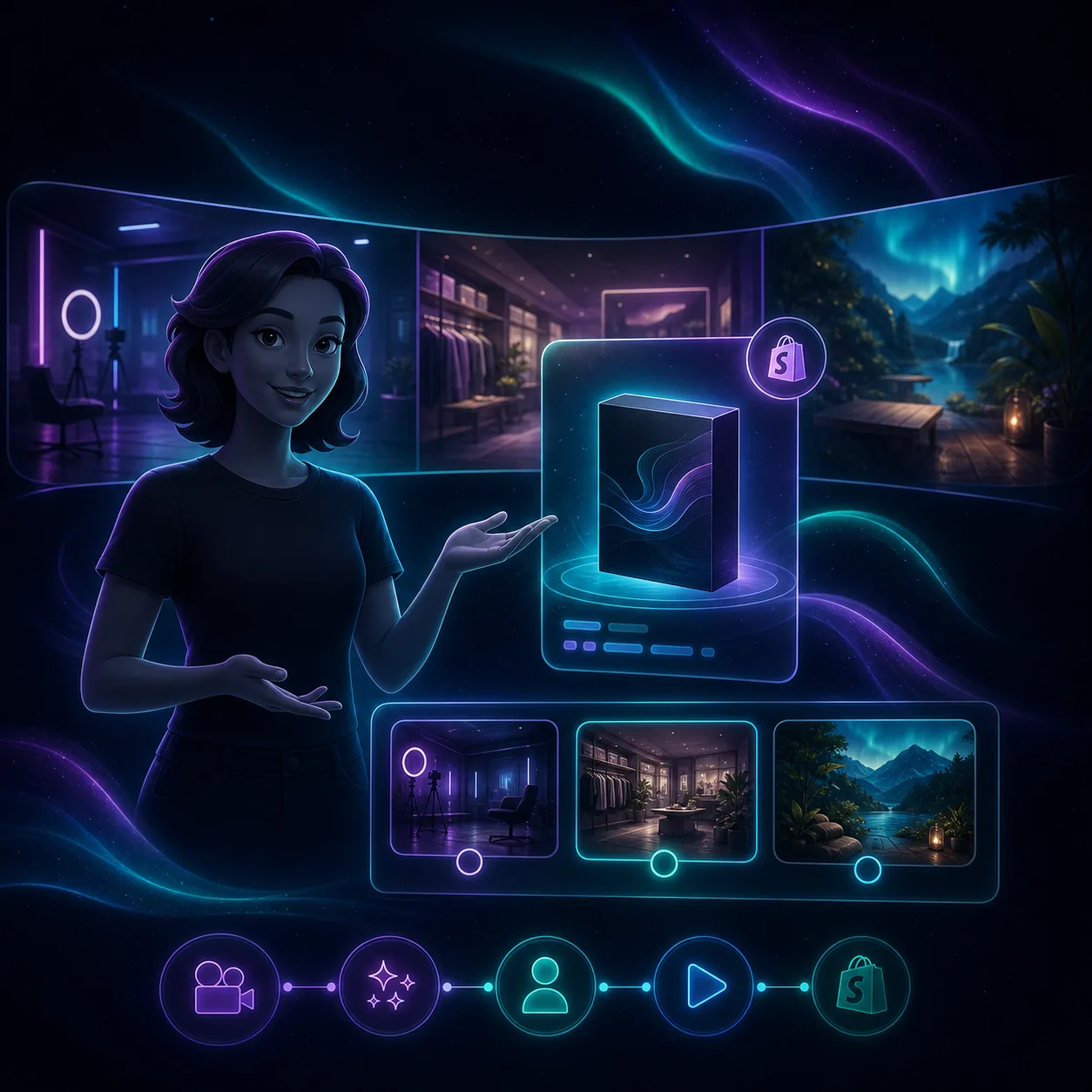
Supra UGC Maker supports scenes like studio, outdoor, boutique, or a brand-specific setting, so you can align the visual tone with the channel:
- studio for clear product explanation;
- outdoor for lifestyle energy;
- boutique or room setting for context;
- brand-specific scenes when the identity matters more than the environment.
The app also supports the workflow around avatars, speech, tone, and product references, which means you can keep the same product while changing the delivery style. That is usually better than forcing one generic scene to do every job.
Expected result: each script has a scene that makes the message easier to believe.
5. Generate Variations Inside One Project
Generate the first set, then review it as a group.
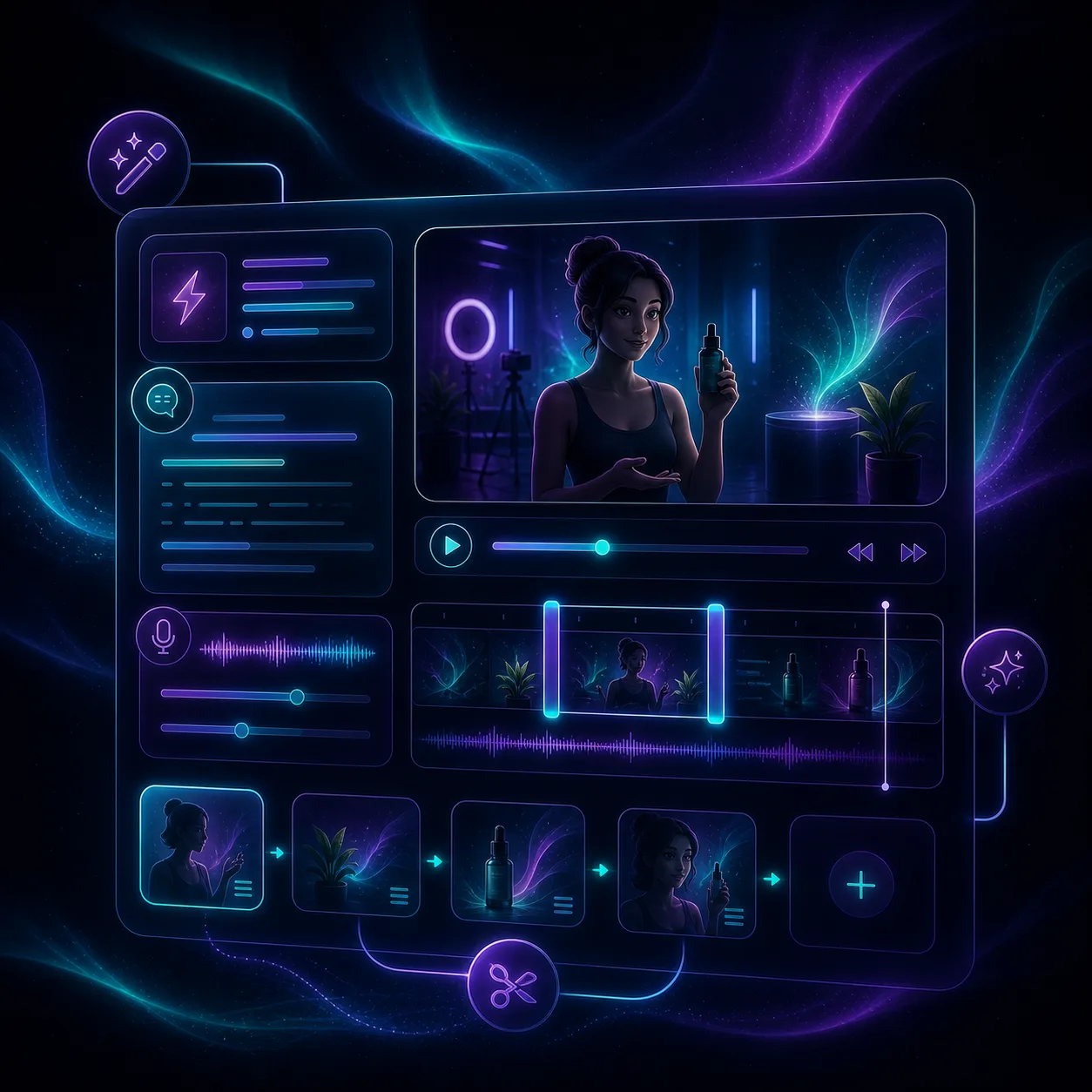
The useful part of the app is not just creation. It is the ability to preview scenes, reorder clips, trim sections, update segments, and regenerate pieces inside one project. That lets you change one variable at a time instead of rebuilding everything.
I would check these points during review:
- does the product stay visible long enough;
- does the avatar sound believable for the audience;
- does the scene reinforce the claim;
- does the ending give one clear next step.
If one variation is close but not right, adjust the script or regenerate only the weak segment.
Expected result: you end up with a small set of usable clips instead of one nearly-correct draft.
6. Reuse The Best Clip Across More Than One Place
Once the main variation works, do not lock it to one channel.
A single clip can be useful in:
- an ad;
- a product page module;
- a launch email;
- a post-purchase follow-up;
- a retargeting sequence.
That reuse is where the time savings show up. You are not creating one-off content. You are building a reusable mini library around one product and one message.
If you want adjacent ways to think about this same workflow, keep these open:
- How to Create UGC-Style Product Videos for Shopify Without Hiring Influencers
- How to Create Shopify UGC Video Ad Variations From One Brief
- How to Make Shopify UGC Video Variations for Ad Testing
- How I Built a Shopify UGC Ad Testing Matrix
Expected result: one good video becomes the base for multiple placements.

Troubleshooting
If the variations still feel too similar, change one variable at a time:
- open with a different hook;
- swap the scene;
- change the voice or tone;
- shift the CTA from urgency to education;
- shorten the script.
If the product is hard to see, simplify the scene and make the product the center of the frame. If the message feels generic, go back to the claim and make it more specific to the buyer’s problem.
Expected result: the clips become easier to compare and easier to deploy.
Bottom Line
Plan the channel first, then shape the script, scene, and avatar around it. That is the simplest way to turn one Shopify product into UGC-style video variations that actually fit ads, product pages, and email.
If you want to try the workflow, start with one product, write three scripts, generate the first set in Supra UGC Maker, and keep the strongest clip as the template for the next round.