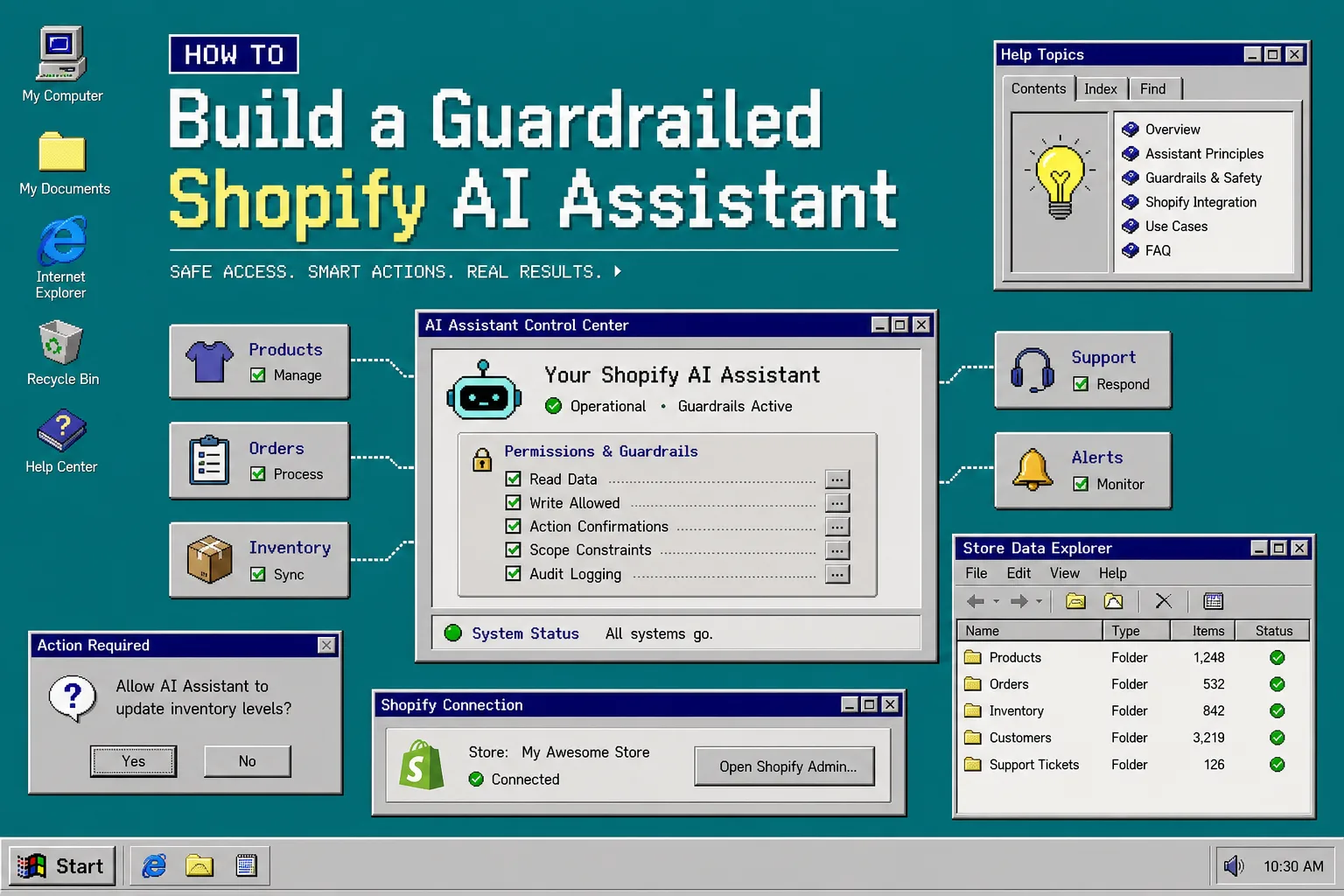
I keep coming back to the same rule: if an assistant can make a mess faster than I can clean it up, it does not get broad access yet.
That is why I would start a Shopify AI workflow in Clawly, the OpenClaw for Shopify app, with one narrow job, a short permission list, and a clear escalation path. Clawly is built for Shopify agents and scoped automation, so the point is not to hand over the store. The point is to make the repetitive work smaller and safer.
If you want the broader version of the pattern, I wrote about How I Built a Guardrailed Shopify AI Agent for Daily Ops and How to Set Up a Guardrailed Shopify AI Assistant for Daily Reports and Alerts. This version is the practical setup I would use when the first jobs are product cleanup, reports, and alerts.
1. Pick one job the assistant can finish without guessing
Start with one task that has a clean definition and a clear end state.
Good first jobs:
- Fill in missing product titles or tags from existing catalog data.
- Send a daily summary of sales, inventory, and support activity.
- Flag low-stock items and notify the team.
- Draft a support reply for a human to review.
Bad first jobs:
- “Improve the store”
- “Handle marketing”
- “Manage support”
- “Fix the catalog”
The reason is simple. The more judgment a task needs, the more likely the assistant is to do something technically correct and operationally wrong.
I like cleanup and alerting first because they are measurable. You can see whether the assistant found the right products, whether it changed the right fields, and whether the alert arrived when it should.
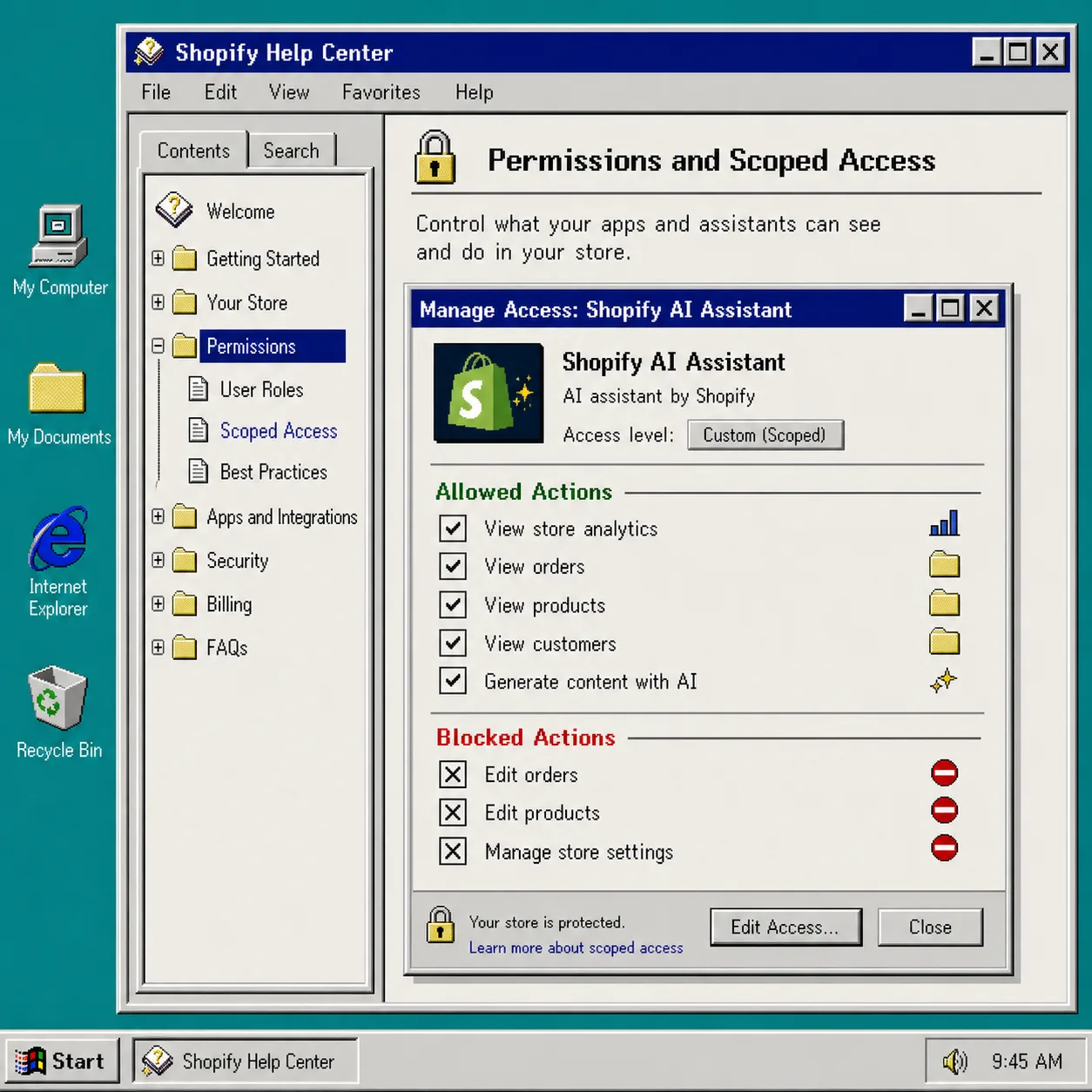
2. Restrict access before you connect tools
The strongest part of Clawly is not that it can act inside Shopify and connected tools. It is that you can control exactly what each assistant can touch.
Before you connect anything, decide:
- Which store objects it can read.
- Which objects it can write.
- Whether it can only draft changes or actually apply them.
- Which integrations it is allowed to use.
- When it must stop and ask for help.
A safe default is read access first, write access second, and only then automation. If you need an assistant for inventory alerts, it should not need product editing rights on day one. If you need product cleanup, it probably does not need ad platform access.
That sounds obvious until you are in a rush. Rushing is how guardrails disappear.
3. Connect only the integrations that support the job
Clawly can connect Shopify and a long list of tools, including Google Sheets, Gmail, Slack, Notion, Instagram, and more. Do not connect everything just because you can.
For a first setup, I would keep it simple:
- Shopify for product, order, and inventory data.
- Google Sheets if you want a working list, export, or review queue.
- Gmail or Slack if the assistant needs to notify a person.
- Notion if the team already tracks tasks there.
The assistant should have one path in and one path out. If it needs five systems to do a small job, the workflow is already too brittle.
This is also where I decide whether the assistant is a reporter, a drafter, or an actor. A reporter can summarize. A drafter can prepare changes for review. An actor can make the change. The safest teams start with reporter and drafter, then promote the assistant only after a few clean runs.
4. Write the instruction like a checklist
Do not give the assistant a mood board. Give it a checklist.
A good instruction looks more like this:
- Review the selected products.
- Identify missing or inconsistent fields.
- Suggest the smallest useful correction.
- Stop if the change touches pricing, fulfillment, or legal copy.
- Send the result for review before publishing.
A bad instruction sounds like:
- Make the catalog better.
- Clean up the store.
- Keep things professional.
The assistant should know what success looks like, what it is allowed to change, and what it must never touch. If the task is product cleanup, spell out which fields are in scope. If the task is a report, define the format and the send time. If the task is a support draft, define when to escalate instead of reply.
That is where the image below matches the workflow better than a generic dashboard ever would.

5. Test it on one day, one collection, or one queue
The first run should be boring. Boring is good.
I would test in this order:
- Run the assistant on a small subset of products or one report window.
- Review the output manually.
- Check whether the assistant made any assumptions.
- Confirm that its notifications reached the right person.
- Only then widen the scope.
If the assistant is handling product cleanup, compare its suggestions against the actual store data. If it is sending a daily report, confirm the numbers match your source of truth. If it is drafting support replies, read the tone and verify that it would not promise something the store cannot deliver.
The goal is not just “did it run.” The goal is “could I trust this on a normal Tuesday when I am busy.”
6. Expand to the next safe automation
Once the first workflow is stable, add one adjacent task.
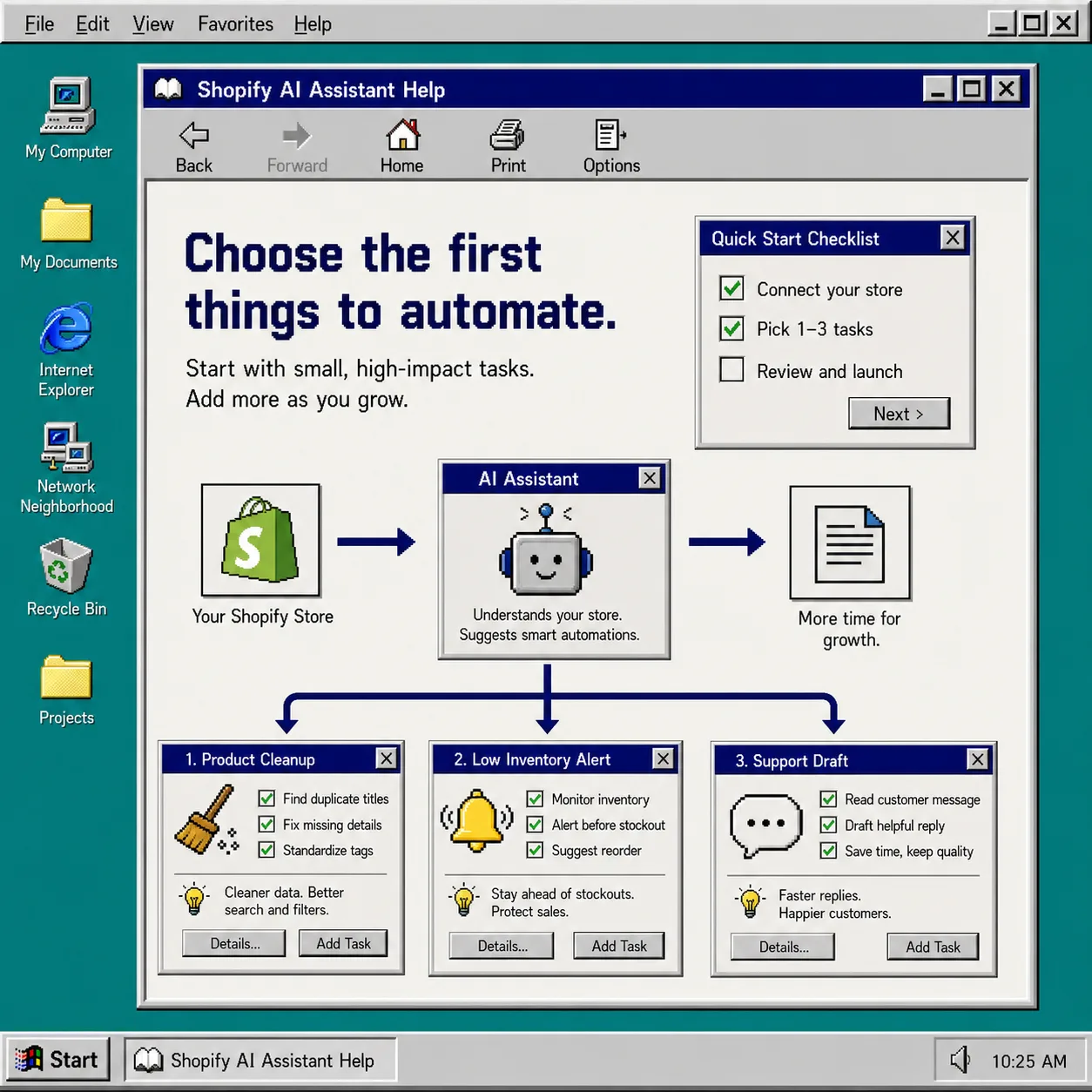
The pattern I would use is:
- Product cleanup first.
- Low inventory alerts second.
- Daily summaries third.
- Support drafting fourth.
That progression works because each step adds a little more value without jumping straight to the highest-risk action. It also makes review easier. A merchant can understand a low-stock alert much faster than a fully autonomous marketing workflow.
This is the same reason I like to keep adjacent workflows separate. If you need a content-first version of the pattern, How to Automate Shopify Blog Posts Without Generic AI Content and How to Turn One Product Photo Into a Full Shopify Image Set show the same principle in different parts of the store. And if you want the broader ops view, How I Built a Guardrailed Shopify AI Agent for Daily Ops is the better companion piece.
Troubleshooting
The assistant is too ambitious
Narrow the task. Remove write access. Make it draft-only until the outputs stop surprising you.
The assistant needs too many systems
Cut the workflow back to one source and one destination. If it cannot finish the task with the integrations you already trust, the first version is too big.
The output looks correct but feels risky
That usually means the instruction is vague. Add a stop condition, a review step, or a narrower field list.
Nobody knows when it runs
Add a report, a notification, or a log entry. An automation nobody can see is an automation nobody can trust.
The version I would ship first
If I were setting this up today, I would start with one assistant that can read Shopify data, draft one useful result, and notify me when something needs attention. Then I would let it prove itself on product cleanup or alerts before I gave it broader permissions.
That is the real win with Clawly. You do not need to choose between manual work and unchecked automation. You can start small, scope the assistant tightly, and expand only after the workflow has earned trust.
If you want to try the same approach, start with one repetitive task in Clawly and keep the first permission set smaller than you think it needs to be. The Shopify App Store listing also shows the current plans and trial details.