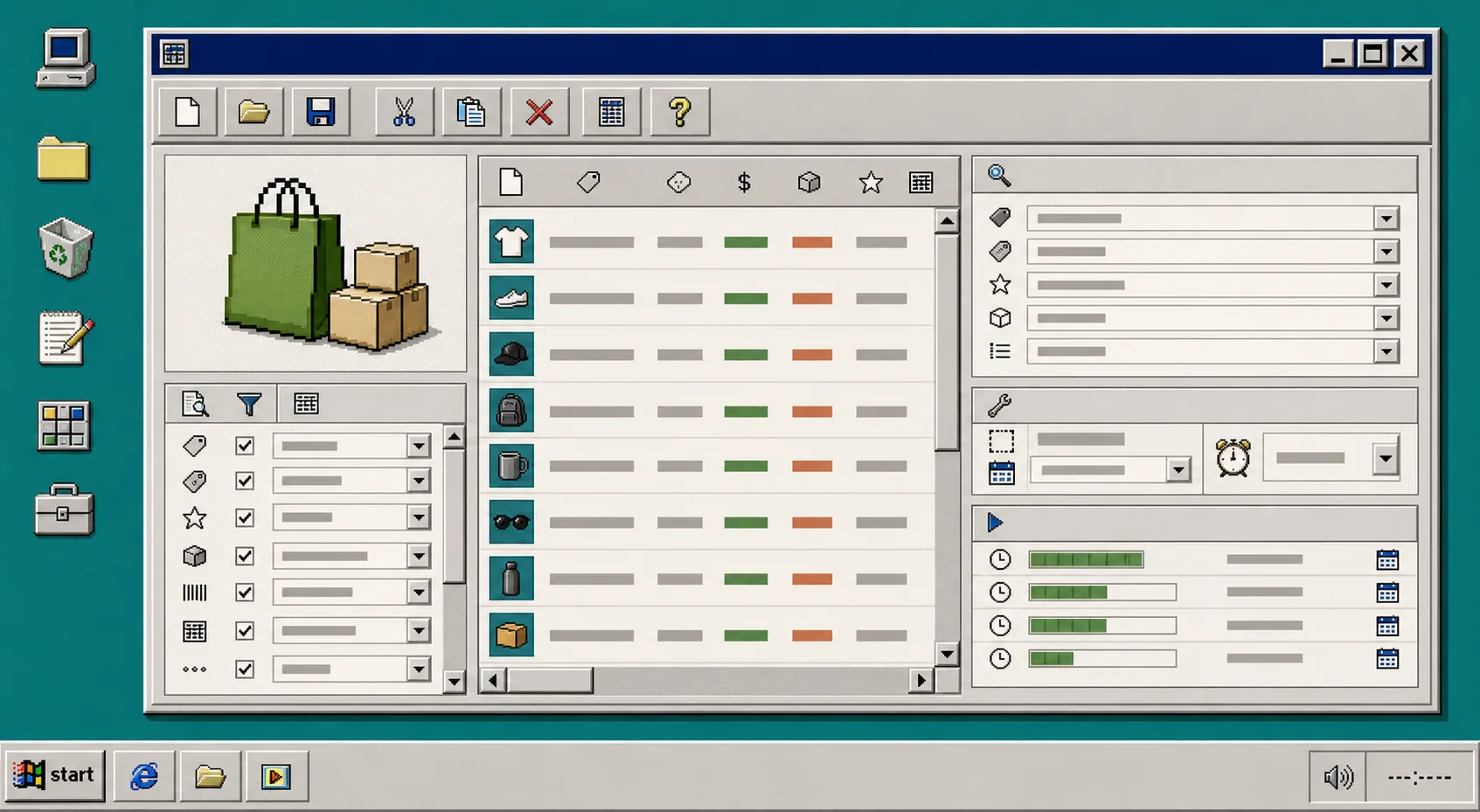
I still reach for a bulk editor any time a Shopify change touches more than a few products. If I need to update prices, inventory, tags, SEO titles, or variant data across a catalog, I do not want 40 tabs and a manual checklist.
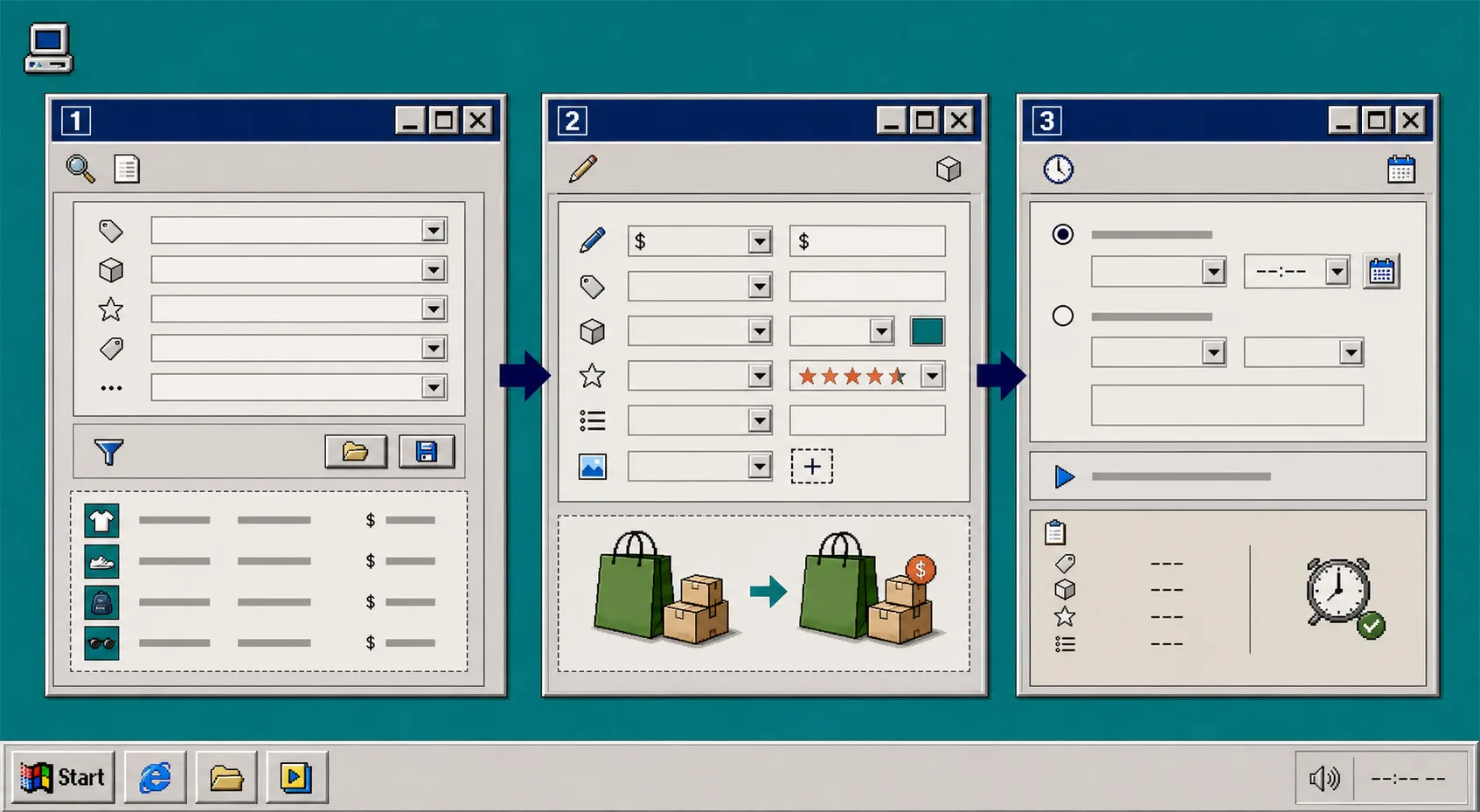
Ultimator Bulk Editor is built for that exact job. You choose products or variants with search criteria, define the updates, and then run the task instantly or schedule it for later. The Shopify App Store listing says it supports unlimited updates with no quotas, which is the point when the work stops being a simple edit and starts being a real operations task.
If you are trying to avoid bad catalog edits, this is the workflow I would use.
1. Narrow the Target Set First
I start with one collection, vendor, tag, or status, not the whole catalog. If the cleanup is seasonal, I will add a temporary tag first and target that instead. The goal is to make the batch small enough that you can reason about every change before it lands.
That matters because bulk editing is fast enough to hide mistakes. If the filter is too broad, you do not just save time; you also increase the chance that the wrong products get caught in the same rule set.
A good first batch should feel boring. If you would struggle to explain which items are inside it, the filter is too loose.
What you should see after this step: a short, predictable list with no surprise products.
If you are still deciding whether a change belongs on a product or a variant, I keep How I Bulk Edit Shopify Products Without Breaking Variants nearby.
2. Split Product Edits From Variant Edits
This is where most people get sloppy. Product-level edits and variant-level edits solve different problems, so I treat them separately.
Use product-level changes for catalog-wide fields like:
- Title
- Handle
- Description HTML
- Tags
- Price
- Compare at Price
- Inventory
- Product Type
- SKU
- Vendor
- Status
- Theme Template
- Collections
- Images
- Options
- Metafields
- SEO Title
- SEO Description
Use variant-level changes for SKU-level details like:
- Price
- Compare at Price
- Inventory
- Track Inventory
- SKU
- Weight
- Barcode
- Tax Code
- Taxable
- Requires Shipping
- Option 1
- Option 2
- Option 3
- Metafields
- Delete Variant
I think of product edits as merchandising decisions and variant edits as fulfillment decisions. If I am changing how a collection presents itself, I stay at product level. If I am fixing a size, barcode, or stock rule, I work at variant level.
What you should see after this step: a clear split between product fields and variant fields, with no mixed-up changes.
3. Pick the Right Operation for Each Field
The app is useful because it does not treat every field as a dumb overwrite.
A few examples that matter in practice:
- Title fields can be prepended, appended, or searched and replaced.
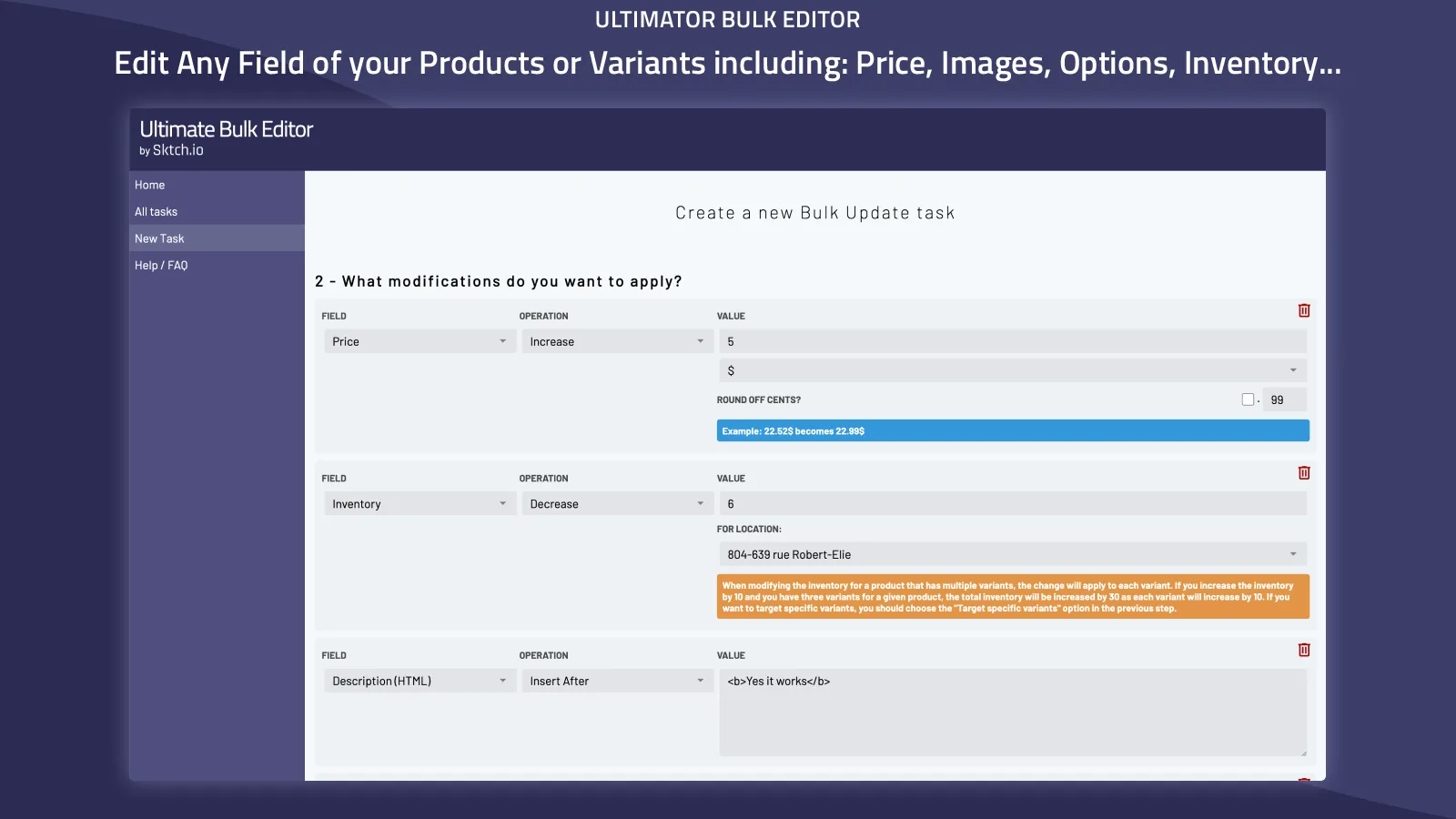
- Price fields can be set directly or increased or decreased by a fixed amount or percentage.
- Cents can be rounded when you want cleaner pricing.
- Description HTML can be updated when a collection needs the same copy treatment across multiple listings.
- SEO title and SEO description changes are useful when a campaign or category refresh needs more than just front-end merchandising.
That flexibility is why I use it for cleanup work, sale prep, and catalog reshaping. It gives me a single pass for the boring parts instead of a chain of manual edits.
If a change is really a structure decision rather than a data entry task, I pause and check How I Choose Between Variant Swatches and Linked Products in Shopify before I push anything live.
4. Schedule the Run When Timing Matters
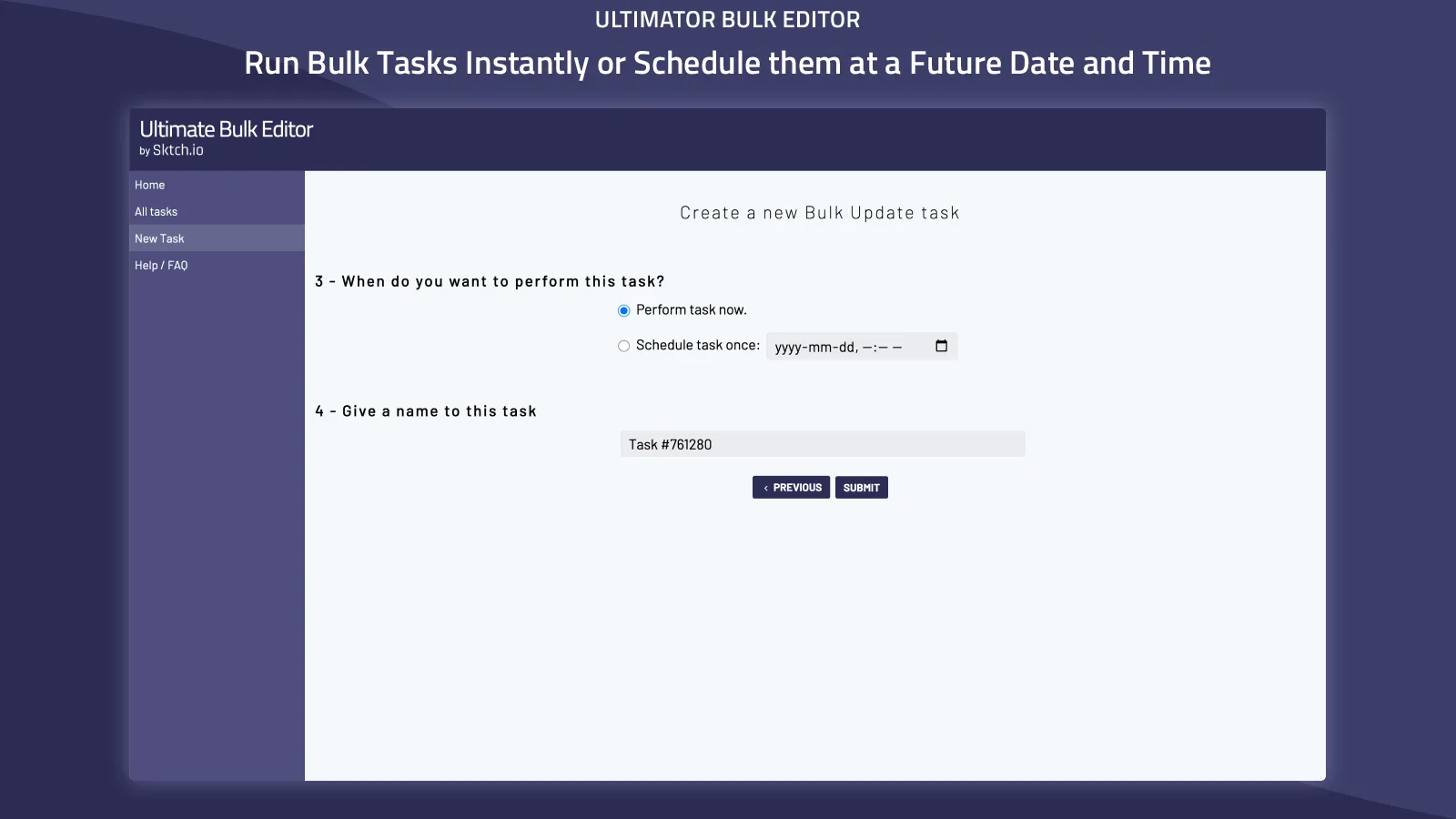
I use scheduling for sale starts, price resets, launch-day inventory changes, and other edits that should go live at a specific time. If the update only matters at 9:00 a.m. or when a promotion starts, there is no reason to rely on memory and manual clicking.
That is also where a bulk editor becomes an operations tool instead of a convenience tool. You are not just saving clicks. You are making sure the right changes happen at the right time, even when you are busy with orders, support, or merchandising.
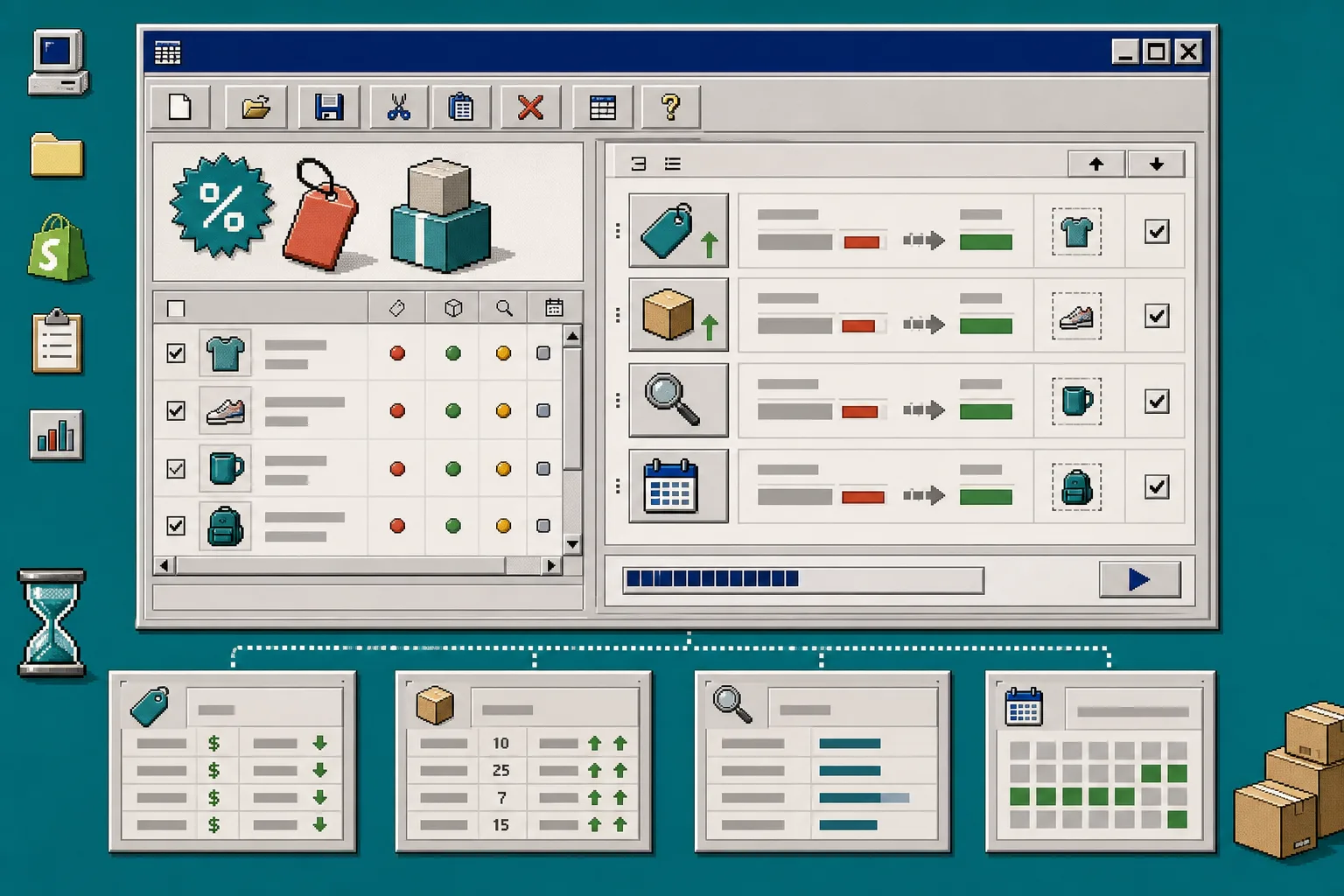
What you should see after this step: a queued task with the right start time, the right batch, and the right field rules.
For a sale-focused version of this workflow, I also reference How to Bulk Edit Etsy Listings and Variations Safely when I compare how I batch work across catalogs.
5. Verify the First Batch Before You Widen the Scope
Even if the app can handle unlimited products, I still start small. I run the first batch on a sample set, then I check the product page, variant selector, tags, SEO title, inventory, and any collection placement that changed as a side effect.
If the first few items look right, I widen the batch. If not, I tighten the filter or split the task into two separate runs.
This is the part that saves you from expensive cleanup later. The app is fast. That means your review step has to be deliberate.
If your catalog cleanup also touches tags or variant cleanup, How to Bulk Edit Etsy Titles, Tags, and Variations Safely is a useful adjacent checklist.
Troubleshooting the Usual Mistakes
- If the wrong products were selected, tighten the criteria and start from a temporary tag or one collection.
- If a variant change affected the wrong SKU, separate the product task from the variant task.
- If a price move looks off, check whether you used a percentage change or a fixed amount.
- If a scheduled edit did not land when expected, confirm the timezone and the planned run time before you blame the app.
- If you are changing swatch-related structure, cross-check How to Set Up Shopify Swatches Across Product and Collection Pages so you do not treat a structure problem like a copy problem.
The Short Version
If you only need to change one product, do it by hand. If you need to update a batch of Shopify products or variants, use a bulk editor with a tight filter, the right field-level operation, and a schedule when timing matters.
That is the simplest way to keep catalog work fast without making it risky.
If you want to try the app, start with Ultimator Bulk Editor or its Shopify App Store listing and build one small batch before you widen the scope.