You do not need to hand an AI assistant the keys to your Shopify admin to get useful work from it. The safest first setup is a read-first assistant that watches one part of the store, produces a short report, and asks a person to decide what happens next.
This guide shows how to use Clawly as an OpenClaw-style AI agent for Shopify without starting with risky product, order, or discount changes. You need a Shopify store, a Clawly account, and one small operational question you want answered regularly. A daily low-inventory and order-anomaly note is a solid first job.
1. Pick one observation job
Start with a job that creates information, not a job that edits information. Good choices include: a morning sales summary, a low-stock watchlist, a list of products missing descriptions, or a queue of support questions that need a draft reply. Do not begin with price changes, discount creation, publishing, or bulk catalog cleanup.
Write the job as one sentence. For example: “Every weekday morning, report low-stock products and unusual order patterns, then send the summary to me.” That wording gives the agent a bounded outcome and gives you an easy way to judge whether it worked.
If you are still deciding what an agent should be allowed to touch, read How I Decide What a Shopify AI Agent Can Touch before enabling any write-capable tools.
Expected result: you have one recurring question the assistant can answer without making a store change.
2. Create the assistant with a plain-language instruction
In Clawly, create an AI Agent for Shopify and describe the job literally. Clawly can connect Shopify with services such as Google Sheets, email, Slack, Klaviyo, and other operational tools, but keep the first version narrow. Connect Shopify first and add one delivery destination only if the report needs to be shared.
Use an instruction like this:
Each weekday at 8:30 AM, review Shopify orders and inventory. Send a short report with low-stock products, unusual order volume, and any missing data. Do not edit products, orders, inventory, discounts, or customer records. If something looks unusual, flag it for review.
The useful part is the last two sentences. An ecommerce AI agent should be specific about what it must not do, not only what it should do.
Expected result: the agent has a single job, a schedule, and language that rules out unplanned actions.
3. Enable only the permissions the job needs
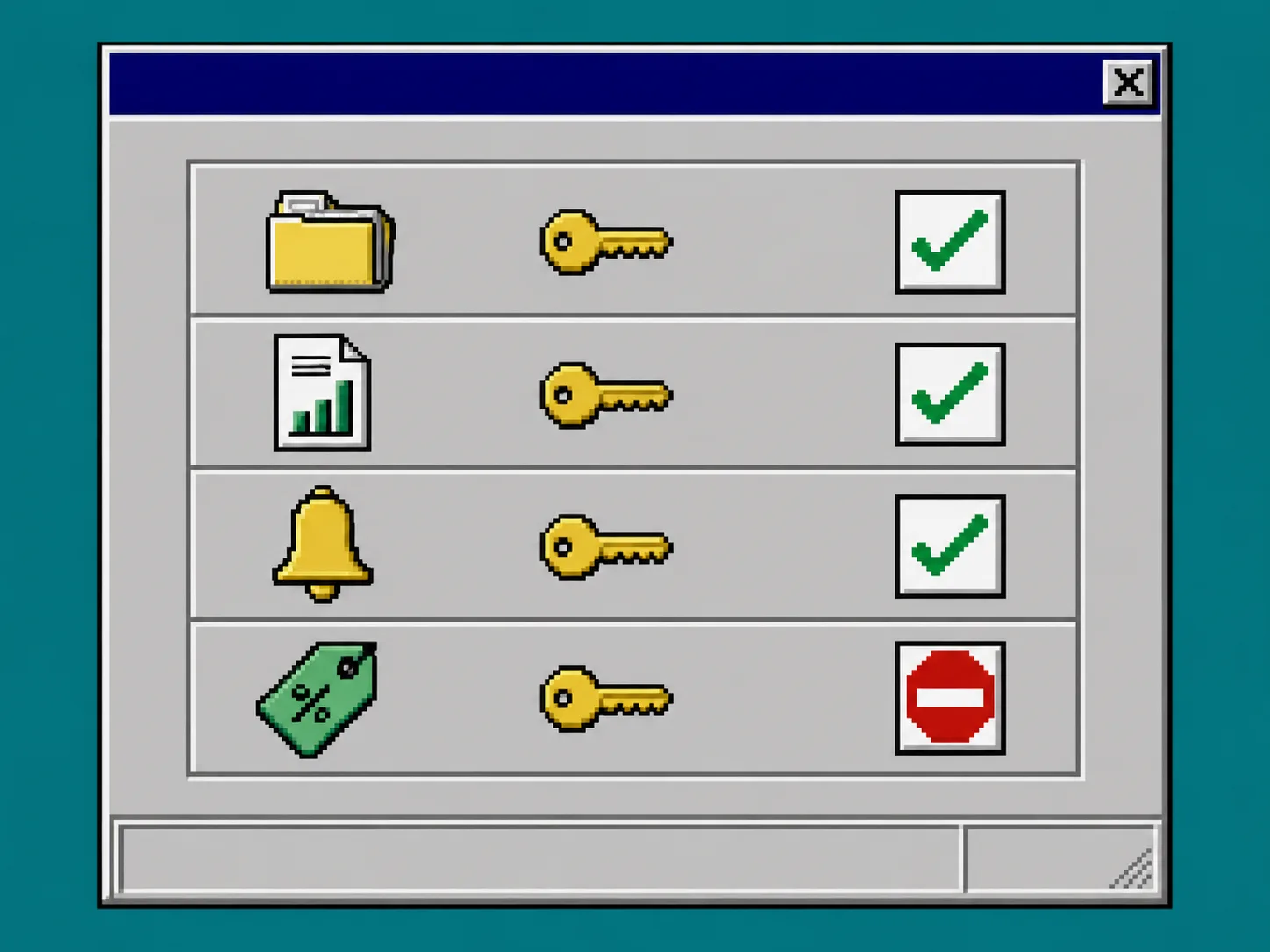
Give the assistant access to the data it needs to read and nothing more. For the example above, that usually means product, inventory, and order information plus a notification destination. Do not grant discount management, product publishing, customer messaging, or campaign controls just because they may be useful later. Clawly is designed around scoped access, so use that control deliberately.
A helpful rule is: every enabled permission should answer a sentence in the instruction. If a permission does not support the agent’s stated job, leave it disabled. For a more detailed read-only baseline, use How to Set Up a Read-Only Shopify AI Agent With Guardrails.
Expected result: you can explain why each enabled connection and permission exists.
4. Define what counts as an alert
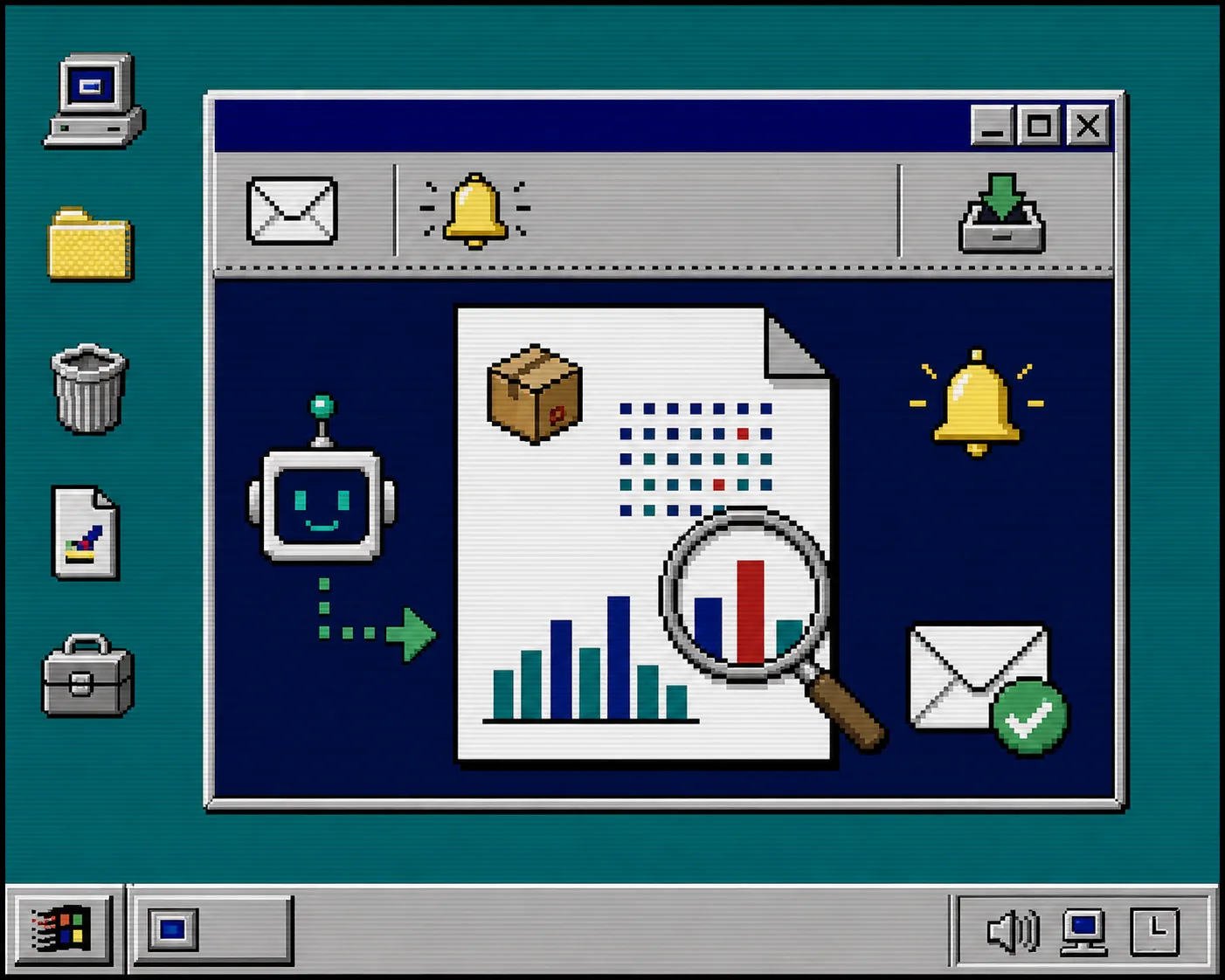
A report without thresholds becomes background noise. Decide in advance what should be normal, what should be highlighted, and what must be escalated. Examples: inventory below a chosen unit count, an order volume that differs sharply from the recent norm, or products without required catalog fields. Keep the first alert list short.
Have the agent state missing information instead of guessing. An alert that says “inventory value unavailable” is far more useful than a confident-looking number with no source. This same test-first thinking is what keeps large catalog changes manageable; this controlled bulk-edit workflow is a good reminder to verify a small scope before expanding it.
Expected result: the agent can separate routine activity from a short, reviewable alert list.
5. Run the first reports as a comparison, not a handoff
Let the automation run for several days while you compare its report with the Shopify admin. Check whether the included products are correct, whether the thresholds create too many alerts, and whether important exceptions are missing. Tighten the instruction before adding another job.
This is where a low-risk assistant earns trust. You are checking a repeatable result, not trying to monitor every possible task at once. Once a daily report is reliable, you can use the same pattern for catalog review, support-draft queues, or marketing planning. How to Build a Shopify AI Agent for Daily Store Reports shows that next step in more detail.
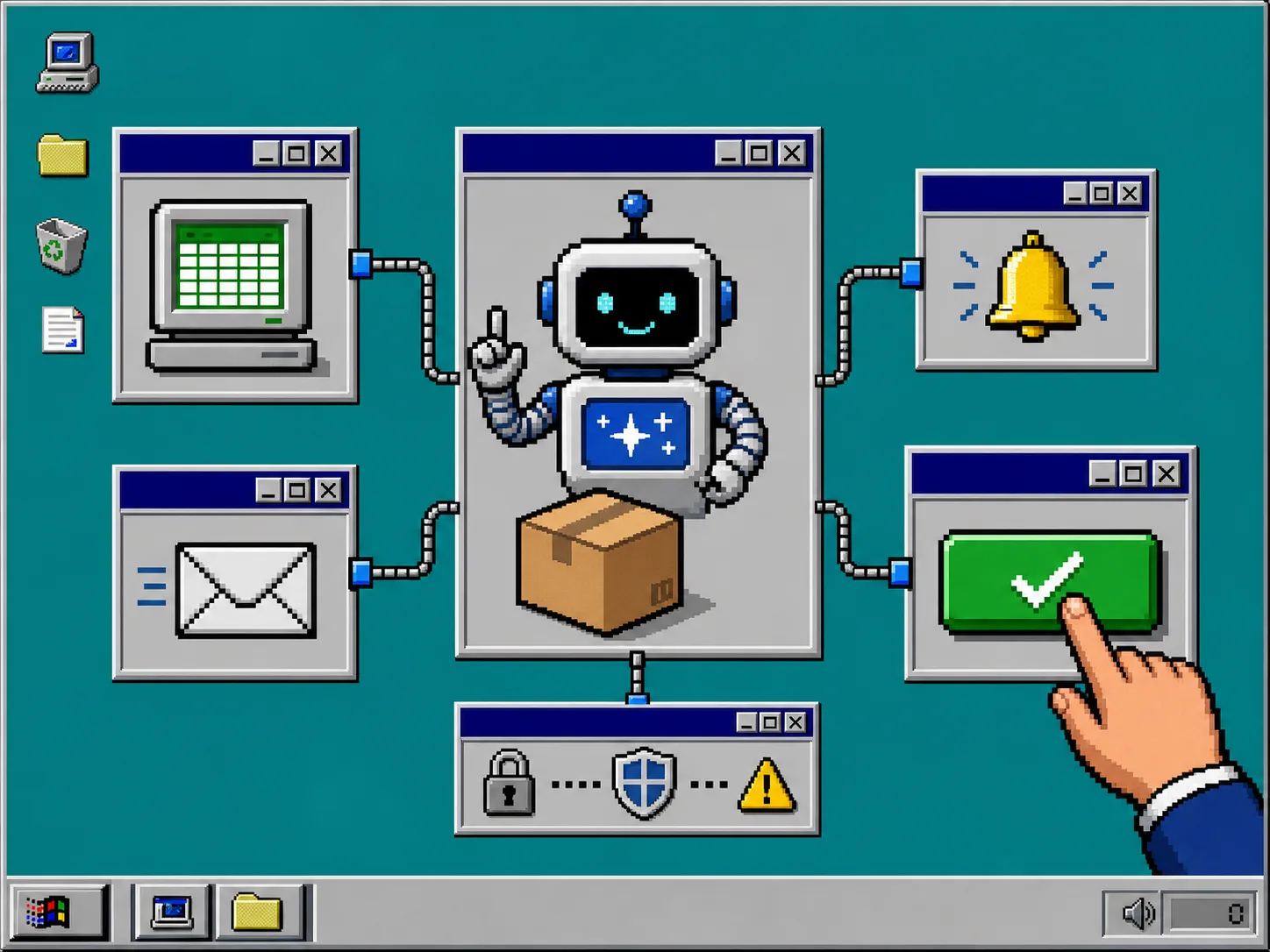
Expected result: you know which parts of the report are reliable and which need a clearer instruction or threshold.
6. Add one controlled action only after the report is useful
When the report is stable, expand carefully. A sensible next step might be drafting product descriptions for your approval, adding proposed tags to a review list, or drafting a support reply. Keep a human approval step between the agent’s suggestion and any customer-facing or store-changing action.
Do not turn a dependable monitoring assistant into an unrestricted operator in one jump. Build one permission, one workflow, and one review rule at a time. That is the practical difference between Shopify automation that saves time and automation that creates cleanup work.
Troubleshooting
The report is too vague. Name the exact fields, thresholds, and report format in the instruction.
The agent has too much access. Disable every connection that does not support the current job, then rebuild from a read-only scope.
There are too many alerts. Raise the threshold or ask for a short exception list instead of a full activity feed.
The report misses important cases. Add one concrete example to the instruction and compare the next run against Shopify admin.
Recap
A useful AI Agent for Shopify begins with observation, narrow permissions, and human review—not with broad autonomy. Install Clawly from the Shopify App Store, create one read-first assistant, and start with a daily report or low-inventory alert you can verify yourself.