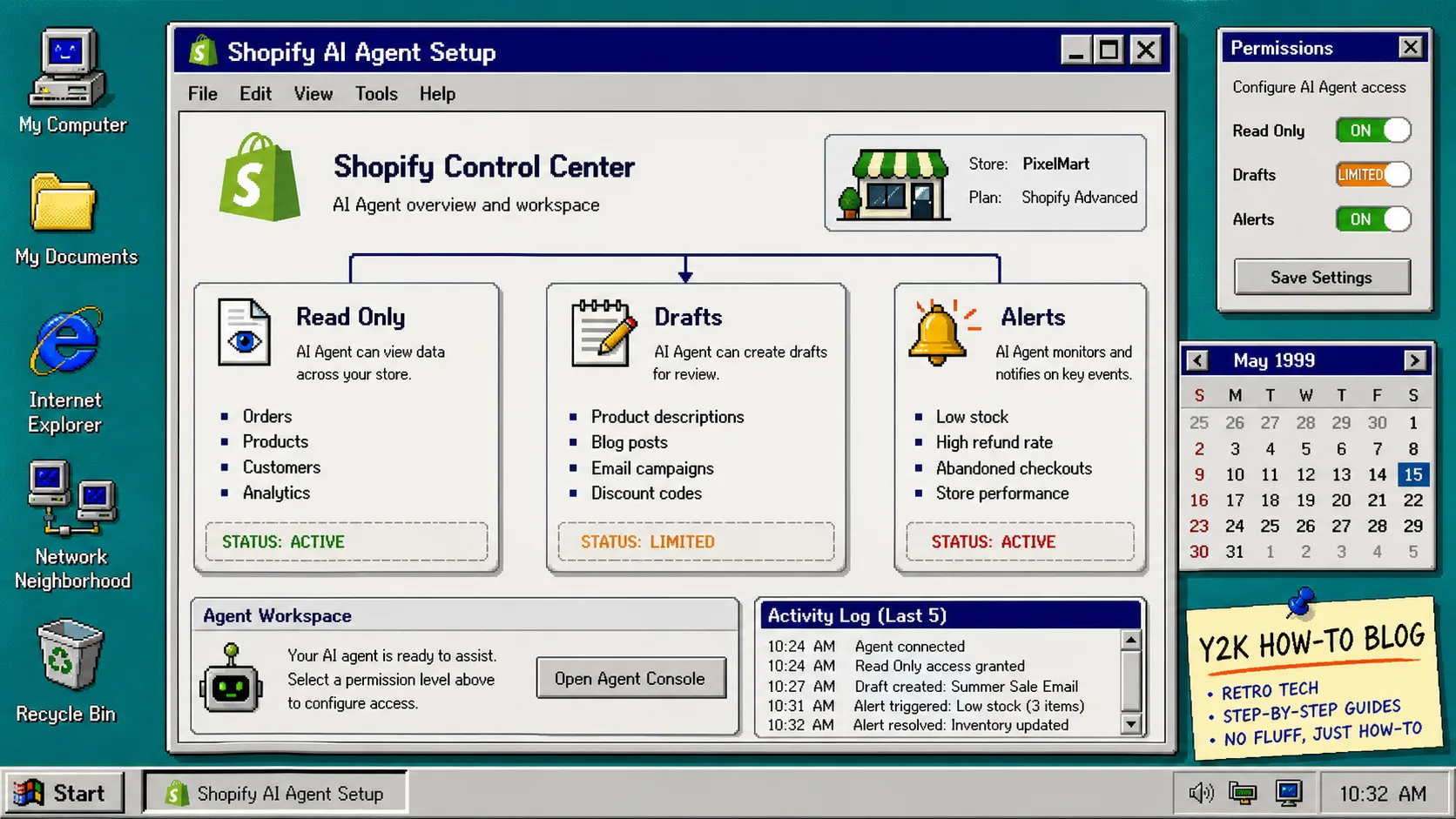
If you want a Shopify AI assistant to help with store work without giving it full control on day one, start in read-only mode. With Clawly, the agent can inspect products, orders, and activity, then draft reports, replies, or alerts for you to review before anything changes in Shopify.
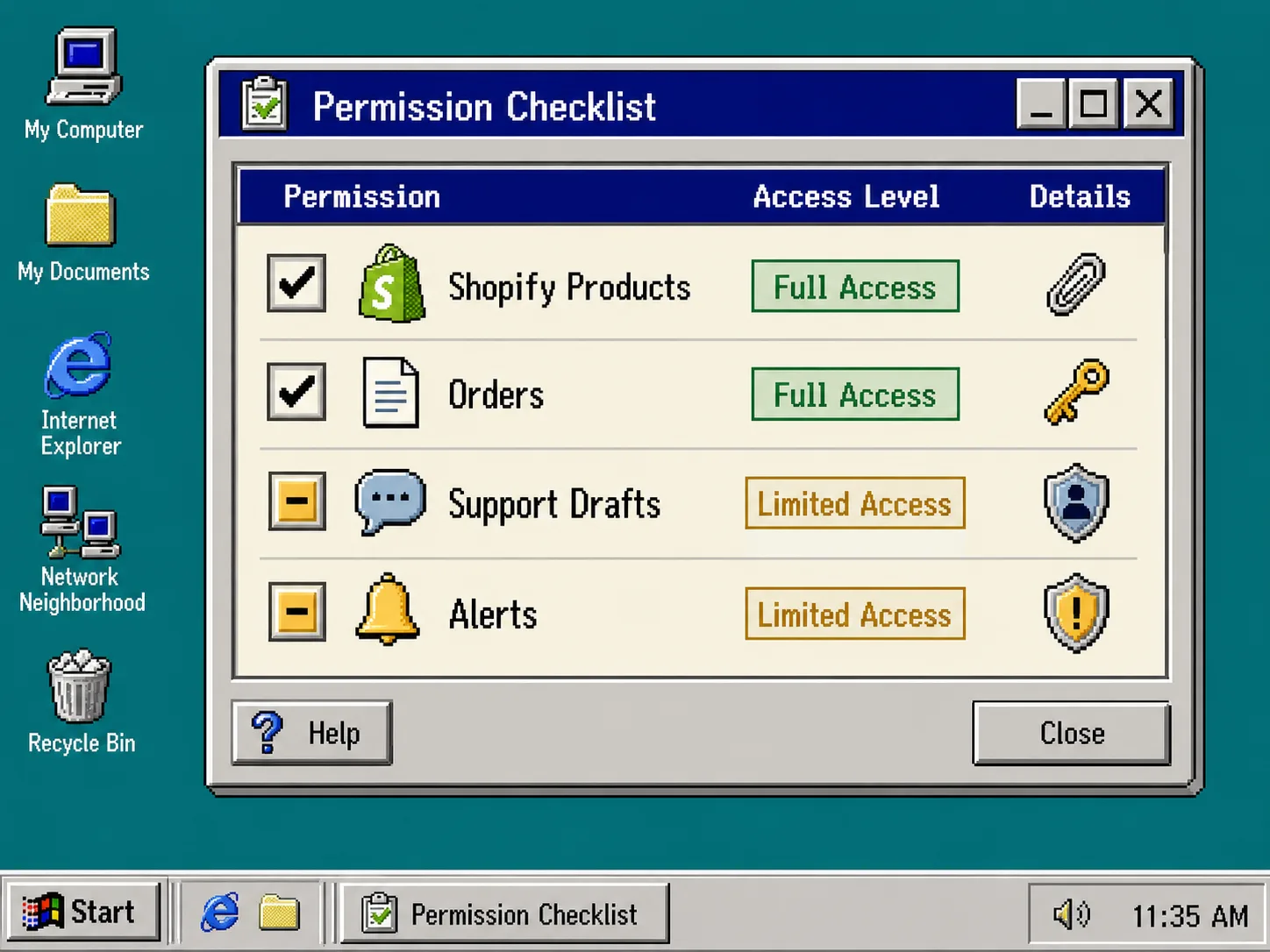
What you need
Before you start, make sure you have:
- Clawly installed on your Shopify store
- One job to automate first
- The integrations you actually need, such as Shopify, Gmail, Slack, Google Sheets, or Notion
- A human review step for anything that writes back to the store
The goal is simple: let the agent prove it can be useful before you let it change anything.
1. Choose one read-only job
Start with a task that is useful even if the agent never takes action.
Good first jobs are:
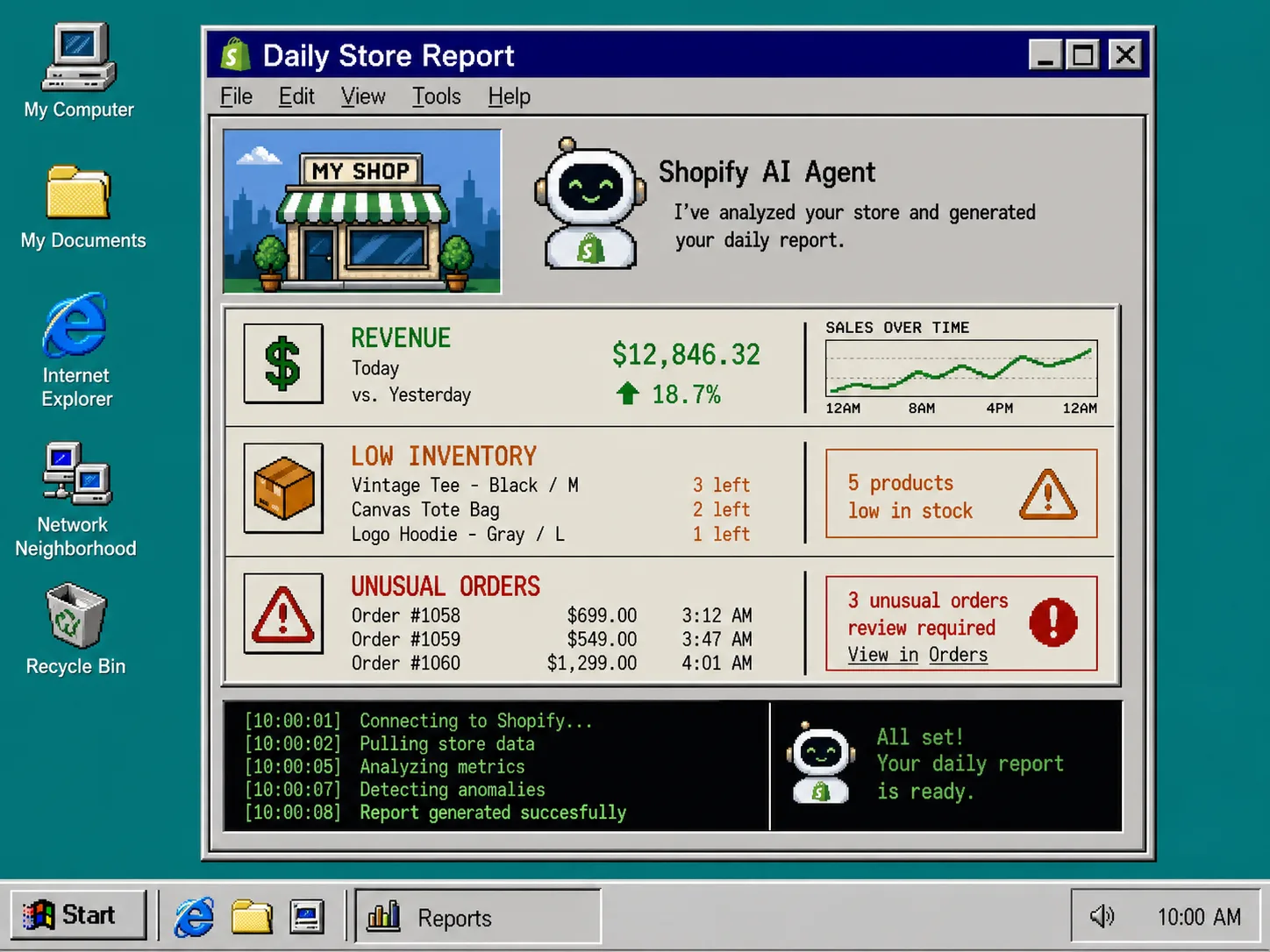
- a daily sales and inventory summary
- a low-stock alert digest
- a support triage summary
- a product cleanup checklist
Avoid picking a workflow that touches pricing, fulfillment, or bulk edits first. Those are easier to trust after the agent has already shown it can read your store correctly.
What you should see after this step: one sentence that describes the agent clearly, such as “watch inventory and draft a Slack alert when stock is low.”
2. Connect only the tools required
In Clawly, connect Shopify first, then add only the external tools the workflow needs.
If the job is a daily report, Shopify plus Slack or Gmail is usually enough. If the workflow needs product planning, a sheet or notes app may help. Do not connect extra tools just because they are available.
If you want a stricter breakdown of allowed actions, compare this setup with How I Build a Shopify AI Agent Permission Matrix and How I Decide What a Shopify AI Agent Can Touch.
What you should see after this step: the agent can reach only the systems it truly needs, not your whole tool stack.
3. Set permissions to read first
Allow read access to products, orders, inventory, and reports.
Block deletes, price changes, fulfillment actions, discounts, and bulk edits until the workflow proves itself. If the agent can send notifications, keep that channel narrow at first so you can review the first few outputs.
A useful rule is: if the agent would cost you money, change customer orders, or affect live listings, it should not start with that permission.
What you should see after this step: a clear list of allowed actions, not a generic full-access setup.
4. Tell the agent to draft, not decide
Write instructions that tell the assistant to summarize, compare, draft, or flag.
Examples:
- “Summarize today’s low-stock items.”
- “Draft a reply for support cases that only need a tracking update.”
- “Write a product cleanup checklist, but do not edit anything.”
- “Flag orders with unusual totals and explain why.”
That draft-first approach is the safest way to get value early. It lets Clawly do the thinking while you keep the final decision.
If your main use case is cleanup, reports, and support, the workflow in How to Build a Shopify AI Assistant for Product Cleanup, Reports, and Support and How I Use Clawly to Automate Shopify Cleanup, Reports, and Alerts is the next step up.
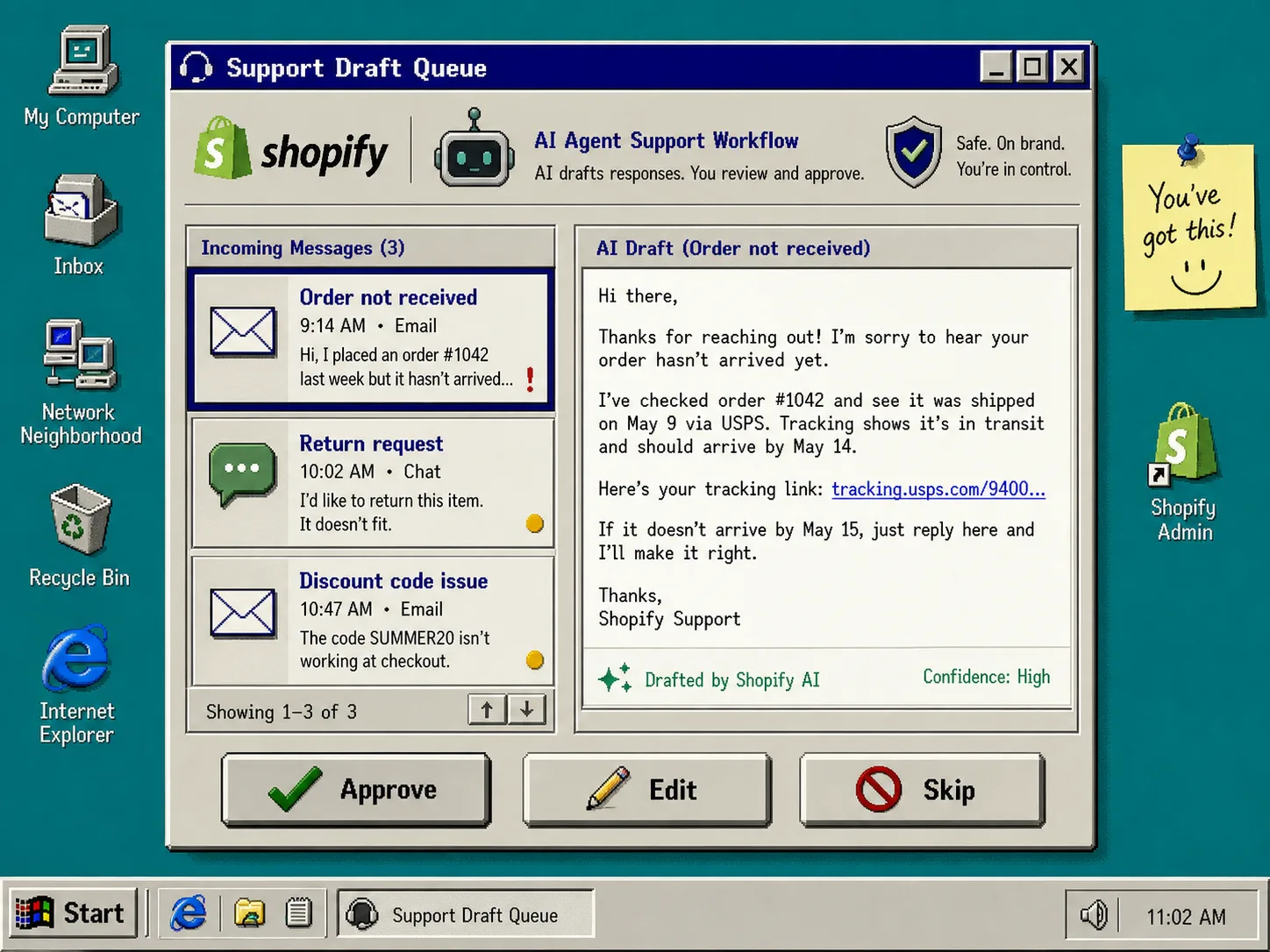
What you should see after this step: a draft queue or report output that a human can review before anything is sent.
5. Test on one narrow slice of the store
Do not test the whole shop at once. Pick one collection, one vendor, one inbox label, or one report type.
Run the assistant once or twice and compare its output with Shopify manually. Check for:
- wrong product names
- duplicate alerts
- stale inventory counts
- overly broad recommendations
If the output is off, fix the scope before you blame the model. Most problems come from vague instructions or too much data, not from the idea itself.
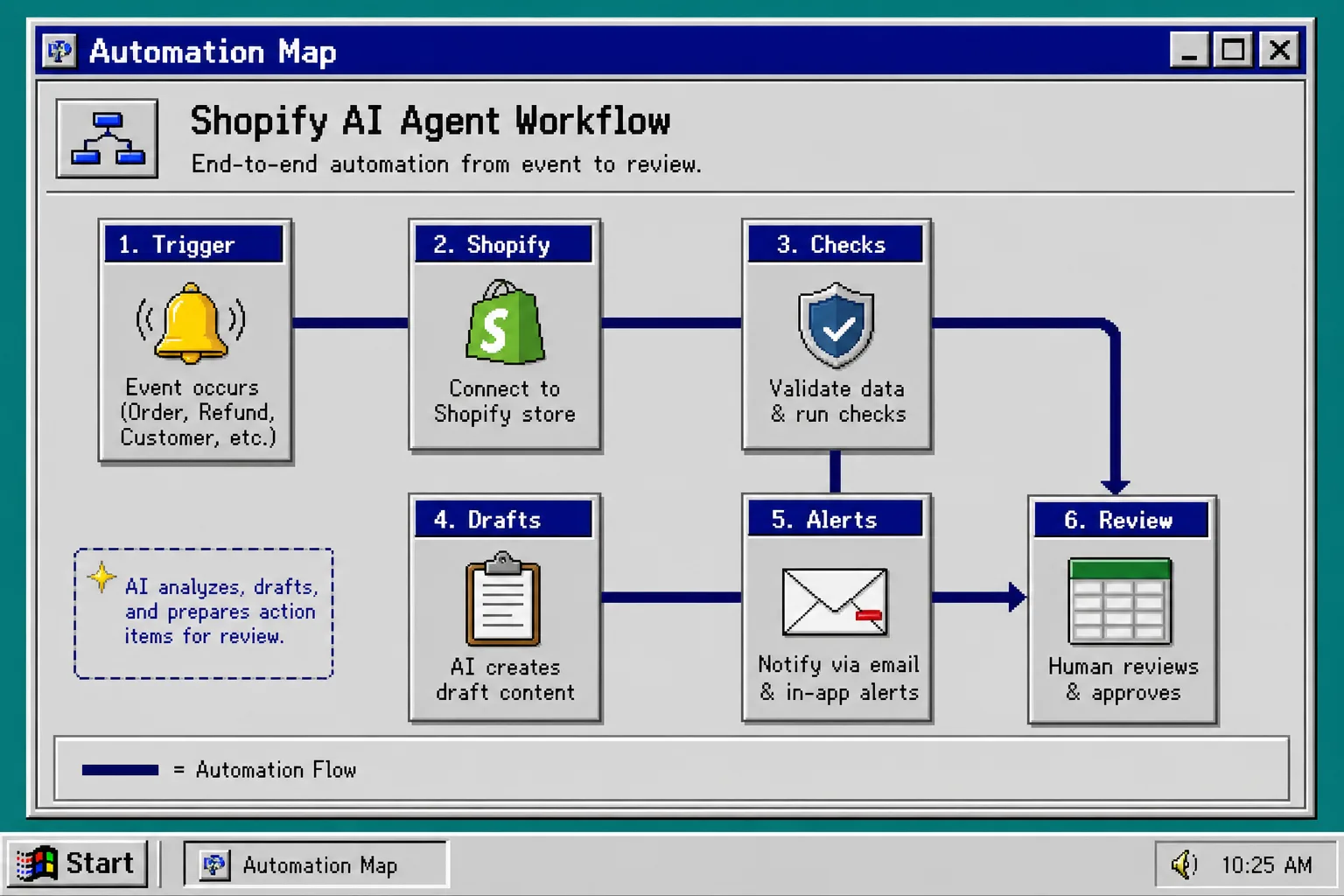
6. Add a human approval step
Before the agent can write back to Shopify, require approval for edits.
That gives you a safe bridge between read-only reporting and full automation. Use the review step to decide whether the output is ready, needs edits, or should be skipped.
What you should see after this step: a small review queue instead of silent changes.
7. Expand slowly
Once the agent is accurate, let it handle one more action at a time.
Good next steps are:
- sending alerts to Slack
- drafting support replies
- creating product cleanup notes
- preparing a daily sales summary
That staged rollout is the same idea behind How to Set Up a Shopify AI Agent with Scoped Permissions and How to Build a Guardrailed Shopify AI Assistant for Cleanup, Reports, and Alerts: start small, then widen access only when the outputs are reliable.
Troubleshooting
The agent feels too broad
Remove anything it does not need. If a workflow only needs reports, do not connect write access.
The outputs are generic
Feed it better store context: product names, collections, common support issues, and the exact outcome you want.
It keeps making the same mistake
Reduce the scope to one task and one data source. Broad instructions are usually the problem, not the model.
Alerts are noisy
Lower the trigger frequency and add a threshold. A useful agent is specific, not chatty.
Final check
If you can answer these three questions, the setup is ready:
- What can the agent read?
- What can it draft?
- What must a human approve?
If the answers are clear, you can start using Clawly for a read-only workflow today and turn on more actions later. The safest first move is to create one narrow agent, review its output for a week, and only then let it touch anything in the store.
If you want to try this pattern in your own store, start with Clawly or the Shopify App Store listing.