If a Webflow redesign is about to start, make a working static copy first. That copy gives you a known-good reference for pages, assets, routes, metadata, and interactions while the new version is in progress.
You need a published Webflow URL, access to the destination where you will keep the export, and enough time to test the copy before changing production. This is not a replacement for your source design work. It is the rollback-ready site package that makes the redesign less stressful.
1. Decide What the Export Must Preserve
Start with the public site, not the redesign brief. Write down the pages and behaviors that visitors rely on today: the homepage, collection or CMS-driven routes, navigation, downloads, images, forms, scripts, redirects, and metadata. A static export is useful only when it represents the site people actually use.
If your project uses CMS content, list a few real detail-page URLs as test cases. This avoids a common failure mode: the top-level pages look fine while important routes are missing. For a fuller planning pass, use this Webflow static mirror workflow to define the reference copy before work begins.
2. Run a Webflow-Specific Export
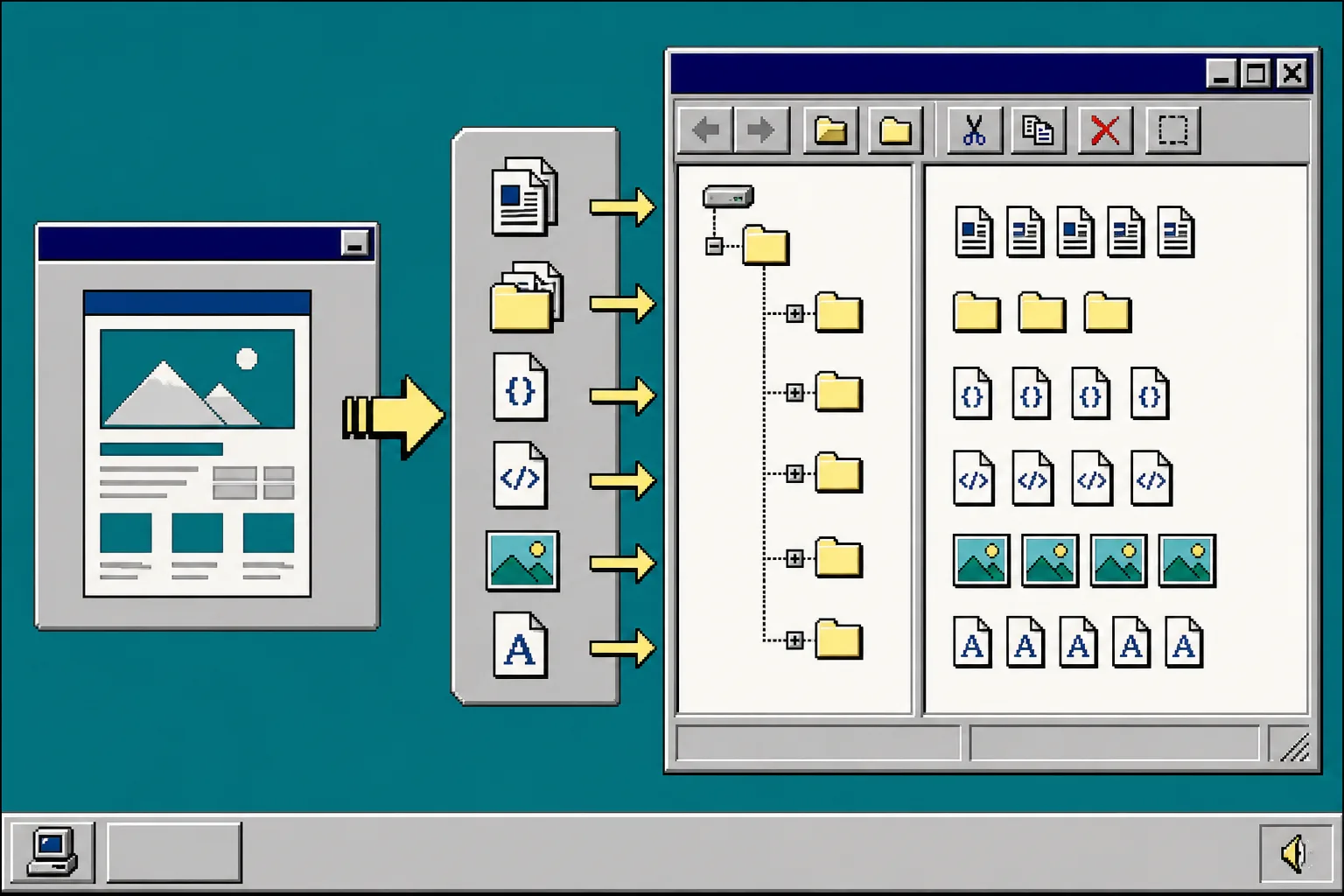
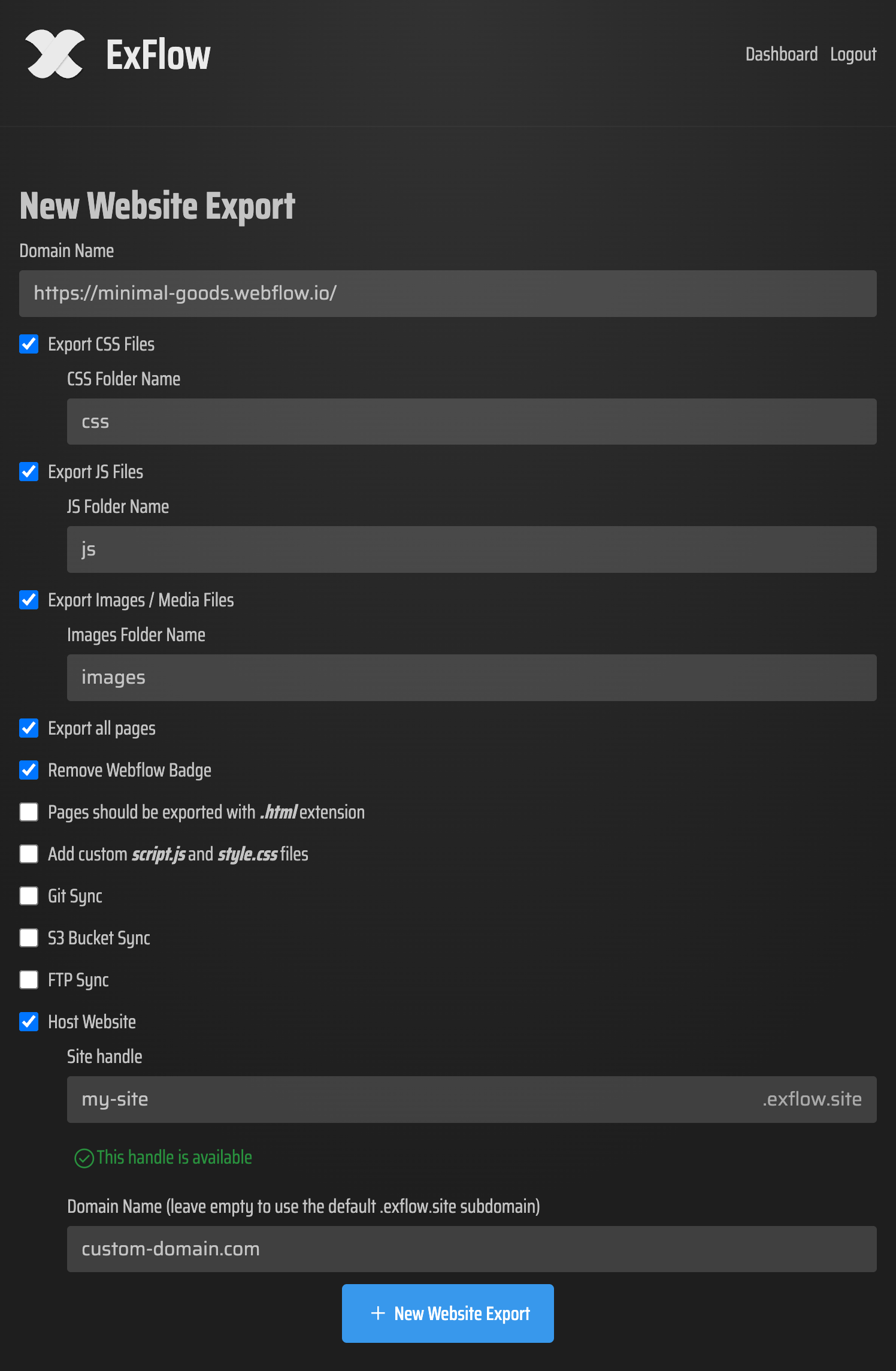
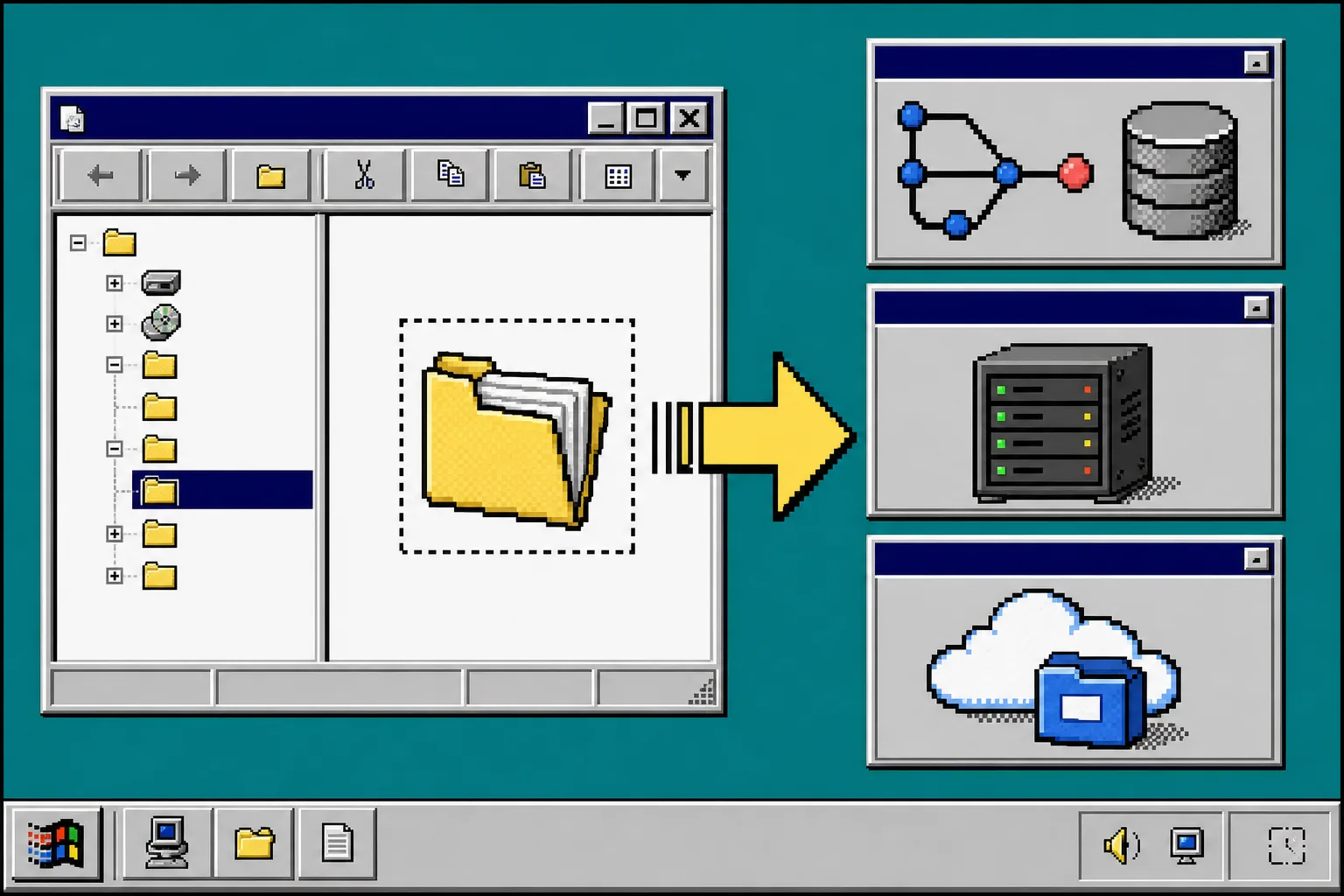
Use the ExFlow Webflow exporter rather than treating the job as a generic page download. Enter the published site URL, then configure the export to collect the pages, CSS, JavaScript, images, media, and CMS-style routes your public site needs. ExFlow can provide a downloadable static package or sync the output to Git, S3, FTP, or ExFlow Hosting.
Before you run it, choose one simple output rule: keep the exported version in its own dated folder or repository branch. For example, name the backup webflow-before-redesign-2026-09-01. A distinct location prevents the safe copy from being mixed with redesign files.
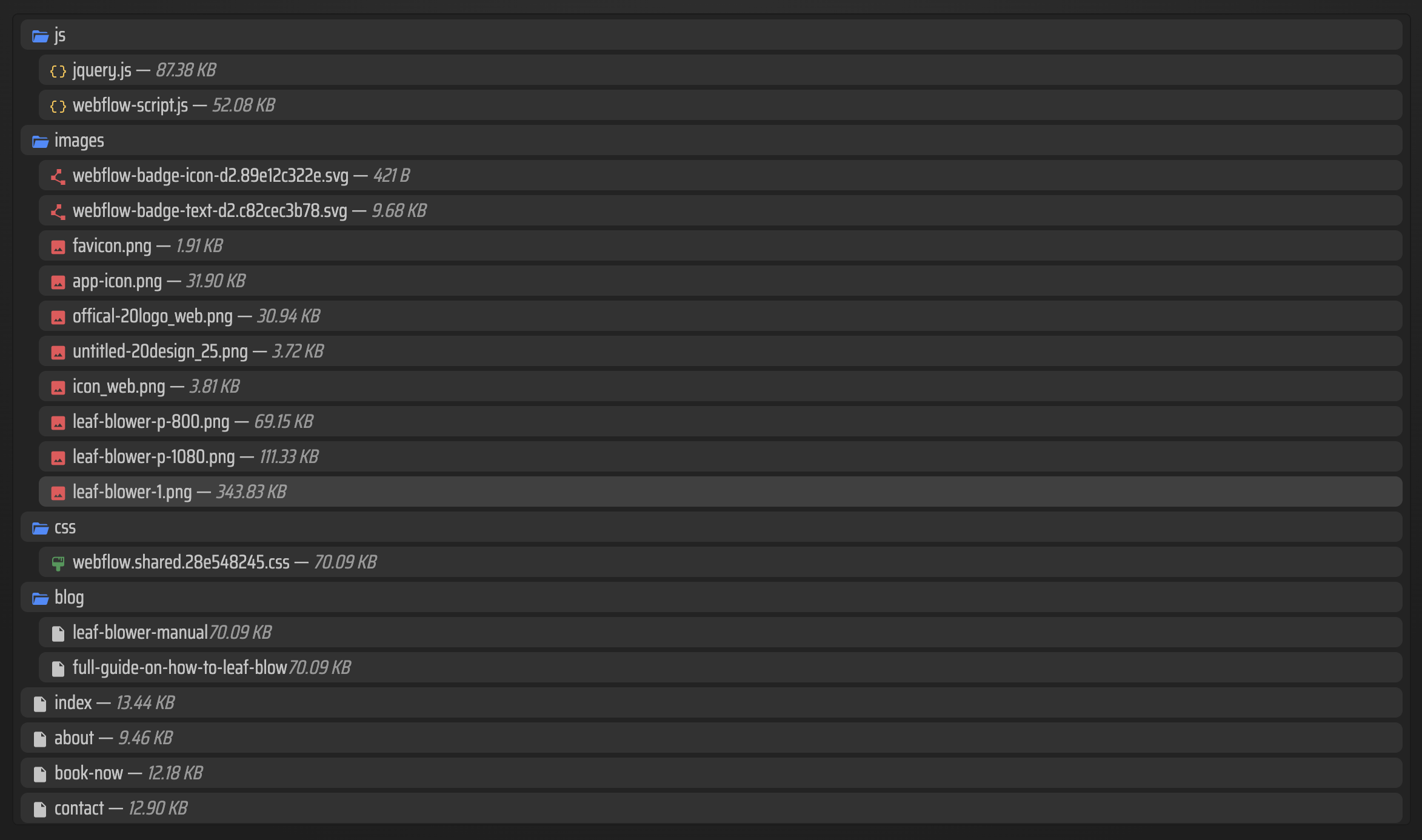
After the export completes, inspect the file list. You should see page files plus the supporting asset folders instead of one saved browser page. The ExFlow export configuration screenshot and example exported-file view are useful references for what this stage should look like.
3. Put the Copy Somewhere Reversible
Download the ZIP when you need an offline backup, then unpack it into a clean directory. If you want a deployment trail, sync the export to Git so each tested snapshot has a visible history. S3 and FTP are practical when they already fit your hosting setup; ExFlow Hosting is an option when you want a managed static path.
The important setting is not the host name. It is that the exported copy can be served without editing your live Webflow project. Keep production and the backup on separate URLs while testing. Do not point the main domain at the exported files until the team has agreed on the cutover.
4. Test Real Routes, Not Just the Homepage
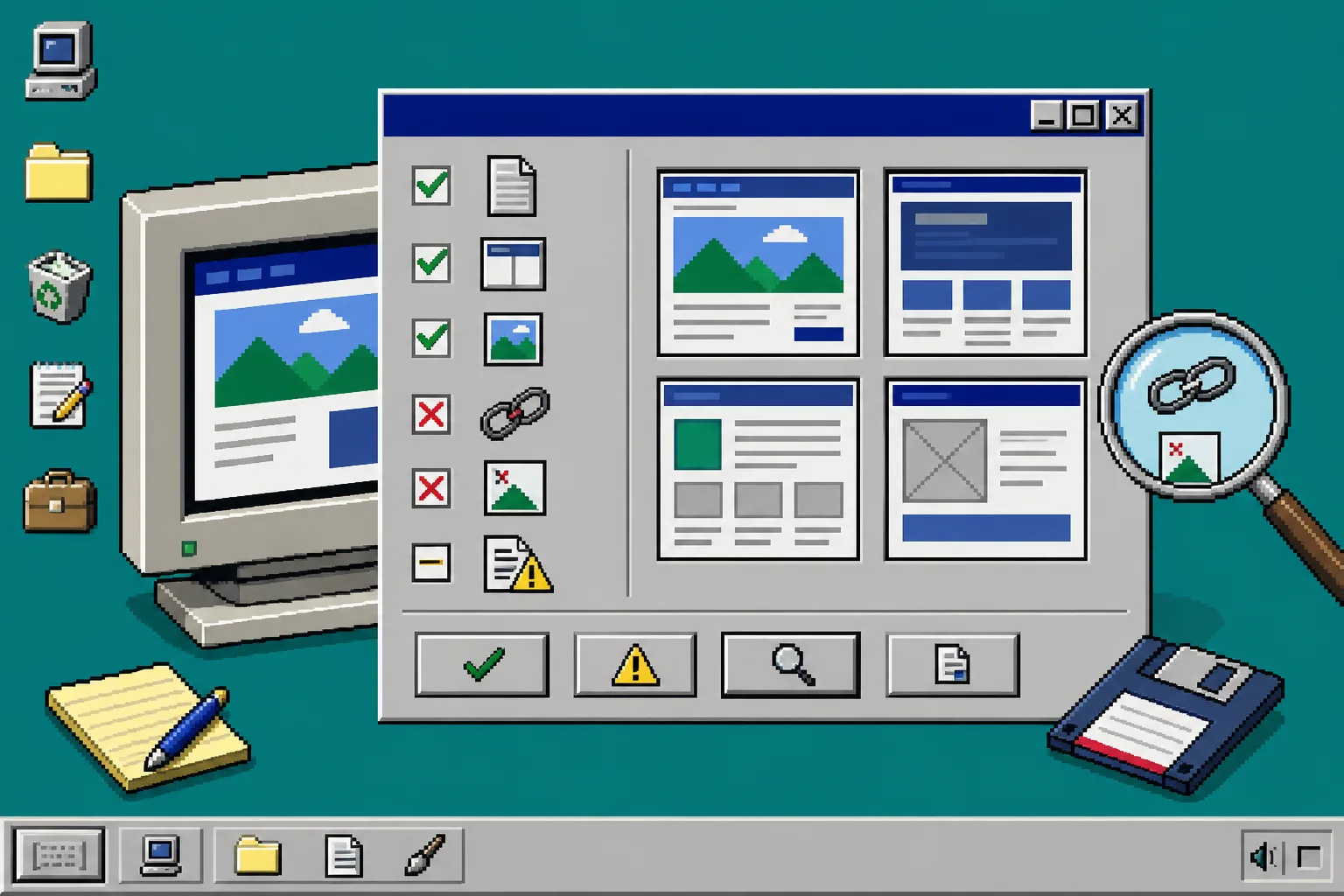
Open the backup URL in a private browser window. Click the header, footer, primary calls to action, and at least three deep links. Then test one page at each responsive breakpoint you support. You are looking for missing CSS, absent images, broken internal paths, blocked scripts, and routes that silently return a not-found page.
Check these items in order:
- Confirm every navigation and footer link opens the expected path.
- Compare one representative CMS route with the current public URL.
- Load pages with hard refreshes so cached assets do not hide a missing file.
- Check forms and embedded services separately; static copies may still need their own configuration.
- Review page titles, descriptions, canonical tags, and redirects before you treat the copy as a rollback option.
5. Keep a Small Redesign Handoff Note
Add a plain README beside the export with the source URL, export date, test URLs, destination URL, and any known exceptions. Mention whether forms, analytics, or third-party scripts need separate attention. This tiny note is far more useful than expecting the next person to infer how the backup was made.
When the redesign is ready, repeat the same route checks against the new site. The old export becomes your comparison point, not an abandoned ZIP. That is especially helpful when a new navigation model or CMS migration changes URL behavior.
Troubleshooting
A page looks unstyled. Check whether its CSS path is absolute, relative, or missing from the exported asset folder. Test from the deployed URL rather than directly from your computer.
A CMS-like route is missing. Return to the route list from step 1 and confirm that a real public example was included in the export scope. Do not assume a homepage pass proves every route was captured.
Images load on one page but not another. Compare the image paths in both pages and make sure the deployment preserved the asset directory structure.
The team also needs another platform. ExFlow has dedicated guides for Squarespace exports and Framer exports. If the project is Framer-based, this static-hosting guide and this handoff checklist cover the analogous checks.
Wrap Up
Exporting before a redesign gives you a tested, portable reference instead of a vague hope that the old version can be reconstructed later. Start by listing your critical Webflow routes, create a dated export with ExFlow, and test that copy on a separate URL before the redesign touches production.