A password page is useful while a Squarespace site is still private. It becomes a problem when a client needs a complete, testable copy for a handoff, a backup, or a move to static hosting.
You can export the owner-accessible site, review the downloaded files on a separate test address, and give the client a package that does not require sharing the live Squarespace login. You need the published site URL, permission from the owner to use its password, and somewhere to test static files.
ExFlow’s Squarespace exporter is built for this job: it can collect a published Squarespace site’s pages, CSS, JavaScript, images, and media into a static export you can download or deploy. Follow these steps before you call the handoff finished.
1. Get Owner Approval and Record the Site Scope
Ask the site owner for the public URL and the password only through their approved secure channel. Confirm which pages, galleries, downloads, and contact routes belong in the handoff. Do not treat a password as permission to export unrelated private content.
Make a short checklist before you start: public pages, protected pages, navigation, media, any embedded forms, and the intended destination. This saves you from delivering a pretty home page with a missing portfolio or an orphaned PDF. If you want a broader asset checklist, compare it with this Squarespace static-export guide.
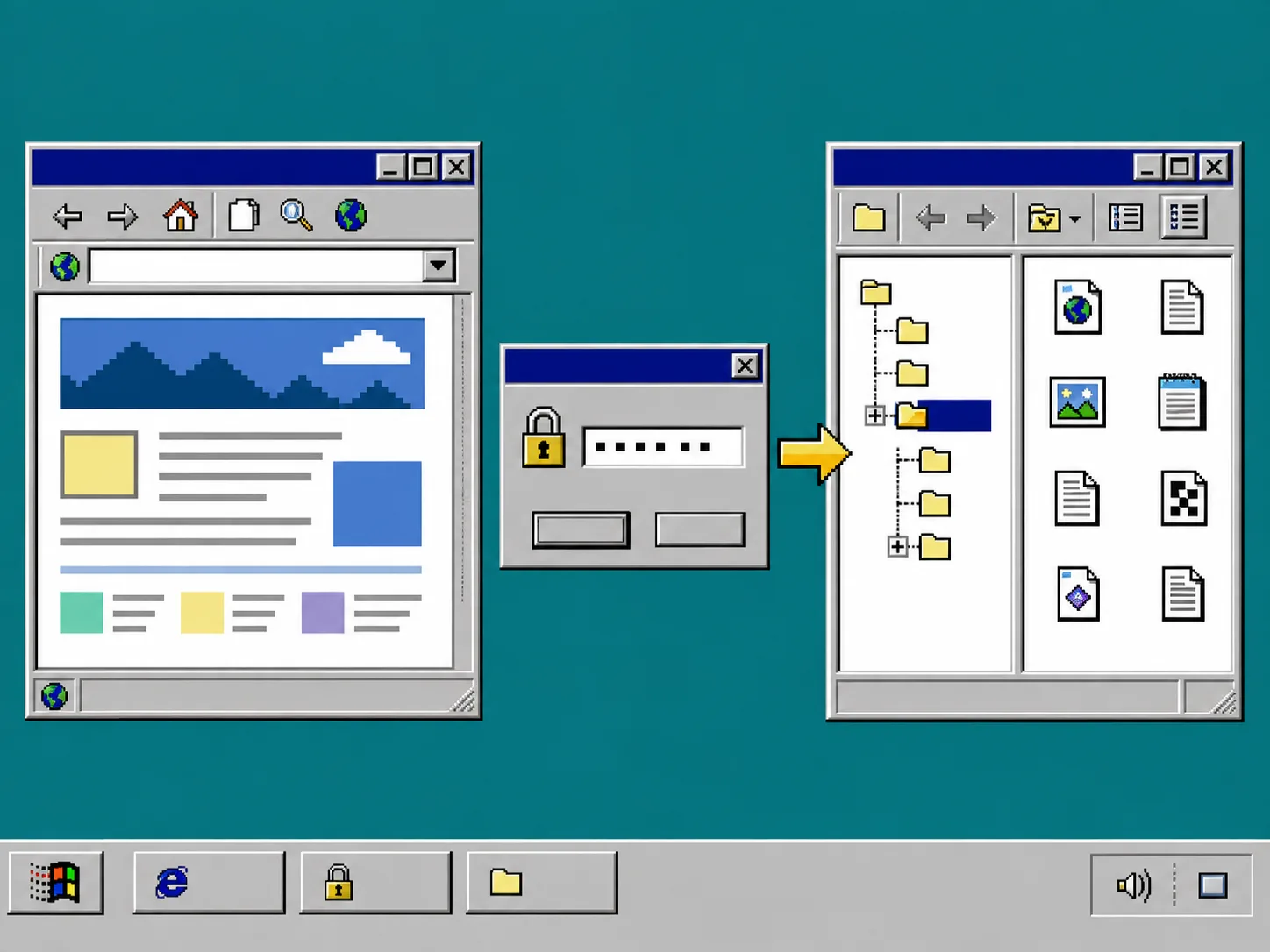
2. Enter the Published URL in ExFlow
Open the Squarespace export workflow and enter the published URL. If the owner has password-protected the site, provide that password to ExFlow as part of the export setup. ExFlow can access password-protected Squarespace sites when the owner provides it.
Choose the export or deployment option that matches the handoff. A ZIP is practical when the client or their developer will host it themselves. A Git, S3, or FTP sync is useful when the static copy needs a versioned or server-ready destination. ExFlow Hosting is the simpler option when you want a managed static address first.
What you should see: a completed export with pages and site assets available together, rather than a content-only download.
3. Keep the Live Password Page Separate From the Test Copy
Do not point the static export at the live production domain on day one. Put it on a staging subdomain, preview host, or local static server first. The point of the handoff is to inspect the copy without changing the live Squarespace site or weakening its password gate.
Open the exported home page and click through every primary navigation item. Then open a few deep pages directly from their static paths. Check image galleries at a normal desktop width and a narrow mobile width; lazy-loaded media can look fine in one viewport and fail in another.
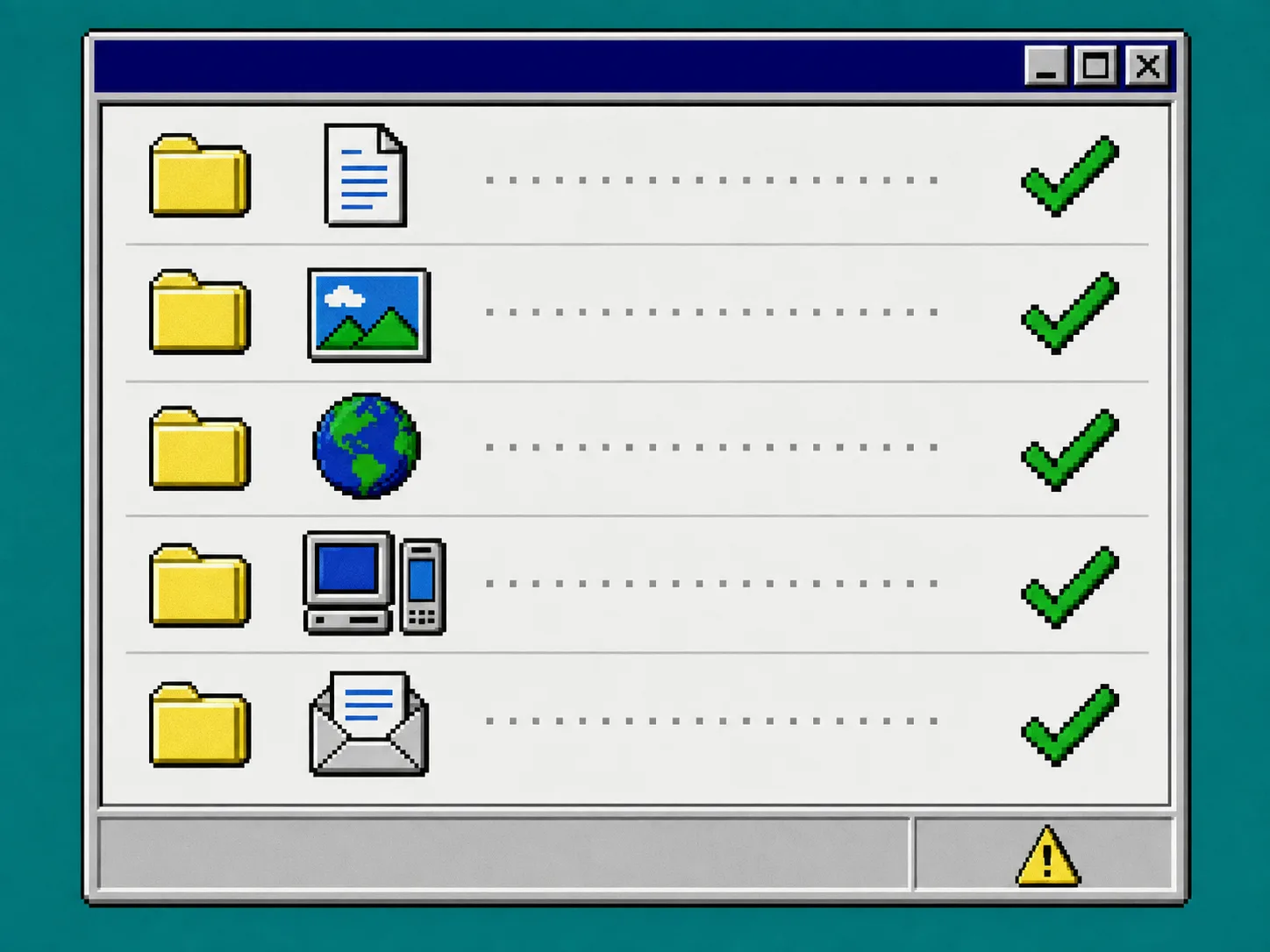
4. Run the Client-Handoff QA Pass
Check the following items before you send a delivery link or ZIP:
- Open pages and navigation. Confirm internal links resolve inside the static copy and the browser does not send visitors back to the protected live site.
- Load media. Inspect hero images, galleries, video posters, downloadable files, and smaller screen-size variants.
- Review scripts and embeds. Test menus, carousels, analytics snippets, and third-party embeds. A static export preserves files; a live service may still need its own credentials or configuration.
- Test forms deliberately. Submit only to a test recipient or inspect the form action first. A Squarespace-specific form workflow may not automatically become a standalone static form endpoint.
- Read metadata and sharing cards. View page titles, descriptions, canonical tags, and social-preview settings in the exported output.
This is the same practical mindset behind a client-handoff export checklist: the handoff is not complete merely because files exist. It is complete when the recipient can open and understand the site.
5. Give the Client a Small Delivery Note
Send the static URL or ZIP with three plain-language notes: where the files are hosted, what you tested, and what still depends on an external service. Include the date of the export and keep a copy of the original package. That makes a later change request much easier to trace.
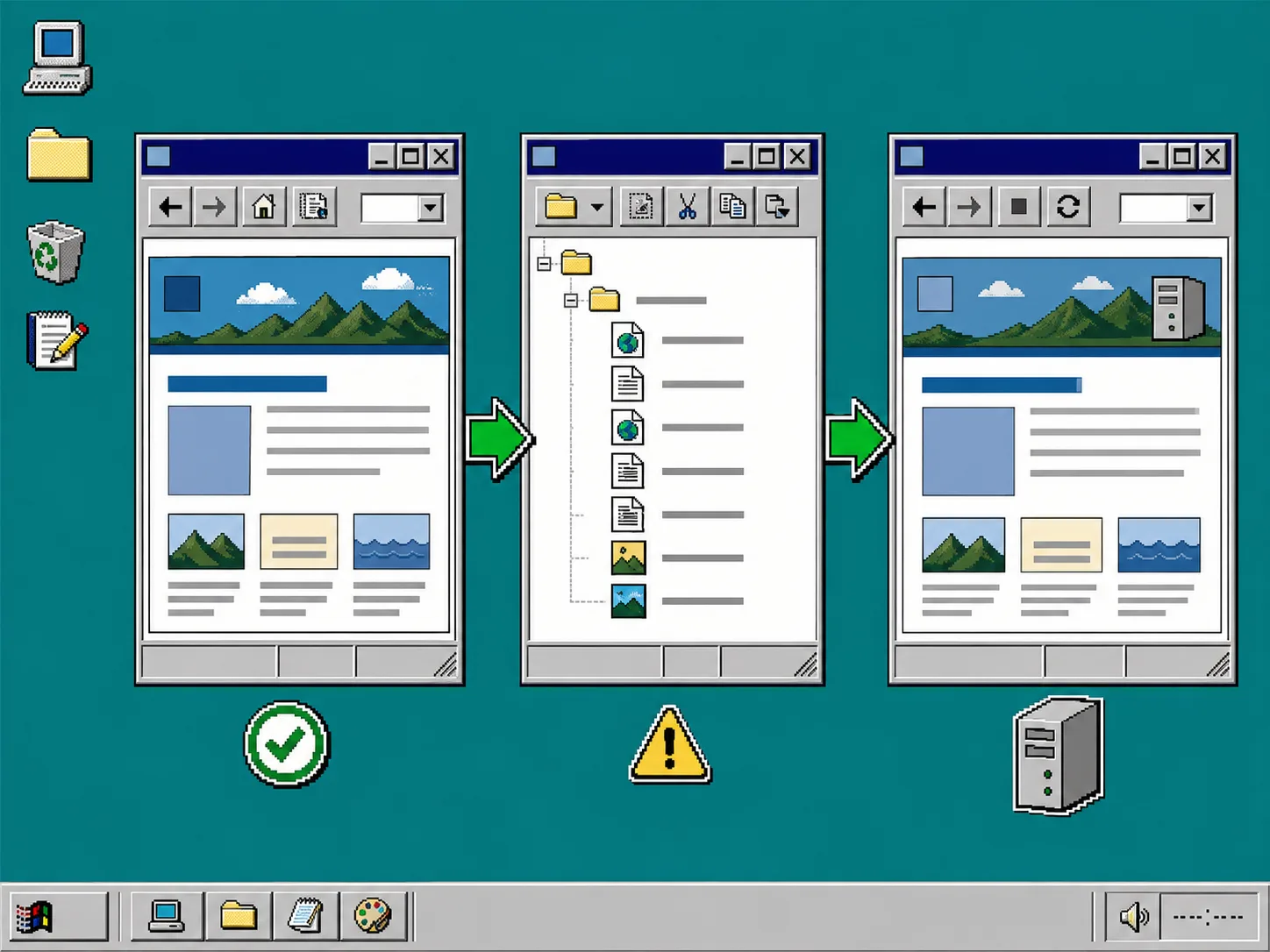
If the client later wants an independent site, move the approved static copy to the final host only after this review. For animation-heavy portfolios, the Framer static-hosting workflow is a useful comparison: the platform changes, but staging and behavior checks still matter. For a CMS-focused redesign backup, see how to export a Webflow site before a redesign. ExFlow also has dedicated Webflow and Framer exporters when those are the source platform.
Troubleshooting
The export cannot reach the protected pages. Recheck that the published URL and owner-supplied password are current. Do not remove the live password page just to make an export easier.
Images load on one page but not another. Look for a relative path or a lazy-loaded asset that was missed. Re-run the test on the exact destination host before delivery.
A contact form does not work on the static preview. Treat that as a handoff item, not a cosmetic bug. Confirm whether the recipient will configure a replacement form service or retain an existing external endpoint.
The client sees the old live site. Check DNS, the staging URL, and any redirect rules separately from the exported files.
Wrap Up
A password-protected Squarespace site can still have a clean static handoff when the owner authorizes access, the export captures the full site, and you test the copy away from production. Start your next handoff by opening ExFlow’s Squarespace exporter, then deliver only after the client can use the staged static site with confidence.