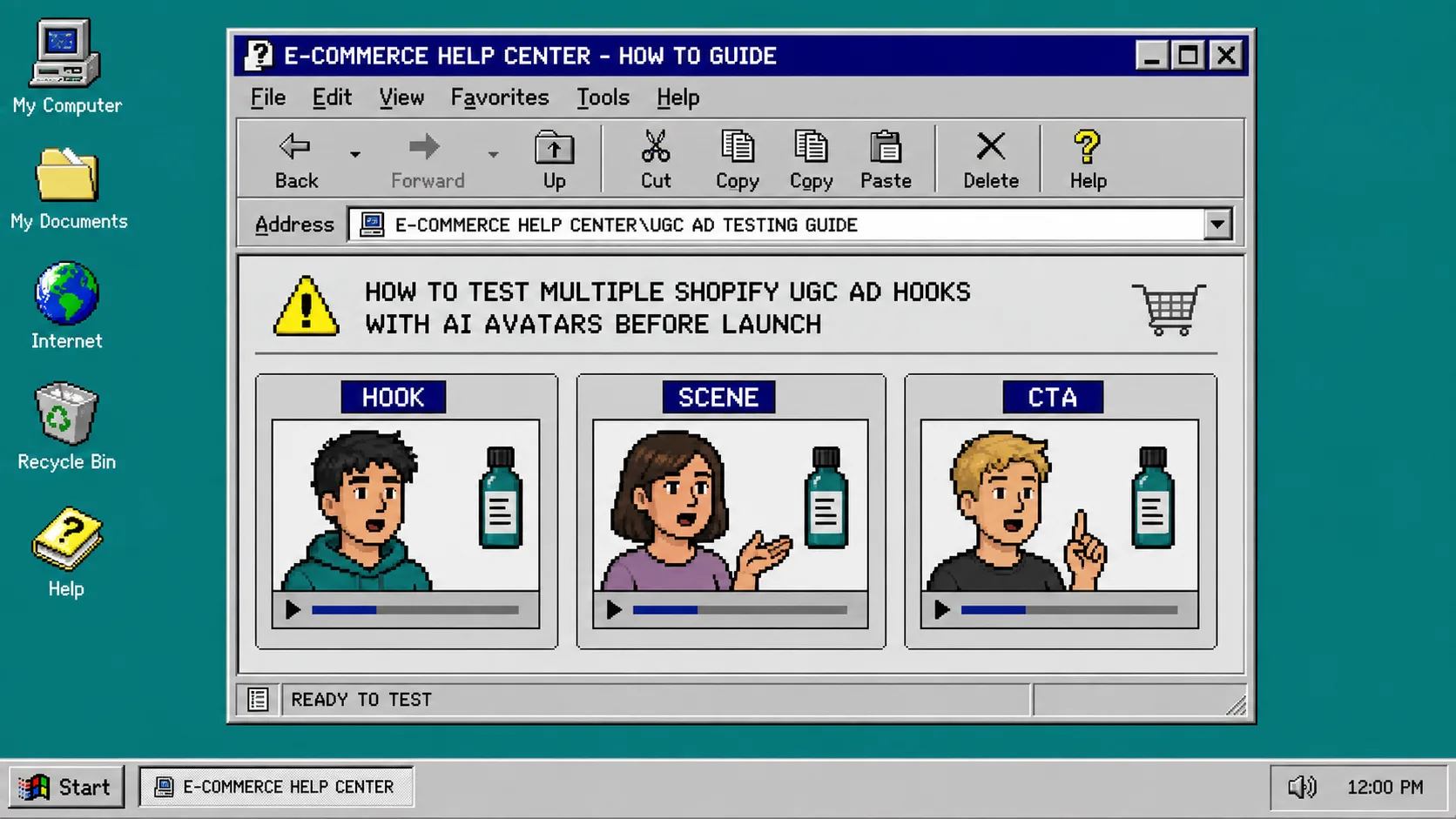
If you need more product-video ideas before a launch, you do not have to commission a full creator shoot for every opening line. You can test the message first. This guide shows a practical way to create a small set of Shopify UGC video variations, compare them, and keep the winning direction for the next round.
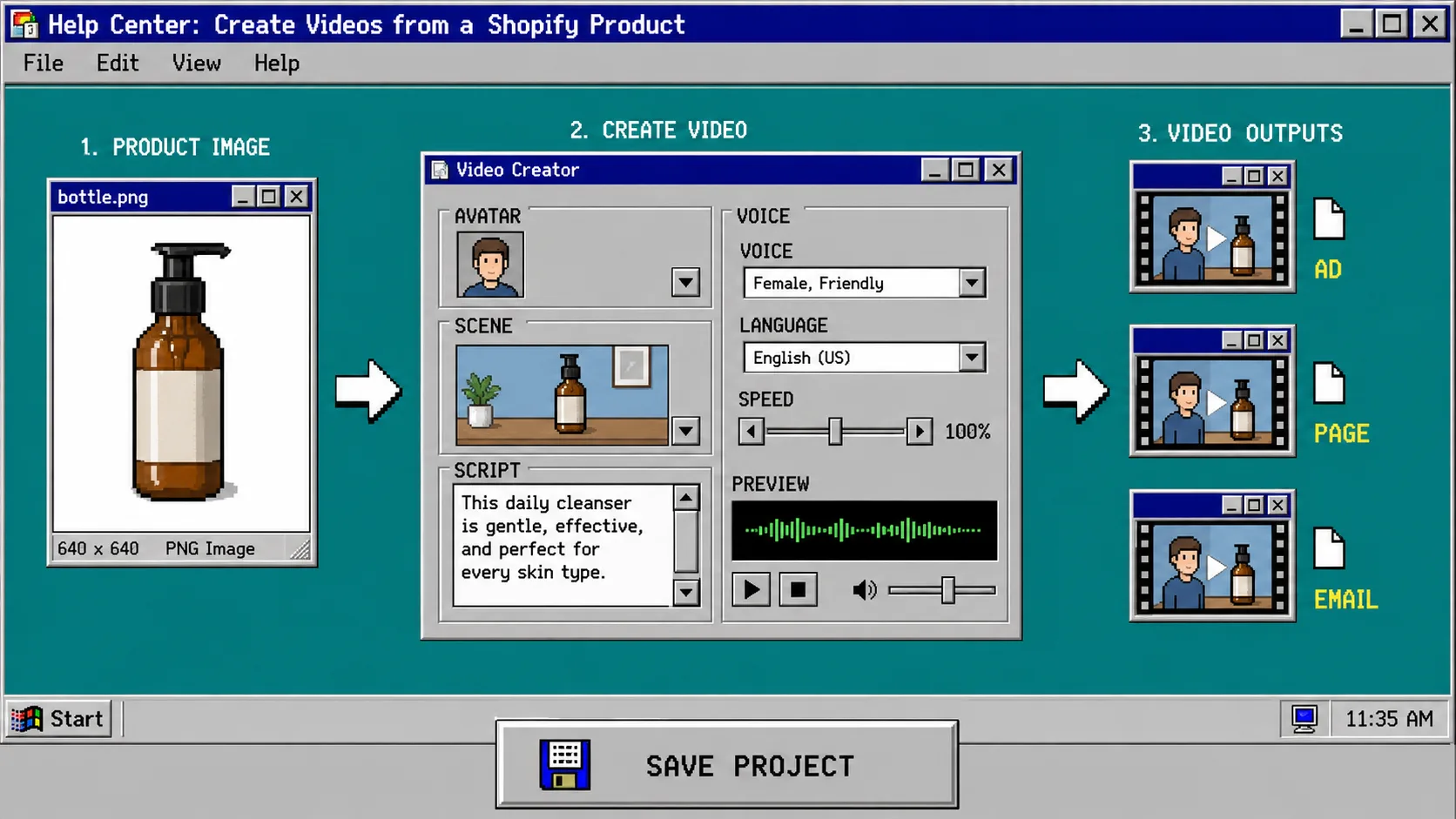
You will need a Shopify product, a clear campaign goal, and a Supra UGC Maker project. The app lets you choose an avatar and scene, attach a product reference, write a script, choose voice and tone, preview the scene, and generate reusable video segments. Treat those controls as a test bench—not a shortcut to claims you cannot support.
1. Pick One Conversion Question
Start with one question that a video should answer. Good examples are: “Will a problem-first opening earn more attention than a product demo?” or “Does a product-page explainer need a calm instructional voice?” Do not test a new audience, offer, hook, scene, and call to action all at once. If everything changes, the result will not tell you what mattered.
Write a single campaign job at the top of your brief: get shoppers to understand the product use case, drive clicks to a launch page, or help a customer use the product after purchase. If you are preparing a launch, the approach pairs well with a reviewable Shopify blog queue because both workflows turn a loose brief into assets someone can approve.
2. Create Three Hook Variations
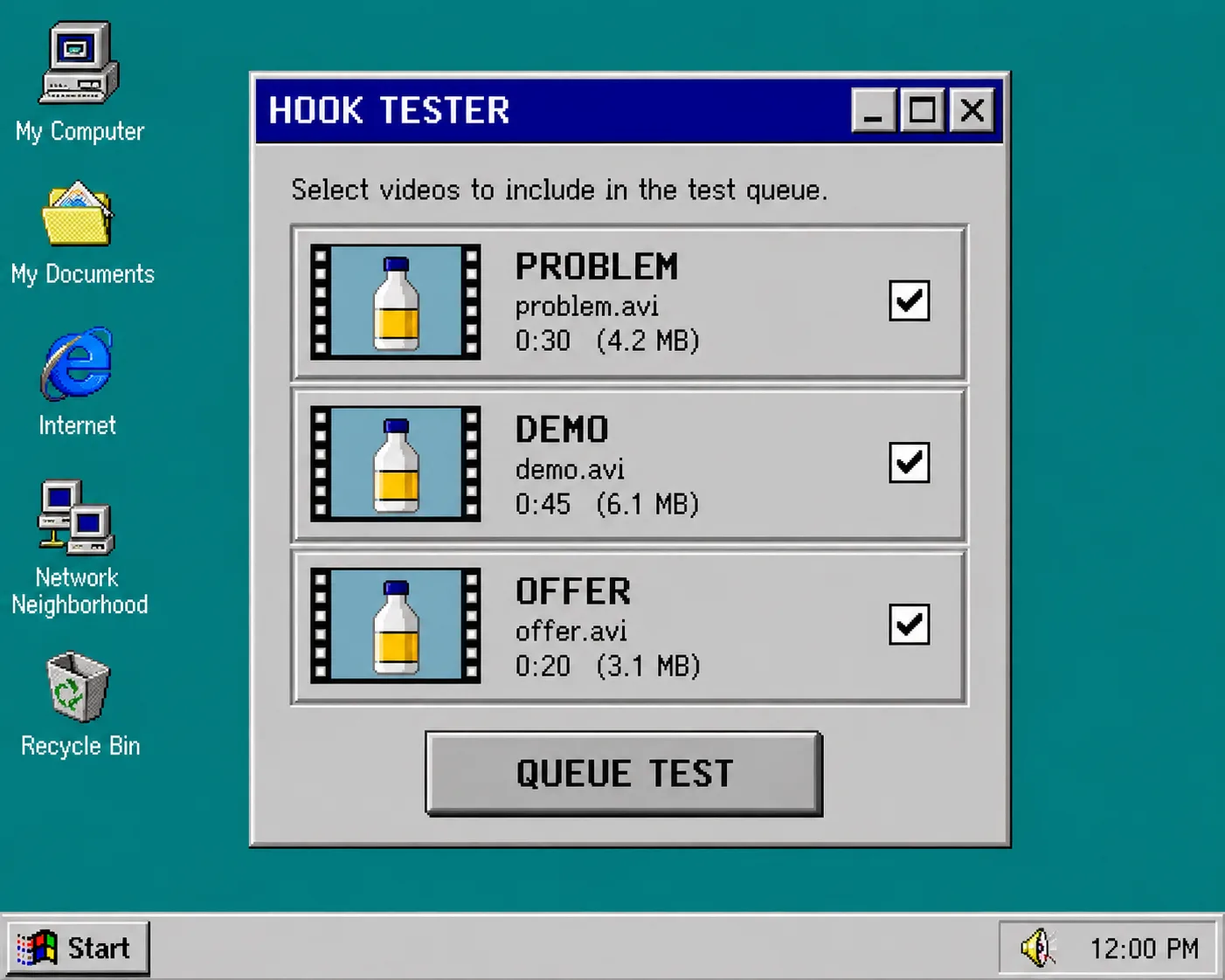
Make only three first-pass scripts. Keep the product, basic offer, and CTA stable; vary the first sentence. For example:
- Problem hook: Name the frustrating moment the product is designed to improve.
- Demo hook: Open with the product being used and explain the result.
- Offer hook: Lead with the launch, bundle, or seasonal reason to act.
Each script should say what the product does without inventing results. Use short spoken sentences, one idea per line, and a specific next action such as “See the details on the product page.” This is especially useful when the product needs explaining before it needs persuasion. For an adjacent product-page workflow, see how to add AI UGC videos to Shopify product pages.
3. Lock the Product Reference and Production Variables
Open Supra UGC Maker and create one reusable project. Choose the avatar, scene, product reference, script, and voice/tone. For this first test, lock the avatar and scene. A different face, setting, or pacing can change a viewer’s reaction just as much as a different hook.
Use a scene that fits the product’s real context: a clean studio for a detail-led demo, a home environment for a daily-use item, or a boutique-style setting for fashion and accessories. Preview the scene before generating. Check that the product is recognisable, the spoken words match the approved script, and the scene does not imply a claim the product page cannot back up.
4. Generate a Small, Named Test Set
Generate one version per hook, then name the files consistently: launch-problem-v1, launch-demo-v1, and launch-offer-v1. Keep those names in your campaign sheet alongside the script, scene, and CTA. Supra UGC Maker supports reordering, trimming, updating, and regenerating clips within a project, so you can make a focused revision without rebuilding the whole asset.
Do not judge the test only by views. Match the placement to the job: ad creative can be measured against attention and click quality; a product-page video can be measured against add-to-cart behavior or support questions; an email teaser can be measured against clicks. If your priority is turning a product page into a clearer video experience, this catalog-to-review workflow is a useful companion.
5. Review Before You Export
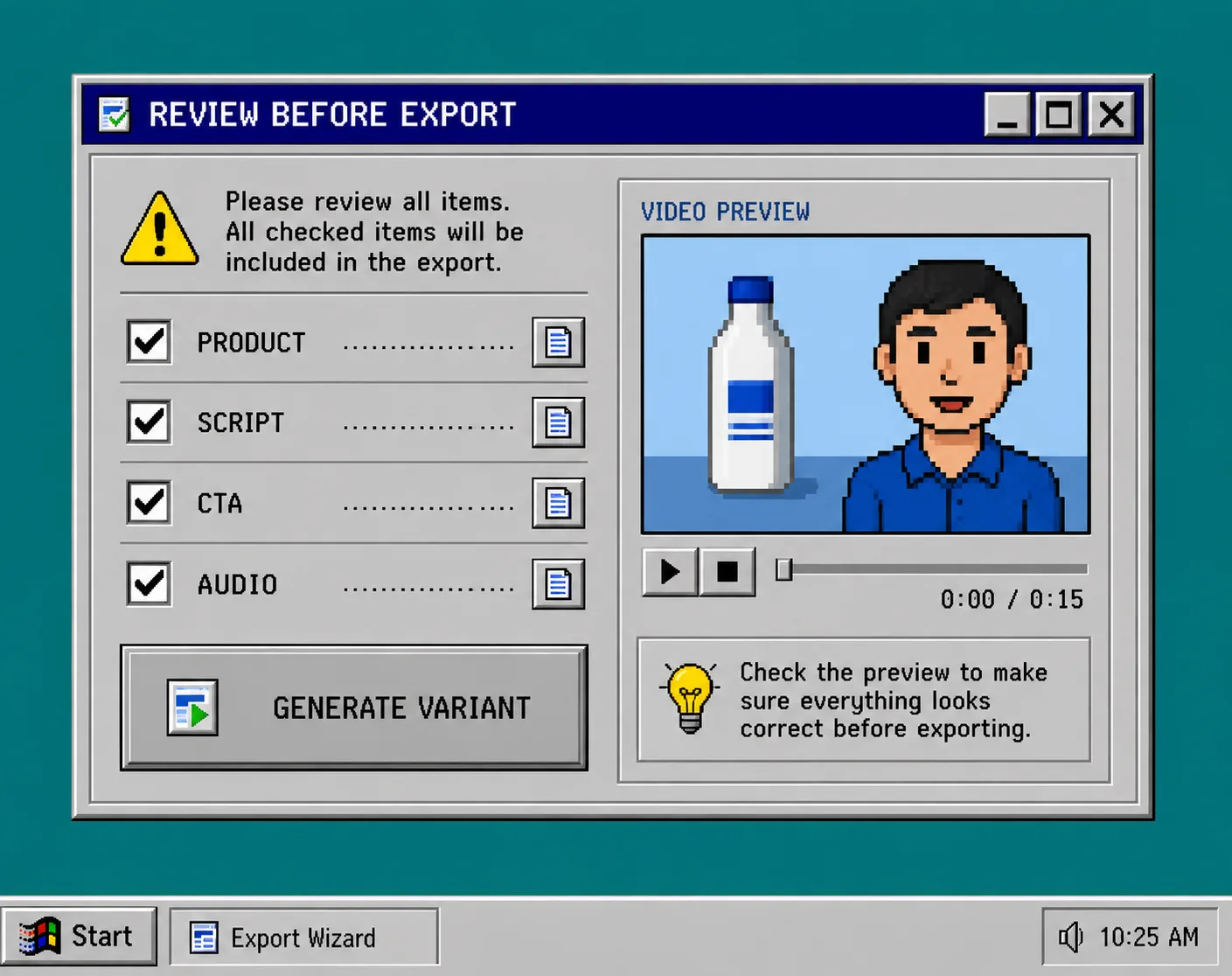
Before you download any version, review it as if it were a product-page edit. Check these four items:
- The product shown matches the selected variant or campaign.
- The script is accurate and has no unsupported testimonials or promises.
- The avatar, voice, and scene fit the intended audience and placement.
- The CTA points to the correct page and is readable in the final crop.
This review gate matters because AI-generated creative is fast to make and just as fast to distribute. Keep a human approval step for brand language, legal claims, and product accuracy. The same habit appears in safe Shopify bulk-update workflows: speed is useful only when the change remains reviewable.
6. Move the Winning Direction Into the Next Round
After the first test, preserve the winner’s hook and change one next variable: scene, avatar, length, or CTA. Save the project so you can create fresh variations without recreating the product setup. That is the practical advantage of AI UGC-style creative: it gives a small Shopify team more informed directions to test, not a reason to replace real creators where lived experience or community trust is essential.
Troubleshooting
Every version feels different. Lock the scene, avatar, product reference, and CTA, then regenerate only the hook.
The video sounds like an ad script. Cut the opening to one plain-language problem or demonstration. Read it aloud before generating.
The product page and video disagree. Stop the export and correct the script or product reference. A polished video should never override the store’s actual product information.
You need more ideas but no more budget for shoots. Create a new variation from the saved project rather than starting from a blank brief.
Next Step
Create three short versions of one product message today: problem, demo, and offer. Then install Supra UGC Maker on Shopify, build the first reusable project, and send the small test set through your normal approval process before publishing it to ads, product pages, or email.