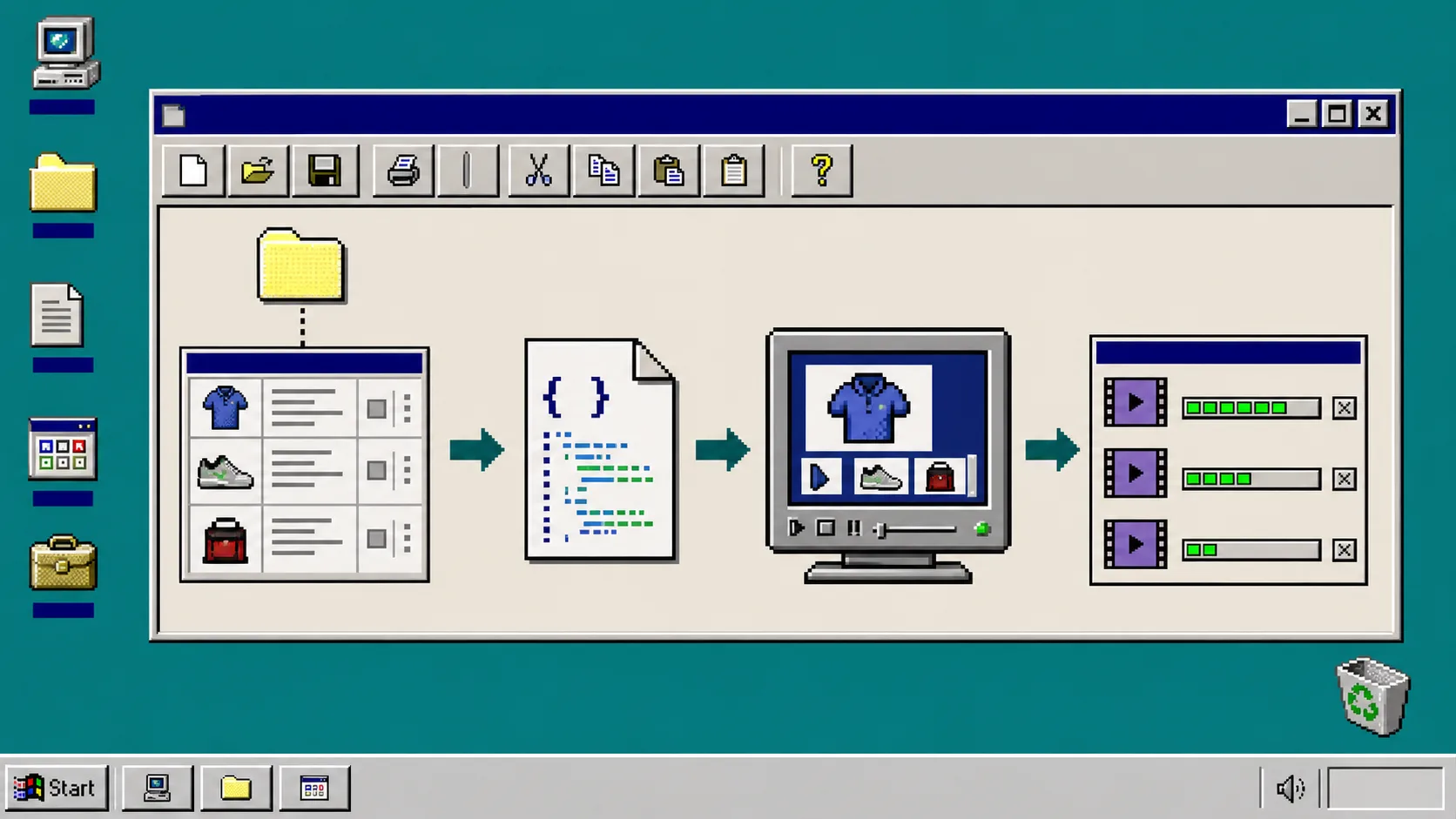
If you need a short product video for every SKU, the hard part is not exporting an MP4. The hard part is keeping every draft tied to the right product data, making changes reviewable, and choosing where each approved project should render. This guide shows one practical way to do that with VideoFlow: catalog data in, portable VideoJSON in the middle, and reviewable video drafts out.
You need a product feed or catalog export, a place to store media URLs, Node.js for the server-render option, and a VideoFlow project. VideoFlow is an open-source toolkit that can build a video with TypeScript, compile it to portable VideoJSON, preview it in the DOM, and render the same project in a browser or on a server.
1. Define the smallest input contract
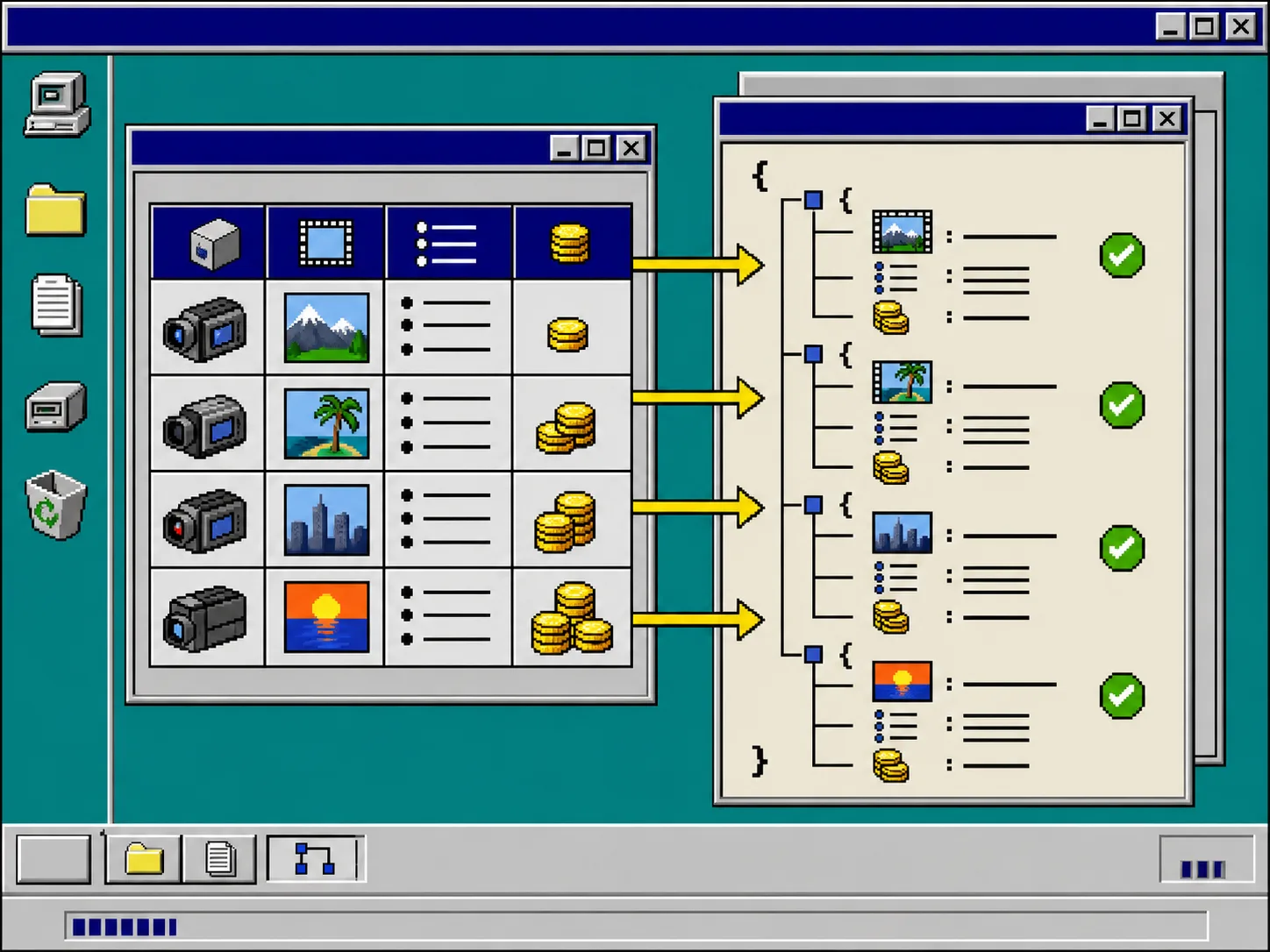
Start with the fields the template actually needs. For a 10-to-15-second product clip, that is usually a SKU, title, image URL, price, one or two feature bullets, and a destination URL. Do not pass the whole catalog row into the renderer and hope for the best. Normalize it first, then reject a record that has no image or no usable title.
That small contract is what makes the workflow repeatable. It also prevents a catalog edit from silently changing the structure of every scene. If your source is a Shopify CSV, the cleanup step matters; this guide on cleaning Shopify product CSVs before import is a useful companion before you automate anything downstream.
2. Build one template before you build a queue
Install the core package with npm install @videoflow/core, then make one template that accepts your normalized fields. Use the fluent API to add an image layer, a title layer, a price or benefit card, and a CTA. Compile the result to VideoJSON rather than treating the MP4 as the only output.
VideoJSON is the useful handoff here: it is structured data you can save, diff, validate, and later open in an editor. Keep the template version alongside the generated JSON so a reviewer can answer two basic questions: which catalog record created this draft, and which template version created it? The VideoFlow core documentation is the reference for layers, groups, animation, and compilation.
A good first template has deliberately limited freedom. Give each scene a fixed duration, reserve safe space for a title, and define what happens when a product image is square, portrait, or missing. You can add more variations later; the first goal is a dependable draft.
3. Generate JSON drafts instead of rendering immediately
For every valid catalog record, create a job that produces a VideoJSON file and metadata such as sku, templateVersion, sourceUpdatedAt, and status: pending-review. Store that job where your team can inspect it. A Git-backed folder, database record, or queue payload all work.
This is the difference between a batch of invisible renders and a reviewable system. You can retry a bad record, compare a template change, or regenerate only the SKU whose price changed. If you are already mapping product data into video jobs, see how to turn Shopify catalog data into product videos for a related starting pattern.
4. Preview the exact JSON a reviewer will approve
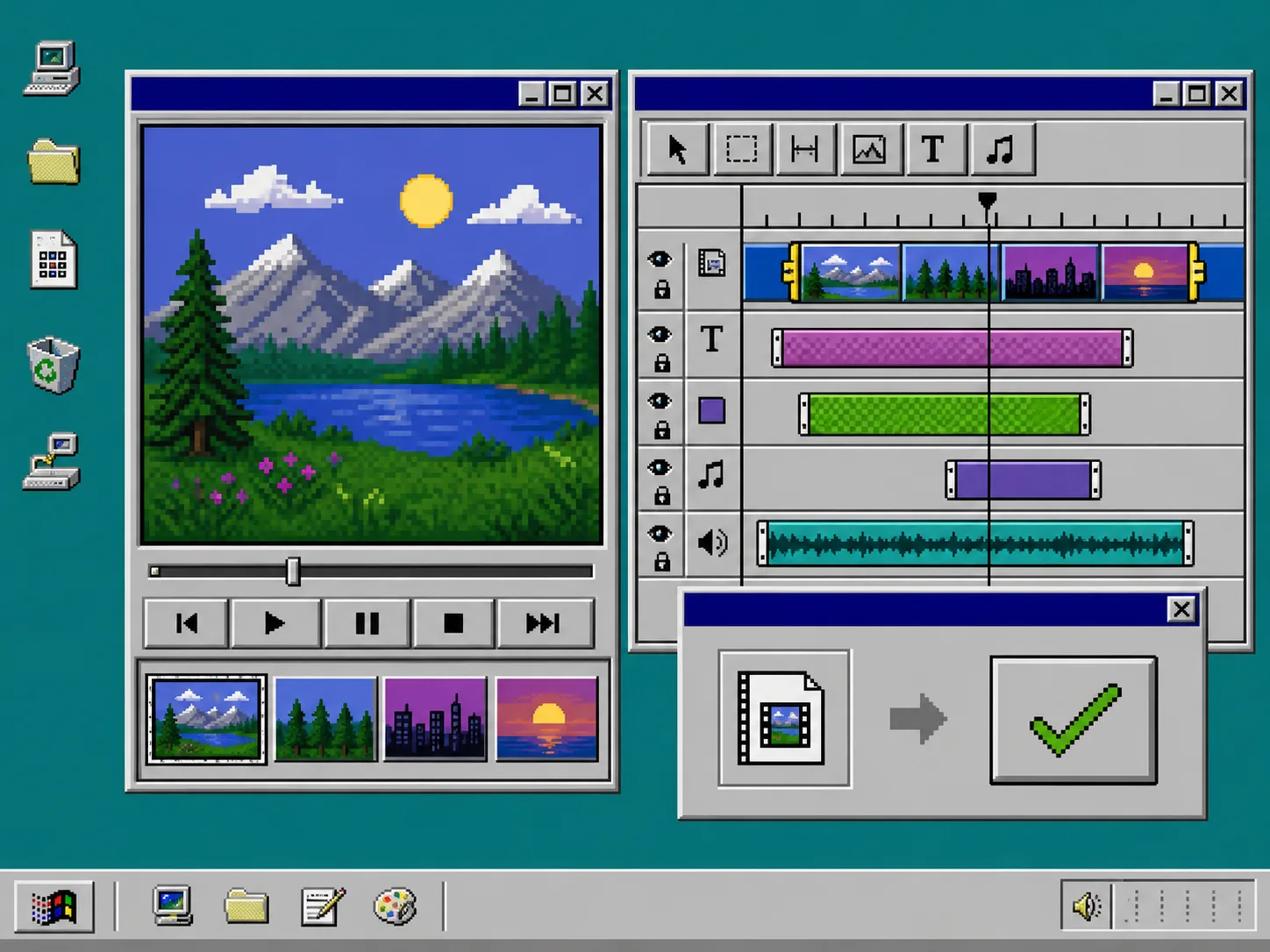
Mount the same VideoJSON in VideoFlow’s DOM renderer for a live, scrubbable preview. This gives a reviewer a clear place to check product imagery, crop behavior, price formatting, timing, and CTA placement before compute is spent on a final render.
When a draft needs a human adjustment, open it in the React video editor. The editor works with the same JSON, so the reviewer is not recreating the project in a separate timeline. Let the editor save the revised JSON back to the job, then move the job from pending-review to approved.
Keep this status gate explicit. A render queue should only consume approved jobs. That simple rule is how you avoid publishing a crop mistake across a whole collection. The same idea appears in this walkthrough of adding human review to Shopify product video automation.
5. Choose the renderer at the last responsible moment
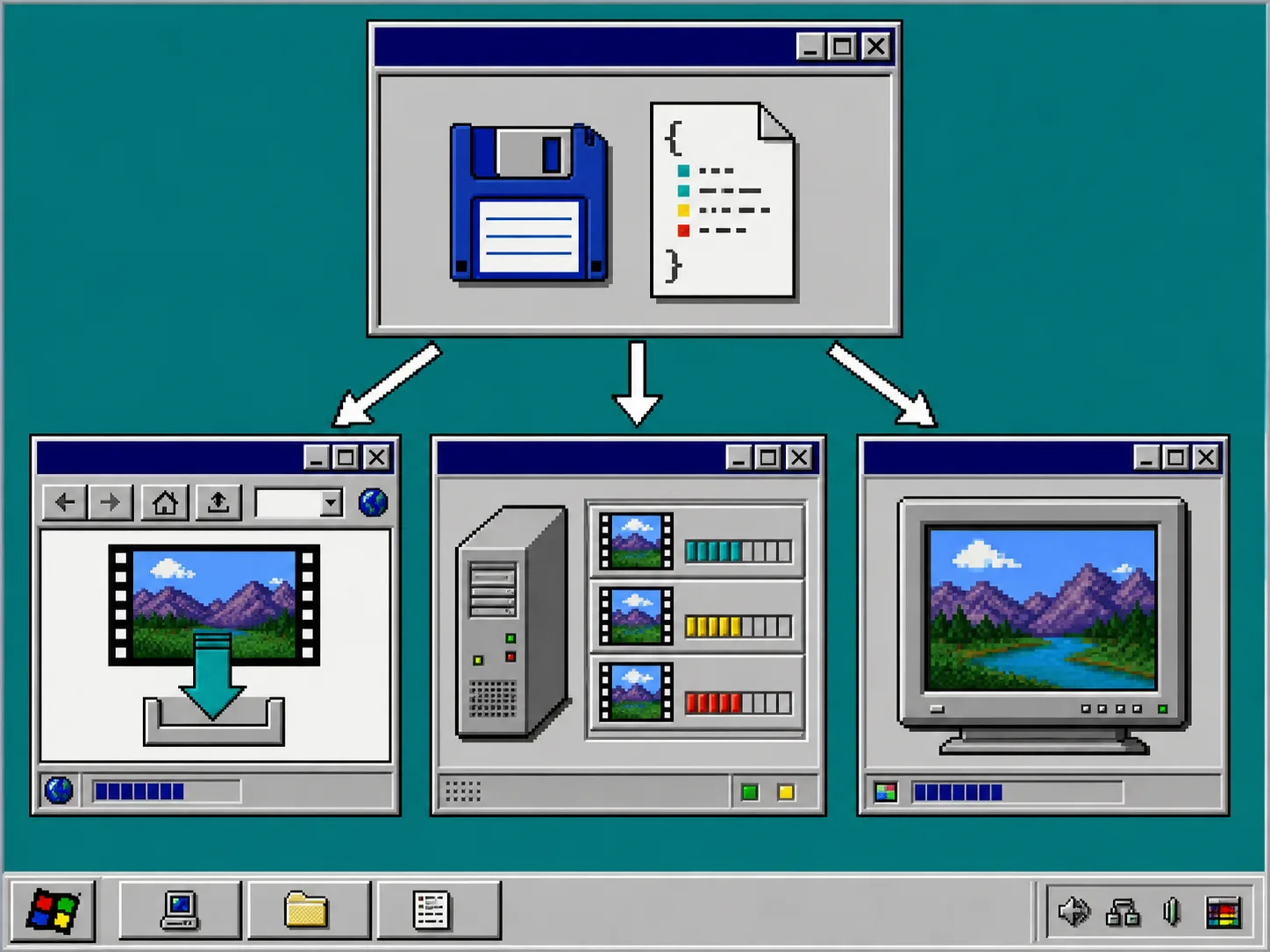
Use the browser renderer when a user is exporting a short video inside your app and you want the export to stay on their device. Use the server renderer when you need scheduled batches, API-driven work, or a durable queue. In either case, render the approved VideoJSON rather than building another project format for each destination. VideoFlow’s renderer guide covers the browser, server, and DOM options.
For a server queue, include a job ID and idempotency key, report progress, and save the finished MP4 URL next to the approved JSON. That makes a rerun safe: the worker can see whether it should render, resume, or leave an already completed job alone. For locale variants, keep the scene structure fixed and swap only the locale-specific copy, media, price formatting, and CTA; this localized video template workflow shows the same principle in more detail.
6. Publish a small pilot and measure failures first
Start with five to ten SKUs, not the entire catalog. Watch for missing images, titles that wrap badly, price changes, and rendering errors. Log the failure reason per SKU, fix the template or data rule, and regenerate only the affected drafts. Once the pilot is stable, let the queue process the rest of the approved set.
If you need creative variations, branch them before review: one hook, body, and CTA combination per JSON draft. That keeps comparison honest and gives reviewers a real choice instead of hiding variation inside an export job. This approach pairs well with planning Shopify UGC video variations before launch.
Troubleshooting
The preview and final MP4 do not match. Confirm both use the same saved VideoJSON and template version. Do not regenerate the project during rendering.
A product title overflows. Add a character limit and a fallback font size in the template, then route outliers to review instead of truncating them silently.
The queue renders an unapproved draft. Make approval a server-side status check, not only a button in the interface.
A batch is expensive to retry. Save per-SKU states and idempotency keys so a failed worker retries only unfinished jobs.
Next step
Create one VideoFlow template for a single product type, generate five VideoJSON drafts, and put each one through preview before you render. When that loop is dependable, you have the foundation for a catalog-video system that stays reviewable as it grows. Explore the VideoFlow examples when you are ready to extend the first template.