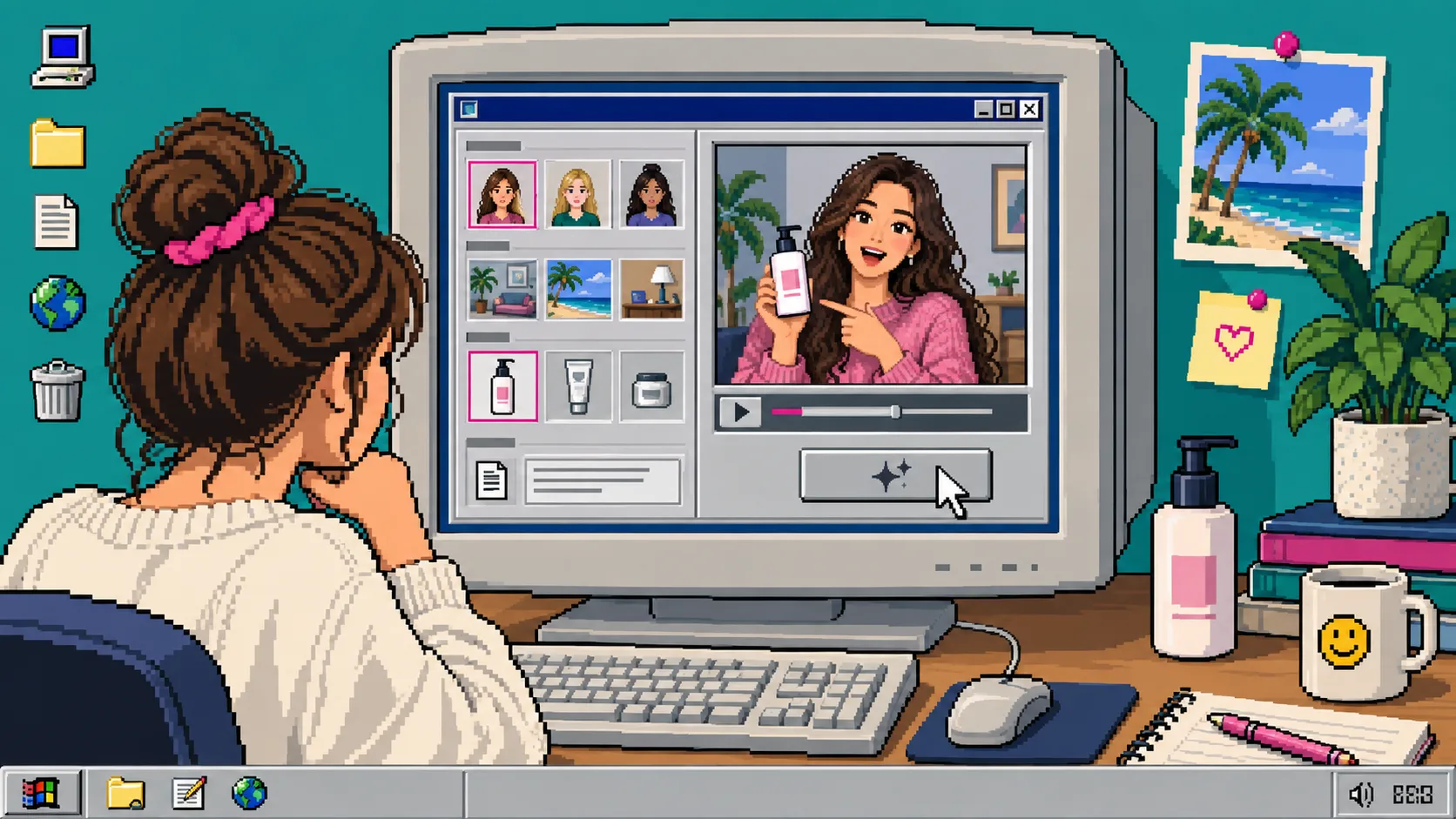
Your Shopify store needs more video variations, but a fresh creator shoot for every hook, offer, and product question is slow. You can build a repeatable first draft with an AI avatar instead: choose the presenter and scene, attach the product, write a short script, and generate a UGC-style video that is ready to review.
This guide uses Supra UGC Maker, a Shopify app that builds UGC-style product videos from avatars, scenes, product references, scripts, and voice settings. You need a Shopify product, one customer question to answer, and a 15–30 second script.
1. Pick One Job for the Video
Start with one narrow job, not a general brand story. Good first jobs include explaining how a product works, announcing a launch, introducing a sale, or answering the question that keeps appearing in support. A clear job gives the script a useful ending.
For example: “Show how this travel mug stays easy to clean.” That is stronger than “Make a video about our travel mug.” If you are preparing paid creative, borrow the discipline in How to Test Shopify UGC Video Hooks Without a New Shoot: choose a single hook to test before changing everything else.
2. Choose an Avatar and Scene That Fit the Claim
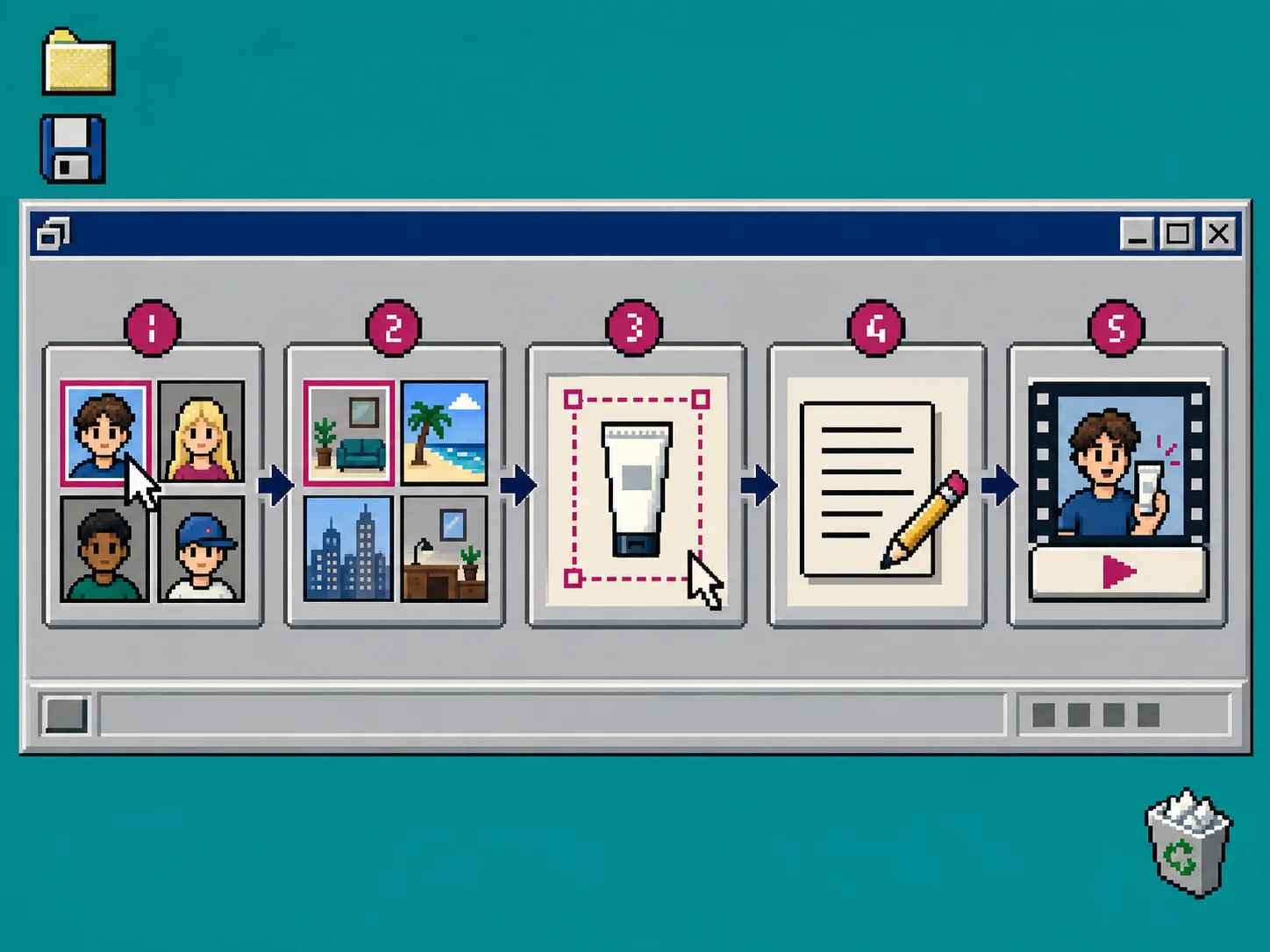
Open Supra UGC Maker and create a project. Choose a preset avatar or generate a custom AI model. Then select the setting: a studio, outdoor space, boutique, or another brand-appropriate environment.
Match the scene to what the viewer needs to understand. Use a clean studio when the product details matter. Use a home-like setting when the product is part of a routine. Keep the choice believable; an AI avatar is a scalable UGC-style creative tool, not a substitute for a real customer testimonial.
After you preview the scene, confirm that the product will be easy to see. A product page video has a different job than a social ad. For the product-page side of the decision, see How to Create a Shopify UGC Video for a Launch Email.
3. Add the Product and Write a Short Script
Add the Shopify product reference to the project. Then write a script with four parts:
- State the problem in the first sentence.
- Show or name the product early.
- Explain one useful benefit or use case.
- Finish with one action, such as visiting the product page or using the launch offer.
Keep the spoken copy specific. “Tired of tumblers that retain yesterday’s coffee smell?” gives the viewer a reason to continue. “This insulated travel mug has a wide opening for easy cleaning” gives the product a concrete role. End with something direct: “Open the product page to choose your color.”
Avoid trying to fit five benefits into one clip. If your product needs a longer walkthrough, plan a small sequence of videos instead. The same modular approach helps with launch work; How to Turn Product Release Notes Into a Reviewable Launch Video shows why a reviewable brief beats an unstructured creative request.
4. Generate One Control Version Before Making Variations
Choose the voice and tone, generate the first segment, and review it as your control version. Check that the product reference, scene, spoken claim, and call to action all point to the same job. Supra UGC Maker lets you preview scenes, reorder or trim clips, update a project, and regenerate segments, so fix one issue at a time.
Do not start with ten different ideas. Lock the product, primary claim, and landing destination first. Then make variations around one variable: a new opening line, avatar, scene, tone, or CTA. That makes the results easier to read when you run ads or compare engagement.
5. Create a Small, Named Test Set
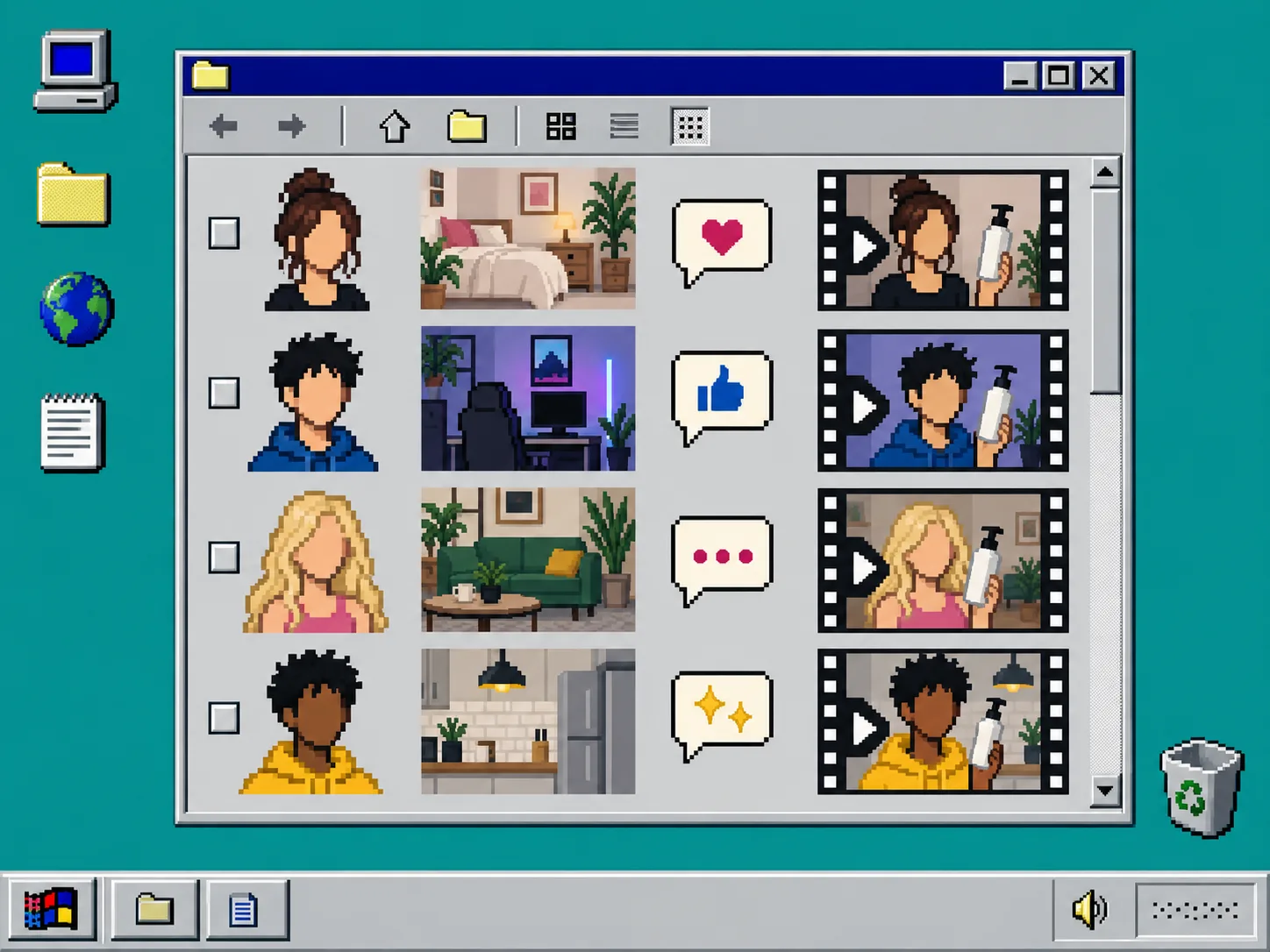
Make three versions from the control project. A practical set looks like this:
- Version A: problem-first hook and studio scene.
- Version B: use-case-first hook and home scene.
- Version C: offer-first hook and boutique scene.
Keep the product and final action consistent. Name the exports by the variable you changed, for example mug-problem-studio and mug-offer-boutique. This prevents the classic folder of nearly identical files with no record of what changed.
If you want a more formal matrix, use the same mental model as How to Build a Shopify UGC Creative Testing Matrix: one column for the hook, one for the avatar or scene, and one for the CTA.
Troubleshooting: Fix These Before You Export
The video feels generic. Replace broad claims with a specific product question, objection, or use case.
The product is not obvious. Put the product reference and its purpose in the opening section of the script, then choose a scene where it has room on screen.
The clip has too much to say. Split the idea into two segments: one problem-and-solution video and one demonstration or offer video.
The variations are impossible to compare. Change only one major variable per version. If you change the hook, voice, scene, and CTA together, you will not know what helped.
Recap
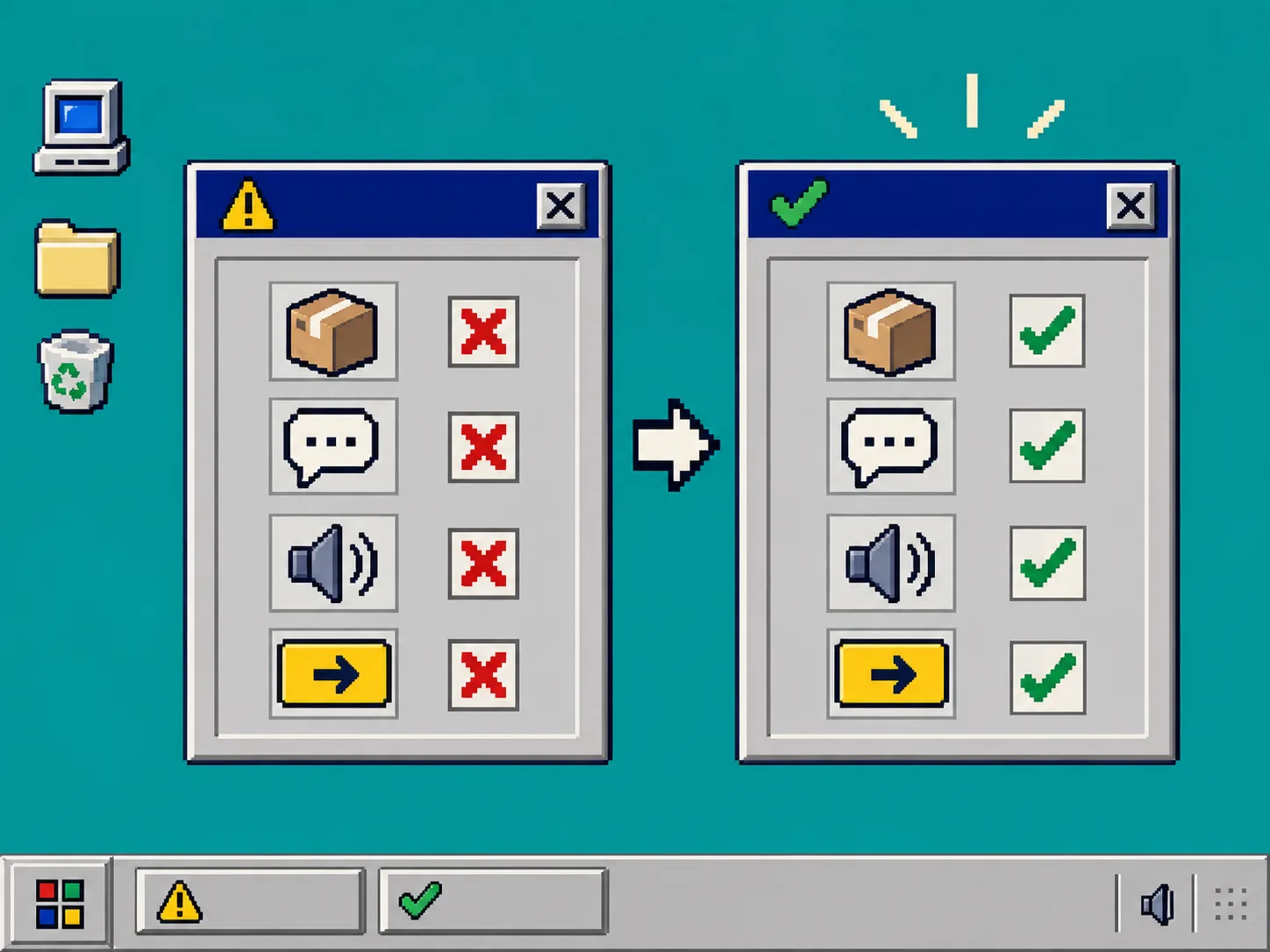
A useful Shopify UGC video starts with one customer job, a believable avatar and scene, a short script, and a control version you can safely vary. Start by creating one 15–30 second product explainer in Supra UGC Maker, then make three focused variations rather than rebuilding your workflow for every test.