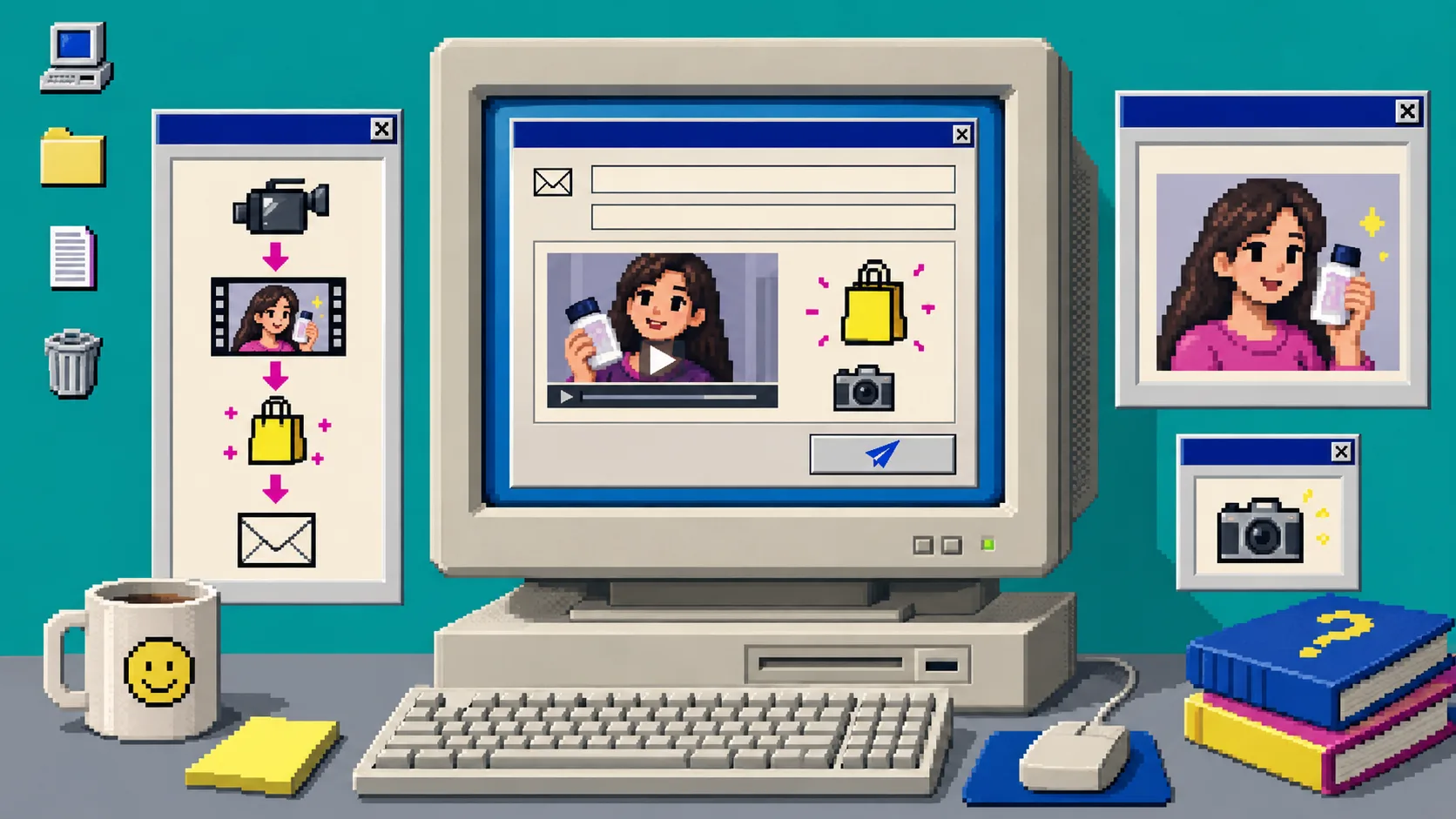
If a product launch email has only a hero image and a discount code, a shopper still has to guess what the product does. A short UGC-style product video can answer one useful question before the click: what is this, what does it look like in use, and why should I open the product page?
You need one product, a clear campaign goal, and a place to send email. Supra UGC Maker is a Shopify app for building AI-avatar product videos from a scene, product reference, script, and voice. This guide uses it for a launch-email teaser—not a fake customer testimonial. For real customer proof, use real creators and customer consent.
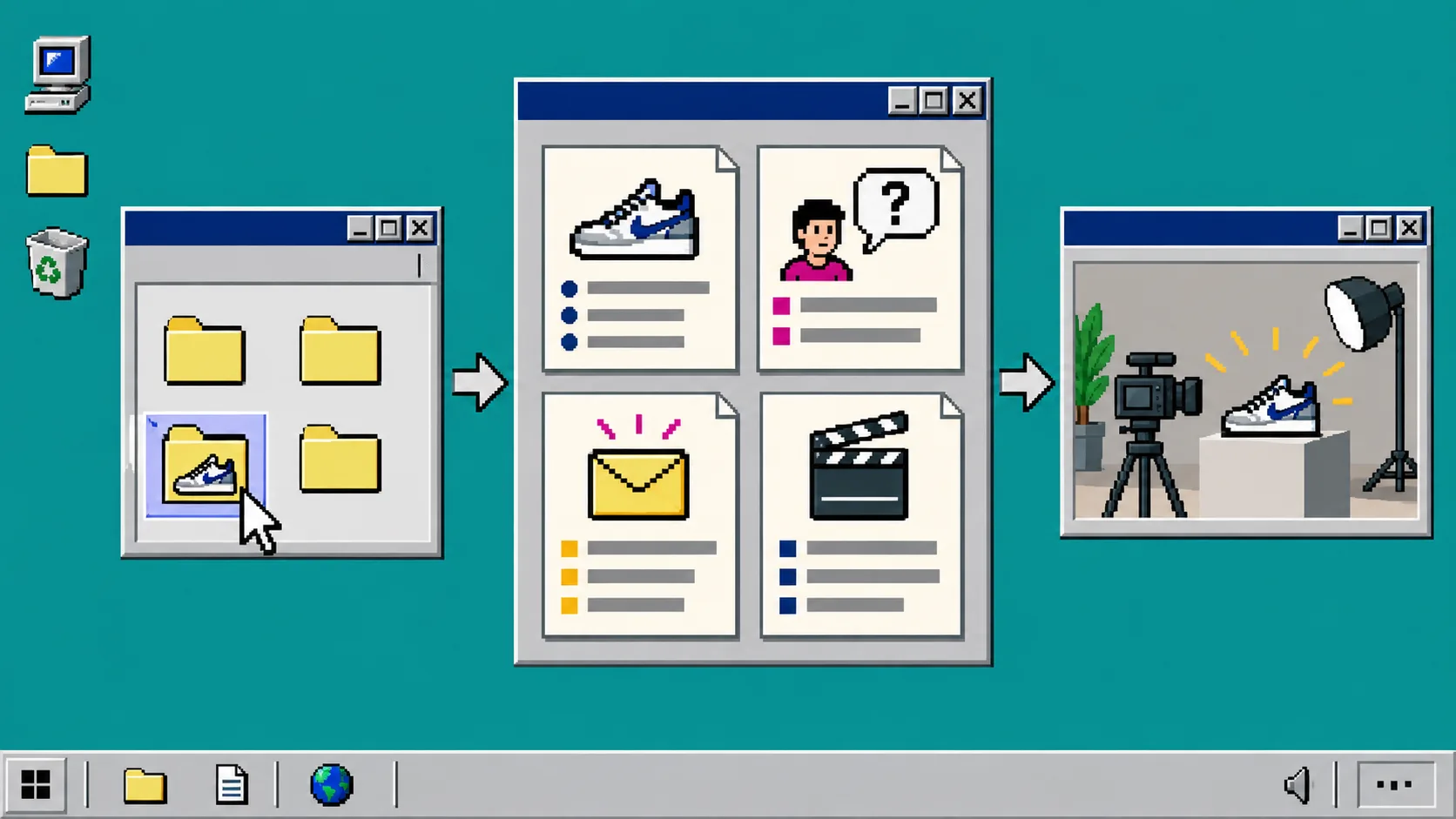
1. Choose one job for the email video
Write one sentence before opening a video tool: This video helps a shopper understand ____ before they click. Keep the blank specific. Examples: “how the compact lamp changes a desk,” “what comes in the starter kit,” or “which problem the new refill solves.”
Do not ask one 20-second clip to announce a sale, explain five features, introduce the founder, and handle objections. For the product page itself, a focused explainer works better when it answers a single buyer question; this companion guide shows how to turn a product-page question into a 30-second Shopify UGC explainer.
After this step, you should have a single outcome, not a list of marketing messages.
2. Collect a four-part product brief
Create a small note with four rows: product name, visible proof, shopper question, and next action. “Visible proof” means something the video can show: a texture, size comparison, setup step, before-and-after use, or included item. Do not write claims you cannot support from the listing.
Use the live Shopify product record as the source of truth for product name, price, variants, and availability. If your product information is hard to scan, first organize Shopify product information with tabs and accordions so the detail you put in the campaign is consistent with the detail on the destination page.
A usable brief might read: “New ceramic travel mug; show the locking lid; answer whether it fits a cup holder; invite the reader to view colors.” That gives the video one concrete demonstration and gives the email one clear button.
3. Write a script that survives muted playback
Draft three short beats: hook, proof, and action. Put the critical meaning in the opening visual and captions because many recipients will see the thumbnail before they choose to play. Keep the spoken copy plain enough to read as a caption.
For the mug example: hook: “A travel mug should not make the commute messier.” Proof: “This lid locks before it goes in your bag.” Action: “Open the new colors.” Avoid invented performance claims, urgency that is not real, and scripts that say “I use this every day” unless that statement is genuinely yours.
If you later want to test alternate opening lines, make only the hook different. The practical hook-testing workflow in How to Test Shopify UGC Video Hooks Without a New Shoot is a good next step; it keeps the product proof and CTA stable.
4. Build the clip in Supra UGC Maker
Open Supra UGC Maker or install it from the Shopify App Store. Choose an avatar or custom AI model, select a scene that fits the product, add the product reference when useful, then paste the three-beat script. Select a voice and tone that match the message.
Preview the scene before generating. Use a simple background when the product is the proof; busy scenery makes a small email thumbnail work too hard. Generate a short segment, then reorder, trim, update, or regenerate inside the same project if the first version buries the product or rushes the CTA.
5. Put the video in the campaign as a click-worthy preview
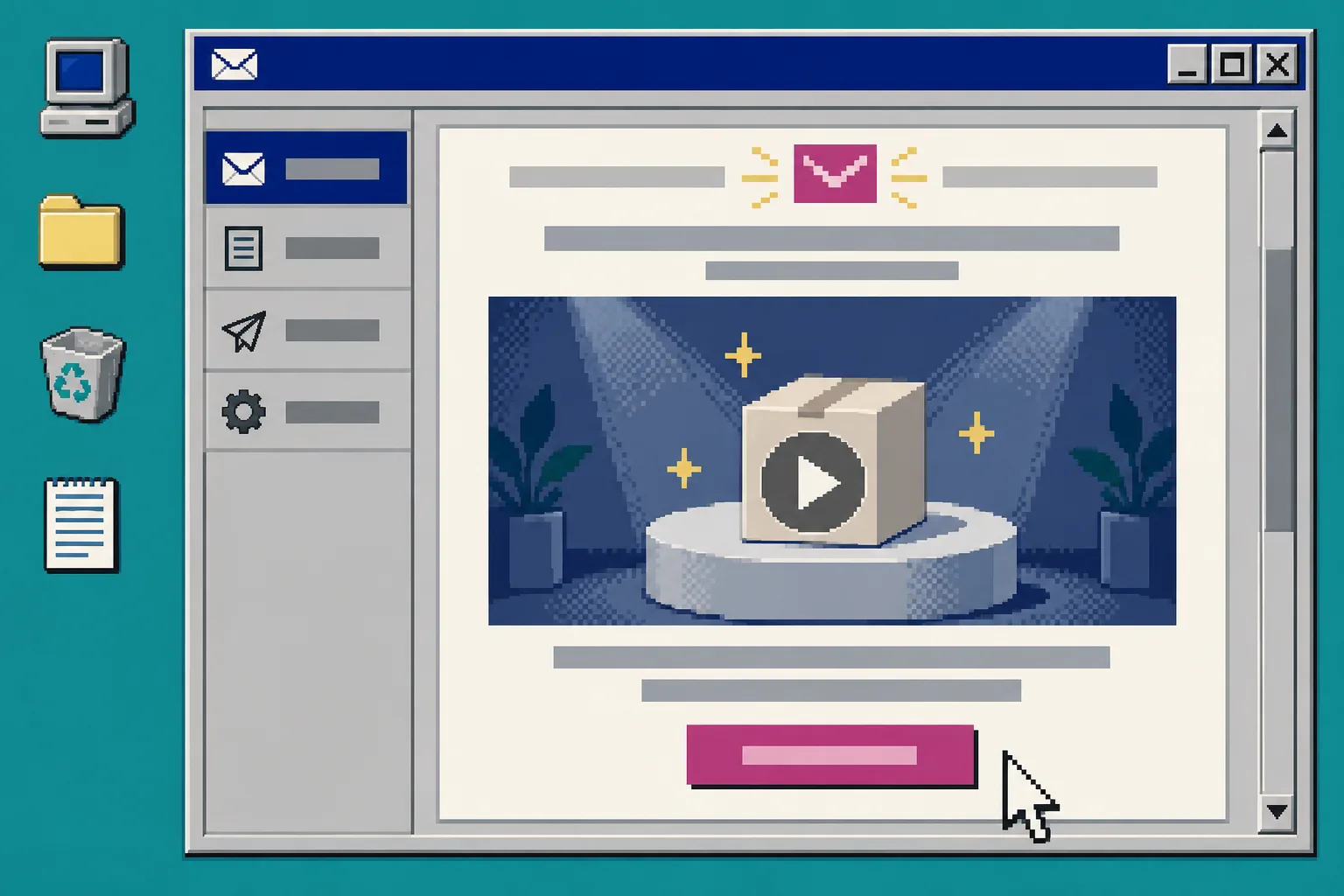
Upload the finished asset to the video location supported by your email platform, or create a still thumbnail that links to the product page where the video can play. Use one primary button and make its destination match the final line of the script. A “See colors” script should lead to the product page, not a broad collection where the reader must hunt.
Set useful alt text on the thumbnail, such as “Product video showing the locking lid on the ceramic travel mug.” Keep the subject line and preheader about the launch; the video is supporting evidence, not a reason to hide the offer.
Before you schedule, confirm that your launch plan has the inventory, price, and timing it promises. A broader Shopify product launch checklist to blog-series workflow can help keep campaign work from getting ahead of store readiness.
6. Preview on mobile and send a test
Send a test email to yourself. Open it on a phone and desktop. Check the thumbnail crop, fallback link, button target, price, variant wording, and whether the product is visible before the first line of copy. Then ask one teammate to explain the product after only looking at the email for five seconds. If their answer differs from your video’s one job, revise the brief or opening.
Troubleshooting
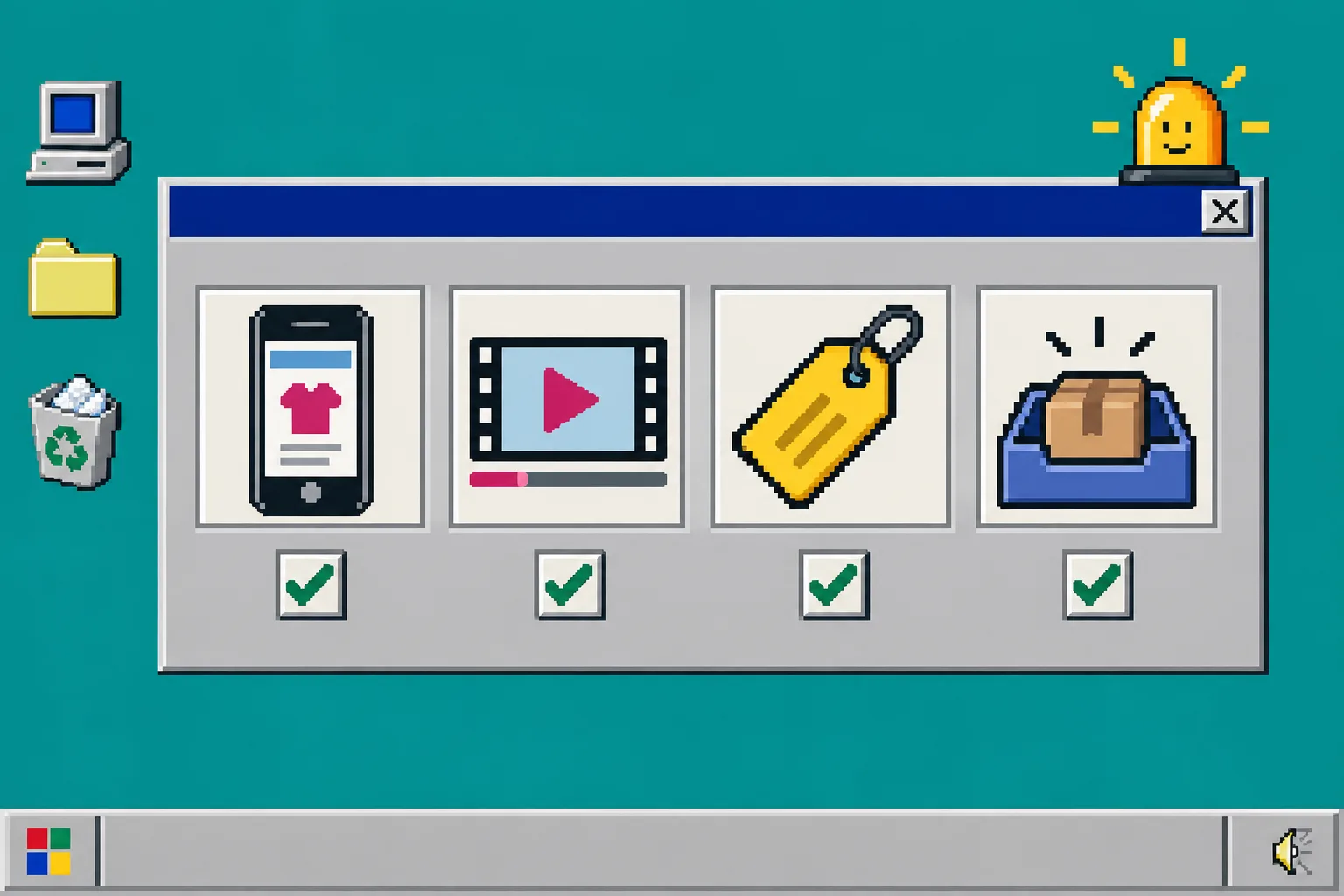
The video feels like an ad but says nothing. Remove one feature and rewrite the hook as a shopper question. The email needs a reason to click, not a full commercial.
The clip does not match the product page. Check the product title, variant, price, and visible product reference against Shopify before sending. If you are updating launch metadata across many products, use a controlled process such as bulk updating Shopify product tags without breaking your catalog rather than a last-minute manual sweep.
The avatar sounds like a testimonial. Change first-person claims to product-focused language, or replace the segment with a real creator clip when social proof is the point.
The thumbnail does not play in the inbox. Treat the email preview as a linked poster image and make the destination clear. Test the exact client your audience commonly uses.
Finish with one useful click
A good launch-email video is small on purpose: one product fact, one shopper question, and one next action. Build the first segment in Supra UGC Maker, test it in a real inbox, and keep the version that makes the product easiest to understand before the click.