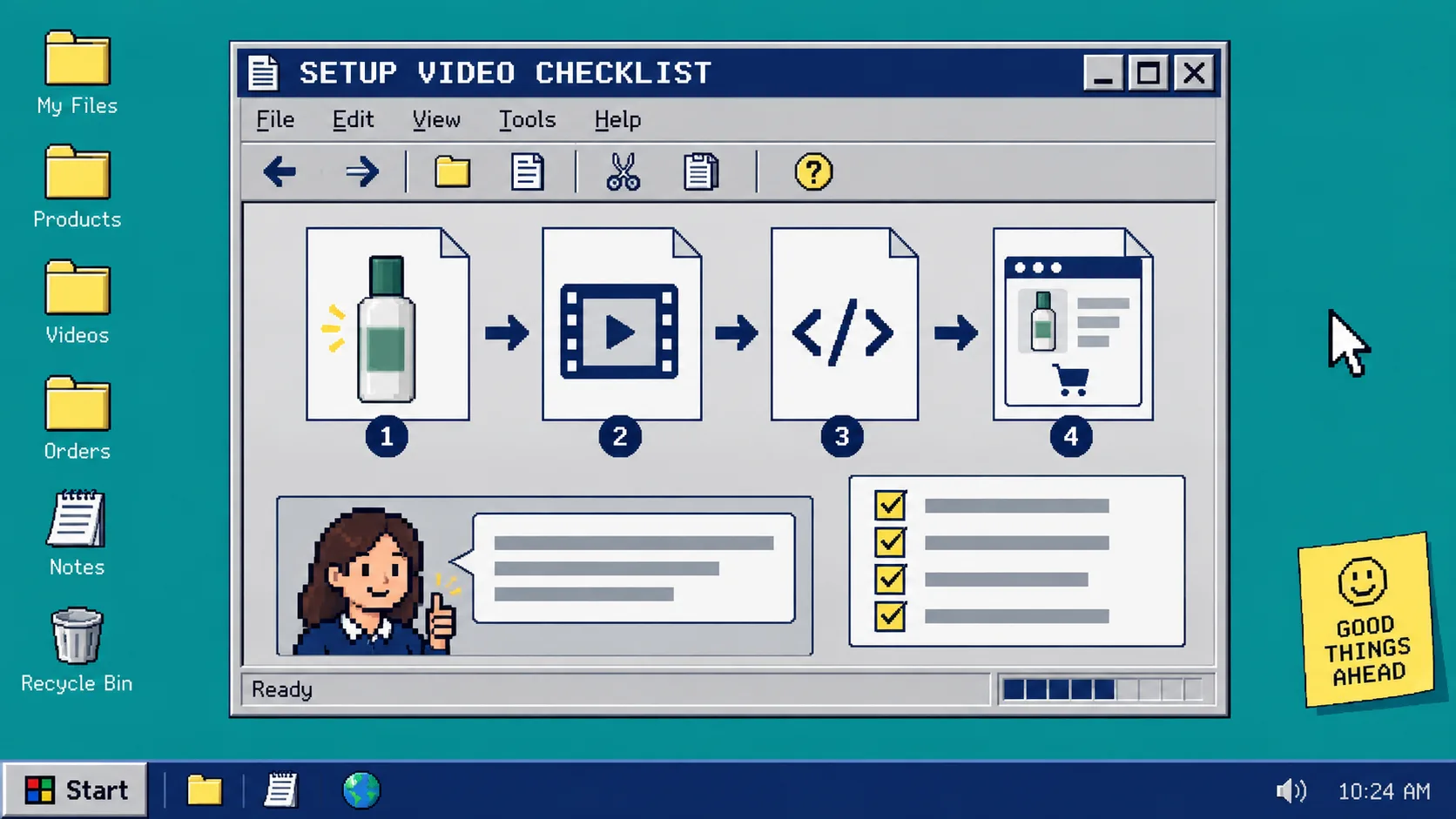
Your customer has already bought the product. The next useful video is not an ad with a different ending—it is a short answer to the one setup question that would otherwise become a support ticket, a bad first experience, or a return.
This guide creates that asset: one focused Shopify post-purchase video, built from approved product information and checked before it reaches a customer. You need a recurring question, a product reference, and access to an AI UGC video tool. I use Supra UGC Maker, which lets Shopify merchants choose an avatar and scene, add a product reference, write a script, choose a voice and tone, then preview and generate editable video segments.
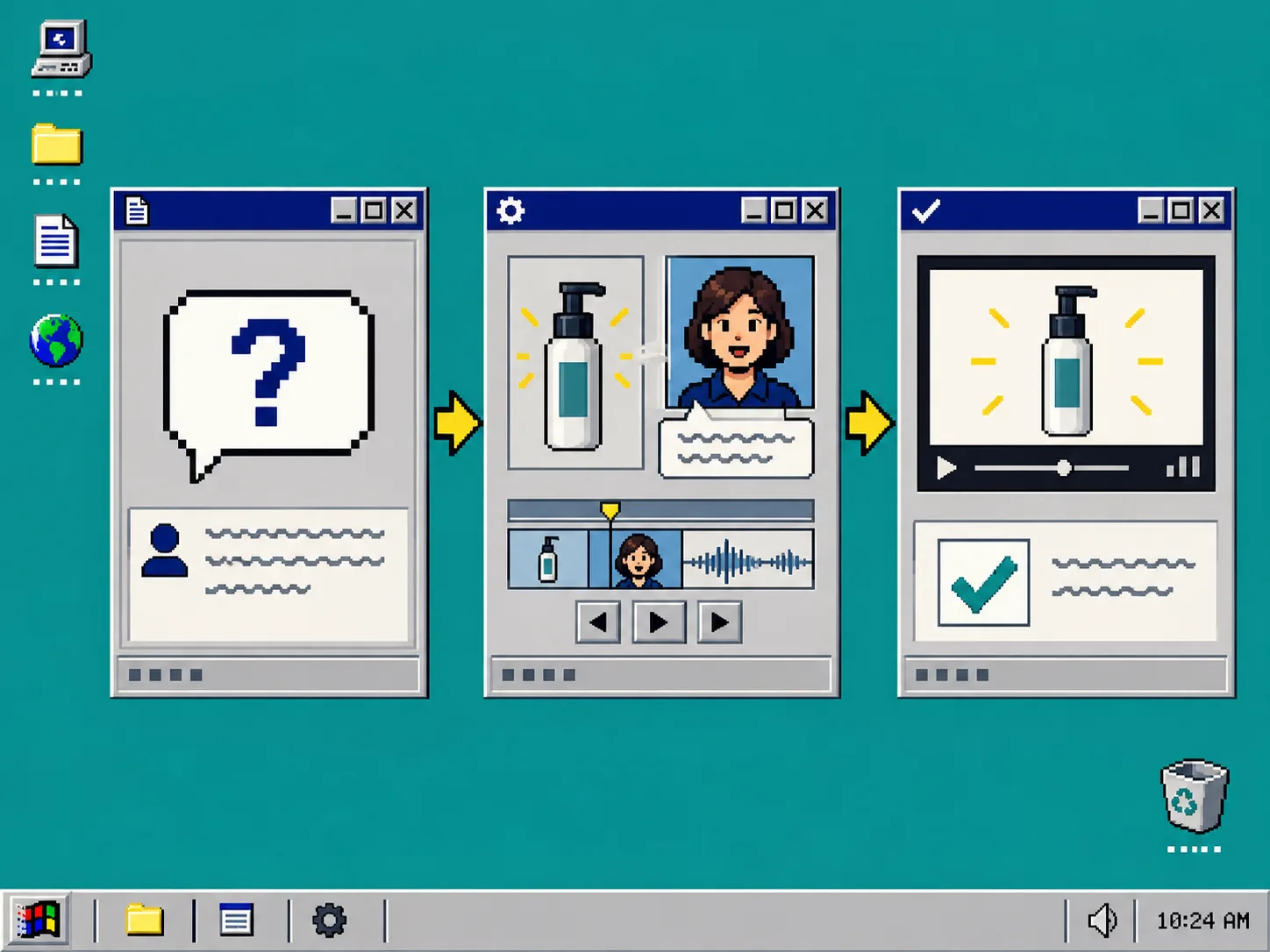
1. Pick One Question That Happens After Checkout
Start in the place where the customer gets stuck: support conversations, return reasons, reviews, or the first follow-up email. Choose a question that can be answered by showing or explaining one action. “How do I fit this into my evening routine?” or “Which way does this attachment face?” are usable. “Why is shipping expensive?” is not a video setup problem.
Write the question at the top of your brief, then add the approved source that answers it. A post-purchase clip should reduce uncertainty, not create a new product claim. If the answer depends on a size, ingredient, warranty term, or safety instruction, copy it from your approved product material before scripting.
The one-job rule also makes production easier. In my product-page explainer workflow, the video answers one shopper question rather than trying to cover the full catalog. Here, keep the same restraint and move the job later in the customer journey.
2. Write a Script With One Action and One Next Step
Draft 15 to 30 seconds before opening the generator. Use this plain structure:
- Name the moment: “Your order just arrived, and here is the first thing to do.”
- Show or state the action: “Place the insert with the marked side facing up.”
- Give one approved reason: “That keeps the product stable during its first use.”
- Point to one next step: “See the care page for the complete setup notes.”
Keep each sentence useful when heard without video, and make the visual useful with sound off. Do not write a fake personal testimonial for an avatar to deliver. AI UGC-style video is strong for repeatable explainers and creative variations; a real creator is still the better choice when the promise relies on lived experience or community trust.
For a product with several first-use questions, make a small named series instead of an overloaded clip: setup-01, care-02, and troubleshooting-03. A controlled variation workflow, like this guide on testing Shopify UGC hooks, prevents random edits from hiding what changed.
3. Build the Scene Around the Proof
Open Supra UGC Maker and choose Avatar, Scene, Product, Script, then Voice and Tone. Start with a scene that makes the action believable and easy to see. A countertop works for a kitchen tool; a shelf works for a skincare routine; a neutral studio works when the detail is size, finish, or a simple sequence.
Add the Shopify product reference if it helps the visual stay recognizable. Then paste the short script and select a voice that is clear rather than theatrical. Preview the scene before generating. What you should see is the product and the action quickly—not an intro that spends half the clip explaining the brand.
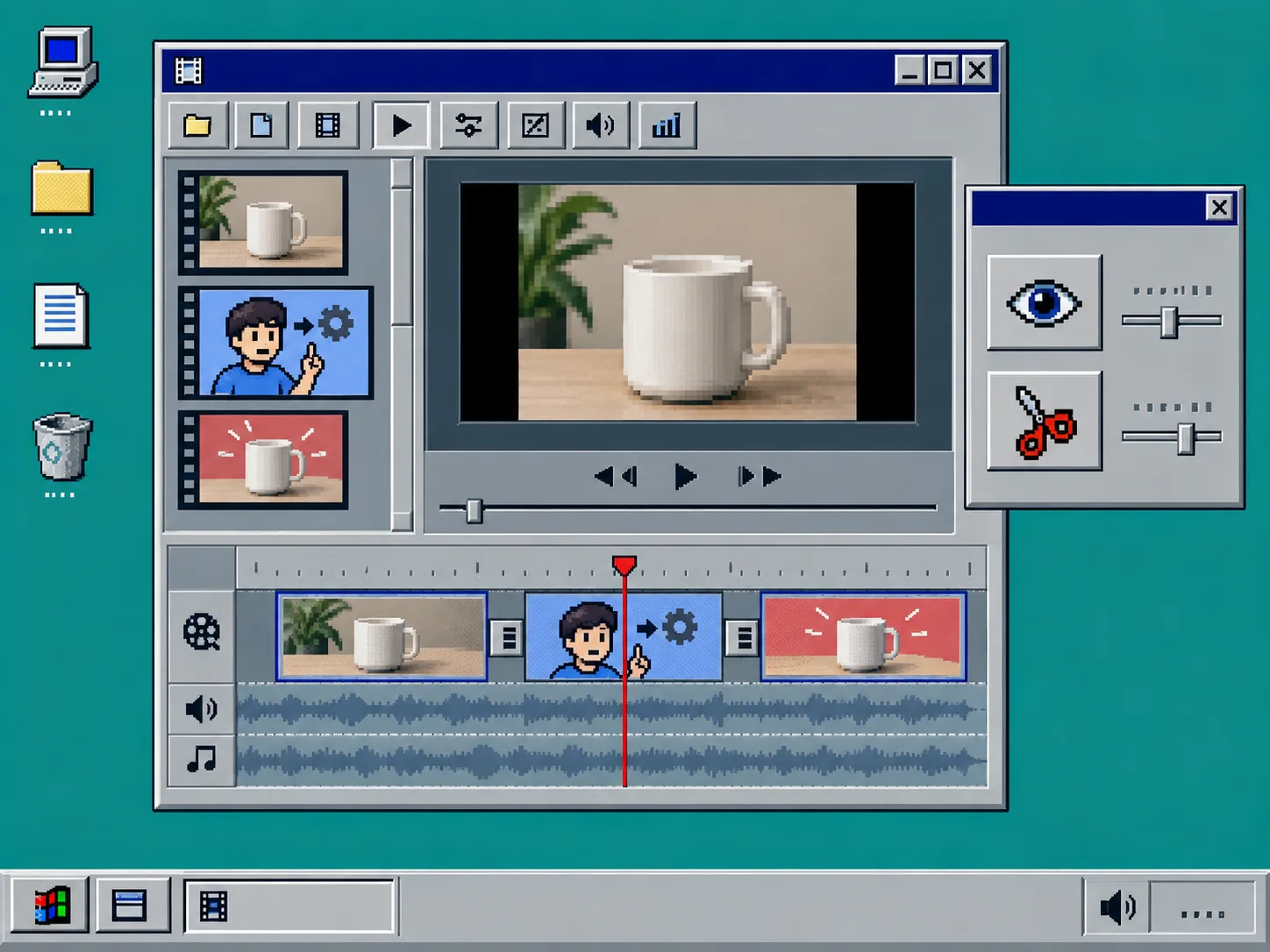
Generate a first segment, then change one thing at a time. If the opening is confusing, revise the opening. If the background makes the product hard to see, revise the scene. Supra UGC Maker supports saved projects and editable segments, so there is no reason to rebuild every version from a blank page.
This first setup video can later support lifecycle email, but do not reuse it blindly. The launch-email video workflow has a different job: creating interest before purchase. A post-purchase version should make ownership easier.
4. Put the Clip Beside the Moment It Solves
Choose one delivery point before you download the final version. Common choices are the order-confirmation follow-up, shipping-confirmation email, a post-purchase help page, or a QR-linked quick-start page in the package. Match the final line to that destination.
Use a direct CTA such as “Watch the 30-second setup,” “See care instructions,” or “Open the full guide.” Avoid “Shop now” unless the clip has a genuine replenishment or accessory purpose. The customer has already taken the main purchase action.
Test the delivery on a phone. Confirm that the first frame identifies the product or problem, the action is visible, and the linked destination loads. If captions are needed for clarity or accessibility, add them in the channel where the video will appear and check that they do not cover the product action.
5. Run a Product-Accuracy Check Before Sending
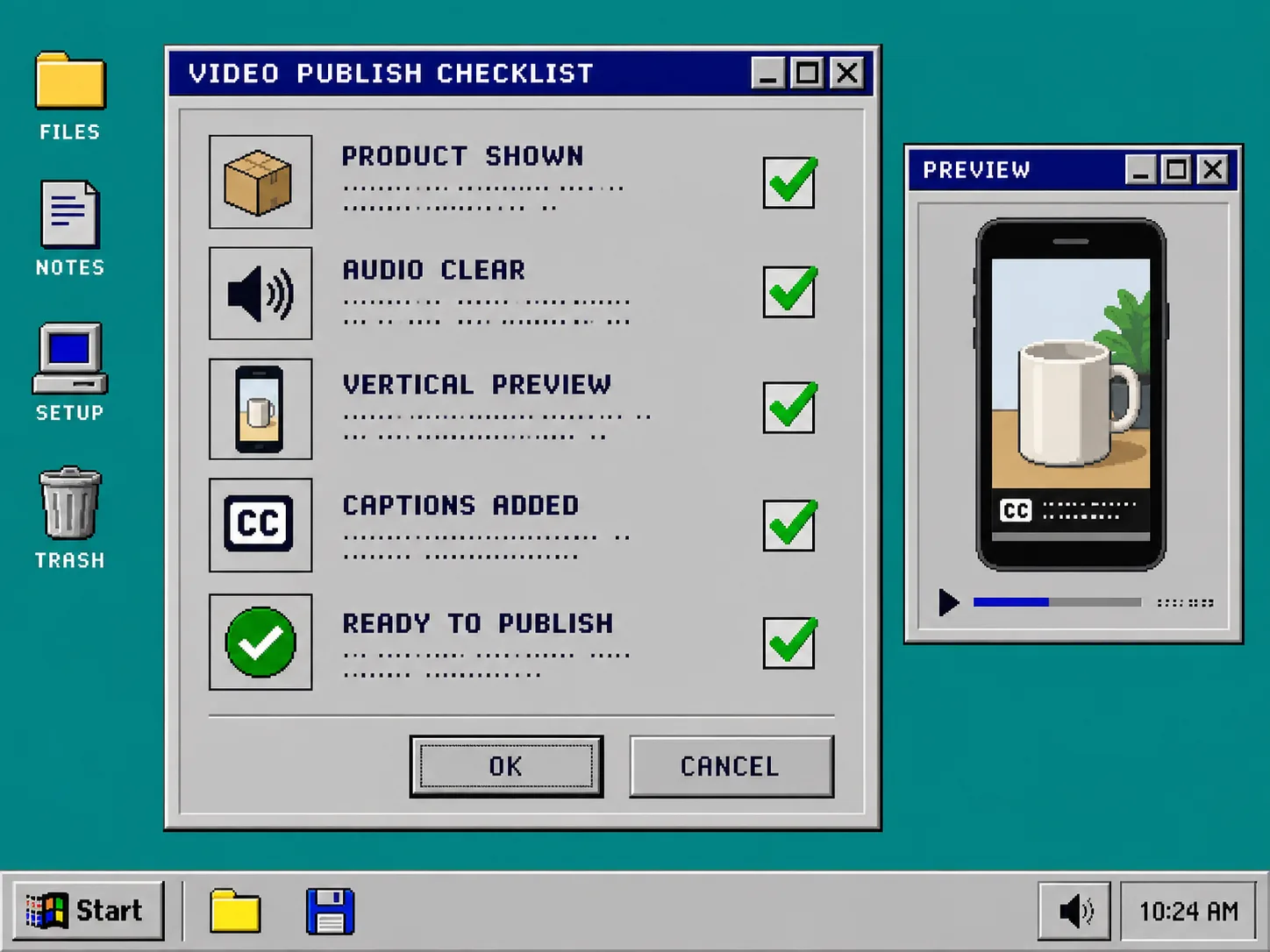
Run this checklist before the video goes into an automation:
- Compare every spoken claim with approved product information.
- Confirm the product appears in a plausible, non-misleading setting.
- Check that the avatar does not imply personal use, expertise, or a result you cannot substantiate.
- Watch the clip with and without sound.
- Check the CTA and destination on a phone.
- Name the file by product, question, and version so the next edit has a traceable starting point.
If a version feels vague, shorten it. The goal is not a polished brand film. It is a calm, accurate answer that helps a customer use what they already chose. For a broader campaign, the same single-question discipline can feed ads, product pages, and email—just keep each placement’s job separate.
Troubleshooting
The script sounds like an ad. Remove the broad promise and replace it with the first-use action or fact.
The product is hard to recognize. Switch to a simpler scene and add the product reference again; a close, clear product action beats a busy background.
The team wants to add five more tips. Turn the extras into a follow-up clip or help-page section. One question per video is the limit that keeps this useful.
The avatar says something unsupported. Stop the publish step, return to the approved source, and rewrite the line. Do not solve an accuracy problem with a softer disclaimer.
The Useful First Version
A focused post-purchase video will not replace clear written help, packaging instructions, or real customer support. It can make the first moment of ownership much easier to navigate—and give your team a reusable format for the next recurring question.
Pick the setup question your customers ask most often, write the four-line script, and build one accurate first version. Then install Supra UGC Maker on Shopify and turn that question into a helpful product video before your next support queue fills up.