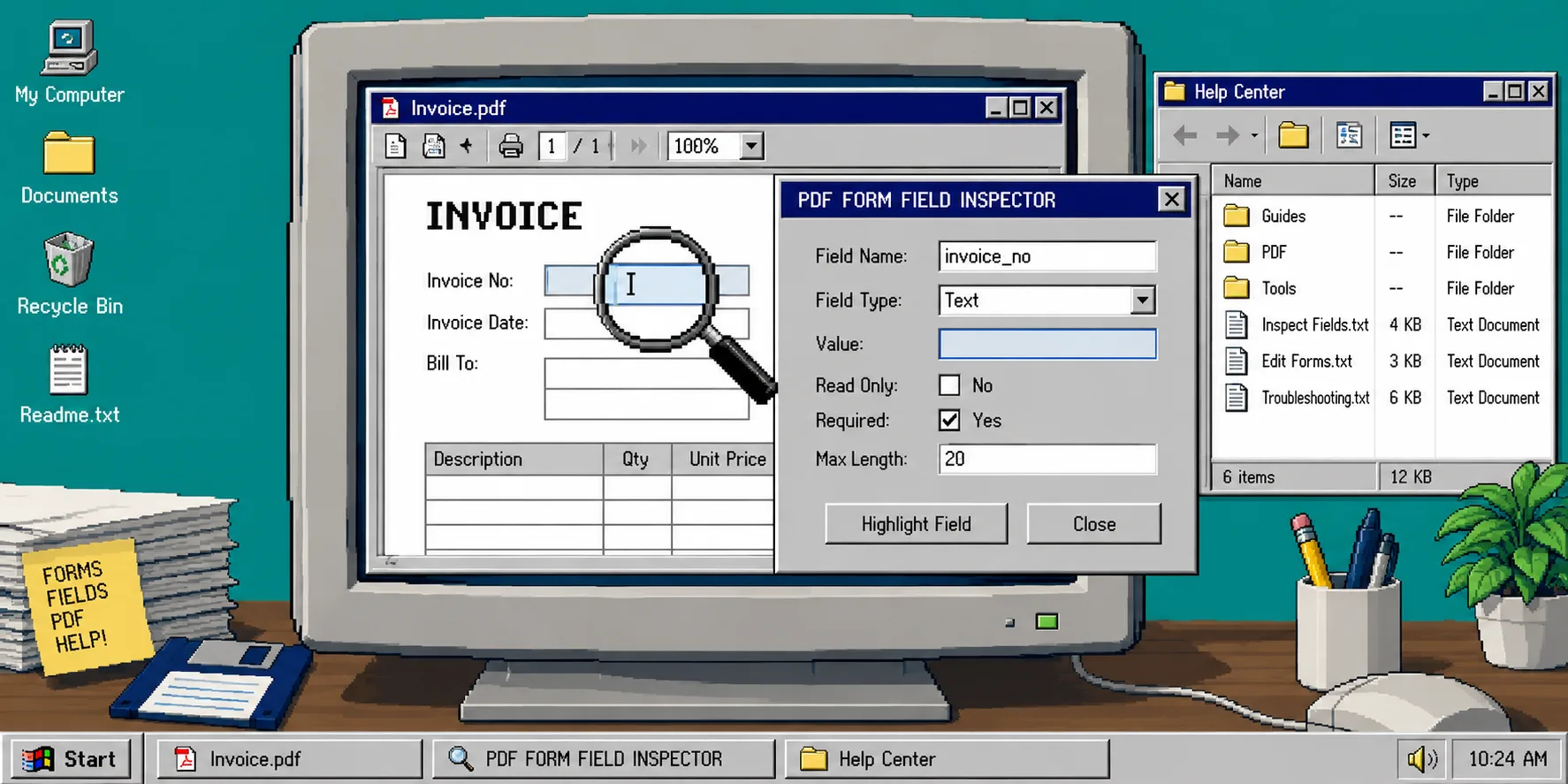
If you send fillable PDFs to customers, teammates, or clients, check the fields before you send the file. You do not need a full PDF editor for the first pass. You need to know what the form contains, whether its values will export correctly, and whether the filled result will still be visible.
What you need: the PDF form, a browser, and PDF Form Field Inspector. The tool reads the form in your browser; its page says the PDF is parsed locally and nothing is uploaded.
1. Open the PDF Form Field Inspector
Open PDF Form Field Inspector and select the PDF you plan to distribute. Wait for the field list to appear. You should see the form structure instead of only the page artwork.
Use this step before you spend time filling a sample or emailing a draft. A PDF can look ordinary in a viewer while containing duplicate field names, hidden widgets, or a checkbox that submits a value you did not expect. If your process also includes a print-ready review, use this alongside the earlier PDF print preflight workflow.
2. Check the field names and hierarchy
Scan the qualified names first. A repeated name is not automatically wrong, but two unrelated boxes sharing one value is a useful warning. Look for names that make sense in your downstream process, such as contact.email or shipping.address.city, rather than a pile of anonymous-looking fields.
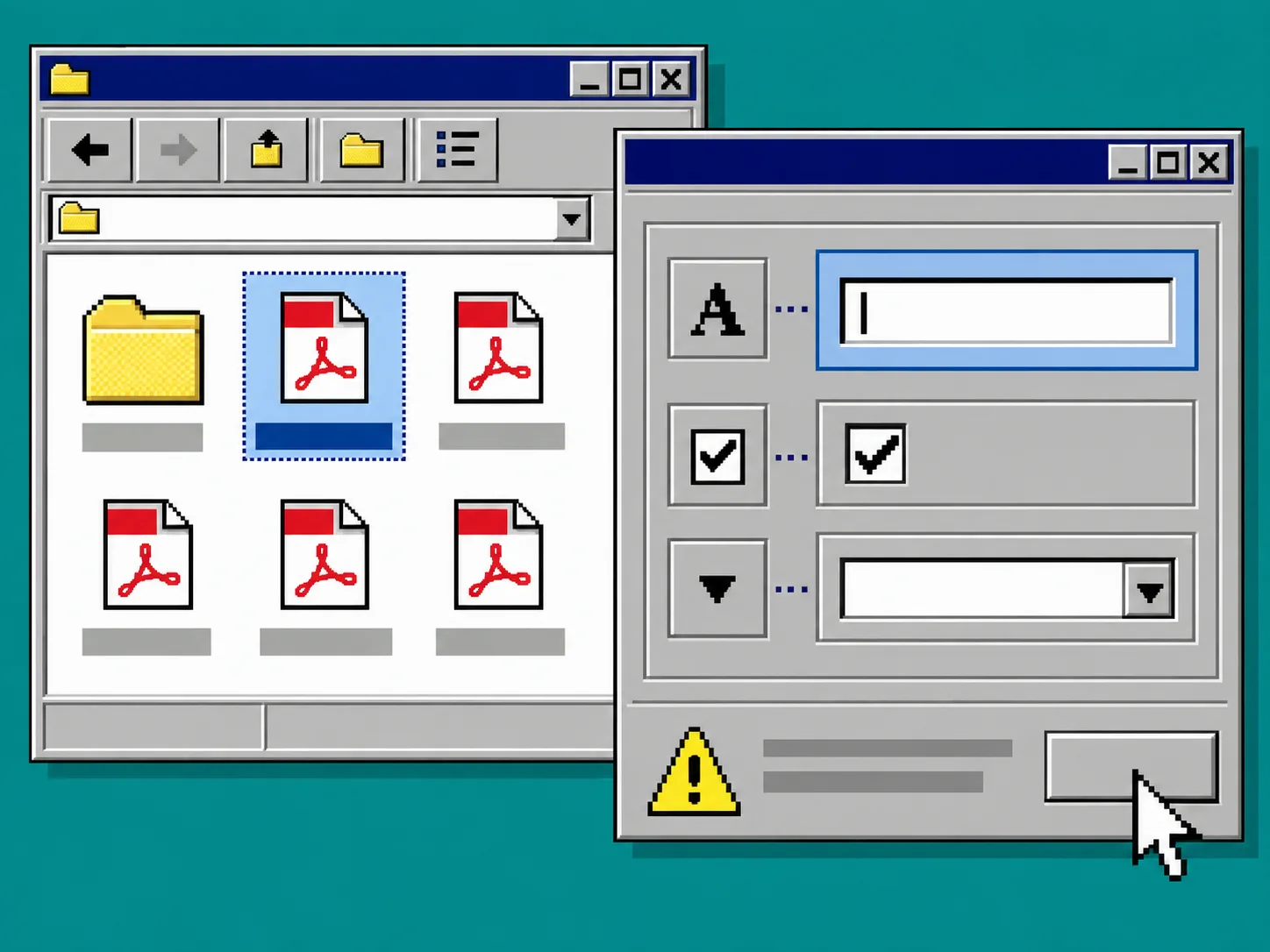
Then check the type for each important control: text field, checkbox, radio group, dropdown, list box, or signature. A label printed on the page is not evidence that the underlying field type is correct. You should be able to point at every required answer and explain what the recipient can enter or choose.
For a sensitive handoff, this is also a good time to separate structural QA from privacy QA. The field inspector explains the structure; the related guide on checking PDFs for hidden data before sharing covers the second question.
3. Inspect values, flags, and appearance clues
Select the fields that matter most to the form workflow. For text inputs, check constraints such as maximum length and whether the field is read-only or required. For checkboxes and radio buttons, inspect the export value rather than trusting the visible label. A box labelled “Yes” may submit a different value.
Pay attention to appearance warnings too. The inspector reports coordinates and appearance problems, which helps distinguish a missing field from a field that exists but renders poorly. If a user says a field was filled yesterday but looks blank after saving, do not guess. Check the stored form structure first.
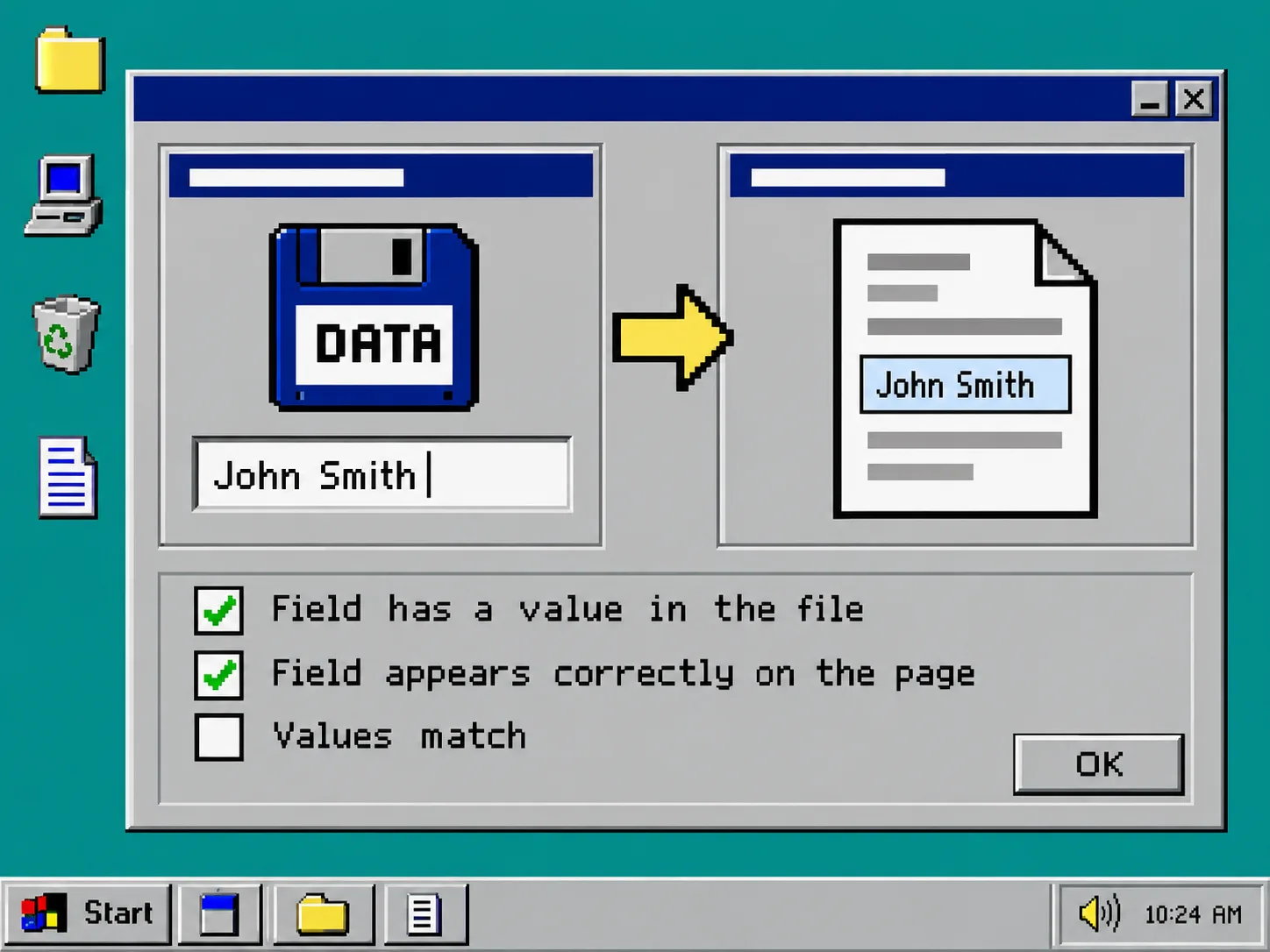
This is especially useful when a PDF is headed toward a data workflow. A checkbox with the wrong export value can become a bad column value in an export even when the on-screen label looked reasonable. If you need to compare versions before the final send, keep the separate PDF comparison guide in the same review folder.
4. Fill a short test copy
After the structure looks right, open PDF Form Filler. Load a copy of the form—not the only original—and enter test values in the required text fields, checkboxes, dropdowns, and radio groups. The tool supports these common field types and saves a completed copy in the browser.
Use distinctive test values. Test 1 is easy to miss. A value such as FIELD-QA-101 makes it obvious whether the right value appears in the right place after you reopen the file. Click through the form with the mouse and keyboard. Confirm that a required field is actually required and that tabbing does not jump to an unrelated widget.
If the form carries customer or employee data, the no-upload workflow is the point: keep the inspection and test run in the browser. For a broader client-facing routine, the safer PDF handoff checklist is a useful companion.
5. Flatten only when you mean to lock values
Use PDF Form Flattener when the recipient needs a final, non-editable copy. Flattening bakes values into the page and the tool performs a render check so you can verify that text and marks remain visible.
Do not treat flattening as a harmless save button. It is irreversible in the output, and the tool warns that flattened controls no longer carry their field semantics for assistive technology. Keep the original fillable PDF, keep a test-filled copy, and make the flattened file a separate deliverable.
Troubleshooting
No fields appear. The PDF may be a scan or a flat document rather than an AcroForm. The form filler will not invent fields that do not exist.
A box looks right but exports the wrong value. Return to the inspector and check the checkbox or radio export value; use that stored value in your automation or spreadsheet mapping.
Values disappear after saving or printing. Inspect for appearance problems, then test a copy with the form filler before flattening.
A signature needs to remain valid. Do not flatten it casually. Keep the signed document unchanged and confirm the exact requirement with the receiving system.
Final check
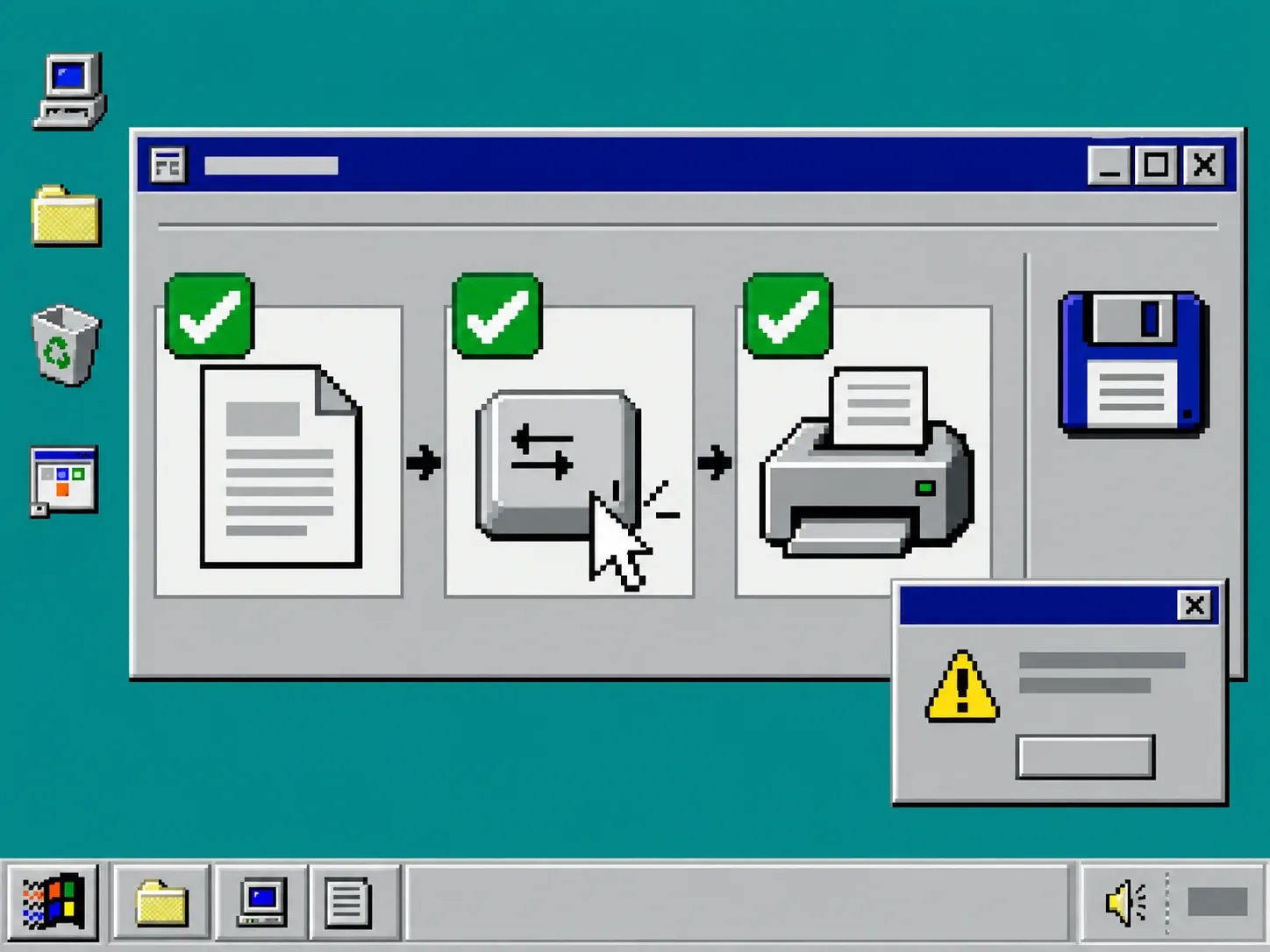
A reliable form handoff is a short sequence: inspect the structure, fill a clearly marked test copy, reopen it, then flatten only when the values must become page content. Start with PDF Form Field Inspector, and you will know whether the problem is in the form rather than discovering it after the email is sent.