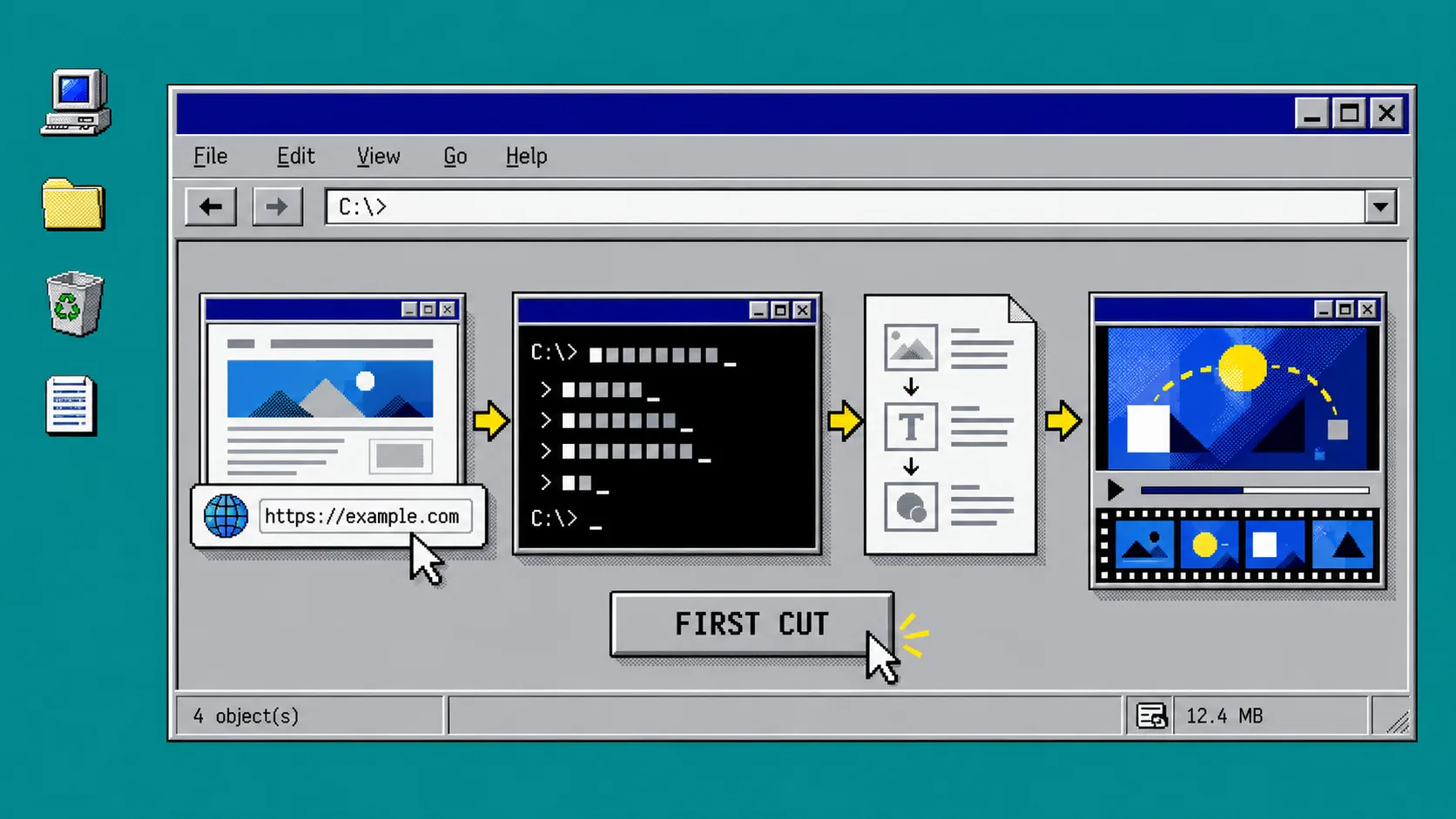
If you need a usable startup video this week, you do not need to begin with a huge production brief or a pile of scene files. You need one public product URL, one clear job for the video, and a first cut you can inspect before anyone calls it final. This guide uses VideoFlow Studio from the terminal to turn that small starting point into a reviewable motion-graphics draft.
You will need a public landing page, a terminal, and a sentence describing the audience and action you want the viewer to take. Studio is the operator-facing product; it uses the open-source VideoFlow engine underneath, so the project stays structured and editable instead of becoming a locked one-shot render.
1. Pick One Page and One Job
Start with the landing page that already tells the clearest product story. Do not send an entire documentation site, a half-finished preview URL, or three competing feature pages. Use the page you would send to a curious prospect.
Write one sentence before you open the terminal. For example: “Make a 30-second launch video for technical founders that shows why our monitoring tool reduces incident handoffs.” This sentence is a guardrail. It gives the agent an audience, a length expectation, and a single outcome to emphasize.
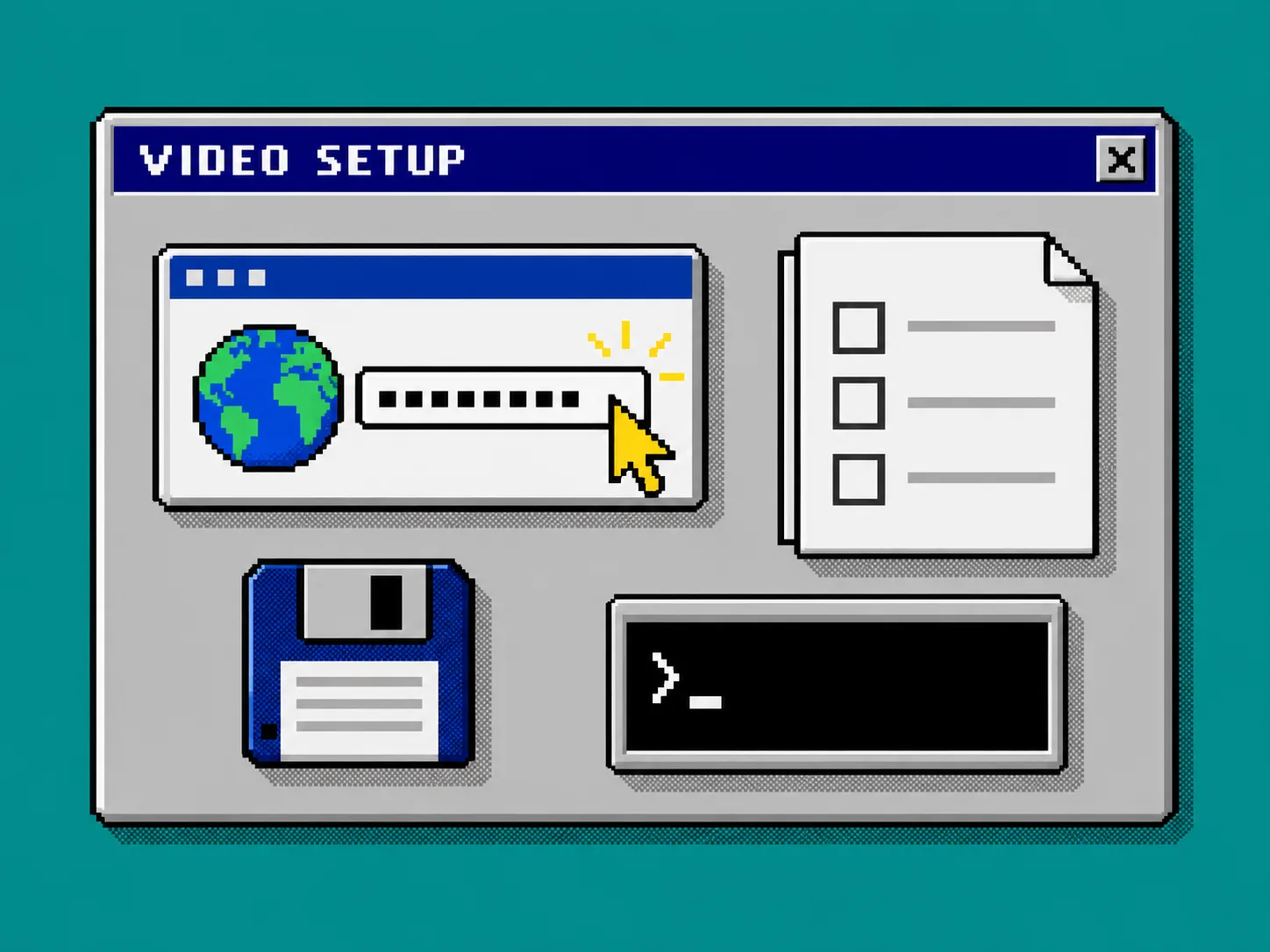
Keep a short list of proof points beside it: the main problem, the product mechanism, one visible result, and the next action. If you have already been turning product pages into narrative inputs, the same small inventory used in this launch-video workflow is a useful starting point.
2. Start Studio From the Terminal
Open a terminal in an empty working folder and run:
npx @videoflow/studio
Give Studio the public URL, then state the goal in ordinary language. Ask for a first cut, not a masterpiece. A good request says what the viewer should understand, which feature deserves attention, and what should happen at the end.
Wait for the planning stage before judging the final render. Studio is designed to read the product and develop a video plan before it builds the motion graphics. Check that the proposed story has an opening problem, a product moment, and a close that matches your requested action. If the plan is pointed at the wrong audience, correct it here. That is cheaper than asking for a new video after the export.
3. Treat the First Render as a Review Copy
When the first render arrives, watch it once without editing. Then watch it a second time with a small checklist: does the first scene establish the product quickly, are the headings legible, do important transitions have enough time, and does the end card say one thing clearly?
Do not only read the source or assume a successful render is a successful video. Studio visually reviews encoded frames and can catch presentation problems such as alignment or contrast before delivery. That review loop is particularly useful when you are working from a page full of real brand colors and dense UI.
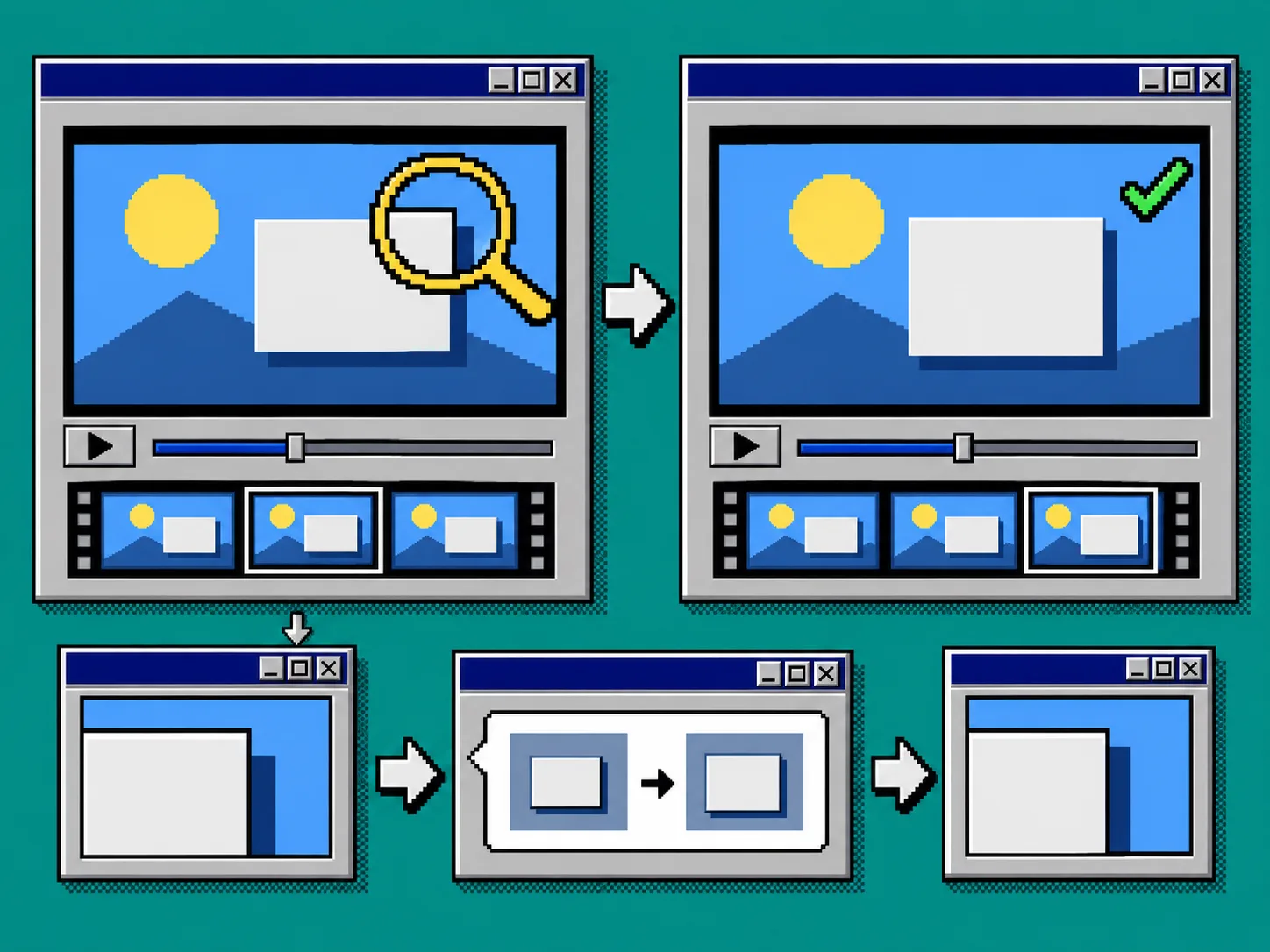
Describe one correction at a time: “Hold the benefit statement longer,” “increase contrast on the pricing card,” or “make the final screen less busy.” A focused request preserves the parts that worked. The same review-first habit is why a startup URL can be tested before production instead of being treated as a promise that the first render is finished.
4. Make the Revision Before You Export
Ask Studio to re-render after the correction, then check the changed scene and one scene on either side of it. This catches accidental pacing changes and makes your review repeatable. Save the request that produced the approved version with the project notes; it becomes a practical brief for the next product update.
If a last-mile adjustment is easier by hand, open the built-in editor. You can adjust layers, timing, colors, and text without discarding the agent context. That is the useful distinction here: Studio helps a founder make a finished trailer from a URL, while the underlying VideoFlow engine is the structured video and editor stack that keeps the work editable.
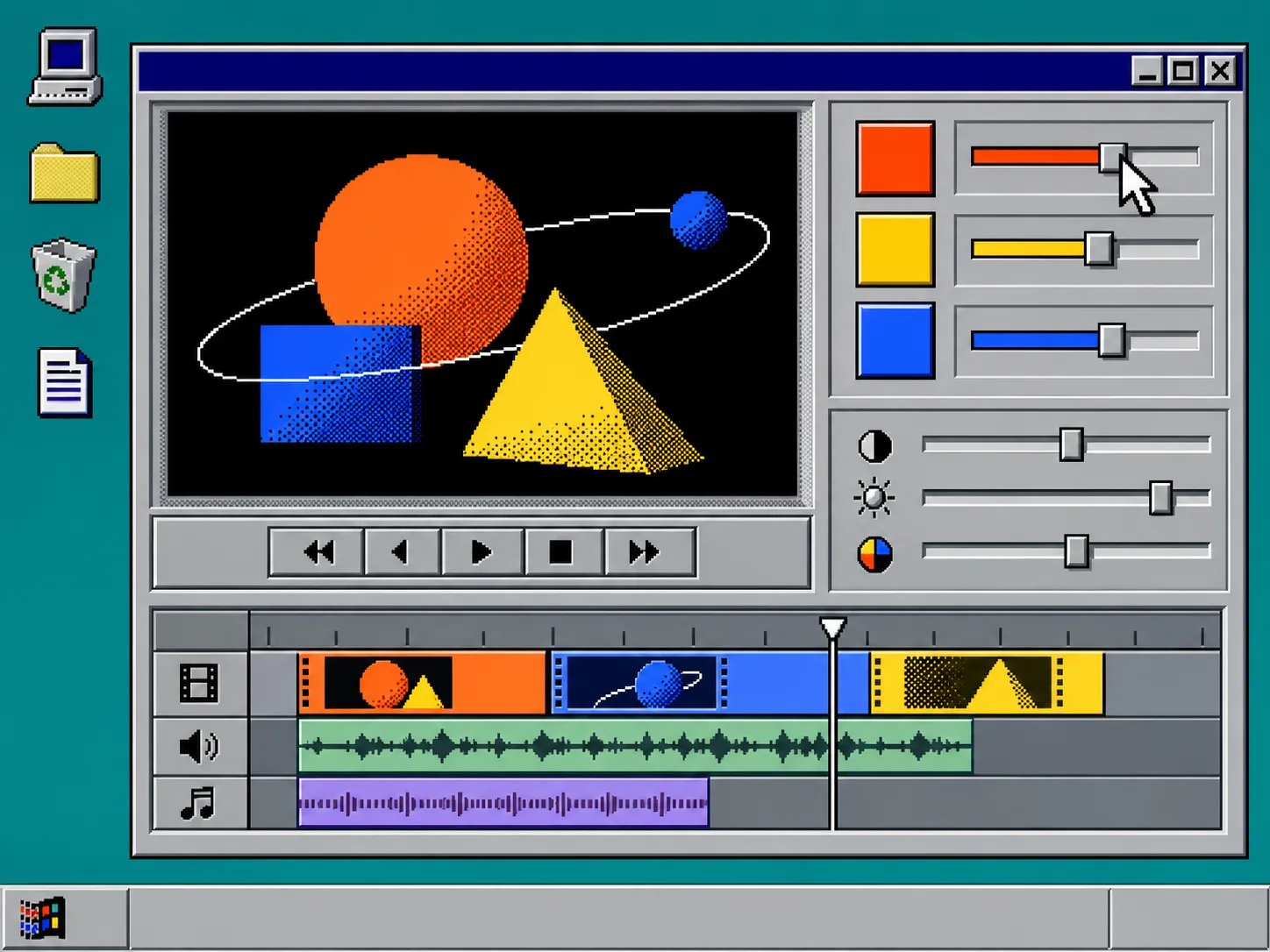
For a release-driven video, keep the story smaller than the changelog. Choose one customer-visible improvement, then use this same revision pass to update the video when the product moves. This release-notes workflow shows how to avoid rebuilding the whole narrative for every update.
5. Export Only After a Plain-Language Sign-Off
Before sharing the video, write a plain-language approval note: “This video explains X to Y audience and ends by asking them to Z.” Compare that sentence to the actual first and final frames. If they do not match, make one more targeted revision.
A first cut is successful when it gives you something real to show, revise, and reuse—not when it merely proves that an AI can make moving pictures. For a broader view of keeping this kind of work reviewable, see how to turn a startup URL into a reviewable launch video.
Troubleshooting
The story feels generic. Narrow the request to one audience, one product claim, and one next action. Feed Studio the strongest landing page rather than every page you own.
The visual is almost right but not ready. Name the visible defect and the desired change. “Fix the video” is vague; “keep the comparison card on screen two seconds longer” is actionable.
A stakeholder wants a manual tweak. Use the built-in editor for the specific layer, timing, color, or text change, then re-check the surrounding scenes.
You now have a repeatable path: choose one page, state one job, make a first cut, review it visually, and revise before export. Start with your clearest product URL at VideoFlow Studio, and keep the first request small enough to review today.