How to Inspect an ICS Calendar File Before Importing It
An .ics file looks harmless: double-click it, and your calendar offers an Import button. But an import is still a change. A recurring meeting can fill a year, a time-zone mistake can move an appointment, and an alarm can arrive at the wrong time. This guide shows how to check the file first, then decide whether it deserves a place on your calendar.
You need the saved .ics file and a modern browser. The process uses Tiny Online Tools’ ICS Calendar Inspector, which opens the file in the browser instead of requiring you to import it into a calendar application.
1. Save the calendar file without importing it
Download the attachment or export, then keep it as an .ics file. Do not choose the calendar app’s Import command yet. If the file arrived in an email, save it to a folder you can find again, such as Downloads.
You should see a file name ending in .ics. That extension means iCalendar, a text-based format used for event details, invitations, recurring schedules, and time-zone definitions. Saving first gives you a clean checkpoint: you can inspect the exact file you received rather than an event after it has already been added.
2. Open the ICS Calendar Inspector
Go to the ICS Calendar Inspector and select the .ics file. The tool is designed to show events, recurrence rules, time zones, alarms, and attendees before you import anything. Its page states that it runs in the browser, and the tool does not need you to create an account.
You should see the calendar’s properties and a list of components or events. If the file cannot be parsed cleanly, note the reported line numbers instead of guessing what a calendar app might do with malformed content.
3. Check the event basics
Compare each event’s summary, start time, end time, location, and description with the invitation or request you expected. Look especially for these mismatches:
- An all-day event that should have a specific time.
- A start or end date that is one day off.
- A location or meeting URL you do not recognize.
- More events than the sender described.
You should be able to identify exactly what will be created. If the file contains multiple events, decide whether that is intentional before moving on. A calendar export from a system can contain more than one appointment even when the email mentions only one.
4. Read the recurrence rule before accepting a series
Inspect the recurrence details for any repeating event. A weekly meeting might be reasonable; a rule that repeats forever, includes extra dates, or lands on unexpected weekdays deserves a second look. Pay attention to the visible occurrences, exclusions, and end condition—not only the sentence in the email.
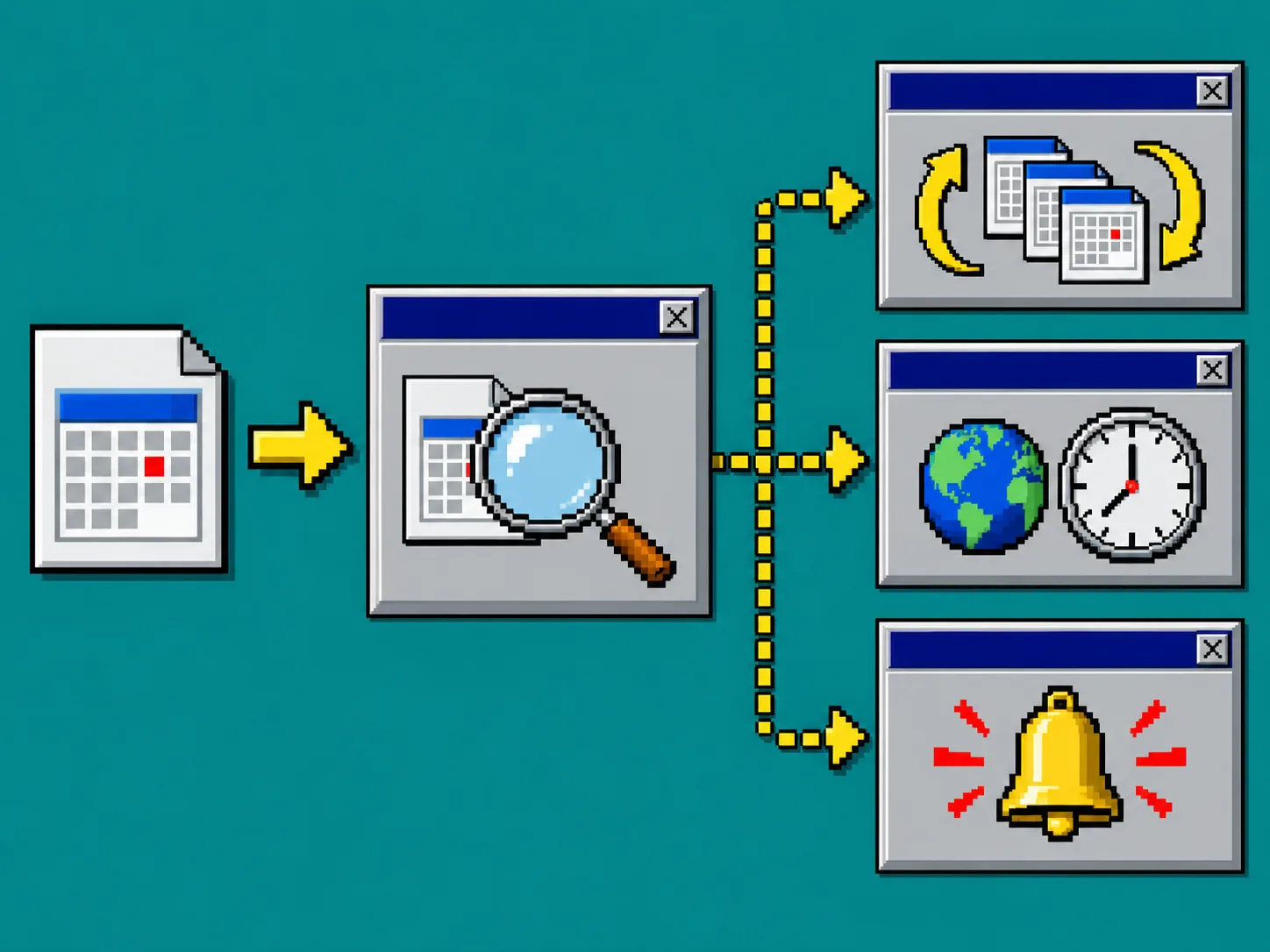
You should see whether the event repeats, when it stops, and whether exceptions are included. This is the calendar equivalent of checking the scope of a bulk change: a small rule can create dozens of entries.
5. Verify the time zone and alarms
Review the time-zone information and any alarm settings. An ICS file may use a named time zone, an embedded VTIMEZONE definition, or a floating time with no zone attached. The inspector explains which time-zone source applies, so you can spot a meeting that would move when your browser or calendar interprets it.
Then check alarms. A reminder may be a useful 15-minute prompt, but a file can contain more than one alarm or an unexpected trigger. You should now know when the appointment will appear on your own clock and whether it will create notifications you actually want.
For the same reason, it is worth using the earlier guide to inspecting PDF form fields before you distribute a form: inspect the hidden behavior before it affects someone else’s workflow.
6. Review organizers, attendees, and attachments
Read the organizer and attendee fields. Confirm the organizer address, participation status, RSVP flag, and any attendee names that matter. If the event includes an attachment stored inside the file, treat it as a separate item to review. If it references an attachment by URL, do not assume the destination is safe just because the calendar item arrived from a familiar source.
You should have a simple answer to three questions: Who sent this? Who will see it? What else does it carry? If the file came from an unfamiliar source, stop here and ask for a new invitation through a channel you trust.
7. Import only the file you understand
Import the .ics file into your preferred calendar only after the details, recurrence, time zone, alarms, and participants match your expectations. If anything looks wrong, delete the downloaded copy or keep it as evidence while requesting a corrected file.
You should see the same single event or predictable series in your calendar—not a surprise set of notifications. For other small, file-shaped tasks, the Tiny Online Tools catalog keeps related browser utilities in one place, including the broader Email & Calendar Tools collection.
Troubleshooting
The file will not open. Confirm it really ends in .ics and was not renamed by an email client. Ask the sender to export it again if the inspector reports incomplete content.
The time looks wrong. Check whether the event has a named time zone or a floating time. Compare the displayed offset with the sender’s intended local time before importing.
The series has too many dates. Review the recurrence rule and exceptions. Request a one-time invitation if the recurring version is not what you need.
You already imported it. Delete the imported event or series from your calendar, then inspect the original file before trying again.
Final check
Save first, inspect second, import last. Open the ICS Calendar Inspector the next time a calendar file arrives, and make the import a deliberate choice instead of a surprise.