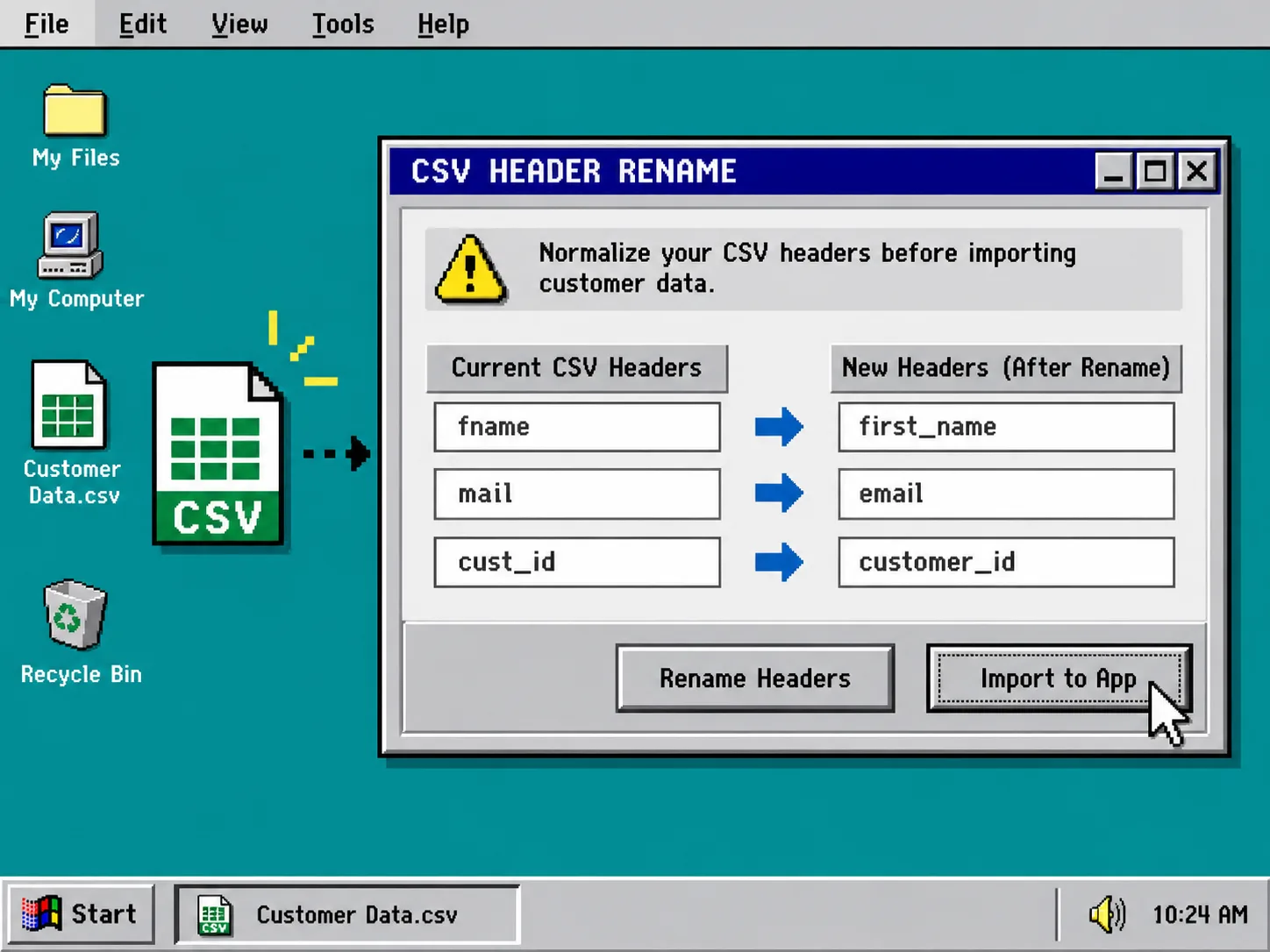
You can make a customer-data import less risky by fixing the header row before you hand the file to the destination app. You need the original CSV, a list of the field names the destination expects, and a copy of the file you are willing to edit.
The job here is narrow: change labels such as fname, mail, or cust_id into predictable names without rewriting the customer rows. Tiny Online Tools has a browser-based CSV Column Renamer for exactly that kind of small cleanup. Its mapping changes only the headers you specify, which is useful when you do not want to open a spreadsheet or upload a contact export somewhere else.
1. Copy the source CSV before you touch it
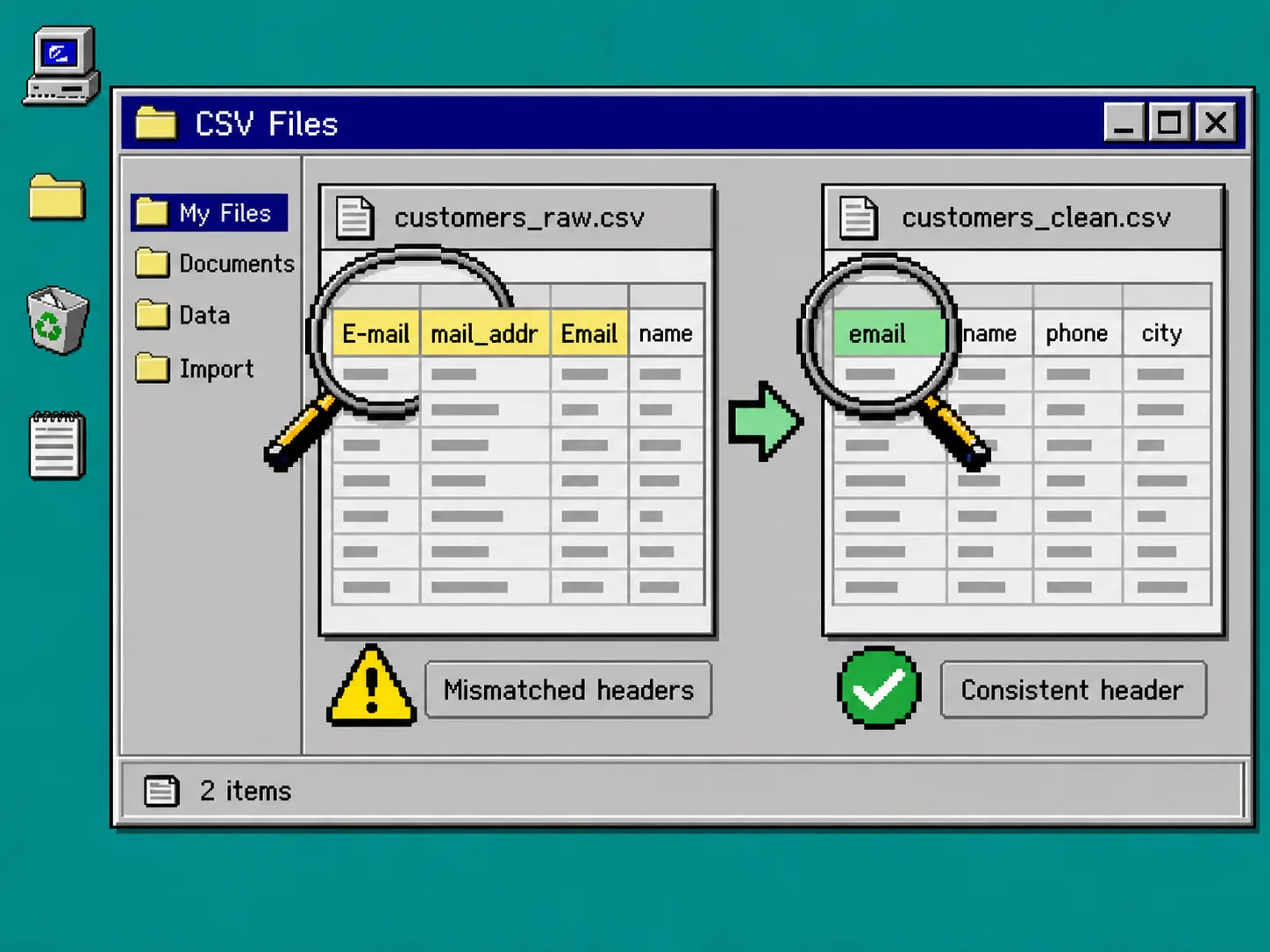
Create a working copy first. Keep the export that came from your CRM, store, or form tool unchanged, then give the copy a clear name such as customers-import-ready.csv.
Open the file in a text editor or a CSV viewer and inspect only the first row. Write down the headers in their current order. This is the moment to catch near-matches that humans understand but importers do not: E-mail versus email, First Name versus first_name, or customerId versus customer_id. Do not guess the target schema; read the destination app’s import instructions and make a short two-column list: current header and required header.
If the CSV is wide or the data itself needs a sanity check before you work on its schema, this earlier guide on cleaning a Shopify CSV export before sharing it is a useful companion. Its key idea applies here too: keep a source copy and make the smallest safe change.
2. Decide which labels actually need to change
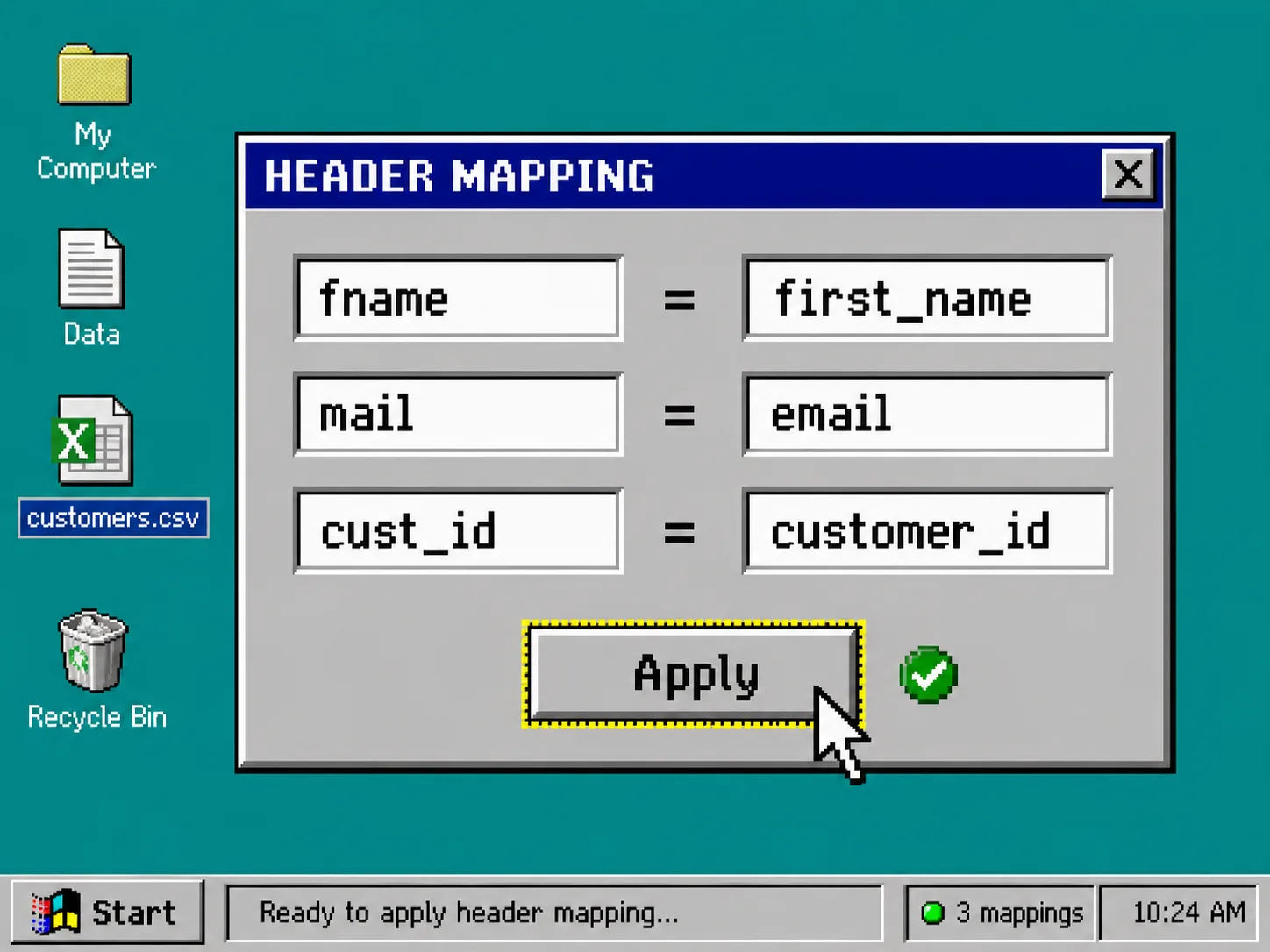
Rename only names that need to match the import contract. A typical map might look like this:
fname=first_name
mail=email
cust_id=customer_id
Leave a correctly named column alone. Do not use this step to rearrange columns, merge records, remove rows, or invent missing values. Header cleanup is valuable precisely because it is reversible and easy to inspect.
For CSVs assembled from several systems, make one agreed canonical spelling before you begin. A header like email is easier to reuse consistently than a collection of almost-identical names. If you need to reduce the file to just a few approved fields after naming them, use CSV Column Extractor, which can keep selected columns by header name or index.
3. Apply the mapping in CSV Column Renamer
Open CSV Column Renamer. Paste the working CSV into the input, or load the file from your computer. In the header-mapping field, enter one old_name=new_name pair per line. Use the labels exactly as they occur in the first row.
Run the mapping and inspect the returned CSV. You should see the requested names in the first row while the data rows remain in the same order and with the same values. That distinction matters: this is a header operation, not a data transformation. Tiny Online Tools positions its utilities as browser-based, no-account tools; for a contact export, that low-friction local workflow is often preferable to sending a one-off file to an unfamiliar converter.
Need a second pass on the cleaned output? CSV Filter can narrow the rows you want to examine, and CSV Sorter can put a chosen column in order before a manual spot check.
4. Verify the output before importing it
Compare the original and renamed files side by side. Check these four items:
- Header spelling: Every required name exactly matches the import documentation, including underscores and singular/plural form.
- Header count: The renamed file has the same number of columns as the original unless you deliberately removed columns elsewhere.
- Row sample: Check the first, a middle, and the last data row. Values should still sit under the intended header.
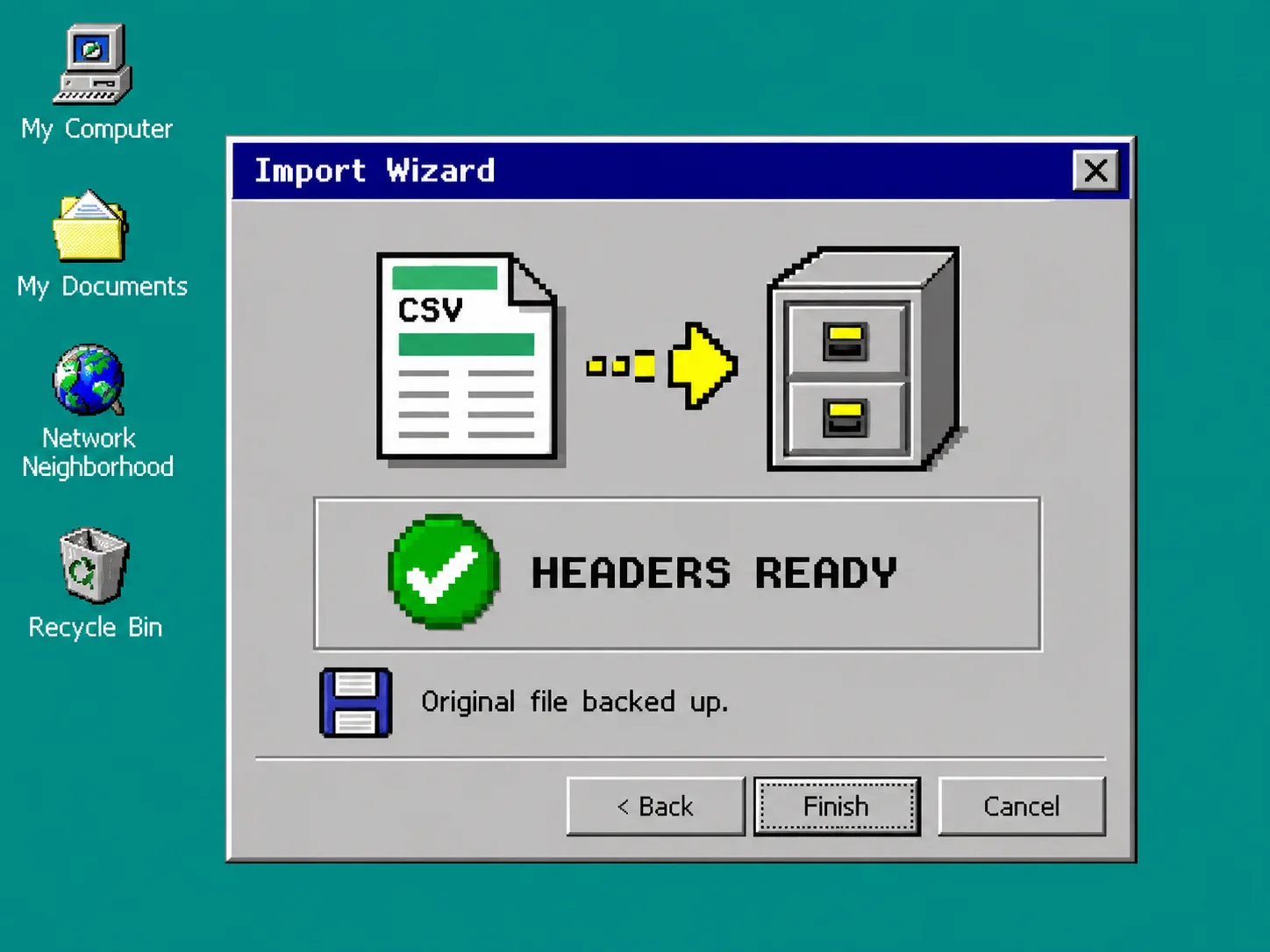
- File safety: Keep both the original export and the renamed copy until the import completes successfully.
This check is faster than repairing a bad customer import. It is also a good point to reconsider whether the source should have been filtered or deduplicated first. For a broader browser-tool workflow, see I Replaced My CSV Cleanup Script With Four Browser Tools and How I Clean Shopify Product CSVs Before They Break an Import.
Troubleshooting
The tool did not rename a column. Check the original spelling, spaces, punctuation, and capitalization. The old side of a mapping must match the header that is actually in the CSV.
A destination app still rejects the upload. Re-read its required-field list. A correct header name cannot supply a missing required value, and the app may require a particular encoding or delimiter.
The file has duplicate or unclear headers. Stop before importing. Decide which source field is authoritative, then create a mapping that leaves each final header unique.
You need to inspect a different exported file type. The same first-pass habit works outside CSV. For example, inspect an ICS calendar file before importing it rather than treating an unknown export as ready by default.
Recap
Copy the source CSV, map only the labels that need normalization, inspect the resulting header row, and retain the original until the destination confirms the import. Start with CSV Column Renamer the next time an otherwise-valid export is blocked by mismatched field names.