How to Save VideoJSON Before Choosing a Video Renderer
If your app needs both a live preview and an MP4, save one VideoJSON document before you choose an export path. In VideoFlow, the same document can drive a DOM preview, a browser export, or a server render. That means a later renderer decision does not require rebuilding scenes or inventing a second timeline. You need a TypeScript app, a stable place to store JSON, and URLs for the media your video references.
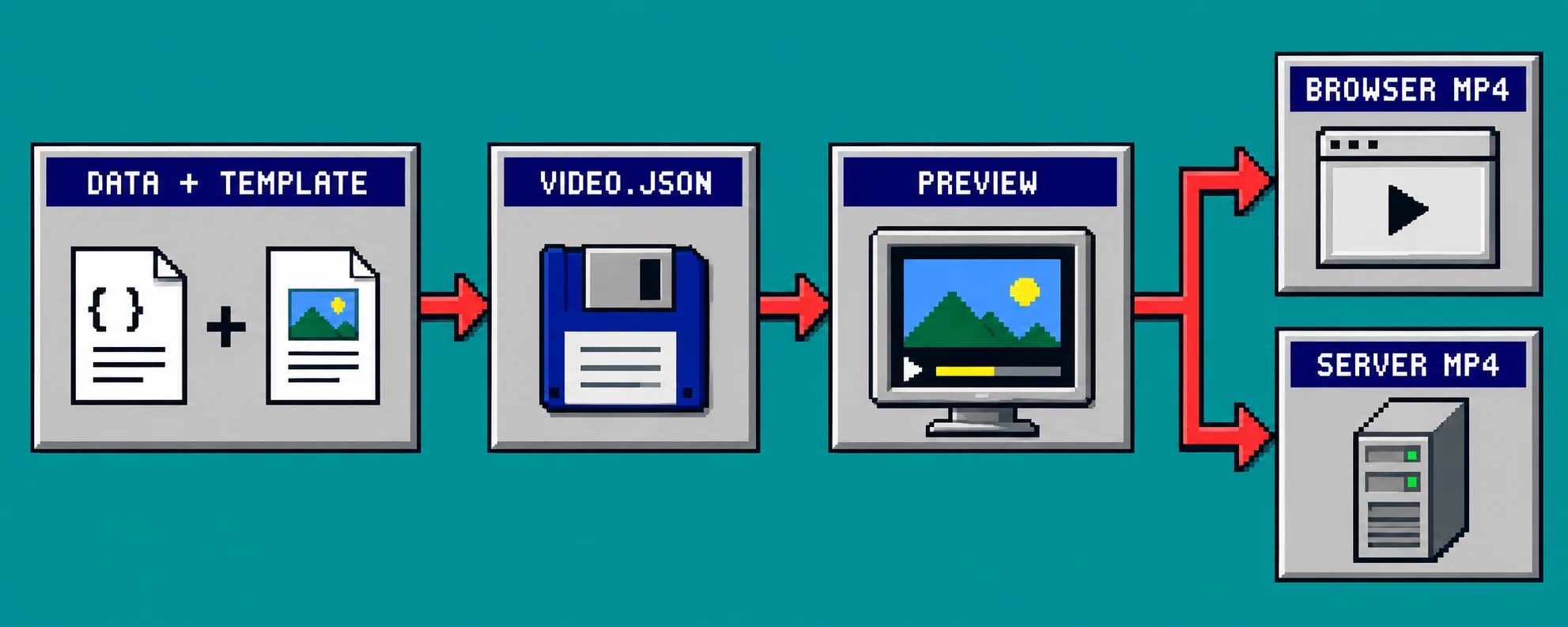
This guide deliberately starts with the document, not with a render queue. That is useful when one customer may export in the browser while scheduled or batch work belongs on a server. VideoFlow’s Core documentation describes the builder as compiling layers into portable VideoJSON; its renderer guide shows the same JSON used by browser, server, and DOM renderers.
1. Define the video document before you define the job
Start by deciding what the stored document must answer: project dimensions, frame rate, layers, timing, media URLs, captions, and visual settings. Treat that object as the source of truth for the video, not as a disposable payload created only at export time.
Use the VideoFlow builder to compile a small, reviewable document:
import VideoFlow from '@videoflow/core';

const $ = new VideoFlow({
  name: 'Weekly account recap',
  width: 1920,
  height: 1080,
  fps: 30,
});

$.addText({
  text: 'Your week in review',
  fontSize: 6,
  fontWeight: 800,
  color: '#ffffff',
});

$.wait('3s');
const videoJSON = await $.compile();
await saveVideoDocument(videoId, videoJSON);
After this step, videoJSON is the item you version, review, and pass onward. Do not promise that an exported MP4 remains editable: keep the JSON alongside the export so a later copy or asset change has a known starting point. If your input begins as catalog data, the same discipline complements a reviewable ecommerce-video workflow: normalize the data before it becomes scene content.
2. Keep media references resolvable from every renderer
Before you save, make each image, video, and audio source reachable from the renderer that will use it. A relative URL that works in a local preview can fail in a server worker; a browser-only object URL cannot be replayed by a scheduled Node job. Store durable, authorized media URLs or an asset identifier that your renderer resolves consistently.
Use this short check before committing a document:
| Check | Why it matters |
|---|---|
| Width, height, and fps are explicit | Preview and export share the intended canvas and cadence. |
| Media has durable URLs | A later server job can still fetch the asset. |
| Template variables are resolved or named | A reviewer can identify what is still expected to change. |
| VideoJSON is saved before an MP4 request | You can reproduce or revise the job. |
For a user-facing editor, send changes back through your own persistence boundary. The React Video Editor docs show onChange, onSave, and onUpload callbacks; use them to save the updated VideoJSON and return stable asset URLs. This is the practical escape hatch missing from a render-only design.
3. Preview the exact document a renderer will receive
Load the saved VideoJSON into a DOM preview before creating an export job. The DOM renderer is intended for a scrubbable live player, and it supports frame-accurate seeking. Review three things: the first frame, every text substitution, and the end of every timed layer.
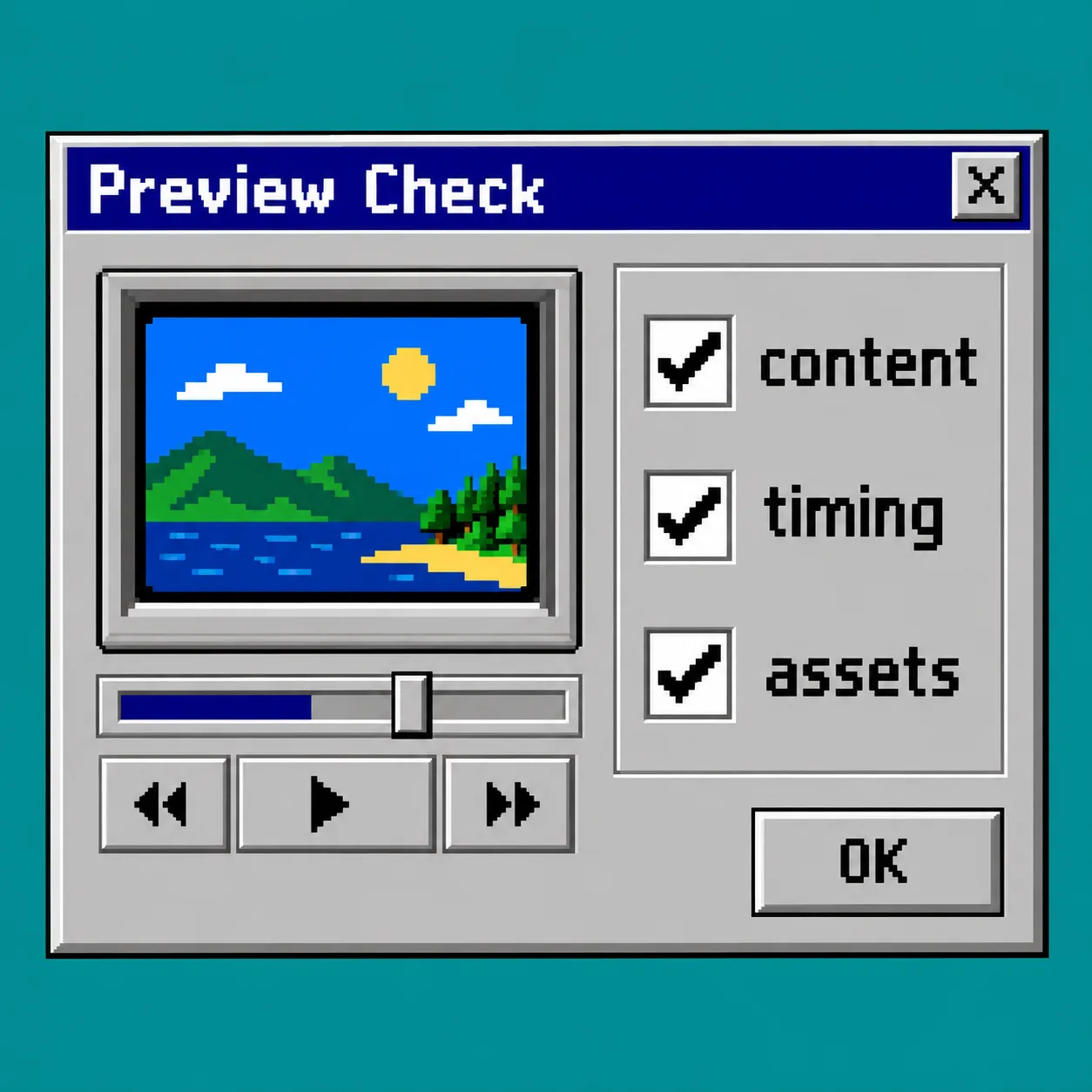
Keep the approval rule plain: approve the saved document, then render that document ID. Do not let a UI preview read unsaved state while the renderer reads an older record. That mismatch is the kind of failure a separate review step is designed to prevent; see how to add a review step to an automated product-video workflow.
4. Choose browser export for an interactive, user-started download
Use @videoflow/renderer-browser when the person already has the project open and expects to export it in the page. According to the browser renderer documentation, it returns an MP4 Blob client-side and supports progress updates, cancellation with AbortController, and worker-assisted processing.
The decision is about operational fit, not a universal performance claim:
- Choose the browser when an authenticated user starts a small, interactive export and avoiding a server-side render is useful.
- Show progress and provide a cancel control; a long-running button with no feedback is hard to recover from.
- Keep the saved VideoJSON even after the download succeeds, so the user can revise rather than recreate.
If your app must work with private customer media, verify that the client has permission to read each URL. Browser export reduces a server round trip; it does not remove the need for asset access controls.
5. Choose server rendering for batches, APIs, and scheduled output
Use @videoflow/renderer-server when a backend needs to render after the user has left, when an API receives work, or when one approved template produces many outputs. The renderer guide documents headless Node rendering to a file or Buffer, progress reporting, and an optional FFmpeg path for cases that need alternate encoder flags.
Create a job record that points to the saved document instead of copying its JSON into every queue message:
await enqueue({
  type: 'render-video',
  videoId,
  revision: approvedRevision,
  output: 's3://exports/account-recap.mp4',
});
A worker can load that exact revision, resolve its assets, render it, and store the MP4. The queue should record failures and retries separately from the document. This keeps a media outage or encoder problem from mutating the approved creative record. If you are building the queue itself, this product-data rendering-queue guide is a useful adjacent pattern.
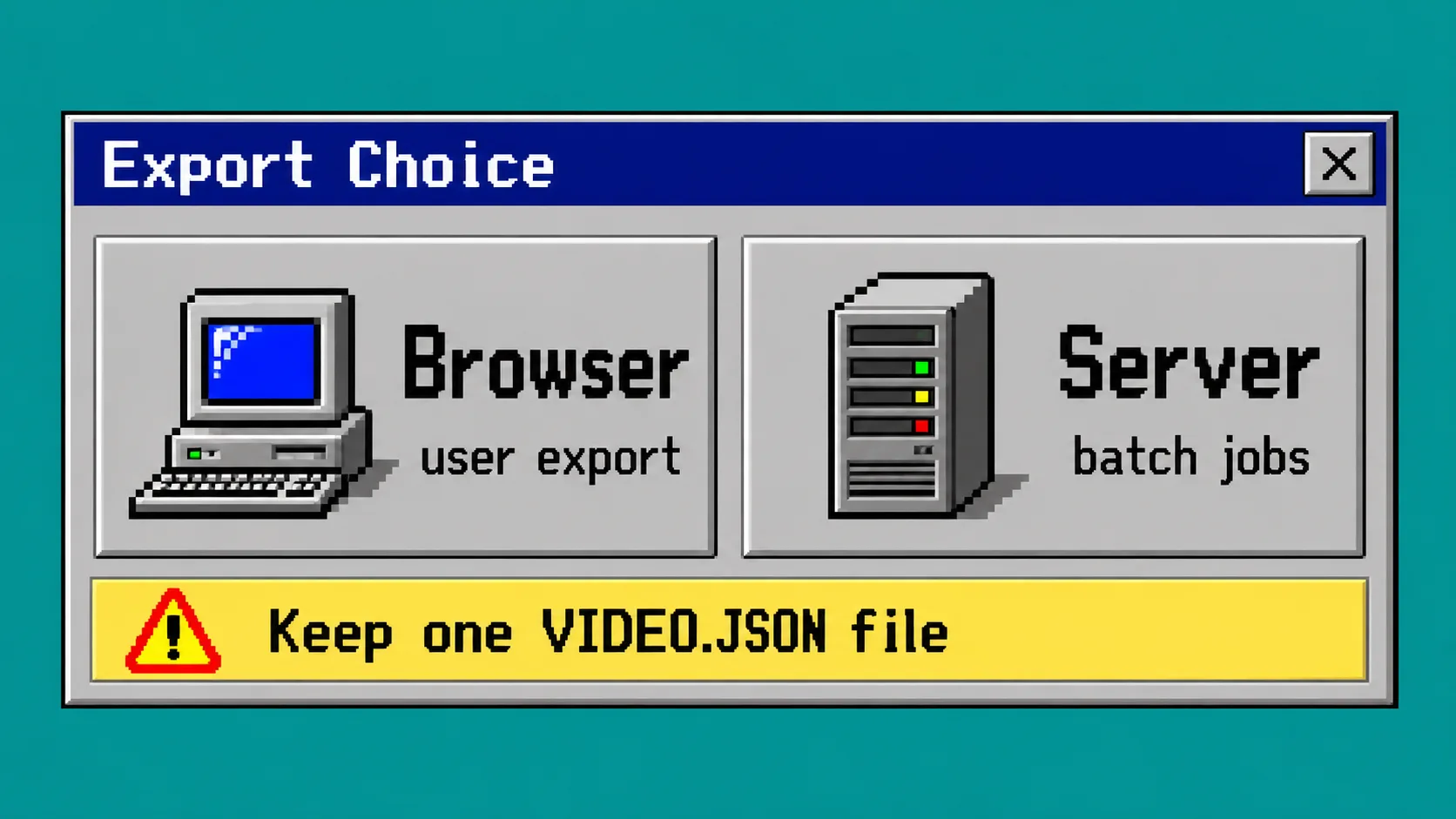
6. Use this renderer decision rule
Choose from the job in front of you:
| Need | Recommended path | Keep saved |
|---|---|---|
| A person clicks Export and waits | Browser renderer | VideoJSON + export metadata |
| A dashboard needs a live scrubber | DOM renderer | VideoJSON |
| A nightly batch or API request | Server renderer | VideoJSON + job revision |
| A customer edits a generated draft | React editor, then chosen renderer | Updated VideoJSON |
Do not use this as a claim that one renderer is always cheaper or faster. Test duration, resolution, concurrent work, asset size, and your users’ devices. The point is that the document stays stable while the delivery mechanism changes.
Troubleshooting
The preview looks right but the server export cannot find media. Replace local paths, browser object URLs, or temporary signed URLs with an asset-resolution step the worker can use.
A user exports an old edit. Save a revision before enabling Export and include that revision in the request. A visible timeline is not proof that the database contains the same document.
You need a one-off visual correction. Open the saved VideoJSON in the editor rather than patching an MP4. The editor’s callbacks give your app a place to persist that correction before the next export.
Save once, render where the job belongs
VideoFlow is most useful here as a portable video document plus the renderer that fits the job. Save the VideoJSON, preview that saved revision, then send it to browser or server export. Your next action: add a videoId and revision to your export request, and make the worker load that exact saved document.
For the surrounding structured-video approach, also see how to build a reviewable AI video pipeline with VideoJSON.