How to Separate Video Template Data From User Edits in React
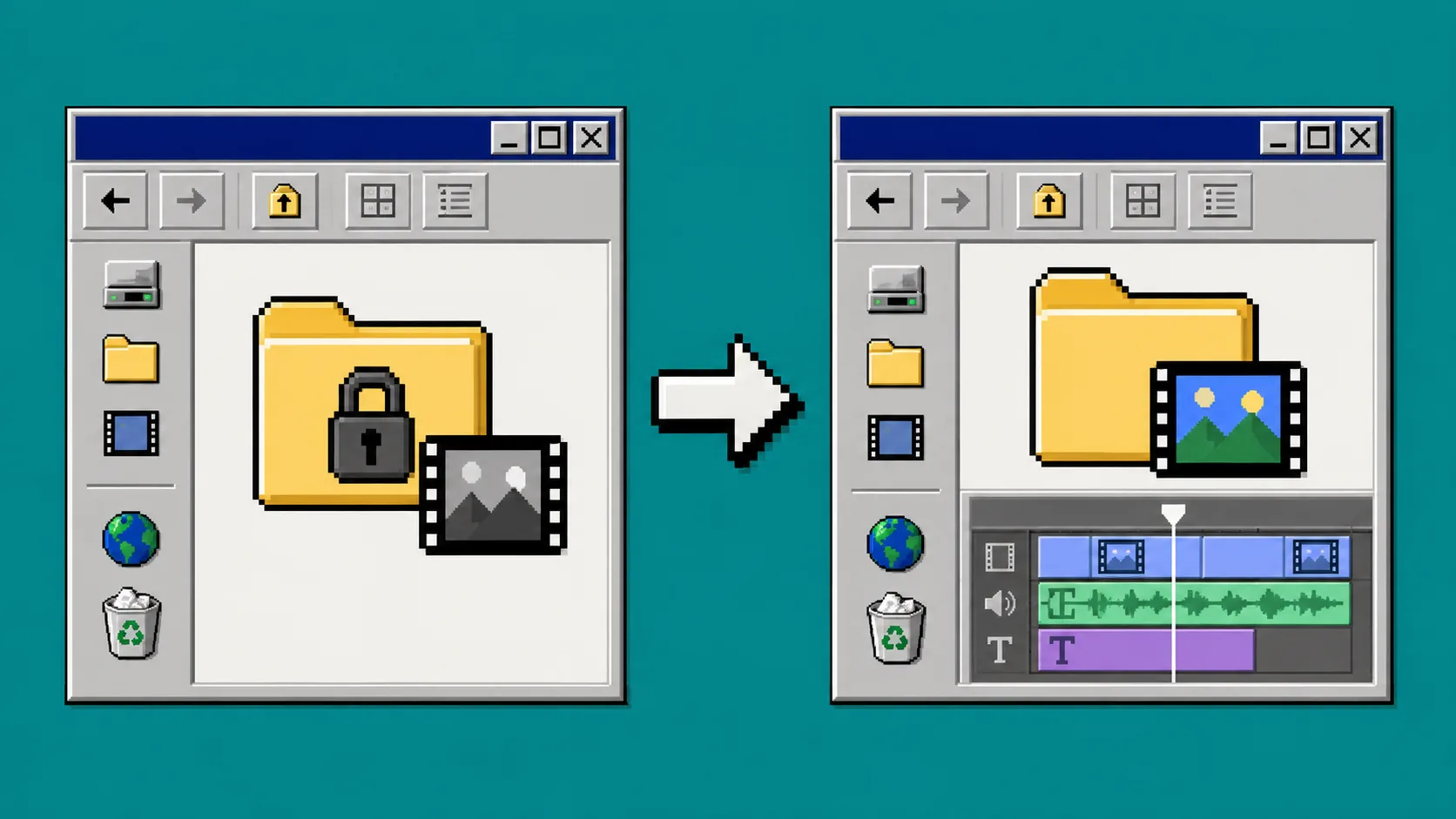
If your React app generates a starter video and then lets a customer change it, keep the template data separate from the user’s working copy. Store an immutable template, create a revision for each editing session, and render only an approved revision. With VideoFlow Core, the shared format is VideoJSON, so the same document can be previewed, edited, and rendered without translating it between stages.
You need a React app, a place to store JSON, and a clear decision about which fields a user may change. This guide uses a product-video template, but the same pattern works for recap videos, social clips, and customer-specific exports.
1. Define one template contract before you generate a video
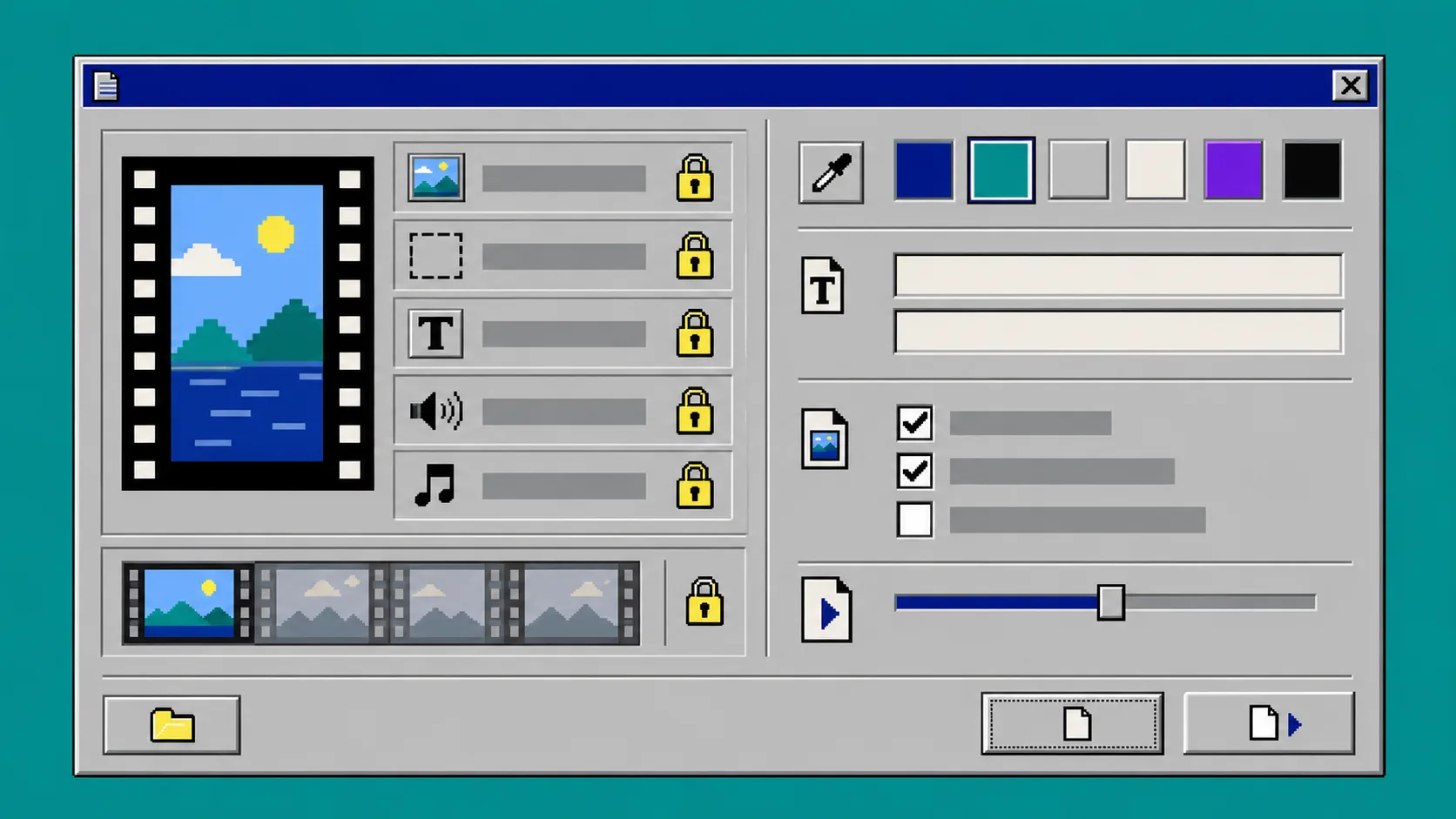
Start by separating structure from variables. Structure is the scene order, duration limits, brand treatment, and required legal copy. Variables are the title, price, product image, CTA wording, and optional caption. Do not send a single unrestricted JSON document to the editor and hope people avoid changing the wrong fields.
A compact record can keep the boundary visible:
type VideoRecord = {
  templateId: string;
  templateVersion: number;
  templateVideo: VideoJSON; // never mutate
  variables: { title: string; price?: string; imageUrl: string };
  revisionVideo?: VideoJSON; // user-owned working copy
  status: 'draft' | 'approved' | 'rendered';
};
Use a templateVersion even if you only have one template today. It tells you which layout and rules produced a revision. VideoFlow’s Core builder compiles a flow into portable VideoJSON, with text, image, video, audio, captions, and shape layers available as the building blocks. That makes a JSON document a practical handoff instead of an opaque exported file.
2. Generate a fresh working copy from approved inputs
When a user opens an editor, merge validated variables into the template and save the result as a new revision. Keep the original template untouched. A change in one customer project must never quietly alter tomorrow’s starting point.
For a catalog-video example, validate the product title length, image URL, currency formatting, and CTA against your own rules before compilation. Then create the working document. A small service boundary is enough:
async function createRevision(template: VideoJSON, variables: Variables) {
  const safe = validateVariables(variables);
  const video = applyVariables(structuredClone(template), safe);
  return saveRevision({ video, status: 'draft' });
}
Keep applyVariables narrow: replace the known text and media layer values, not arbitrary paths supplied by the browser. If your product needs flexible scenes, give users named slots such as heroImage or offerLine, rather than exposing every layer property.
3. Give React the revision, not the master template
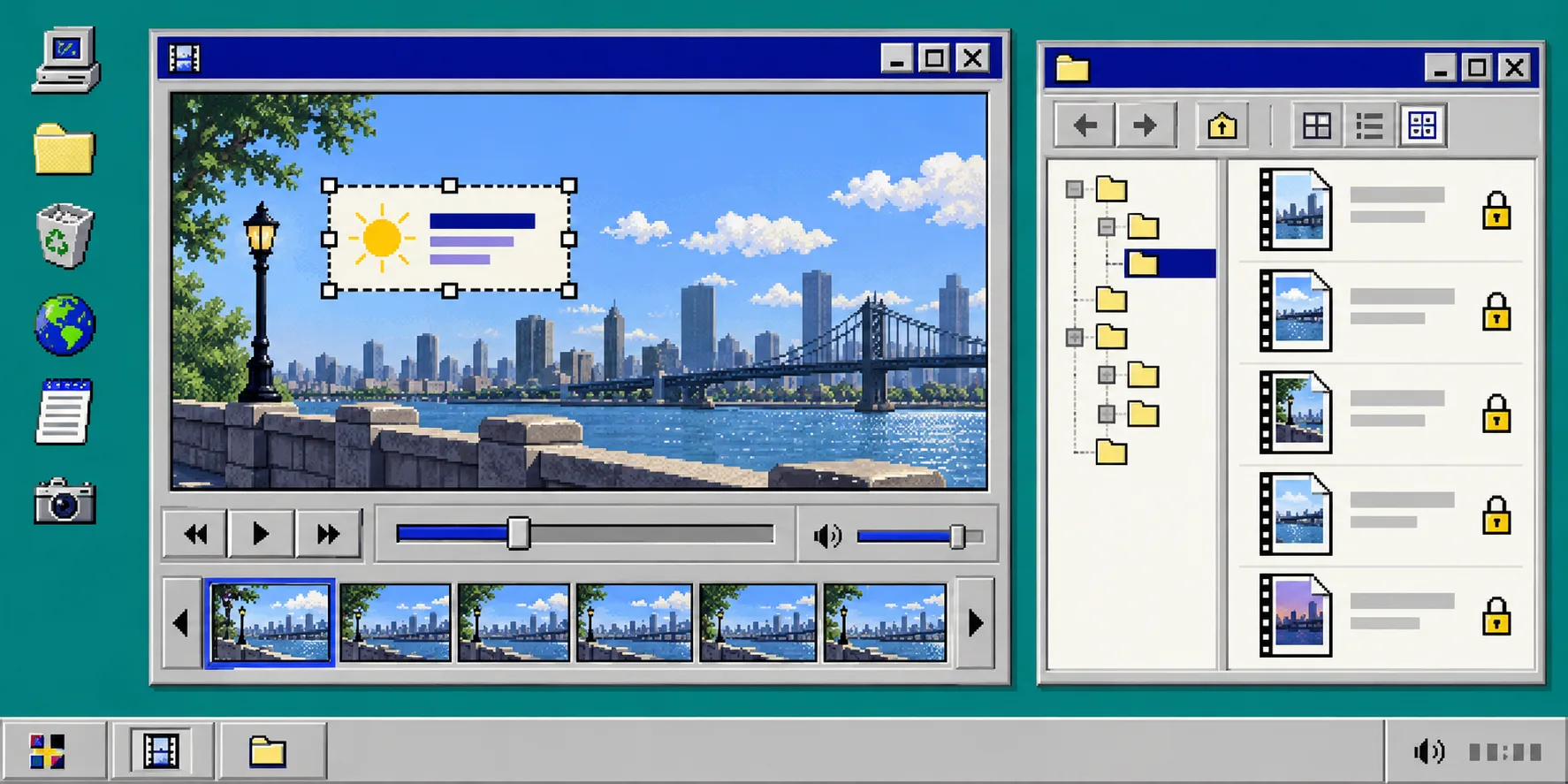
Pass the revision to the VideoFlow React Video Editor. Its onChange callback can autosave the working copy while onSave persists an intentional checkpoint. The component supplies a multi-track timeline, type-aware controls, undo/redo, and a live preview; your application still controls identity, permissions, and storage.
<VideoEditor
  video={revision.video}
  onChange={(next) => saveDraft(revision.id, next)}
  onSave={(next) => submitForApproval(revision.id, next)}
  onUpload={uploadApprovedAsset}
  theme="night"
/>
Use onUpload to enforce your media policy. For example, reject an unsupported type, scan an upload, place it in your bucket, and return its final URL. Do not make a browser-local preview URL the permanent source for a server render.
4. Limit edits with a small permission table
The best editing rules describe the customer job, not the implementation convenience. Here is a useful default for a generated product clip:
| Field or layer | Customer can change? | Why |
|---|---|---|
| Product image | Yes, from approved uploads | The product selection changes per record |
| Headline and price | Yes, after validation | These are expected variables |
| Scene order and duration | Usually no | It preserves the template’s pacing and review scope |
| Brand lockup and required disclosure | No | These are organizational controls |
| Music and voiceover | Review-required | They may affect rights, timing, and claims |
Enforce important locks on the server too. A disabled editor control is a helpful interface cue, not an authorization system. Before saving an edit, compare the proposed VideoJSON with the allowed slots or regenerate the document from stored variables.
5. Preview the exact revision before approving it
Use the DOM renderer for the same revision the user just saved. VideoFlow’s renderers support a scrubbable DOM preview, browser MP4 export, and headless Node rendering from the same VideoJSON. Previewing the stored revision catches a common mistake: the UI looks right because it is showing local state, while the saved JSON is stale or incomplete.
Your approval screen should show the revision number, template version, variables, uploaded asset URLs, and a preview of that exact JSON. For a wider end-to-end pattern, see how to build a reviewable AI video pipeline with VideoJSON and how to save VideoJSON before choosing a video renderer.
6. Render approved revisions through the right path
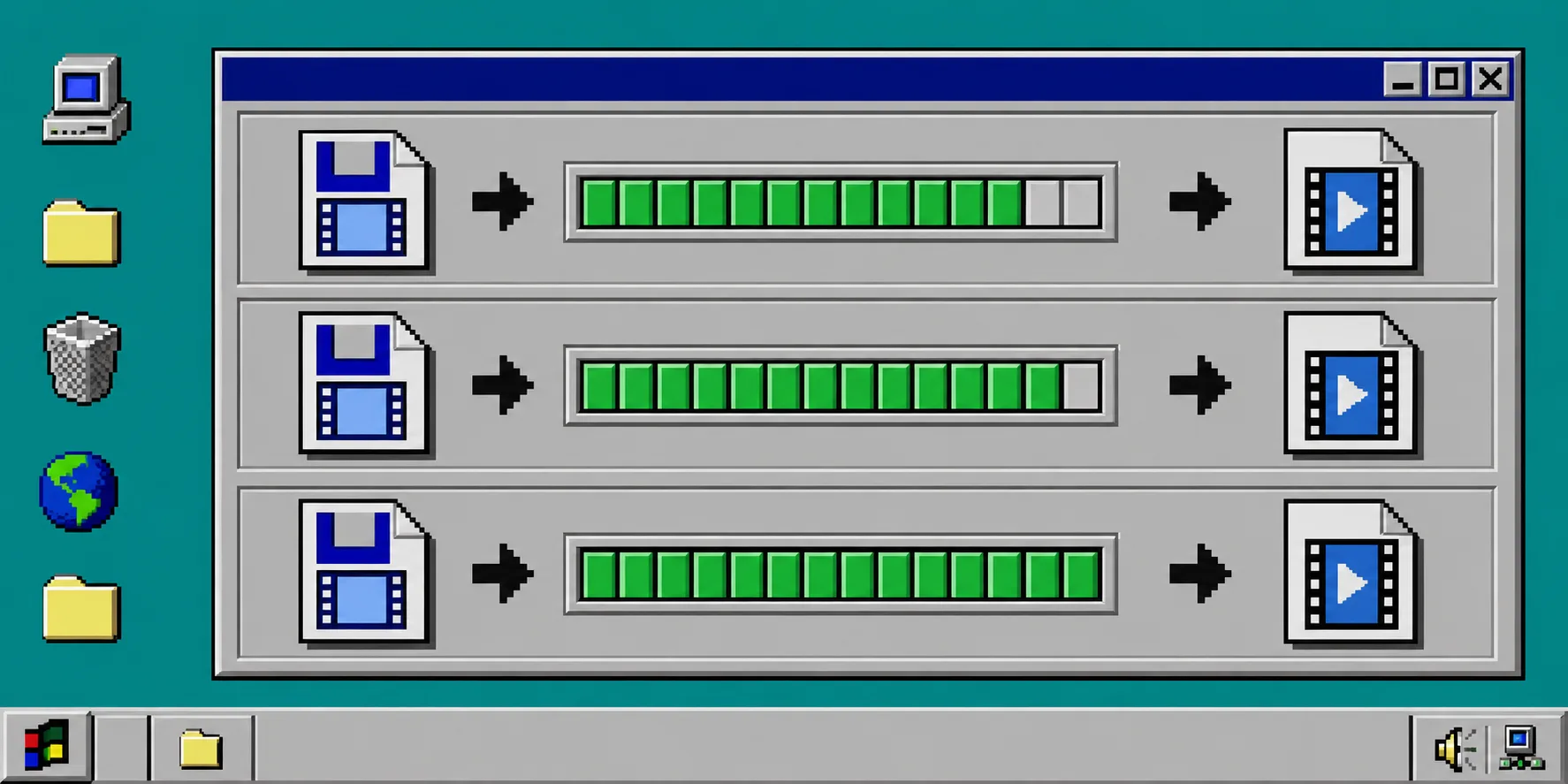
For an individual, short export, browser rendering can avoid an upload-and-render round trip. For batch jobs, scheduled content, or an API, send the approved VideoJSON to @videoflow/renderer-server. The server renderer writes an MP4 file or Buffer and is designed for queue-friendly work.
Keep rendering out of the draft save path. A reliable sequence is: save revision, preview revision, approve revision, enqueue revision, then attach the output URL to that revision. If you are adding the queue itself, this VideoFlow rendering-queue guide is a useful companion.
Troubleshooting: the three mistakes that blur the boundary
Edits appear in every new video. You mutated the template object. Store the template separately and deep-copy it before applying variables.
A server render differs from the preview. Render the persisted revision ID, not a freshly regenerated document or unsaved client state. Save asset URLs that both browser and server can reach.
Users can alter a locked field. Treat client restrictions as convenience only. Validate allowed layer changes on the server, or rebuild the final VideoJSON from the template plus approved variables.
Keep the handoff boring and traceable
A generated video becomes easier to support when its template, variables, user revision, approval state, and MP4 output are separate records. VideoFlow makes that boundary practical because one VideoJSON can move from structured authoring to a React editor, live preview, and final renderer. If users need to polish a generated first cut, you can also compare this approach with letting customers edit AI-generated videos in a SaaS.
Start with one template and three editable fields. Once your team can explain exactly what changes, who approved it, and which JSON rendered the MP4, expand the template—not the permission gap.