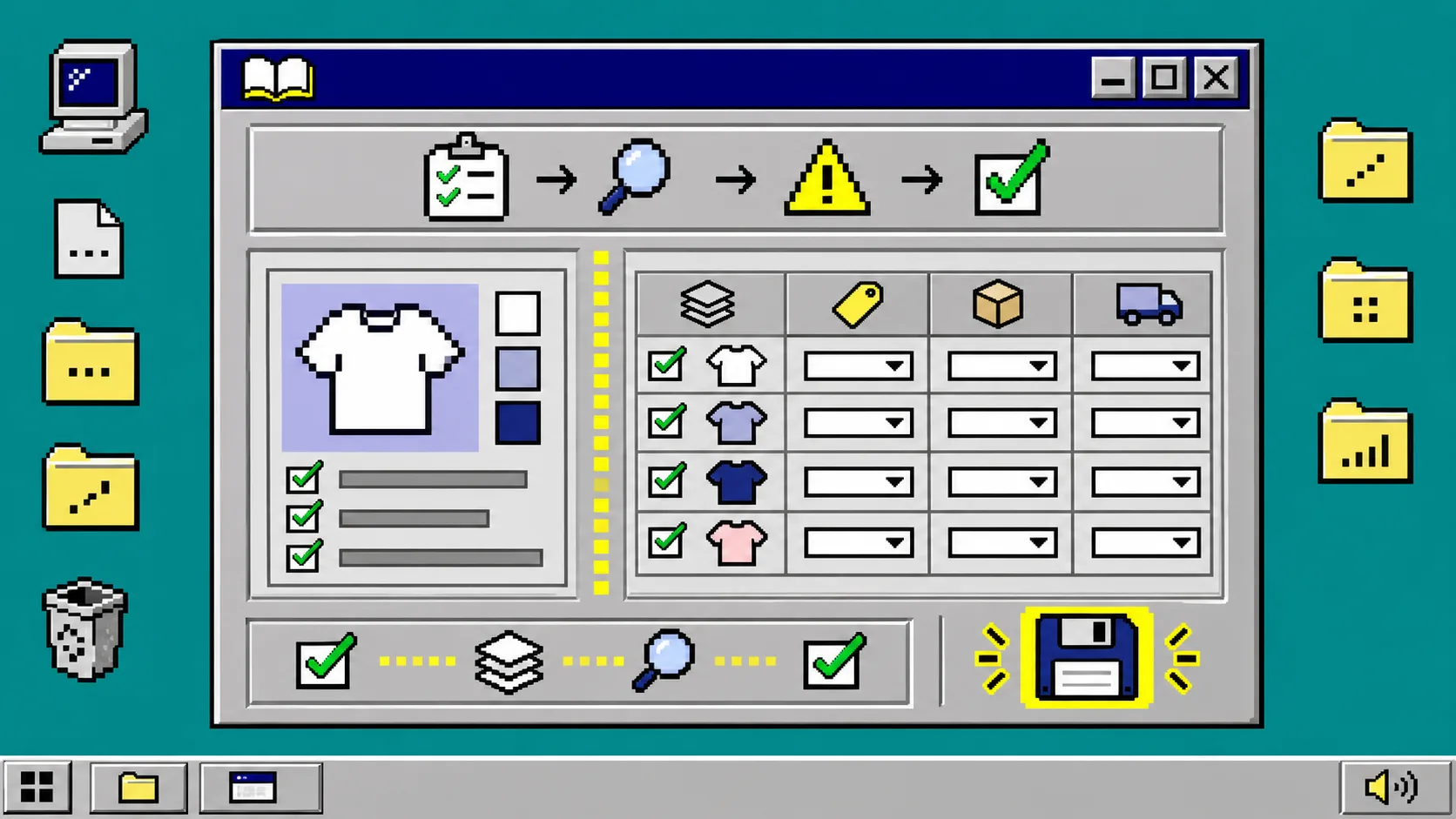
If a Shopify change affects more than a few listings, separate product-level changes from variant-level changes before you run it. Build one narrow test batch, choose one field operation, inspect the result, and only then expand the scope. Ultimator Bulk Editor is useful here because its task flow starts with search criteria, then an update definition, then an immediate or scheduled run.
You need Shopify admin access, a written description of the change, and three representative products: one simple product, one product with variants, and one edge case such as a discontinued color. Shopify treats a variant as a particular combination of option values such as size and color; it is not merely another name for the parent product. Shopify’s variant guide is the reference to check if that boundary is unclear.
1. Name the one catalog decision
Start with a sentence that describes the intended outcome, not the button you expect to press. For example: “Add spring-2026 to product tags for active sandals” is a product change. “Increase the price of selected blue, size-L variants by 5%” is a variant change. Do not combine those sentences into one first task.
This matters because product details and variant details do different jobs. Shopify says product details affect both how an item is displayed and how it is organized, while variant combinations represent specific versions shoppers can choose. A good rule is simple: if every version should inherit the change, begin at the product; if the change depends on size, color, SKU, barcode, inventory, or a specific price, begin at the variant.
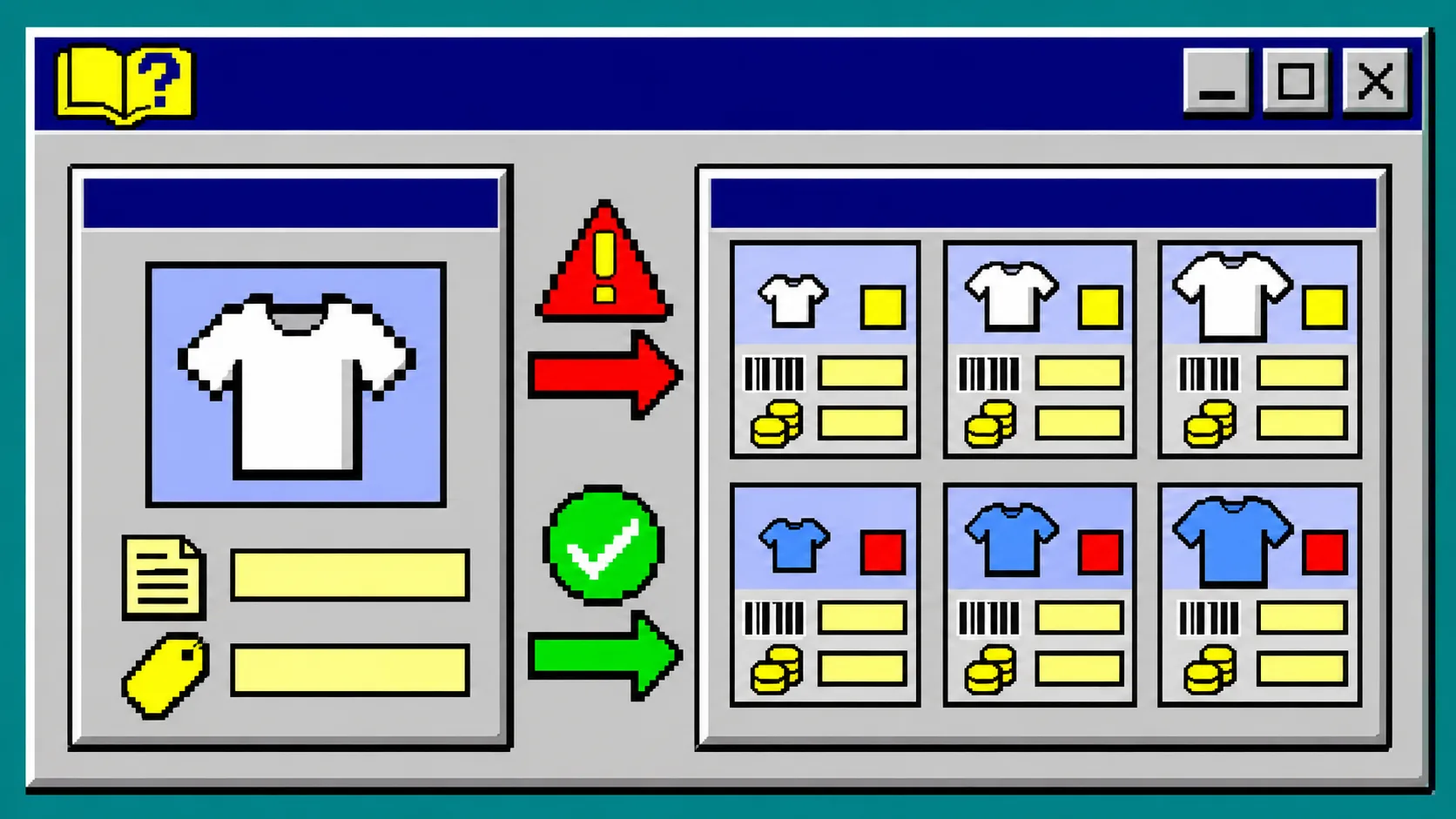
Use this quick decision table before you build criteria:
| Change you want | Start at | Check first |
|---|---|---|
| Add or remove a shared tag | Product | Product status and existing tags |
| Rewrite a product description or SEO description | Product | Whether the copy applies to every option |
| Change price for one size or color | Variant | Option values and currency rules |
| Correct SKUs or barcodes | Variant | A sample of unique identifiers |
| Adjust inventory tracking | Variant | Location and stock-handling policy |
For a price-focused companion workflow, see How to Bulk Update Shopify Compare-at Prices Without Creating Misleading Sale Prices. Keep that task separate from a content or tag cleanup so the before-and-after result is easy to explain.
2. Build a three-product test set
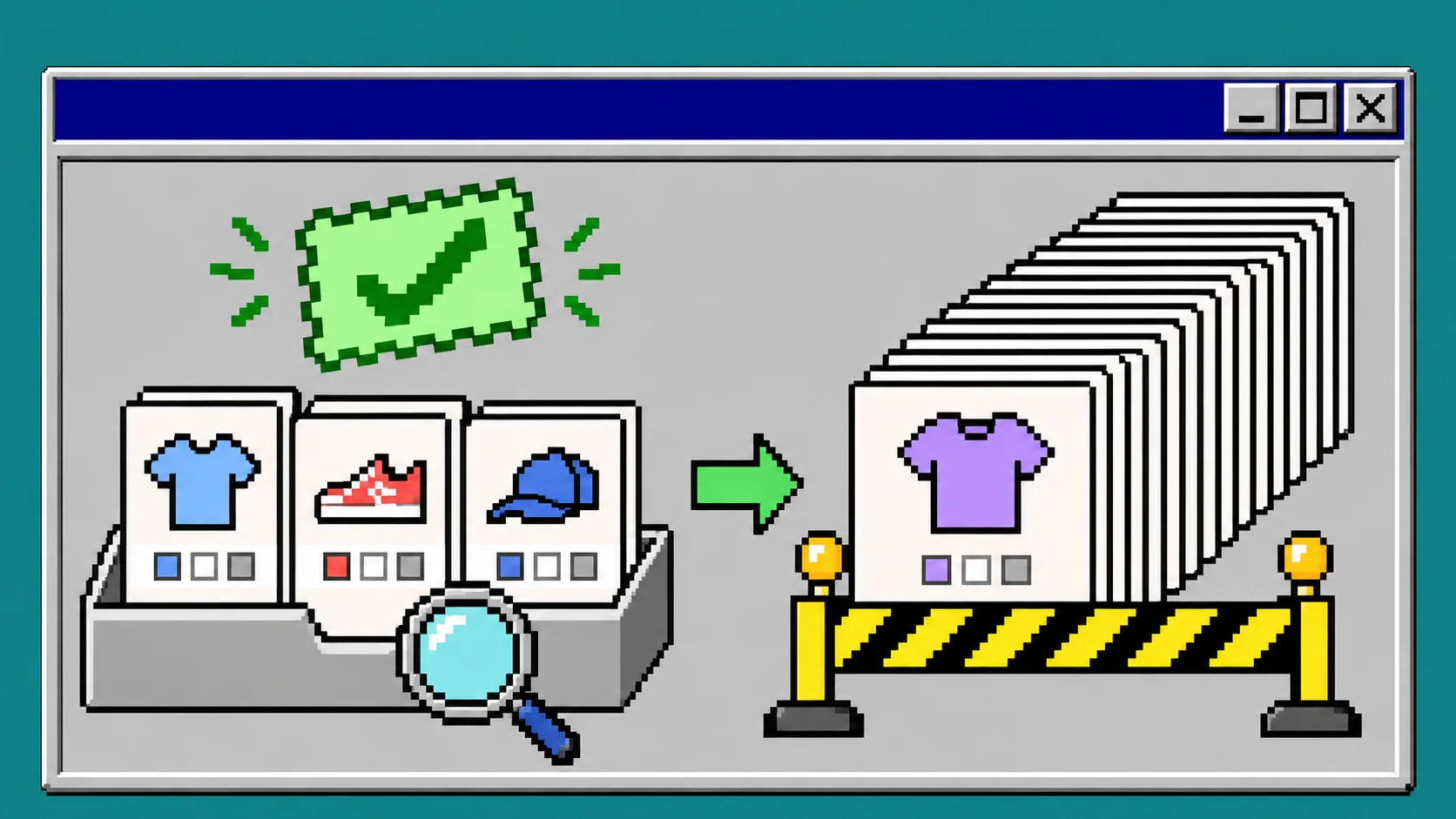
Open Ultimator Bulk Editor and create a new bulk update task. In the search-criteria step, target only the three products you chose for the test. Include a product with one variant and a product with several variants if your eventual task will touch variants.
The app’s current Shopify App Store listing says it can select products or variants using search criteria, apply a defined update, and run immediately or on a schedule. It lists products, variants, images, prices, SKU and barcodes, tags, descriptions, inventory, metafields, and collections among its editable resources. That is convenient, but it is also why a narrow first selection matters.
Do not use a broad collection, vendor, or tag as the first filter unless the test set is already isolated by another condition. Write down the expected count before you continue. If the selection shows a surprise product, stop and repair the criteria rather than trying to compensate in the update step.
3. Choose one field and one operation
In the update-definition step, choose the field that matches your sentence from step 1. For a tag cleanup, use a tag operation. For a price correction, use the variant price operation. For a title cleanup, use the appropriate title operation. Avoid a multi-purpose first run, even if the app allows several updates in a task.
Record the field, operation, and expected visible result in a small receipt:
- Scope: the exact three test products or variants.
- Field: one product field or one variant field.
- Operation: add, replace, increase, decrease, or another intentional action.
- Expected result: the value you will inspect after the task.
- Exception: any product or variant that must remain untouched.
This receipt makes a later, larger task repeatable. It also helps when catalog work intersects another structural change. If you are cleaning category, type, or metafield data, this roadmap for organizing Shopify is a useful adjacent planning read.
4. Run the test now, then inspect Shopify
Run the test task immediately. After it finishes, open the three records in Shopify rather than trusting only the task setup. Check the exact field you changed and one field you deliberately did not change. On a variant task, inspect the parent product and at least two sibling variants.
For example, after a blue size-L price update, confirm that the blue size-L price changed, the blue size-M price did not, and the parent product description did not. If you edited tags, check that the expected tag exists and that unrelated tags remain. Shopify notes that tags and product types can be used for filtering and collections, so an unexpected tag change can alter more than a product page.
If your batch follows a broader catalog repair, the same receipt habit works across platforms; this Etsy change-set receipt guide shows the principle from the listing side.
5. Expand the criteria and schedule only when timing matters
When the test result matches the receipt, duplicate the task pattern or rebuild it with the full criteria. Recheck the count, sample a few records from different parts of the selection, and confirm that every exception is excluded. Then choose the run time. Ultimator Bulk Editor supports immediate and scheduled tasks according to its App Store listing; use scheduling for a real timing requirement such as a coordinated sale, not as a substitute for review.
Before a price change, compare product and variant scope one last time. How to Test Color Swatches on a Shopify Collection Page is a helpful reminder that variant data can appear beyond the product detail screen.
Troubleshooting a bulk edit that looks wrong
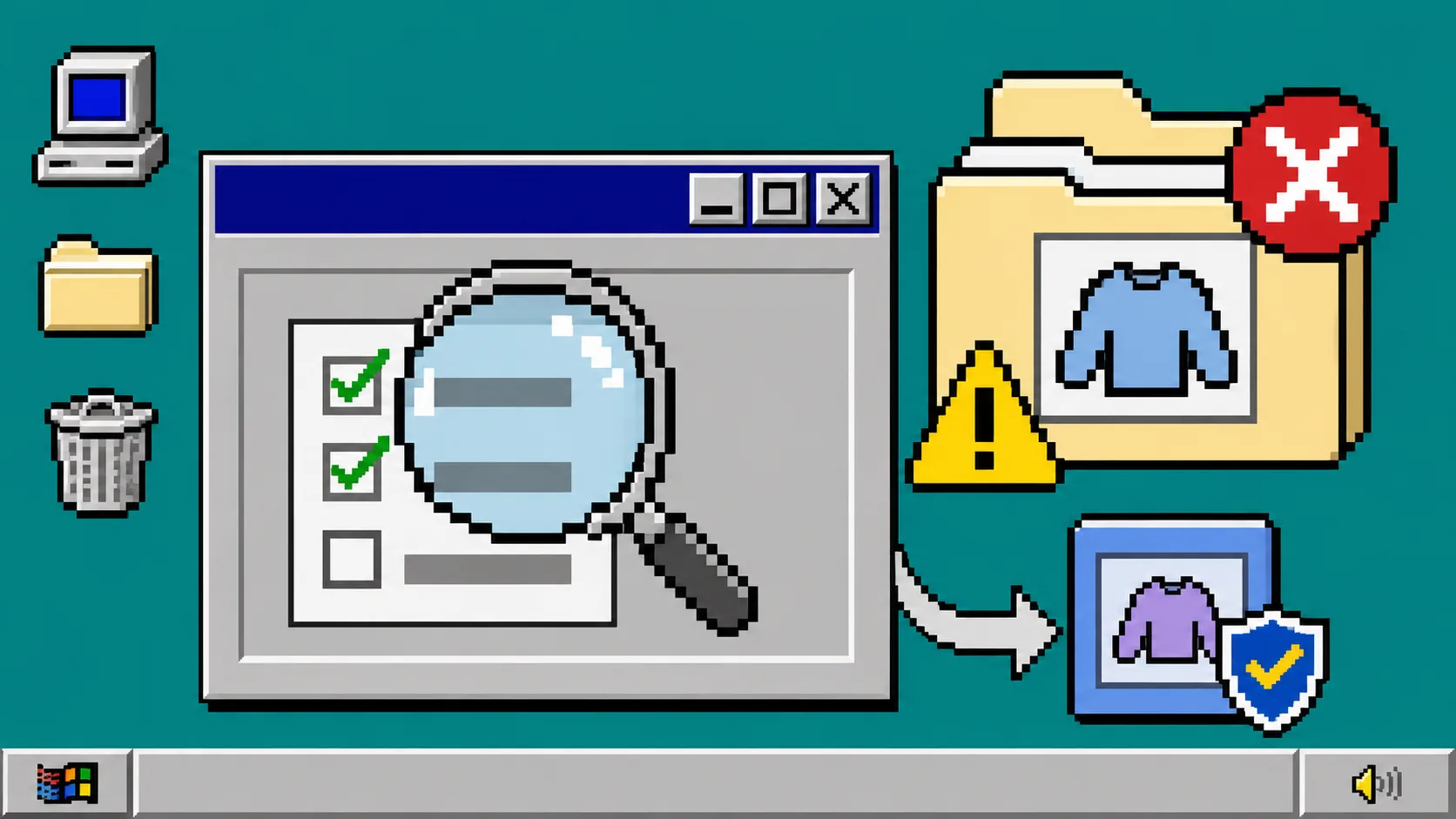
The wrong records appeared in the test. Tighten the search criteria and repeat the small test. Do not continue with a filter you cannot explain in one sentence.
A product-level edit changed a value you meant to vary by size or color. Stop and rebuild the task against variants. Shopify’s product-details page and variant-details workflow may look different as the redesigned product details page rolls out, so confirm the data level in your own admin.
The correct field changed, but a storefront result still looks stale. Check the relevant product and collection page in a private browser window, then verify the saved Shopify value before making another task.
You need to change several unrelated fields. Run separate, named tasks. A slower sequence is easier to inspect and easier to reverse operationally than one opaque all-in-one change.
A safe Shopify bulk edit is not a giant click. It is a product-versus-variant decision, a small test, an inspection, and a controlled expansion. Start by installing Ultimator Bulk Editor, write a one-sentence scope, and run that first three-record test before you touch the rest of the catalog.