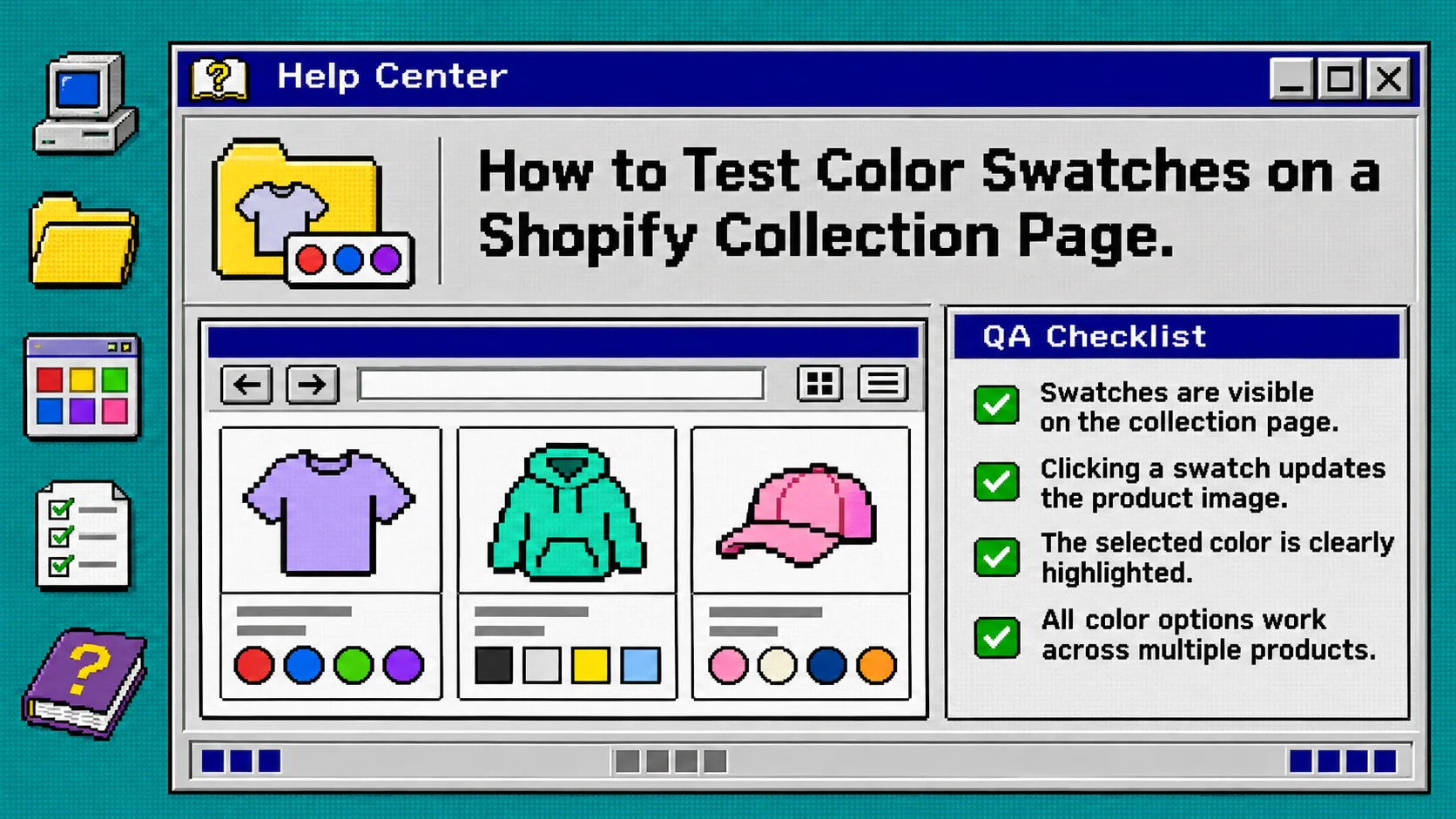
A collection-page swatch is ready to publish only when every choice leads to the right purchasable product or variant and the card stays honest about its image, price, and availability. You can test that in one short pass: make a small color matrix, click every swatch on desktop and mobile, then repair any mismatch before shoppers meet it. You need a previewable Shopify theme, a collection containing the affected products, and access to your swatch settings.
Supra Swatch Colors is useful here because it supports both variant-color swatches and swatches that link separate product pages, including collection-page placement. The test is still yours: a pretty dot is not proof that a customer will land on the right item.
1. Build a small swatch test matrix
Start with one collection and three to five products that represent your real catalog. Include one product with color variants, one family of separate color products if you use linked products, and one color that is sold out or unavailable. Open the collection in your theme preview.
Make a simple list before clicking anything:
| Check | Expected result |
|---|---|
| Color label | The visible label and swatch describe the same color |
| Destination | A click opens the intended product or selects the intended variant |
| Product card | Image, title, and price match the resulting choice |
| Availability | An unavailable choice is clearly unavailable and cannot be mistaken for purchasable stock |
Use the exact color names already stored in Shopify. If names are inconsistent—such as Navy, navy, and Navy Blue for the same decision—fix that first with this guide to standardizing Shopify color names before adding swatches.
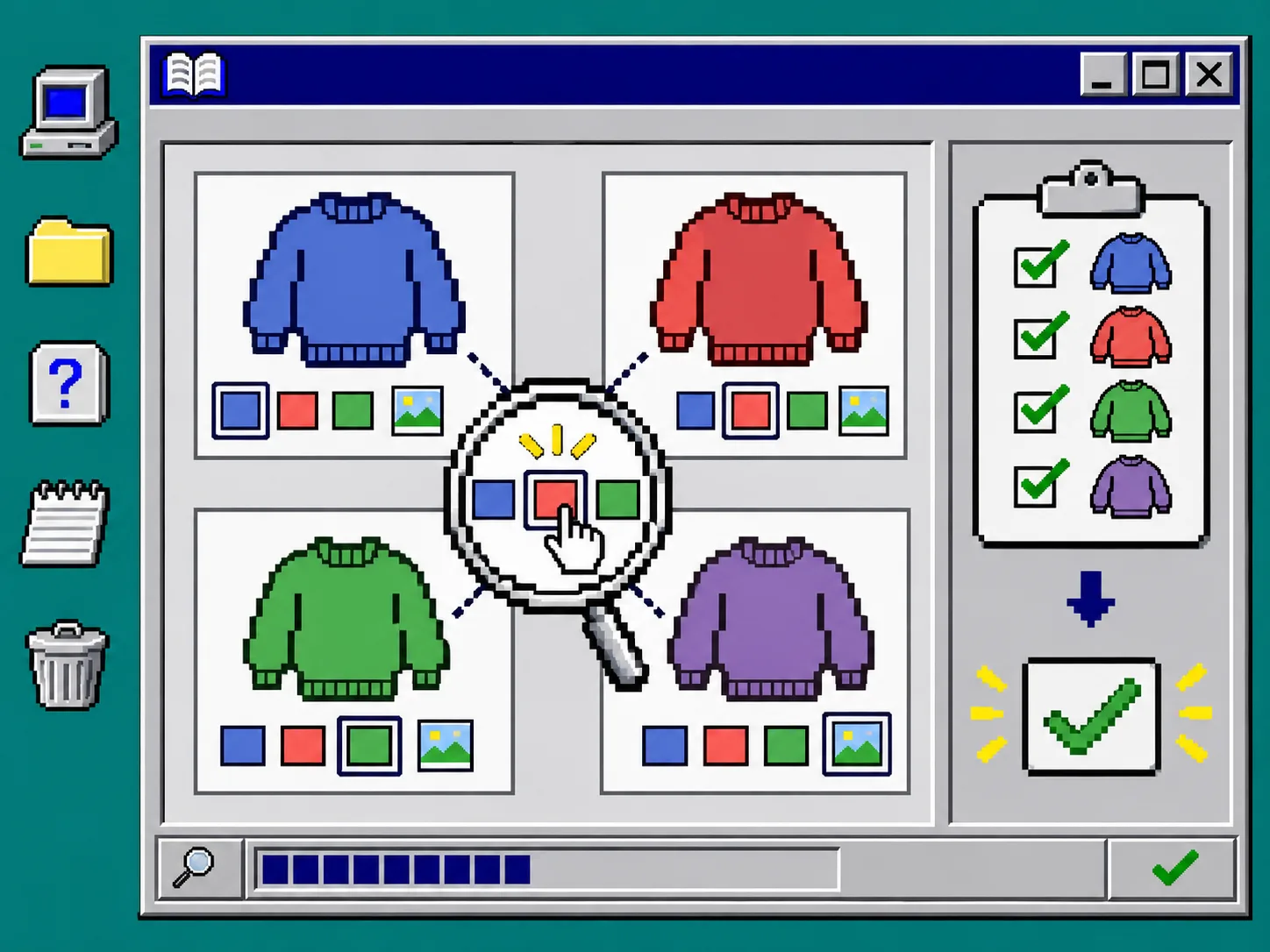
What you should see: each card has a predictable starting swatch, and your matrix gives you a record of what every click is supposed to do.
2. Confirm which kind of choice the swatch represents
Open one product detail page for every sample in your matrix. Decide whether its color choices are variants of one product or separate products. Do not test both as if they behaved the same.
For a variant swatch, select the color and confirm the chosen variant’s media, price, and availability change together. Shopify’s theme documentation requires variant selectors to update variant-specific information, including media and price, and notes that variant deep links can select a specific variant. Read Shopify’s variant guidance if your theme behaves differently.
For a linked-product swatch, click the color from the collection card and confirm the browser reaches the intended product URL—not merely another color label on the original product. Then reload that destination directly. A collection page can look correct while an old link still sends a shopper to the wrong family member.
What you should see: one action, one unambiguous product state. If the destination, image, or price disagrees with the clicked color, record it as a failure.
3. Test the collection card before the product page
Return to the collection preview. Test every swatch in a row, then repeat after changing collection sort order or moving to the next page of products. If your theme provides quick add or quick view, repeat the same clicks there.
Check these four details on each card:
- Click the swatch and confirm the active outline or label changes.
- Compare the card image with the selected color; a blue swatch must not leave a red product image in place.
- Compare the displayed price and sale state with the destination.
- Open the result in a new tab and confirm the intended color remains selected after the page loads.
This is especially important for product families that share a grid card. If you use question-and-answer content on product pages too, keep the choice clear with a Shopify product question map that keeps tabs useful; shoppers should not have to guess whether a swatch changes a variant or a separate product.
4. Check unavailable colors and edge cases
Now test the color customers cannot buy. Set one test variant to unavailable in your preview data, or use an existing out-of-stock example. The collection must not make that color look like the default purchasable result.
Also test a product with two options, such as Color and Size. Choose a color, then change the size. Confirm that the color selection remains meaningful and that the resulting combination is available before the add-to-cart path is offered. Shopify supports products with multiple options, so a color alone is not always a complete purchasable selection.
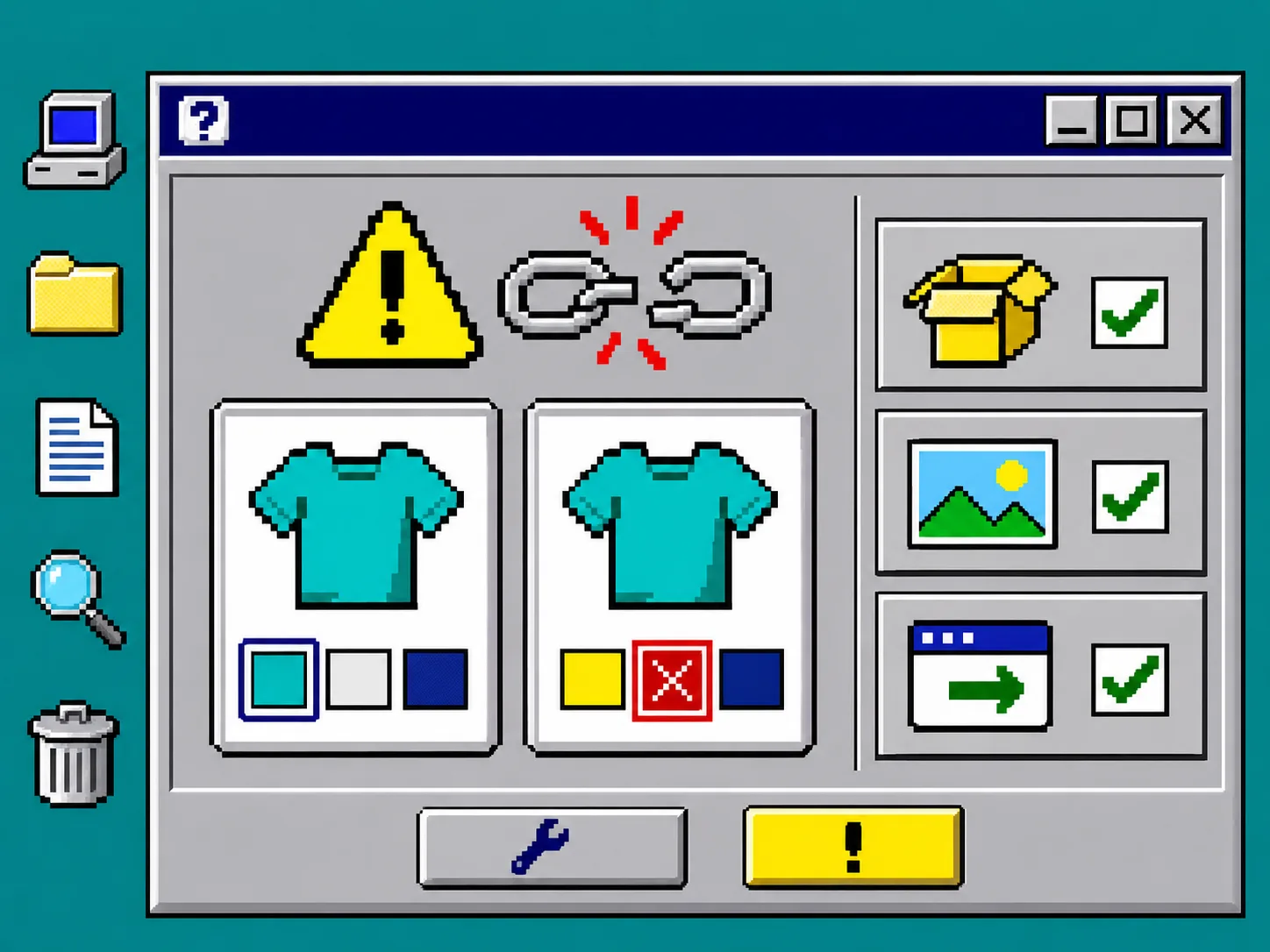
What you should see: unavailable choices are either hidden or clearly marked according to your store’s design, and no click leaves a misleading price, image, or purchasable-looking state behind.
5. Repeat the pass in the storefront conditions shoppers use
Test the same matrix in a narrow mobile browser and in the language or market views you actively sell in. Keep a close eye on label wrapping, touch targets, translated color names, and product-card image swaps. Supra Swatch Colors lists collection-page support, multilingual shops, and both color and image swatches, but your theme configuration is the final proof in your storefront.
If imagery is doing part of the color-identification work, apply the same discipline you use for visual assets: build a product photo role card before publishing AI images. The card image should identify the selected item; the swatch should not have to compensate for an ambiguous photo.
Troubleshooting: the three failures worth fixing first
The swatch changes, but the product image does not. Check whether the selected variant has its intended media assigned and whether your theme updates card media on variant selection. Repair the association before changing CSS.
The swatch opens the wrong product. Compare the linked-product group with the matrix. Correct the mapping, publish the change, and retest from a hard refresh so a cached page does not hide the result.
The color looks available when it is not. Review the specific color-and-size combination, not just the parent product’s inventory. A product can be in stock while the clicked combination is not.
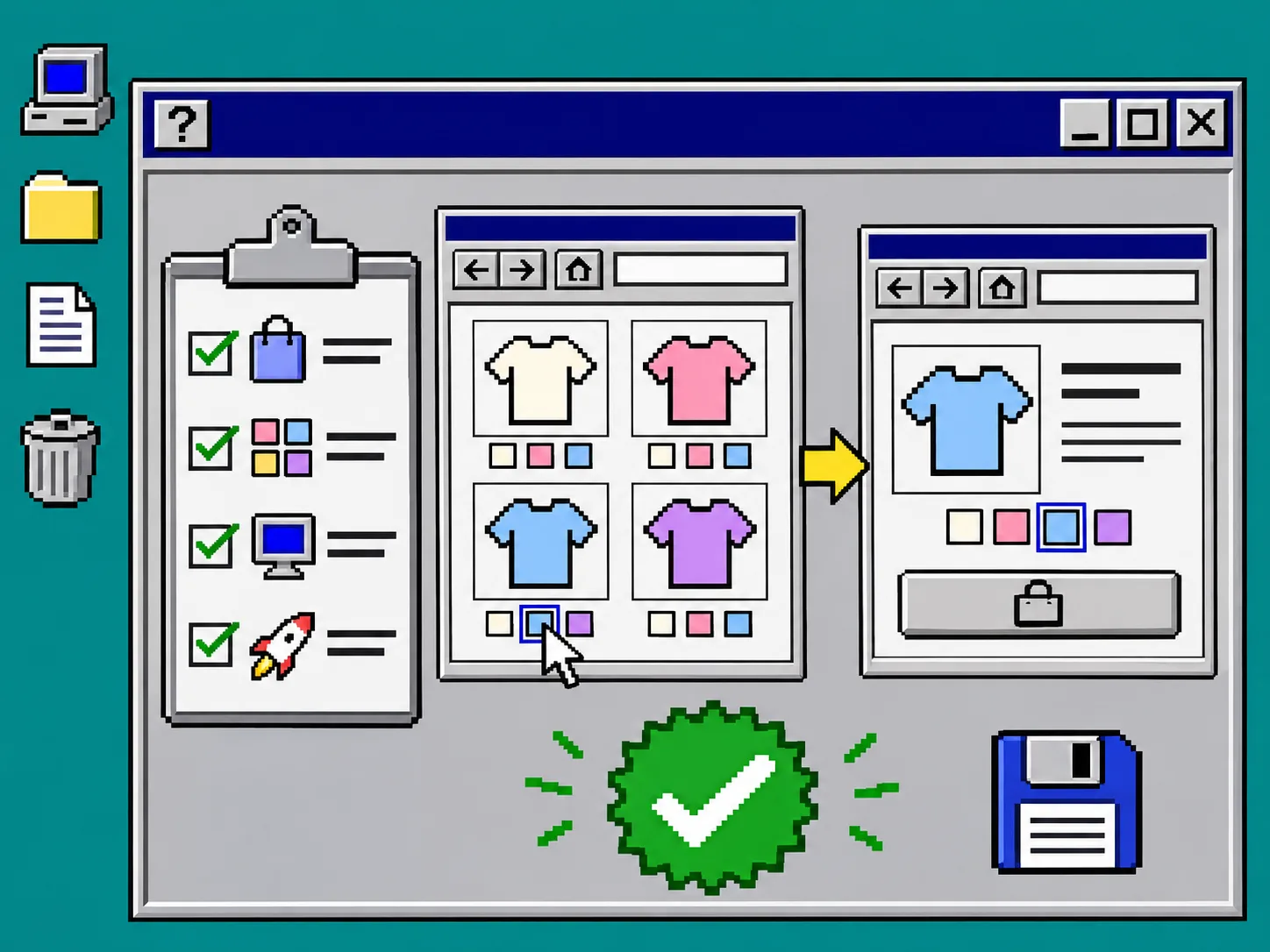
Publish only after the matrix passes
Before you leave the preview, save a short receipt: collection URL, tested products, device widths, language or market views, and any repaired mappings. This turns a visual polish task into a repeatable release check. The same habit makes bulk changes safer; see how to create a change-set receipt before bulk editing Etsy listings for a useful model.
Once every swatch reaches the right purchasable state, publish with confidence. Install or open Supra Swatch Colors, configure the collection-page behavior for your theme, and run this matrix again after future catalog or theme changes.