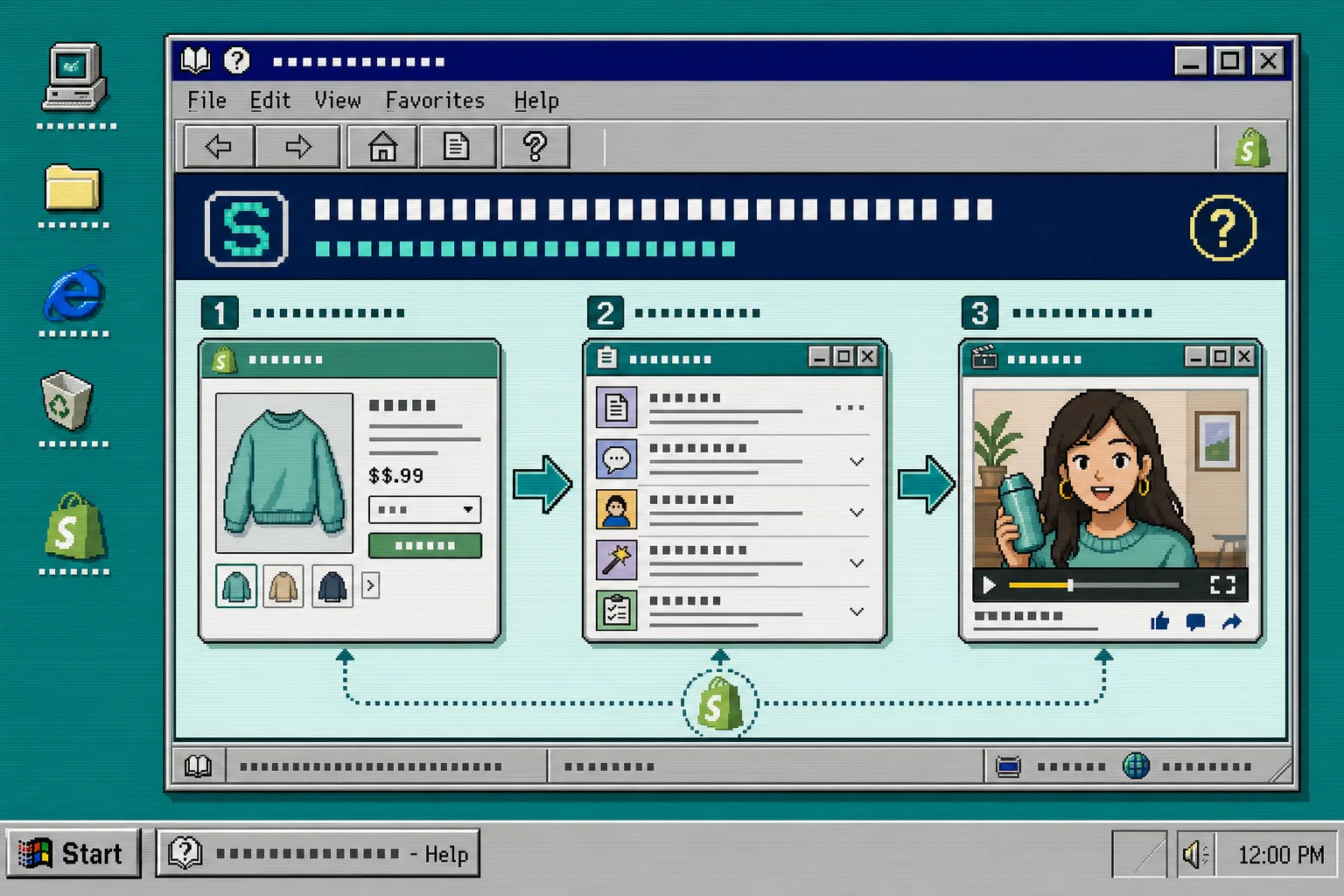
How to Turn a Shopify Product Page Into a UGC Video Brief
If you already have a Shopify product page, you already have most of the script.
The job is to pull the proof into a short brief before you open Supra UGC Maker and build the video. That keeps the work focused on the buyer’s question instead of on a blank page.
If you want the app listing too, the Shopify App Store page is the other link worth keeping open.
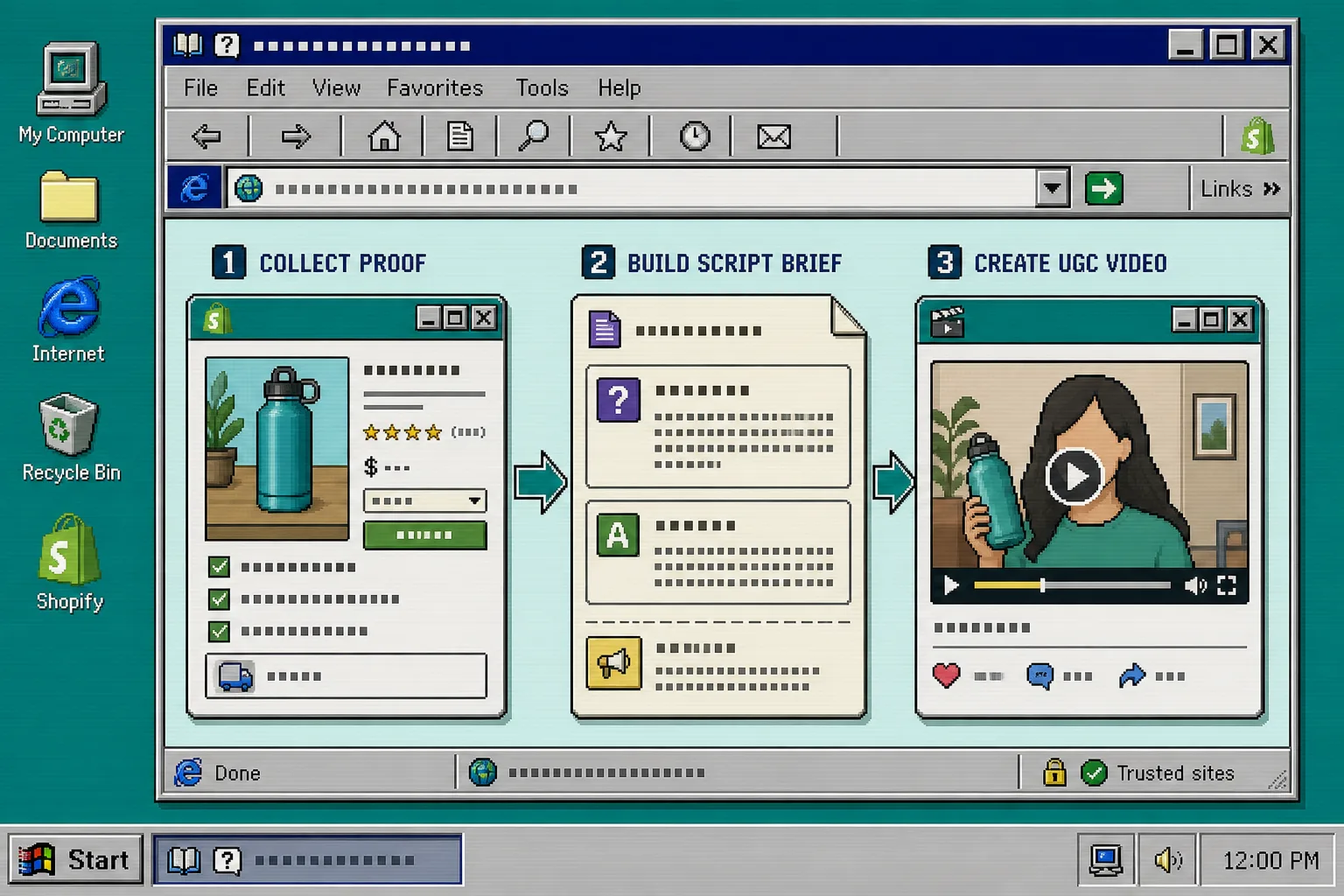
The workflow I would use is simple:
- collect the proof that is already on the page;
- turn that proof into one question and one answer;
- set the avatar, scene, voice, and tone;
- generate the first clip and inspect it;
- trim, regenerate, and reuse the working version.
That sounds small, but it is the difference between a useful product video and a clip that just looks busy.
1. Collect The Proof Already On The Page
Start with the product page and write down the facts you can defend.
I usually pull five things:
- the main promise;
- the strongest benefit;
- one common objection;
- one visible proof point;
- one next action.
If the page does not say it clearly, do not invent it. The brief should be made from what the shopper can already verify.
When this step is done, you should have a note that reads like evidence, not marketing copy. It should fit on one screen and feel boring in a good way.
2. Turn One Question Into One Script Card
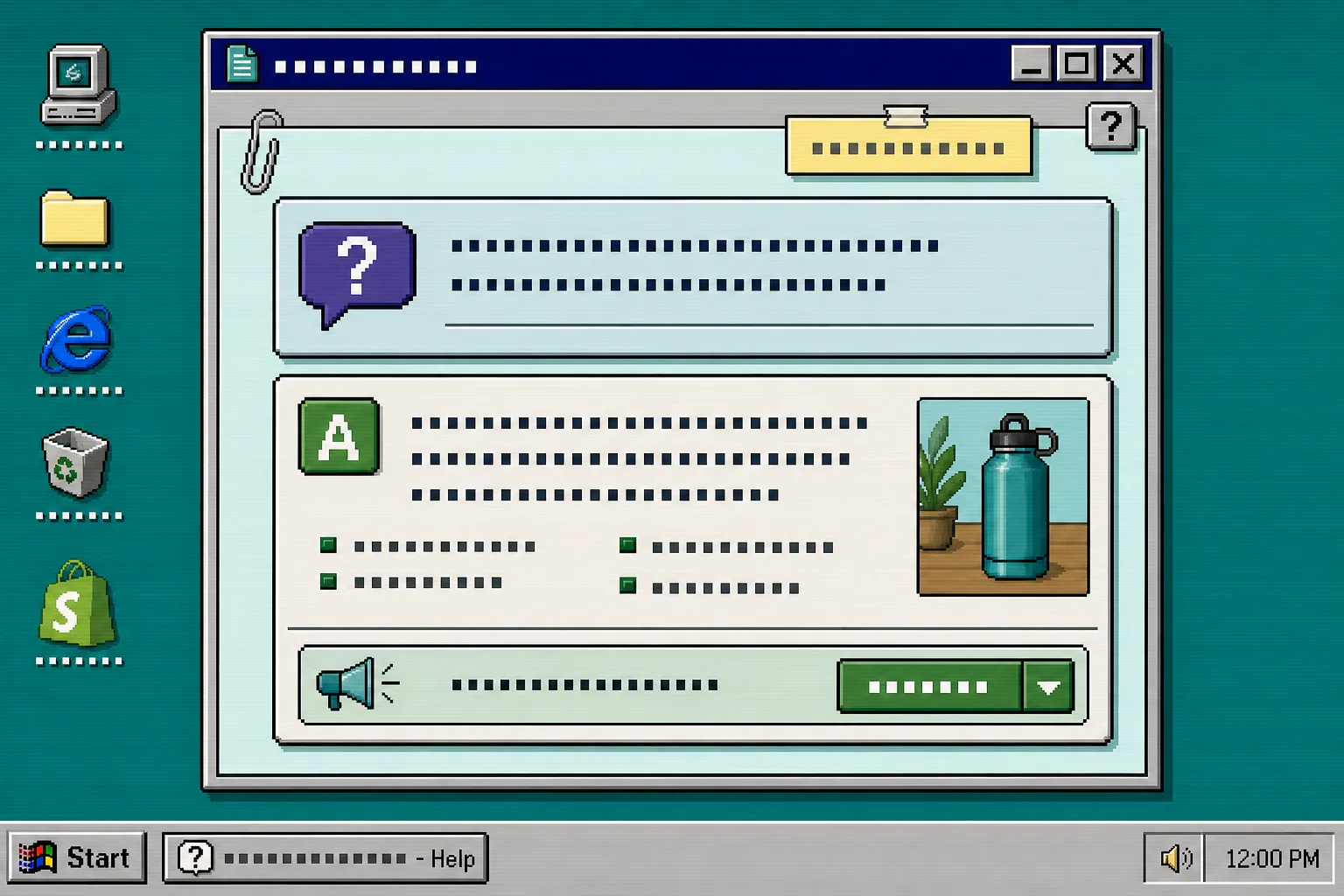
Now turn the notes into a short UGC brief.
I keep the structure the same every time:
- open with the buyer question;
- answer it in one sentence;
- show the product or result;
- end with one next step.
That is enough for a first pass. If you have three objections, make three script cards. Do not cram them into one clip.
For example, if the question is “Does it actually work?” the answer should be direct and specific. If the question is “How do I use it?” the script should show the use case fast and keep the explanation plain.
If you want the next layer of the workflow, these companion posts cover the rest of it:
- How to Create Shopify UGC Video Ad Variations From One Brief
- How to Make Shopify UGC Video Variations for Ad Testing
- How I Built a Shopify UGC Ad Testing Matrix
- How to Plan Shopify UGC Video Variations for Ads, Product Pages, and Email
Those posts cover variation planning and ad testing. This article stays on the first step: turning a page into a brief that the video can actually follow.
3. Set The Creative Controls In Supra UGC Maker
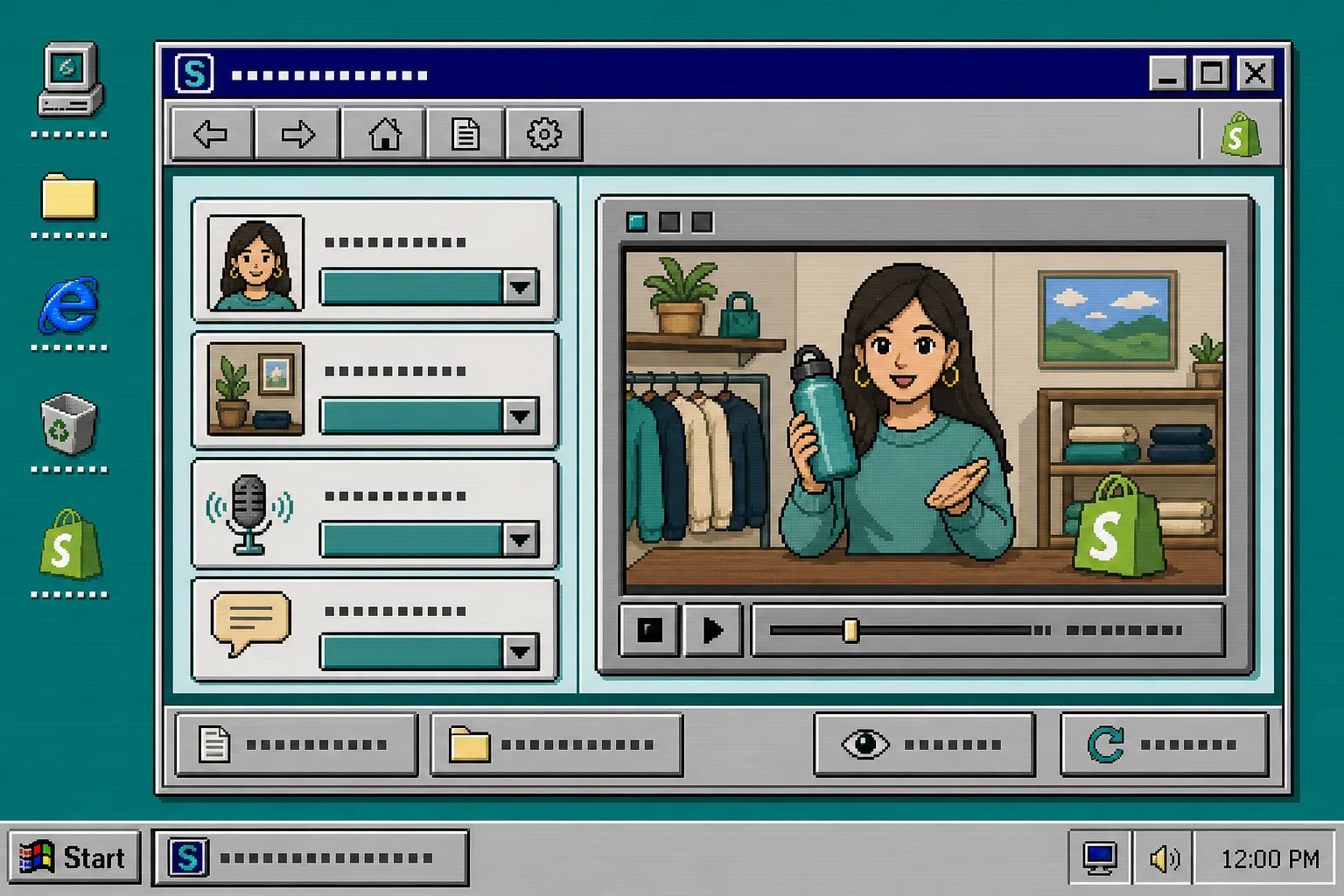
Open the project in Supra UGC Maker and set the creative knobs before you generate anything.
Pick the avatar first. Then choose the scene, the voice, and the tone. After that, attach the product reference and check that the script still matches the page.
The first version should stay simple:
- one avatar or custom AI model;
- one scene such as studio, outdoor, boutique, or a brand-specific setting;
- one voice and tone combination;
- one product reference;
- one script card.
When this step is right, you should see a preview window that makes the project feel concrete. The controls should look like a finished setup, not a pile of half-chosen options.
4. Generate The First Clip And Review It Once
Generate one clip, then play it once before changing anything.
I check four things on the first pass:
- does the opening line answer the question;
- does the product stay visible long enough;
- does the scene support the claim;
- does the ending tell the viewer what to do next.
Do not fix ten things at once. If the answer is strong but the delivery is stiff, adjust the voice or the pacing. If the scene feels wrong, change the scene instead of rewriting the whole script.
When this step is right, the clip should feel narrow and useful. It should sound like it was made for one buyer problem, not for every possible shopper.
5. Trim, Regenerate, And Reuse The Working Version
Once the first clip is close, use the project tools instead of starting over.
Supra UGC Maker supports previewing scenes before generation and then reordering, trimming, updating, and regenerating clips inside the same project. That is the part that keeps the workflow practical.
The loop I would follow is:
- trim the middle if the answer drags;
- regenerate the weak section if one line lands badly;
- save the scene if the setup is reusable;
- reuse the winning version in the next placement.
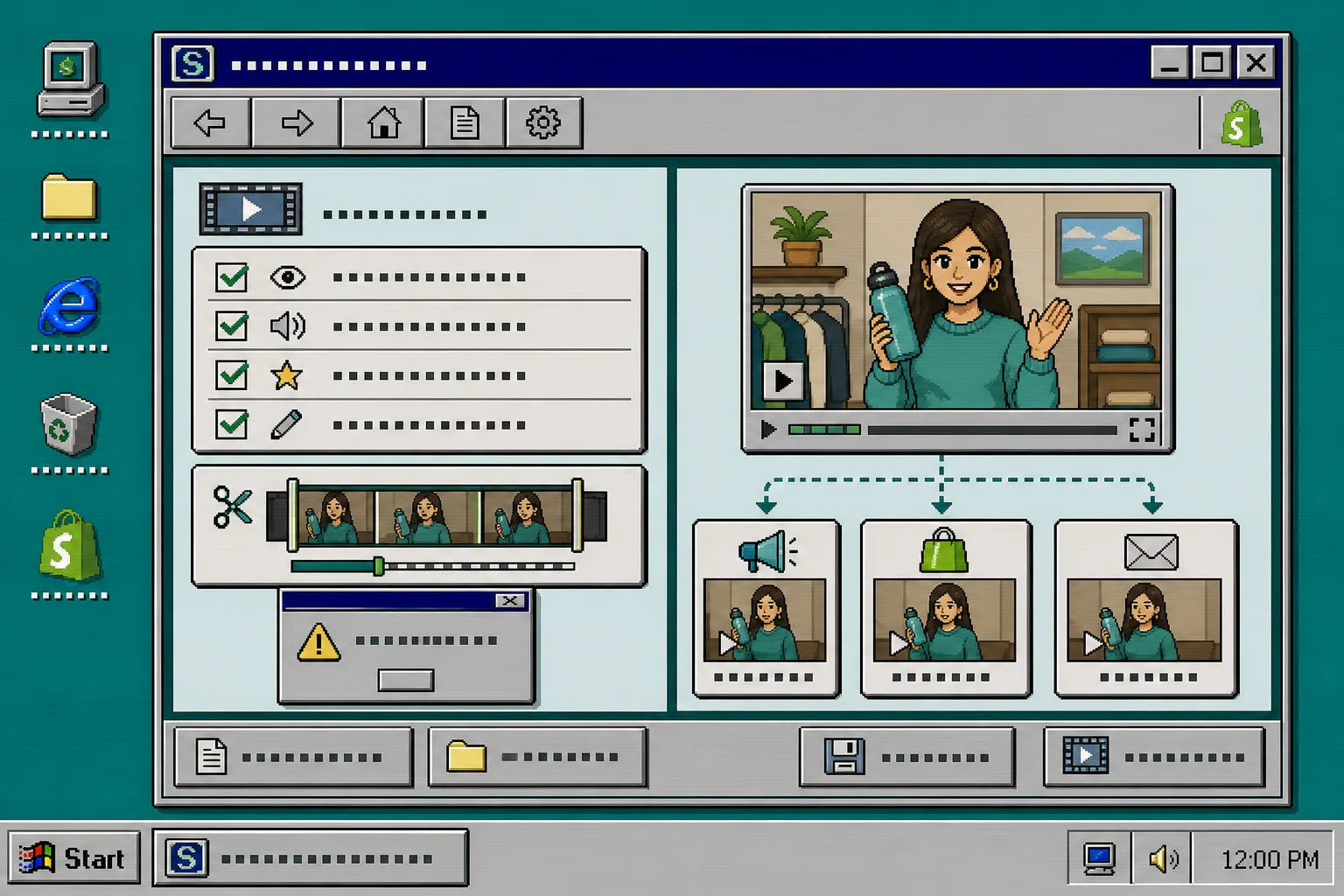
The point is not to make one perfect video. The point is to make one useful answer that can be reused across product pages, ads, email, launch pages, or post-purchase flows.
If you want the ad-side version of that idea, the companion posts above show how to turn one brief into multiple video variations without rebuilding everything from scratch.
Troubleshooting
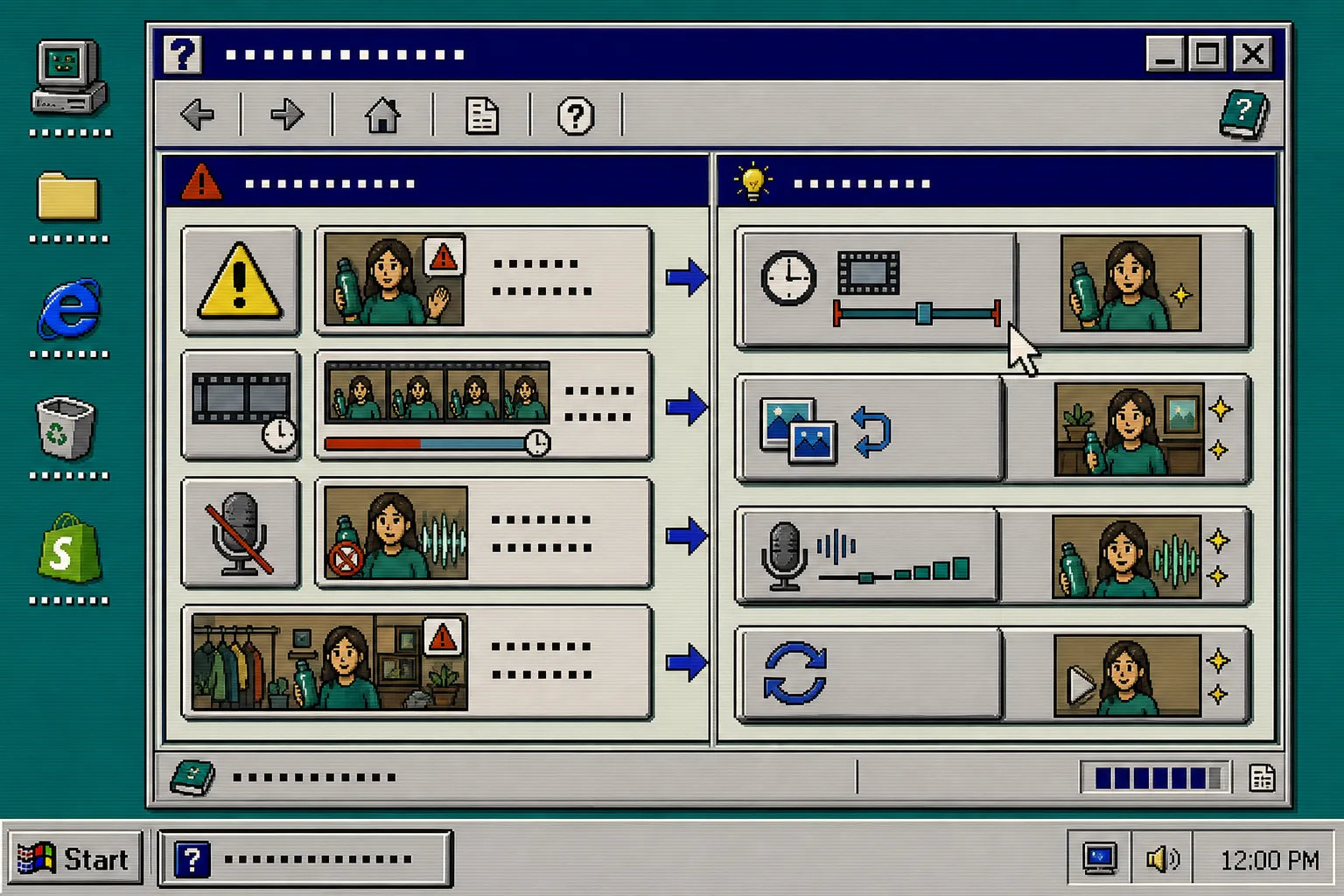
If the first version feels off, I usually look for one of four problems.
-
The script sounds too promotional.
Rewrite the opening so it starts with the buyer question, not the brand claim.
-
The scene is distracting.
Swap to a simpler environment and keep the product visible earlier.
-
The clip runs too long.
Cut the middle and keep only one answer per video.
-
The voice feels flat.
Regenerate the line with a different tone before you touch the rest of the project.
When you keep the fix local, the project stays manageable. When you restart from scratch, the whole workflow gets slower than it needs to be.
Bottom Line
If the product page already has the proof, the brief should be easy to write.
Pull the facts, write one question and one answer, set the avatar and scene in Supra UGC Maker, and generate the first clip. Then trim or regenerate the weak part instead of rebuilding the entire project.
Start with one product page and one buyer question. Build one clip, reuse the working setup, and only make a second variation after the first one proves it can do the job.