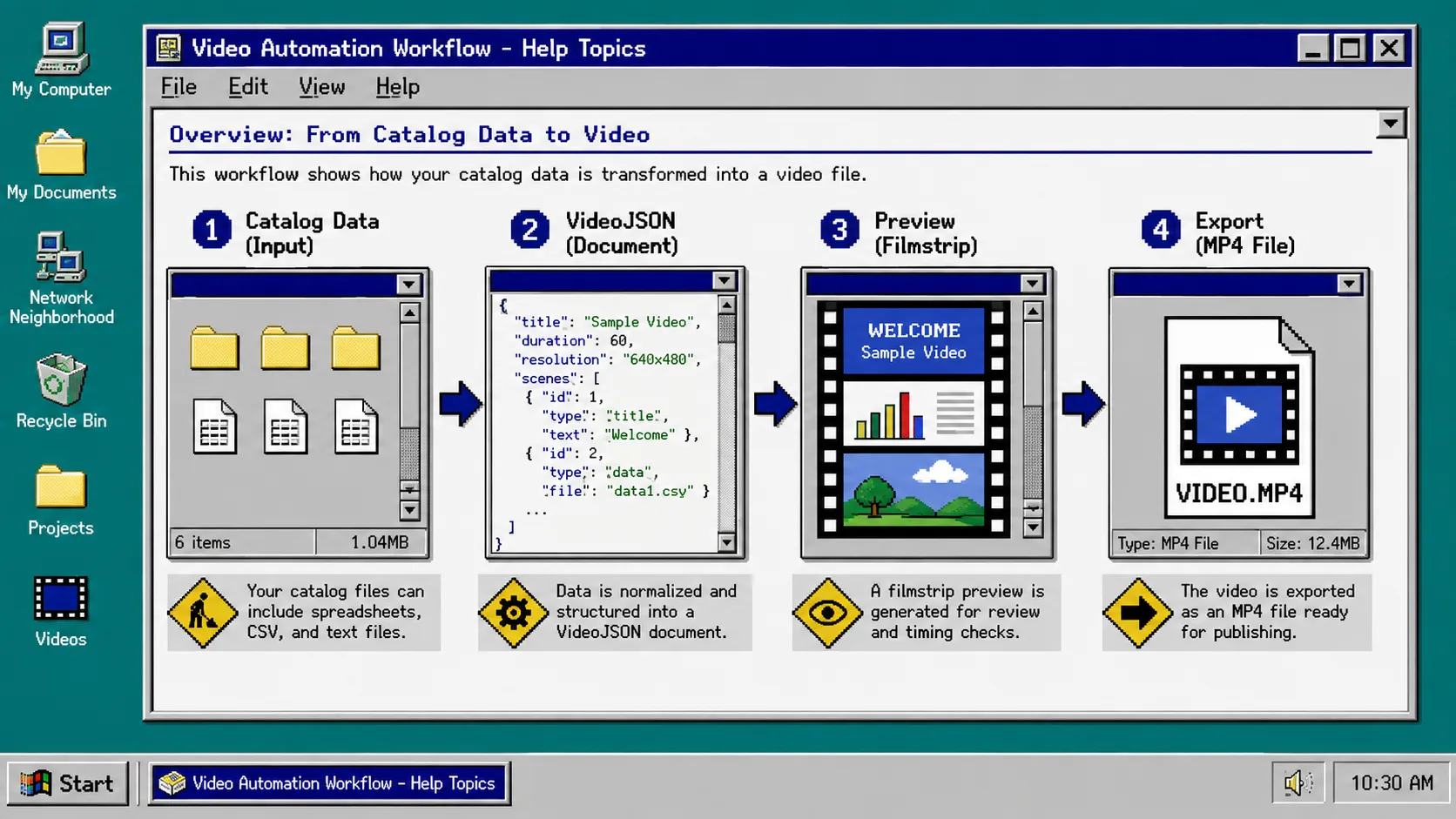
You can turn catalog rows into product-video drafts without asking a teammate to open a timeline for every SKU. The useful goal is not an unattended export button; it is a small, reviewable assembly line: product data goes in, a structured video draft appears, someone checks it, then approved jobs render.
You need a product feed with stable fields, a reusable scene template, Node.js, and VideoFlow. VideoFlow is an open-source, JSON-first toolkit: its TypeScript core can compile a project to portable VideoJSON, while its renderer options can preview the same data in the DOM or produce an MP4 in a browser or on a server.
1. Define the one video job before you make a queue
Start with one repeatable outcome, such as a 12-second product-page clip. Decide what every draft must contain: title, primary image, price, two feature bullets, a short call to action, locale, and template version. Keep optional fields explicit instead of letting a missing value silently become a blank scene.
For example, store each input as a record with a SKU and a status such as pending, needs-review, approved, or rejected. This is the same disciplined starting point that helps when you test Shopify UGC ad hooks before committing to a shoot: give each variant one job and a clear decision point.
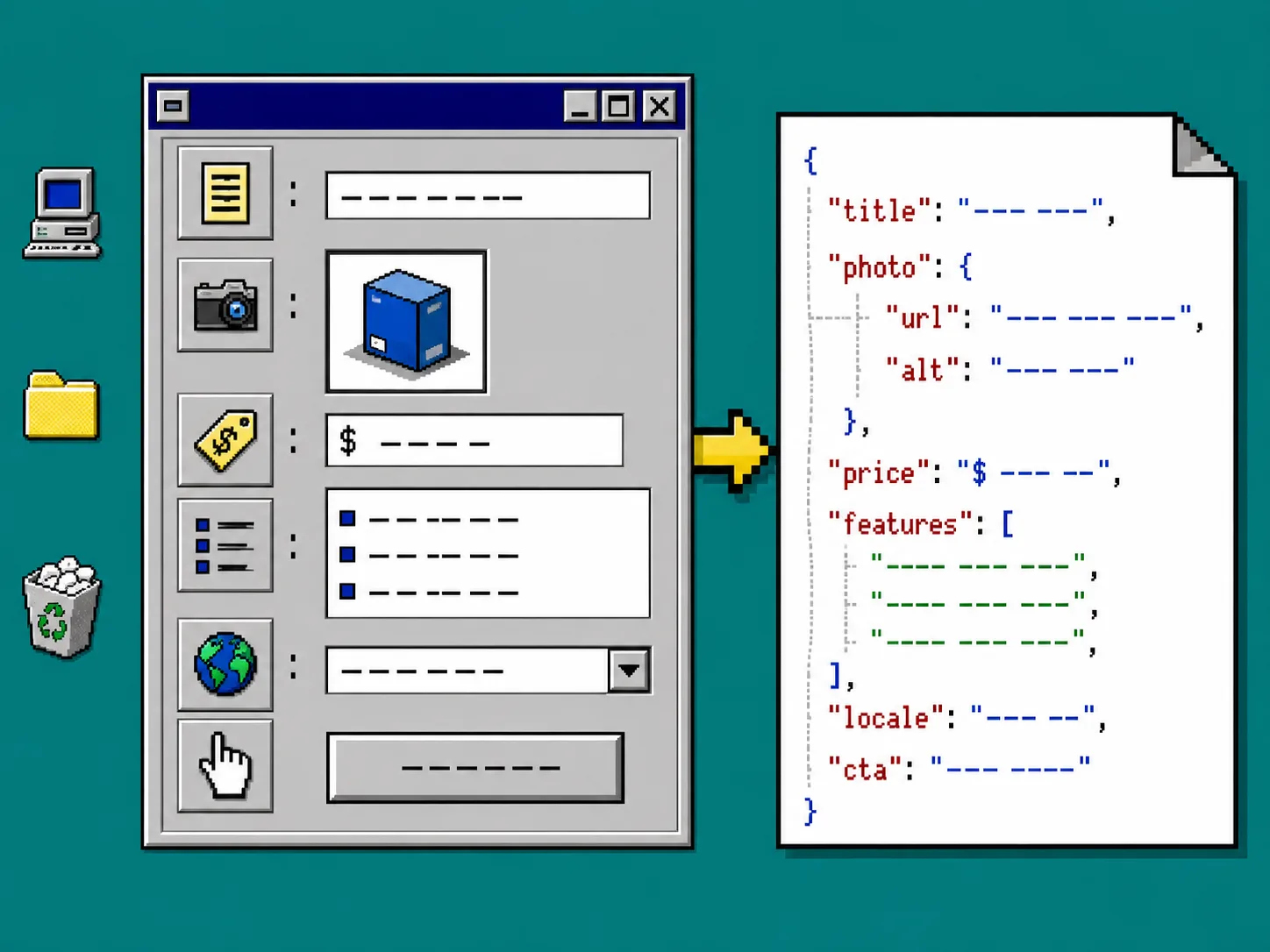
What you should see: a data contract that a developer, marketer, or agent can inspect without opening an editor.
2. Build one TypeScript template that compiles to VideoJSON
Install the core package with npm install @videoflow/core. Use the VideoFlow core documentation to define layers for text, images, captions, audio, or shapes, then compile the project. The important handoff is VideoJSON, not a disposable MP4: it can be stored with the SKU, diffed in Git, previewed, edited, and rendered later.
Keep the template responsible for timing and visual rules. Let the catalog record supply only safe values such as copy, media URLs, price formatting, and locale. Validate required fields before compilation, and reject unexpected media types or overlong copy. That makes a later agent-generated draft easier to review because it has a constrained target instead of a free-form editing task.
If your data arrives in batches, learn from the earlier catalog-to-reviewable-drafts workflow: create draft records first, then render only the set you deliberately select.
3. Preview every draft before you spend render capacity
Use the DOM renderer to mount the generated VideoJSON in an internal dashboard or review page. A live preview lets the reviewer scrub timing, confirm that the selected image matches the SKU, and catch a clipped price or awkward line break. The renderer guide describes the browser, server, and DOM options that share the same intermediate format.
Add a preview URL, template version, input checksum, and reviewer decision to each job. Do not overwrite the submitted JSON when a marketer requests a change; create the next draft revision. You will be able to answer which version produced a given export.
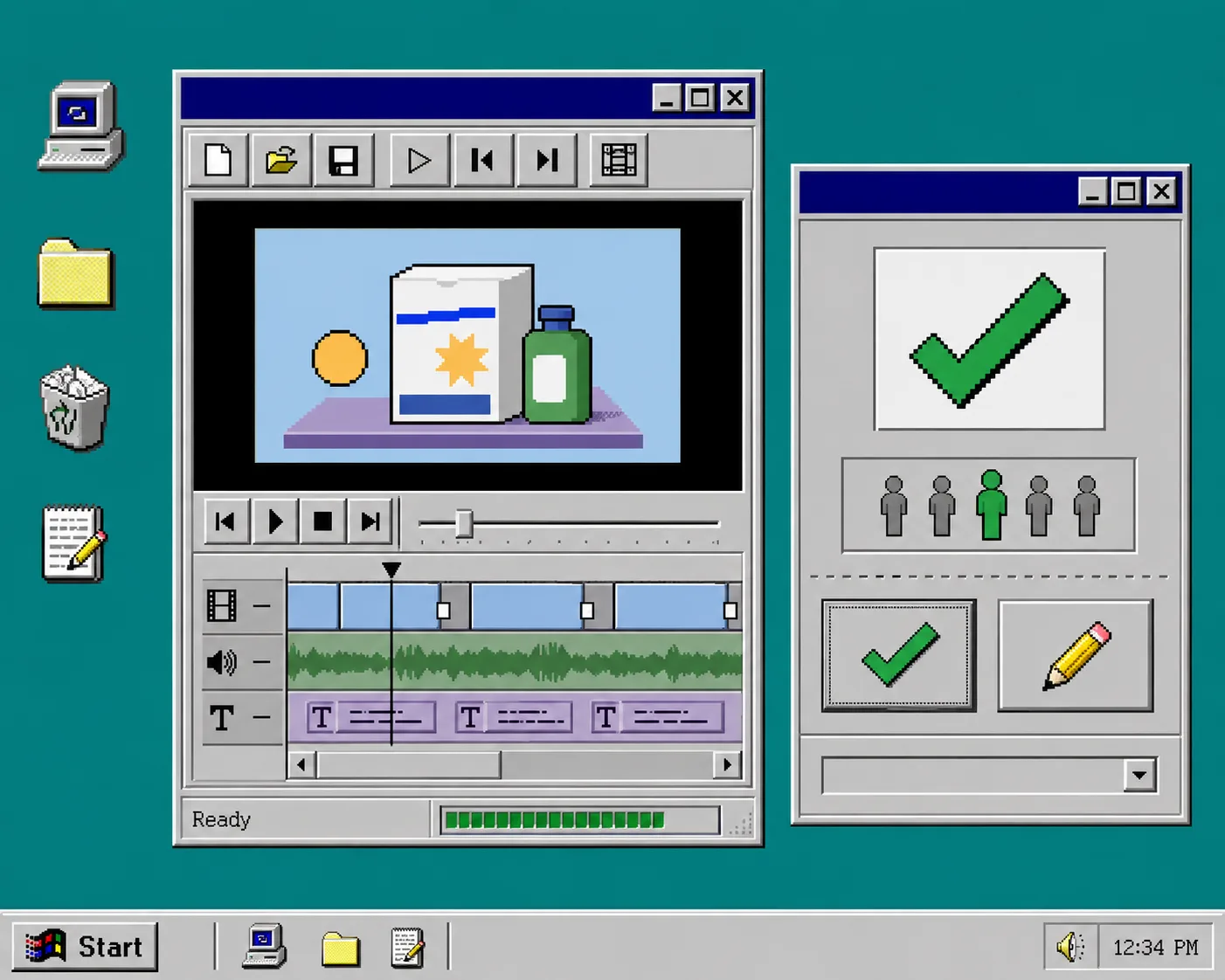
What you should see: a draft that can be inspected frame by frame, plus an obvious approval state.
4. Allow small corrections without breaking the template
When the job needs human polish, open the same VideoJSON in VideoFlow’s React video editor. The editor gives users a multi-track timeline, live preview, keyframes, transitions, effects, and MP4 export while your application still owns saving and uploads through callbacks.
Lock the parts that make the batch consistent: duration, logo treatment, safe margins, font choices, and approved transition set. Let reviewers adjust the narrow parts that require judgment: the product crop, copy, caption timing, or CTA. Save the edited JSON as the approved revision, not as a mysterious one-off export.
This split is especially handy when a launch needs several formats. After you prove the product data and message in one review flow, you can use the same operating model to create a first Shopify UGC video test rather than treating each clip as a separate production project.
5. Render only approved jobs through the right backend
Send approved jobs to a queue. Use browser rendering when a user exports a small video inside your app and you want to avoid uploading the source project. Use server rendering for scheduled batches, API jobs, and heavier exports. VideoFlow’s server renderer can render from Node.js, while the browser renderer can return an MP4 Blob; both start with the same VideoJSON.
Record the renderer choice, start time, completion time, output URL, and failure reason. Retry transient errors, but send malformed JSON and missing media back to needs-review. This prevents a queue from repeatedly exporting broken drafts.
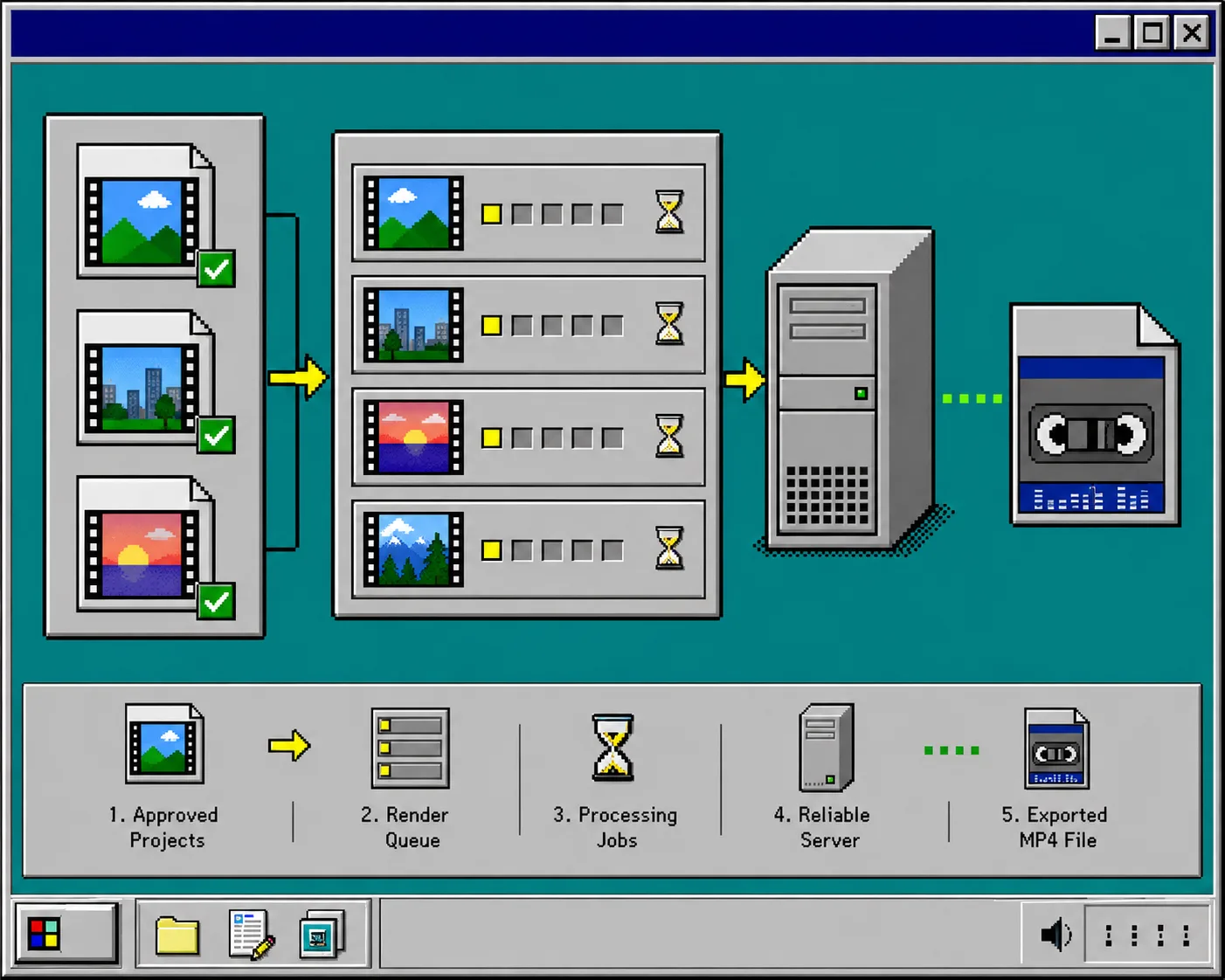
What you should see: a boring, observable queue where only approved revisions reach the encoder.
Troubleshooting
The preview differs from the export. Pin the VideoJSON revision and template assets for the job. Test the exact revision in the intended renderer before approving a large batch.
Catalog copy overflows. Validate maximum lengths before compilation and provide a short fallback field. Do not truncate prices or legal language silently.
A reviewer changes the wrong SKU. Display the SKU, source image, and revision ID together in the approval page; store the reviewer action with the job.
The queue gets expensive. Preview first, render only approved jobs, and use a server queue for scheduled batches instead of starting all exports at once.
Recap
A good catalog-video system treats video as a reviewable data product: define the job, compile a controlled template to VideoJSON, preview it, let people make bounded edits, and render only the approved revision. Start with five SKUs and one template, then measure the failures before expanding the queue.