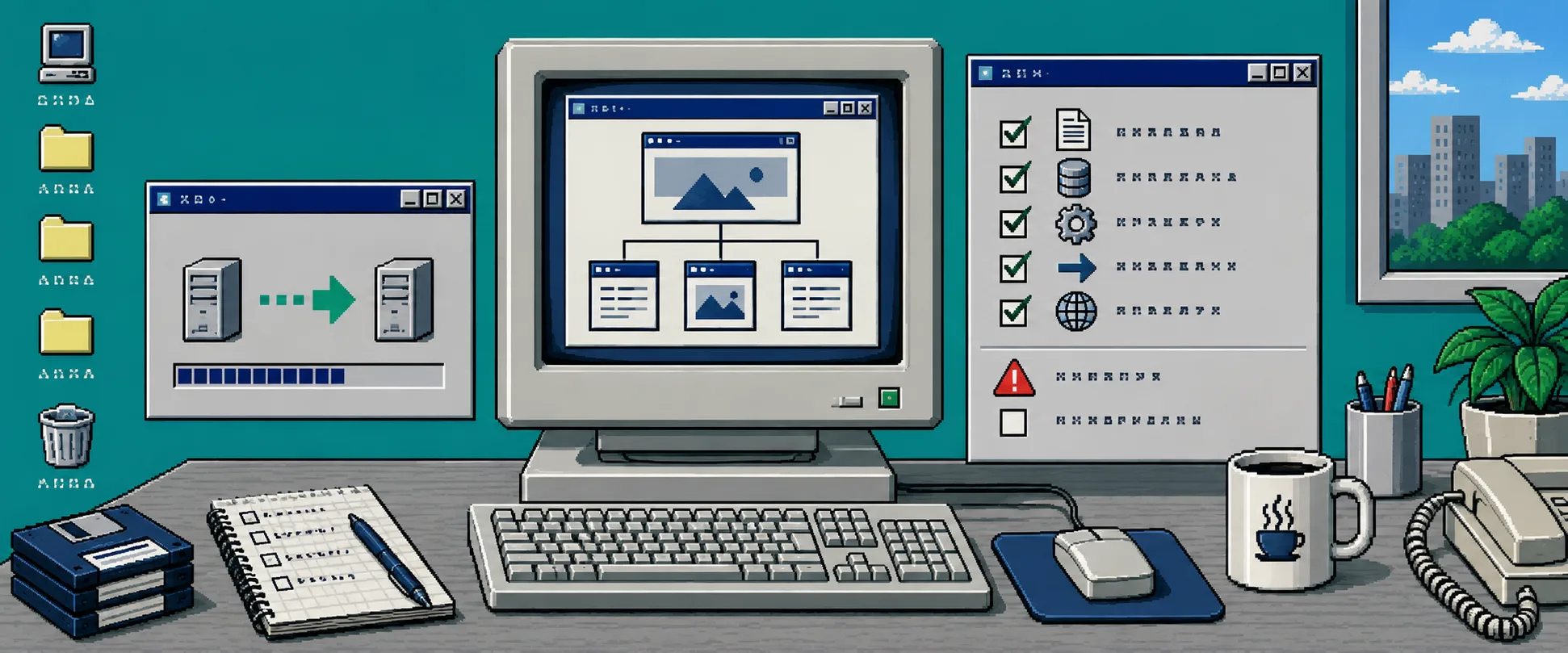
How to Move a Squarespace Site When Forms and Checkout Cannot Export
You can move a finished Squarespace marketing site to static hosting without rebuilding its design. The catch is simple: a static export preserves pages, styles, scripts, images, and client-side behavior—but it cannot take Squarespace server features with it. Before you touch DNS, identify anything that sends data, accepts payment, or needs a database.
You need access to the live Squarespace site, its domain DNS, a destination host, and a replacement plan for each server-side feature. For the export itself, use the ExFlow Squarespace exporter, which captures the published site as static HTML, CSS, JavaScript, and media.
1. Inventory the features that need a new home
Open the live site in a normal browser and make a short dependency list. Click every navigation item and conversion path, not only the homepage. Put these in a separate column from ordinary pages:
- Contact, newsletter, quote, and booking forms
- Squarespace Commerce cart and checkout
- Site search, member areas, scheduling, and login-only content
- Any integration that receives a webhook or saves submissions
This is the difference between an export and a cutover. ExFlow can preserve the static site you see, including pages, media, scripts, galleries, and responsive styling. Squarespace-only services such as form submission, checkout, member areas, scheduling, and search must be repointed or replaced. If your site sells products, keep checkout live on its existing platform until you have a deliberate replacement—not a hopeful placeholder.
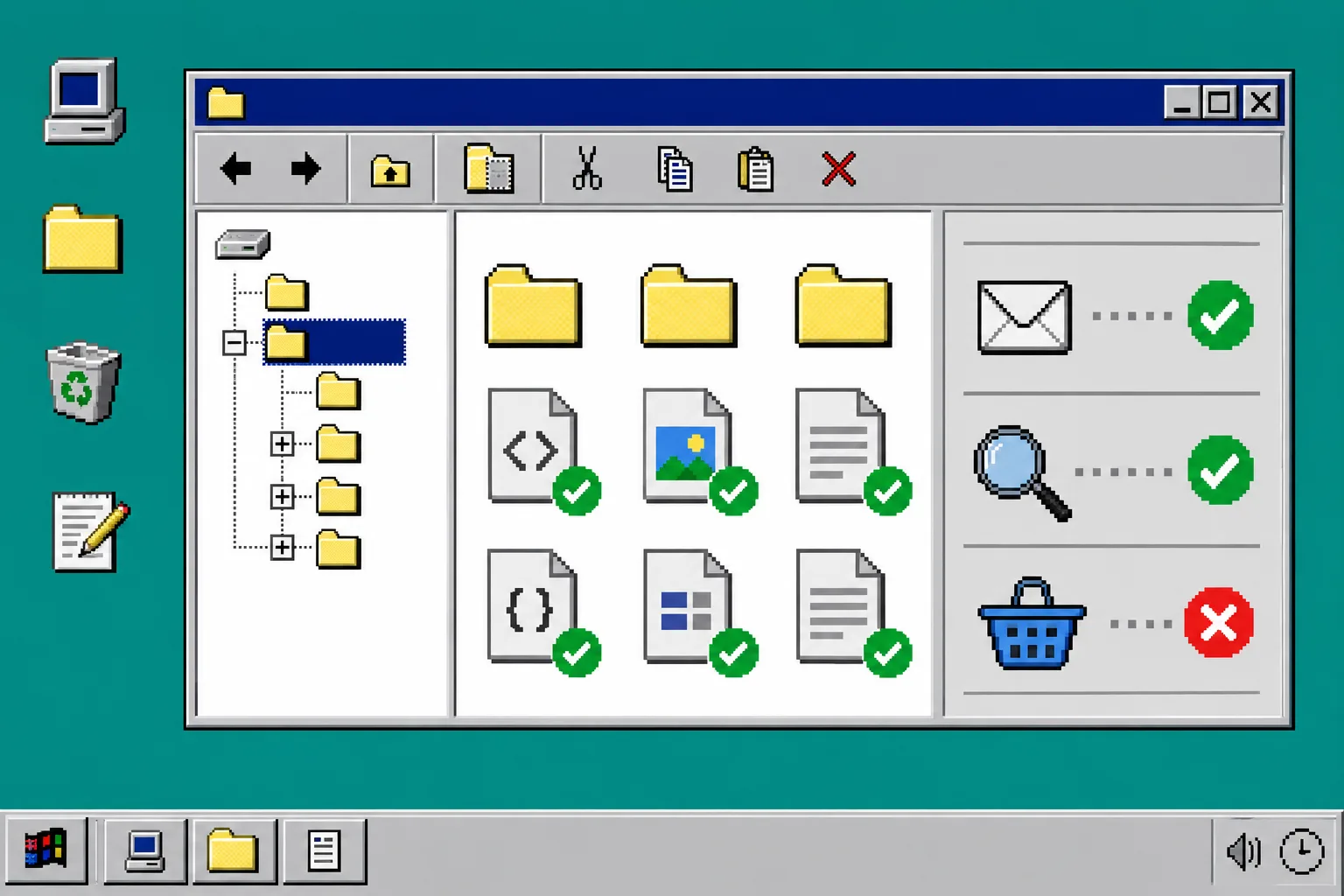
For a small lead-generation site, the replacement can be as modest as a third-party form endpoint. For a store, it may mean keeping commerce separate or moving it to an ecommerce platform. Record the public URL, expected result, owner, and replacement for each dependency. That list becomes your launch checklist.
2. Export the published Squarespace site
In ExFlow, paste the public Squarespace URL or its custom domain. Turn on Export CSS Files, Export JS Files, Export Images / Media Files, and Export all pages. Use .html extensions only if your planned host benefits from them.
If a published site uses a frontend password, enter that password in the export settings; an unpublished private site is not a valid source. Start the export and wait for the file list. You should see pages plus folders for styles, scripts, images, and other public assets.
Download the ZIP for a local checkpoint, even when you plan to deploy directly. A dated, unmodified archive gives you a known-good recovery copy. If you are moving a different builder later, the same discipline helps: Framer handoffs need their own link and asset test, while a Webflow export before a redesign is its own useful backup exercise.
3. Connect a staging destination before the real domain
Deploy the export to a temporary hostname first. ExFlow can send exports to Git, S3, FTP, or ExFlow Hosting; choose the path your team can support after launch. A Git destination is especially useful when someone needs to review file changes before publishing.
Do not point the production domain yet. Open the staging URL and compare it with the live Squarespace version, page by page. Verify internal navigation, images, fonts, galleries, accordions, scripts, and responsive layouts. A plain static copy can be very close visually, but a missing asset or absolute link is much cheaper to fix before DNS changes.

4. Replace each server-side dependency
Now work through the list from step 1. Update every form action to the new endpoint and submit a real test. Confirm the confirmation message, inbox delivery, spam handling, and any automation that should receive the submission.
For search, either remove the control, link it to a replacement, or add a client-side/static search solution. For commerce, test the new cart, taxes, payment, and order notifications outside the exported site. For member-only content, keep it behind a service that actually enforces access. A static HTML file is public as soon as it is deployed.
This step is why a Squarespace cutover is not merely “download and upload.” The exported pages can remain familiar while the data-handling pieces are intentionally rebuilt around services you control.
5. Run a smoke test from the staging URL
Use a fresh browser window or private session. Test the exact actions a visitor takes: open key landing pages, submit every form, follow the footer, open shared images, try mobile navigation, and run through any external checkout handoff. Check titles, descriptions, canonical URLs, and redirects for pages that changed location.
For a focused structural pass, use the Squarespace export asset checklist. If you need a broader confidence check, a small static-export smoke test is a useful model: test high-value paths rather than assuming the homepage proves everything.
6. Switch DNS only after the tests pass
Lower DNS TTL in advance if you control it, then update the domain to the new host. Keep the Squarespace site active while propagation completes so a rollback stays easy. Re-run the same smoke test on the production domain, including form submission and checkout handoff.
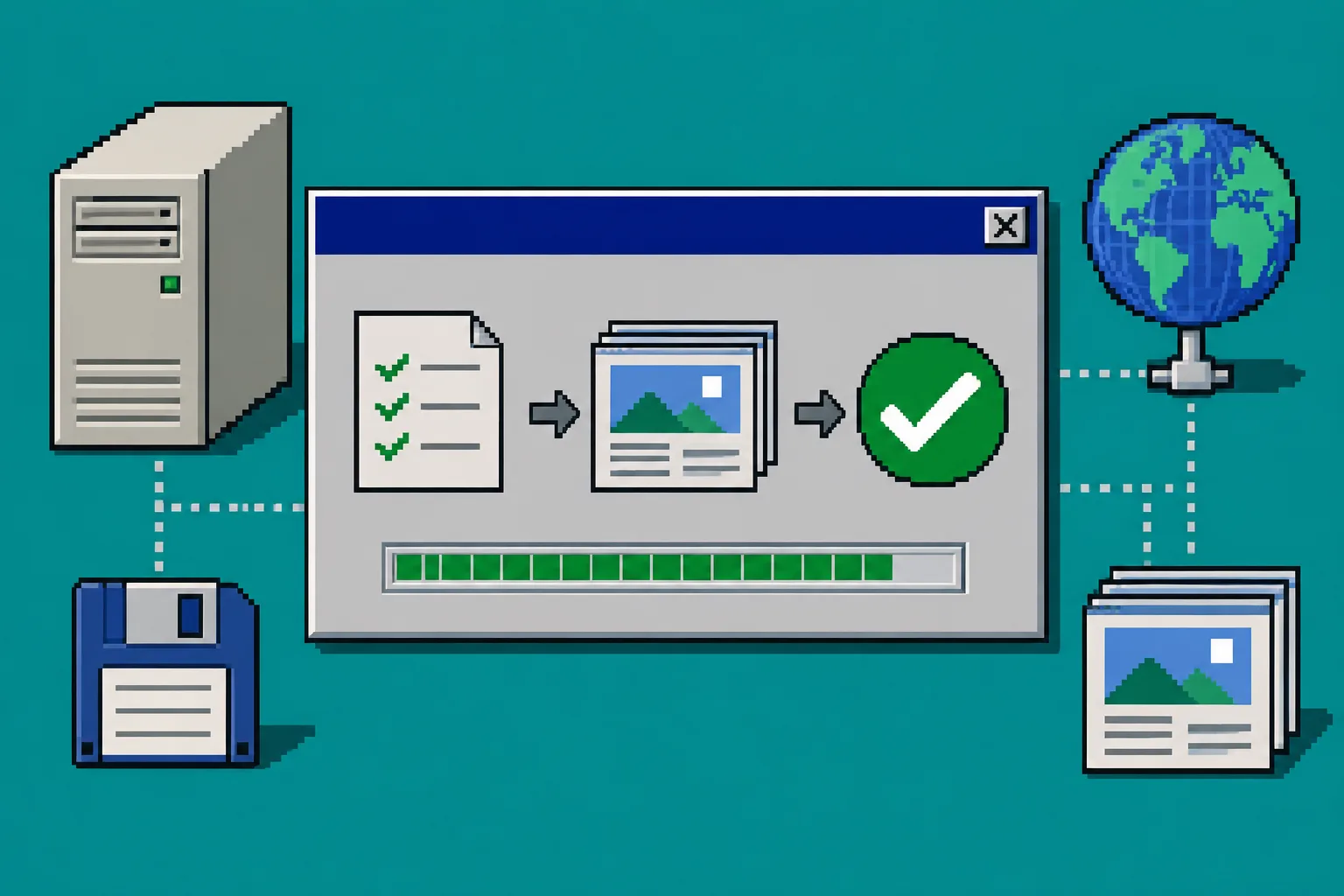
Once the real domain passes, save the export ZIP, a copy of the dependency inventory, and the final test record together. That turns today’s migration into a repeatable recovery path. ExFlow also offers dedicated Webflow and Framer exporters when the next site is built on a different platform.
Troubleshooting
The page looks right but a form does nothing. Check the form action, method, and required fields against the replacement service. A static export cannot send a Squarespace form submission by itself.
Images work on staging but not production. Look for absolute URLs, missing folder uploads, or a host rule that rewrites asset paths. Compare the browser network panel on both domains.
Checkout opens the old site. That is expected until you deliberately replace the commerce flow. Keep the existing checkout active or change the product links to the new commerce destination before launch.
A search or member page is missing. These depend on server-side behavior. Remove the public link or deploy an appropriate replacement; do not publish a broken control.
The short version
Export the visual site, list what cannot be static, replace those dependencies on staging, and only then switch the domain. Start your Squarespace export in ExFlow, review the file list, and make the dependency inventory before you schedule the cutover.