How to Revise a Startup Launch Video From Your Terminal
A first cut is useful only when it gives you something concrete to improve. If your startup needs a launch trailer, the practical goal is not to generate one mysterious clip and hope for the best. It is to turn the right page of your site into a structured video draft, review it, and ask for one clear correction at a time.
VideoFlow Studio is built for that terminal-first loop. Give it a website URL, let it plan and render a motion-graphics video, then direct changes in plain language. The underlying project stays editable, so a revision does not mean starting over.
Before you begin, have a public URL for the page you want to promote, a terminal, and a single outcome for the trailer. For a general first-cut setup, see how to create a startup video first cut from your terminal. This guide picks up at the more important part: making the first cut better.
1. Choose one page and one viewer question
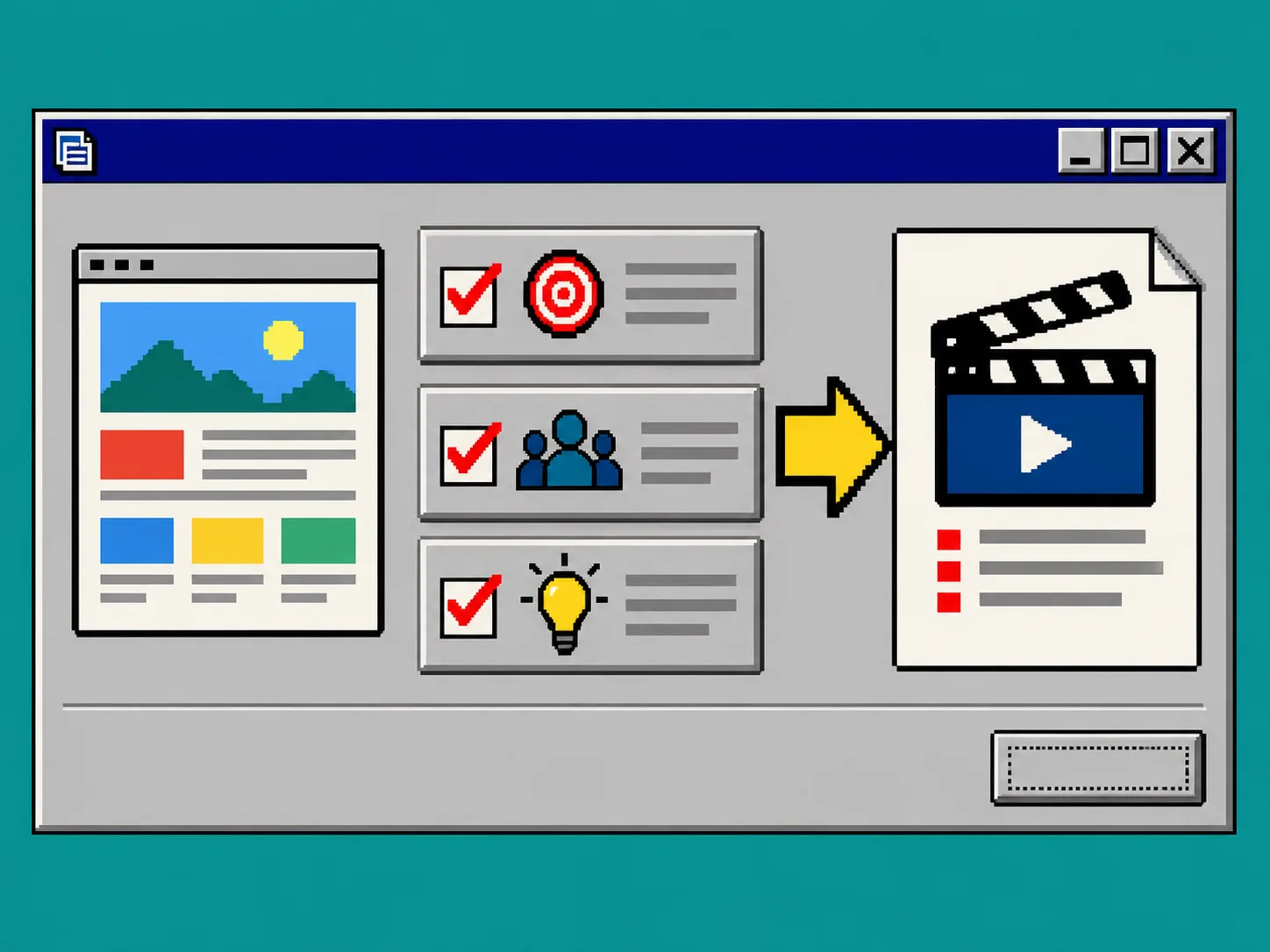
Start with the URL that already explains your product best. A focused landing page is usually better than a homepage full of navigation and unrelated announcements. Write one viewer question before you open the terminal: “What does this product help a new visitor do?”
Then make a tiny brief with three items:
- The product promise you want the first seconds to establish.
- The audience you want to recognize itself in the problem.
- The action you want after the video ends, such as joining a waitlist or trying a demo.
This brief prevents vague requests such as “make it exciting.” It also makes a later correction specific. If the narration is accurate but aimed at the wrong buyer, you know exactly what to change.
2. Run Studio and ask for a reviewable first cut
Install or run Studio from a terminal with:
npx @videoflow/studio
Give Studio the chosen URL and your small brief. Ask for a short startup launch trailer, not an entire brand film. Studio reads the product context, develops a plan, and produces motion graphics using the open-source VideoFlow engine.
At this stage, evaluate the draft as an editor, not as a final deliverable. Check whether the opening communicates the problem, whether product names and claims match the page, and whether the final frame has a single next action. A URL is good input, but it is not a substitute for your judgment.
For another way to narrow the source material before rendering, use this startup URL to launch-video workflow.
3. Inspect the rendered frames before requesting a change
Play the video once without stopping. Then watch it again and write observations in four buckets: message, sequence, visual treatment, and ending. This turns “something feels off” into a workable instruction.
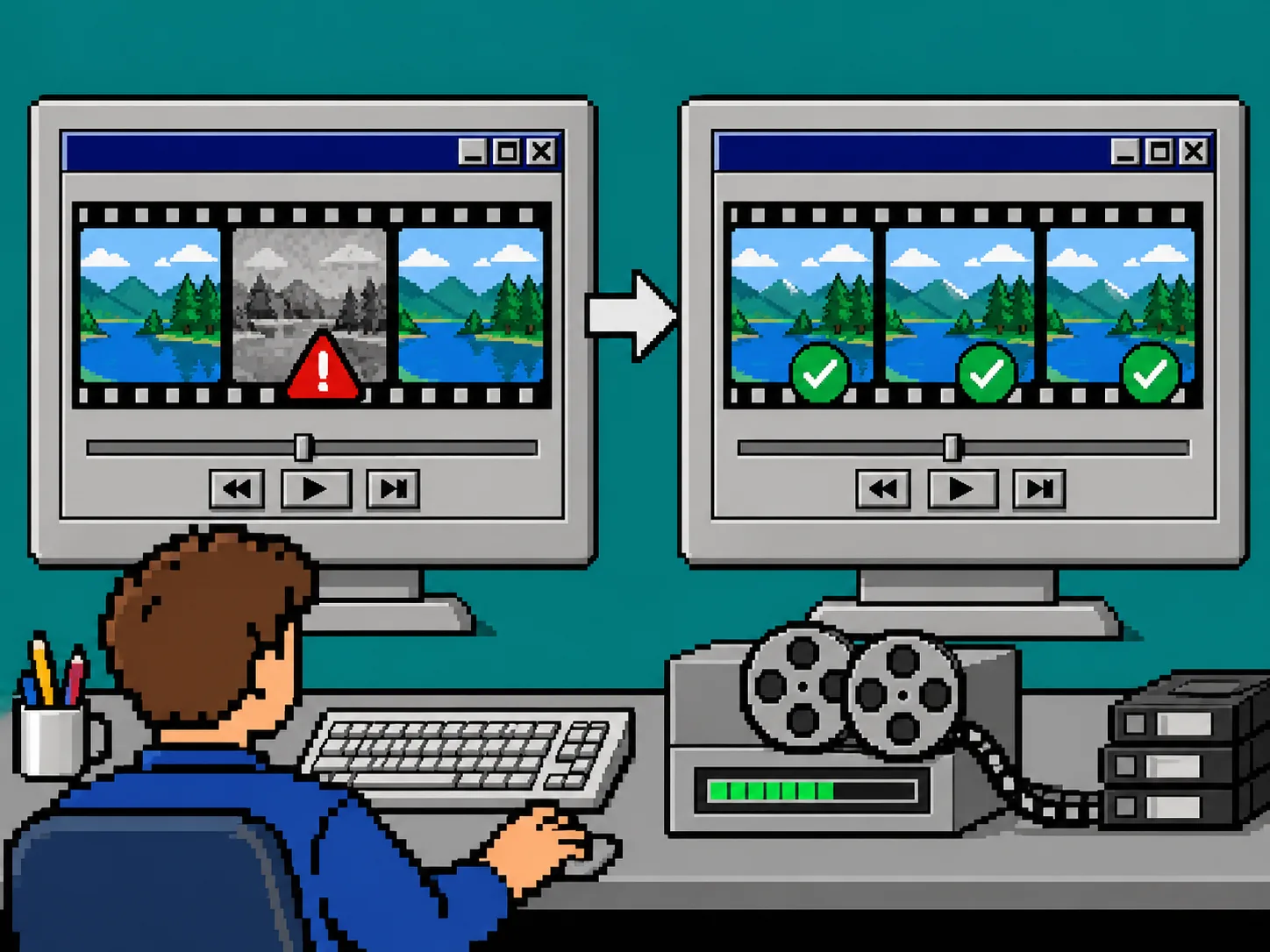
For example, write “the feature appears before the viewer knows the problem” rather than “make the middle better.” Or write “increase contrast on the end card and hold it longer” instead of “fix the last scene.” VideoFlow Studio is designed to inspect rendered frames, identify visual issues, and re-render corrections before delivery.
4. Send one bounded revision request
Change one decision family per request: message, pacing, hierarchy, or finish. A good terminal instruction says what should change, what must remain true, and why.
Try a request like this:
Keep the opening problem and brand colors. Move the product proof before the feature list, shorten the middle section, and hold the final call to action longer so a first-time visitor can read it.
That request gives the agent guardrails. It is much safer than asking it to redo the film, because it preserves the useful work already in the draft. If your video needs a release-note-driven change, the same habit applies in this guide to updating a startup launch video from release notes.
5. Re-render and compare the correction
Render the revision, then compare it against the original using the same four buckets. Do not just ask if the new version looks nicer. Confirm that the corrected scene now appears in the right order, the viewer can read it at normal speed, and the final action is still present.
If another issue remains, make a second bounded request. If the original brief was wrong, return to step 1 instead of stacking patch after patch. A clean re-brief is faster than forcing a draft to solve a different job.
6. Keep the editable project with the exported video
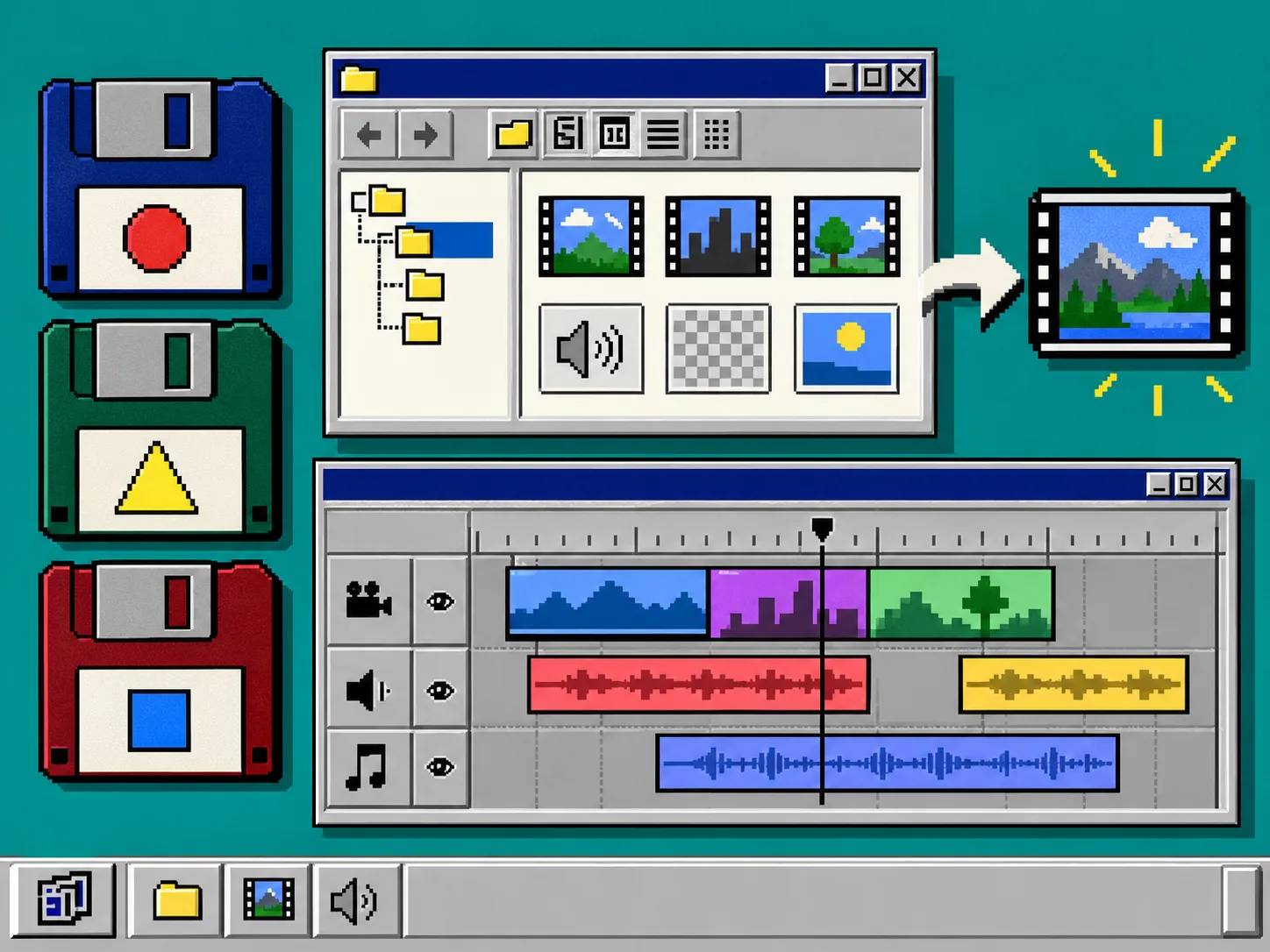
Save the editable Studio project alongside the review export, source URL, and the short brief. VideoFlow Studio produces a structured, editable document behind the render, and its built-in editor lets you adjust layers, timing, colors, and text manually without losing the agent context. That matters when the next change is tiny: a new date, a revised slogan, or a different CTA.
Keep a simple handoff folder containing:
- the approved render;
- the editable project;
- the original URL and brief;
- the approved revision notes; and
- the next review date.
This is the useful difference between a reviewable motion-graphics workflow and a disposable one-shot clip. For broader planning, read how to turn an ecommerce product page into a launch video brief.
Troubleshooting
The first cut says too much. Reduce the brief to one audience, one problem, and one action. Do not try to fit your entire roadmap into a launch trailer.
The correction changed a good scene. State the elements that must remain unchanged before describing the revision.
The end card is hard to read. Ask for fewer words, stronger contrast, and a longer hold, then inspect the rendered frame again.
The export is approved but a future update is likely. Keep the editable project. Do not treat the video file as the only source of truth.
Recap
A strong startup launch video improves through a short loop: choose one page, define the viewer question, render a first cut, inspect it, and send a bounded revision request. Start with VideoFlow Studio, run one URL through the workflow, and keep the editable project after you export.