
If a Shopify product page has become one long description, do not start by adding tabs. First decide where every detail belongs. That gives you a product page that stays accurate when the catalog grows, instead of a collection of copied paragraphs that drift apart.
You need access to Shopify admin, a few representative products, and a way to add a product-template app block. This guide uses Supra Tabs & Accordions, a free Shopify app with no trial, tiers, or card requirement. It changes how content is presented; it does not replace your underlying Shopify data.
1. List the questions shoppers ask before they buy
Open three products from the same collection: one typical item, one item with extra details, and one item with missing optional details. Write down the questions a shopper must answer: What is it made of? How do I care for it? Which size or compatibility rule applies? When will it ship? What is covered after delivery?
Keep the label short and customer-facing. Care, Materials, Size & fit, Compatibility, and Shipping are easier to scan than an internal label such as PDP content module 4. If the answer changes per SKU, mark it product-specific. If the answer is identical across a collection or store, mark it reusable.
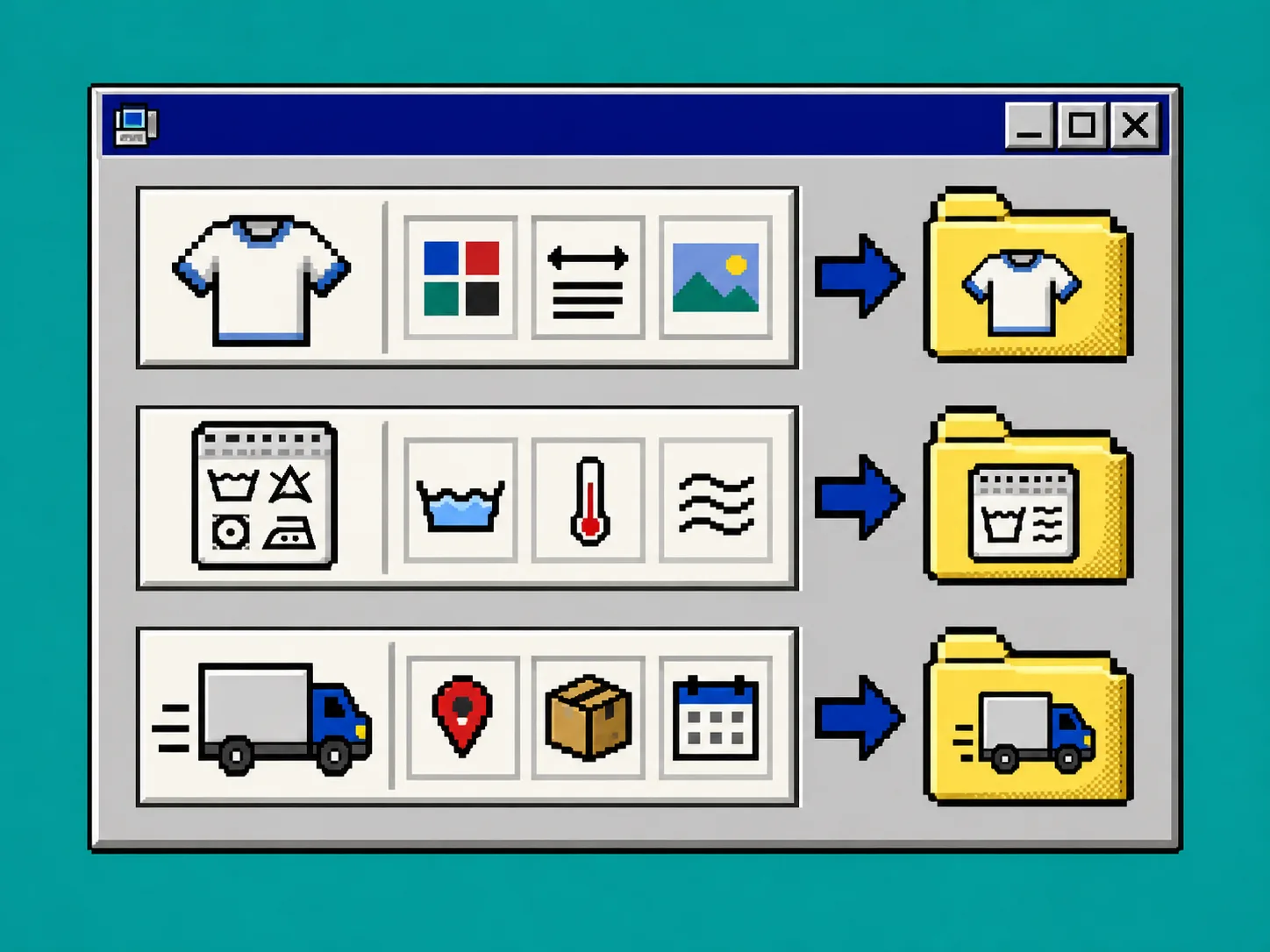
This inventory prevents the usual mistake: copying delivery or warranty text into hundreds of descriptions, then forgetting a few when the policy changes. For a related layout check, see How to Organize Shopify Product Information With Tabs and Accordions.
2. Put product-specific details in Shopify custom data
In Shopify admin, go to Settings > Custom data > Products and create definitions for facts that vary by product. Common examples are care instructions, materials, compatibility, and a downloadable manual. Shopify describes metafields as a place to save specialized product information that does not fit the standard product form, such as care instructions. Read Shopify’s custom-data terminology if you need a quick reference.
Use a metafield when one value belongs to one product. Use a metaobject when the same structured group needs several fields, such as a size guide with a title, measurement table, and note. Shopify’s metaobjects guide explains that a metaobject groups multiple fields into a reusable structure.
Enter values for the three sample products now. Do not invent a value just to fill a section; an honest empty value is better than a wrong specification.
3. Keep shared information in one maintained source
Move content that should match across products out of individual descriptions. A store page works well for a universal shipping or returns explanation. A metaobject entry works well for a repeated warranty, material-care block, or collection-level sizing reference. A downloadable file is useful when a manual must stay intact.
The goal is one owner for each sentence. When the shipping policy changes, update the store page once. When a product’s fabric changes, update that product’s metafield once. This is the same maintenance logic behind How to Build a Shopify Product Page Content System With Metafields.
4. Build one tab set from those sources
In Supra Tabs & Accordions, create a tab set. For each section, choose the source you mapped: product description, product metafield, store page, a field from a metaobject, image or file, or written app content. Name each section with the shopper’s question, not the database field.
Then target the set with a catalog rule: collection, tag, vendor, product type, or selected products. Start with the narrowest safe rule. The preview, match count, and overlap warnings are your checkpoint: confirm the set reaches the intended products and that no competing rule wins unexpectedly. A collection or tag rule can include future matching products without another manual assignment.
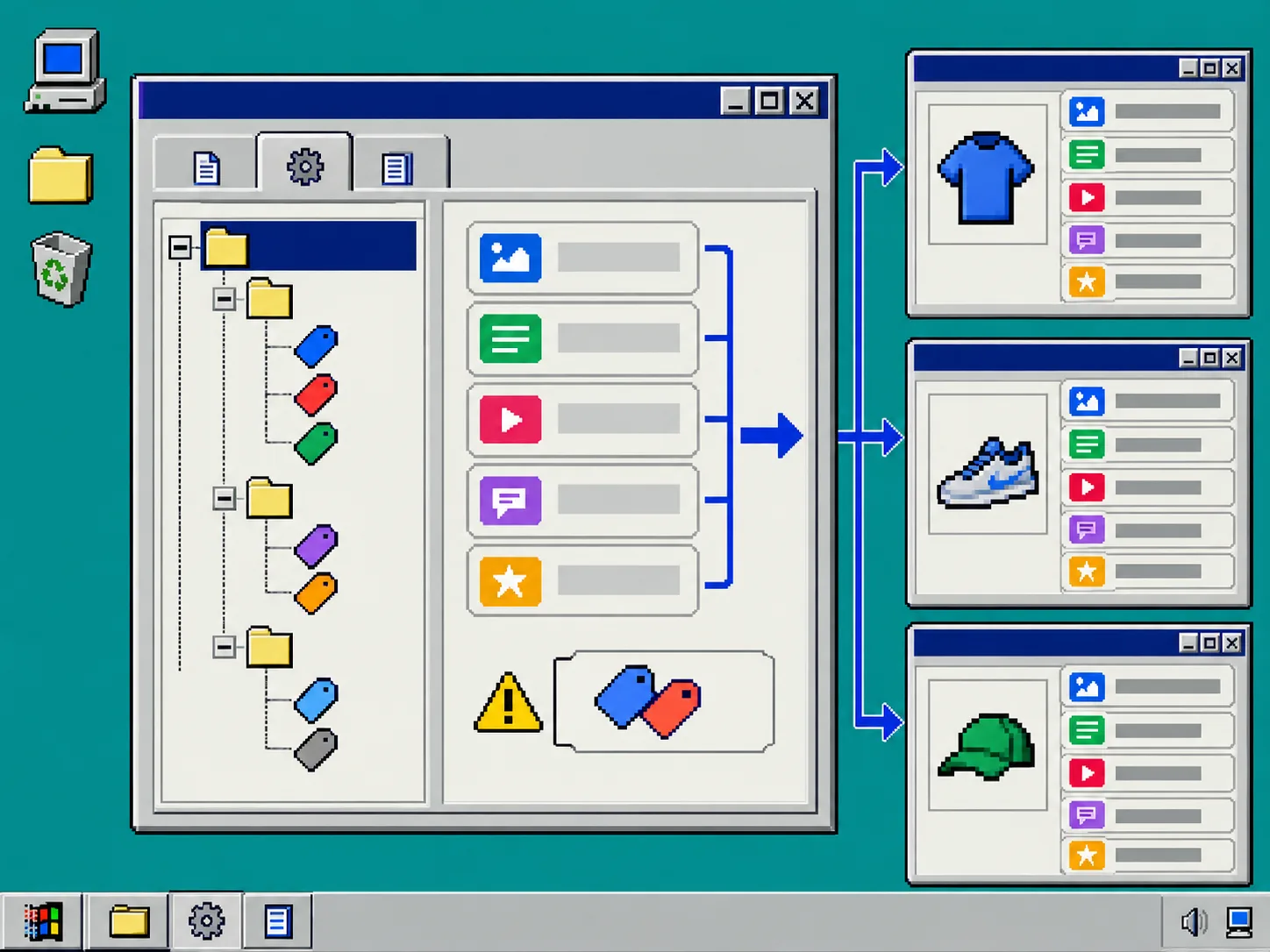
Use a second tab set only when the questions genuinely differ. For example, apparel may need Size & fit, while electronics need Compatibility. Do not force an irrelevant section just to make pages look consistent. Empty tabs can hide automatically when a product has no matching content.
5. Add the app block once and test the actual product column
Open Online Store > Themes > Customize, choose the product template, add the Supra Tabs & Accordions app block, and save. The app responds to the available product-page column, so test the template in the theme preview rather than relying only on your browser width.
On a wide product page, tabs help a shopper jump between related details. In a narrow column, accordions keep the same information reachable without a cramped horizontal row. Choose an overflow behavior that still makes every label discoverable: scrolling, a More control, wrapping rows, or stacked sections.
6. Run the content and accessibility check
Test the three sample products, then check these items before you roll the rule across the catalog:
- Confirm each section has the correct source and current value.
- Confirm an empty optional metafield does not leave a blank heading.
- Open every section with a mouse, touch input, and keyboard.
- Confirm the visible label is specific enough for a shopper to predict its contents.
- Test desktop tabs and mobile accordions on the same product.
- Follow a direct link to a section if you plan to use one in support replies or campaigns.
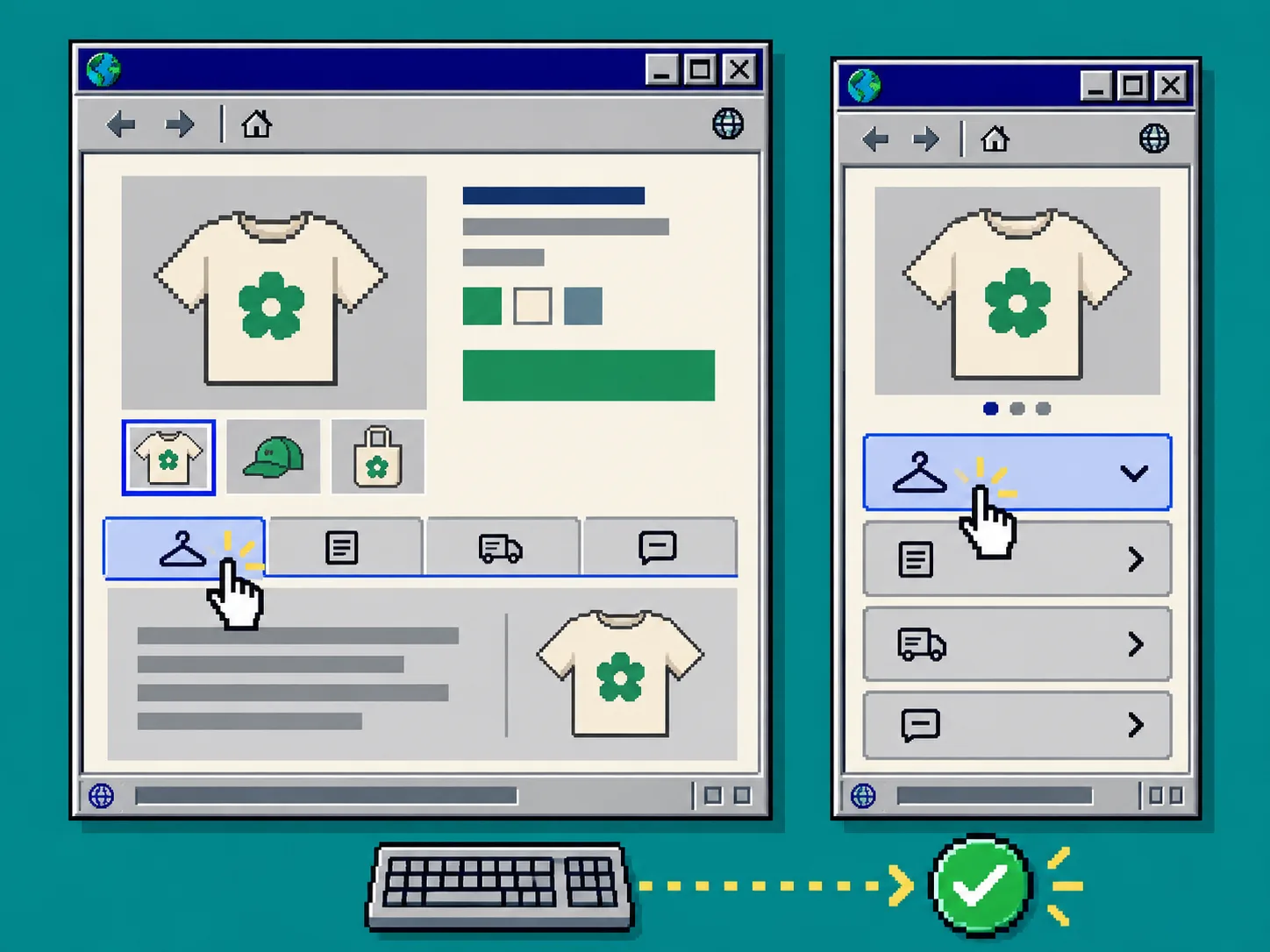
Supra Tabs & Accordions includes keyboard support, appropriate roles, comfortable tap targets, and reduced-motion support. Still test your own labels and content: accessible controls cannot repair confusing wording or missing details. If size information is part of the plan, pair this check with How to Check Whether Your Shopify Theme Supports 3D Product Media only when your catalog also uses 3D assets; otherwise keep the review focused on the content shoppers need.
Troubleshooting
A section shows the wrong information. Check the tab source first, then check the product’s metafield value. If two targeting rules could apply, inspect the overlap warning and decide which set should win.
A policy edit did not update everywhere. The policy is probably still copied into product descriptions. Replace those copies with the shared page or metaobject source, then retest a few products.
Tabs feel crowded on mobile. Use accordions in the narrow product column and shorten labels. A long label is a content-design problem before it is a layout problem.
Next step
Map ten representative products before changing every page. Once the map is stable, install Supra Tabs & Accordions, build one tab set from real Shopify sources, and apply it to the smallest sensible collection rule. You will have a clearer product page and one place to maintain each important answer.