How to Extract Attachments From Saved Email Files Without Opening a Mail App
You can pull files out of saved .eml, Outlook .msg, and .mbox email files without importing them into a mail app: use Tiny Online Tools’ Email Attachment Extractor to make one ZIP with a manifest, then scan the extracted files before opening any of them. You need the saved message files and a place to keep the resulting ZIP; extraction is organization, not a safety verdict.
This is useful when a client sends a handful of exported messages, a ticket queue gives you .eml files, or an old archive contains the one invoice or photo you actually need. Opening each message in a mail app is slow, and it can make a simple file-retrieval task feel much bigger than it is.
What you need before you start
Prepare a working copy of the saved message files. The extractor accepts EML, MSG, and MBOX files and reads each file’s contents rather than relying solely on its filename extension. Do not work from the only copy of a legal, financial, or customer-support record.
You also need to decide what “done” means. For most jobs, it is not “open every attachment.” It is: identify the attachments, keep their source relationship, extract the small set you need, and pass suspicious files through your normal security process. If the job begins with an unexpected message, start with this email-header check before treating its contents as trustworthy.
1. Copy the message files into one working folder
Create a folder such as email-attachment-review and copy your source .eml, .msg, or .mbox files into it. Keep the originals in their existing archive or case folder.
This is a small precaution with a practical payoff: your extracted ZIP, notes, and any later scans stay together, while the saved messages remain untouched. If you are dealing with a calendar export instead of mail, use the separate workflow for inspecting an ICS file before importing it; a calendar file is not an attachment archive.
2. Open the attachment extractor and add the files
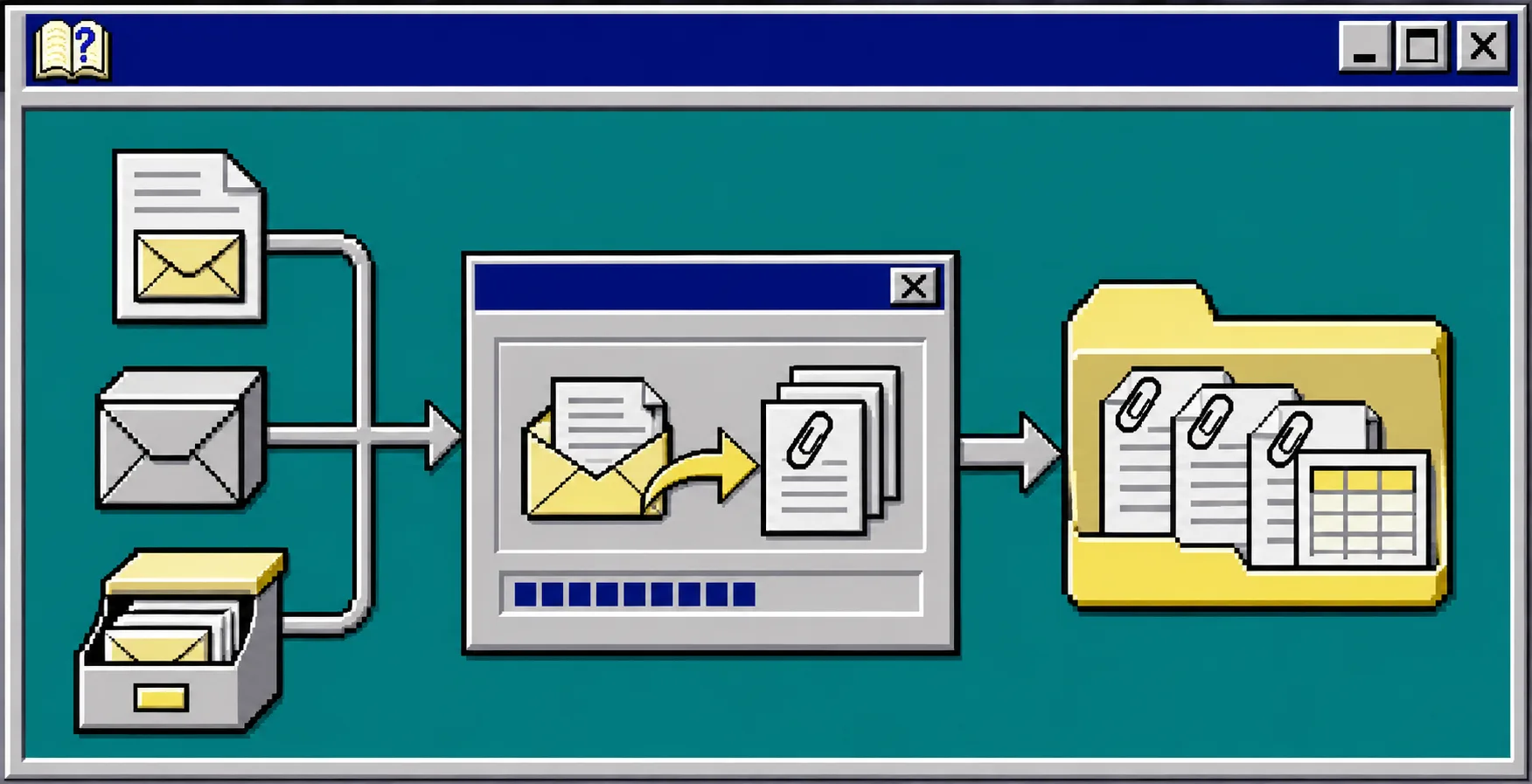
Open Email Attachment Extractor, then drag the files from your working folder onto the drop area or use the file picker. You can add more than one file at once.
The tool supports mixed EML, MSG, and MBOX input in the same pass. It identifies the formats from their contents, so a file with an unhelpful extension can still be reported correctly. After processing, look for the attachment list rather than rushing to download anything.
3. Read the list before saving the ZIP
Check three things in the result:
- Source message: confirm that every item is grouped under the message or archive you expected.
- Duplicates: note repeated assets such as footer logos or recurring signatures. The tool fingerprints identical attachment bytes so repeats can be marked instead of silently mixed into the useful files.
- Inline artwork: do not mistake an email signature image for a requested attachment. The tool distinguishes inline
cid:images referenced by an HTML body from ordinary attached files.
That last check saves a surprising amount of cleanup. A folder of hundreds of apparent “attachments” may really be a small set of documents plus the same signature graphic copied into every message.
4. Download the ZIP and keep its manifest
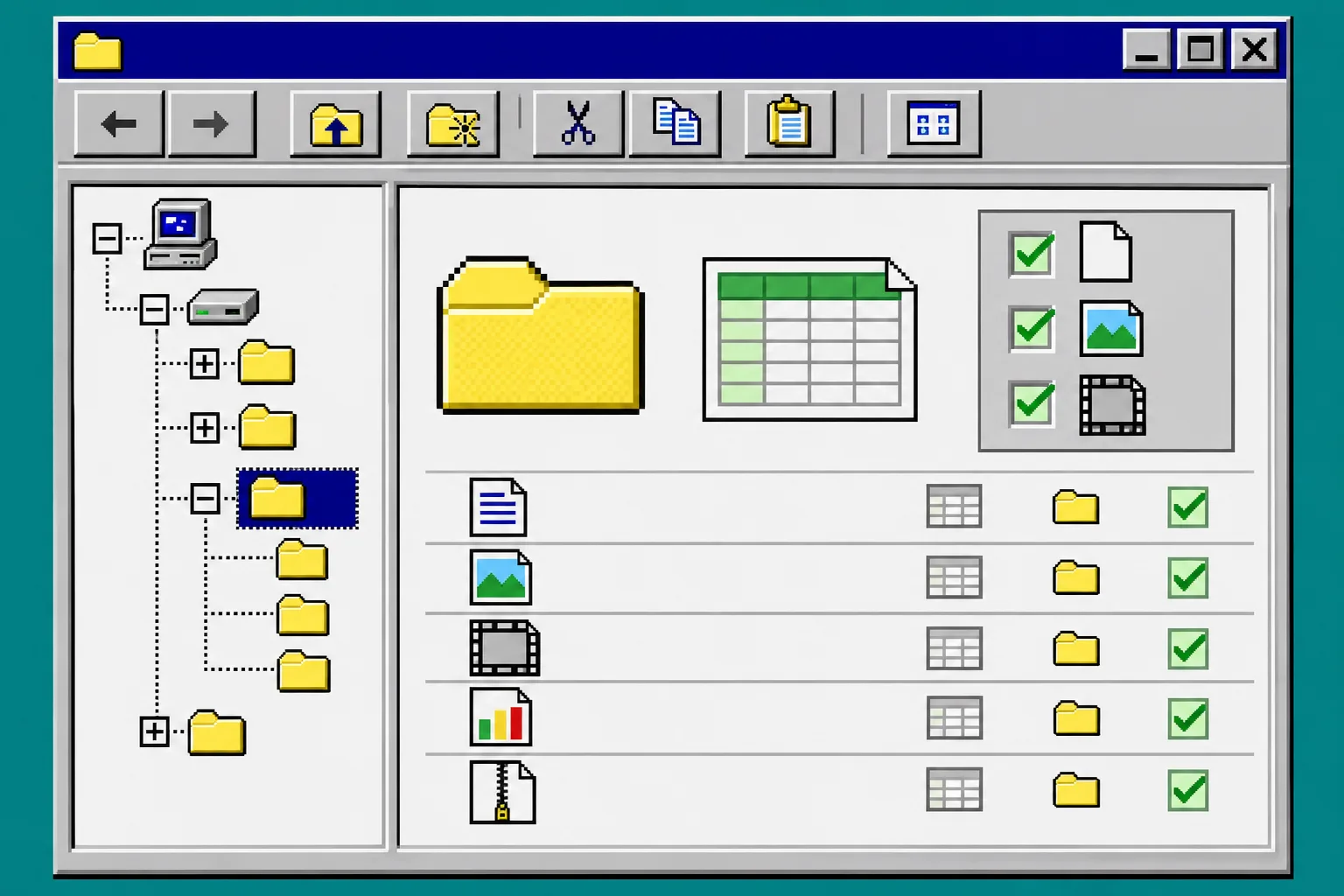
When the list matches your expectation, download the ZIP. The extractor puts each source file in its own folder and prefixes file names so two attachments named invoice.pdf do not overwrite one another. It also includes a manifest.csv that records the source message and subject for each extracted file.
Keep that manifest with the ZIP. It is the answer to “where did this attachment come from?” after the email export is no longer open. The same habit helps with tabular work: when an exported spreadsheet is involved, audit its formulas before importing it rather than treating a familiar file extension as proof that the content is ready to use.
5. Scan and open only the files you actually need
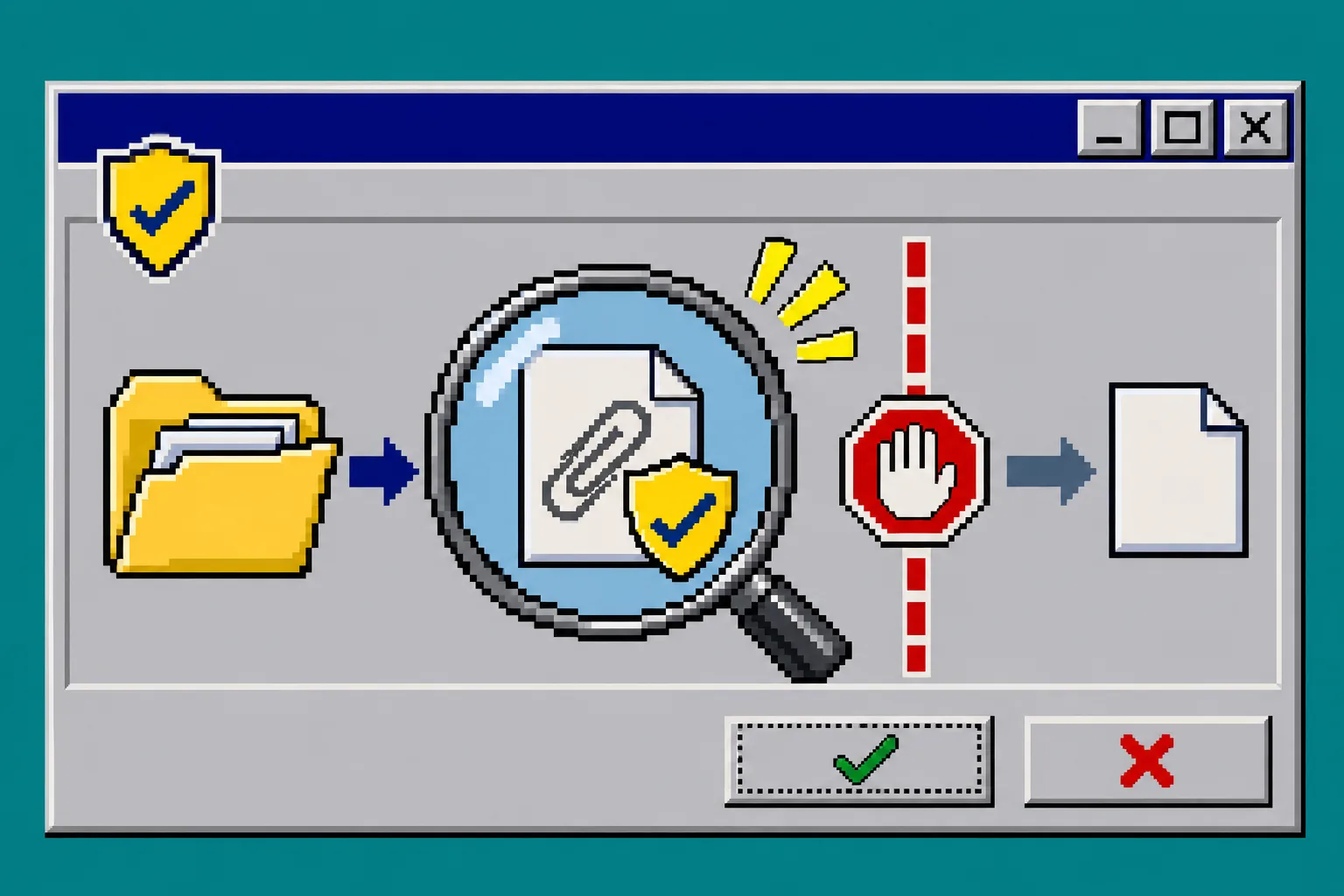
Extraction does not disinfect a file, verify a sender, or make a macro-enabled document safe. Before opening anything, use your organization’s antivirus or sandbox process, check the file type, and confirm why you expected that attachment. For a file you do not recognize, stop at the ZIP and ask the sender or owner for context.
A useful rule is to separate these two decisions:
| Decision | What to check |
|---|---|
| Can I keep this file? | Its source message, filename, and manifest entry |
| Can I open this file? | Its expected purpose, real file type, and your security review |
This division keeps an extraction task from becoming an accidental “open everything” task. If you need to review message headers and bodies first, Email File Viewer can open saved EML and MSG files in the browser without a mail client. For a broader no-import workflow, this guide on reviewing saved email files without opening a mail app is a useful companion.
Troubleshooting
The file says .txt or has the wrong extension. Add it anyway if you know it is a saved message. The extractor checks file contents and reports unsupported files by name while continuing with the rest.
I only see tiny images. Check whether they are repeated signature assets. Keep the manifest, hide or set aside the duplicates, and identify the documents the sender actually intended to share.
I need one attachment from a large archive. Extract the archive into a dedicated working folder, use the manifest to locate its source, then retain only the reviewed file and the evidence you need for the handoff.
I need customer data from an attachment. Do not paste it into a random converter. Start with a controlled file copy and use the same care described in preparing a Shopify customer CSV before sharing.
Keep the mail app out of the first pass
A saved email file is often just a container you need to inspect, not an invitation to rebuild an old inbox. Use the Email Attachment Extractor to make a structured ZIP, retain the manifest, and let your normal security checks decide which files deserve to be opened. Your next action: create a working copy of the saved messages and run one small batch first.