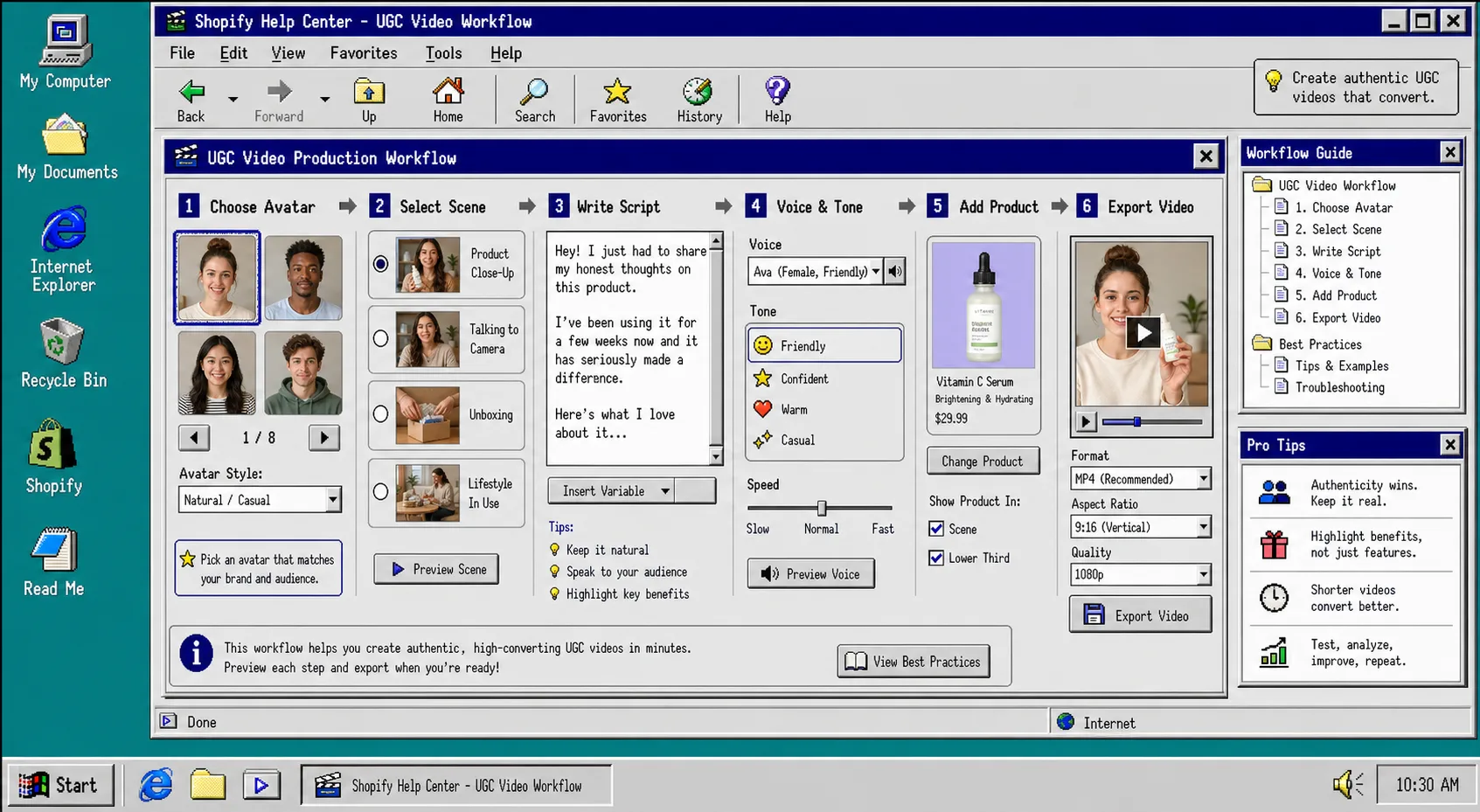
If you need short-form product video for ads, product pages, and email but do not want to book creators, a camera crew, or an editor, start with Supra UGC Maker. It is a Shopify app for building UGC-style product videos with AI avatars, scenes, scripts, speech, and product references.
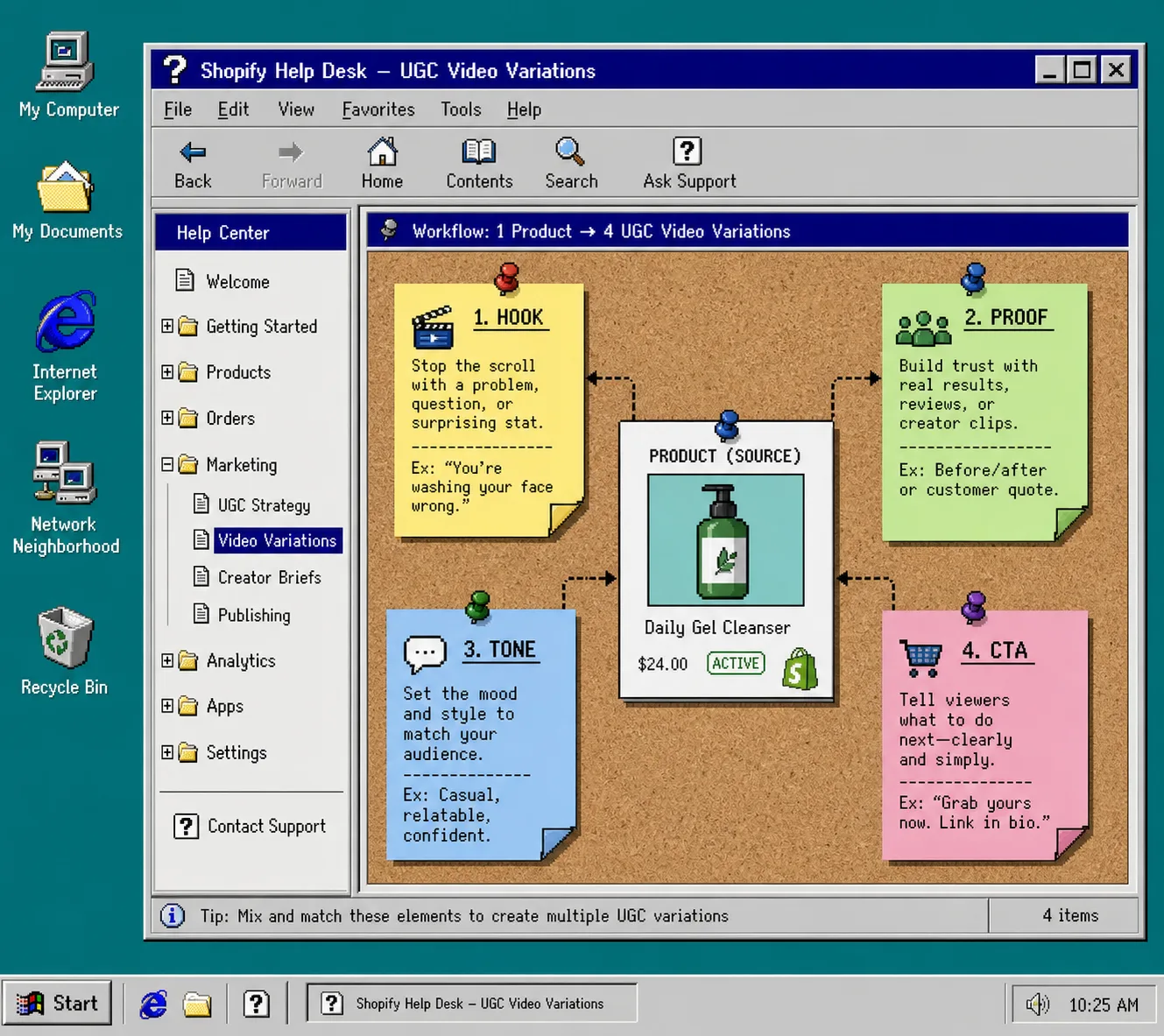
The useful part is not the avatar by itself. It is the reusable system: one product, one hook, one scene, one tone, then a small set of variations you can keep shipping.
1. Choose One Product And One Outcome
Start with one SKU and one job. Do not try to solve the whole catalog in a single clip. Pick the product that needs attention, then decide whether the first video should get clicks, explain a feature, support a launch, or help a seasonal promo.
A simple brief is enough:
- Product: the one item you want to move.
- Audience: the shopper you are speaking to.
- Promise: the result or benefit you want to lead with.
- Placement: ads, product page, or email.
What you should have at the end of this step is a short brief that can fit on one screen. If you want a more explicit matrix for the same idea, How to Build a Shopify UGC Video Ad Matrix Without a Shoot is the adjacent read.
2. Pick The Avatar, Scene, And Product Reference
Open the app and choose a preset avatar or create a custom AI model. Then match the scene to the buyer context. The product file supports studio, outdoor, boutique, and brand-specific settings, so use the one that makes the product feel believable instead of random.
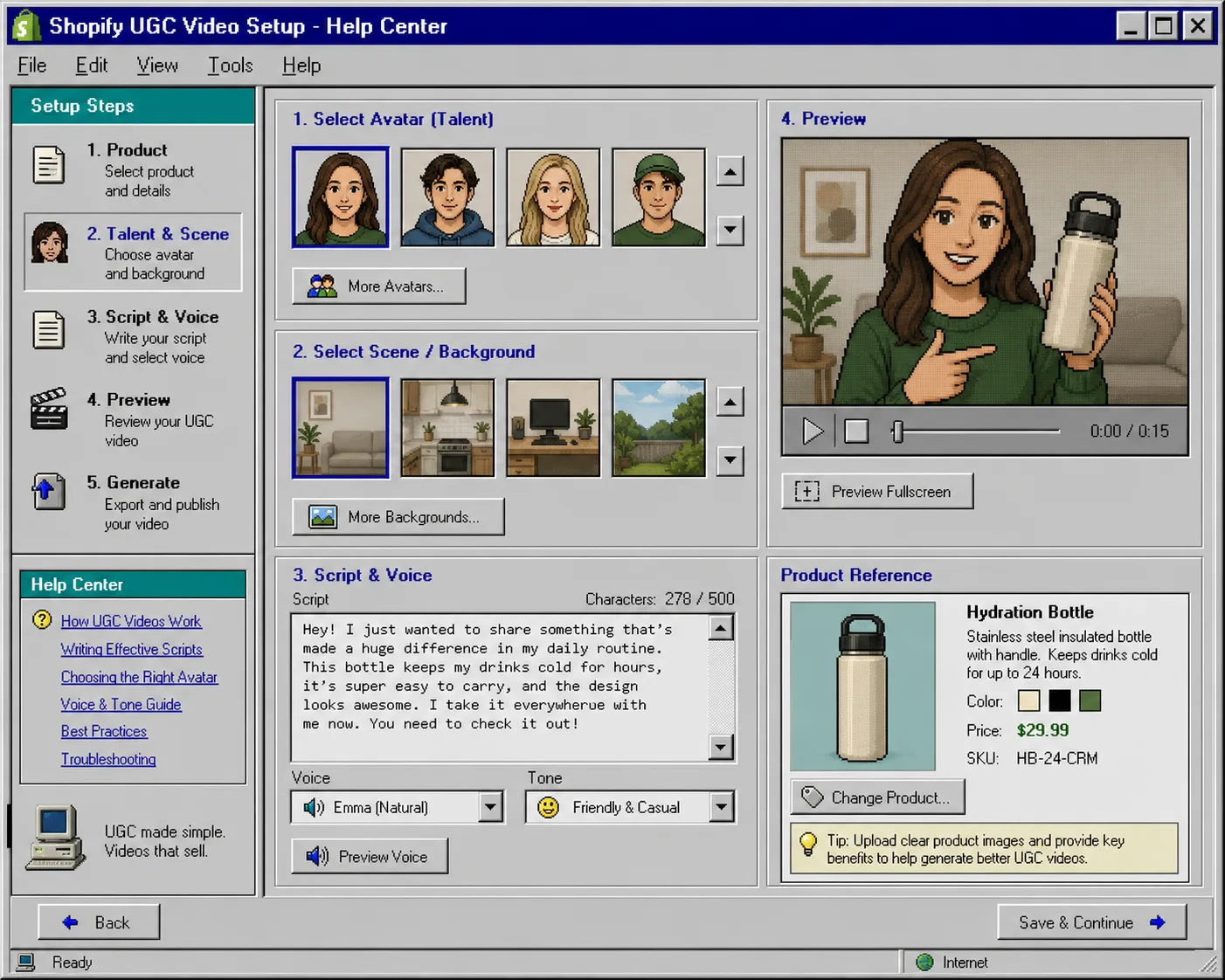
Keep the product visible early. If the item is skincare, a clean vanity or bathroom-style setup usually reads quickly. If it is apparel or accessories, a tidy lifestyle or boutique scene may work better. If it is a gadget, a clean studio shot usually beats a busy room.
What you should see here is a presenter that fits the store, not a face that could belong to any brand on the internet.
3. Write A Short Script Around One Hook
Keep the first script short. Fifteen to twenty-five seconds is enough for most tests. Use one hook, one proof point, and one call to action.
If you are stuck, write the script in this order:
- Hook: name the problem or the promise in the first line.
- Proof: explain the product benefit in plain language.
- CTA: tell the viewer what to do next.
The app gives you script, voice, and tone controls, so use them to keep the read natural. Friendly and conversational usually beats stiff brand language for this format.
If you want the earlier setup walkthrough first, How to Create UGC-Style Shopify Product Videos Without a Shoot covers the same core flow from a simpler starting point.
4. Preview The First Cut Before You Regenerate Anything
Preview the scene before you generate the final clip. Then check the first render for the usual problems: a weak opening, a background that does not support the product, a clip that lingers too long, or a script that says the same thing twice.
If the opening does not work, change the hook. If the visuals feel off, change the scene. If the pacing drags, shorten the script before you touch the rest of the project.
What you want at this stage is one draft that is close enough to judge. Do not chase perfection before you know which part is actually failing.
5. Trim Only The Weak Part And Save The Project
Do not restart the whole project when one segment misses. Reorder the clips, trim the dead space, and regenerate only the part that needs a cleaner read.
That is the main advantage of building the video inside a reusable project. You can keep the good pieces and replace the weak one instead of rebuilding the whole thing.
If you want help choosing the angle before you edit, How to Make Shopify UGC Videos for Ads, Product Pages, and Email and How to Turn One Shopify Product Into Multiple UGC Video Variations are the best next references.
6. Export The Winner Into Ads, Product Pages, And Email
Once the core cut is solid, reuse it where it matters. Put one version in paid social, one on the product page, and one in email or launch messaging. Save the scene and project so future versions stay consistent.
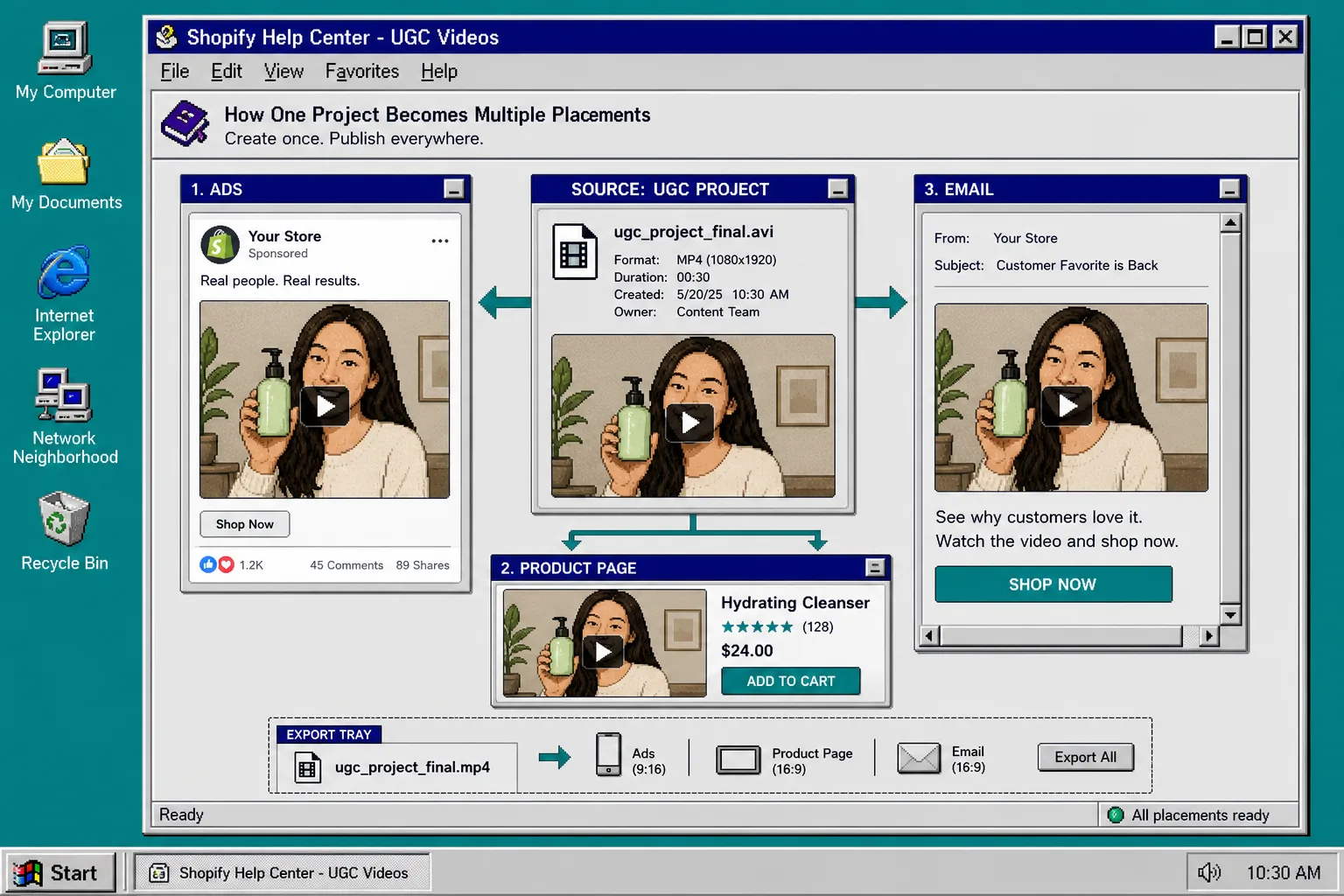
This is where the workflow starts to compound. One product becomes multiple creative angles, and one good script becomes a repeatable testing system. If you want the variation-first version of the same problem, How to Build a Shopify UGC Video Ad Matrix Without a Shoot is the companion article I would read next.
Troubleshooting
- If the hook feels generic, cut it down to one problem or one outcome.
- If the avatar looks disconnected, change the scene before you change the offer.
- If the product gets lost in the frame, bring it into view earlier and make it larger.
- If the video feels too long, remove one idea and one line before you regenerate.
- If you only get one good version, save the project and test a new hook instead of rebuilding from scratch.
Recap
A good Shopify UGC workflow starts small: one product, one job, one avatar, one scene, one short script, and one clear next action. Supra UGC Maker gives you the parts you need to build that system without scheduling a shoot.
When you are ready, open Supra UGC Maker, check the Shopify App Store listing, and use the free plan to build the first version for one product before you touch the rest of the catalog.