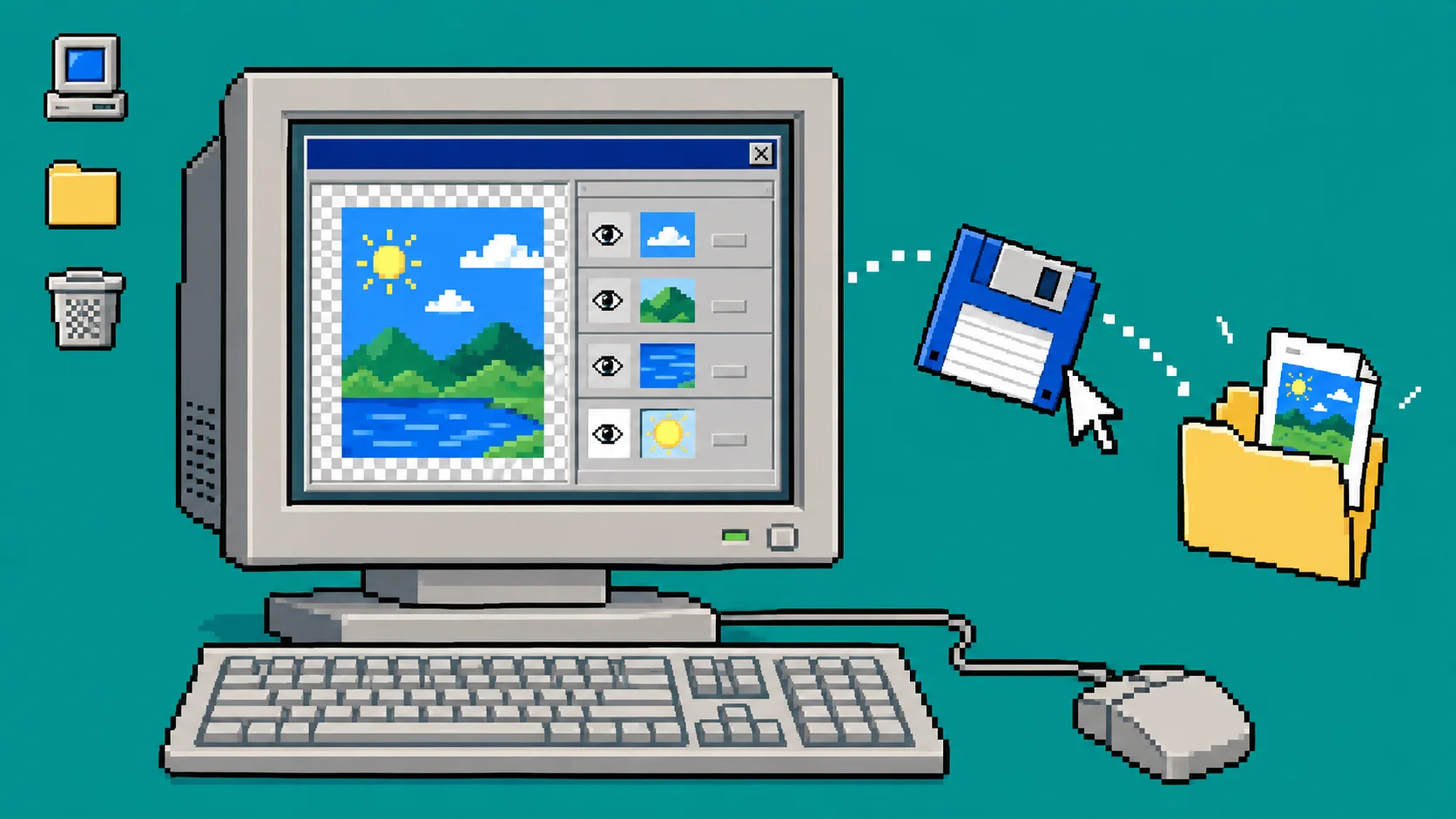
Need to change one line of campaign copy, repair a mask, or export a client-ready product image—but only have a PSD and a browser? You can make that small edit without installing desktop software. You need the original PSD (or a copy), a modern browser, and a clear definition of the one thing that must change.
ImageFlow is useful here because it is a browser-based, editable image workflow with layers, masks, adjustment layers, smart objects, and PSD/PSB import and export. It is not a promise that every complex production PSD will round-trip perfectly, so treat the first pass as a controlled handoff—not a heroic rescue.
1. Save a working copy before you open anything
Duplicate the client file in the same project folder. Name the duplicate with a plain revision marker such as spring-banner_v07-browser-edit.psd. Keep the supplied original untouched.
This sounds dull, but it gives you a known return point when the file contains linked assets, unusual fonts, smart objects, complex masks, or a color mode you have not tested before. If the request is only a text correction, do not also reorganize the layers. Small scope is the safety feature.
If your team regularly turns storefront assets into listing images, the same habit helps with the marketplace-photo workflow: preserve the real product before you start optimizing it.
2. Open the duplicate in ImageFlow
Go to ImageFlow and open the working copy. The product describes ordinary editing and its listed on-device AI selection/background-removal workflow as local to the browser, which can be helpful when you do not want a routine editing step to become an upload step. Your organization’s own privacy rules still apply.
Wait for the document to finish loading, then inspect the layer panel before touching the canvas. Look for the layer group that owns the requested change. A text update should point to a text layer; a cleanup should point to a mask or a small retouch layer. If the only available element is flattened into the background, pause and decide whether a new non-destructive layer is an acceptable solution.
3. Change only the requested layer or mask
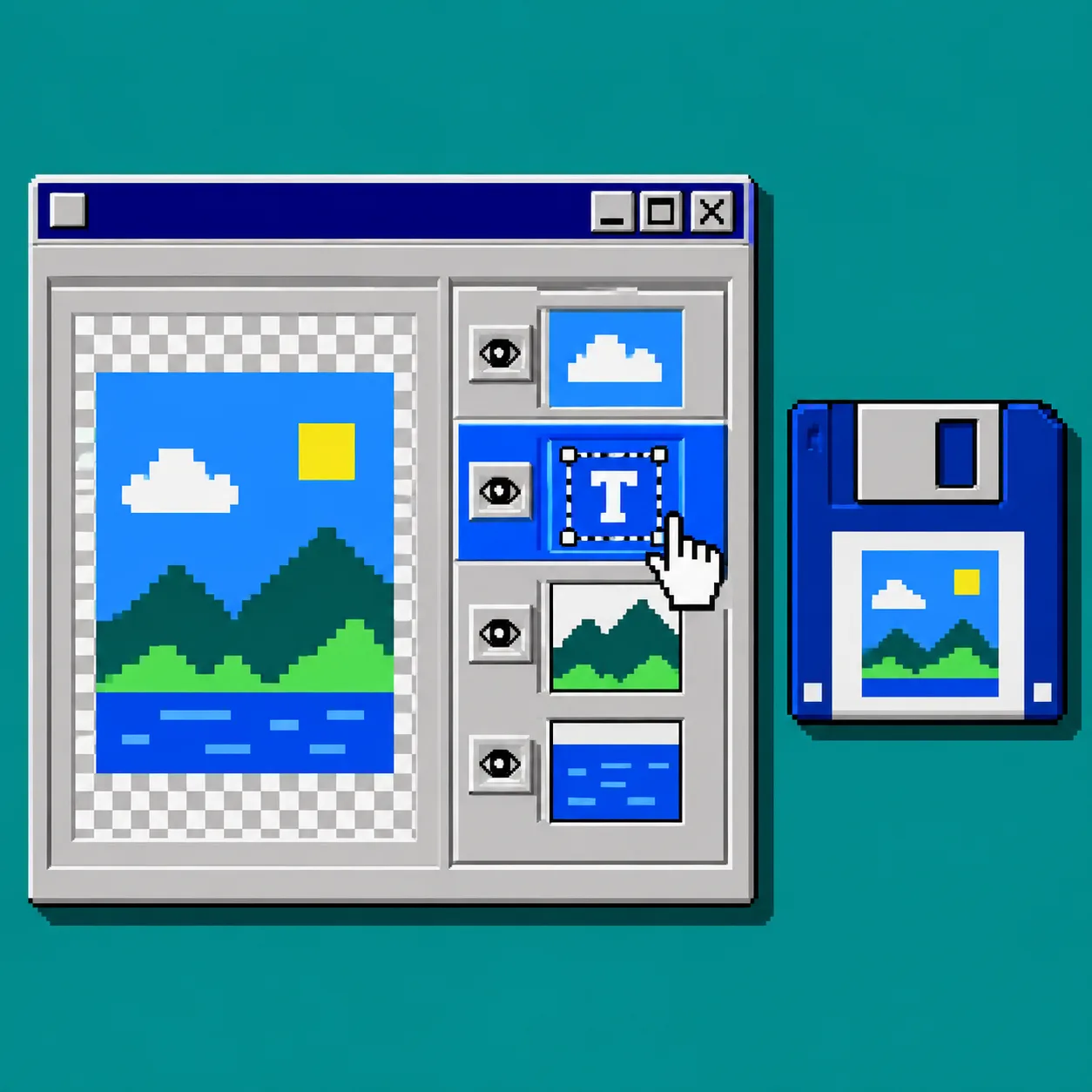
Select the narrowest possible target. For a copy correction, edit the text layer rather than rasterizing it. For a background cleanup, add or refine a mask rather than erasing pixels from the product. For tone and exposure, use an adjustment layer when it achieves the result.
ImageFlow lists groups, clipping masks, layer masks, vector masks, blend modes, adjustment layers, smart objects, and smart filters among its supported tools. That is why the tool is useful for a small handoff: you can preserve a working document instead of committing to a one-shot image.
Keep product facts honest while you work. Do not alter color, dimensions, included accessories, labels, or material texture to make an item appear different from what customers receive. For a product cutout, zoom in on reflections, transparent edges, and fine marks before accepting an automatic selection.
4. Inspect the change at full size
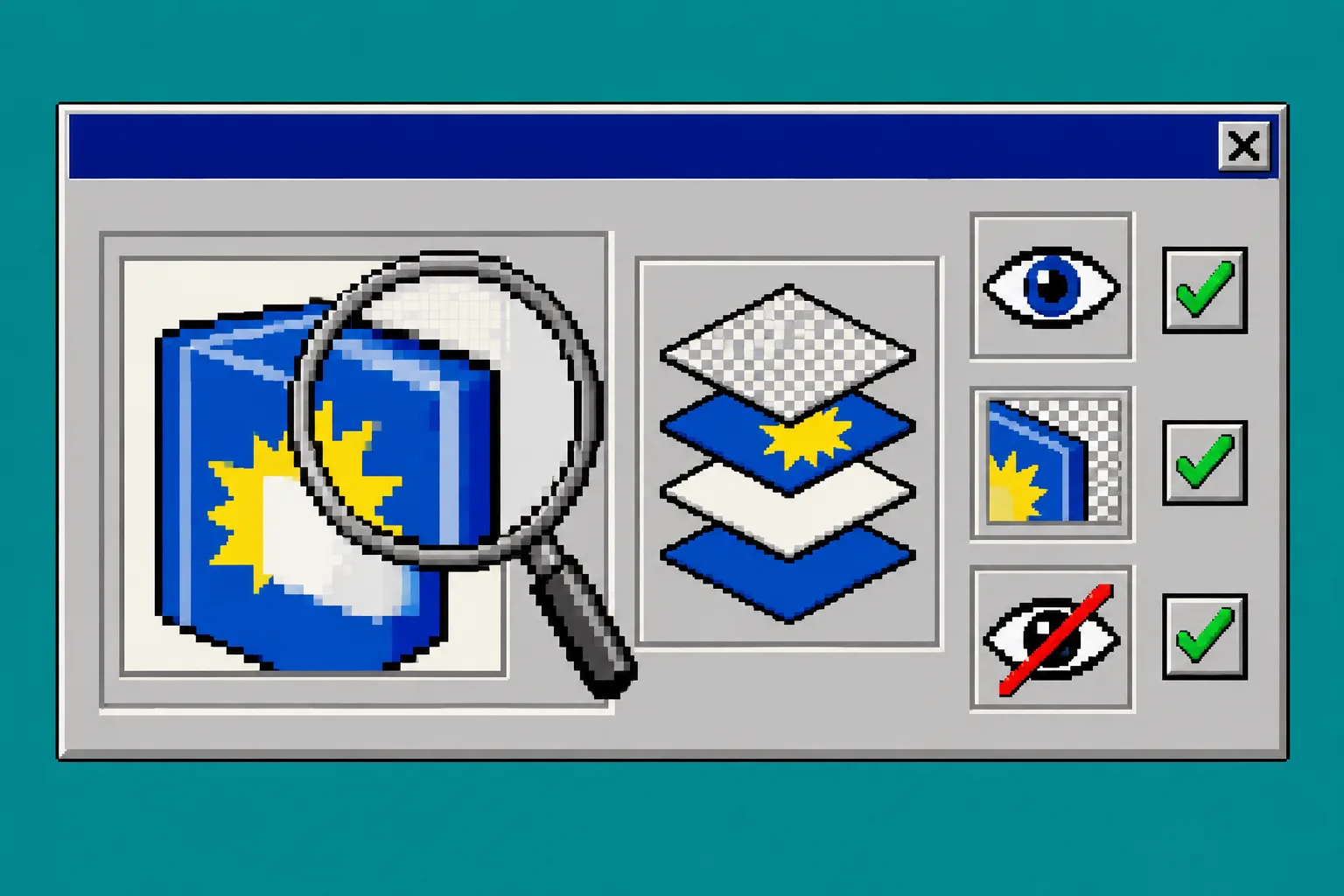
Set the canvas to 100% or higher and toggle the edited layer or mask on and off. You should see exactly one intended difference. Check the following places in order:
- Edges around the product, especially hairline parts, transparency, and shadows.
- Labels, logos, and fine print for accidental clipping or distortion.
- Type for substitutions, missing glyphs, overflow, and alignment changes.
- The layer panel for hidden or unintentionally modified layers.
This is the same basic principle behind checking whether a Shopify theme supports 3D media: inspect the actual delivery environment instead of trusting that a source file looks fine in isolation.
5. Save the editable revision, then make a separate export
First, save or export the editable PSD revision using the revision filename from step 1. Then create the client-facing delivery format separately—often PNG, JPG, or WebP—at the exact dimensions and quality the destination needs. Keep both files.
For complex PSDs, test the round trip on this one revision before you make the browser edit your default process. The original plus the editable revision lets a teammate continue working; the final export gives the client or storefront a stable asset. This split is especially useful when several assets need scheduled, reviewable changes, as with a catalog-feed refresh.
6. Send a handoff that can be checked in one minute
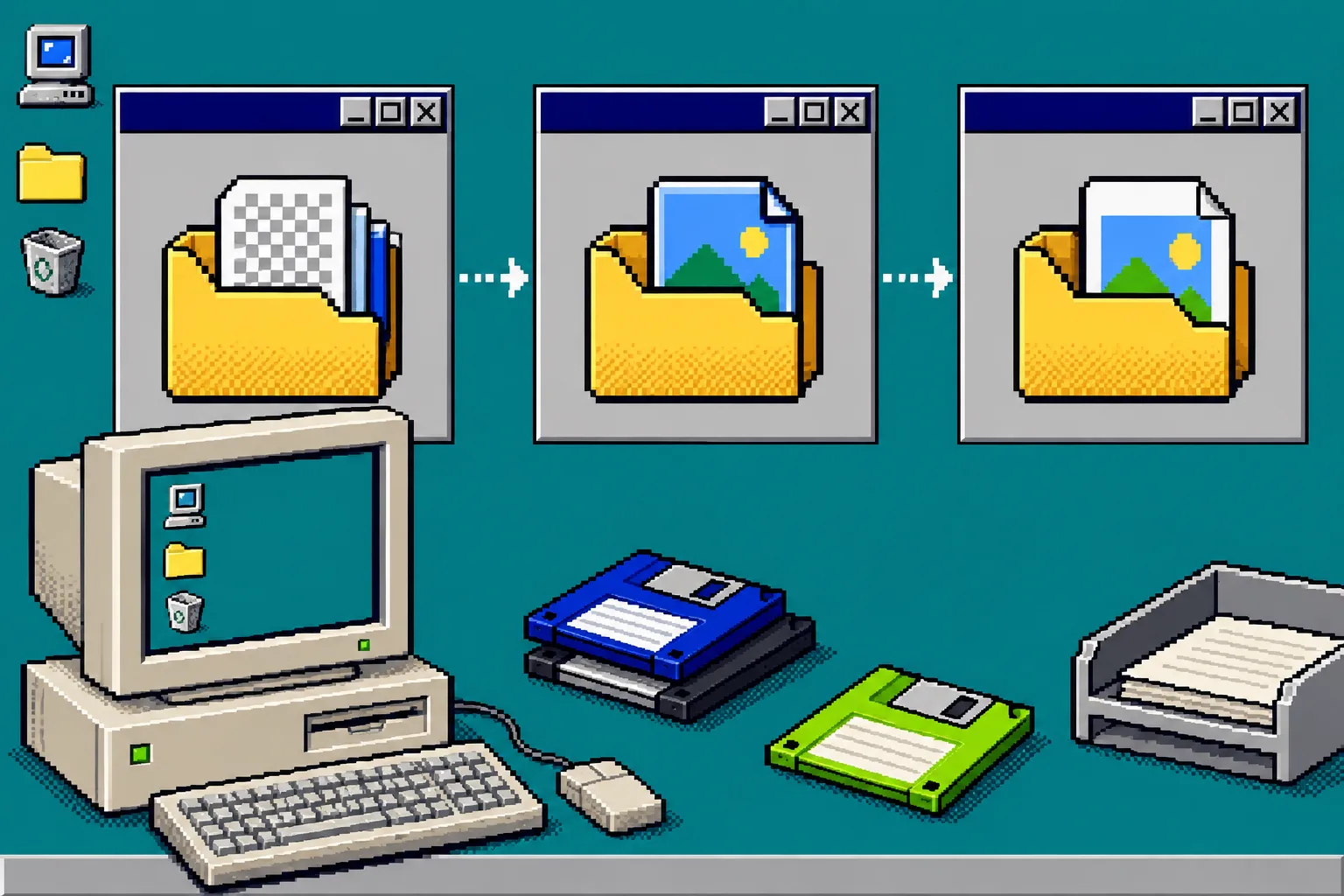
Attach or link the editable revision and the final export. In the message, state the source filename, the changed layer or area, the final dimensions, and one explicit check you completed—for example, “reviewed the mask at 100%; label edge preserved.” This gives the next person a short audit trail without a long design explanation.
Troubleshooting
The PSD opens but a font looks wrong. Stop before changing layout. Confirm whether the correct font is available, then ask for an outlined or approved substitute if it is not.
The selection missed a reflective or transparent edge. Refine the mask manually and review it on both a light and a dark temporary background. Do not hide the problem with a stronger blur.
The export looks different from the canvas. Recheck dimensions, color settings, and export format. Compare the export with the canvas at actual output size.
The document is unusually complex. Keep the original untouched and run a small test edit first. A browser editor is a practical Photoshop alternative for many layer-and-mask tasks, not a reason to skip production QA.
Recap
A safe browser PSD edit has three parts: protect the original, make the smallest editable change, and check the separate export. Open ImageFlow with one real file today and try the smallest useful revision first. If you are preparing the result for a static-site client handoff, pair it with this guide on making a Squarespace backup you can test on static hosting.