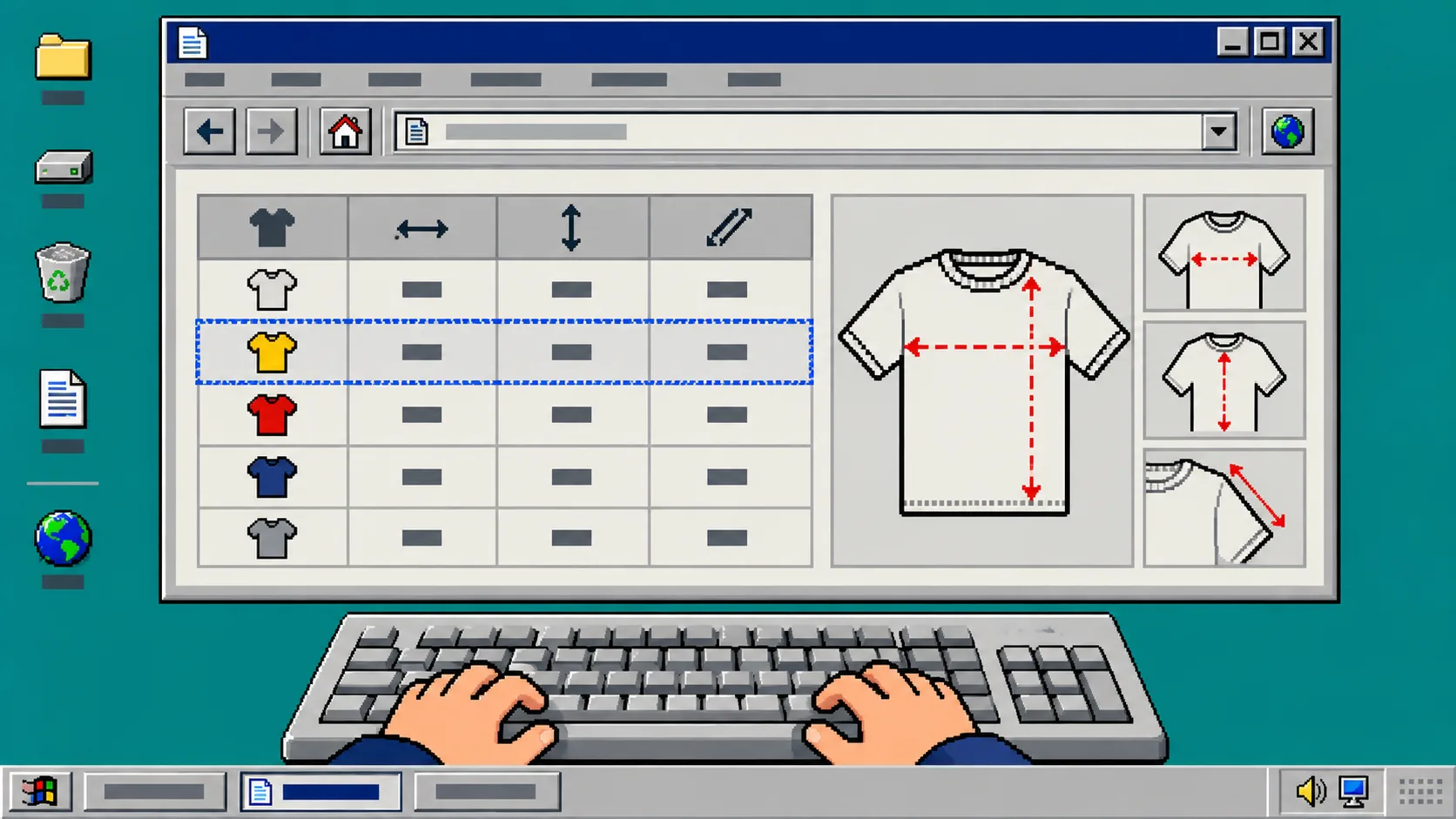
A size chart only helps when a shopper can actually reach it, understand it, and get back to choosing a size. That includes people who move through a product page with a keyboard, zoom the page, or simply do not want to hunt through a dense block of product copy.
This guide shows a practical keyboard-first check for a Shopify size guide. You need access to your Shopify theme editor, a published or preview product, and the chart data you want to show. Supra Size Chart is useful here because it keeps charts and reusable measurement guides in Shopify metaobjects, then places the matched chart through a theme app block.
1. Put the size chart in a predictable product-page location
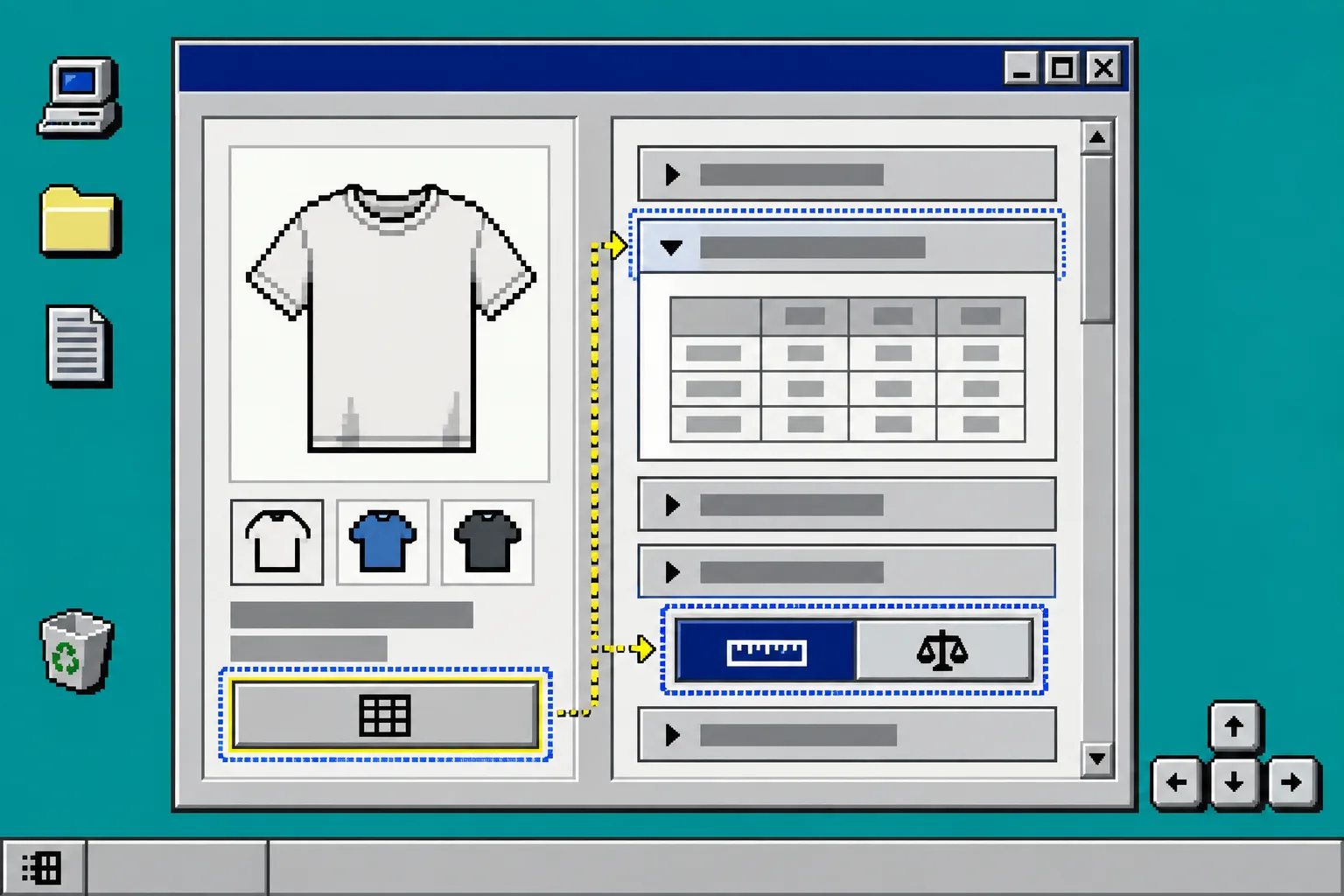
Open Online Store > Themes > Customize, then open a product template that represents the fit family you are checking. Add or locate the Supra Size Chart app block near the size selector and purchase controls.
Avoid hiding a critical chart only in a long description below reviews, related products, and marketing copy. A shopper should encounter the control where they are deciding between sizes. If you are still choosing a display format, compare the trade-offs in How to Show Centimeters and Inches in a Shopify Size Chart.
Save the template. On the product page, you should see either an inline table, an accordion, or a chart trigger in the same area as the size choice.
2. Name the chart control by its job
Use a direct label such as Size chart, Find your size, or Measurements. Do not make shoppers infer that a small ruler icon or a vague link opens sizing information. The label should say what happens next.
If the product has a specific fit, add that information in surrounding product copy rather than burying it in the label. For example, “Relaxed fit” can sit near the size selector while the control remains “Size chart.” This keeps the page scannable and helps the same chart pattern work across a collection.
Use one stable label across a fit family. If every product calls the same thing something different, support questions return even when the measurement data is accurate.
3. Build a table that can be scanned one row at a time
Open the chart in the Supra Size Chart spreadsheet-style editor. Start with the minimum columns a shopper needs: size, the garment measurement, and the unit. Use clear measurement names such as Chest, Waist, Inseam, or Length; avoid internal abbreviations that only your merchandising team recognizes.
Keep one unit per column. When you sell across regions, enable the metric/imperial switch rather than placing two competing values in every cell. The app can convert paired scales such as centimetres to inches.
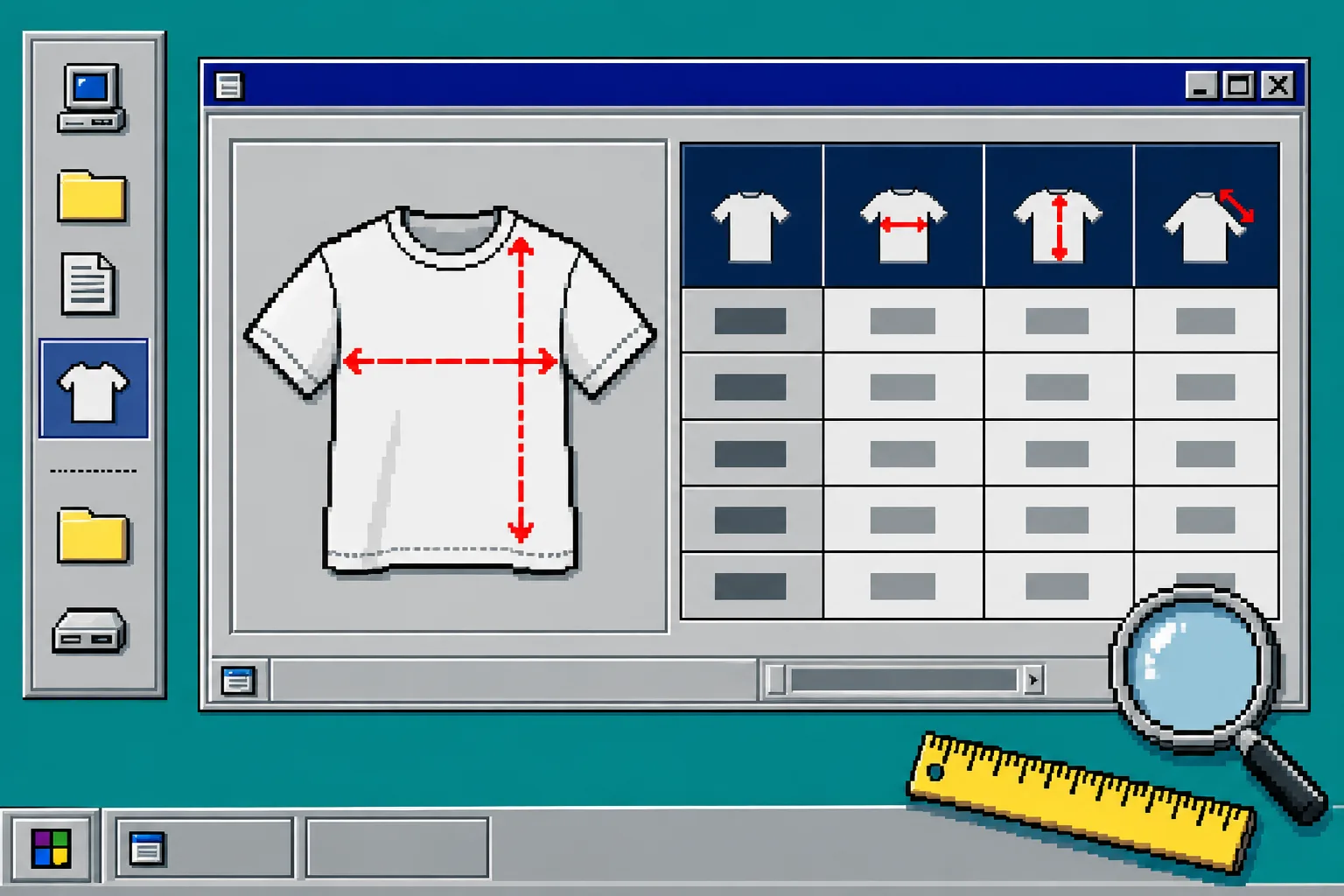
Add a labelled measurement guide when the chart uses flat-garment values. A shopper needs to know where the tape measure goes before a number becomes useful. Reuse that guide across similar charts, but split charts when the actual fit or measuring method changes. How to Build Size Charts Shoppers Can Measure at Home covers the shopper-facing measurement setup.
4. Assign the chart with a rule instead of pasting it into descriptions
Create an assignment rule for the product, collection, product type, vendor, or tag that genuinely shares the chart. Use the most specific rule for an exception, then keep a store-wide default chart only where it makes sense.
This is the maintenance step that prevents a newly added product from losing its chart. A rule is evaluated when the product page renders, so a product added to the matching collection or tag is covered without pasting another HTML table. For a new-product safety net, follow How to Add a Default Shopify Size Chart for New Products.
Save the rule, then open one matching product and one intentional non-match. You should see the right chart on the first product and no accidental chart on the second.
5. Run the keyboard path on the real storefront
Open the product page in a fresh browser window. Click the address bar once, then press Tab. Continue with Tab and Shift+Tab; do not use the mouse for this pass.
Check these exact outcomes:
- You can reach the size selector, the size-chart control, and the purchase controls in a sensible order.
- The chart control has a visible focus indicator.
- Pressing Enter or Space opens the control when it is an accordion or modal trigger.
- Once open, the chart is visible without a confusing jump away from the product context.
- You can reach any unit toggle, close control, or link inside the chart, then continue to the rest of the page.
The app block takes its colours from the theme text colour, but focus visibility and keyboard order are still things to verify in your specific theme. Treat this as storefront QA, not a checkbox you can assume has passed.
6. Fix the common failure points
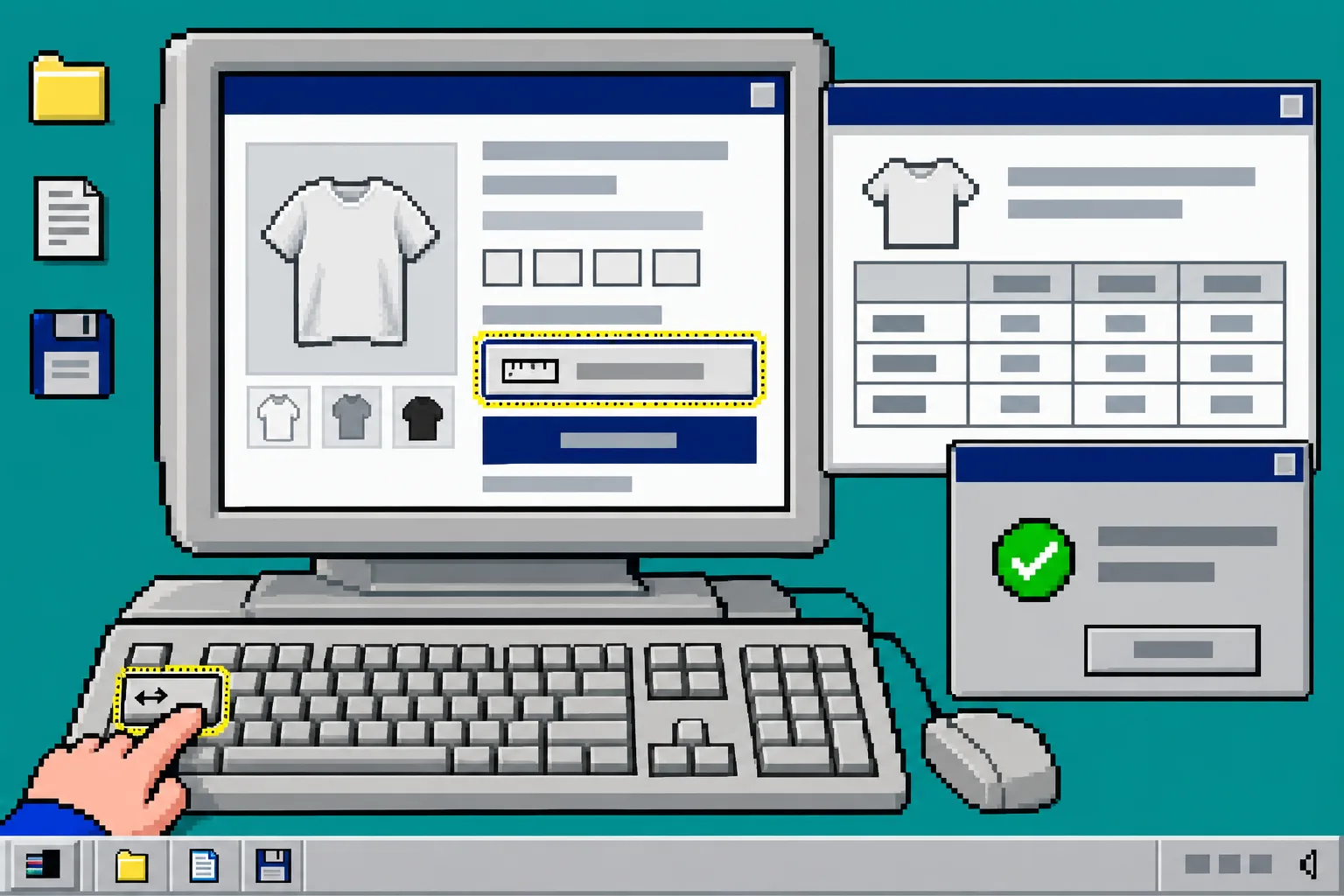
If Tab skips the chart entirely, return to the theme editor and confirm that the app block is in the active product template, not only in an unused template. If the focus outline is hard to see, check the theme’s focus styling against the background around the chart. If a modal opens but you cannot find a clear way back, test the close control and the next Tab stop before publishing.
If the wrong chart appears, inspect the product’s type, vendor, collection membership, and tags against the assignment rules. When the data needs a correction, update the central chart rather than editing individual product descriptions. Exporting CSV or JSON first also gives you a portable copy of your chart data.
7. Repeat the check before a collection launch
Run this short test on a phone-sized preview as well as desktop, especially after a theme update or a new display mode. A small set of representative products—one standard match, one fit exception, and one new item—will catch most rule and placement errors early. You can pair this routine with How to Run a Shopify Size Chart Pre-Launch Check.
A keyboard-friendly size chart is not decorative polish. It is part of the path from “Which size am I?” to a confident purchase. Set up the chart once in Supra Size Chart, place the theme app block beside the size selector, and make the keyboard pass part of your next product-page release.