How to Compare JSON Files Before Replacing Storefront Configuration
When a theme setting, app export, or storefront integration gives you a replacement JSON file, do not paste it over the working version and hope for the best. Make a copy, compare the two structured files, then replace only after you understand each meaningful difference. This workflow uses the browser-based JSON Diff tool from Tiny Online Tools to normalize the files and highlight additions and removals without sending the comparison away from your browser.
JSON is a structured text format: objects use name/value pairs and arrays keep ordered values, as defined by RFC 8259. That structure is why a careful comparison beats scrolling through two long files in separate tabs.
What you need before you compare
Have these items ready:
- the current, known-good JSON file;
- the proposed replacement file;
- a place to save an untouched backup; and
- the name of the system that will receive the replacement.
Do not use this process to decide whether a file is safe to execute. JSON is data, but the system that imports it can still make broad changes. The comparison tells you what differs; it does not approve the business effect of those differences.
1. Save an untouched copy of the working configuration
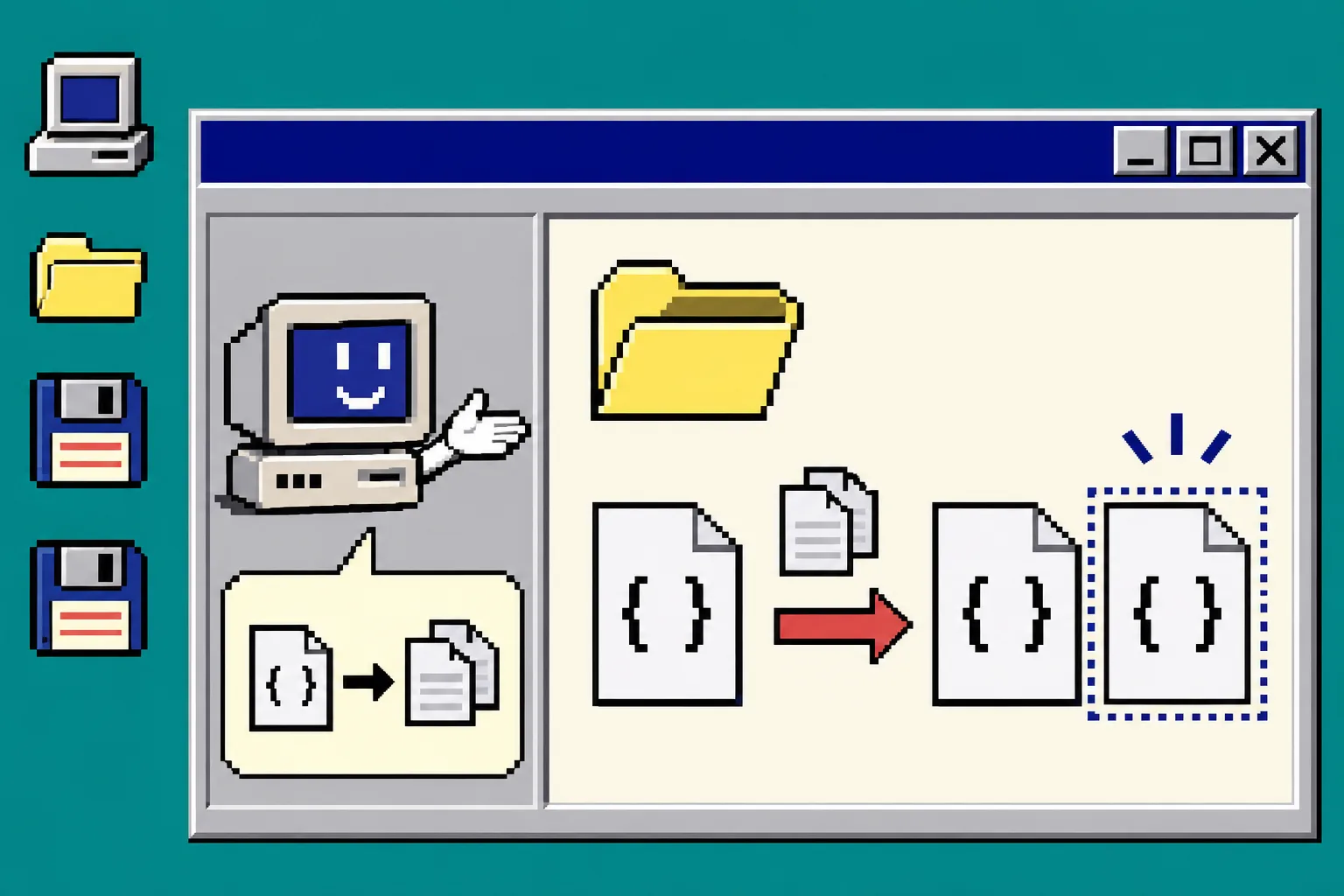
Create a folder named with the date and keep the current file there before editing or importing anything. Use a name such as storefront-settings-working-2026-11-11.json. Then make a second copy for the candidate file.
This first step gives you a rollback point. It also prevents a surprisingly common mistake: comparing a modified working file to the incoming file and concluding that nothing changed. If the configuration began as a spreadsheet export, first follow the same habit of checking formulas and source columns described in How to Audit Excel Formulas Before Importing a Supplier Spreadsheet.
2. Identify the job of each file
Write one sentence for each version before opening the diff:
| File | Question it must answer |
|---|---|
| Working version | What settings are live and known to work? |
| Candidate version | What change was requested or exported? |
| Final version | Which specific differences are approved for import? |
This small receipt matters most when the file has familiar keys such as theme, locale, collection, redirect, endpoint, or enabled. The key name alone does not explain the consequence. A changed collection handle may alter where products appear; a changed locale may change what buyers see; an unexpected endpoint deserves a second look.
3. Paste both files into JSON Diff
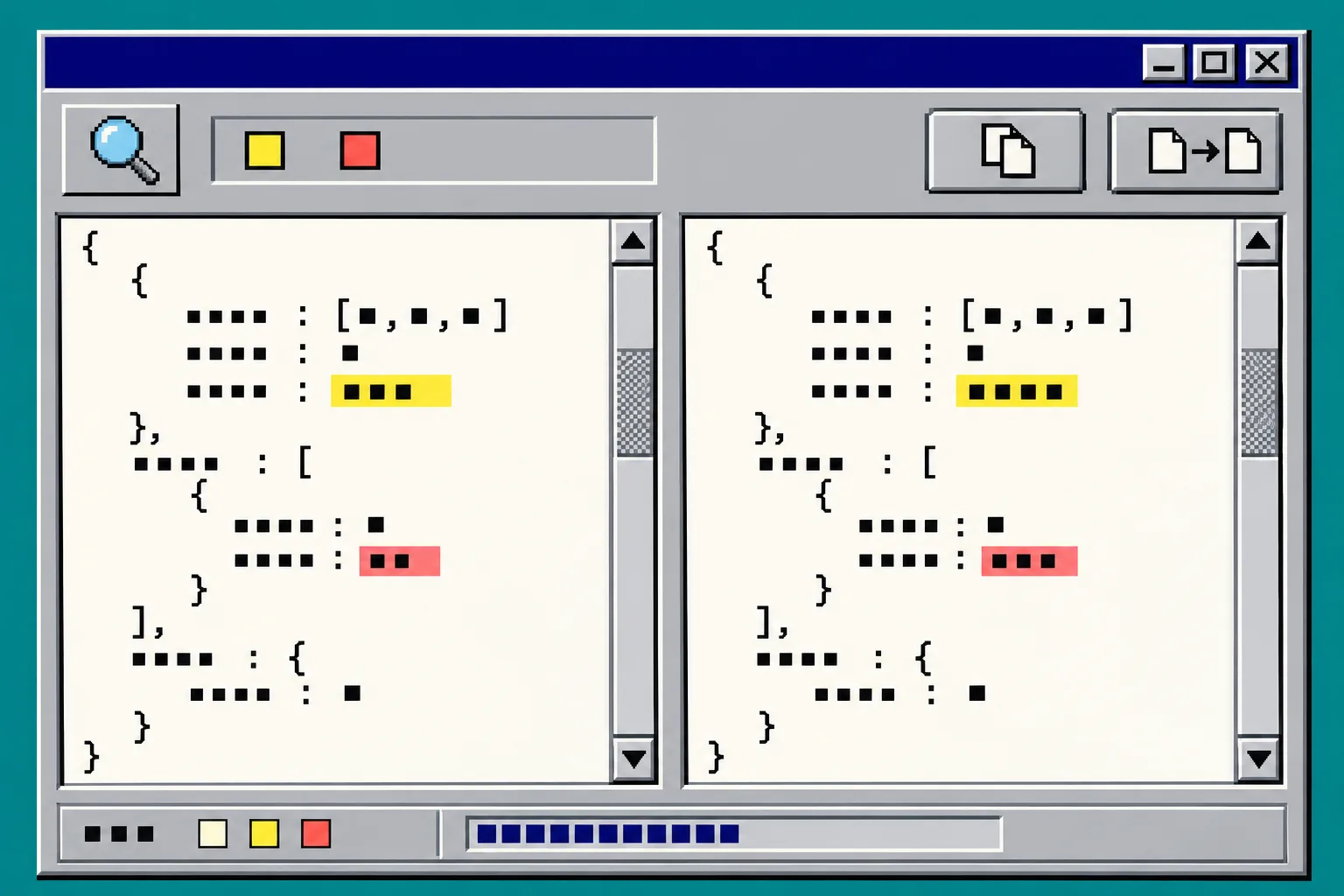
Open JSON Diff. Paste the working JSON into the left input and the candidate JSON into the right input. The tool is designed to normalize the inputs, so indentation and line wrapping do not distract from actual data differences. It shows whether the normalized objects are identical and highlights additions and removals.
If the tool reports invalid JSON, stop there. Correct the syntax in the source system or ask the exporter for a new file instead of hand-repairing a production configuration. A missing quote or comma can be a simple typo, but it can also conceal a cut-off export. For a related inspection habit, see How to Inspect an ICS Calendar File Before Importing It.
4. Review differences by risk, not by color
Treat highlighted lines as a work queue. Review them in this order:
- Access and endpoints. Look for URLs, API host names, tokens, webhook destinations, or authorization-related flags. Do not paste secrets into tools unless your team has approved that handling.
- Storefront routing and content. Check redirects, menu items, collection references, locale strings, and feature flags against the intended change request.
- Prices, availability, and inventory-like values. Confirm the input is authoritative before importing. A number changing format can be as important as the number changing value.
- Cosmetic settings. Colors, labels, and layout values normally carry less operational risk, but still confirm that the requested theme or campaign is the one you are preparing.
For each approved difference, note the key, the old value, the new value, and the person or ticket that requested it. You do not need a large change-management system for a one-file job; you do need a record that separates intentional changes from accidental ones. This is the same idea behind keeping a URL receipt when exporting structured site content in How to Test a Webflow Collection Export With a 12-URL Receipt.
5. Replace only after the comparison has an owner
Import or replace the file only when someone can answer these three questions:
- Which differences are expected?
- Which live page, integration, or workflow should change afterward?
- How will we restore the saved working file if the result is wrong?
Then perform the replacement in the destination system, refresh the affected storefront area, and test the exact path named in your receipt. For example, open the changed collection, trigger the changed redirect, or check the setting in the theme editor. Do not rely on a successful import message alone.
Troubleshooting common comparison mistakes
The diff is empty, but the files look different. The difference may be whitespace or key formatting. JSON Diff normalizes the structure, so an empty result can mean the data is equivalent after normalization.
The candidate file will not parse. Do not remove characters until it happens to validate. Request a fresh export, or compare against the source that generated it.
There are too many changes to review. Split the task. Compare one configuration section or one export scope at a time, then create a separate receipt for each import.
You found an unfamiliar value. Keep the working version in place and ask for the source and intended effect. This is particularly important for links, endpoints, authentication fields, and bulk catalog settings. If the incoming data began as a CSV process, rename and verify CSV headers before import so a mislabeled column does not become a confusing JSON key later.
Keep the final receipt with the backup
Save the working file, candidate file, approved-difference note, and date together. The next person should be able to see what changed without reconstructing the decision from browser history.
Start with Tiny Online Tools JSON Diff, compare the two versions, and replace the storefront configuration only when every meaningful change has a clear owner and a rollback file.