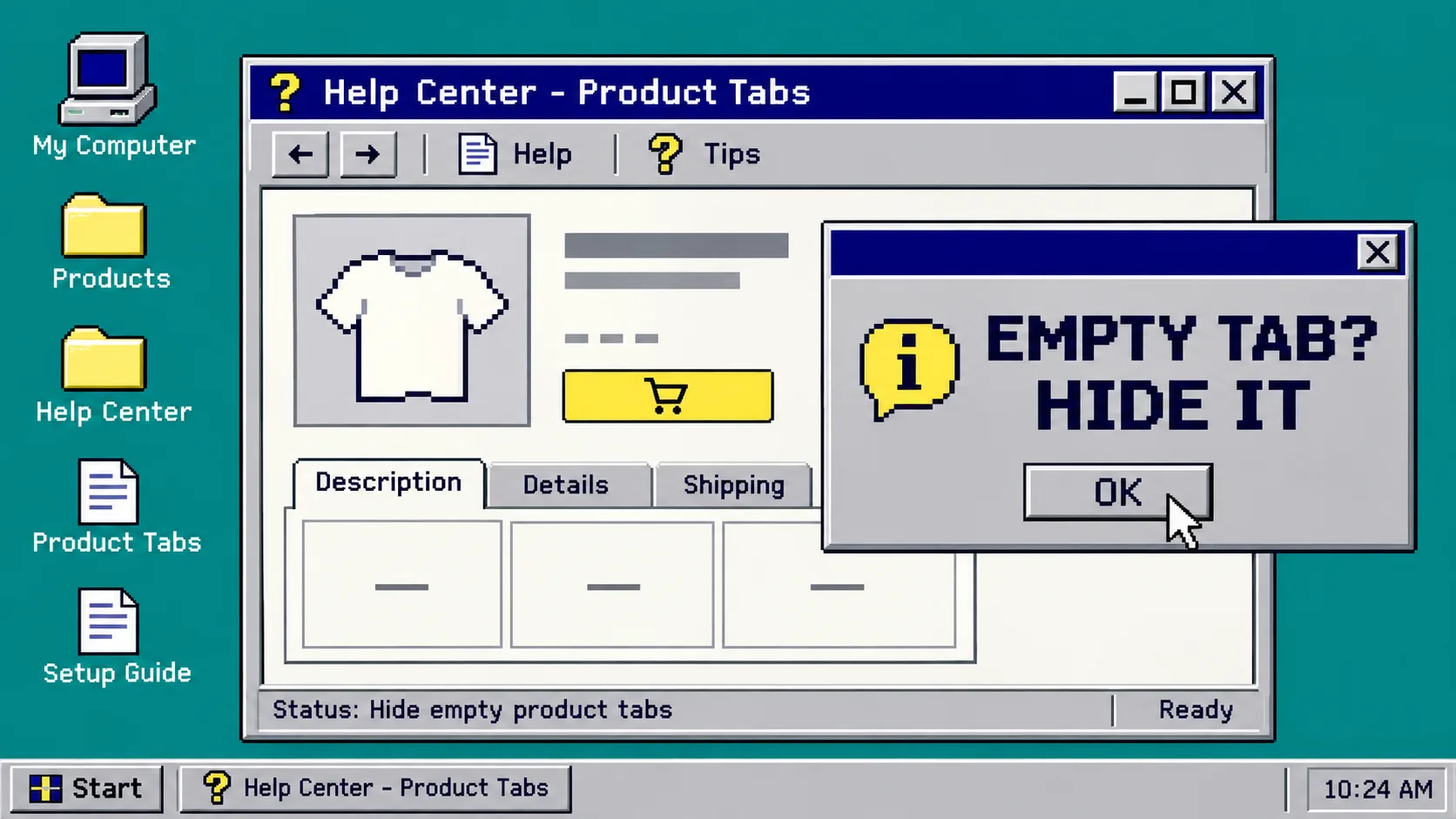
If one Shopify tab set covers products with different data, do not show every label on every product. Map each label to a real source, configure the set to hide when that source is empty, then test a product with data and one without it. This keeps specs, care, and shipping information easy to find without promising details a product does not have.
You need access to your Shopify admin, a product template that accepts app blocks, and a small test group of products with intentionally uneven information. Shopify app blocks are the supported way for an app to appear in a compatible theme section. The steps below use Supra Tabs & Accordions, a free app that presents tabs on wider product columns and accordions in narrower ones. It changes how content is organized, not the underlying Shopify records.
1. List the labels that answer a shopper question
Start with the question, not the tab style. Open a plain text note and make one row per proposed section: Specifications, Care, Shipping, Warranty, or Compatibility. Next to each label, write the shopper question and the actual Shopify source.
| Label | Shopper question | Source to connect |
|---|---|---|
| Specifications | Will this fit or work with my setup? | Product metafield or description |
| Care | How do I maintain it? | Product metafield or reusable store content |
| Shipping | When and where can it ship? | Store page content |
| Warranty | What coverage applies? | Store page or metaobject field |
Do not create a label merely because another product has one. Shopify metafields are intended for specialized product details such as dimensions, care instructions, and files; Shopify documents how they extend product data in its metafields guide.
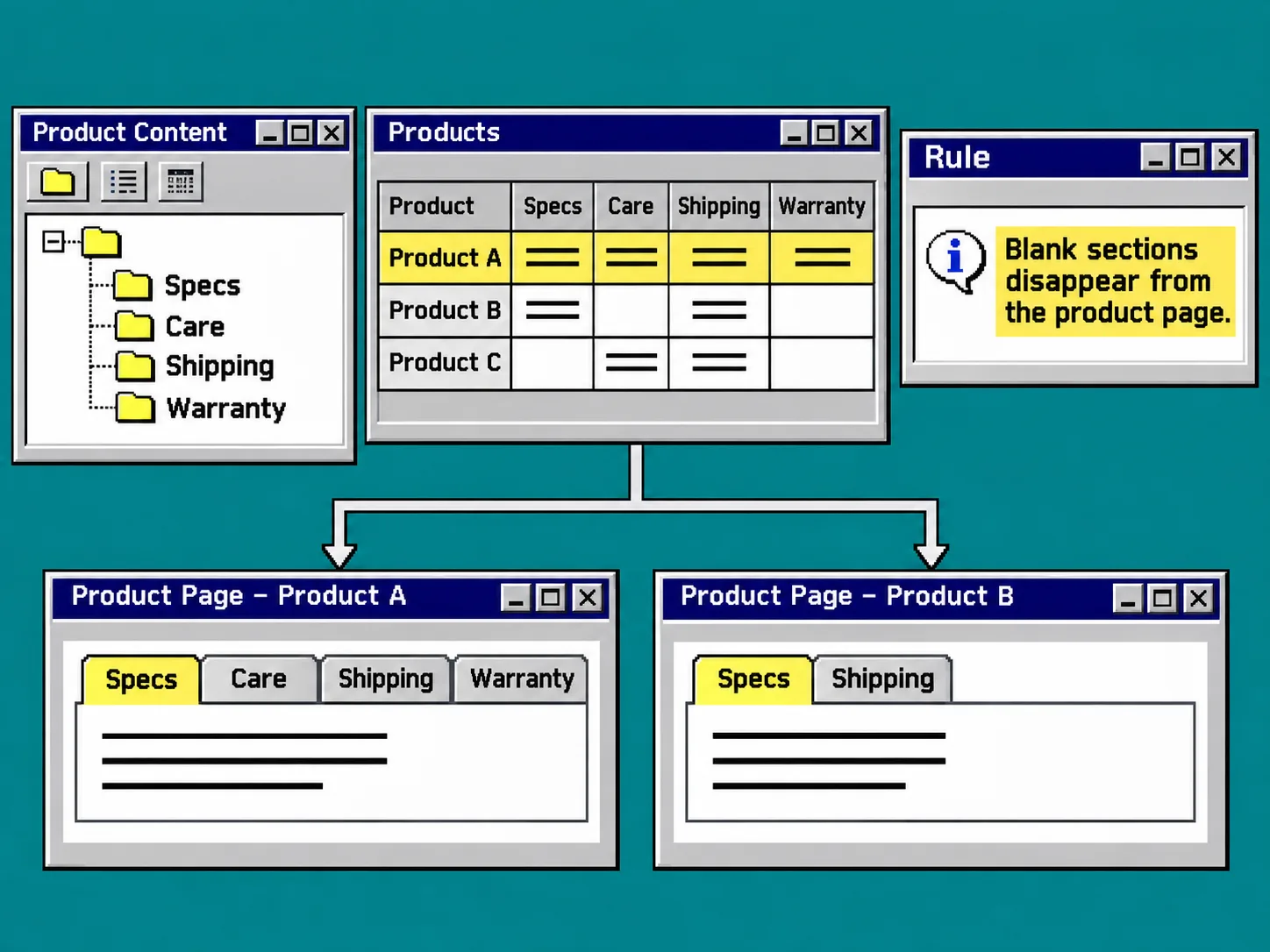
What you should see: a short source map where every tab label has one owner. If two places own the same fact, choose one before you build. That is the easiest way to avoid mismatched care copy later.
2. Add values to a small mixed test group
Pick three products from the same collection: one with every detail, one missing a detail, and one that needs different wording. Add the relevant product metafield values or references before you configure the tab set.
For structured multi-field information, use a metaobject only when it earns its keep. Shopify says a metaobject is useful when data needs multiple fields; a product metafield can reference that entry when the detail differs by product. Read Shopify’s metaobject reference instructions before choosing that route.
Keep shared policy copy in a store page or reusable entry. Keep product-specific dimensions, ingredients, compatibility, and care instructions in the product data. This split makes the display rule predictable: a product-specific tab can vanish when there is no value, while a shared shipping tab remains available.
What you should see: your three test products now demonstrate the exact differences the real catalog has. Do not use duplicate placeholder text; it can make an empty-state test look successful when it is not.
3. Build one tab set with explicit sources
In Supra Tabs & Accordions, create a tab set. Add a tab for each row in your source map and choose the source deliberately: product description, per-product metafield, store page, metaobject field, file, image, or written app content.
For a catalog that has only some warranty records, choose the warranty metafield rather than pasting a generic warranty paragraph into every description. The app can hide a tab that has no matching content, so an absent value does not become an empty panel. If a detail is legally required or essential to the purchase, do not rely on hiding it; provide the required information for every affected product first.
This is also a good time to follow the content-design work from How to Map Shopify Product Details Before Adding Tabs. The map stays useful when you later add new collections.
What you should see: each tab is connected to a single source, and the product preview makes the empty and populated cases visibly different.
4. Target the set once, then check rule overlap
Assign the set to the collection, tag, vendor, product type, or selected products that share this content model. Use the narrowest rule that matches the job. A collection rule is usually a better maintenance choice than selecting each current product one by one, because future matching products can inherit the system.
Then inspect the match count and any overlap warning. Two sets that both target the same product can make it unclear which content a shopper should see. Resolve the collision before you add the app block. If you are also managing visual options, How to Test Color Swatches on a Shopify Collection Page is a useful reminder to test the real collection context rather than a single ideal product.
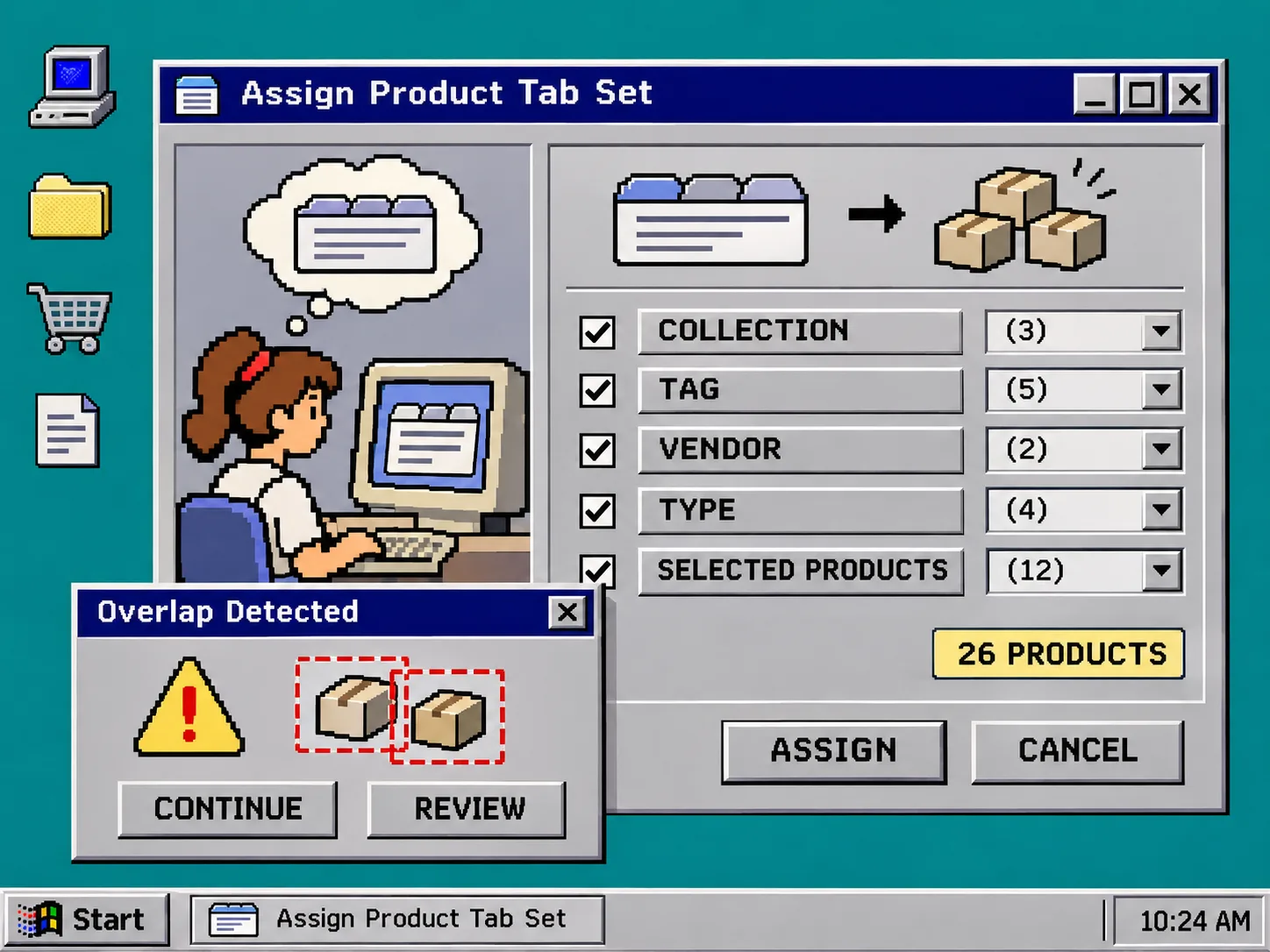
What you should see: the intended test products match one clear set. A product outside the rule should show neither an unexpected tab nor a duplicate section.
5. Add the app block to the product template
In Shopify, open Online Store > Themes > Customize. Select the default product template used by the test products, then use Add block in a section that supports app blocks. Choose the Supra Tabs & Accordions block and place it where shoppers expect product details—usually below the buying controls and above long secondary content. Save the template.
A compatible theme must support app blocks in its product template; Shopify’s theme app extension documentation explains that merchants add these blocks from the theme editor rather than editing theme code. If Add block does not offer the app, confirm you are editing the correct product template and that the section accepts app blocks.
What you should see: the same tab set renders on each targeted test product. On a wide product column it can be tabs; on a narrow column it can become accordions.
6. Run a four-part empty-tab test
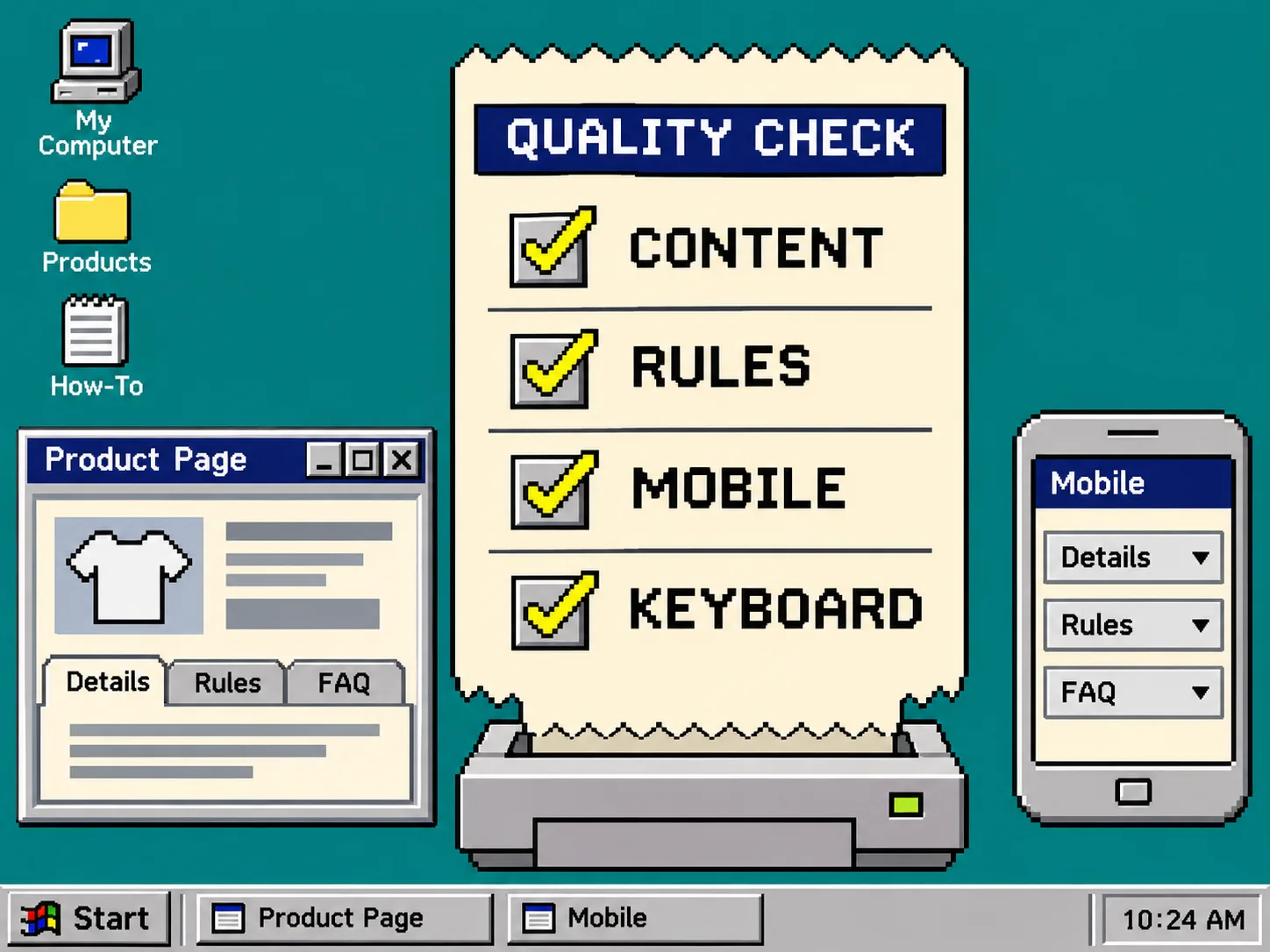
Open each test product in a private browser window and check this receipt before you publish the rule across the catalog:
- Content: the populated product shows the right value under the right label.
- Empty state: the missing value removes that tab or section rather than showing a blank box.
- Mobile: narrow the product-page column or use a phone to confirm the accordion labels are understandable.
- Keyboard: use Tab, Enter, and Space to reach and operate the control without a mouse.
Supra Tabs & Accordions includes keyboard support and reduced-motion handling, but your real labels, theme contrast, and placement still need a storefront check. For a closely related accessibility pass, see How to Make Shopify Size Charts Easier to Navigate With a Keyboard.
Troubleshooting: a section is still blank
Check the source value first. Open the specific product in Shopify and confirm the metafield or referenced entry actually has a value. A definition existing in Settings is not the same as a product value being populated.
Check the assignment rule next. A product can match a tag, collection, and manual selection at the same time. Use the app’s overlap warning and preview to identify the winning set.
Check the template last. Some products use an alternate product template. If the app block was added only to the default template, the alternate template needs its own deliberate placement.
Keep the rule useful as the catalog grows
A good product-detail system is not the one with the most tabs. It is the one where each visible label answers a real question for the product on screen. Start with a mixed three-product test, let missing optional data hide cleanly, and review assignment overlap before expanding the rule.
Install Supra Tabs & Accordions if you want to build that system without a per-product theme edit. Then add one new product with incomplete optional data as your final proof: the page should remain clear, useful, and free of empty sections.