How to Archive a Framer Site as Static Files Before Client Access Changes
If a client is changing teams, vendors, billing, or editor access, make a static archive while the published Framer site is still live. A static archive will preserve the public pages, delivered assets, fonts, and browser-side behavior, but it will not preserve the Framer editor, CMS editing workflow, submissions, or server-side services.
You need the site’s published URL, a place to keep the resulting ZIP, and permission to archive the client’s public site. This is a preservation task, not a replacement for an agreed hosting migration. The goal is a folder someone can inspect or deploy later, plus a short note describing what still depends on a service.
1. Record the published version before you export
Open the published site in a private browser window. Click the navigation, one page from each important section, the contact path, and a representative mobile view. Write down the exact public URL and today’s date in a small README.txt beside the future archive.
Then make a route list. It does not need to be fancy; it needs to catch the pages a simple homepage check misses:
| Include in the list | Why it matters |
|---|---|
| Homepage and top-level pages | Confirms the main navigation works outside the editor |
| One item from each collection | Confirms the public CMS-shaped route was captured |
| Campaign and legal pages | These are often linked from ads, emails, or the footer |
| Download and contact paths | These commonly point to a separate service |
This route list is more useful than a screenshot pile. If the owner later asks what existed on a particular day, you can compare a known URL set against the archive. For a broader handoff plan, use the static-files essentials checklist after this preservation pass.
2. Export the published Framer site into a separate archive folder
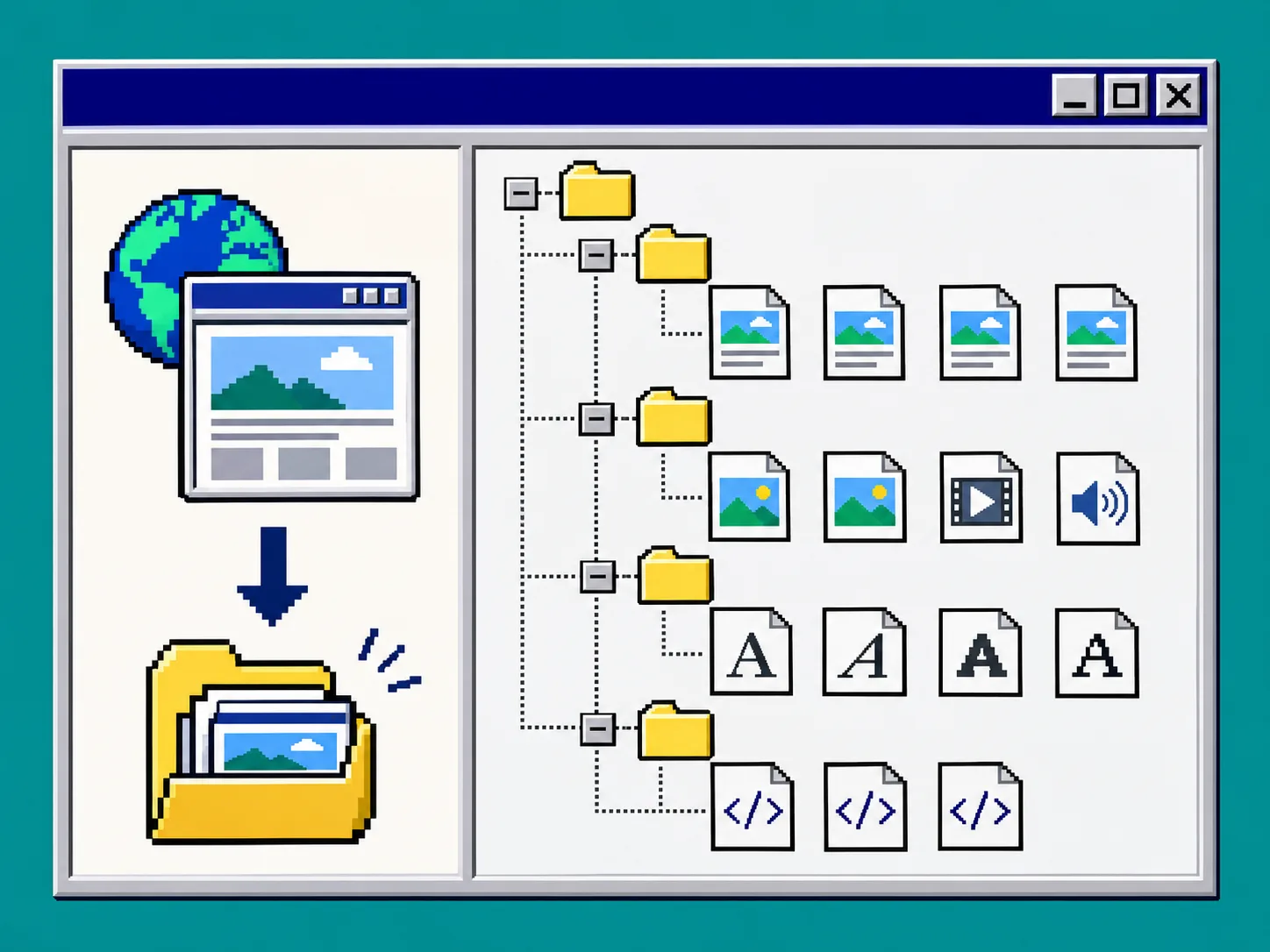
Use a Framer-aware exporter rather than assuming a page-saving extension has captured an app-style site. ExFlow’s Framer exporter is designed to render a published Framer URL in a browser and export static HTML, CSS, JavaScript, fonts, media, and discovered public pages. It can produce a ZIP or deploy an export to Git, S3, FTP, or ExFlow Hosting.
In ExFlow, paste the published Framer URL. Leave CSS, JavaScript, images/media, and all pages enabled. Use .html page extensions only if the destination you have chosen specifically needs them; do not change URL conventions merely because an option exists. Start the export, then download the ZIP when the run finishes.
Create a dated folder before unzipping it:
framer-archive/
  2026-11-27-client-site/
    original-export.zip
    site/
    README.txt
Keep original-export.zip untouched. Unzip a working copy into site/. That one rule gives you a clean original if a later test, cleanup, or upload changes a file.
3. Test the files through a local web server
Do not judge a static archive by double-clicking index.html. Browser security rules can hide path and script problems when files open directly. From the archive folder, run:
python3 -m http.server 8080 --directory ./site
Open http://localhost:8080/ and test every URL in the route list. You should see pages, images, fonts, and ordinary interactions load as they did on the public version. Check a narrow browser window too; a static copy can be complete yet still reveal an asset or layout problem at a smaller breakpoint.
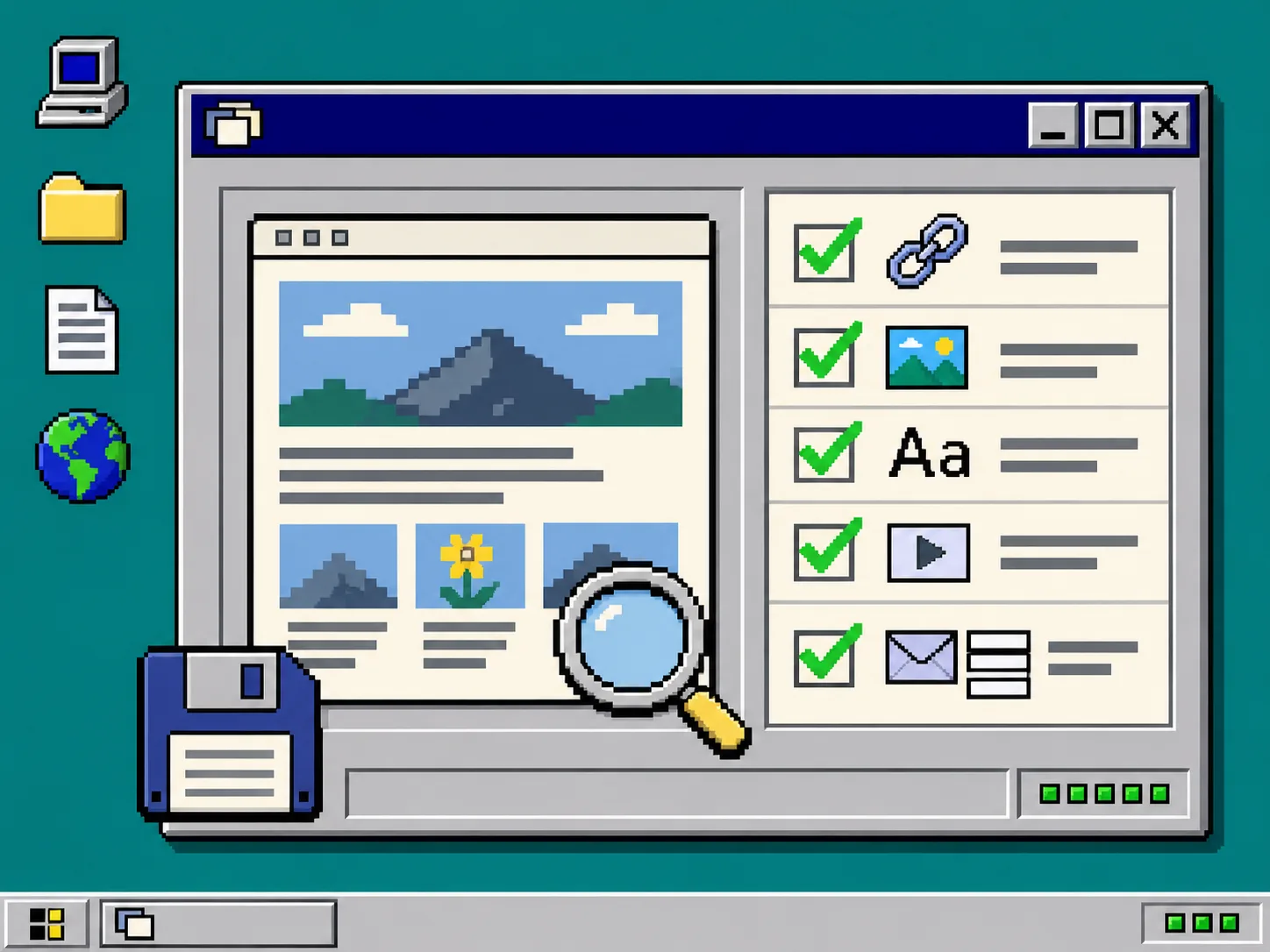
Use this five-row receipt in README.txt:
[ ] route opens
[ ] navigation target opens
[ ] hero and content images load
[ ] custom font or fallback is readable
[ ] motion and interactive controls behave as expected
A green check means the browser result matched the published site at archive time. A note means “investigate,” not “ignore.” If the archive is destined for a public cutover, extend this with the Framer export QA pass before changing DNS. For a wider static-copy diagnostic sequence, keep the Framer static-export check nearby; use it to document a defect, not to replace the route receipt.
4. Separate static files from live services
A static copy is a snapshot of what the browser receives. It is not a replacement for every capability around the site. Mark these items explicitly in the README:
| If the site uses this | Put this in the archive note |
|---|---|
| Contact form | Where submissions currently go and the replacement endpoint required for a future static site |
| Analytics or pixels | The script ID, owner, and consent requirements; do not blindly copy tracking to a new host |
| CMS editing | The archive contains rendered public routes, not an editable content database |
| Member-only or server-side feature | The feature owner and the rebuild decision still required |
This prevents the most expensive misunderstanding: treating an attractive static folder as a full operational clone. If forms and analytics need to continue after a move, follow the separate forms-and-analytics replacement guide rather than publishing the snapshot and hoping those services follow it.
5. Store the archive in two deliberate locations
Put the untouched ZIP in a restricted backup location, then place the working folder in a versioned location such as a private Git repository or approved file storage. The second copy helps a technical team review the export without touching the preservation original.
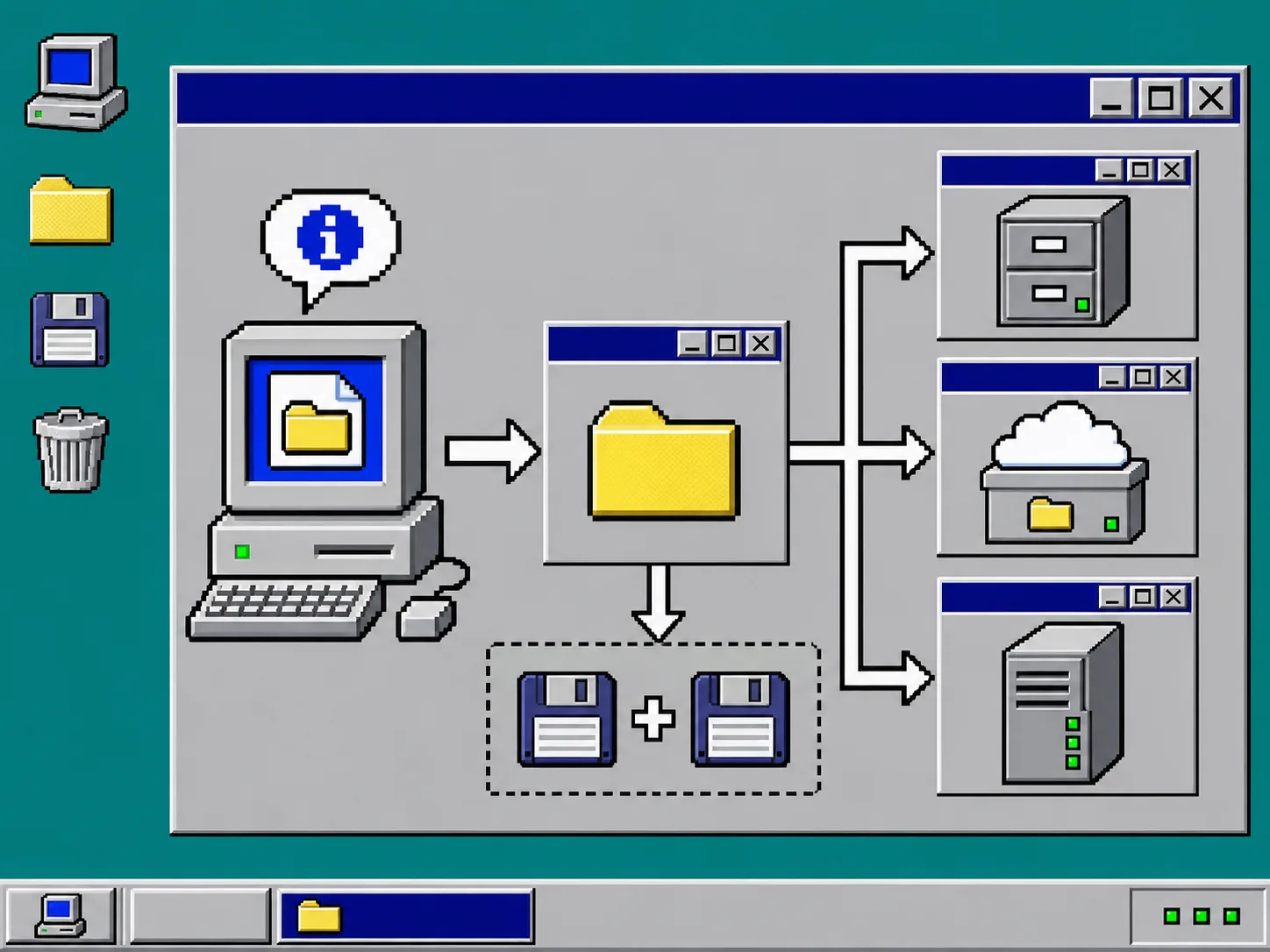
For a future deployment, ExFlow can sync to Git, S3, or FTP; that is useful only after the archive has passed its route and service checks. A backup copy and a production deployment have different jobs. Keep the archive dated and immutable; treat deployment as a separate, reviewable change.
ExFlow also has dedicated exporters for Webflow and Squarespace, but keep this archive focused on the Framer URL and public behavior you are preserving today.
Troubleshooting: the archive looks right but a feature is missing
- A form opens but no message arrives. That is expected until you configure an endpoint outside Framer. Record the current destination and choose the replacement before any public cutover.
- A page opens online but not locally. Recheck the route list and re-export while the public page is reachable. Do not invent a redirect to conceal a missing page.
- Fonts or animations differ. Check the local-server test first, then confirm the export includes the referenced files. Keep a screenshot and note the failing route for comparison.
- The archive is usable, but nobody knows its scope. Add one sentence to
README.txt: “Public-site snapshot from YYYY-MM-DD; editor, submissions, and server-side services are not included.”
Keep the snapshot useful
The next action is simple: export the live Framer URL, preserve the untouched ZIP, test the route receipt locally, and document the services that remain live. That gives the client a defensible static archive before access changes—and gives the next team facts instead of a recovery project.